The length of time for which the request is valid can also be set here. The default setting is 2 hours.
### Add account recovery rights to a user 1. Go to your **WALLIX ONE IDaaS admin page** 2. Go to **Users** and select an existing user 3. Click **Edit** then **Add an attribute** 4. Provide the following attribute: **name**: recovery\_account **kind**: bool **value**: true [](https://vault-doc.wallix.com/uploads/images/gallery/2025-01/iM5image.png) When this user will log in the Enterprise Vault user app, and if he is the first one with recovery rights(data or account), he will have the following message: [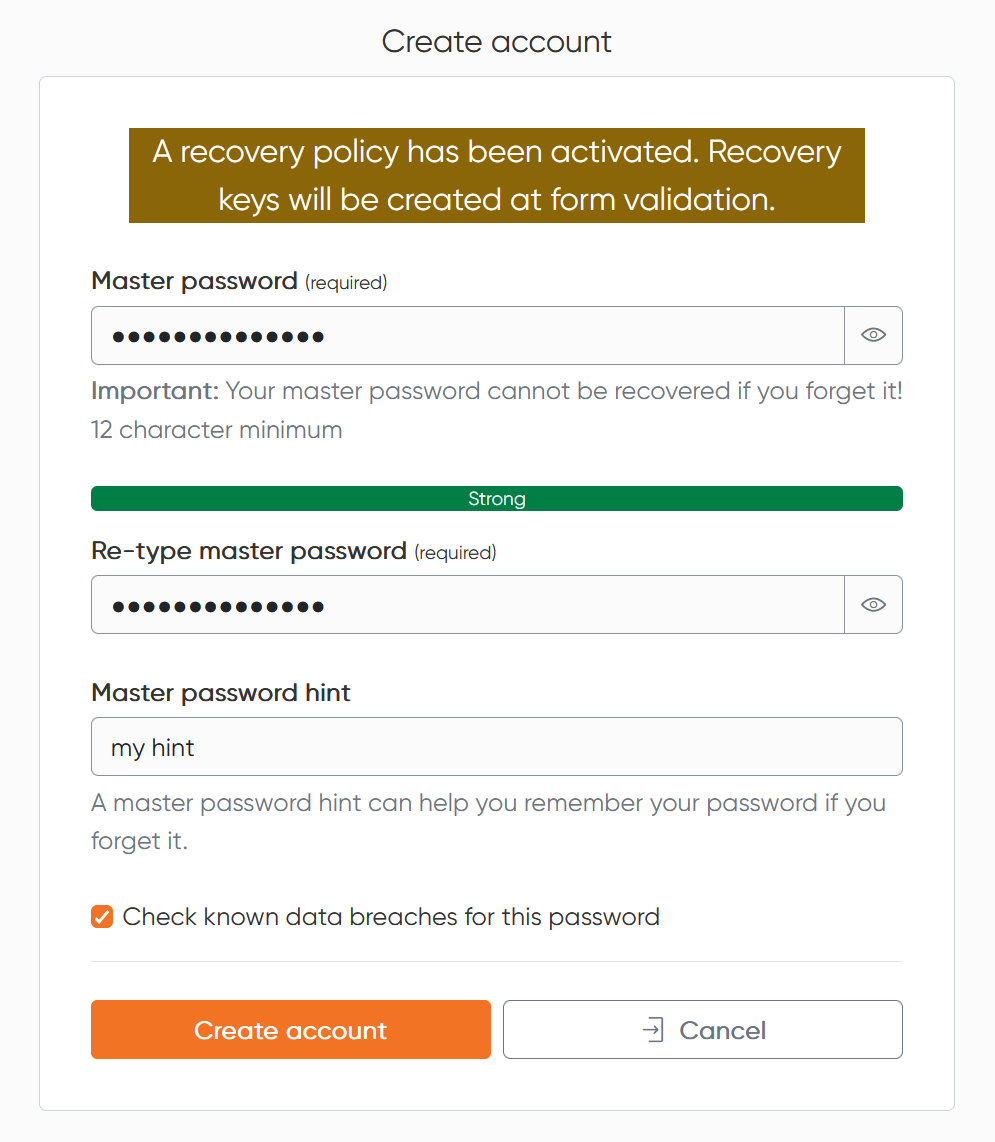](https://vault-doc.wallix.com/uploads/images/gallery/2025-01/BxLimage.png) In fact, specific encryption keys are required to carry out recovery operations. These are created when the first admin is authenticated. Consequently, for subsequent admins, an admin who has the keys must share them. 1. Go to your **Enterprise Vault user app** with an admin who has the recovery key 2. Go to **Settings**, then **Recovery keys** 3. Click **Activate access** for the new admins [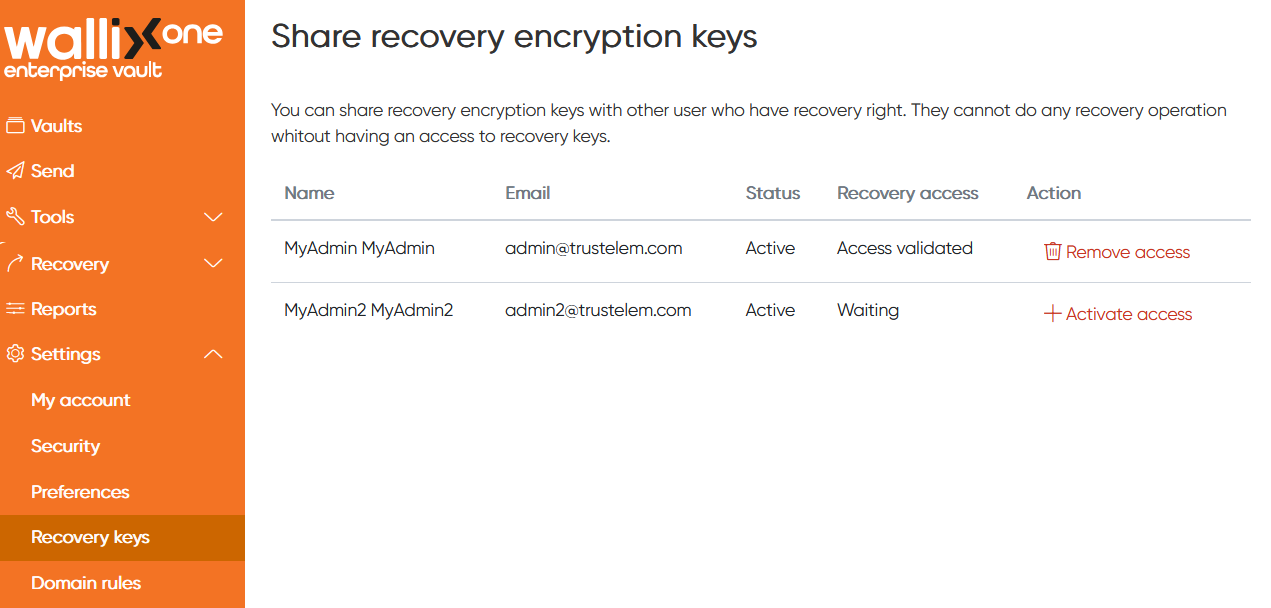](https://vault-doc.wallix.com/uploads/images/gallery/2025-01/5uEimage.png) ### Workflow #### User requests master password reset - The user clicks **Start a password reset procedure** [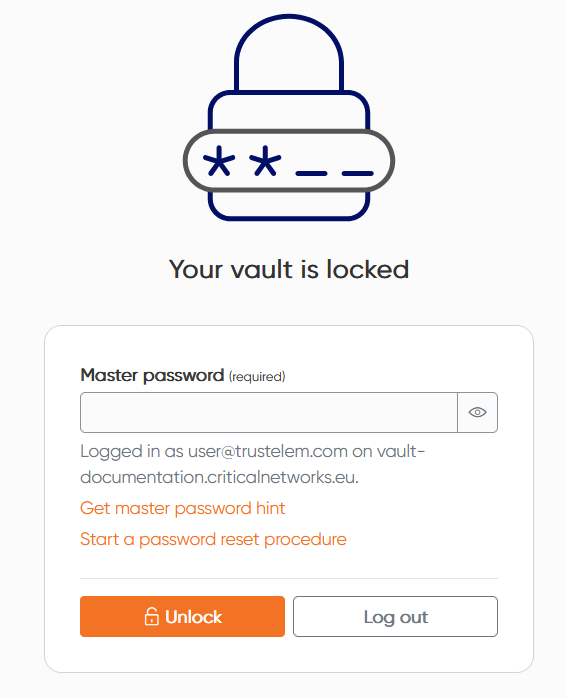](https://vault-doc.wallix.com/uploads/images/gallery/2025-01/686image.png)If the button "Start a password reset procedure" is not displayed, causes can be: - The "recovery account" option is not enabled in the admin page - No admin has the right "recovery account" - The user has not been logged in since the recovery account option was activated.
- Then he defines a reset code, which will be used later to complete the procedure [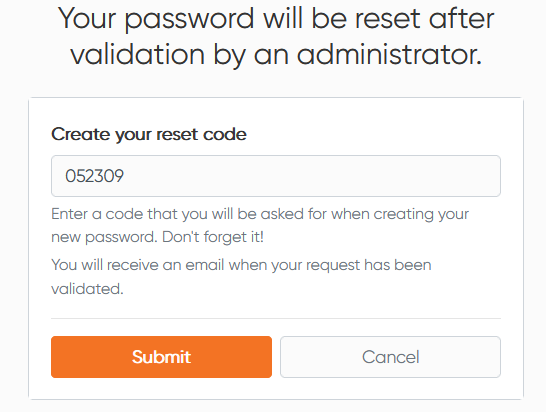](https://vault-doc.wallix.com/uploads/images/gallery/2025-01/IkCimage.png) - Finally, he receives a confirmation email about his request #### Admin accepts reset - The admin is alerted by email - He goes to his **Enterprise Vault user app** - Then he clicks **Recovery**, an **Approbation requests** - He can click **Approve** or **Dismiss** [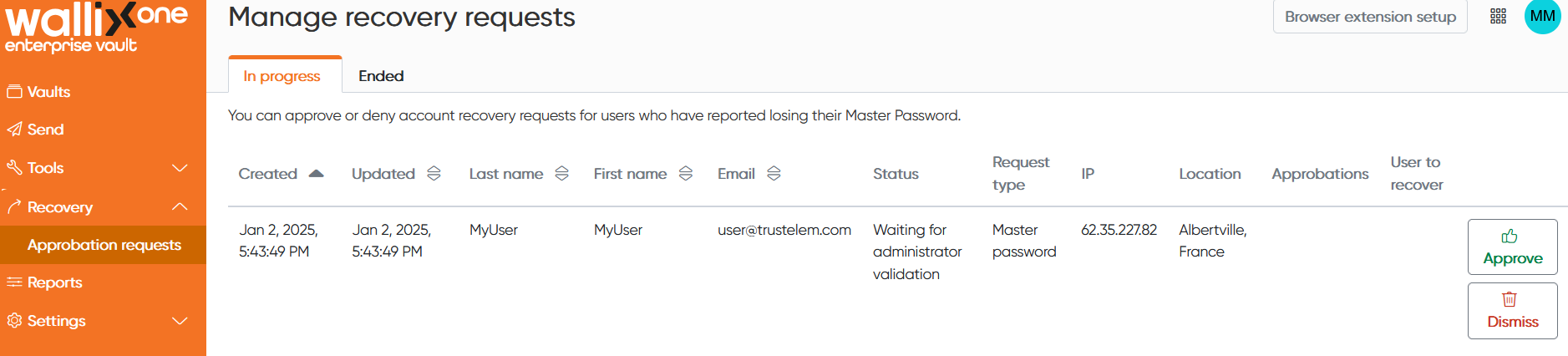](https://vault-doc.wallix.com/uploads/images/gallery/2025-01/Nedimage.png) #### User sets new master password - When the master password reset request is validated, the user receive an email with a reset link - He clicks the link, and arrives on the reset page - He provides the initial reset code - He can define the new master password [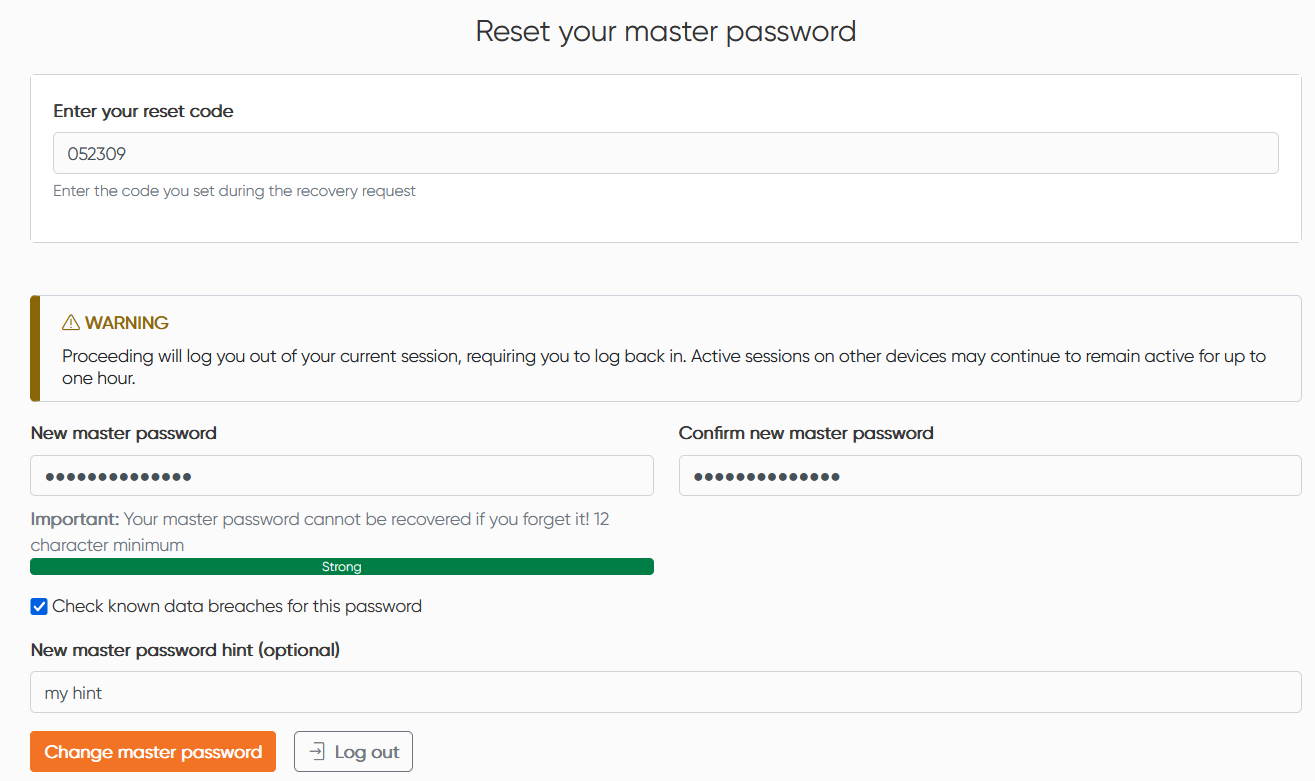](https://vault-doc.wallix.com/uploads/images/gallery/2025-01/ownimage.png)