The point is to recover a secret which is no longer accessible due to the owner's unavailability. Consequently, in this mode it is only possible to copy a personal secret's identifier, a personal secret's password, or to export the personal vault. No other action is possible.
There are 4 prerequisites: - Data recovery must be enabled in the administration page - At least one user must have data recovery rights. - At least one user must have the rights to manage data recovery quorum. - The quorum must be defined. The workflow will be as follows: 1. An admin requests the access to a specific user account 2. The quorum members are notified and accept the request 3. The admin is notified and reload his user app: he has access to the user personal itemsShared Vaults are not accessible through data recovery.
### Enable Data recovery 1. Go to the **Enterprise Vault admin app** 2. Go to **Settings** 3. Enable the line **Authorize data recovery** 4. Click **Save** button [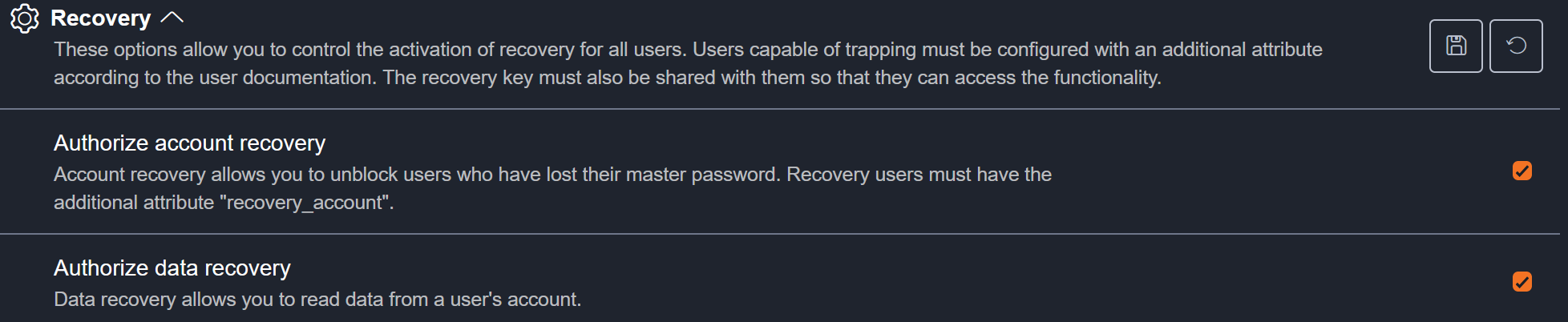](https://vault-doc.wallix.com/uploads/images/gallery/2025-01/3HSimage.png)The length of time for which the request is valid when accepted can also be set here. The default setting is 12 hours.
### Add data recovery rights to a user 1. Go to your **WALLIX ONE IDaaS admin page** 2. Go to **Users** and select an existing user 3. Click **Edit** then **Add an attribute** 4. Provide the following attribute: **name**: recovery\_data **kind**: bool **value**: true [](https://vault-doc.wallix.com/uploads/images/gallery/2025-01/uNDimage.png) When this user will log in the Enterprise Vault user app, and if he is the first one with recovery rights (data or account), he will have the following message: [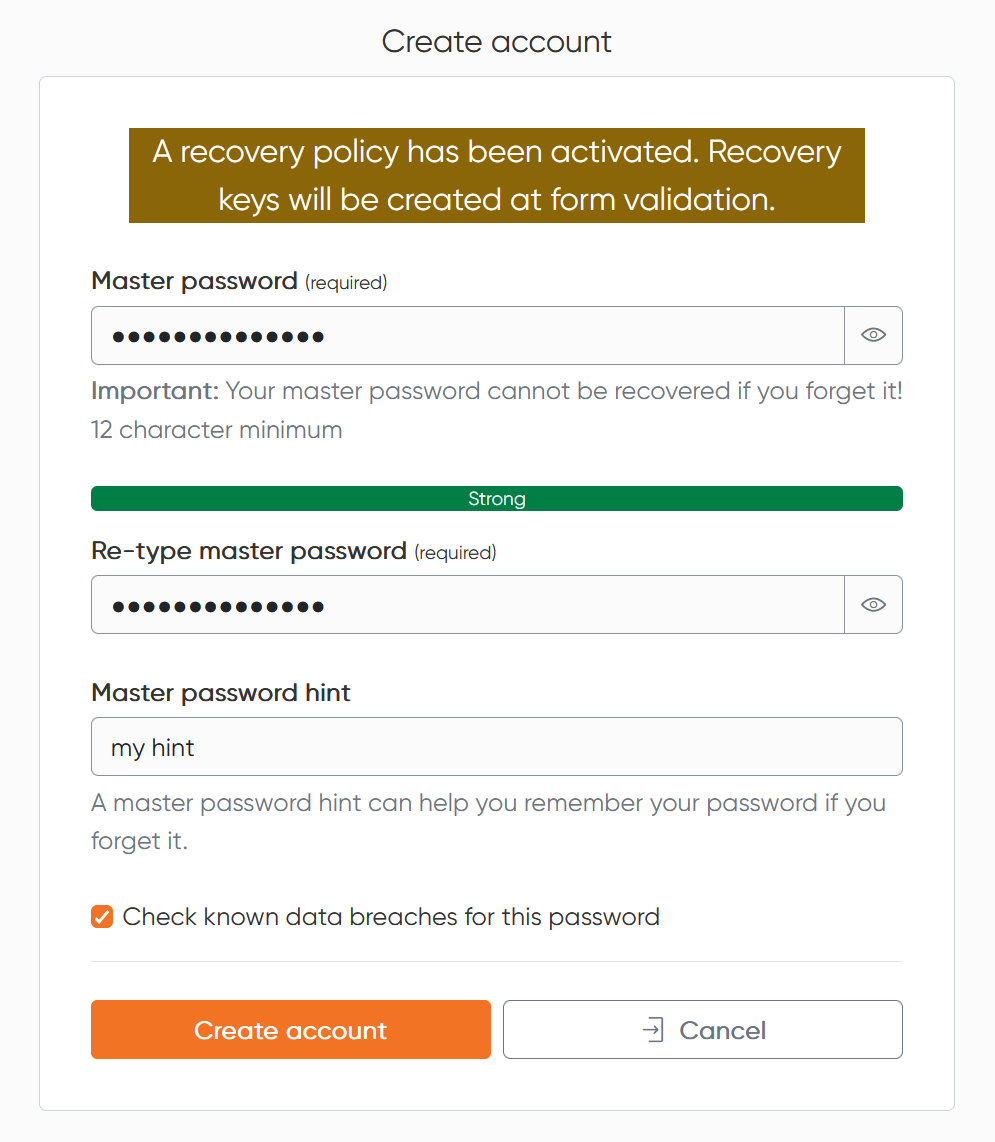](https://vault-doc.wallix.com/uploads/images/gallery/2025-01/BxLimage.png) In fact, specific encryption keys are required to carry out recovery operations. These are created when the first admin is authenticated. Consequently, for subsequent admins, an admin who has the keys must share them. 1. Go to your **Enterprise Vault user app** with an admin who has the recovery key 2. Go to **Settings**, then **Recovery keys** 3. Click **Activate access** for the new admins [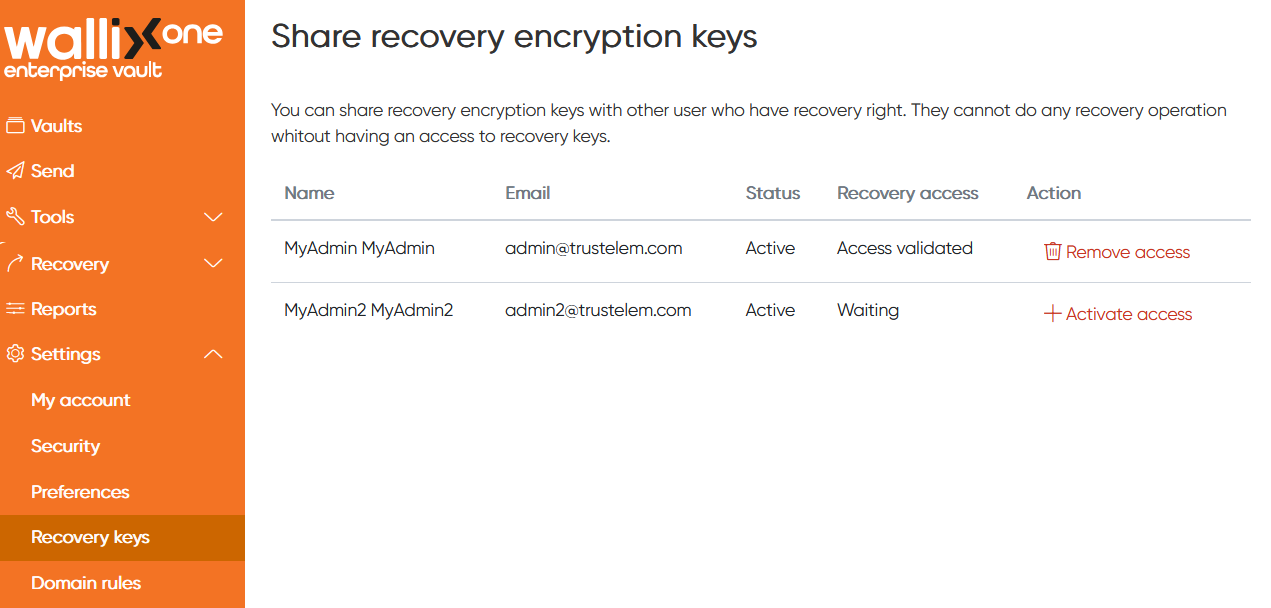](https://vault-doc.wallix.com/uploads/images/gallery/2025-01/5uEimage.png) ### Add quorum rights to a user 1. Go to your **WALLIX ONE IDaaS admin page** 2. Go to **Users** and select an existing user 3. Click **Edit** then **Add an attribute** 4. Provide the following attribute: **name**: recovery\_data\_workflow **kind**: bool **value**: true [](https://vault-doc.wallix.com/uploads/images/gallery/2025-01/RF0image.png) ### Define the quorum 1. Go to your **Enterprise Vault user app** with an admin who has the quorum rights 2. Go to **Settings**, then **Approvers groups** 3. Click **Add group** 4. Choose a name and a quorum number (number of validation needed to accept the request), then click **Save** [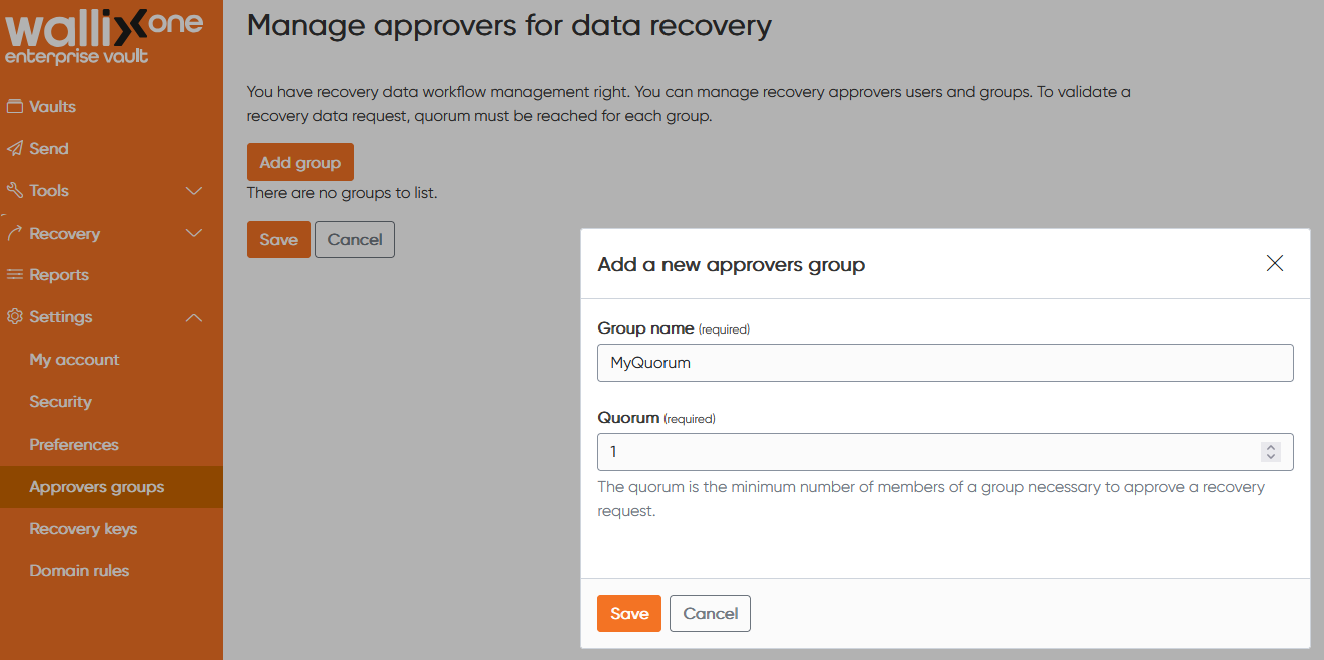](https://vault-doc.wallix.com/uploads/images/gallery/2025-01/K5gimage.png) 5. Click **+** on the Users column, then provide the approvers email address then click **Validate** Press "Enter" if you want to add multiple approvers [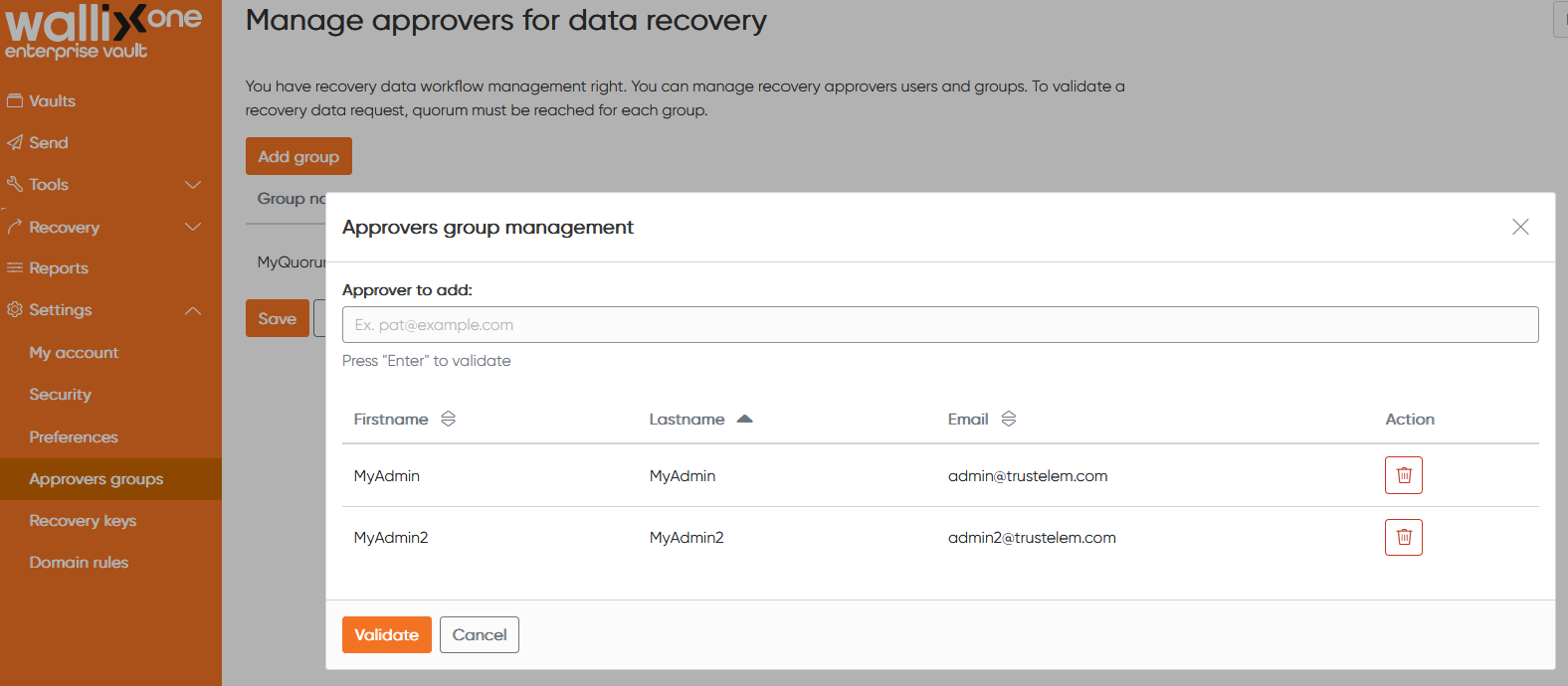](https://vault-doc.wallix.com/uploads/images/gallery/2025-01/dxaimage.png) 6. Click the **Group name** the **Quorum** or the **Users** if you need to change an information [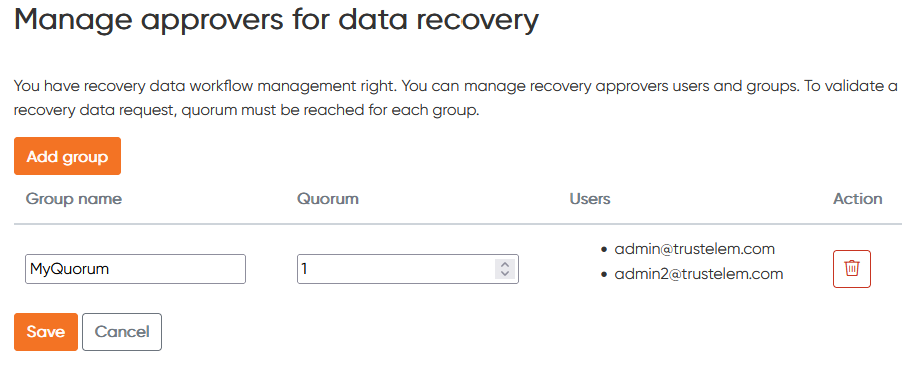](https://vault-doc.wallix.com/uploads/images/gallery/2025-01/bRCimage.png) 7. Click **Save** ### Workflow #### The admin requests the access to a specific user account - The admin goes to his **Enterprise Vault user app** - He clicks on **Recovery** then **Data recovery** - He selects a user, then click **Send** - The request appears in the history [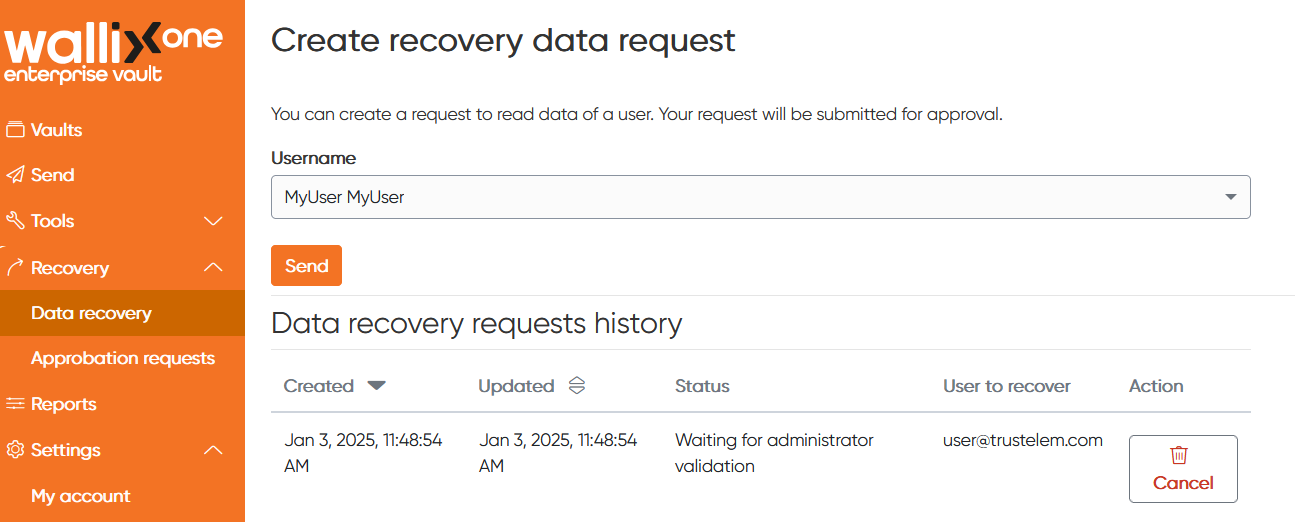](https://vault-doc.wallix.com/uploads/images/gallery/2025-01/HpKimage.png) #### The quorum members are notified and accept the request - A quorum user goes to his **Enterprise Vault user app** - He clicks **Recovery** then **Approbation requests** - He clicks **Approve** or **Dismiss** [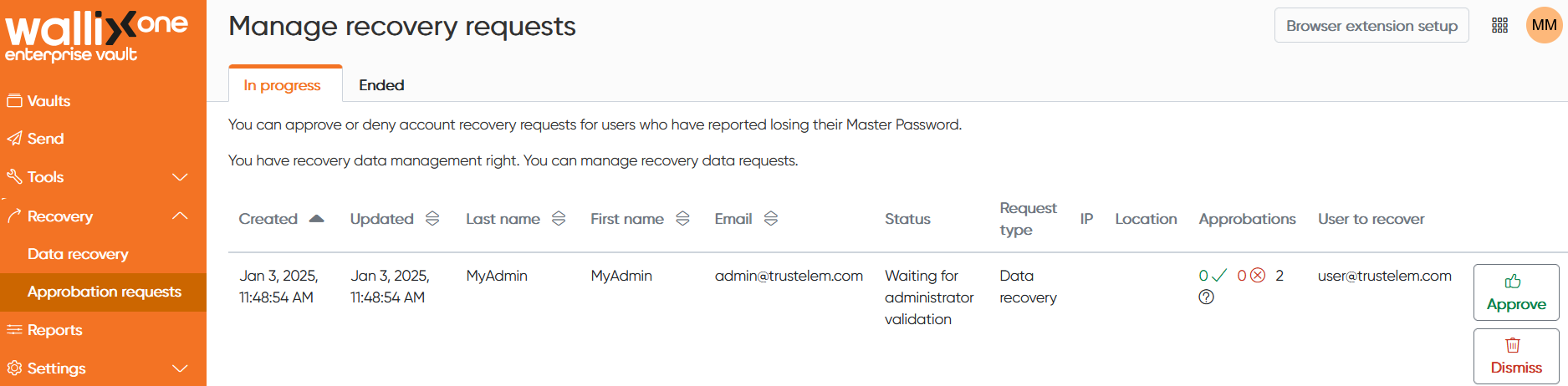](https://vault-doc.wallix.com/uploads/images/gallery/2025-01/xtpimage.png) #### The admin has access to the user personal items - The admin **logout** from his web client then perform a new authentication - He clicks his profile - He selects the user account [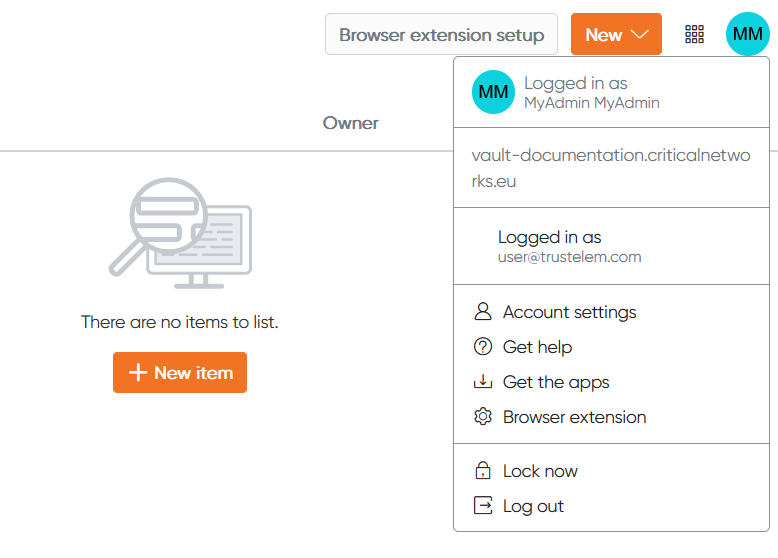](https://vault-doc.wallix.com/uploads/images/gallery/2025-01/7Hcimage.png) - He has access to the user's personal items [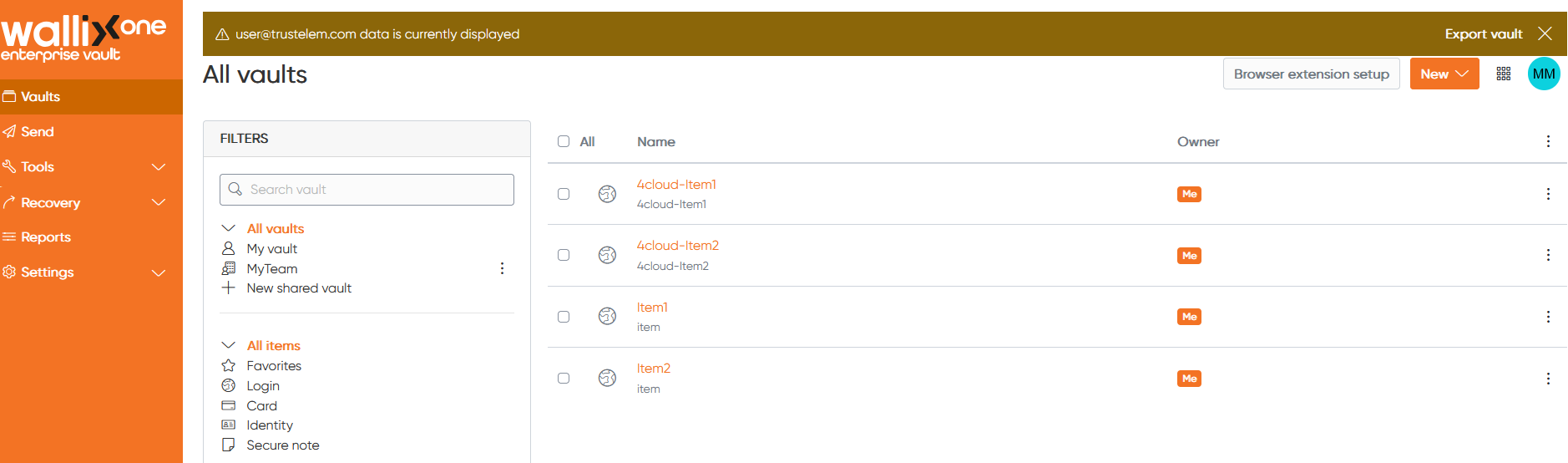](https://vault-doc.wallix.com/uploads/images/gallery/2025-01/bK0image.png) As mentioned in the introduction, it is only possible to retrieve secrets from the personal vault. Any other action will display an error, which indicates that it is prohibited.