# Entreprise Vault - User

# Quick start guide

The aim of this quick-start user guide is to present the main actions that users can perform with Enterprise Vault.

#### Onboarding

The administrators are in charge of creating user accounts first.   
Two scenarios are possible:

- If user accounts are imported, users will use their usual login and so the administrators will only provide access information (Vault URL: <span lang="EN-US">https://vault-**your\_domain**.trustelem.com</span>).
- If user accounts have been specifically created for Enterprise Vault, users will receive an email with a link to create a password.

Then, if the admins have enabled multi-factor authentication, users will have to perform enrolment on first authentication.

Finally, when accessing Enterprise Vault for the first time, users must define a master password, which will be required for each new data decryption.

#### Access to Enterprise Vault

To access their vault, users must perform 2 actions:

- [Authenticate themselves on WALLIX ONE IDaaS using their login, password and optionally 2nd factor.](https://vault-doc.wallix.com/books/entreprise-vault-user/page/personal-vault#bkmrk-authentication)
- [Provide the master password needed to decrypt their data.](https://vault-doc.wallix.com/books/entreprise-vault-user/page/personal-vault#bkmrk-authentication)

#### Available clients

These actions, followed by access to the data, can be carried out on 3 types of client:

- The browser, via a specific URL
- Browser plugins (Chrome, Firefox, Edge via the Chrome plugin)
- Mobile applications

#### Type of vaults

Users have access to two types of vault:

- Their **personal vault**, to which only them have access\*.
- **Shared vaults**, enabling secrets to be shared between different people and teams.

*\*Enterprise Vault has a recovery mode which, if activated, can give administrators access to personal secrets.*

#### Personal vault: possible actions

[Link for personal vault documentation](https://vault-doc.wallix.com/books/entreprise-vault-user/page/personal-vault)

Users can perform the following actions on their personal vault:

- [Create login, credit card, identity or note secrets](https://vault-doc.wallix.com/books/entreprise-vault-user/page/personal-vault#bkmrk-create-%2F-edit-%2F-dele)
- [Add attachments to secrets](https://vault-doc.wallix.com/books/entreprise-vault-user/page/personal-vault#bkmrk-manage-existing-item)
- Organize their personal vault [with folders](https://vault-doc.wallix.com/books/entreprise-vault-user/page/personal-vault#bkmrk-folders) or with their [favorites items](https://vault-doc.wallix.com/books/entreprise-vault-user/page/personal-vault#bkmrk-favorites)
- [Search specific secrets](https://vault-doc.wallix.com/books/entreprise-vault-user/page/personal-vault#bkmrk-search-items)
- [Generate secure links to share text or files](https://vault-doc.wallix.com/books/entreprise-vault-user/page/personal-vault#bkmrk-send-management)
- [Generate passwords and identifiers](https://vault-doc.wallix.com/books/entreprise-vault-user/page/personal-vault#bkmrk-generator)
- [Import or export secrets](https://vault-doc.wallix.com/books/entreprise-vault-user/page/personal-vault#bkmrk-import-%2F-export-item)
- [Generate security reports on their secrets](https://vault-doc.wallix.com/books/entreprise-vault-user/page/personal-vault#bkmrk-reports)
- Configure account settings  
    
    - [Clean up account content](https://vault-doc.wallix.com/books/entreprise-vault-user/page/personal-vault#bkmrk-purge-the-account)
    - [Change master password](https://vault-doc.wallix.com/books/entreprise-vault-user/page/personal-vault#bkmrk-change-authenticatio)
    - [Set language and theme preferences](https://vault-doc.wallix.com/books/entreprise-vault-user/page/personal-vault#bkmrk-preferences)
    - [Set timeout parameters](https://vault-doc.wallix.com/books/entreprise-vault-user/page/personal-vault#bkmrk-preferences)

#### Shared vault: possible actions

[Link for share vault documentation](https://vault-doc.wallix.com/books/entreprise-vault-user/page/shared-vault)

Users can perform the following actions\* on the shared vaults:

- [Access the Shared Vault Console](https://vault-doc.wallix.com/books/entreprise-vault-user/page/shared-vault#bkmrk-access-the-shared-va)
- [Create a shared vault](https://vault-doc.wallix.com/books/entreprise-vault-user/page/shared-vault#bkmrk-create)
- [Create login, credit card, identity or note secrets, with or without attachments](https://vault-doc.wallix.com/books/entreprise-vault-user/page/shared-vault#bkmrk-add-%2F-edit-%2F-delete)
- [Organize shared vault with collections](https://vault-doc.wallix.com/books/entreprise-vault-user/page/shared-vault#bkmrk-manage-shared-vault--1)
- [Search specific secrets](https://vault-doc.wallix.com/books/entreprise-vault-user/page/shared-vault#bkmrk-search)
- [Define members and their roles](https://vault-doc.wallix.com/books/entreprise-vault-user/page/shared-vault#bkmrk-members)
- [Generate security reports for shared vault secrets](https://vault-doc.wallix.com/books/entreprise-vault-user/page/shared-vault#bkmrk-reports)
- [Import or export data in the shared vault](https://vault-doc.wallix.com/books/entreprise-vault-user/page/shared-vault#bkmrk-import-%2F-export)
- Set shared vault parameters  
    
    - [Rename the shared vault](https://vault-doc.wallix.com/books/entreprise-vault-user/page/shared-vault#bkmrk-rename)
    - [Clean shared vault](https://vault-doc.wallix.com/books/entreprise-vault-user/page/shared-vault#bkmrk-purge)

*\*Obviously, depending on the user's role in the shared vault, some of these actions will not be possible for users*

#### Browser plugin: specific actions

[Link for browser plugin documentation](https://vault-doc.wallix.com/books/entreprise-vault-user/page/browser-plugin)

Finally, some actions are specific to the browser plugins.  
In fact, they enable more advanced integration with the browser, including:

- Copy login, password or 2nd factor via right-click in the browser
- Password generation via a right-click in the browser
- Automatically fill in logins

# Personal vault

As a reminder, you have access to two types of vault:

- Your personal vault, to which only you have access.
- Shared vaults, enabling secrets to be shared between different people and teams.

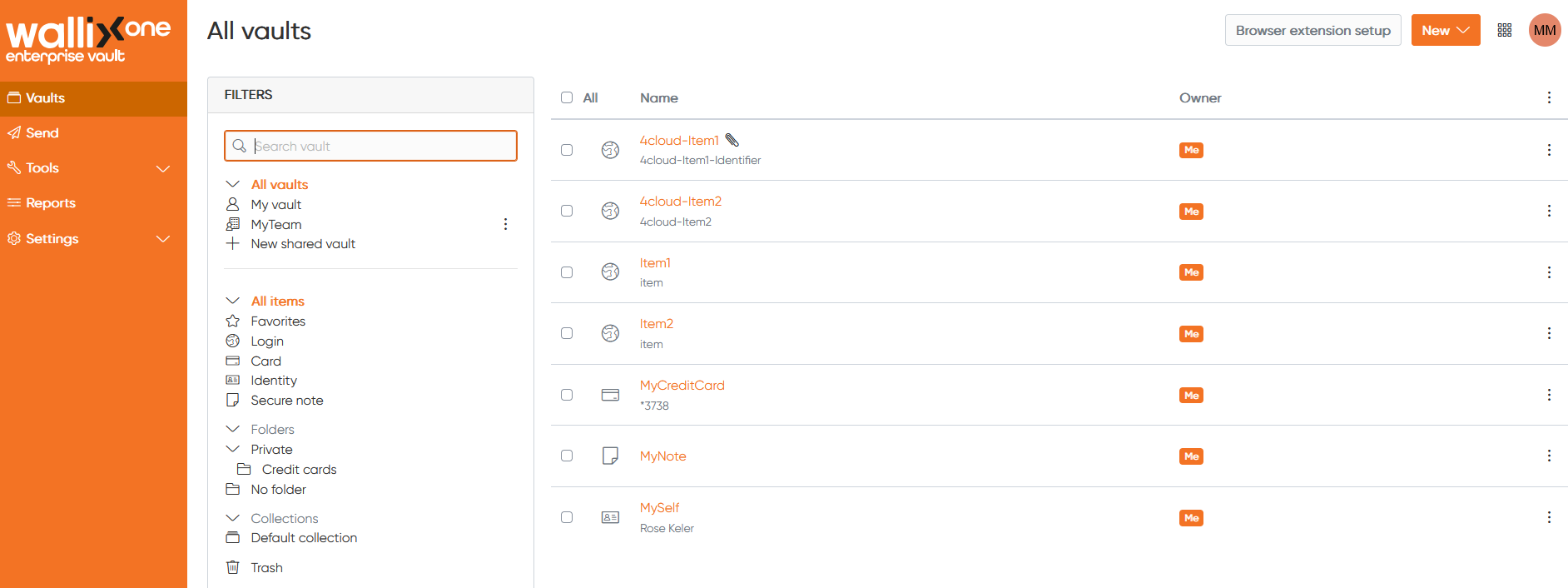
On this page, we'll deal with generic information about using Enterprise Vault, like the authentication, then focus on your <span style="text-decoration: underline;">**personal vault**</span>.

For simplicity's sake, the screenshots are taken from the **web client**, but most of the actions described can be performed on mobile or plugin clients.

For more information on shared vaults and plug-ins, please consult the following documentations:

- [Link for share vault documentation](https://vault-doc.wallix.com/books/entreprise-vault-user/page/shared-vault)
- [Link for browser plugin documentation](https://vault-doc.wallix.com/books/entreprise-vault-user/page/browser-plugin)

### Account management

#### Authentication, lock &amp; log out

To access to your vault, you must perform 2 actions:

- Authenticate with WALLIX ONE IDaaS using your login, password and optionally 2nd factor.  
      
    [![image.png](https://vault-doc.wallix.com/uploads/images/gallery/2025-01/scaled-1680-/ZvUimage.png)](https://vault-doc.wallix.com/uploads/images/gallery/2025-01/ZvUimage.png)
- Provide your master password needed to decrypt your data.  
      
    [![image.png](https://vault-doc.wallix.com/uploads/images/gallery/2025-01/scaled-1680-/46Cimage.png)](https://vault-doc.wallix.com/uploads/images/gallery/2025-01/46Cimage.png)

<p class="callout info">When accessing the service for the first time, or during a reset procedure, you must first define a master password.</p>

<p class="callout info">If a you have forgotten your master password, you can click "Get master password hint" to obtain the hint defined at the same time as your master password.   
The reset case will be dealt with later.</p>

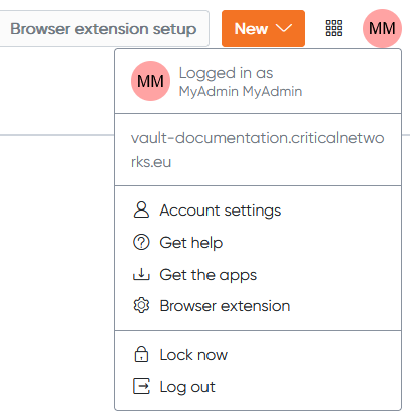
**Lock =&gt; provide the master password**  
If once authenticated you refresh the page or clicks "Lock now", you will have to provide your master password again.

**Log out =&gt; perform a complete authentication (login, password and master password)**  
If you click "Log out", you will have to perform a full authentication: login, password and master password.

[![image.png](https://vault-doc.wallix.com/uploads/images/gallery/2025-01/scaled-1680-/SFQimage.png)](https://vault-doc.wallix.com/uploads/images/gallery/2025-01/SFQimage.png)
<p class="callout info">Locking or logging out can also occur after a period of inactivity.</p>

#### Manage your authentication secrets

There are 3 secrets linked to the authentication which can be managed: the password and 2nd factor for WALLIX ONE IDaaS, and the master password for Enterprise Vault.  
Each one can be changed if you know the current secret, or reset if you don't.

<span style="text-decoration: underline;">**Reset WALLIX ONE IDaaS password**</span>

If you don't have access to your previous password:

1. Access your WALLIX ONE IDaaS dashboard (like your\_company@trustelem.com)
2. Click **Forgot your password?**
3. Enter the captcha then click **Ask your administrator for a reset code**
4. Your admin will provide a code or a link to reset your password, or a temporary password

<span style="text-decoration: underline;">**Change WALLIX ONE IDaaS password**</span>

If you still have access to your previous password:

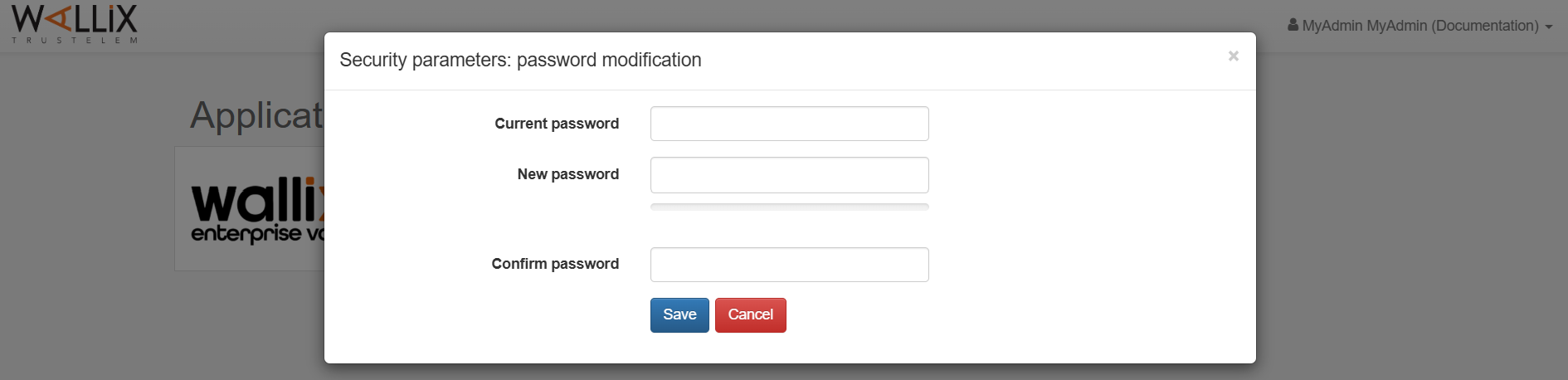
1. Access your WALLIX ONE IDaaS dashboard (like your\_company@trustelem.com) and log in
2. Click your profile then **Security parameters**
3. Click the icon at the end of the line **Password**
4. Change your password

[![image.png](https://vault-doc.wallix.com/uploads/images/gallery/2025-01/scaled-1680-/JYjimage.png)](https://vault-doc.wallix.com/uploads/images/gallery/2025-01/JYjimage.png)
<p class="callout info">If you authenticate through your company Identity Provider (Microsoft, Okta...) then you can't change your password with WALLIX ONE IDaaS.</p>

<span style="text-decoration: underline;">**Reset WALLIX ONE IDaaS 2nd factor**</span>

If you don't have access and will not recover your previous 2nd factor (for example, if your phone is broken), contact directly your admins: they will generate a new enrollment link, for a new 2nd factor.

<span style="text-decoration: underline;">**Ask for a temporary WALLIX ONE IDaaS 2nd factor**</span>

If you're temporarily unable to access your 2nd factor (for example, if you've forgotten your phone), you can request an rescue code.

1. Access your WALLIX ONE IDaaS dashboard (like your\_company@trustelem.com) and provide your login and password.
2. On the 2nd factor page, click **Use an alternative method** then **Ask for a rescue code**
3. Your admin will provide a code to perform the authentication

<span style="text-decoration: underline;">**Change WALLIX ONE IDaaS 2nd factor**</span>

If you still have access to your previous 2nd factor:

1. Access your WALLIX ONE IDaaS dashboard (like your\_company@trustelem.com) and log in
2. Click your profile then **Security parameters**
3. If you didn't use multi-factor authentication to get here, you'll need to click the green button to verify your 2nd factor
4. Click the **+** button for a 2nd factor, then perform the enrollment
5. Optionally, you can delete the previous 2nd factor

[![image.png](https://vault-doc.wallix.com/uploads/images/gallery/2025-01/scaled-1680-/m6Zimage.png)](https://vault-doc.wallix.com/uploads/images/gallery/2025-01/m6Zimage.png)
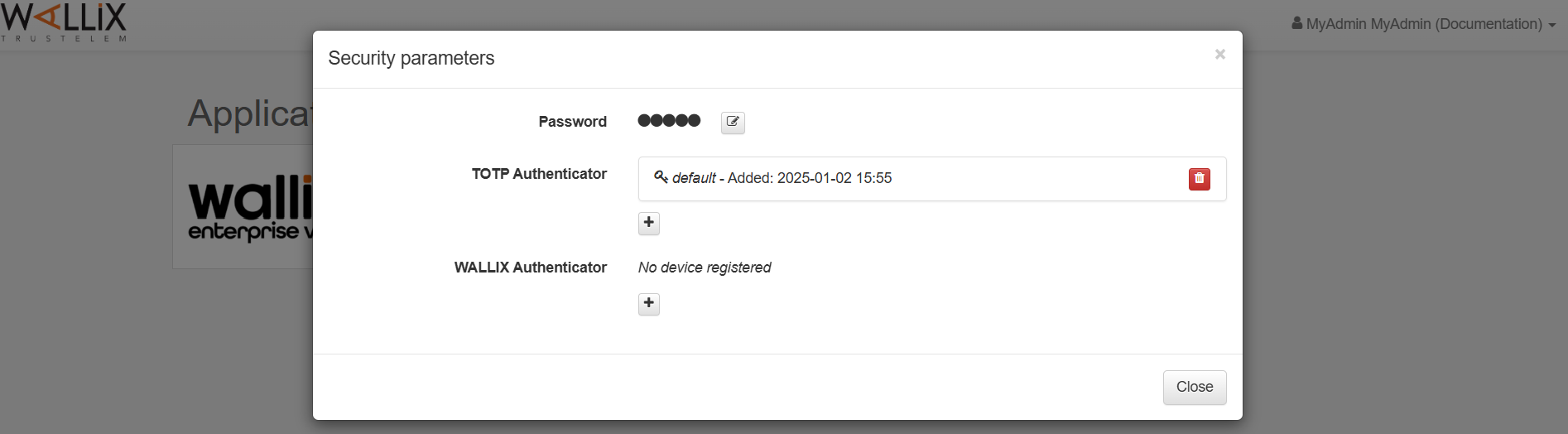
<p class="callout info">This feature can be disabled by your company.   
If you don't have a **+** button, then you have to contact your administrators and they will generate a new enrollment link.</p>

<span style="text-decoration: underline;">**Reset Enterprise Vault master password**</span>

If you don't have access to your previous master password:

1. Go to your Enterprise Vault login page and click **Start a password reset procedure  
      
    [![image.png](https://vault-doc.wallix.com/uploads/images/gallery/2025-01/scaled-1680-/6WZimage.png)](https://vault-doc.wallix.com/uploads/images/gallery/2025-01/6WZimage.png)**
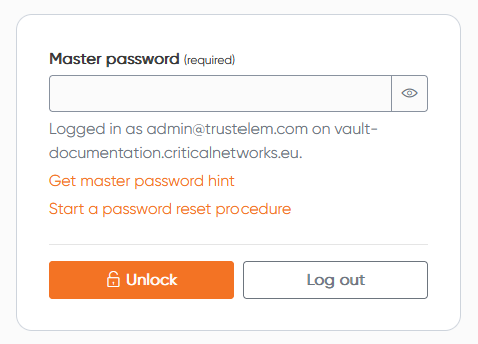
2. Define a 6 digits code, and don't loose it!
3. Wait for the admins to validate your request: after that you will be notified by email
4. Click the link on the email, then provide your code and define your new master password

[![image.png](https://vault-doc.wallix.com/uploads/images/gallery/2025-01/scaled-1680-/ownimage.png)](https://vault-doc.wallix.com/uploads/images/gallery/2025-01/ownimage.png)
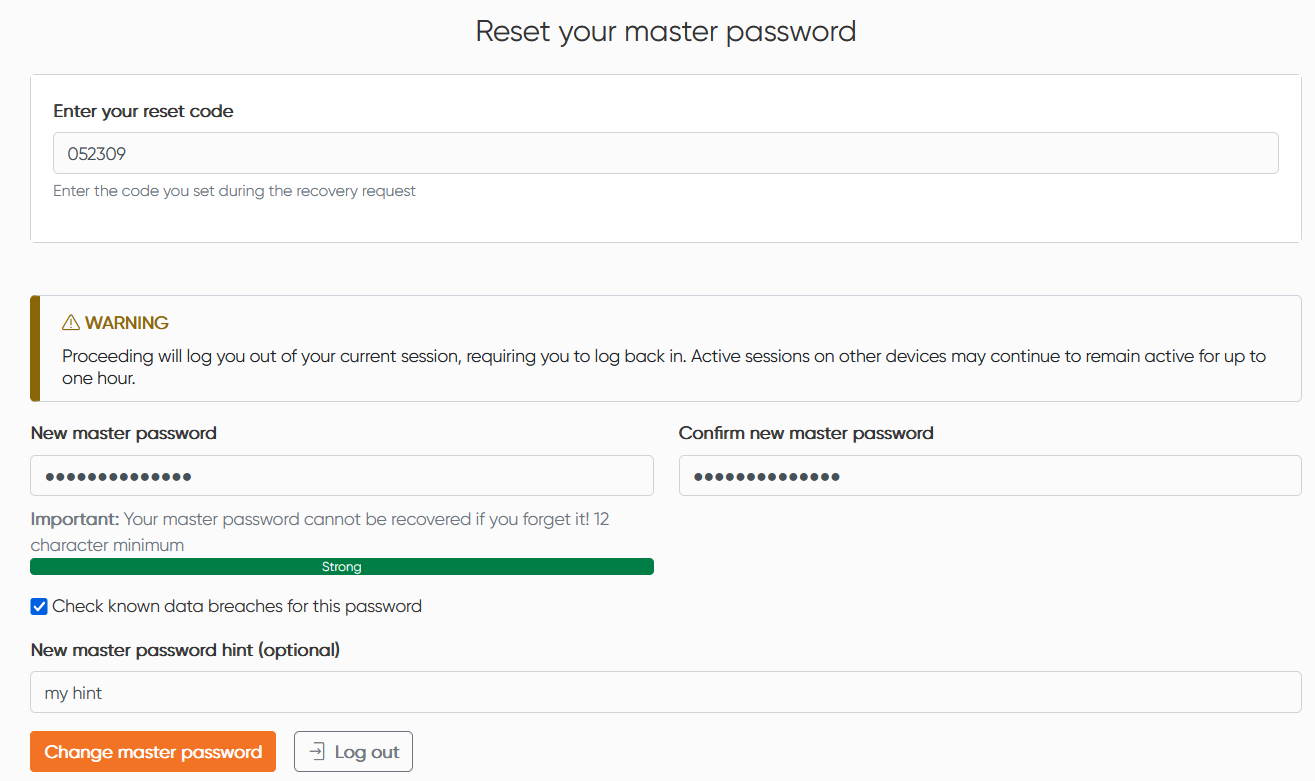
<p class="callout info">This feature can be disabled by your company.   
If you don't have the button **Start a password reset procedure** then there is no way to recover your account.  
You must contact your administrators, who will create a new account, but all your personal secrets will be lost.  
Before doing so, check if you can't find your master password, especially with the hint you can get by using **Get master password hint** on the login page.</p>

<span style="text-decoration: underline;">**Change Enterprise Vault master password**</span>

If you still have access to your previous master password:

1. Go to your Enterprise Vault app then **Settings** and **Security**
2. Provide your current master password, then the new master password

<p class="callout info">You should check **Also rotate my account's encryption key**, doing that the keys used to crypt your items will be changed too during the process.</p>

#### Preferences

Go to your Enterprise Vault app then **Settings** and **Preferences**

- **Timeout**: set the length of time you can remain inactive before locking or logging out
- **Vault timeout action**: choose whether you want to be locked out (provide only the master password for next access) or logged out (performe full authentication for next access) when your session timeouts.
- **Language**: change the language used by Enterprise Vault (English or French)
- **Show website icons**: associate a recognizable image next to each login, if Enterprise Vault recognize the website.
- **Theme**: choose a light or dark theme, or leave the choice to your system's theme

#### Purge the account

Go to your Enterprise Vault app then **Settings** and **My account**

From here you can:

- **Purge vault**: delete all items and folders in your personal vault, it doesn't affect shared vaults items or rights
- **Delete account**: delete all items and folders in your personal vault, remove any rights you may have to shared vaults and erases all your settings

<p class="callout danger">These actions are definitive; no restoration is possible.</p>

### Items management

<span style="font-size: 11.0pt; line-height: 107%; font-family: 'Aptos',sans-serif; mso-ascii-theme-font: minor-latin; mso-fareast-font-family: Aptos; mso-fareast-theme-font: minor-latin; mso-hansi-theme-font: minor-latin; mso-bidi-font-family: 'Times New Roman'; mso-bidi-theme-font: minor-bidi; mso-ansi-language: FR; mso-fareast-language: EN-US; mso-bidi-language: AR-SA;">On your personal vault, you can create **Items**.  
An Item is a secret, you want to protect and keep for yourself in your vault.</span>

[![image.png](https://vault-doc.wallix.com/uploads/images/gallery/2025-01/scaled-1680-/wO7image.png)](https://vault-doc.wallix.com/uploads/images/gallery/2025-01/wO7image.png)

#### Create items

<span style="text-decoration: underline;">**<span style="font-size: 11.0pt; line-height: 107%; font-family: 'Aptos',sans-serif; mso-ascii-theme-font: minor-latin; mso-fareast-font-family: Aptos; mso-fareast-theme-font: minor-latin; mso-hansi-theme-font: minor-latin; mso-bidi-font-family: 'Times New Roman'; mso-bidi-theme-font: minor-bidi; mso-ansi-language: FR; mso-fareast-language: EN-US; mso-bidi-language: AR-SA;">Create login items  
</span>**</span><span style="font-size: 11.0pt; line-height: 107%; font-family: 'Aptos',sans-serif; mso-ascii-theme-font: minor-latin; mso-fareast-font-family: Aptos; mso-fareast-theme-font: minor-latin; mso-hansi-theme-font: minor-latin; mso-bidi-font-family: 'Times New Roman'; mso-bidi-theme-font: minor-bidi; mso-ansi-language: FR; mso-fareast-language: EN-US; mso-bidi-language: AR-SA;">Login items are identifier to authenticate </span><span style="font-size: 11.0pt; line-height: 107%; font-family: 'Aptos',sans-serif; mso-ascii-theme-font: minor-latin; mso-fareast-font-family: Aptos; mso-fareast-theme-font: minor-latin; mso-hansi-theme-font: minor-latin; mso-bidi-font-family: 'Times New Roman'; mso-bidi-theme-font: minor-bidi; mso-ansi-language: FR; mso-fareast-language: EN-US; mso-bidi-language: AR-SA;">on websites or other services</span>

- <span style="font-size: 11.0pt; line-height: 107%; font-family: 'Aptos',sans-serif; mso-ascii-theme-font: minor-latin; mso-fareast-font-family: Aptos; mso-fareast-theme-font: minor-latin; mso-hansi-theme-font: minor-latin; mso-bidi-font-family: 'Times New Roman'; mso-bidi-theme-font: minor-bidi; mso-ansi-language: FR; mso-fareast-language: EN-US; mso-bidi-language: AR-SA;">**Name**: used to remember what is the item, and to find it easily</span>
- <span style="font-size: 11.0pt; line-height: 107%; font-family: 'Aptos',sans-serif; mso-ascii-theme-font: minor-latin; mso-fareast-font-family: Aptos; mso-fareast-theme-font: minor-latin; mso-hansi-theme-font: minor-latin; mso-bidi-font-family: 'Times New Roman'; mso-bidi-theme-font: minor-bidi; mso-ansi-language: FR; mso-fareast-language: EN-US; mso-bidi-language: AR-SA;">**Folder**: used to sort items</span>
- <span style="font-size: 11.0pt; line-height: 107%; font-family: 'Aptos',sans-serif; mso-ascii-theme-font: minor-latin; mso-fareast-font-family: Aptos; mso-fareast-theme-font: minor-latin; mso-hansi-theme-font: minor-latin; mso-bidi-font-family: 'Times New Roman'; mso-bidi-theme-font: minor-bidi; mso-ansi-language: FR; mso-fareast-language: EN-US; mso-bidi-language: AR-SA;">**Username**: identifier used on websites or other services</span>
- <span style="font-size: 11.0pt; line-height: 107%; font-family: 'Aptos',sans-serif; mso-ascii-theme-font: minor-latin; mso-fareast-font-family: Aptos; mso-fareast-theme-font: minor-latin; mso-hansi-theme-font: minor-latin; mso-bidi-font-family: 'Times New Roman'; mso-bidi-theme-font: minor-bidi; mso-ansi-language: FR; mso-fareast-language: EN-US; mso-bidi-language: AR-SA;">**Password**: password used on websites or other services</span>

<p class="callout info"><span style="font-family: Aptos, sans-serif;"><span style="font-size: 14.6667px;">From this field, you can also generate a password, verify if the password has been exposed, or toggle character count</span></span></p>

- <span style="font-size: 11.0pt; line-height: 107%; font-family: 'Aptos',sans-serif; mso-ascii-theme-font: minor-latin; mso-fareast-font-family: Aptos; mso-fareast-theme-font: minor-latin; mso-hansi-theme-font: minor-latin; mso-bidi-font-family: 'Times New Roman'; mso-bidi-theme-font: minor-bidi; mso-ansi-language: FR; mso-fareast-language: EN-US; mso-bidi-language: AR-SA;">**Authenticator key (TOTP)**: second factor used for multi-factor authentication on websites or other services</span>
- <span style="font-size: 11.0pt; line-height: 107%; font-family: 'Aptos',sans-serif; mso-ascii-theme-font: minor-latin; mso-fareast-font-family: Aptos; mso-fareast-theme-font: minor-latin; mso-hansi-theme-font: minor-latin; mso-bidi-font-family: 'Times New Roman'; mso-bidi-theme-font: minor-bidi; mso-ansi-language: FR; mso-fareast-language: EN-US; mso-bidi-language: AR-SA;">**URL &amp; Match detection**: used for auto-fill with the browser plugins</span>
- <span style="font-size: 11.0pt; line-height: 107%; font-family: 'Aptos',sans-serif; mso-ascii-theme-font: minor-latin; mso-fareast-font-family: Aptos; mso-fareast-theme-font: minor-latin; mso-hansi-theme-font: minor-latin; mso-bidi-font-family: 'Times New Roman'; mso-bidi-theme-font: minor-bidi; mso-ansi-language: FR; mso-fareast-language: EN-US; mso-bidi-language: AR-SA;">**Note**: used to add custom content associated to the item</span>
- **<span style="font-size: 11.0pt; line-height: 107%; font-family: 'Aptos',sans-serif; mso-ascii-theme-font: minor-latin; mso-fareast-font-family: Aptos; mso-fareast-theme-font: minor-latin; mso-hansi-theme-font: minor-latin; mso-bidi-font-family: 'Times New Roman'; mso-bidi-theme-font: minor-bidi; mso-ansi-language: FR; mso-fareast-language: EN-US; mso-bidi-language: AR-SA;">CUSTOM FIELD</span><span style="font-size: 11.0pt; line-height: 107%; font-family: 'Aptos',sans-serif; mso-ascii-theme-font: minor-latin; mso-fareast-font-family: Aptos; mso-fareast-theme-font: minor-latin; mso-hansi-theme-font: minor-latin; mso-bidi-font-family: 'Times New Roman'; mso-bidi-theme-font: minor-bidi; mso-ansi-language: FR; mso-fareast-language: EN-US; mso-bidi-language: AR-SA;">S</span>**<span style="font-size: 11.0pt; line-height: 107%; font-family: 'Aptos',sans-serif; mso-ascii-theme-font: minor-latin; mso-fareast-font-family: Aptos; mso-fareast-theme-font: minor-latin; mso-hansi-theme-font: minor-latin; mso-bidi-font-family: 'Times New Roman'; mso-bidi-theme-font: minor-bidi; mso-ansi-language: FR; mso-fareast-language: EN-US; mso-bidi-language: AR-SA;">: used for specific use cases with auto-fill </span>
- **<span style="font-size: 11.0pt; line-height: 107%; font-family: 'Aptos',sans-serif; mso-ascii-theme-font: minor-latin; mso-fareast-font-family: Aptos; mso-fareast-theme-font: minor-latin; mso-hansi-theme-font: minor-latin; mso-bidi-font-family: 'Times New Roman'; mso-bidi-theme-font: minor-bidi; mso-ansi-language: FR; mso-fareast-language: EN-US; mso-bidi-language: AR-SA;">Who owns this item</span>**<span style="font-size: 11.0pt; line-height: 107%; font-family: 'Aptos',sans-serif; mso-ascii-theme-font: minor-latin; mso-fareast-font-family: Aptos; mso-fareast-theme-font: minor-latin; mso-hansi-theme-font: minor-latin; mso-bidi-font-family: 'Times New Roman'; mso-bidi-theme-font: minor-bidi; mso-ansi-language: FR; mso-fareast-language: EN-US; mso-bidi-language: AR-SA;">: used to create the item in a shared vault</span>
- **<span style="font-size: 11.0pt; line-height: 107%; font-family: 'Aptos',sans-serif; mso-ascii-theme-font: minor-latin; mso-fareast-font-family: Aptos; mso-fareast-theme-font: minor-latin; mso-hansi-theme-font: minor-latin; mso-bidi-font-family: 'Times New Roman'; mso-bidi-theme-font: minor-bidi; mso-ansi-language: FR; mso-fareast-language: EN-US; mso-bidi-language: AR-SA;">OPTIONS</span>**
    - **<span style="font-size: 11.0pt; line-height: 107%; font-family: 'Aptos',sans-serif; mso-ascii-theme-font: minor-latin; mso-fareast-font-family: Aptos; mso-fareast-theme-font: minor-latin; mso-hansi-theme-font: minor-latin; mso-bidi-font-family: 'Times New Roman'; mso-bidi-theme-font: minor-bidi; mso-ansi-language: FR; mso-fareast-language: EN-US; mso-bidi-language: AR-SA;">Master password re-prompt</span>**<span style="font-size: 11.0pt; line-height: 107%; font-family: 'Aptos',sans-serif; mso-ascii-theme-font: minor-latin; mso-fareast-font-family: Aptos; mso-fareast-theme-font: minor-latin; mso-hansi-theme-font: minor-latin; mso-bidi-font-family: 'Times New Roman'; mso-bidi-theme-font: minor-bidi; mso-ansi-language: FR; mso-fareast-language: EN-US; mso-bidi-language: AR-SA;">: used to secure the item, by requesting the master password before use</span>
    - **<span style="font-size: 11.0pt; line-height: 107%; font-family: 'Aptos',sans-serif; mso-ascii-theme-font: minor-latin; mso-fareast-font-family: Aptos; mso-fareast-theme-font: minor-latin; mso-hansi-theme-font: minor-latin; mso-bidi-font-family: 'Times New Roman'; mso-bidi-theme-font: minor-bidi; mso-ansi-language: FR; mso-fareast-language: EN-US; mso-bidi-language: AR-SA;">Access</span>**<span style="font-size: 11.0pt; line-height: 107%; font-family: 'Aptos',sans-serif; mso-ascii-theme-font: minor-latin; mso-fareast-font-family: Aptos; mso-fareast-theme-font: minor-latin; mso-hansi-theme-font: minor-latin; mso-bidi-font-family: 'Times New Roman'; mso-bidi-theme-font: minor-bidi; mso-ansi-language: FR; mso-fareast-language: EN-US; mso-bidi-language: AR-SA;"> **logging**: if not defined by your administrator, let you decide if you want to generate logs when you access the item</span>

<span style="text-decoration: underline;">**<span style="font-size: 11.0pt; line-height: 107%; font-family: 'Aptos',sans-serif; mso-ascii-theme-font: minor-latin; mso-fareast-font-family: Aptos; mso-fareast-theme-font: minor-latin; mso-hansi-theme-font: minor-latin; mso-bidi-font-family: 'Times New Roman'; mso-bidi-theme-font: minor-bidi; mso-ansi-language: FR; mso-fareast-language: EN-US; mso-bidi-language: AR-SA;">Create card items  
</span>**</span><span style="font-size: 11.0pt; line-height: 107%; font-family: 'Aptos',sans-serif; mso-ascii-theme-font: minor-latin; mso-fareast-font-family: Aptos; mso-fareast-theme-font: minor-latin; mso-hansi-theme-font: minor-latin; mso-bidi-font-family: 'Times New Roman'; mso-bidi-theme-font: minor-bidi; mso-ansi-language: FR; mso-fareast-language: EN-US; mso-bidi-language: AR-SA;">Card items are credit card you want to store on your vault</span>

- <span style="font-size: 11.0pt; line-height: 107%; font-family: 'Aptos',sans-serif; mso-ascii-theme-font: minor-latin; mso-fareast-font-family: Aptos; mso-fareast-theme-font: minor-latin; mso-hansi-theme-font: minor-latin; mso-bidi-font-family: 'Times New Roman'; mso-bidi-theme-font: minor-bidi; mso-ansi-language: FR; mso-fareast-language: EN-US; mso-bidi-language: AR-SA;">**Name**: used to remember what is the item, and to find it easily</span>
- <span style="font-size: 11.0pt; line-height: 107%; font-family: 'Aptos',sans-serif; mso-ascii-theme-font: minor-latin; mso-fareast-font-family: Aptos; mso-fareast-theme-font: minor-latin; mso-hansi-theme-font: minor-latin; mso-bidi-font-family: 'Times New Roman'; mso-bidi-theme-font: minor-bidi; mso-ansi-language: FR; mso-fareast-language: EN-US; mso-bidi-language: AR-SA;">**Folder**: used to sort items</span>
- **<span style="font-size: 11.0pt; line-height: 107%; font-family: 'Aptos',sans-serif; mso-ascii-theme-font: minor-latin; mso-fareast-font-family: Aptos; mso-fareast-theme-font: minor-latin; mso-hansi-theme-font: minor-latin; mso-bidi-font-family: 'Times New Roman'; mso-bidi-theme-font: minor-bidi; mso-ansi-language: FR; mso-fareast-language: EN-US; mso-bidi-language: AR-SA;">Credit card information</span>**<span style="font-size: 11.0pt; line-height: 107%; font-family: 'Aptos',sans-serif; mso-ascii-theme-font: minor-latin; mso-fareast-font-family: Aptos; mso-fareast-theme-font: minor-latin; mso-hansi-theme-font: minor-latin; mso-bidi-font-family: 'Times New Roman'; mso-bidi-theme-font: minor-bidi; mso-ansi-language: FR; mso-fareast-language: EN-US; mso-bidi-language: AR-SA;">: cardholder name, brand, number, expiration date, security code</span>
- <span style="font-size: 11.0pt; line-height: 107%; font-family: 'Aptos',sans-serif; mso-ascii-theme-font: minor-latin; mso-fareast-font-family: Aptos; mso-fareast-theme-font: minor-latin; mso-hansi-theme-font: minor-latin; mso-bidi-font-family: 'Times New Roman'; mso-bidi-theme-font: minor-bidi; mso-ansi-language: FR; mso-fareast-language: EN-US; mso-bidi-language: AR-SA;">**Note**: used to add custom content associated to the item</span>
- **<span style="font-size: 11.0pt; line-height: 107%; font-family: 'Aptos',sans-serif; mso-ascii-theme-font: minor-latin; mso-fareast-font-family: Aptos; mso-fareast-theme-font: minor-latin; mso-hansi-theme-font: minor-latin; mso-bidi-font-family: 'Times New Roman'; mso-bidi-theme-font: minor-bidi; mso-ansi-language: FR; mso-fareast-language: EN-US; mso-bidi-language: AR-SA;">CUSTOM FIELD</span><span style="font-size: 11.0pt; line-height: 107%; font-family: 'Aptos',sans-serif; mso-ascii-theme-font: minor-latin; mso-fareast-font-family: Aptos; mso-fareast-theme-font: minor-latin; mso-hansi-theme-font: minor-latin; mso-bidi-font-family: 'Times New Roman'; mso-bidi-theme-font: minor-bidi; mso-ansi-language: FR; mso-fareast-language: EN-US; mso-bidi-language: AR-SA;">S</span>**<span style="font-size: 11.0pt; line-height: 107%; font-family: 'Aptos',sans-serif; mso-ascii-theme-font: minor-latin; mso-fareast-font-family: Aptos; mso-fareast-theme-font: minor-latin; mso-hansi-theme-font: minor-latin; mso-bidi-font-family: 'Times New Roman'; mso-bidi-theme-font: minor-bidi; mso-ansi-language: FR; mso-fareast-language: EN-US; mso-bidi-language: AR-SA;">: used for specific use cases with auto-fill </span>
- **<span style="font-size: 11.0pt; line-height: 107%; font-family: 'Aptos',sans-serif; mso-ascii-theme-font: minor-latin; mso-fareast-font-family: Aptos; mso-fareast-theme-font: minor-latin; mso-hansi-theme-font: minor-latin; mso-bidi-font-family: 'Times New Roman'; mso-bidi-theme-font: minor-bidi; mso-ansi-language: FR; mso-fareast-language: EN-US; mso-bidi-language: AR-SA;">Who owns this item</span>**<span style="font-size: 11.0pt; line-height: 107%; font-family: 'Aptos',sans-serif; mso-ascii-theme-font: minor-latin; mso-fareast-font-family: Aptos; mso-fareast-theme-font: minor-latin; mso-hansi-theme-font: minor-latin; mso-bidi-font-family: 'Times New Roman'; mso-bidi-theme-font: minor-bidi; mso-ansi-language: FR; mso-fareast-language: EN-US; mso-bidi-language: AR-SA;">: used to create the item in a shared vault</span>
- **<span style="font-size: 11.0pt; line-height: 107%; font-family: 'Aptos',sans-serif; mso-ascii-theme-font: minor-latin; mso-fareast-font-family: Aptos; mso-fareast-theme-font: minor-latin; mso-hansi-theme-font: minor-latin; mso-bidi-font-family: 'Times New Roman'; mso-bidi-theme-font: minor-bidi; mso-ansi-language: FR; mso-fareast-language: EN-US; mso-bidi-language: AR-SA;">Master password re-prompt</span>**<span style="font-size: 11.0pt; line-height: 107%; font-family: 'Aptos',sans-serif; mso-ascii-theme-font: minor-latin; mso-fareast-font-family: Aptos; mso-fareast-theme-font: minor-latin; mso-hansi-theme-font: minor-latin; mso-bidi-font-family: 'Times New Roman'; mso-bidi-theme-font: minor-bidi; mso-ansi-language: FR; mso-fareast-language: EN-US; mso-bidi-language: AR-SA;">: used to secure the item, by requesting the master password before use</span>

<span style="text-decoration: underline;">**<span style="font-size: 11.0pt; line-height: 107%; font-family: 'Aptos',sans-serif; mso-ascii-theme-font: minor-latin; mso-fareast-font-family: Aptos; mso-fareast-theme-font: minor-latin; mso-hansi-theme-font: minor-latin; mso-bidi-font-family: 'Times New Roman'; mso-bidi-theme-font: minor-bidi; mso-ansi-language: FR; mso-fareast-language: EN-US; mso-bidi-language: AR-SA;">Create identity items  
</span>**</span>Identity items are all the useful information about the people you want to keep. The identity may be for yourself or someone else.

- <span style="font-size: 11.0pt; line-height: 107%; font-family: 'Aptos',sans-serif; mso-ascii-theme-font: minor-latin; mso-fareast-font-family: Aptos; mso-fareast-theme-font: minor-latin; mso-hansi-theme-font: minor-latin; mso-bidi-font-family: 'Times New Roman'; mso-bidi-theme-font: minor-bidi; mso-ansi-language: FR; mso-fareast-language: EN-US; mso-bidi-language: AR-SA;">**Name**: used to remember what is the item, and to find it easily</span>
- <span style="font-size: 11.0pt; line-height: 107%; font-family: 'Aptos',sans-serif; mso-ascii-theme-font: minor-latin; mso-fareast-font-family: Aptos; mso-fareast-theme-font: minor-latin; mso-hansi-theme-font: minor-latin; mso-bidi-font-family: 'Times New Roman'; mso-bidi-theme-font: minor-bidi; mso-ansi-language: FR; mso-fareast-language: EN-US; mso-bidi-language: AR-SA;">**Folder**: used to sort items</span>
- <span style="font-size: 11.0pt; line-height: 107%; font-family: 'Aptos',sans-serif; mso-ascii-theme-font: minor-latin; mso-fareast-font-family: Aptos; mso-fareast-theme-font: minor-latin; mso-hansi-theme-font: minor-latin; mso-bidi-font-family: 'Times New Roman'; mso-bidi-theme-font: minor-bidi; mso-ansi-language: FR; mso-fareast-language: EN-US; mso-bidi-language: AR-SA;">**Contact information**: Title, Name, Company, Passport/License number, Email, Phone, Address</span>
- <span style="font-size: 11.0pt; line-height: 107%; font-family: 'Aptos',sans-serif; mso-ascii-theme-font: minor-latin; mso-fareast-font-family: Aptos; mso-fareast-theme-font: minor-latin; mso-hansi-theme-font: minor-latin; mso-bidi-font-family: 'Times New Roman'; mso-bidi-theme-font: minor-bidi; mso-ansi-language: FR; mso-fareast-language: EN-US; mso-bidi-language: AR-SA;">**Note**: used to add custom content associated to the item</span>
- **<span style="font-size: 11.0pt; line-height: 107%; font-family: 'Aptos',sans-serif; mso-ascii-theme-font: minor-latin; mso-fareast-font-family: Aptos; mso-fareast-theme-font: minor-latin; mso-hansi-theme-font: minor-latin; mso-bidi-font-family: 'Times New Roman'; mso-bidi-theme-font: minor-bidi; mso-ansi-language: FR; mso-fareast-language: EN-US; mso-bidi-language: AR-SA;">CUSTOM FIELD</span><span style="font-size: 11.0pt; line-height: 107%; font-family: 'Aptos',sans-serif; mso-ascii-theme-font: minor-latin; mso-fareast-font-family: Aptos; mso-fareast-theme-font: minor-latin; mso-hansi-theme-font: minor-latin; mso-bidi-font-family: 'Times New Roman'; mso-bidi-theme-font: minor-bidi; mso-ansi-language: FR; mso-fareast-language: EN-US; mso-bidi-language: AR-SA;">S</span>**<span style="font-size: 11.0pt; line-height: 107%; font-family: 'Aptos',sans-serif; mso-ascii-theme-font: minor-latin; mso-fareast-font-family: Aptos; mso-fareast-theme-font: minor-latin; mso-hansi-theme-font: minor-latin; mso-bidi-font-family: 'Times New Roman'; mso-bidi-theme-font: minor-bidi; mso-ansi-language: FR; mso-fareast-language: EN-US; mso-bidi-language: AR-SA;">: used for specific use cases with auto-fill </span>
- **<span style="font-size: 11.0pt; line-height: 107%; font-family: 'Aptos',sans-serif; mso-ascii-theme-font: minor-latin; mso-fareast-font-family: Aptos; mso-fareast-theme-font: minor-latin; mso-hansi-theme-font: minor-latin; mso-bidi-font-family: 'Times New Roman'; mso-bidi-theme-font: minor-bidi; mso-ansi-language: FR; mso-fareast-language: EN-US; mso-bidi-language: AR-SA;">Who owns this item</span>**<span style="font-size: 11.0pt; line-height: 107%; font-family: 'Aptos',sans-serif; mso-ascii-theme-font: minor-latin; mso-fareast-font-family: Aptos; mso-fareast-theme-font: minor-latin; mso-hansi-theme-font: minor-latin; mso-bidi-font-family: 'Times New Roman'; mso-bidi-theme-font: minor-bidi; mso-ansi-language: FR; mso-fareast-language: EN-US; mso-bidi-language: AR-SA;">: used to create the item in a shared vault</span>
- **<span style="font-size: 11.0pt; line-height: 107%; font-family: 'Aptos',sans-serif; mso-ascii-theme-font: minor-latin; mso-fareast-font-family: Aptos; mso-fareast-theme-font: minor-latin; mso-hansi-theme-font: minor-latin; mso-bidi-font-family: 'Times New Roman'; mso-bidi-theme-font: minor-bidi; mso-ansi-language: FR; mso-fareast-language: EN-US; mso-bidi-language: AR-SA;">Master password re-prompt</span>**<span style="font-size: 11.0pt; line-height: 107%; font-family: 'Aptos',sans-serif; mso-ascii-theme-font: minor-latin; mso-fareast-font-family: Aptos; mso-fareast-theme-font: minor-latin; mso-hansi-theme-font: minor-latin; mso-bidi-font-family: 'Times New Roman'; mso-bidi-theme-font: minor-bidi; mso-ansi-language: FR; mso-fareast-language: EN-US; mso-bidi-language: AR-SA;">: used to secure the item, by requesting the master password before use</span>

<span style="text-decoration: underline;">**<span style="font-size: 11.0pt; line-height: 107%; font-family: 'Aptos',sans-serif; mso-ascii-theme-font: minor-latin; mso-fareast-font-family: Aptos; mso-fareast-theme-font: minor-latin; mso-hansi-theme-font: minor-latin; mso-bidi-font-family: 'Times New Roman'; mso-bidi-theme-font: minor-bidi; mso-ansi-language: FR; mso-fareast-language: EN-US; mso-bidi-language: AR-SA;">Create secure note items  
</span>**</span>Secure note items are simple notes that you want to store in your vault.   
They can be useful if you wish to store an item whose type is not the default one, for example for an attachment such as a certificate.

- <span style="font-size: 11.0pt; line-height: 107%; font-family: 'Aptos',sans-serif; mso-ascii-theme-font: minor-latin; mso-fareast-font-family: Aptos; mso-fareast-theme-font: minor-latin; mso-hansi-theme-font: minor-latin; mso-bidi-font-family: 'Times New Roman'; mso-bidi-theme-font: minor-bidi; mso-ansi-language: FR; mso-fareast-language: EN-US; mso-bidi-language: AR-SA;">**Name**: used to remember what is the item, and to find it easily</span>
- <span style="font-size: 11.0pt; line-height: 107%; font-family: 'Aptos',sans-serif; mso-ascii-theme-font: minor-latin; mso-fareast-font-family: Aptos; mso-fareast-theme-font: minor-latin; mso-hansi-theme-font: minor-latin; mso-bidi-font-family: 'Times New Roman'; mso-bidi-theme-font: minor-bidi; mso-ansi-language: FR; mso-fareast-language: EN-US; mso-bidi-language: AR-SA;">**Folder**: used to sort items</span>
- <span style="font-size: 11.0pt; line-height: 107%; font-family: 'Aptos',sans-serif; mso-ascii-theme-font: minor-latin; mso-fareast-font-family: Aptos; mso-fareast-theme-font: minor-latin; mso-hansi-theme-font: minor-latin; mso-bidi-font-family: 'Times New Roman'; mso-bidi-theme-font: minor-bidi; mso-ansi-language: FR; mso-fareast-language: EN-US; mso-bidi-language: AR-SA;">**Note**: used to add custom content associated to the item</span>
- **<span style="font-size: 11.0pt; line-height: 107%; font-family: 'Aptos',sans-serif; mso-ascii-theme-font: minor-latin; mso-fareast-font-family: Aptos; mso-fareast-theme-font: minor-latin; mso-hansi-theme-font: minor-latin; mso-bidi-font-family: 'Times New Roman'; mso-bidi-theme-font: minor-bidi; mso-ansi-language: FR; mso-fareast-language: EN-US; mso-bidi-language: AR-SA;">CUSTOM FIELD</span><span style="font-size: 11.0pt; line-height: 107%; font-family: 'Aptos',sans-serif; mso-ascii-theme-font: minor-latin; mso-fareast-font-family: Aptos; mso-fareast-theme-font: minor-latin; mso-hansi-theme-font: minor-latin; mso-bidi-font-family: 'Times New Roman'; mso-bidi-theme-font: minor-bidi; mso-ansi-language: FR; mso-fareast-language: EN-US; mso-bidi-language: AR-SA;">S</span>**<span style="font-size: 11.0pt; line-height: 107%; font-family: 'Aptos',sans-serif; mso-ascii-theme-font: minor-latin; mso-fareast-font-family: Aptos; mso-fareast-theme-font: minor-latin; mso-hansi-theme-font: minor-latin; mso-bidi-font-family: 'Times New Roman'; mso-bidi-theme-font: minor-bidi; mso-ansi-language: FR; mso-fareast-language: EN-US; mso-bidi-language: AR-SA;">: used for specific use cases with auto-fill </span>
- **<span style="font-size: 11.0pt; line-height: 107%; font-family: 'Aptos',sans-serif; mso-ascii-theme-font: minor-latin; mso-fareast-font-family: Aptos; mso-fareast-theme-font: minor-latin; mso-hansi-theme-font: minor-latin; mso-bidi-font-family: 'Times New Roman'; mso-bidi-theme-font: minor-bidi; mso-ansi-language: FR; mso-fareast-language: EN-US; mso-bidi-language: AR-SA;">Who owns this item</span>**<span style="font-size: 11.0pt; line-height: 107%; font-family: 'Aptos',sans-serif; mso-ascii-theme-font: minor-latin; mso-fareast-font-family: Aptos; mso-fareast-theme-font: minor-latin; mso-hansi-theme-font: minor-latin; mso-bidi-font-family: 'Times New Roman'; mso-bidi-theme-font: minor-bidi; mso-ansi-language: FR; mso-fareast-language: EN-US; mso-bidi-language: AR-SA;">: used to create the item in a shared vault</span>
- **<span style="font-size: 11.0pt; line-height: 107%; font-family: 'Aptos',sans-serif; mso-ascii-theme-font: minor-latin; mso-fareast-font-family: Aptos; mso-fareast-theme-font: minor-latin; mso-hansi-theme-font: minor-latin; mso-bidi-font-family: 'Times New Roman'; mso-bidi-theme-font: minor-bidi; mso-ansi-language: FR; mso-fareast-language: EN-US; mso-bidi-language: AR-SA;">Master password re-prompt</span>**<span style="font-size: 11.0pt; line-height: 107%; font-family: 'Aptos',sans-serif; mso-ascii-theme-font: minor-latin; mso-fareast-font-family: Aptos; mso-fareast-theme-font: minor-latin; mso-hansi-theme-font: minor-latin; mso-bidi-font-family: 'Times New Roman'; mso-bidi-theme-font: minor-bidi; mso-ansi-language: FR; mso-fareast-language: EN-US; mso-bidi-language: AR-SA;">: used to secure the item, by requesting the master password before use</span>

#### Manage existing items

<span style="font-size: 11.0pt; line-height: 107%; font-family: 'Aptos',sans-serif; mso-ascii-theme-font: minor-latin; mso-fareast-font-family: Aptos; mso-fareast-theme-font: minor-latin; mso-hansi-theme-font: minor-latin; mso-bidi-font-family: 'Times New Roman'; mso-bidi-theme-font: minor-bidi; mso-ansi-language: FR; mso-fareast-language: EN-US; mso-bidi-language: AR-SA;">After the creation, you can edit the item, but also perform new actions clicking the 3 dots at the end of each lines.</span>

- <span style="font-size: 11.0pt; line-height: 107%; font-family: 'Aptos',sans-serif; mso-ascii-theme-font: minor-latin; mso-fareast-font-family: Aptos; mso-fareast-theme-font: minor-latin; mso-hansi-theme-font: minor-latin; mso-bidi-font-family: 'Times New Roman'; mso-bidi-theme-font: minor-bidi; mso-ansi-language: FR; mso-fareast-language: EN-US; mso-bidi-language: AR-SA;">Add / Download / Delete an attachement to the item</span>
- <span style="font-size: 11.0pt; line-height: 107%; font-family: 'Aptos',sans-serif; mso-ascii-theme-font: minor-latin; mso-fareast-font-family: Aptos; mso-fareast-theme-font: minor-latin; mso-hansi-theme-font: minor-latin; mso-bidi-font-family: 'Times New Roman'; mso-bidi-theme-font: minor-bidi; mso-ansi-language: FR; mso-fareast-language: EN-US; mso-bidi-language: AR-SA;">Clone the item</span>
- <span style="font-size: 11.0pt; line-height: 107%; font-family: 'Aptos',sans-serif; mso-ascii-theme-font: minor-latin; mso-fareast-font-family: Aptos; mso-fareast-theme-font: minor-latin; mso-hansi-theme-font: minor-latin; mso-bidi-font-family: 'Times New Roman'; mso-bidi-theme-font: minor-bidi; mso-ansi-language: FR; mso-fareast-language: EN-US; mso-bidi-language: AR-SA;">Assign to collections = move the item to a shared vault</span>
- <span style="font-size: 11.0pt; line-height: 107%; font-family: 'Aptos',sans-serif; mso-ascii-theme-font: minor-latin; mso-fareast-font-family: Aptos; mso-fareast-theme-font: minor-latin; mso-hansi-theme-font: minor-latin; mso-bidi-font-family: 'Times New Roman'; mso-bidi-theme-font: minor-bidi; mso-ansi-language: FR; mso-fareast-language: EN-US; mso-bidi-language: AR-SA;">Delete the item</span>

<span style="font-size: 11.0pt; line-height: 107%; font-family: 'Aptos',sans-serif; mso-ascii-theme-font: minor-latin; mso-fareast-font-family: Aptos; mso-fareast-theme-font: minor-latin; mso-hansi-theme-font: minor-latin; mso-bidi-font-family: 'Times New Roman'; mso-bidi-theme-font: minor-bidi; mso-ansi-language: FR; mso-fareast-language: EN-US; mso-bidi-language: AR-SA;">For login items, you can also c</span><span style="font-family: Aptos, sans-serif; font-size: 11pt;">opy the username, password and verification code (TOTP) using the 3 dots.</span>

<span style="font-family: Aptos, sans-serif; font-size: 11pt;">Also for login items, i</span><span style="font-size: 11.0pt; line-height: 107%; font-family: 'Aptos',sans-serif; mso-ascii-theme-font: minor-latin; mso-fareast-font-family: Aptos; mso-fareast-theme-font: minor-latin; mso-hansi-theme-font: minor-latin; mso-bidi-font-family: 'Times New Roman'; mso-bidi-theme-font: minor-bidi; mso-ansi-language: FR; mso-fareast-language: EN-US; mso-bidi-language: AR-SA;">f you change the password, you can open the item and you'll find the previous password under the **CUSTOM FIELDS**, clicking **Password history**.</span>

<p class="callout info">When an item is deleted, it is transferred to the trash. From here, the item can be restored or deleted permanently.</p>

#### Folders

<span style="font-size: 11.0pt; line-height: 107%; font-family: 'Aptos',sans-serif; mso-ascii-theme-font: minor-latin; mso-fareast-font-family: Aptos; mso-fareast-theme-font: minor-latin; mso-hansi-theme-font: minor-latin; mso-bidi-font-family: 'Times New Roman'; mso-bidi-theme-font: minor-bidi; mso-ansi-language: FR; mso-fareast-language: EN-US; mso-bidi-language: AR-SA;">Folders are used to organize and easily retrieve items that belong together.  
This means that these items will continue to appear in the list of all your personal items, but can be found by clicking on the folder name.</span>

<span style="font-size: 11.0pt; line-height: 107%; font-family: 'Aptos',sans-serif; mso-ascii-theme-font: minor-latin; mso-fareast-font-family: Aptos; mso-fareast-theme-font: minor-latin; mso-hansi-theme-font: minor-latin; mso-bidi-font-family: 'Times New Roman'; mso-bidi-theme-font: minor-bidi; mso-ansi-language: FR; mso-fareast-language: EN-US; mso-bidi-language: AR-SA;">To add a folder, you just have to provide its name.</span>

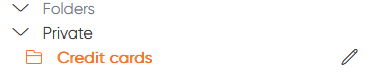
<p class="callout info"><span style="font-size: 11.0pt; line-height: 107%; font-family: 'Aptos',sans-serif; mso-ascii-theme-font: minor-latin; mso-fareast-font-family: Aptos; mso-fareast-theme-font: minor-latin; mso-hansi-theme-font: minor-latin; mso-bidi-font-family: 'Times New Roman'; mso-bidi-theme-font: minor-bidi; mso-ansi-language: FR; mso-fareast-language: EN-US; mso-bidi-language: AR-SA;">You can create a folder in another folder by specifying the name of the parent folder then /, in the name of the new folder.  
For instance I can create the folder "Credit cards" under the folder "Private" using the name: "Private/Credit cards"</span></p>

[![image.png](https://vault-doc.wallix.com/uploads/images/gallery/2025-01/scaled-1680-/dsAimage.png)](https://vault-doc.wallix.com/uploads/images/gallery/2025-01/dsAimage.png)

<span style="font-size: 11.0pt; line-height: 107%; font-family: 'Aptos',sans-serif; mso-ascii-theme-font: minor-latin; mso-fareast-font-family: Aptos; mso-fareast-theme-font: minor-latin; mso-hansi-theme-font: minor-latin; mso-bidi-font-family: 'Times New Roman'; mso-bidi-theme-font: minor-bidi; mso-ansi-language: FR; mso-fareast-language: EN-US; mso-bidi-language: AR-SA;">After the folder creation, you can:</span>

- <span style="font-size: 11.0pt; line-height: 107%; font-family: 'Aptos',sans-serif; mso-ascii-theme-font: minor-latin; mso-fareast-font-family: Aptos; mso-fareast-theme-font: minor-latin; mso-hansi-theme-font: minor-latin; mso-bidi-font-family: 'Times New Roman'; mso-bidi-theme-font: minor-bidi; mso-ansi-language: FR; mso-fareast-language: EN-US; mso-bidi-language: AR-SA;">Create new item in the folder</span>
- <span style="font-size: 11.0pt; line-height: 107%; font-family: 'Aptos',sans-serif; mso-ascii-theme-font: minor-latin; mso-fareast-font-family: Aptos; mso-fareast-theme-font: minor-latin; mso-hansi-theme-font: minor-latin; mso-bidi-font-family: 'Times New Roman'; mso-bidi-theme-font: minor-bidi; mso-ansi-language: FR; mso-fareast-language: EN-US; mso-bidi-language: AR-SA;">Edit an item, then move it to the folder</span>
- <span style="font-size: 11.0pt; line-height: 107%; font-family: 'Aptos',sans-serif; mso-ascii-theme-font: minor-latin; mso-fareast-font-family: Aptos; mso-fareast-theme-font: minor-latin; mso-hansi-theme-font: minor-latin; mso-bidi-font-family: 'Times New Roman'; mso-bidi-theme-font: minor-bidi; mso-ansi-language: FR; mso-fareast-language: EN-US; mso-bidi-language: AR-SA;">Edit its name or delete the folder, using the pen button after the folder selection (cf the previous screenshot)</span>

#### Favorites

Favorite items are as useful as folders: they make it easier to find certain frequently-used secrets.

To add an item to favorites, edit it then click on the star at bottom right of the window.

To find favorites items, click on **Favorites**  on the **FILTERS** menu.

#### Search items

To search an item, you must use the **FILTERS** menu.

<span style="text-decoration: underline;">**Basics research:**</span>

- Click the input **Search my vault** to search for specific words displayed in the list of items.
- Click **Favorites** to display your favorites items
- Click **Login**, **Card**, **Identity** or **Secure note** to display the corresponding items
- Click a folder name to display the items it contains
- Click the trash button to display deleted items

<p class="callout info">Don't forget to click **All items** if you wish to return to the complete list of your items.</p>

<span style="text-decoration: underline;">**Advanced research**</span>

Using the input **Search my vault** you can carry out more complex searches.  
Here are some example:

- **&gt;name:my\_name**   
    returns items whose name is my\_name
- **&gt;login.username:my\_username**
- returns elements whose login is my\_username
- **&gt;login.uris:my\_uri**  
    returns elements whose associated URL is my\_uri
- **&gt;attachments:my\_file**  
    returns elements whose attachment is my\_file
- **&gt;notes:my\_note**   
    returns items whose note contains my\_note
- **&gt;shortid:my\_id**  
    returns the item whose identifier is equal to my\_id

Filters can also be concatenated:

- **&gt;login.username:my\_username +name:my\_name**  
    returns items whose name is my\_name and whose login is my\_username
- **&gt;login.username:my\_username-name:my\_namer**  
    returns elements whose login is my\_username but whose name is not my\_name

You can use the ~ character to indicate the number of characters that can be different from the filter:

- **&gt;login.username:userX~1**   
    returns elements whose login is user1, user2, user3 but not user10

The \* character can be used to replace variable character strings:

- **&gt;name:\*admin\***   
    returns the element named “my special admin login”.

### Send management

The Send feature is able to **generate secure links** to let you share text or files with people who are not Enterprise Vault members.

<p class="callout warning">It is not possible to share the Send directly from Enterprise Vault.  
This tool only generates links.</p>

[![image.png](https://vault-doc.wallix.com/uploads/images/gallery/2025-01/scaled-1680-/8Wgimage.png)](https://vault-doc.wallix.com/uploads/images/gallery/2025-01/8Wgimage.png)

<span style="text-decoration: underline;">**Create Sends**</span>

Go on your Enterprise Vault app, then click **Send** then **New Send**.  
From here you have to define:

- **Name**: the name of your Send, used to find it in the list of existing Sends
- **Content**: text or file 
    - **Text**: the text you want to share with your Send  
        You have the possibility to hide it by default when the Send is opened
    - **File**: the file you want to share with your Send  
        It can have a size superior to 100Mb
- **Share**: by ticking the checkbox, the link to your Send will be added to your clipboard after creation
- **Options**
    - **Deletion date**: used to <span class="ng-star-inserted">permanently delete the Send after the specified period or date</span>
    - **Expiration date**: used to <span class="ng-star-inserted">disable the Send after the specified period or date</span>
    - **Maximum access count**: used to <span class="ng-star-inserted">disable the Send after the specified access number</span>
    - **Password**: used to protect the Send with a password
    - **Note**: private note, the recipient will not see it
    - **Hide my email address from recipients**: if disable, the recipient will see your email address
    - **Deactivate this Send so that no one can access it**: deactivate the Send, to keep it, but ensure that no one with the link can access the content

<span style="text-decoration: underline;">**Manage Sends**</span>

After the creation, here are the possible actions:

- Edit Sends to modify the content
- Copy the Sends link, by editing them or clicking the 3 dots at the end of the line
- Delete Sends

<p class="callout info">If a Send is disabled because of the access count or the expiration date, you have to edit their values if you want to enable it again.</p>

### Generator

The generator can be used to create new Identifier or new Password.

[![image.png](https://vault-doc.wallix.com/uploads/images/gallery/2025-01/scaled-1680-/ZxPimage.png)](https://vault-doc.wallix.com/uploads/images/gallery/2025-01/ZxPimage.png)
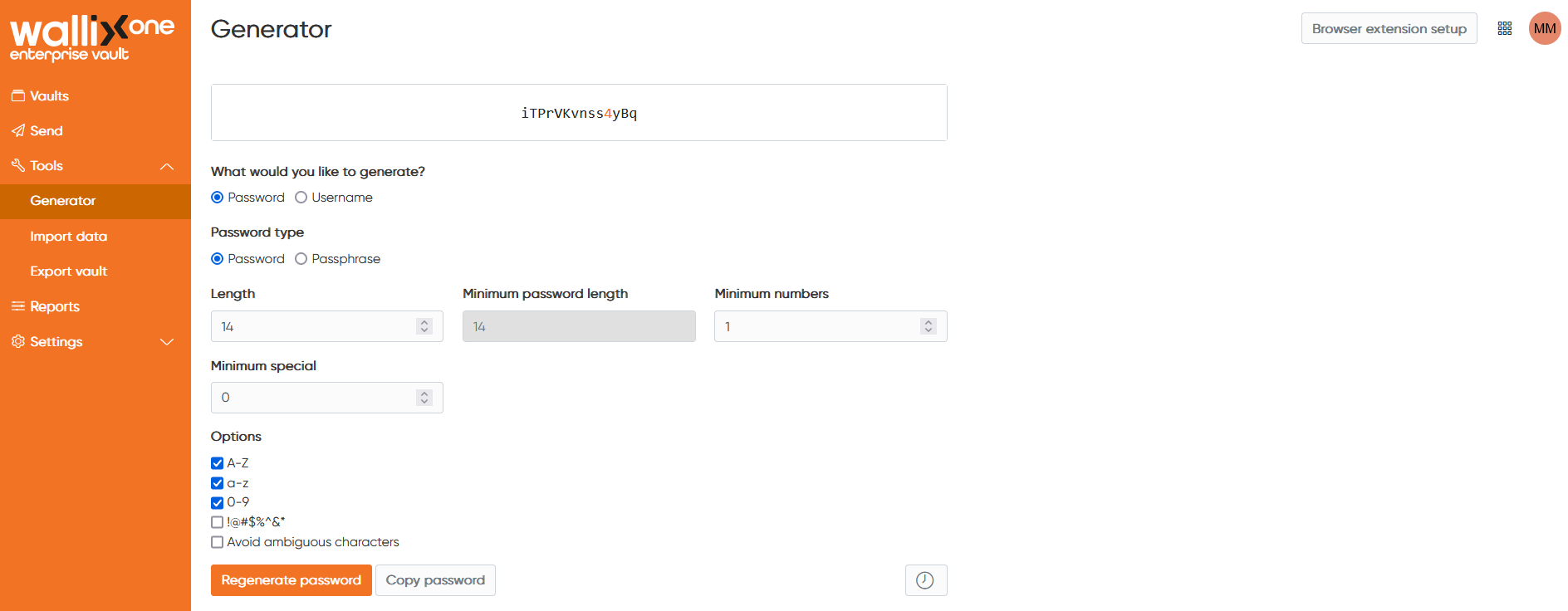
From **Tools** then **Generator** you can generate password or identifier, but more important, you can define the policy used for the generation.

Why is it important to remember this? Because you can generate a password from other places: when you create an item, when you use browser plugins... The generation will always be based on what you have defined on this page.

<span style="text-decoration: underline;">**For passwords, you can define:**</span>

- The length
- Minimum number of digits
- Minimum number of special characters
- Options: 
    - Allow A-Z characters
    - Allow a-z characters
    - Allow digits
    - Allow special characters
    - Avoir ambiguous characters, like 1 vs l or 0 vs O

<p class="callout info">If you prefer, you can also generates **Passphrases** instead of passwords. In this case you have some very explicit options, and the result will be something like: "footless-banter-helper-directive-sedation-life"</p>

<p class="callout info">By using the clock-shaped button at the bottom right of the page, you can retrieve the password history generate</p>

<span style="text-decoration: underline;">**For identifiers**</span>, you can choose to generate something based on your email address, or something random.

What is great with identifier based on your email address is that it uses alias, and most of the existing mail box are able to handle alias.

<p class="callout info">For instance, from "user@trustelem.com" it generates "user+uw4j19uk@trustelem.com".  
And the user will be able to receive the email sent to "user+uw4j19uk@trustelem.com".</p>

### Import / export items

If you have already used another another, you can import its items into your Enterprise Vault space.  
And if you wish to switch to another vault or make a backup of your items, you can export your personal items.

[![image.png](https://vault-doc.wallix.com/uploads/images/gallery/2025-01/scaled-1680-/CZ3image.png)](https://vault-doc.wallix.com/uploads/images/gallery/2025-01/CZ3image.png)
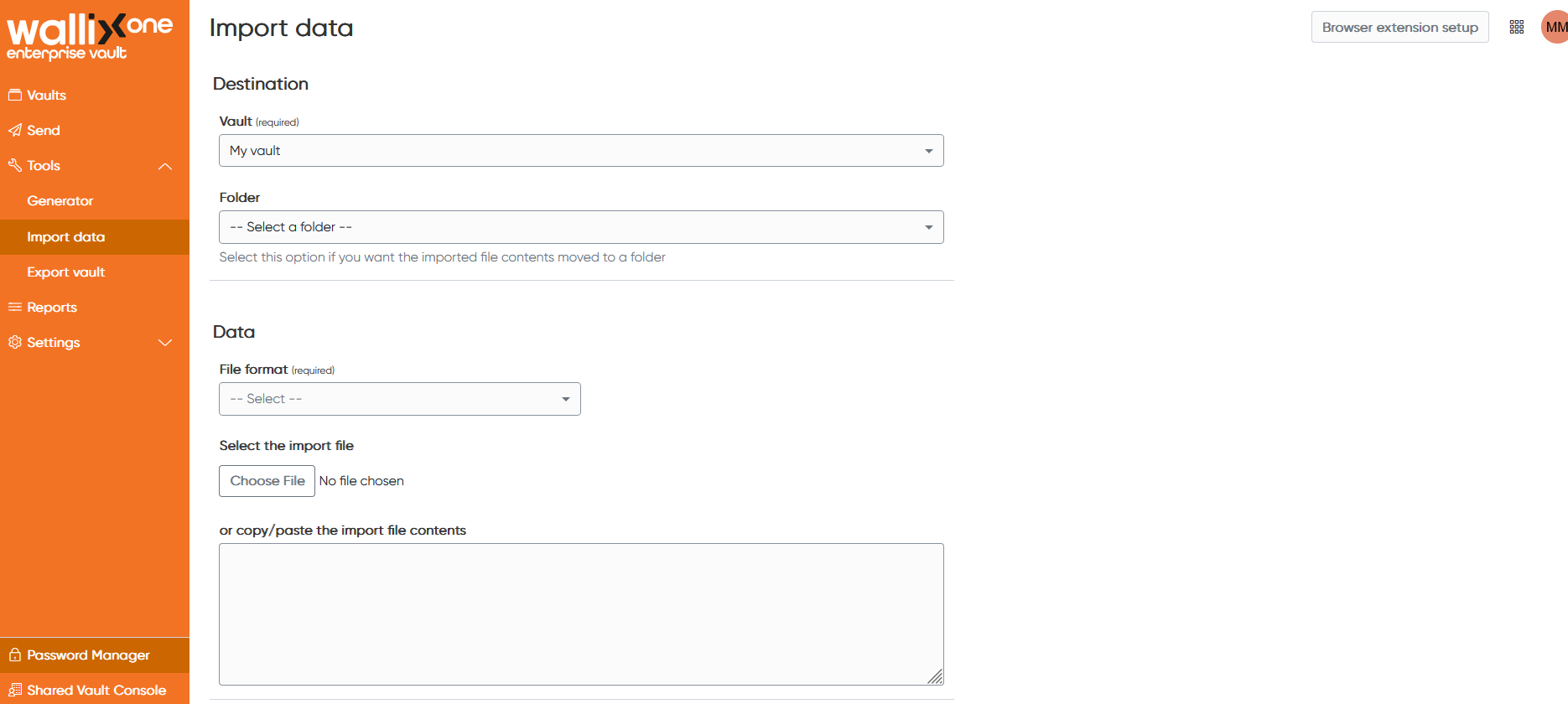
In **Tools** then **Import/Export data**, simply select the input or output format, then proceed with import or export..

When importing, you can also choose to create the new items in a specific location if you want to be able to find them easily.

### Reports

You have 4 reports available for your personal vault.  
They'll give you an idea of the security associated with your secrets.

[![image.png](https://vault-doc.wallix.com/uploads/images/gallery/2025-01/scaled-1680-/3Sjimage.png)](https://vault-doc.wallix.com/uploads/images/gallery/2025-01/3Sjimage.png)
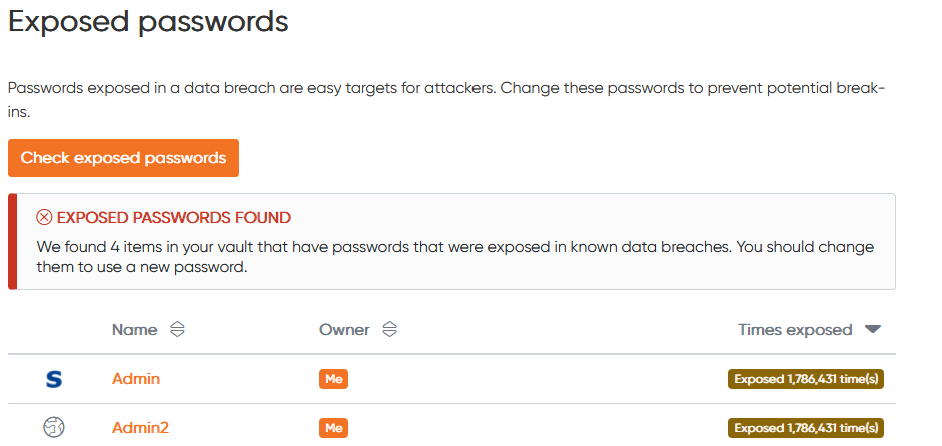
Check that the passwords used are not present in lists of stolen passwords.

[![image.png](https://vault-doc.wallix.com/uploads/images/gallery/2025-01/scaled-1680-/xPVimage.png)](https://vault-doc.wallix.com/uploads/images/gallery/2025-01/xPVimage.png)
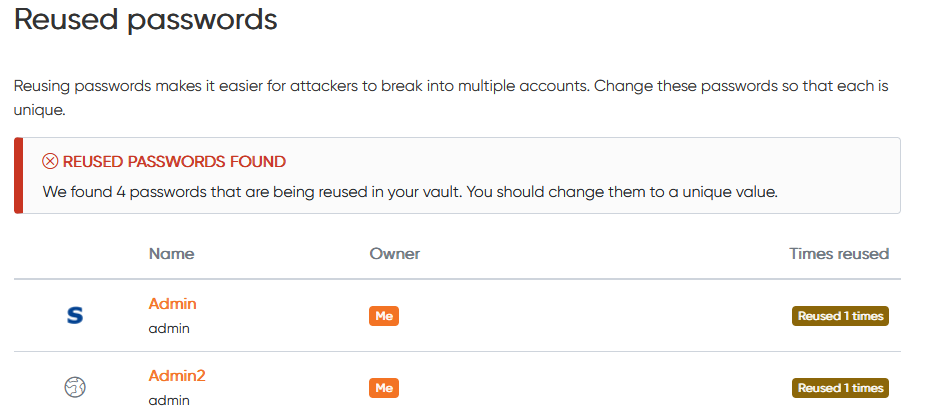
Check if you used the same password multiple time.

[![image.png](https://vault-doc.wallix.com/uploads/images/gallery/2025-01/scaled-1680-/c0limage.png)](https://vault-doc.wallix.com/uploads/images/gallery/2025-01/c0limage.png)
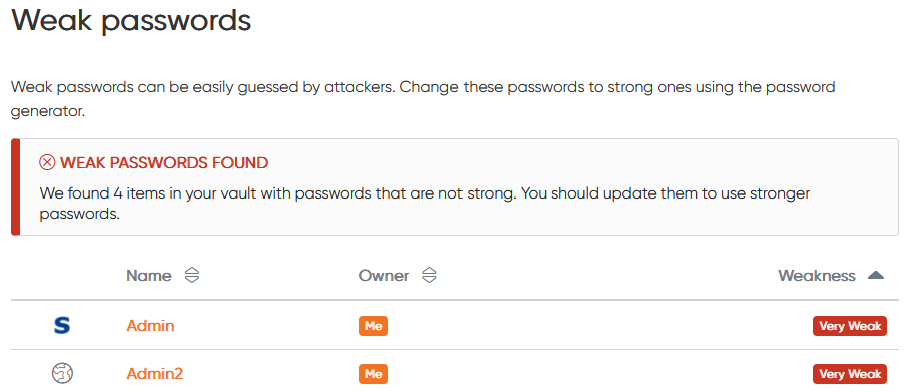
Check the strength of your passwords.

[![image.png](https://vault-doc.wallix.com/uploads/images/gallery/2025-01/scaled-1680-/9PXimage.png)](https://vault-doc.wallix.com/uploads/images/gallery/2025-01/9PXimage.png)
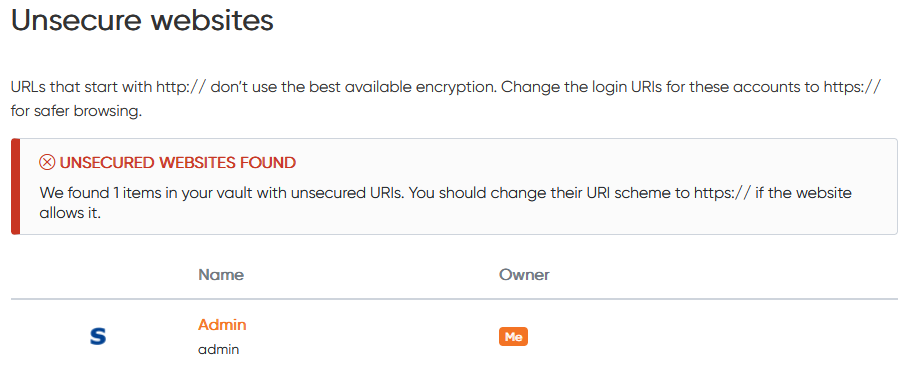
Check if you have URLs in login items, which use "http" format.

# Shared vault

As a reminder, you have access to two types of vault:

- Your personal vault, to which only you have access.
- Shared vaults, enabling secrets to be shared between different people and teams.

On this page, we'll focus on your **shared vaults**.

For more information on personal vault and plug-ins, please consult the following documentations:

- [Link for personal vault documentation, including authentication and account management](https://vault-doc.wallix.com/books/entreprise-vault-user/page/personal-vault)
- [Link for browser plugin documentation](https://vault-doc.wallix.com/books/entreprise-vault-user/page/browser-plugin)


### Manage shared vault

#### Create shared vaults

On the filter menu, you have a button to create a new shared vault:

[![image.png](https://vault-doc.wallix.com/uploads/images/gallery/2025-01/scaled-1680-/Gsyimage.png)](https://vault-doc.wallix.com/uploads/images/gallery/2025-01/Gsyimage.png)
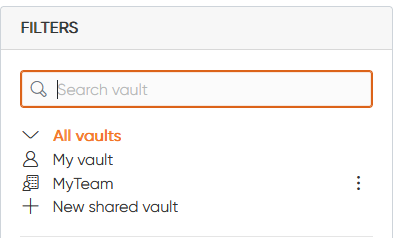
You can also create shared vaults from the Shared Vault Console.

After providing the name, the shared vault is created and you are the default **Owner**.

#### Access shared vault items

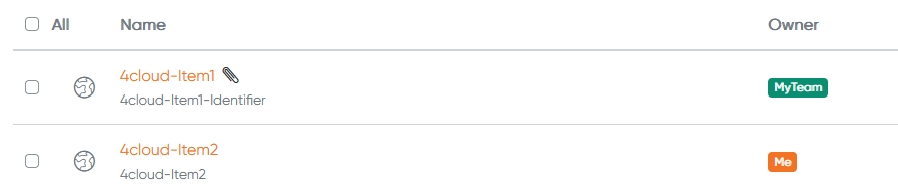
When you are a shared vault member, the items for which you have a permission are displayed with your personal items.

[![image.png](https://vault-doc.wallix.com/uploads/images/gallery/2025-01/scaled-1680-/fbFimage.png)](https://vault-doc.wallix.com/uploads/images/gallery/2025-01/fbFimage.png)
#### Access the Shared Vault Console

If you are **Admin** or **Owner** of a shared vault, you can access to the Shared Vault Console using:

- The button at the bottom left of the screen

[![image.png](https://vault-doc.wallix.com/uploads/images/gallery/2025-01/scaled-1680-/i01image.png)](https://vault-doc.wallix.com/uploads/images/gallery/2025-01/i01image.png)

- The button at the top right of the screen

[![image.png](https://vault-doc.wallix.com/uploads/images/gallery/2025-01/scaled-1680-/eZRimage.png)](https://vault-doc.wallix.com/uploads/images/gallery/2025-01/eZRimage.png)
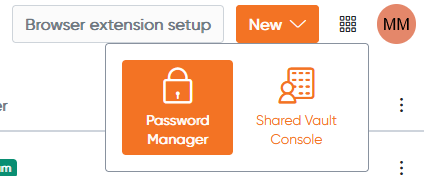
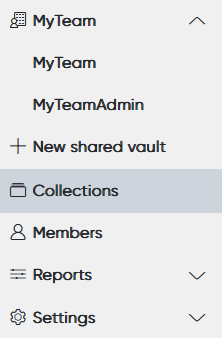
From here you can select your shared vault (MyTeam or MyTeamAdmin in the following example):

[![image.png](https://vault-doc.wallix.com/uploads/images/gallery/2025-01/scaled-1680-/UlFimage.png)](https://vault-doc.wallix.com/uploads/images/gallery/2025-01/UlFimage.png)
#### Rename shared vaults

From the **Shared Vault Console** then **Settings** and **Shared vault info** you can rename your shared vault.

Only the **Owners** can rename a shared vault.

#### Members

To add a shared vault member, you must have access to the **Shared Vault Console** then go to **Members**.

From here you can click **Invite member**. Then you have to:

- Select the user or provide his email address (which must already exists on Enterprise Vault)
- Select his role
- Select his collection permissions

If you don't know what a collection is, [you should start by reading the documentation.](https://vault-doc.wallix.com/books/entreprise-vault-user/page/shared-vault#bkmrk-manage-shared-vault--1)

<span style="text-decoration: underline;">**Roles &amp; Permissions**</span>

In a shared vault, members can have one of three possible roles:

- **User**: can only access to items
- **Admin**: can access to items, and manage the shared vault through the Shared Vault Console except for the shared vault information (shared vault name, collection management, delete, purge)
- **Owner**: can access to items, and manage the shared vault through the Shared Vault Console including the shared vault information (shared vault name, collection management, delete, purge)

In combination, members have permissions on selected collections:

- **Can view**: can view the entire content of the collection's items
- **Can view, excepts password**: can view the entire content of the collection's items, excepts for the passwords
- **Can edit**: 
    - Can create new items
    - Can edit the entire content of the collection's items
- **Can edit, excepts password**: 
    - Can create new items
    - Can edit the entire content of the collection's items, excepts for the passwords
- **Can manage:**
    - Can create new items
    - Can edit the entire content of the collection's items
    - Can delete the collection's items (Admin and Owner only)
    - Can manage the collection's members &amp; permissions (Admin and Owner only)
    - Can change the collection name
    - Can delete the collection

<p class="callout info">Only Owner can add new Owners</p>

<p class="callout info">Admins and Owners can only manage members of collections for which they have **Can manage** permission</p>

<p class="callout info">User can't delete item, whatever their permissions are because it's done through the **Shared Vault Console**</p>

<p class="callout info">If a **User** / **Owner** / **Admin** create a new collection, he automatically has the **Can manage** permission</p>

<span style="text-decoration: underline;">**More options for a custom collection management**</span>

Shared vault Owners have additional settings to manage rights in the **Shared Vault Console** then **Settings** and **Collection management**.

- **Owners and admins can manage all collections and items**: give all permissions (edit, delete, manage members...) for all collections to all Owners and Admins. It is as if they would have "Can manage" for all collections.

<p class="callout warning">When removing this option, you can add the error "<span class="line" data-lang="go"><span class="s">You have to set at least one manager for each collection before doing this action</span></span>". To fix the problem, go on "Collections" menu, select all collections, go one three dots menu and click "Edit Access". Select "Manage Collection" right and select one or more users (typically Owner and Admin who had all access with the checkbox)</p>

- **Limit collection creation to owners and admins**: prevent users to create collection.   
    It is a very interesting option, especially if the previous option is not checked.  
    Otherwise **Users** can create collection but can't add member (no access to the **Shared Vault Console**) and **Admins**/**Owners** can't manage members &amp; permissions either (no **Can manage** permission for the collection).
- **Limit collection deletion to owners and admins**: same option as the precedding, but to delete collection.
- **Limit item deletion to members with the manage collection permissions:** only manager of collection can delete items.

#### Purge &amp; Delete

From the **Shared Vault Console** then **Settings** and **Shared vault info** you can delete or purge a shared vault.

Only the **Owners** can purge or delete a shared vault.

<span style="text-decoration: underline;">**Purge shared vaults**</span>

All items and collections are deleted. Members remain untouched.

<span style="text-decoration: underline;">**Delete shared vaults**</span>

The shared vault is completely deleted and cannot be restored.

### Manage items

#### Add / Edit / Delete items

Most of the possible actions are described in the personal vault documentation:

- [Create login, credit card, identity or note secrets](https://vault-doc.wallix.com/books/entreprise-vault-user/page/personal-vault#bkmrk-create-%2F-edit-%2F-dele)

We'll only deal with the specific shared vault features here.  
But first, if you don't know what a collection is, [you should read the documentation.](https://vault-doc.wallix.com/books/entreprise-vault-user/page/shared-vault#bkmrk-manage-shared-vault--1)

That said, here's a list of the specifics of managing items in a shared vault.

- The actions you can perform depend on your collection permissions.  
    **View items** = Can view / Can edit / Can manage  
    **Create** **&amp;** **Edit items** = Can edit / Can manage  
    **Delete items** = Can manage and you can only do this through the **Shared Vault Console**
- When an item exist in a personal vault, it can be moved to a shared vault through **Assign to collection** (click the 3 dots at the end of the item line).  
    The item can't be assigned to the **Unassigned** collection
- When an item exist in a personal vault, it can be cloned to a shared vault through **OWNERSHIP** &gt; **Who owns this item?**  
    The default collection will be assigned by default, but if you uncheck it, the item will go to **Unassigned** collection
- A new item can be created on the shared vault  
    From your personal vault; you have to change **OWNERSHIP** &gt; **Who owns this item?** From your shared vault; a default collection will be assigned by default  
    If no collection are selected, the item will go to **Unassigned** collection

And voila! everything else is the same.

#### Search items

Searching for an item in the shared vaults works in the same way as searching for a personal item.

- [Search specific secrets documentation](https://vault-doc.wallix.com/books/entreprise-vault-user/page/personal-vault#bkmrk-search-items)

#### Import / export data

Importing or exporting data to a shared vault works in the same way as for the personal vault.

- [Import or export secrets](https://vault-doc.wallix.com/books/entreprise-vault-user/page/personal-vault#bkmrk-import-%2F-export-item)

The only difference is the menu: **Shared Vault Console** &gt; **Settings** &gt; **Import/Export data**

#### Reports

Reporting on data in a shared vault works in the same way as for the personal vault.

- [Generate security reports on your secrets](https://vault-doc.wallix.com/books/entreprise-vault-user/page/personal-vault#bkmrk-reports)

The only difference is the menu: **Shared Vault Console** &gt; **Reports**

### Manage collections

A collection is the equivalent of a folder. But as well as organizing items, it also **carries the notion of user permissions**.  
When you create a shared vault, there are 2 default collections:

- **Default collection**, which is present by default but managed with permissions, like any other collection
- **Unassigned**, which is a collection that cannot be deleted, selected in filters and for which all shared vault members have **Can manage** permission. This is where items that don't have a dedicated collection go.

What you can do with a collection depends on your permissions:

- **View items** = Can view / Can edit / Can manage
- **Create** **&amp;** **Edit items** = Can edit / Can manage
- **Delete items**= Can manage and you can only do this through the **Shared Vault Console**
- **Manage members &amp; permissions = Can manage and you can only do this through the **Shared Vault Console**
- **Edit collection name = Can manage and you can only do this through the **Shared Vault Console**
- **Delete the collection = Can manage and you can only do this through the **Shared Vault Console**

More information are available [on the Members chapter](https://vault-doc.wallix.com/books/entreprise-vault-user/page/shared-vault#bkmrk-members)

A collection can be created through the **personal vault** or through the **Shared Vault Console**.  
You have to define:

- It's name
- The shared vault where the collection will be created (for personal vault creation only)
- If the collection must be created under another collection (nested collection)
- Optionally, permissions for users who are already members of the shared vault for which the collection is created.

# Browser plugin

Browser plugins are available for Firefox and Chrome (with Edge extension).  
To install them, log on to the web application, then click on **Browser extension setup**.

[![image.png](https://vault-doc.wallix.com/uploads/images/gallery/2025-01/scaled-1680-/dYIimage.png)](https://vault-doc.wallix.com/uploads/images/gallery/2025-01/dYIimage.png)

Rotation plugins allow you to do more or less everything that's possible via the web application, with the exception of 3 things:

- Everything related to the **Shared Vault Console**
- Access to reports
- Master password change &amp; reset

For most applications, please refer to the [personal vault documentation](https://vault-doc.wallix.com/books/entreprise-vault-user/page/personal-vault).  
Here, we'll deal only with the specifics of the plugins.

### Authentication

After the setup or a logout, you have to click **Enterprise single sign-on.**

<p class="callout info">The field bellow, **Specify the base URL of your on-premises hosted WALLIX Vault installation,** is only used if you have accounts on multiple WALLIX IDaaS subscription and allow to switch between them.</p>

Then you will then need to provide your master password to access your items.

### Settings

In the **Settings** tab, you'll find various categories for configuring how you want to integrate your plugin into your browser.

#### Account security

- **Unlock with PIN**: until the next logout, ask for a PIN code instead of the master password
- **Vault timeout**: how long will the plugin session take to timeout?
- **Vault timeout action**: what happens when the vault timeout; Lock or Logout?

Other options are not useful.

#### Autofill

**Autofill** uses the website/URL parameter of an item and compares it with the browser URL to decide whether login should be automatically filled.

[![image.png](https://vault-doc.wallix.com/uploads/images/gallery/2025-01/scaled-1680-/QCiimage.png)](https://vault-doc.wallix.com/uploads/images/gallery/2025-01/QCiimage.png)
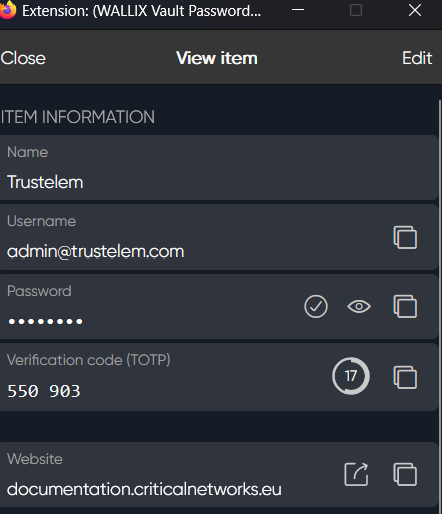
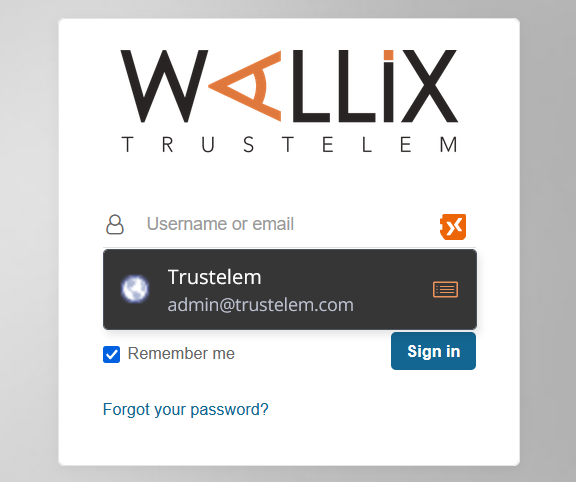
- **Show autofill menu on form field**s: display the available login on a login form (off, automatic, on click)

[![image.png](https://vault-doc.wallix.com/uploads/images/gallery/2025-01/scaled-1680-/55Dimage.png)](https://vault-doc.wallix.com/uploads/images/gallery/2025-01/55Dimage.png)
- **Autofill on page load:** allow to automatically completes the logins found for the existing web page
- **Default autofill setting for login item**: if not set on an item, choose whether or not you want to use auto-fill
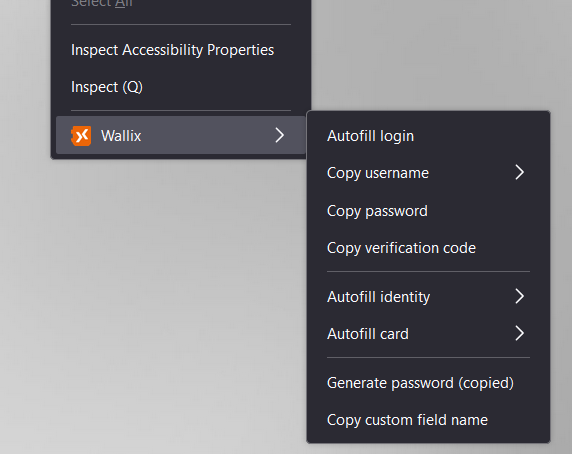
- **Show context menu option**s: choose whether you want Enterprise Vault actions to be proposed when you right-click on your browser (Autofill, Copy a secret, Generate a password...)

[![image.png](https://vault-doc.wallix.com/uploads/images/gallery/2025-01/scaled-1680-/5zIimage.png)](https://vault-doc.wallix.com/uploads/images/gallery/2025-01/5zIimage.png)
- **Copy TOTP automatically**: choose if you want to add the TOTP to your clipboard after an autofill
- **Clear clipboard**: choose if you want to erase automatically your clipboard or not
- **Default URL match detection**: used to detect a possible autofill action 
    - **Base domain**: search items that have a website with the same domain as the browser URL   
        *On **https://documentation.trustelem.com**, everything with **.trustelem.com** can be used*
    - **Host**: search item that have a website with the same host as the browser URL   
        *On **https://documentation.trustelem.com/app/123456** everything with **documentation.trustelem.com** can be used*
    - **Start with**: search items that have a website with the beginning of the browser URL  
        *On **https://documentation.trustelem.com** everything with **documentation** can be used*
    - **Regular**: use regular expression to match website item and browser URL  
        *On **https://documentation.trustelem.com** everything with **^https://.\*** can be used*
    - **Exact**: search items that have a website which is exactly the browser URL  
        *On **https://documentation.trustelem.com/app/123456** only **https://documentation.trustelem.com/app/123456 can be used*

<span style="text-decoration: underline;">**Notes**</span>:

- Using the web client, you can change the match detection setting of an item[![image.png](https://vault-doc.wallix.com/uploads/images/gallery/2025-01/scaled-1680-/5URimage.png)](https://vault-doc.wallix.com/uploads/images/gallery/2025-01/5URimage.png)

- Using the web client, you can associate 2 base domain together using **Settings** then **Domain rules** [![image.png](https://vault-doc.wallix.com/uploads/images/gallery/2025-01/scaled-1680-/OsEimage.png)](https://vault-doc.wallix.com/uploads/images/gallery/2025-01/OsEimage.png)*In this example, even if you have “youtube.com” for an item, google.com will automatically fill it in too.*

#### Notifications

- **Ask to add login**: do you want to have a notification asking to save a new login provided in your browser?
- **Ask to update existing login**: do you want to have a notification asking to update a login which is in the Vault but with a different password?
- **Excluded domains**: add domains for which you will not have any notification

#### Vault

- **Folders**: manage your folders
- **Import** items: import items from a backup
- **Export** items: export your personal items
- **Sync**: force a synchronization of the plugins, to make sure items are the same everywhere

#### Appearance

- **Theme**: choose the colors used in your plugin

#### About

- Information about the plugins, including the version