The field bellow, **Specify the base URL of your on-premises hosted WALLIX Vault installation,** is only used if you have accounts on multiple WALLIX IDaaS subscription and allow to switch between them.
Then you will then need to provide your master password to access your items. ### Settings In the **Settings** tab, you'll find various categories for configuring how you want to integrate your plugin into your browser. #### Account security - **Unlock with PIN**: until the next logout, ask for a PIN code instead of the master password - **Vault timeout**: how long will the plugin session take to timeout? - **Vault timeout action**: what happens when the vault timeout; Lock or Logout? Other options are not useful. #### Autofill **Autofill** uses the website/URL parameter of an item and compares it with the browser URL to decide whether login should be automatically filled. [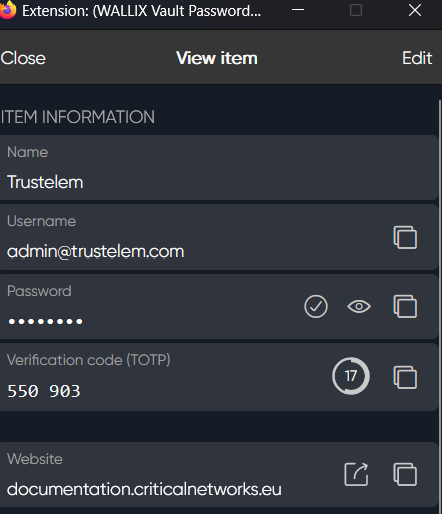](https://vault-doc.wallix.com/uploads/images/gallery/2025-01/QCiimage.png) - **Show autofill menu on form field**s: display the available login on a login form (off, automatic, on click) [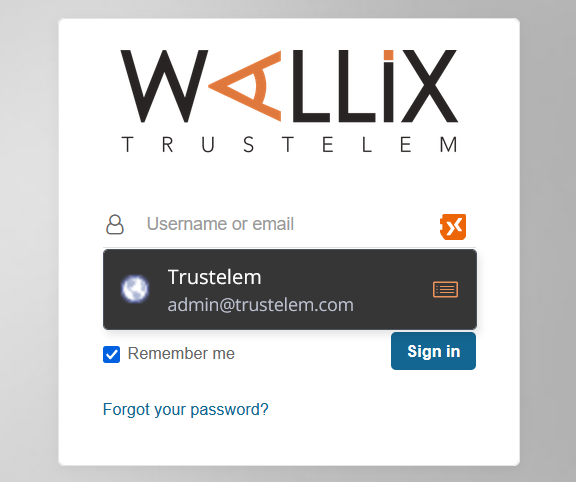](https://vault-doc.wallix.com/uploads/images/gallery/2025-01/55Dimage.png) - **Autofill on page load:** allow to automatically completes the logins found for the existing web page - **Default autofill setting for login item**: if not set on an item, choose whether or not you want to use auto-fill - **Show context menu option**s: choose whether you want Enterprise Vault actions to be proposed when you right-click on your browser (Autofill, Copy a secret, Generate a password...) [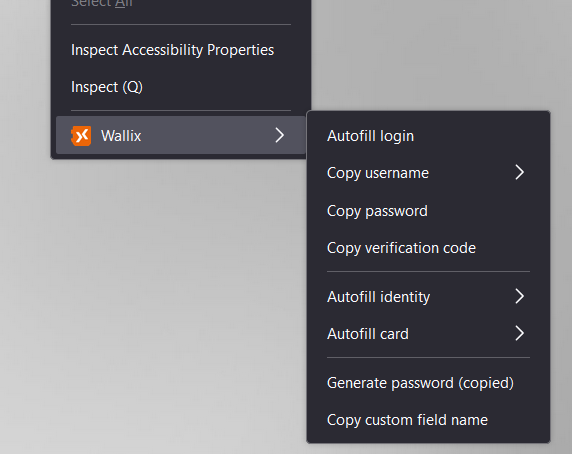](https://vault-doc.wallix.com/uploads/images/gallery/2025-01/5zIimage.png) - **Copy TOTP automatically**: choose if you want to add the TOTP to your clipboard after an autofill - **Clear clipboard**: choose if you want to erase automatically your clipboard or not - **Default URL match detection**: used to detect a possible autofill action - **Base domain**: search items that have a website with the same domain as the browser URL *On **https://documentation.trustelem.com**, everything with **.trustelem.com** can be used* - **Host**: search item that have a website with the same host as the browser URL *On **https://documentation.trustelem.com/app/123456** everything with **documentation.trustelem.com** can be used* - **Start with**: search items that have a website with the beginning of the browser URL *On **https://documentation.trustelem.com** everything with **documentation** can be used* - **Regular**: use regular expression to match website item and browser URL *On **https://documentation.trustelem.com** everything with **^https://.\*** can be used* - **Exact**: search items that have a website which is exactly the browser URL *On **https://documentation.trustelem.com/app/123456** only **https://documentation.trustelem.com/app/123456 can be used* **Notes**: - Using the web client, you can change the match detection setting of an item[](https://vault-doc.wallix.com/uploads/images/gallery/2025-01/5URimage.png) - Using the web client, you can associate 2 base domain together using **Settings** then **Domain rules** [](https://vault-doc.wallix.com/uploads/images/gallery/2025-01/OsEimage.png)*In this example, even if you have “youtube.com” for an item, google.com will automatically fill it in too.* #### Notifications - **Ask to add login**: do you want to have a notification asking to save a new login provided in your browser? - **Ask to update existing login**: do you want to have a notification asking to update a login which is in the Vault but with a different password? - **Excluded domains**: add domains for which you will not have any notification #### Vault - **Folders**: manage your folders - **Import** items: import items from a backup - **Export** items: export your personal items - **Sync**: force a synchronization of the plugins, to make sure items are the same everywhere #### Appearance - **Theme**: choose the colors used in your plugin #### About - Information about the plugins, including the version