If you forget your Password and click on the [**Get Master Password Hint**](https://vault-doc.wallix.com/link/48) link, you will be sent the Password Hint that you created the first time you logged in. This should be a word or phrase that helps you to remember your password but doesn’t help other people to guess your password.
Click on the **Create Account** button to create your account. The account is created and the **Enterprise Single Sign-On Page** is displayed. Alternatively, click **Cancel** to cancel account creation. [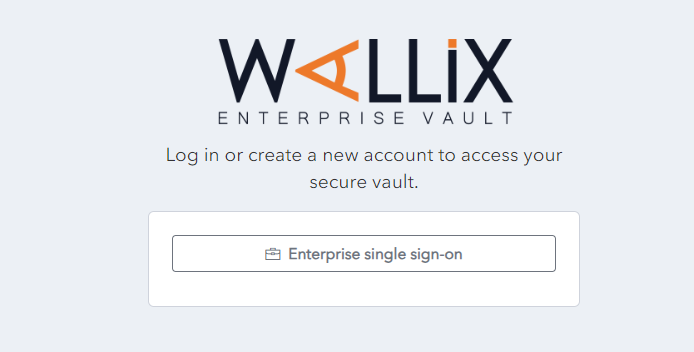](https://vault-doc.wallix.com/uploads/images/gallery/2023-11/account-created-login.png)For users who have this option, the link to **Start a password reset procedure** appears on the WALLIX Vault Login and Unlock pages. The Vault Administrator gives users access to this option.
Please **contact your Vault Administrator** if you do not have this option and require it.
### Create a Password Reset Request From the **Vault Login** **or Unlock page**, click on the **Start a password reset procedure link.** [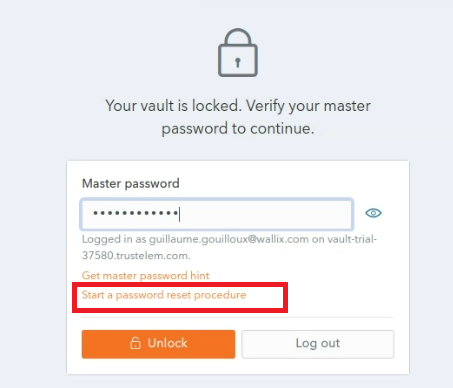](https://vault-doc.wallix.com/uploads/images/gallery/2023-12/start-a-password-reset-procedure-copie.png) The following screen is displayed. [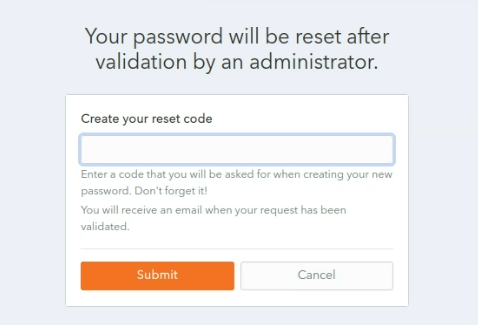](https://vault-doc.wallix.com/uploads/images/gallery/2023-12/step-1-copie.png) **Choose** and enter a **reset code** in the **Create your reset code field.**It is important to remember the reset code you choose, as you need it to complete the password reset procedure.
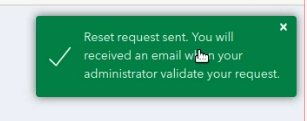
Click **Submit** button. A **confirmation message** is **displayed.** An information email is sent to the user and a notification email is sent to Vault Administrators.Your **Password Reset Request** is **sent** and **needs** to be **validated** by the **Vault Administrator.**
[](https://vault-doc.wallix.com/uploads/images/gallery/2023-12/step-3-copie.png) ### Create a New Password Once the Vault Administrator validates your **Password Reset Request**, you receive an e-mail containing a reset link. **Click** the **Reset Password link.** The **Reset your master password screen** is displayed. [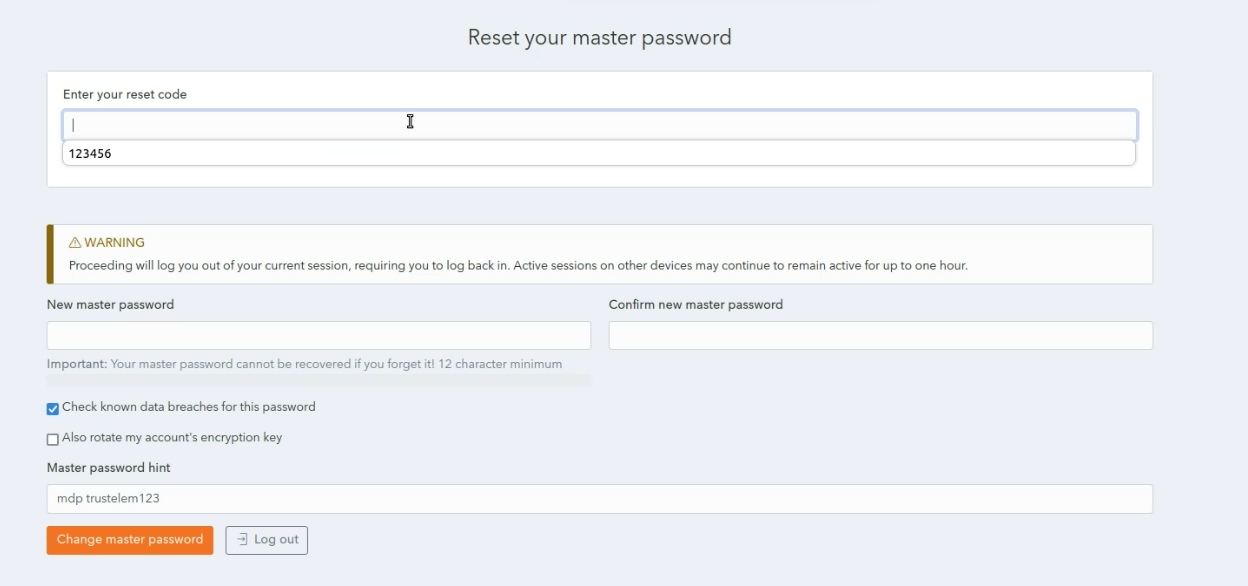](https://vault-doc.wallix.com/uploads/images/gallery/2023-12/step-10-after-clicking-on-reset-password-email-link-copie.png) In the **Enter your reset code** field, enter the reset code created during the Create a Password Reset Request procedure. In the **New master password** field, choose and enter a new master password. In the **Confirm new master password** field, re-enter the new master password chosen. In the [Master password hint](https://vault-doc.wallix.com/link/48) field, enter the Master Password Hint that you created when you [created your Account](https://vault-doc.wallix.com/link/4). The **Check known data breaches for this password** checkbox is checked by default. This can be unchecked if you do not wish to check for known data breaches related to your new chosen password. The **Also rotate my account's encryption key** checkbox is unchecked by default. This can be unchecked if you wish to rotate your account's encryption key. Click **Change master password** to reset your master password. This disconnects you from your current session on all devices, and you must log in again with your new master password. The following screen is displayed showing a **Master Password reset confirmation** message. [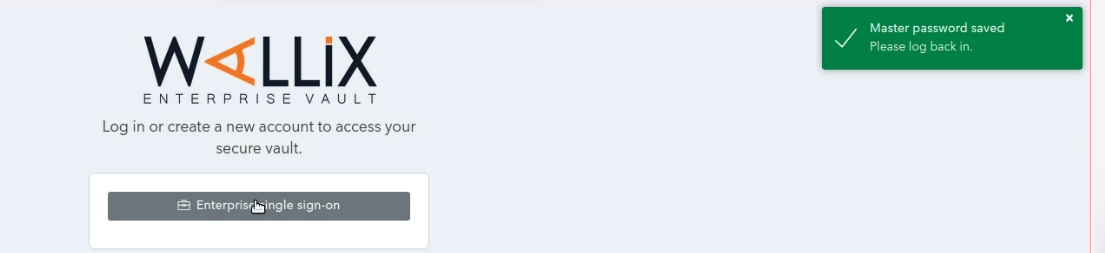](https://vault-doc.wallix.com/uploads/images/gallery/2023-12/step-13-copie.png) Alternatively, click **Log out** to cancel the operation. # Change Master Password Users can change their master password from WALLIX Vault. This requires remembering the current master password. This procedure is similar to the [Reset Master Password Procedure](https://vault-doc.wallix.com/link/106), which is used when the User cannot remember their current Master Password. Click on the **User Icon,** on the top right-hand side of the screen, to display the **User Menu**. [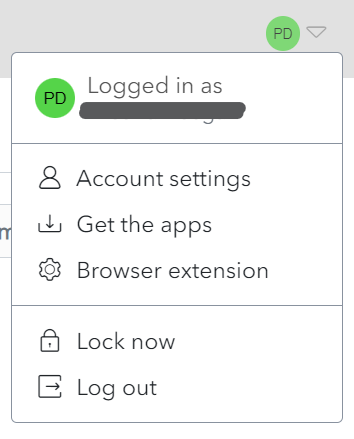](https://vault-doc.wallix.com/uploads/images/gallery/2023-12/profile-menu-copie-2.png) Click on **Account Settings** and then **Security**. The **Security Screen** is displayed on the **Master Password Tab**. [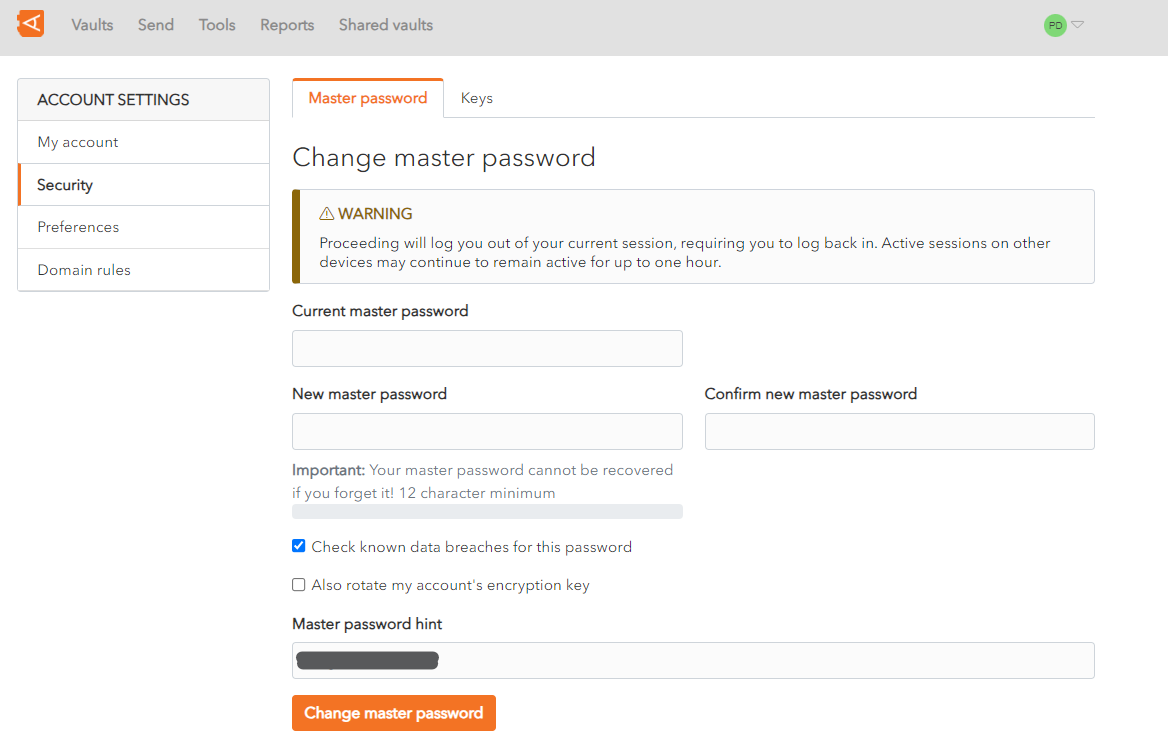](https://vault-doc.wallix.com/uploads/images/gallery/2023-12/master-password-screen.png) In the **Current master password** field, enter your current master password. In the **New master password** field, choose and enter a new master password. In the **Confirm new master password** field, re-enter the new master password chosen. In the [Master password hint](https://vault-doc.wallix.com/link/48) field, enter the Master Password Hint that you created when you [created your Account](https://vault-doc.wallix.com/link/4). The **Check known data breaches for this password** checkbox is checked by default. This can be unchecked if you do not wish to check for known data breaches related to your new chosen password. The **Also rotate my account's encryption key** checkbox is unchecked by default. This can be unchecked if you wish to rotate your account's encryption key. Click **Change master password** button to change your master password. This will **log you out** of your current session on all devices and you will be required to **log back in** with your **new master password**. The following screen is displayed showing a **Master Password reset confirmation** message. [](https://vault-doc.wallix.com/uploads/images/gallery/2023-12/step-13-copie.png) Alternatively, click **Log out** to cancel the operation. # Encryption Key Settings It is possible to change the Encryption Key Settings for your Account. Click on the **User Icon,** on the top right-hand side of the screen, to display the **User Menu**. [](https://vault-doc.wallix.com/uploads/images/gallery/2023-12/profile-menu-copie-2.png) Click **Account Settings** and click **Security**. The Security screen is displayed on the Keys Tab. [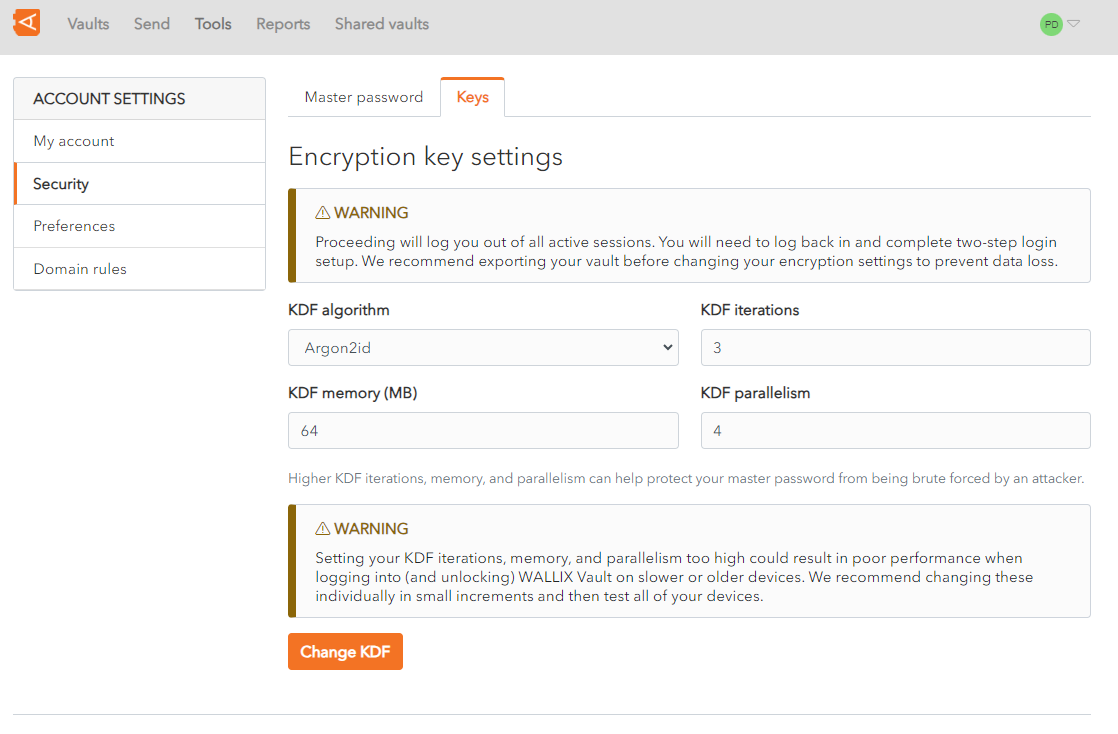](https://vault-doc.wallix.com/uploads/images/gallery/2023-12/encryption-key-settings.png) The following options can be changed: - **KDF algorithm**: There are 2 choices - **Argon2id** or **PBKDF2 SHA-256**. To be more secure and efficient, use Argon2id rather than PBKDF2. [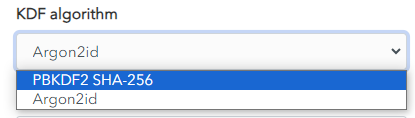](https://vault-doc.wallix.com/uploads/images/gallery/2023-12/capture-decran-2023-12-13-124713.png) - **KDF Iterations**: Choose the number of iterations possible. The **default** is **3**. - **KDF memory (MB)**: Choose the memory required . The **default** is **64**. - **KDF parallelism**: Choose the parallism possible. The **default** is **4**Higher KDF iterations, memory, and parallelism can help protect your master password from being brute forced by an attacker. However, setting your KDF iterations, memory, and parallelism too high could result in poor performance when logging into (and unlocking) WALLIX Vault on slower or older devices. Changing these parameters individually, in small increments, and then testing all your devices is the best way to ensure performance.
Proceeding will log you out of all active sessions. You will need to log back in and complete two-step login setup. Export your vault before modifying your encryption settings to avoid any loss of data.
Click **Change KDF** to change the Encryption Key Settings for your Account. # Login to Vault First Level Authentication Navigate to the WALLIX Trustelem Portal. Enter your **Email** and the **Password** you chose on first login. You can check the **Remember Me** checkbox if you want to save your email and password to avoid re-entering them the next time you login. Then click the **Sign In** button. 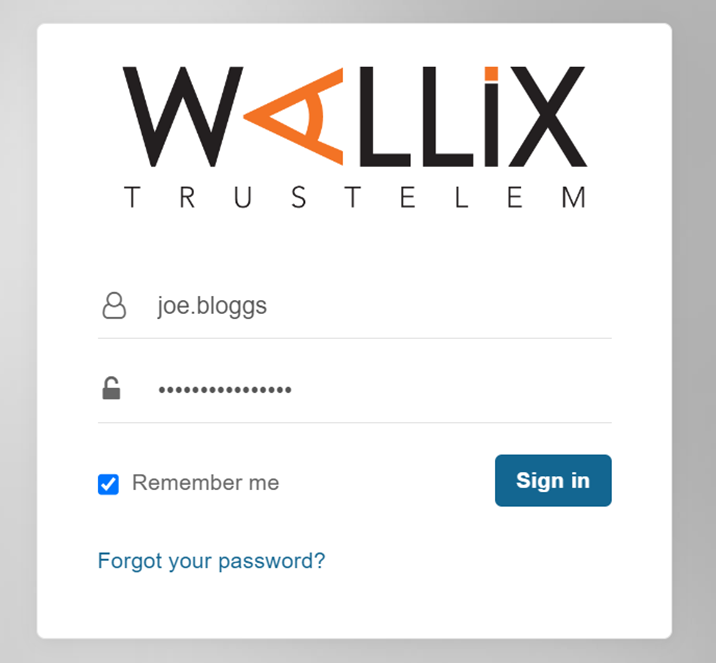**Note** : If you forget your Password click the **Forgot your password ?** link at any time to request a password reset.
This logs you into the **WALLIX Trustelem Portal**. Click on the **WALLIX Enterprise Vault** button to access WALLIX Enterprise Vault. 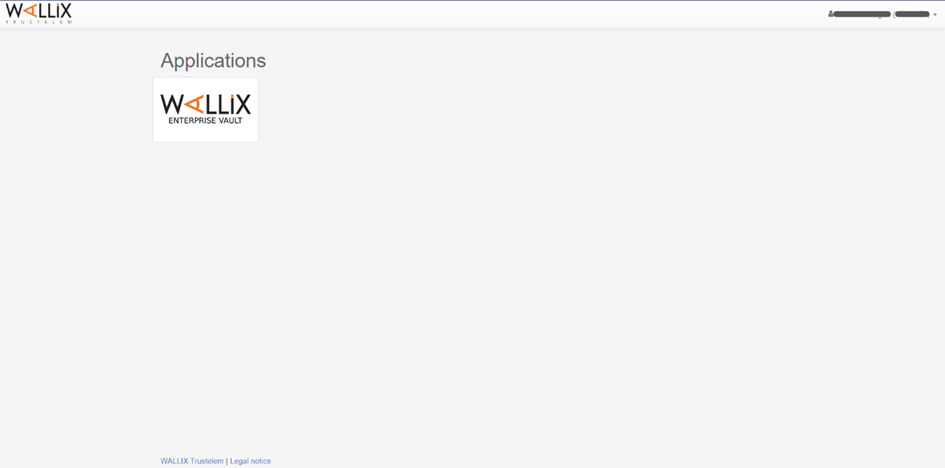 ## Second Level Authentication The WALLIX Enterprise Vault screen displays an **Enterprise Single Sign On** button. Click the **Enterprise Single Sign On** button. 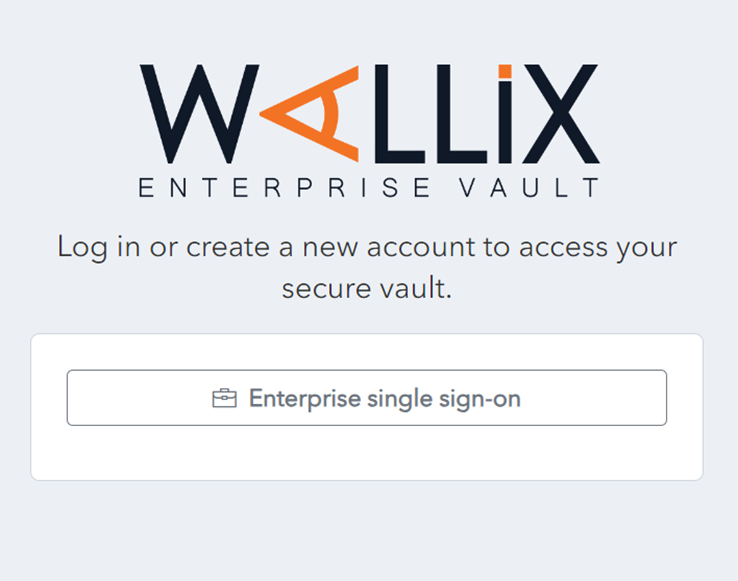 Enter your Master Password and click the **Unlock** button. This will bring you into your [Vault Home](https://vault-doc.wallix.com/link/19) Screen. **Note** : If you are already logged into the WALLIX Portal, you can navigate directly to your WALLIX Enterprise Vault and go straight to the 2nd level authentification. # Logout from Vault You can logout of WALLIX Enterprise Vault from the Vault Screen or the Lock Screen. ## Logout from Vault Home Screen You can log out of WALLIX Enterprise Vault from your WALLIX Enterprise Vault screen. 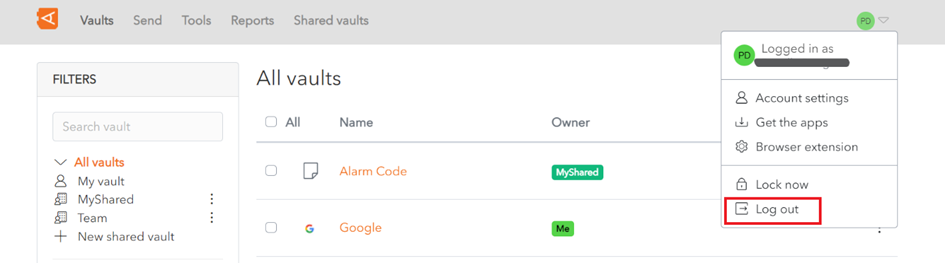 Click on the **Log out** button to log you out of WALLIX Enterprise Vault. **Note** : This will log you out of the **2nd level of authentification only**. You will be returned to the Wallix Enterprise Vault Login Screen. ## Logout from Unlock Screen You can log out of WALLIX Enterprise Vault from the Unlock screen. Click on the **Log out** button to log you out of WALLIX Enterprise Vault. **Note **: This will log you out of the **2nd level of authentification only.** You will be presented with a **confirmation** pop up screen. 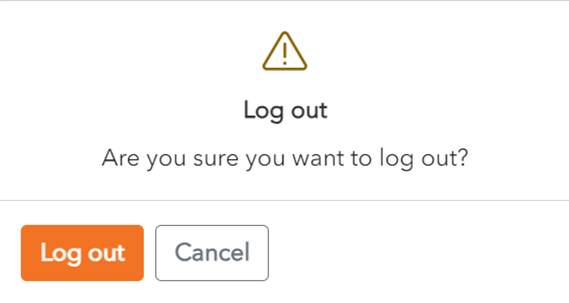 Click **Log out** to confirm log out. You will be returned to the Wallix Enterprise Vault Login screen. 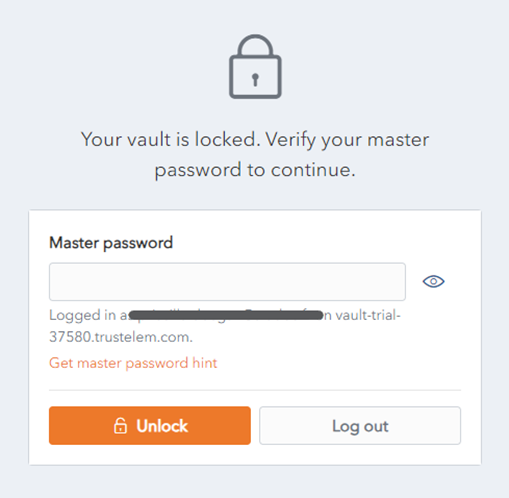 # Unlock Vault Your WALLIX Enterprise Vault is automatically locked after an [**extended period of inactivity,**](https://vault-doc.wallix.com/link/120) which can be changed in WALLIX Vault. Enter your **Master Password** and click the **Unlock** button to access your WALLIX Enterprise Vault. 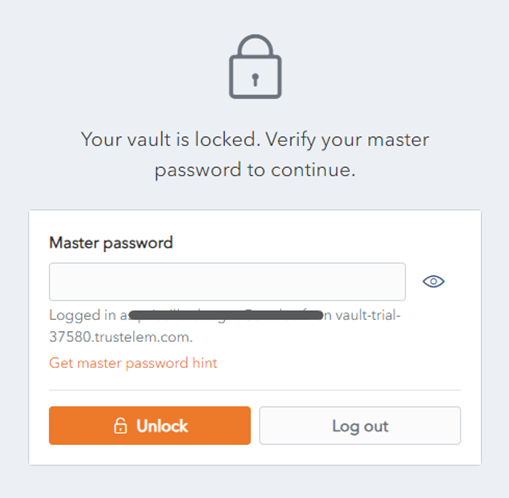 # Lock Vault You can lock your WALLIX Enterprise Vault from your WALLIX Enterprise Vault screen. 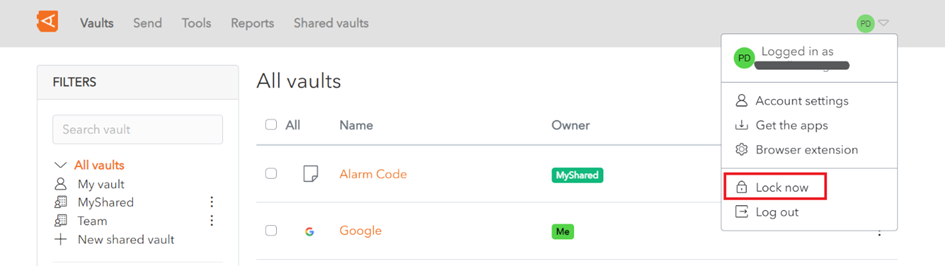 Click on the **Lock now** button to lock your WALLIX Enterprise Vault. **Note** : This will return you to the **WALLIX Enterprise Vault Lock Screen**. 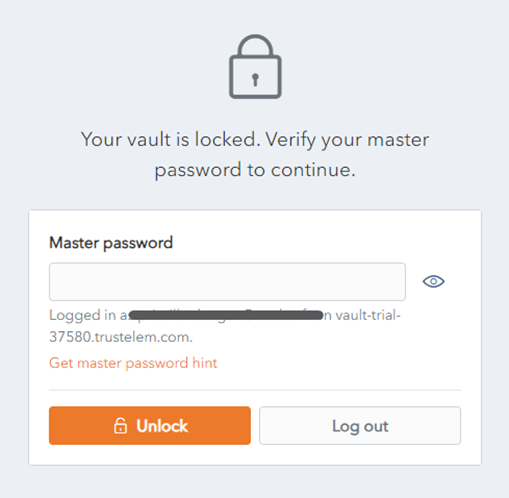 # Unlock with PIN **Unlock with PIN** is a feature that is available for WALLIX Vault for the **Browser Extension** and **Mobile apps**. ### Browser Extension #### Enable Unlock with PIN From the **Browser Extension**, click the **Settings** Menu. **Check** the **Unlock with PIN** Checkbox. [](https://vault-doc.wallix.com/uploads/images/gallery/2023-12/unlock-with-pin-copie.png) A **pop up screen** is **displayed**. [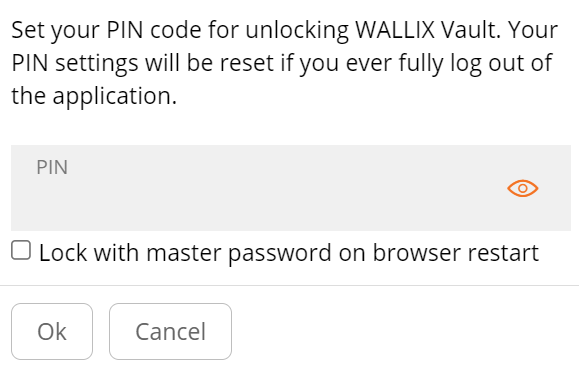](https://vault-doc.wallix.com/uploads/images/gallery/2023-12/confirmation-uncheck.png) **Create** and enter a **PIN** to use for unlocking the Vault. The **Lock with master password on browser restart** checkbox is **checked** by **default**. This **requires** the **Master Password** after Browser Restart. If **unchecked**, the **PIN** will be required on browser restart. Click **Ok** to **save PIN** and **activate Unlock with PIN**.If the **Lock with master password on browser restart** checkbox is **unchecked**, some **sensitive data** in **memory** may **not** be **deleted** when the **browser extension** is **locked.**
Alternatively, click **Cancel** to cancel the operation.If you fully **log out** of the **application**, your **PIN settings** will be **reset**.
#### Change PIN To **change the PIN** **after** it has **been set**, **disable** the **Unlock with PIN checkbox** in settings, then **reenable** it. This will **require** a **new PIN** to be entered. #### Use Unlock with PIN When the Browser Application is **locked**, you will be **prompted** to **enter the PIN** to **unlock**. [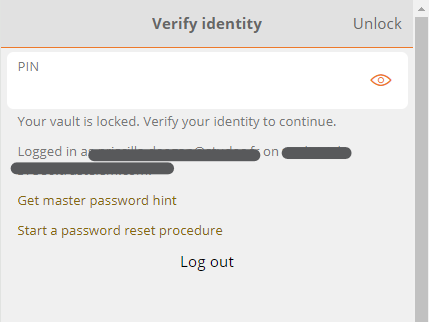](https://vault-doc.wallix.com/uploads/images/gallery/2023-12/XMKunlock-with-pin-after-browser-restart.png)If the **browser is restarted**, you will be prompted to **enter either** a **PIN** or a **Master Password** to unlock. This is based on the **Lock with master password on browser restart** option chosen during PIN creation.
### Mobile App #### Enable Unlock with PIN From the **Settings** tab on **WALLIX Vault Mobile App**, tap the **Unlock with PIN Code** option. **Create** and enter a **PIN** to use for unlocking the Vault. A Pop up screen appears to request if you wish to **Lock with master password on browser restart.** Tap **Yes** to **require Master Password** on **browser restart.**If the **Lock with master password on browser restart** checkbox is **unchecked**, some **sensitive data** in **memory** may **not** be **deleted** when the **browser extension** is **locked.**
Alternatively, tap **No** to **require PIN** on **browser restart.**If you fully **log out** of the **application**, your **PIN settings** will be **reset**.
#### Use Unlock with PIN When the Mobile App is **locked**, you will be **prompted** to **enter the PIN** to **unlock**.If the **browser is restarted**, you will be prompted to **enter either** a **PIN** or a **Master Password** to unlock. This is based on the **Lock with master password on browser restart** option chosen during PIN creation.
# Unlock with Biometrics **Unlock with Biometrics** is a feature that is available for WALLIX Vault for the **Browser Extension** and **Mobile apps**.**Biometrics** are part of you **Operating System** or **Mobile Device**. **WALLIX Vault** does **not** receive **biometric information** about an **Account**.
### Enable Unlock with Biometrics From **Settings** menu on your mobile device, **turn on** and **enable Biometrics.** From **WALLIX Mobile App, open Settings > Account Security.** **Check** the **Biometrics option** you wish to **enable.** For **iOS** the following options are available: [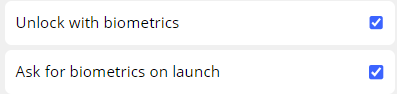](https://vault-doc.wallix.com/uploads/images/gallery/2023-12/unlock-biometrics.png) In **iOS**, a **Pop up screen** appears to request confirmation of this change**.** [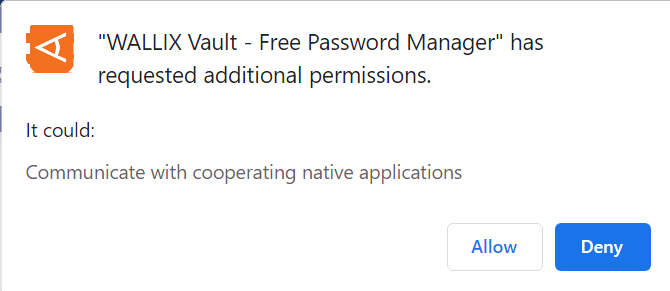](https://vault-doc.wallix.com/uploads/images/gallery/2023-12/unlock-biometrics-confirmation.png) Tap **Allow** to **enable biometrics.** Tap **Deny** to cancel the operation. # Lock Vs Logout **Lock** and **Logout** do **not** perform the **same** function. It is important to understand the differences between them. **WALLIX Vault** only **stores** **Encrypted Data** on its **servers**. ### Login The **Master Password** is needed to Login and gain **access** to the **Account Encryption Key**. An **Internet** Connection (or **Server connection**) is **needed**. **Encrypted Vault Data** is **downloaded**. It is **decrypted** using the **Account Encryption Key**. ### Unlock The Account is **already logged in**. The **Encrypted Vault Data** has **already** been **downloaded**. The **Master Password** is **not needed** to **unlock** (but can be used). Therefore, **Unlock using PIN** or **Biometrics** is possible. An **Internet** Connection (or **Server connection**) is **not needed**. ### Lock and Unlock using Biometrics or PIN After activation of Unlock **using a PIN** or a **Biometric Factor**, a **New PIN** or a **Biometric Encryption Key** is **created**. This is **derived** from the **PIN** or **Biometric Factor** used to encrypt the **Account Encryption Key**, which is **stored locally** when the User is logged in.**Unlock using Master Password on Browser Restart**, the Account Encryption Key is stored in **memory**.
When you **Unlock** the Vault, the PIN or Biometric Encryption Key is used to **decrypt** the **Account Encryption Key** stored locally, which is then used to **decrypt** the **Vault Data** stored locally. When you **Lock** the Vault, the **decrypted Account Encryption Key** and **Vault Data** are **deleted**. # Deauthorize Sessions This is used if you want to **deauthorize all computers and devices** that have been **previously used to login to WALLIX Vault** with **this Account**. Click on the **User Icon,** on the top right-hand side of the screen, to display the **User Menu**. [](https://vault-doc.wallix.com/uploads/images/gallery/2023-12/profile-menu-copie-2.png) Click on **Account Settings** and then **My Account**. The **My Account Screen** is displayed. Click **Deauthorize sessions**. [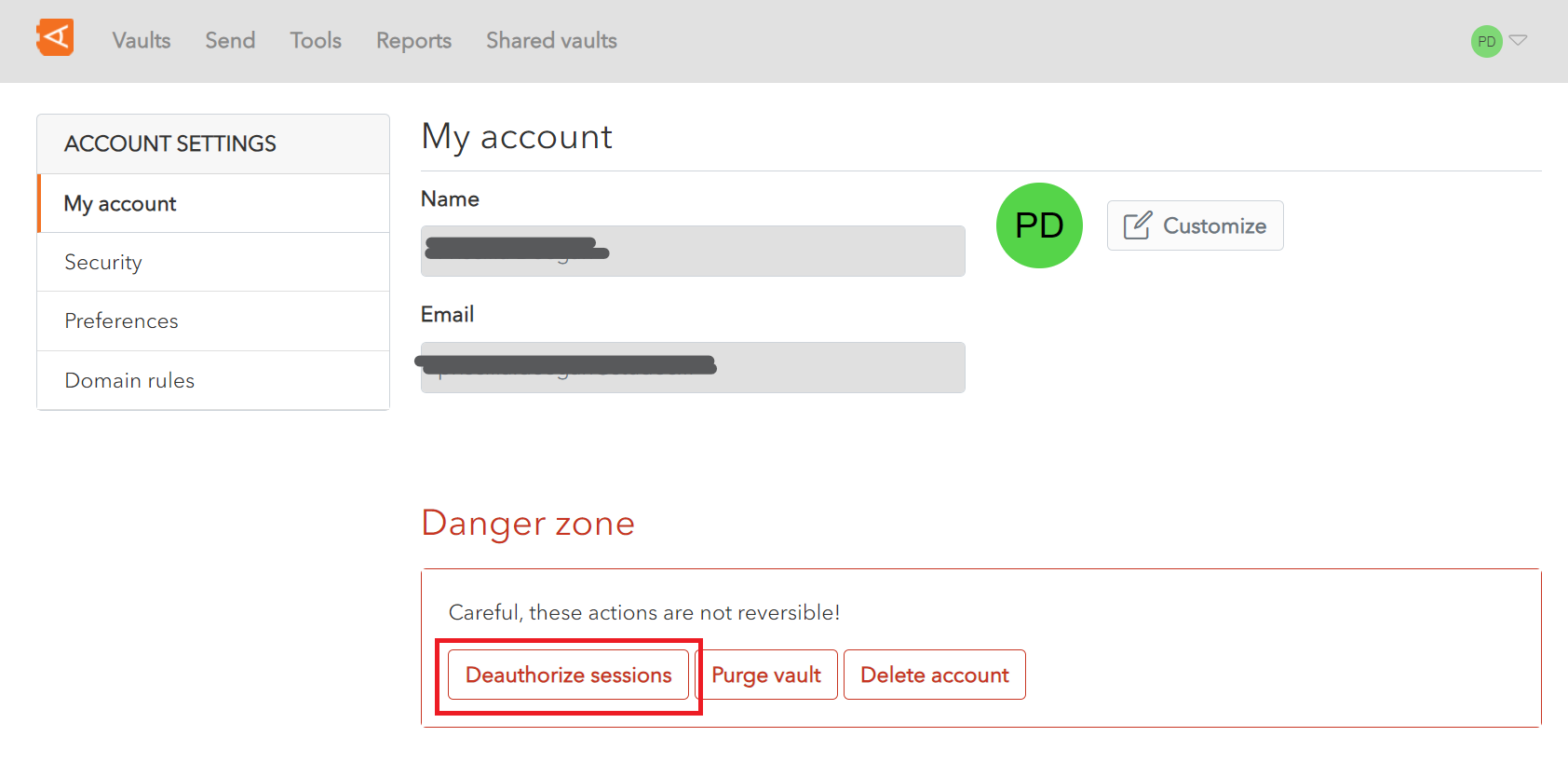](https://vault-doc.wallix.com/uploads/images/gallery/2023-12/my-account-screen-copie-3.png) A **Confirmation Screen** is displayed. Enter your **Master Password** and click **Deauthorize sessions to deauthorize all previously authorized devices and computers and to log them out of the vault. Alternatively, click **Close** to cancel the operation. [](https://vault-doc.wallix.com/uploads/images/gallery/2023-12/deauthorize-sessions-confirmation.png) # Account Switching on Mobile App It is possible to have up to 5 WALLIX Accounts logged in at any one time on mobile devices. ### Login to Multiple Accounts **Login** to the **WALLIX Vault Mobile App.** The **Account Name and Status** is **displayed** in the **Top Menu Bar** of the Mobile App. The **status** indicates whether it's Vault is **locked** or **unlocked.** To **log in** to **another account**, click the **Add Account button** from **Top Menu Bar.** The **Login screen** is displayed. Enter Login details to login. If your **Accounts** are hosted on **Different Servers**, select the **Server** from the Login Screen. The **Account Name and Status** is **added** to the **Top Menu Bar.** To **Switch between Accounts**, **choose** the **Account** from the **Top Menu Bar**. This becomes the **Active Account**. It's **icon is** displayed on the **Top Menu Bar.**If you **Log Out** from an account it will **disappear** from the **Logged In Account List** **unless** Vault **Timeout** is **set** to **Log Out**.
**Most Vault Actions** (Vault Timeout, Unlock with PIN, Unlock with Biometrics, Auto-fill) **only apply** to the **Active Account**
### Auto-fill for Multiple Accounts Auto-fill applies to the Active Account by default. It is possible to **switch accounts** **during Auto-fill** in order to auto-fill from another account. # Reset Trustelem Password ### Request Password Reset Follow the instructions to reset your password for WALLIX Portal (1st level authentication). Click the **Forgot your password ?** link to **Request** a **Password Reset**. [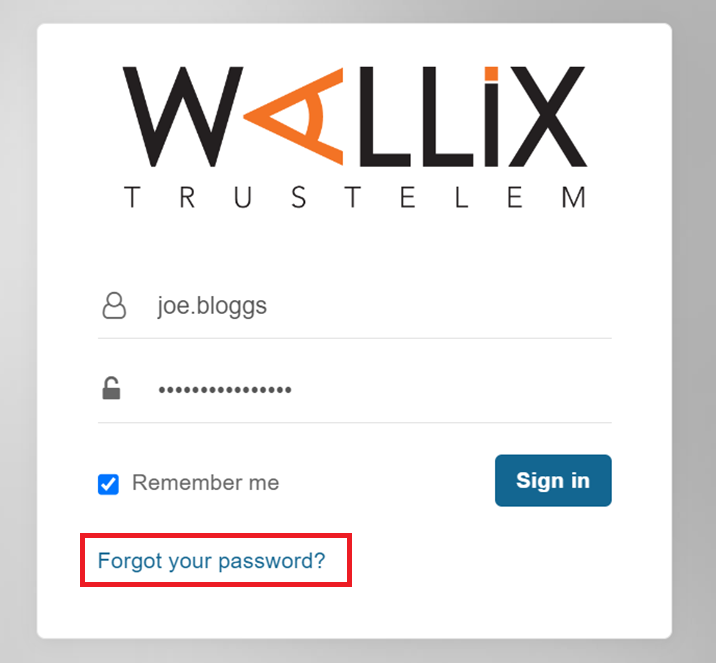](https://vault-doc.wallix.com/uploads/images/gallery/2023-11/login-1st-level.png) This **sends an email** to the WALLIX Enterprise Vault **Administrator** who sends a **Recovery Password email.** ### Reset Password from Email Link Click on the **Reset Password** link in the **Recovery Email** received from **TRUSTELEM**. The following screen is displayed. [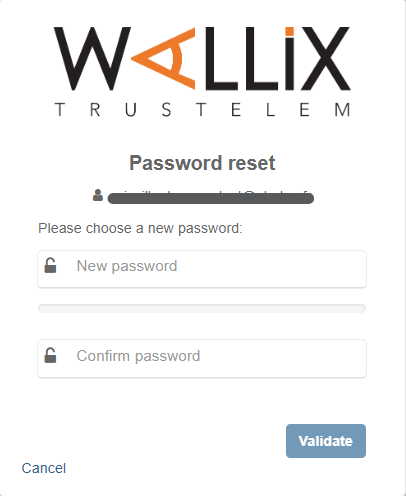](https://vault-doc.wallix.com/uploads/images/gallery/2023-11/PPhcreate-account-choose-password.png) **Choose** a new password for WALLIX Enterprise Vault and enter it in the **New Password** field. Re-enter the new password in the **Confirm Password** field. Click the **Validate** button to save the new password. Alternatively, click the **Cancel** button to cancel the operation. # Delete Account Click on the **User Icon,** on the top right-hand side of the screen, to display the **User Menu**. [](https://vault-doc.wallix.com/uploads/images/gallery/2023-12/profile-menu-copie-2.png) Click on **Account Settings** and then **My Account**. The **My Account Screen** is displayed. Click **Delete account**. [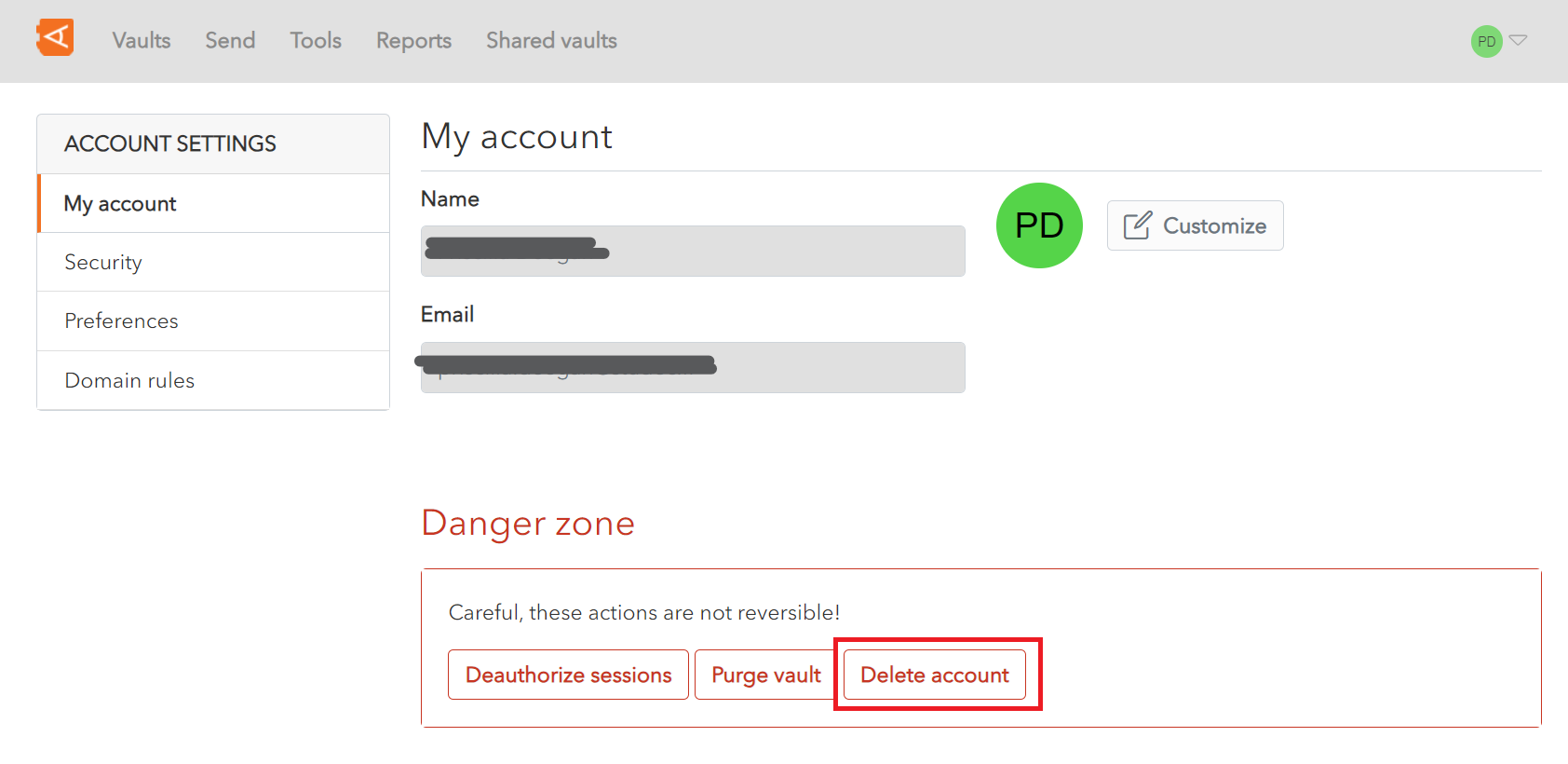](https://vault-doc.wallix.com/uploads/images/gallery/2023-12/my-account-screen-copie-2.png) A **Confirmation Screen** is displayed. Enter your **Master Password** and click **Delete account to delete the account and all data. Alternatively, click **Close** to cancel the operation. [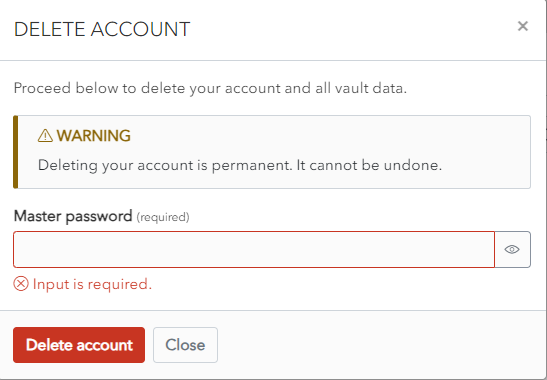](https://vault-doc.wallix.com/uploads/images/gallery/2023-12/delete-ac-confirmation.png)