**Prerequisite:** The Browser Extension needs to be [**installed** ](https://vault-doc.wallix.com/link/5)before the Auto-fill feature becomes available.
### Auto-fill from Context Menu **Right click** on the Login Screen of a website. The Context Menu is displayed. Choose **WALLIX Vault > Auto-fill.** If the Login is stored in the Vault, an Auto-fill option is proposed. Click **Auto-fill** to **retrieve** the **Login** for this website to WALLIX Enterprise Vault.If you are not signed in to WALLIX Enterprise Vault, you will be prompted to **sign in** before retrieving the Login.
[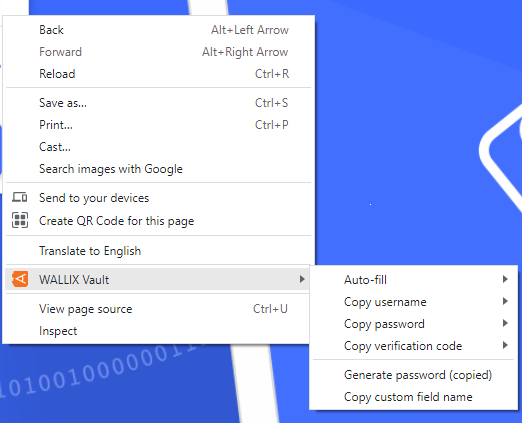](https://vault-doc.wallix.com/uploads/images/gallery/2023-12/autofill-from-context-menu.png) The context menu also contains other options for this Login: - **Copy username**: copies the username of the login to the clipboard. - **Copy password**: copies the password of the login to the clipboard. - **Copy verification code**: copies the verification code of the login to the clipboard. - **Generate password**: generates a new more secure password from the copied password. - **Copy custom field name**: copies the name of the custom field of the login. ### Auto-fill on Page Load Auto-fill on Page load is a function that **automatically populates a Login** on a Page when the URI of the page being displayed corresponds to an Item in the Vault. This is pertinent for **Logins, Cards or Identities**.**Untrusted iframes**: Auto-fill on page load does **not work** for untrusted iframes.
**HTTPS/HTTP:** If the Vault Item **expects** an **HTTPS** site and a **HTTP** version of the site is **displayed**, the user is **warned before** auto-filling on page load.
#### Enable Auto-fill on page loadFor **security reasons**, it is **automatically disabled** and needs to be enabled to work.
To **enable** Auto-fill on Page Load, from the Browser extension, navigate to **Settings**> **Autofill**. The Auto-fill screen opens. Click the **Auto-fill on page load checkbox**. This **enables** the option to auto-fill logins on page load. [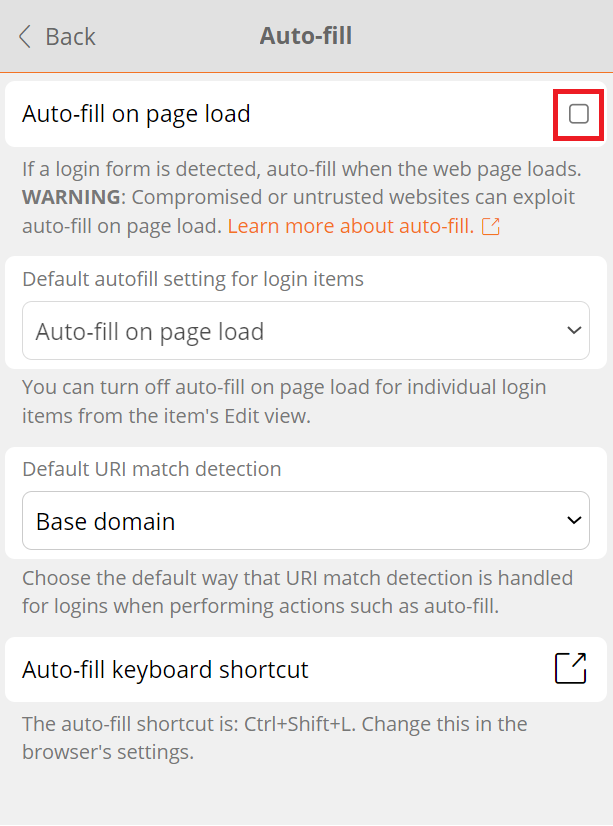](https://vault-doc.wallix.com/uploads/images/gallery/2023-12/K8pautofill-on-page-load.png) From the **Default autofill setting for Login items dropdown**, choose the default option: [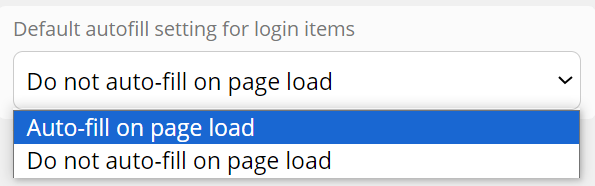](https://vault-doc.wallix.com/uploads/images/gallery/2023-12/default-autofill.png)This can be **overwritten** for each item from the **Items Screen.** This allows **specific auto-fill** options to be set for **specific items.**
From the **Default URI match detection dropdown**, choose how to match the URL of the webpage with the Login already in the Vault. [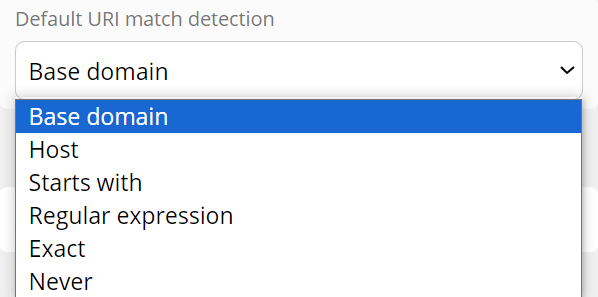](https://vault-doc.wallix.com/uploads/images/gallery/2023-12/default-uri.png) #### Auto-fill Item to Vault on Page Load If this **login** is **not** already **saved** in WALLIX Enterprise Vault, a **prompt** displays which **offers to save** the Login details for this Website. [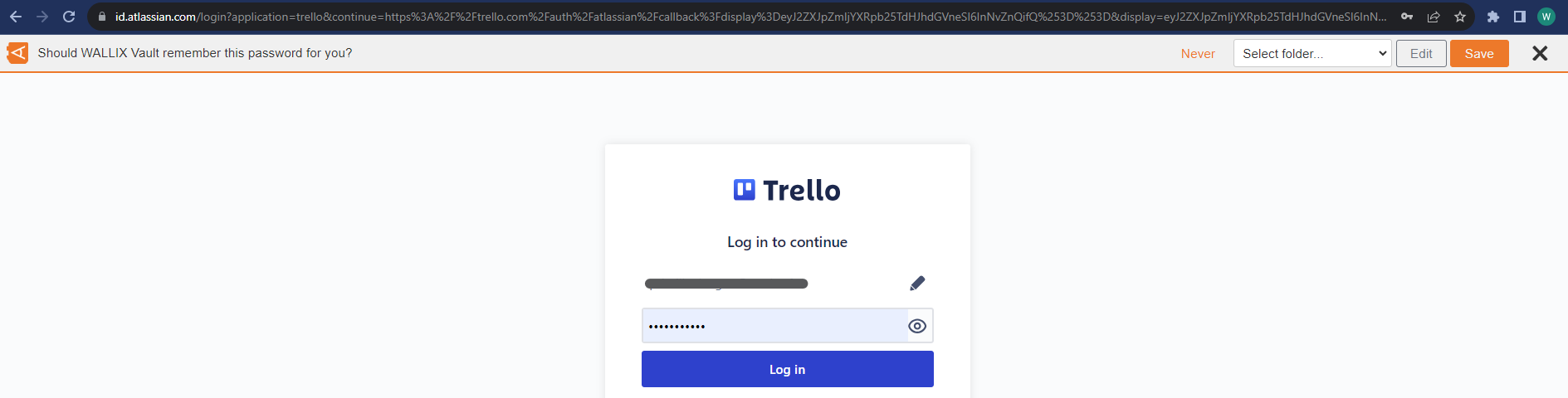](https://vault-doc.wallix.com/uploads/images/gallery/2023-12/qkXsave-password-prompt.png) Choose a **Folder** to add the Login to this Folder in the Vault. This field is **optional**. [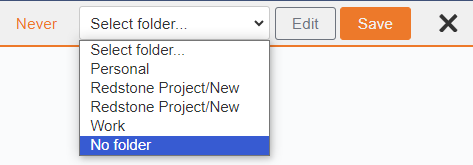](https://vault-doc.wallix.com/uploads/images/gallery/2023-12/select-folder.png)Items are **added** to the **User's Individual Vault** and not a Shared Vault.
Click the **Save button.** The **Add Item Screen** displays with the **fields pre populated** with the Login details. Modify fields, if required. [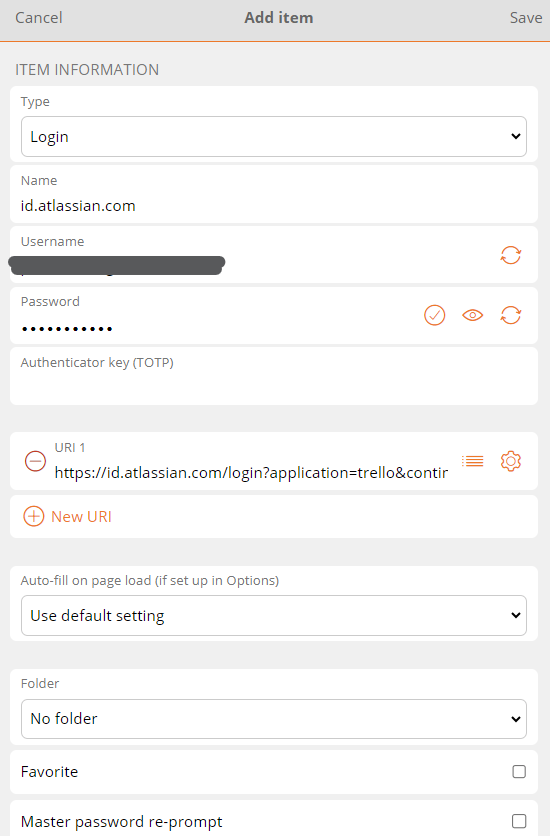](https://vault-doc.wallix.com/uploads/images/gallery/2023-12/edit-1.png) [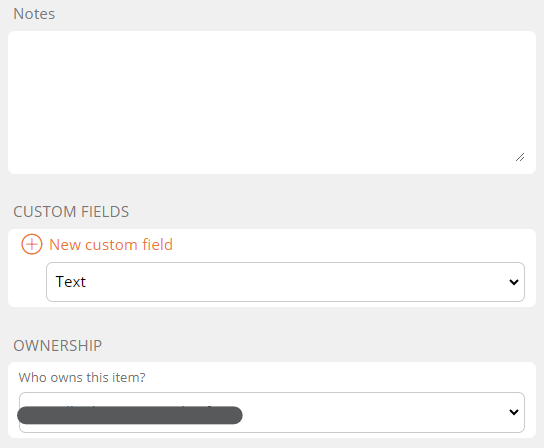](https://vault-doc.wallix.com/uploads/images/gallery/2023-12/edit-2.png) Click **Save** to Save Item to Vault. Alternatively, click **Cancel** to cancel the operation. ### Auto-fill Manually You can **manually add** a **Login** that is **not** already in the **Vault**. From the **Vault Screen** of the **Browser Extension**, click **Add a login.** [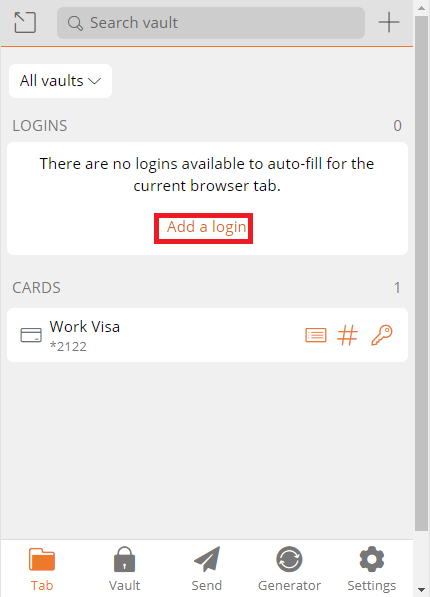](https://vault-doc.wallix.com/uploads/images/gallery/2023-12/iBscreate-login-from-browser-extension-manually.png) The **Add Item Screen** opens. The **elements** that the Browser Extension could **recuperate** from the **browser** are **prepopulated**. [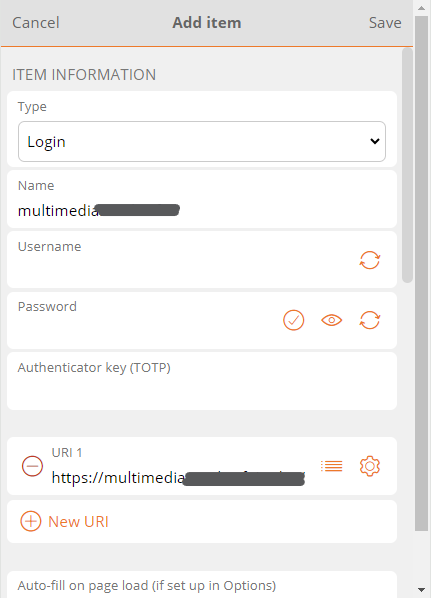](https://vault-doc.wallix.com/uploads/images/gallery/2023-12/add-item-manually-2.png) **Enter** the **remaining fields**. Click **Save** to create Login. Alternatively, click **Cancel** to cancel the operation. ### Auto-fill using Keyboard Shortcuts Use the following **default keyboard shortcuts** (also known as **hot keys**) to auto-fill a login. - Use Ctrl + Shift + L if running Windows of Linux - Use Cmd + Shift + L if running for macOSIf **multiple logins** are found for the URI, the **last-used login** is used for auto-fill.
Keyboard shortcuts can be useful to **populating multiple logins** in **rapid succession**.
**[Configure shortcuts](https://vault-doc.wallix.com/link/95):** If the keyboard shortcut doesn't work, it may be because **another app** is already **using it**. Either remove the shortcut from the other app or configure WALLIX to use a different shortcut.
### TOTP Copy If the Login uses **WALLIX Authenticator** for TOTPs, the shortcut also **copies** the **TOTP** to the clipboard after auto-filling the web page with any of the above methods. ### Auto-fill for iframes **Auto-fill** does **not work** for untrusted iframes. An untrusted iframe is **defined** as one where the **src** value is **not** the **same** as the **URI** for the **Login** item, as required in the rules set for **Match Detection Behavior**. When the browser extension detects an iframe it responds based on the type of auto-fill being used: - **Auto-fill on Page Load:** the browser extension disables the auto-fill on page load and does not warn the user - **Auto-fill using Context menu, Keyboard Shortcut or from Browser Extension:** the browser extension warns the user about the iframe. # Auto-fill for Cards and Identities ### Add to Vault As for **[Manually Adding Logins to the Vault](https://vault-doc.wallix.com/link/94#bkmrk-manually-add-a-login)**, **Cards** and **Identities** can be **auto-filled directly to the Vault** from the browser extension. Click the **Add Item button** in the **Tab** Screen of the Browser extension. [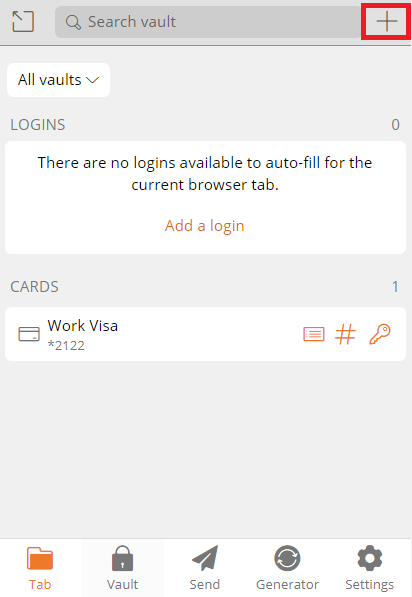](https://vault-doc.wallix.com/uploads/images/gallery/2023-12/autofill-card-to-vault-1.png) The Add Item Screen is displayed. Choose **Type** (**Card or Identity**). Add rest of item details. click **Save** to add item to Vault. [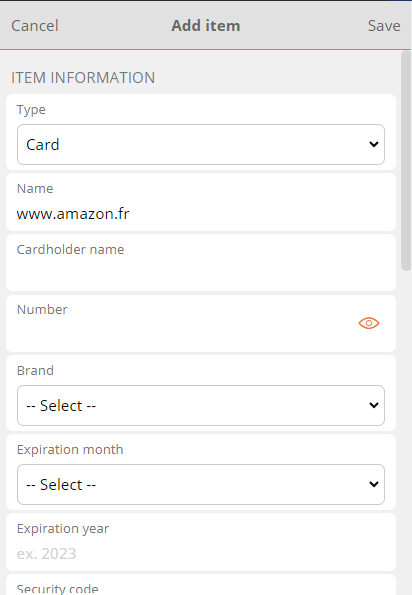](https://vault-doc.wallix.com/uploads/images/gallery/2023-12/add-card-to-browser-extension.png) Alternatively, click **Cancel** to cancel the operation. ### Auto-fill Manually From an ecommerce website, navigate to the **add new card page.** Open the **Browser Extension**. The **Cards** saved in the Vault are **displayed**. [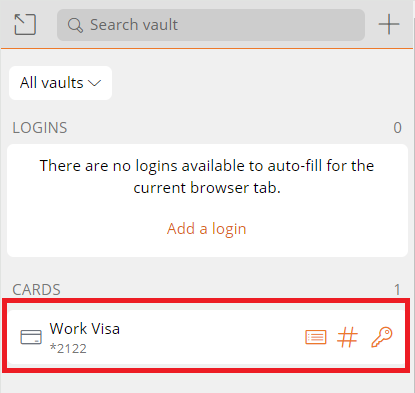](https://vault-doc.wallix.com/uploads/images/gallery/2023-12/autofill-card-to-amazon.png) **Click** a **Card**. It will **automatically populate the webpage**. The **procedure** is the **same** for populating an **identity** on a webpage. ### Auto-fill using Context Menu Cards and identities can be auto-filled to the Vault from the Context menu on the webpage. This works the same as for **[Logins](https://vault-doc.wallix.com/link/92#bkmrk-auto-fill-from-conte)**. ### Hide Cards and Identities Option Cards and Identities are displayed by default in the Tab Screen of the Browser Extension. **Uncheck** the following options in **Settings > Options > Display** in the Browser Extension to **hide** these from **view**: - **Show cards on Tab Page** checkbox - **Show identities on Tab page** checkbox [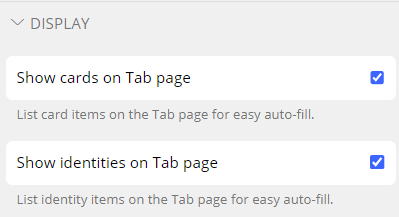](https://vault-doc.wallix.com/uploads/images/gallery/2023-12/hide-cards-and-identities.png) # Auto-fill for Custom Fields The **Browser Extension** can be used to **auto-fill a web page** with custom fields that have been added to Items. A typical application of this is for **PINs** and **Security Questions** that are often required in addition to a **Username** and **Password** to login to a website. Auto-field Custom fields can be created for the **<form>** or **<input>** **elements**. A special scenario is possible for **<span>** elements**.** ### Auto-Fill Custom Fields Open the **Browser Extension** on the **Webpage** that you wish to auto-fill. The **Tab** Screen displays. It **automatically detects** the **URI** of the webpage and **displays** any **logins stored** in the **Vault** that correspond with this URI. Select the **Vault Item** that contains the **custom field** to be auto-filled to the webpage. [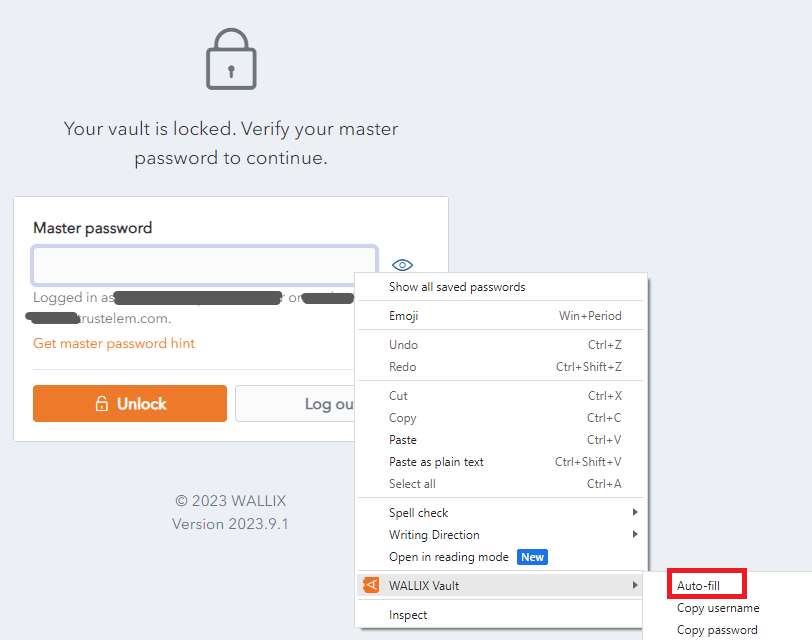](https://vault-doc.wallix.com/uploads/images/gallery/2023-12/copy-custom-field-name-copie.png) The Browser Extension finds any fields that **match** the **Custom field Name** and **auto-fill** that field's **value**.For this reason it is **important** to **correctly name custom fields**.
### Linked Custom Fields Sometimes the Browser Extension is **unable to auto-fill usernames and passwords** for a webpage. In these cases, **Custom fields** can be created for the username and password and these can be used **instead** for auto-fill. From the [**Edit Item Screen**](https://vault-doc.wallix.com/link/9), add a New **[Custom Field](https://vault-doc.wallix.com/link/15)** of type **Linked.** [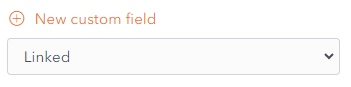](https://vault-doc.wallix.com/uploads/images/gallery/2023-12/new-linked-custom-field.png) In the **Name** field, give it the same name as the **HTML form element** (id, name, aria-label, or placeholder) for the field in question. This can be found by clicking the **Copy custom field name link** in the Context Menu of the field in question. For **example**, to find the HTML form element for the Master Password in WALLIX Enterprise Vault, click the Copy custom field name link. The HTML form element for the Master Password is **saved** to the **clipboard**. [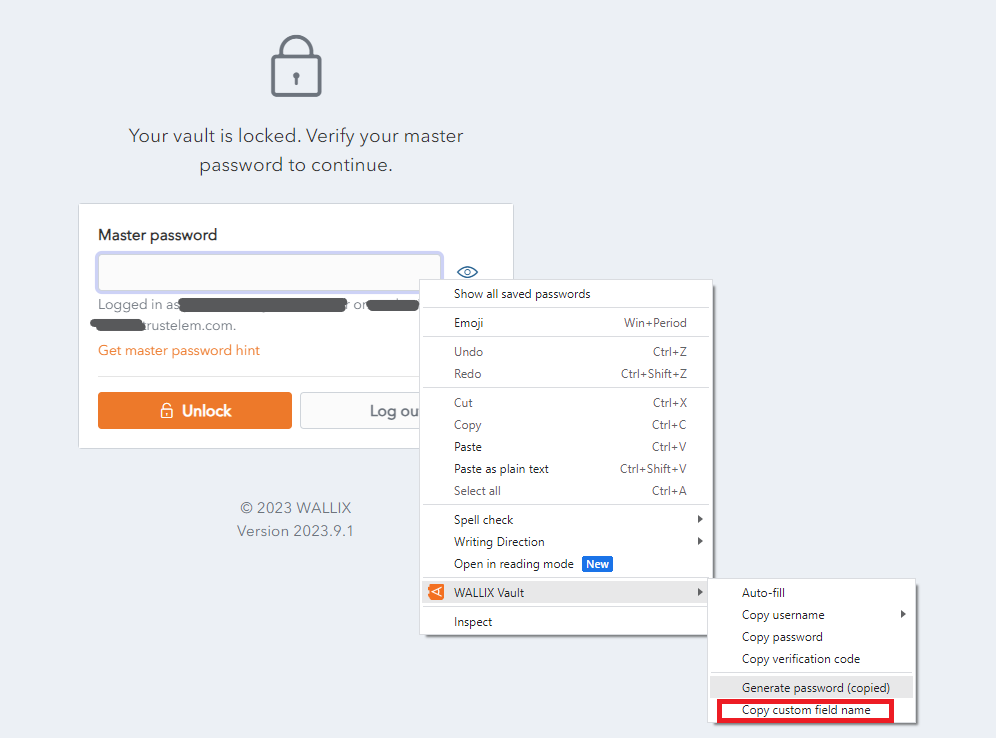](https://vault-doc.wallix.com/uploads/images/gallery/2023-12/copy-custom-field-name.png) **Paste** the HTML Form element into the **name** field of the **custom field** that you are creating for Master Password. [](https://vault-doc.wallix.com/uploads/images/gallery/2023-12/1QEcustom-fields.png) From the **Value** dropdown, select **Password** in the case of a **Custom field for password** (as in the example above) or **Username** in the case of a **Custom field for username**. This procedure is valid for Auto-field Custom fields can be created for the **<form>** and **<input>** elements. ### Auto-Fill for Span Tags A **custom field** can be created for the **id** attribute of <**span>** elements if the **data-bwautofill** attribute is **present** in the opening tag. In the following **example**, you could create a Custom Field with the **name** of **title**. An **auto-fill** would **replace** the **contents** of **title** (currently "WALLIX Enterprise Vault" with the **contents** of the **custom field**. <span **data-bwautofill** id="**title**">WALLIX Enterprise Vault</span> # Using URIs in Auto-fills A **Login Item** can have **one or more URIs**. These are added from the [**Create Item**](https://vault-doc.wallix.com/link/8) or **[Edit Item](https://vault-doc.wallix.com/link/9)** Screen. [](https://vault-doc.wallix.com/uploads/images/gallery/2023-12/add-uri.png) A **URI** is **defined** as a : - Website address (URL) - Server IP address - Mobile App Package ID - etc.A **URI** is **mandatory** for a Login Item in order to **auto-fill** it into a web page.
### URI Components A **URI** is made up for a number of **components**. https://www.google.com:8080/calendar/item?id=123&type=task - **Scheme** https:// - **Hostname** www.google.com - **Subdomain** www - **SLD (second level domain)** google - **TLD (top level domain)** com - **Port** 8080 - **Path** calendar/item - **Query** **String** ?id=123&type=task #### URI Scheme A URI Scheme **should be specified** as part of the **URI**. If it is not specified **http://** is used by **default**. However, if a Scheme is **not specified** by the user, the [ ](https://vault-doc.wallix.com/uploads/images/gallery/2023-12/launch.png)**Launch button,** to launch the website or app directly from the Vault, will **not work**. [](https://vault-doc.wallix.com/uploads/images/gallery/2023-12/add-uri-copie.png) **Examples** of schemes are - https:// or http:// are schemes that reference web pages, e.g. https://www.google.com - androidapp::// is a scheme that references an Android app pacakge ID or name, e.g. androidapp://com.google.android ### Mobile App URIs **Every mobile app** has it's **own URI**. In order to save the login of an app into the Vault, it is necessary to **save the URI** of the app. #### Locate App URI for iOS From the App Login Screen on your iOS device, **open the Browser Extension.** Click the **+ button** to create a new Item in the Browser Extension. The **New Item Screen** displays and it is **prepopulated** with the **URI** of the **App**.This **only works if** the **App permits** recuperating the URI.
The Item can be **saved** as a **Login Item** for this Mobile App. Alternatively, the **URI** can be **copied** and **pasted** into another Login Item. #### Locate App URI for Android From the **App page** in the **Google Play Store**, locate the **Share** button. Copy the **Share Button link** to the clipboard. **Paste** the link to an email or another file where it can be displayed. The **link** will look something like this: https://play.google.com/store/apps/details?id=com.twitter.android The **URI** is the **id value**, in this example, com.twitter.android ### URI Match Detection **Each URI** associated with an Item in WALLIX Enterprise Vault has a number Match detection options in the that **Match detection dropdown** can be chosen. The Match detection option chosen tells WALLIX **how to match the URI** of the **Vault Item** with the **URI** of the **web page or mobile app** for **auto-filling**. [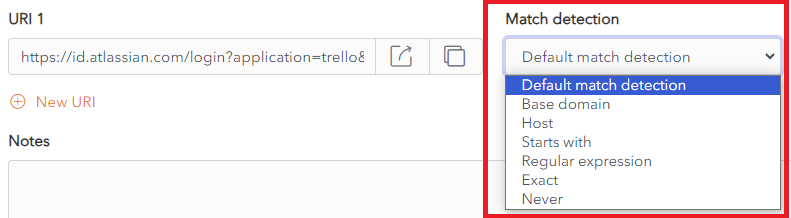](https://vault-doc.wallix.com/uploads/images/gallery/2023-12/wxVmatch-detection.png) #### Defaut match detection **Base domain** is the **default** option for **URI match detection.** However, this can be **changed** in **Settings > Auto-fill** for **all Items.** The Default match detection can be **specified** on a per item basis, in the Item Screen for **each item**. If not specified, the default option is used. #### Base domain If **Base domain** is chosen as the Default match detection for a URI, WALLIX will try to auto-fill all pages or apps where the **top-level domain (TLD) or second-level domain (SLD)** of the Page URI matches a the top-level domain or second-level domain of a Vault Item.This works with **country code top level domains** only. Local TLDs, e.g. **www.google.local** do not work. **Local TLDs** work with **Host matching**.
For example, https://google.com Auto-fill works: - www.google.com - calendar.google.fr Auto-fill does not work: - www.google.net #### Host If **Host** is chosen as the Default match detection for a URI, WALLIX will try to auto-fill all pages or apps where the **hostname** (**and port**, if specified) of the Page URI matches a the hostname (and port, if specified) of a Vault Item. For example, https://calendar.google.com:8080 Auto-fill works: - calendar.google.com:8080 - calendar.google.com:8080/home.html Auto-fill does not work: - www.google.com (different subdomain and missing port) - www.google.com:8080 (different subdomain) - calendar.google.com:8081 (different port) #### Starts with If **Starts with** is chosen as the Default match detection for a URI, WALLIX will try to auto-fill all pages or apps where the Page URI **starts with** the URI of a Vault Item. For example, https://www.google.com/home/ Auto-fill works: - https://www.google.com/home/index.html - https://www.google.com/home/ Auto-fill does not work: - https://www.google.com - https://www.google.com:8080/home/ (port number added) - https://www.google.com/home (missing trailing slash) #### Regular expression If **Starts with** is chosen as the Default match detection for a URI, WALLIX will try to auto-fill all pages or apps where the Page URI matches a **specified regular expression** associated with the URI of a Vault Item.Regular expressions are **case insensitive**.
For example, ^https://\[a-z\]+\\.google\\.com/index\\.php Auto-fill works: - https://www.google.com/index.php - https://fr.google.com/index.php Auto-fill does not work: - https://www.google.com/index/ (missing .php) - https://malicious-site.com?q=google.com For example, ^https://.\*google\\.com$ Auto-fill works: - https://www.google.com - https://fr.google.com/index.html - **https://malicious-site.com?q=google.com**URI matching with Regular Expressions is an **advanced** option and should **only** be used **by those familiar** with using **[Regular Expressions](https://en.wikipedia.org/wiki/Regular_expression#Standards).**
**Periods (.)** must be **escaped (\\)** otherwise they will match on any character.
Auto-fill does not work: - https://google.com/index/ (missing period (.)) #### Exact If **Exact** is chosen as the Default match detection for a URI, WALLIX will try to auto-fill all pages or apps where the Page **URI** is an **exact match** for the URI of a Vault Item. For example, https://calendar.google.com/index.html Auto-fill works: - https://calendar.google.com/index.html Auto-fill does not work: - https://calendar.google.com/index.htm (index.htm instead of index.html) - http://calendar.google.com/index.html (http instead of https) - https://www.google.com/index.html (different subdomain)For **HTTPS**, even if Exact matching is not used, the Browser Extension will **warn before** auto-filling a **HTTP** site **if HTTPS** is **expected**.
#### Never If **Never** is chosen as the Default match detection for a URI, WALLIX will **never** try to **auto-fill** all pages or apps using **that Vault Item.** ### Equivalent Domains It is possible to link equivalent domains, or domains that use the same login. For example, calendar.google.com can be linked with www.google.com. This can be done in **Settings > Domain Rules**.If **Exact match detection** is used an **equivalent domain** will **not** be **allowed**.
# Auto-fill for iOS **Auto-fill** is possible on an **iOS device** from your **Browser Extension** on **Chrome** or **Firefox** browsers. **[Account Switching](https://vault-doc.wallix.com/link/103)** facilitates multiple logins at one time.[**Auto-fill using Custom Fields**](https://vault-doc.wallix.com/link/100) is **not supported** on **mobile** devices.
**Vault Timeout** must be set to **Lock** (and not Log Out) **if NFC** is **required** for **Two-factor Authentication.**
### Auto-fill using Keyboard This is the **recommended** option. #### Enable Auto-fill on Keyboard From your **iOS device**, tap **Settings > Passwords > Password Options.** The Autofill Passwords and Passkeys option is displayed. Click **AutoFill Passwords and Passkeys** to **toggle** it **on**. Click **WALLIX Vault** from the **Use Passwords and Passkeys From List** **[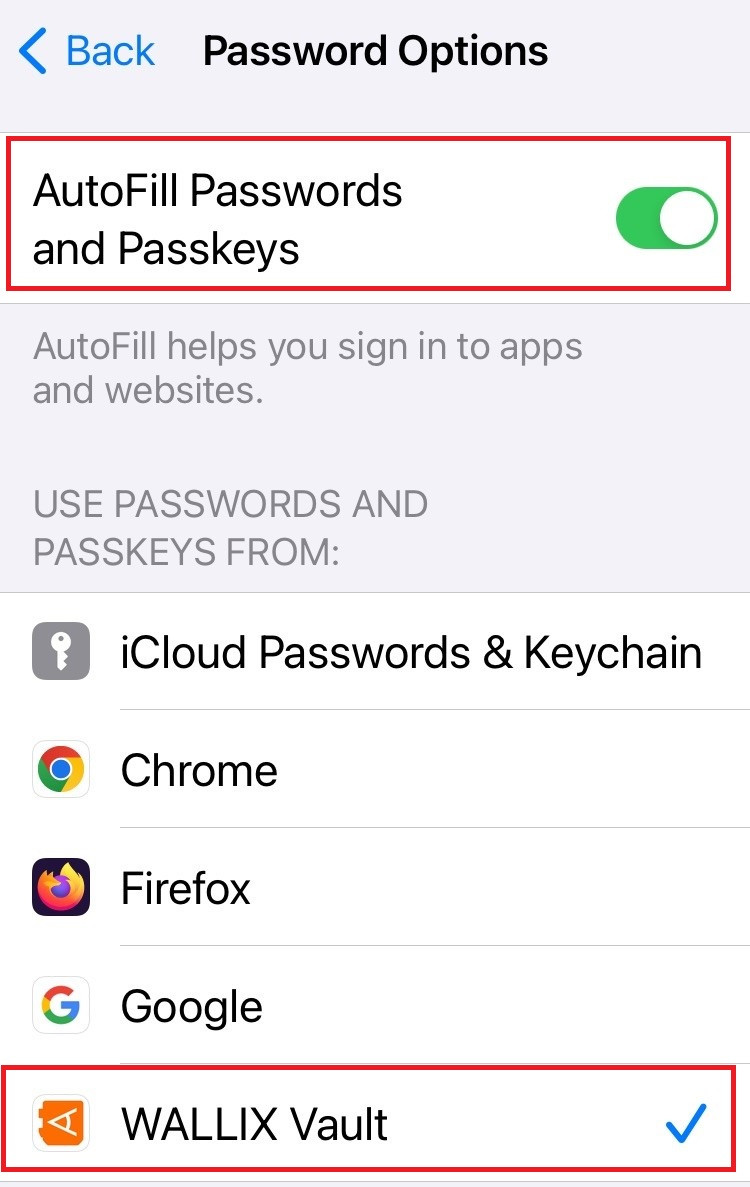](https://vault-doc.wallix.com/uploads/images/gallery/2023-12/autofill-setup.jpg)**It is **recommended** that **other Auto-fill services** are **disabled**, like Chrome Password Manager or iCloud Passwords & Keychain.
#### Using Auto-fill on Keyboard **Open** an **app or website** where you are **not logged into**. **Tap** either the **Username** or **Password** Fields. A Username or the Passwords button is displayed. - If a **Username** is displayed, **tap** it. The Login is **auto-filled**. - If the **Passwords** button is displayed, **tap** it. A **list of Logins** is displayed. **Choose** the **Saved Login** for this website. The Login is **auto-filled**. [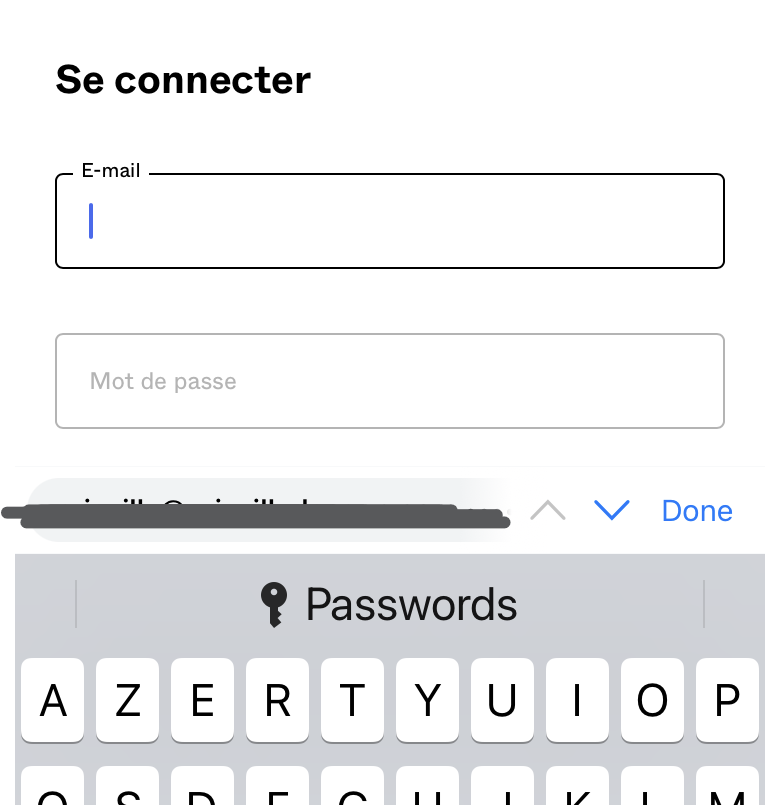](https://vault-doc.wallix.com/uploads/images/gallery/2023-12/Tt6image.png)Where a **Passwords button** is displayed, it is likely because the website **URI isn't an exact match** on a URI associated with a Vault Item.
### Auto-fill using Browser Extension #### Enable Auto-fill in Browser Extension From the **WALLIX Browser Extension App**, tap **Settings > Autofill > App Extension** Tap **Enable App Extension button**. A **Share** **Menu** slides up. Tap **WALLIX**. #### Using Auto-fill in Browser Extension **Open** an **app or website** where you are **not logged into.** Tap the [](https://vault-doc.wallix.com/uploads/images/gallery/2023-12/share-icon.png) **Share icon** in the Address Bar. A Share menu is displayed. Click the WALLIX Vault icon. A list of matching Logins is displayed. [](https://vault-doc.wallix.com/uploads/images/gallery/2023-12/autofill-browser-extension.jpg) Choose the correct Login to auto-fill. # Auto-fill for Android **Auto-fill** is possible on an **Android device** from your **Browser Extension** on **Chrome** or **Firefox** browsers. **[Account Switching](https://vault-doc.wallix.com/link/103)** facilitates multiple logins at one time. A number of **auto-fill options** are available, **depending** on the **version** of **Android** that your device is running. - Auto-fill Service - Inline Auto-fill - Accessibility - Draw-Over[**Auto-fill using Custom Fields**](https://vault-doc.wallix.com/link/100) is **not supported** on **mobile** devices.
**Vault Timeout** must be set to **Lock** (and not Log Out) **if NFC** is **required** for **Two-factor Authentication.**
### Auto-fill Service This facilitates **Auto-Fill** from the **Login Screen**.Auto-fill Service is **available** on **Android 8+**. It requires **enabling** of **Auto-fill Services.**
#### Enable Auto-fill Service From WALLIX Android App, tap **Settings > Auto-fill > Auto-fill Services** Tap **WALLIX** from the **Auto-fill Services List**. Tap **Confirm**. #### Using Auto-fill Service Tap on **Username** or **Password** fields on a webpage or an app. A **pop up** **screen** will display **2 options**: - The **Matching Login Item** from WALLX Vault. Tapping on this option **auto-populate**s the Login. - **Auto-fill from WALLIX Vault**. Tapping on this option **opens** the **Vault** if the Vault is unlocked to **browse** the available **Login Items**. **If** WALLIX Vault is **locked**, you will be **prompted** to **login** to your Vault. ### Inline Auto-fill This facilitates **Auto-Fill** from the **Keyboard Section**.**Inline Auto-fill**: Available on Android 11+. It requires **enabling** of **Autofill Service** and Input Method Editor (**IME**).
If it **doesn't work**, it is **possible** that your **IME** does **not support inline**.
#### Enable Inline Auto-fill From WALLIX Android App, tap **Settings > Auto-fill > Auto-fill Services** Tap the **Use Inline Autofill** option to **toggle** it **on.** #### Using Inline Auto-fill Tap on **Username** or **Password** fields on a webpage or an app. **Logins matching** the **URI** are displayed in the **keyboard section**. **Choose** the **option** required. It is **auto-filled** into your webpage or app. ### Accessibility This facilitates **Auto-Fill** from the **Login Screen**.Draw-Over is **available** in **Android 6+**. It requires **Enabling** of **Accessibility** and **Drawover**
#### Enable Accessibility From WALLIX Android App, tap **Settings > Auto-fill > Auto-fill Services** Tap the **Use Accessibility** option to **toggle** it **on.** #### Using Accessibility Tap on **Username** or **Password** fields on a webpage or an app. A **pop up** **screen** displays an option to **Auto-fill from WALLIX Vault**. Tap on this **option**. If the Vault is **unlocked**, the Vault is **opened**. **If** WALLIX Vault is **locked**, you will be **prompted** to **login** to your Vault. ### Drawover This facilitates **Auto-Fill** from the **Login Screen**.Accessibility is **available** on **all Android Versions**. It requires **Enabling** of **Accessibility**.
#### Enable Drawover From WALLIX Android App, tap **Settings > Auto-fill > Auto-fill Services** Tap the **Permit drawing over other apps** option to **toggle** it **on.** #### Using Drawover Tap on **Username** or **Password** fields on a webpage or an app. A **pop up** **screen** displays an option to **Auto-fill from WALLIX Vault**. Tap on this **option**. If the Vault is **unlocked**, the Vault is **opened**. **If** WALLIX Vault is **locked**, you will be **prompted** to **login** to your Vault.