# Avanced options

Learn how to go further with Entreprise Vault.

# Options Overview

When you login to WALLIX Vault, the [**Vault Home Screen** ](https://vault-doc.wallix.com/link/19)is displayed.

A number of **options** are possible within your Vault:

- You can**[ Search and Filter](https://vault-doc.wallix.com/link/21)** to find Items in the Vault.
- In the Preferences Screen, you can set your [**Timeout Preferences**](https://vault-doc.wallix.com/link/120), **[Change Language](https://vault-doc.wallix.com/link/32)**, **[Change Theme](https://vault-doc.wallix.com/link/120)**, etc.
- You can set [**Domain Equivalencies**](https://vault-doc.wallix.com/link/121) for Domains that use the same Login.
- **[Sync Vault](https://vault-doc.wallix.com/link/123)** to synchronise the Vault Items in the Web Browser Extension.
- User and Configure [**Shortcuts**](https://vault-doc.wallix.com/link/95).
- Make the most of [**Custom** **Fields**](https://vault-doc.wallix.com/link/15) to add additional fields to Items and to enable Auto-filling on some fields.
- [**TOTP Authentication** ](https://vault-doc.wallix.com/link/112)is available in the Web Vault, the Browser Extension and the WALLIX Authenticator App, to generate a TOTP code based on an Account Authentication Key.
- The[ **Username and Password Generator**](https://vault-doc.wallix.com/link/105) can generate usernames, passwords or passphrases for Login Items.
- WALLIX Vault provides a number of [**Reports**](https://vault-doc.wallix.com/link/122) to ensure the security of passwords, logins and websites that are stored in the Vault.
- It is possible to [**Deauthorize Sessions**](https://vault-doc.wallix.com/link/116) on all logged-in devices. This is especially useful if you accessed WALLIX Vault from a public computer.
- The Vault can be [**purged of its data** ](https://vault-doc.wallix.com/link/114)or [**deleted entirely**](https://vault-doc.wallix.com/link/115).

# Preferences

Click on the **User Icon,** on the top right-hand side of the screen, to display the **User Menu**.

[![profile menu - Copie (2).png](https://vault-doc.wallix.com/uploads/images/gallery/2023-12/scaled-1680-/profile-menu-copie-2.png)](https://vault-doc.wallix.com/uploads/images/gallery/2023-12/profile-menu-copie-2.png)
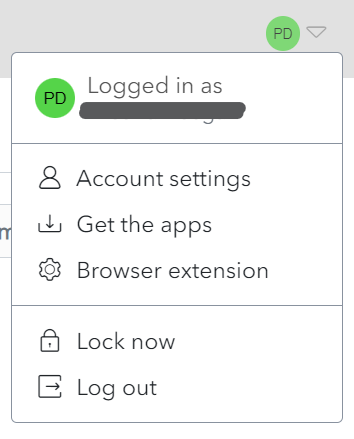
Click on **Account Settings** and then **Preferences.** The **Preferences** **Screen** is displayed.

[![references.png](https://vault-doc.wallix.com/uploads/images/gallery/2023-12/scaled-1680-/references.png)](https://vault-doc.wallix.com/uploads/images/gallery/2023-12/references.png)
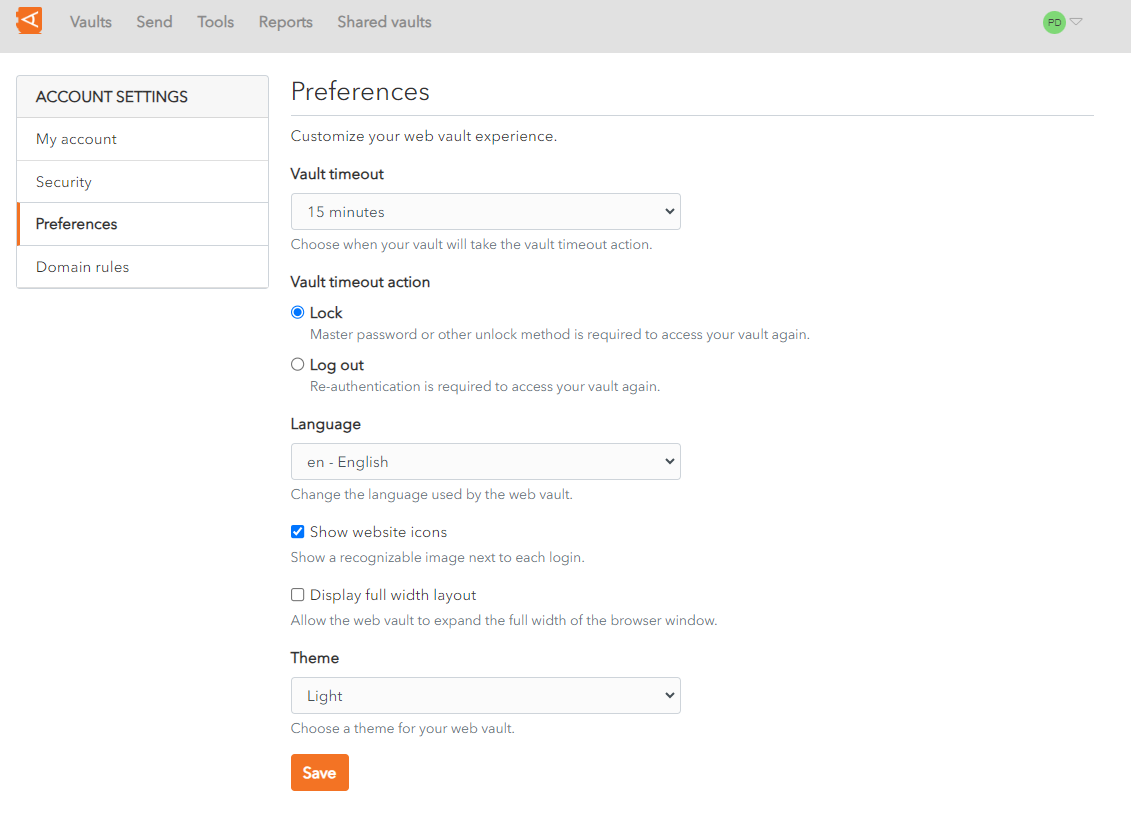
The following options are possible:

- **Vault timeout:** Set the Vault timeout from the dropdown. The **default** is **15 minutes**.
- **Vault Timeout action:** Choose Lock or Log-out as the action to take on timeout. The **default** is **Lock**.
- **[Language](https://vault-doc.wallix.com/link/32):** Choose the language of the user interface.
- **Show website icons:** Check to show a recognizable image beside each Login. **This is checked** by **default.**
- **Display full width layout:** Check to allow the Web Vault to take up the full width of the browser window. This is **unchecked** by **default.**
- **Theme:** Choose from the dropdown. **Options** include Light, Dark and System Theme.

Click **Save** to save changes.

# Change Language

By default, WALLIX Enterprise Vault uses the language of the Web Browser.

To change the language of the screens in WALLIX Enterprise Vault, click on the **Account Settings** button in the User Menu.

[![Change language 1.png](https://vault-doc.wallix.com/uploads/images/gallery/2023-11/scaled-1680-/change-language-1.png)](https://vault-doc.wallix.com/uploads/images/gallery/2023-11/change-language-1.png)
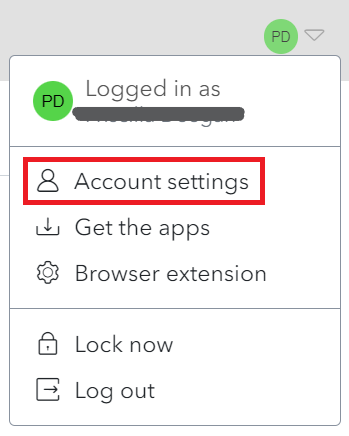
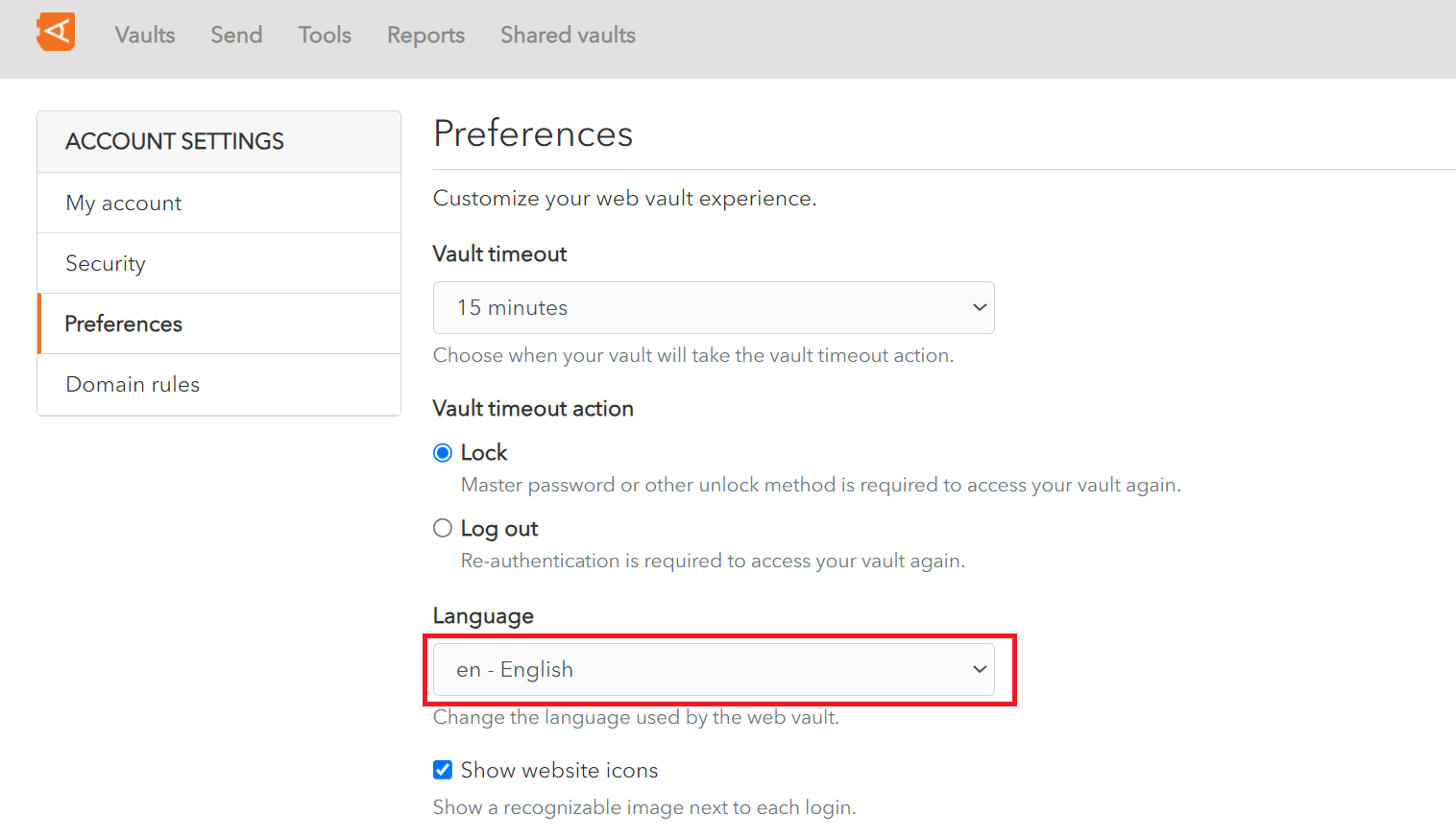
This opens the **Preferences** Screen.

Choose the language from the **Language** dropdown menu.

Click the **Save** button to save the user interface language.

[![Change language 2.png](https://vault-doc.wallix.com/uploads/images/gallery/2023-11/scaled-1680-/change-language-2.png)](https://vault-doc.wallix.com/uploads/images/gallery/2023-11/change-language-2.png)[![Change language 4.png](https://vault-doc.wallix.com/uploads/images/gallery/2023-11/scaled-1680-/vuWchange-language-4.png)](https://vault-doc.wallix.com/uploads/images/gallery/2023-11/vuWchange-language-4.png)

### Supported Languages

<div class="group css-bjn8wh" id="bkmrk--3"></div>The following list of languages are currently supported.

**<span style="text-decoration: underline;">Note</span>**: Not all languages are supported on all client applications.

<div class="css-tops8b" id="bkmrk-symbol-language-af-a"><table border="1" class="css-dgcl81" style="border-collapse: collapse; border-color: black; border-style: solid; width: 82.8395%;"><thead><tr class="css-pv55ku"><th class="css-111ptx3" style="border-color: black; width: 31.6832%;">**Symbol**

</th><th class="css-111ptx3" style="border-color: black; width: 68.3168%;">**Language**

</th></tr></thead><tbody><tr class="css-155ii9a"><td class="css-bjn8wh" style="border-color: black; width: 31.6832%;">af

</td><td class="css-bjn8wh" style="border-color: black; width: 68.3168%;">Afrikaans

</td></tr><tr class="css-155ii9a"><td class="css-bjn8wh" style="border-color: black; width: 31.6832%;">az

</td><td class="css-bjn8wh" style="border-color: black; width: 68.3168%;">Azərbaycanca

</td></tr><tr class="css-155ii9a"><td class="css-bjn8wh" style="border-color: black; width: 31.6832%;">be

</td><td class="css-bjn8wh" style="border-color: black; width: 68.3168%;">Беларуская

</td></tr><tr class="css-155ii9a"><td class="css-bjn8wh" style="border-color: black; width: 31.6832%;">bg

</td><td class="css-bjn8wh" style="border-color: black; width: 68.3168%;">български

</td></tr><tr class="css-155ii9a"><td class="css-bjn8wh" style="border-color: black; width: 31.6832%;">ca

</td><td class="css-bjn8wh" style="border-color: black; width: 68.3168%;">català

</td></tr><tr class="css-155ii9a"><td class="css-bjn8wh" style="border-color: black; width: 31.6832%;">cs

</td><td class="css-bjn8wh" style="border-color: black; width: 68.3168%;">čeština

</td></tr><tr class="css-155ii9a"><td class="css-bjn8wh" style="border-color: black; width: 31.6832%;">da

</td><td class="css-bjn8wh" style="border-color: black; width: 68.3168%;">dansk

</td></tr><tr class="css-155ii9a"><td class="css-bjn8wh" style="border-color: black; width: 31.6832%;">de

</td><td class="css-bjn8wh" style="border-color: black; width: 68.3168%;">Deutsch

</td></tr><tr class="css-155ii9a"><td class="css-bjn8wh" style="border-color: black; width: 31.6832%;">el

</td><td class="css-bjn8wh" style="border-color: black; width: 68.3168%;">Ελληνικά

</td></tr><tr class="css-155ii9a"><td class="css-bjn8wh" style="border-color: black; width: 31.6832%;">en

</td><td class="css-bjn8wh" style="border-color: black; width: 68.3168%;">English

</td></tr><tr class="css-155ii9a"><td class="css-bjn8wh" style="border-color: black; width: 31.6832%;">en-GB

</td><td class="css-bjn8wh" style="border-color: black; width: 68.3168%;">English (British)

</td></tr><tr class="css-155ii9a"><td class="css-bjn8wh" style="border-color: black; width: 31.6832%;">eo

</td><td class="css-bjn8wh" style="border-color: black; width: 68.3168%;">Esperanto

</td></tr><tr class="css-155ii9a"><td class="css-bjn8wh" style="border-color: black; width: 31.6832%;">es

</td><td class="css-bjn8wh" style="border-color: black; width: 68.3168%;">español

</td></tr><tr class="css-155ii9a"><td class="css-bjn8wh" style="border-color: black; width: 31.6832%;">et

</td><td class="css-bjn8wh" style="border-color: black; width: 68.3168%;">eesti

</td></tr><tr class="css-155ii9a"><td class="css-bjn8wh" style="border-color: black; width: 31.6832%;">fa

</td><td class="css-bjn8wh" style="border-color: black; width: 68.3168%;">فارسی

</td></tr><tr class="css-155ii9a"><td class="css-bjn8wh" style="border-color: black; width: 31.6832%;">fi

</td><td class="css-bjn8wh" style="border-color: black; width: 68.3168%;">suomi

</td></tr><tr class="css-155ii9a"><td class="css-bjn8wh" style="border-color: black; width: 31.6832%;">fr

</td><td class="css-bjn8wh" style="border-color: black; width: 68.3168%;">français

</td></tr><tr class="css-155ii9a"><td class="css-bjn8wh" style="border-color: black; width: 31.6832%;">he

</td><td class="css-bjn8wh" style="border-color: black; width: 68.3168%;">עברית

</td></tr><tr class="css-155ii9a"><td class="css-bjn8wh" style="border-color: black; width: 31.6832%;">hi

</td><td class="css-bjn8wh" style="border-color: black; width: 68.3168%;">हिन्दी

</td></tr><tr class="css-155ii9a"><td class="css-bjn8wh" style="border-color: black; width: 31.6832%;">hr

</td><td class="css-bjn8wh" style="border-color: black; width: 68.3168%;">hrvatski

</td></tr><tr class="css-155ii9a"><td class="css-bjn8wh" style="border-color: black; width: 31.6832%;">hu

</td><td class="css-bjn8wh" style="border-color: black; width: 68.3168%;">magyar

</td></tr><tr class="css-155ii9a"><td class="css-bjn8wh" style="border-color: black; width: 31.6832%;">id

</td><td class="css-bjn8wh" style="border-color: black; width: 68.3168%;">Bahasa Indonesia

</td></tr><tr class="css-155ii9a"><td class="css-bjn8wh" style="border-color: black; width: 31.6832%;">it

</td><td class="css-bjn8wh" style="border-color: black; width: 68.3168%;">italiano

</td></tr><tr class="css-155ii9a"><td class="css-bjn8wh" style="border-color: black; width: 31.6832%;">ja

</td><td class="css-bjn8wh" style="border-color: black; width: 68.3168%;">日本語

</td></tr><tr class="css-155ii9a"><td class="css-bjn8wh" style="border-color: black; width: 31.6832%;">ko

</td><td class="css-bjn8wh" style="border-color: black; width: 68.3168%;">한국어

</td></tr><tr class="css-155ii9a"><td class="css-bjn8wh" style="border-color: black; width: 31.6832%;">lv

</td><td class="css-bjn8wh" style="border-color: black; width: 68.3168%;">Latvietis

</td></tr><tr class="css-155ii9a"><td class="css-bjn8wh" style="border-color: black; width: 31.6832%;">ml

</td><td class="css-bjn8wh" style="border-color: black; width: 68.3168%;">മലയാളം

</td></tr><tr class="css-155ii9a"><td class="css-bjn8wh" style="border-color: black; width: 31.6832%;">nb

</td><td class="css-bjn8wh" style="border-color: black; width: 68.3168%;">norsk (bokmål)

</td></tr><tr class="css-155ii9a"><td class="css-bjn8wh" style="border-color: black; width: 31.6832%;">nl

</td><td class="css-bjn8wh" style="border-color: black; width: 68.3168%;">Nederlands

</td></tr><tr class="css-155ii9a"><td class="css-bjn8wh" style="border-color: black; width: 31.6832%;">pl

</td><td class="css-bjn8wh" style="border-color: black; width: 68.3168%;">polski

</td></tr><tr class="css-155ii9a"><td class="css-bjn8wh" style="border-color: black; width: 31.6832%;">pt-BR

</td><td class="css-bjn8wh" style="border-color: black; width: 68.3168%;">português do Brasil

</td></tr><tr class="css-155ii9a"><td class="css-bjn8wh" style="border-color: black; width: 31.6832%;">pt-PT

</td><td class="css-bjn8wh" style="border-color: black; width: 68.3168%;">português

</td></tr><tr class="css-155ii9a"><td class="css-bjn8wh" style="border-color: black; width: 31.6832%;">ro

</td><td class="css-bjn8wh" style="border-color: black; width: 68.3168%;">română

</td></tr><tr class="css-155ii9a"><td class="css-bjn8wh" style="border-color: black; width: 31.6832%;">ru

</td><td class="css-bjn8wh" style="border-color: black; width: 68.3168%;">русский

</td></tr><tr class="css-155ii9a"><td class="css-bjn8wh" style="border-color: black; width: 31.6832%;">sk

</td><td class="css-bjn8wh" style="border-color: black; width: 68.3168%;">slovenčina

</td></tr><tr class="css-155ii9a"><td class="css-bjn8wh" style="border-color: black; width: 31.6832%;">sr

</td><td class="css-bjn8wh" style="border-color: black; width: 68.3168%;">Српски

</td></tr><tr class="css-155ii9a"><td class="css-bjn8wh" style="border-color: black; width: 31.6832%;">sv

</td><td class="css-bjn8wh" style="border-color: black; width: 68.3168%;">svenska

</td></tr><tr class="css-155ii9a"><td class="css-bjn8wh" style="border-color: black; width: 31.6832%;">th

</td><td class="css-bjn8wh" style="border-color: black; width: 68.3168%;">ไทย

</td></tr><tr class="css-155ii9a"><td class="css-bjn8wh" style="border-color: black; width: 31.6832%;">tr

</td><td class="css-bjn8wh" style="border-color: black; width: 68.3168%;">Türkçe

</td></tr><tr class="css-155ii9a"><td class="css-bjn8wh" style="border-color: black; width: 31.6832%;">uk

</td><td class="css-bjn8wh" style="border-color: black; width: 68.3168%;">українська

</td></tr><tr class="css-155ii9a"><td class="css-bjn8wh" style="border-color: black; width: 31.6832%;">vi

</td><td class="css-bjn8wh" style="border-color: black; width: 68.3168%;">Tiếng Việt

</td></tr><tr class="css-155ii9a"><td class="css-bjn8wh" style="border-color: black; width: 31.6832%;">zh-CN

</td><td class="css-bjn8wh" style="border-color: black; width: 68.3168%;">中文（中国大陆）

</td></tr><tr class="css-155ii9a"><td class="css-bjn8wh" style="border-color: black; width: 31.6832%;">zh-TW

</td><td class="css-bjn8wh" style="border-color: black; width: 68.3168%;">中文（台灣）

</td></tr></tbody></table>

</div>

# Domain Equivalencies

It is possible to link equivalent domains, for example, google.com, youtube.com and gmail.com.

This is useful where **mulitple domains** use the **same login credentials**.

Click on the **User Icon,** on the top right-hand side of the screen, to display the **User Menu**.

[![profile menu - Copie (2).png](https://vault-doc.wallix.com/uploads/images/gallery/2023-12/scaled-1680-/profile-menu-copie-2.png)](https://vault-doc.wallix.com/uploads/images/gallery/2023-12/profile-menu-copie-2.png)

Click on **Account Settings** and then **Domain Rules.** The **Domain Rules Screen** is displayed.

[![domain rules.png](https://vault-doc.wallix.com/uploads/images/gallery/2023-12/scaled-1680-/ou6domain-rules.png)](https://vault-doc.wallix.com/uploads/images/gallery/2023-12/ou6domain-rules.png)

Click the **new custom domain** button.

[![add new domain rules.png](https://vault-doc.wallix.com/uploads/images/gallery/2023-12/scaled-1680-/add-new-domain-rules.png)](https://vault-doc.wallix.com/uploads/images/gallery/2023-12/add-new-domain-rules.png)

Enter the **equivalent domains**, **delimited** by a  **, comma**.

Click **Save** to save changes.

# Sync Vault

This is available the for **WALLIX Web Extension**.

From **Settings &gt; Sync**, the Sync Screen is displayed.

Tap the **Sync vault now button** to Sync the Vault Data in the Web Extension.

[![sync vault.png](https://vault-doc.wallix.com/uploads/images/gallery/2023-12/scaled-1680-/sync-vault.png)](https://vault-doc.wallix.com/uploads/images/gallery/2023-12/sync-vault.png)

# Shortcuts

WALLIX can use **shortcuts** for certain functions:

- Activate the extension
- Auto-fill the last used login for the current website
- Generate and copy a new random password to the clipboard
- Lock the vault

Shortcuts can be **configured** in the web browser.

### Chrome

In **Chrome**, navigate to [chrome://extensions/shortcut](chrome://extensions/shortcut)

The shortcuts are **displayed** and can be **modified**.

[![shortcuts.png](https://vault-doc.wallix.com/uploads/images/gallery/2023-12/scaled-1680-/shortcuts.png)](https://vault-doc.wallix.com/uploads/images/gallery/2023-12/scaled-1680-/shortcuts.png)

### Firefox

In **Firefox**, navigate to about:addons. Then click on **Manage Extension Shortcuts** from the **Settings** context menu.

[![shortcuts ff.png](https://vault-doc.wallix.com/uploads/images/gallery/2023-12/scaled-1680-/shortcuts-ff.png)](https://vault-doc.wallix.com/uploads/images/gallery/2023-12/shortcuts-ff.png)

The shortcuts are **displayed** and can be **modified**.

[![shortcut ff 2.png](https://vault-doc.wallix.com/uploads/images/gallery/2023-12/scaled-1680-/shortcut-ff-2.png)](https://vault-doc.wallix.com/uploads/images/gallery/2023-12/shortcut-ff-2.png)

# Custom Fields

### Create Custom Fields

From the **Item Screen**, you can also add one or more Custom fields by choosing the field type from the dropdown menu and clicking on the **New Custom Field** button.

A Custom field has **Name** and **Value** properties. The Value field can be of type **Text, Boolean, Hidden or Linked.**

[![](https://vault-doc.wallix.com/uploads/images/gallery/2023-11/embedded-image-vugano83.png)](https://vault-doc.wallix.com/uploads/images/gallery/2023-11/embedded-image-vugano83.png)

- A **Text** custom field can hold a text value.
- A **Hidden** custom field can hold a hidden value and is typically used for passwords. This field can be displayed or hidden using the <span style="mso-no-proof: yes;"> </span>Display/Hide toggle button.
- A **Boolean** custom field can hold a true/false value and is typically used for yes/no choices.
- A **Linked** custom field can link to a Username or Password. Linked Fields are used for certain [**auto-fill options**](https://vault-doc.wallix.com/link/100).<span style="mso-comment-author: 'DEEGAN Priscilla'; mso-comment-providerid: AD; mso-comment-userid: S-1-5-21-2661776727-219734981-3769092192-8230;"></span>

[![](https://vault-doc.wallix.com/uploads/images/gallery/2023-11/embedded-image-48ryrtds.png)](https://vault-doc.wallix.com/uploads/images/gallery/2023-11/embedded-image-48ryrtds.png)

### Custom Field Names

The Naming of Custom Fields, that are linked to Login Fields for auto-fill purposes, should take into account the following rules.

#### Order of Preference

The 4 attributes of the HTML Form Element of the Linked Field take the following order of preference:

- id
- name
- aria-label
- placeholder

#### Matching

 Custom Fields are **[matched ](https://vault-doc.wallix.com/link/101#bkmrk-%C2%A0-1)**based on **exact** and **case-insensitive comparison**, e.g. for the field mylogin

- Matched Names: MyLogin, myLogin
- Unmatched Names: mylogin2, login

#### Prefixing

Prefixes can be used to influence matching.

##### csv Prefix

To add multiple possible logins, use the prefix **csv=**.

For example, if a custom field is named csv=mylogin,MyLogin, myLogin, field name matching will work on mylogin or MyLogin or myLogin.

##### regex Prefix

To allow matching based on **[regular expressions](https://vault-doc.wallix.com/link/101#bkmrk-regular-expression)**, use the prefix **regex=**.

For example, regex=^myLogin will match on myLogin, or MyLogin.

<div id="bkmrk--2" style="mso-element: comment-list;"><div style="mso-element: comment;"><div class="msocomtxt" id="bkmrk--3" language="JavaScript" onmouseout="msoCommentHide('_com_1')" onmouseover="msoCommentShow('_anchor_1','_com_1')"></div></div></div><div id="bkmrk--4" style="mso-element: comment-list;"><div style="mso-element: comment;"><div class="msocomtxt" id="bkmrk--5" language="JavaScript" onmouseout="msoCommentHide('_com_1')" onmouseover="msoCommentShow('_anchor_1','_com_1')"></div></div></div>

# Username or Password Generator

WALLIX Vault provides a Generator Feature to **automatically generate a Username or Password** based on certain **criteria**.

### Username Generator

From the **Tools** Menu click on **Generator**. The following screen displays.

[![generate username.png](https://vault-doc.wallix.com/uploads/images/gallery/2023-12/scaled-1680-/mUGgenerate-username.png)](https://vault-doc.wallix.com/uploads/images/gallery/2023-12/mUGgenerate-username.png)

In the **What could you like to generate?** Field, click **Username**.

In the **Username type** field, **choose** from the following **options**:

- **Plus addressed email**: uses your email provider's sub-addressing capabilities for the generated username
- **Catch-all email**: uses your domain's configured catch-all inbox for the generated username
- **Forwarded email alias**: generates an email alias with an external forwarding service for the generated username
- **Random word**: choose a random word for the generated username

In the **Options** section:

- Check **Capitalize** to capitalize the letters in the generated username
- Check **Include number** to include a number in the generated username

Click **Regenerate username** button to regenerate a username. The generated username **displays** at the **top** of the **screen**. In this example it is Snowman3495.

Click **Copy Username** to copy the generated username to the clipboard.

### Password Generator

From the **Tools** Menu click on **Generator**. The following screen displays.

[![generate password.png](https://vault-doc.wallix.com/uploads/images/gallery/2023-12/scaled-1680-/generate-password.png)](https://vault-doc.wallix.com/uploads/images/gallery/2023-12/generate-password.png)

In the **What could you like to generate?** Field, click **Password**

In the **Password type** field, **choose** either a **Password or** a **Passphrase.** A **passphrase** is a **group of randomly generated concatenated words**, e.g. hopeful-best-crazy-uses-glasses

If **Password** is chosen as the Password Type, the following options are available:

\- In the **Length** field enter the **required** **password length**

\- In the **Minimum numbers** field enter the **minimim** number of **numbers** required in the password

\- In the **Minimum** **special** field enter the **minimim** number of **special characters** required in the password

\- In the **Options** section:

- Check **A-Z** if the generated password should contain **upper case** letters. This is **checked** by **default**
- Check **a-z** if the generated password should contain **lower case** letters. This is **checked** by **default**
- Check **0-9** if the generated password should contain **numbers**. This is **checked** by **default**
- Check **!@#$%^&amp;\***  if the generated password should contain **special characters**. This is **unchecked** by **default**
- Check **Avoid ambiguous characters** to exclude ambiguous characters from the generated username, i.e. <span style="color: rgb(185, 106, 217);">1 </span>and<span style="color: rgb(185, 106, 217);"> I </span>or <span style="color: rgb(185, 106, 217);">0</span> and <span style="color: rgb(185, 106, 217);">o</span>. This is **checked** by **default**

If **Passphrase** is chosen as the Password Type, the following options are available:

\- In the **Number of words** field enter the number of words required in the passphrase. The **Default** is **3** words

\- In the **Word separator** field enter the separator to use to **concatenate** the words in the passphrase. The **Default** is **-**

\- In the **Options** section:

- Check **Capitalize** to capitalize the letters in the generated passphrase
- Check **Include number** to include a number in the generated passphrase

Click **Regenerate username** button to regenerate a username. The generated username **displays** at the **top** of the **screen**. In this example it is Snowman3495

Click **Copy Username** to copy the generated username to the clipboard

### Mobile App

This feature is also **available** on the **WALLIX Mobile App**, either from the **Generator option** or the **Add/Edit Screen**. The exact location depends on the Mobile Device used.

# Reports

A number of reports are available in WALLIX Vault.

Click **Reports** from the **Top Menu** to access the **Reports Screen**.

[![reports screen.png](https://vault-doc.wallix.com/uploads/images/gallery/2023-12/scaled-1680-/reports-screen.png)](https://vault-doc.wallix.com/uploads/images/gallery/2023-12/reports-screen.png)

### Exposed passwords

Click on the **Exposed Passwords Icon** to view this report.

[![exposed passwords.png](https://vault-doc.wallix.com/uploads/images/gallery/2023-12/scaled-1680-/exposed-passwords.png)](https://vault-doc.wallix.com/uploads/images/gallery/2023-12/exposed-passwords.png)

### Reused passwords

Click on the **Reused Passwords Icon** to view this report.

[![reused paswords.png](https://vault-doc.wallix.com/uploads/images/gallery/2023-12/scaled-1680-/reused-paswords.png)](https://vault-doc.wallix.com/uploads/images/gallery/2023-12/reused-paswords.png)

### Weak passwords

Click on the **Weak Passwords Icon** to view this report.

[![weak passwords.png](https://vault-doc.wallix.com/uploads/images/gallery/2023-12/scaled-1680-/weak-passwords.png)](https://vault-doc.wallix.com/uploads/images/gallery/2023-12/weak-passwords.png)

### Unsecure websites

Click on the **Unsecure websites Icon** to view this report.

### [![unsecure websites.png](https://vault-doc.wallix.com/uploads/images/gallery/2023-12/scaled-1680-/unsecure-websites.png)](https://vault-doc.wallix.com/uploads/images/gallery/2023-12/unsecure-websites.png)

### Inactive two-step login

Click on the **Inactive 2 two-step login Icon** to view this report.

[![inactive 2s login.png](https://vault-doc.wallix.com/uploads/images/gallery/2023-12/scaled-1680-/ihzinactive-2s-login.png)](https://vault-doc.wallix.com/uploads/images/gallery/2023-12/ihzinactive-2s-login.png)

# Purge Vault

Click on the **User Icon,** on the top right-hand side of the screen, to display the **User Menu**.

[![profile menu - Copie (2).png](https://vault-doc.wallix.com/uploads/images/gallery/2023-12/scaled-1680-/profile-menu-copie-2.png)](https://vault-doc.wallix.com/uploads/images/gallery/2023-12/profile-menu-copie-2.png)

Click on **Account Settings** and then **My Account**. The **My Account Screen** is displayed.

Click **Purge Vault**.

[![my account screen.png](https://vault-doc.wallix.com/uploads/images/gallery/2023-12/scaled-1680-/my-account-screen.png)](https://vault-doc.wallix.com/uploads/images/gallery/2023-12/my-account-screen.png)

A **Confirmation Screen** is displayed.

Enter your **Master Password** and click **Purge** **vault** to purge the vault. All data (items and folders) are deleted.

Alternatively, click **Close** to cancel the operation.

[![purge vault confirmation.png](https://vault-doc.wallix.com/uploads/images/gallery/2023-12/scaled-1680-/purge-vault-confirmation.png)](https://vault-doc.wallix.com/uploads/images/gallery/2023-12/purge-vault-confirmation.png)

# Change Avatar

Click on the **User Icon,** on the top right-hand side of the screen, to display the **User Menu**.

[![profile menu - Copie (2).png](https://vault-doc.wallix.com/uploads/images/gallery/2023-12/scaled-1680-/profile-menu-copie-2.png)](https://vault-doc.wallix.com/uploads/images/gallery/2023-12/profile-menu-copie-2.png)

Click on **Account Settings** and then **My Account**. The **My Account Screen** is displayed.

Click **Customize**.

[![my account screen - Copie.png](https://vault-doc.wallix.com/uploads/images/gallery/2023-12/scaled-1680-/my-account-screen-copie.png)](https://vault-doc.wallix.com/uploads/images/gallery/2023-12/my-account-screen-copie.png)

A **Customize Avatar Screen** is displayed.

**Change the color** of your **avatar** and click **Save**.

Alternatively, click **Close** to cancel the operation.

[![customise avatar.png](https://vault-doc.wallix.com/uploads/images/gallery/2023-12/scaled-1680-/customise-avatar.png)](https://vault-doc.wallix.com/uploads/images/gallery/2023-12/customise-avatar.png)