# Manage browser plugins and mobile apps
Use new ways to access your Entreprise Vault data.
# Browser Extension Overview
Various options are available within the Browser Extension software.
### Open Browser Extension
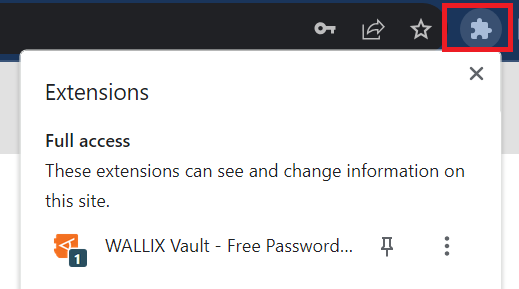
Click the **Browser Extension Icon** on the top right hand side of the browser. The following screenshot shows the icon for Chrome.
Click the Browser Extension icon.
[](https://vault-doc.wallix.com/uploads/images/gallery/2023-12/access-browser-extension.png)
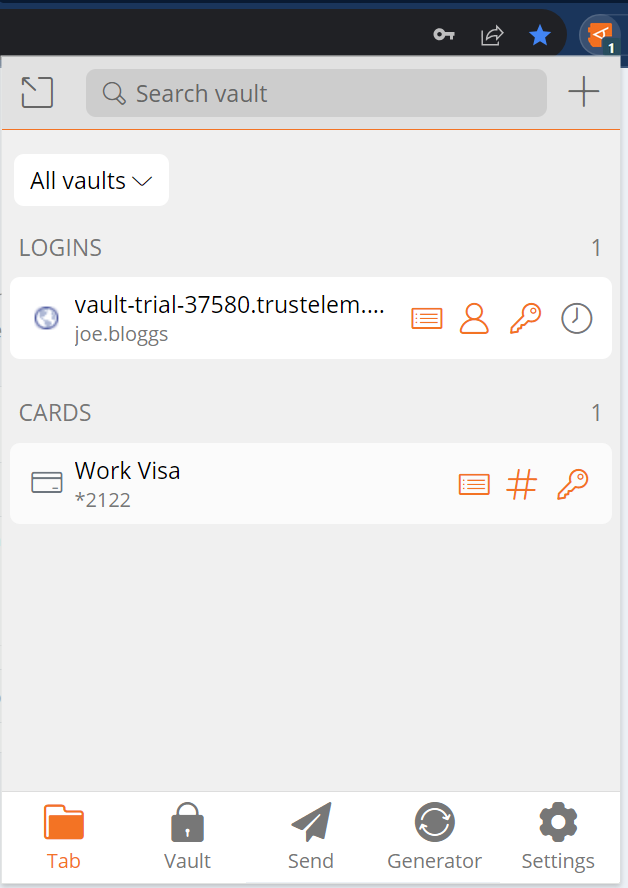
The WALLIX Vault **Browser Extension opens** in the **Tab Screen.**
#### Tab Screen
This screen shows the **items saved** in the Vault for the currently displayed webpage.
[](https://vault-doc.wallix.com/uploads/images/gallery/2023-12/j2vbrowser-extension-home.png)
#### Vault Screen
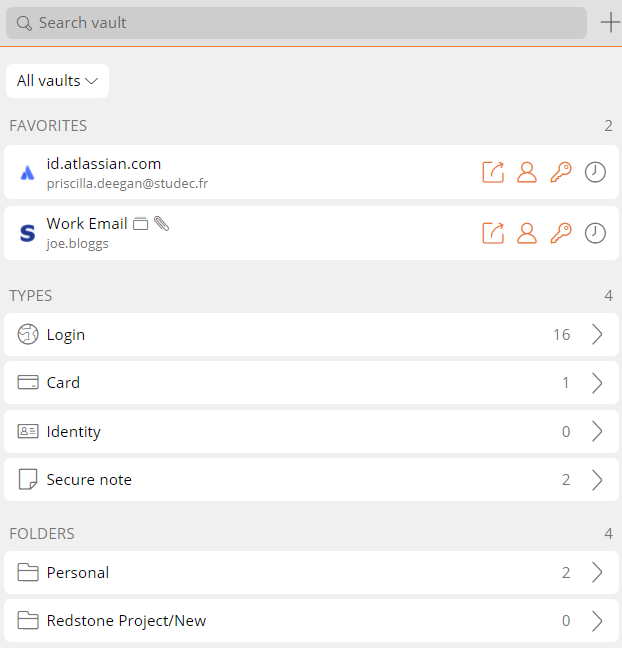
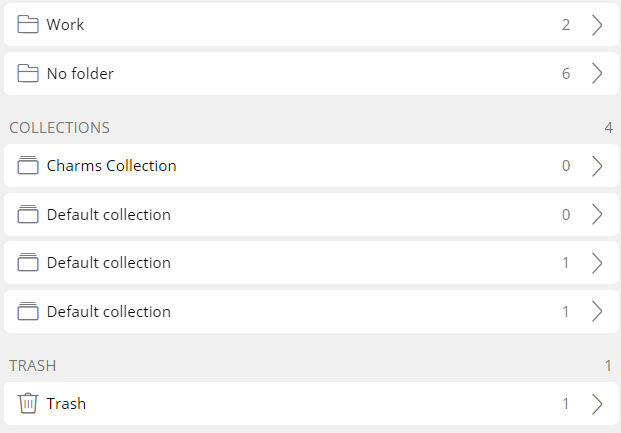
This screen displays the list of Vaults and their Items.
[](https://vault-doc.wallix.com/uploads/images/gallery/2023-12/vault-screen-1.png)
[](https://vault-doc.wallix.com/uploads/images/gallery/2023-12/fIWvault-screen-2.png)
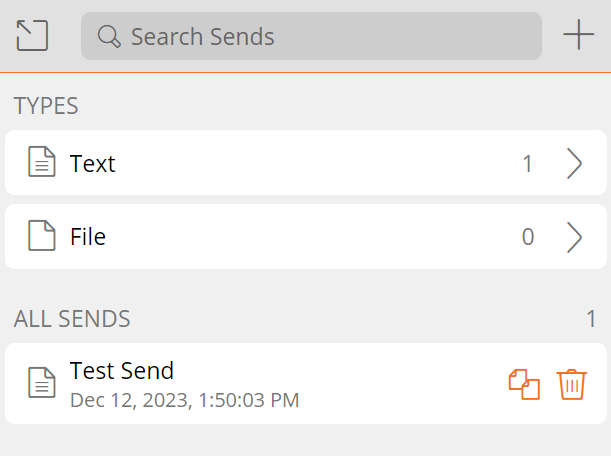
#### Send Screen
This screen **displays Sends** and allows users to **add**, **edit** or **delete** a send.
[](https://vault-doc.wallix.com/uploads/images/gallery/2023-12/nl4send-screen.png)
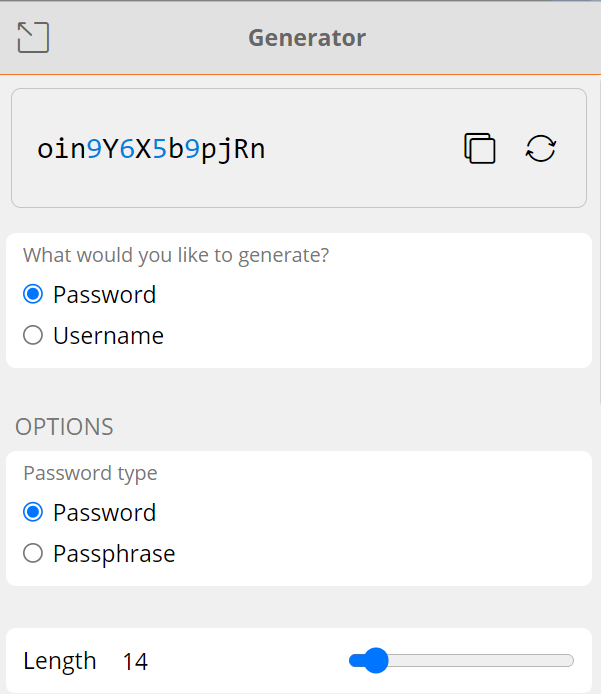
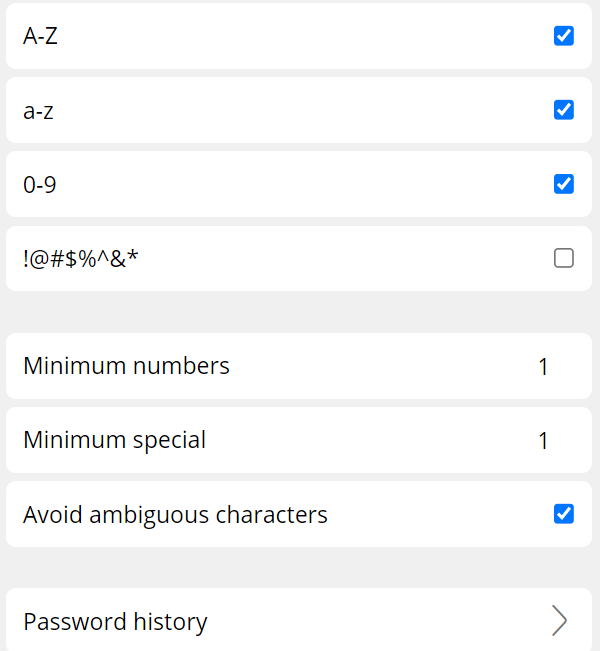
#### Generator Screen
This screen allows users to **generate** a **password** for an **Item**.
[](https://vault-doc.wallix.com/uploads/images/gallery/2023-12/generator-screen-1.png)
[](https://vault-doc.wallix.com/uploads/images/gallery/2023-12/hcMgenerator-screen-2.png)
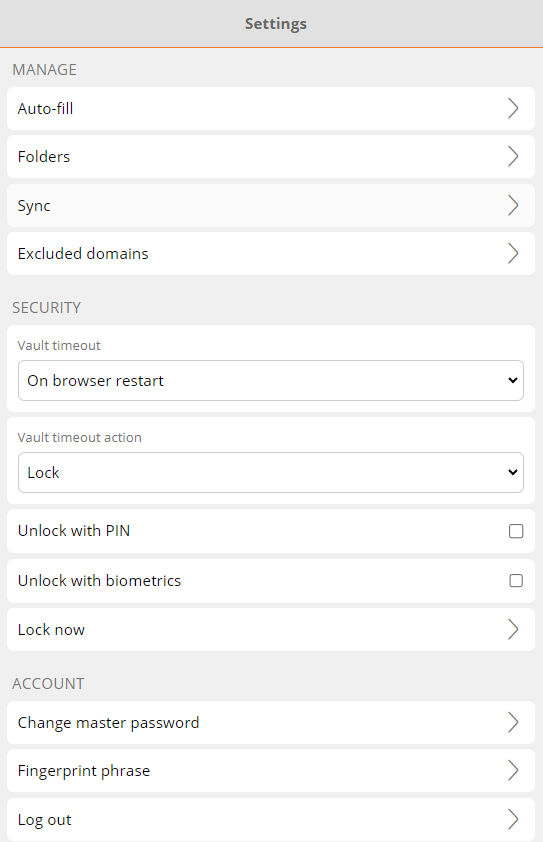
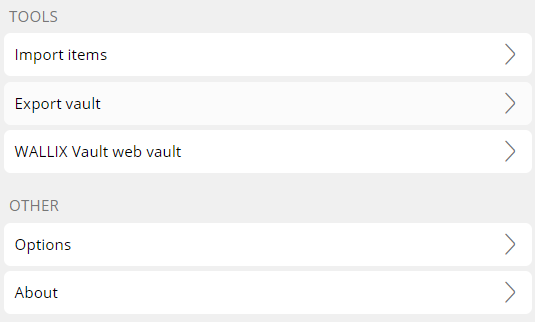
#### Settings Screen
This screen displays the various **settings** and **options** available for the Browser Extension.
[](https://vault-doc.wallix.com/uploads/images/gallery/2023-12/autofill-settings-1.png)
[](https://vault-doc.wallix.com/uploads/images/gallery/2023-12/CUaautofill-settings-2.png)
# Install Browser Extension
WALLIX Enterprise Vault uses browser extensions for **Chrome** and **Firefox**. These must be installed before using WALLIX Enterprise Vault.
Click on the **Browser Extension** link from the **User Menu**.
[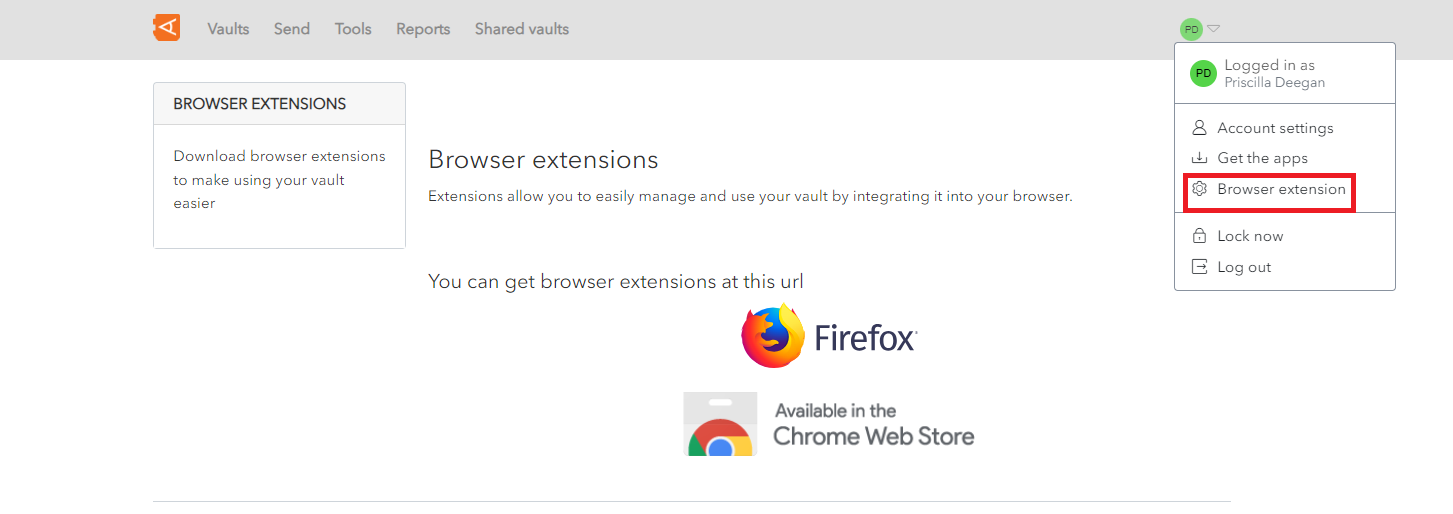](https://vault-doc.wallix.com/uploads/images/gallery/2023-11/browser-extension-setup-0.png)
Alternatively, click on the **Browser extension setup** link on the top right-hand side of your web browser.
[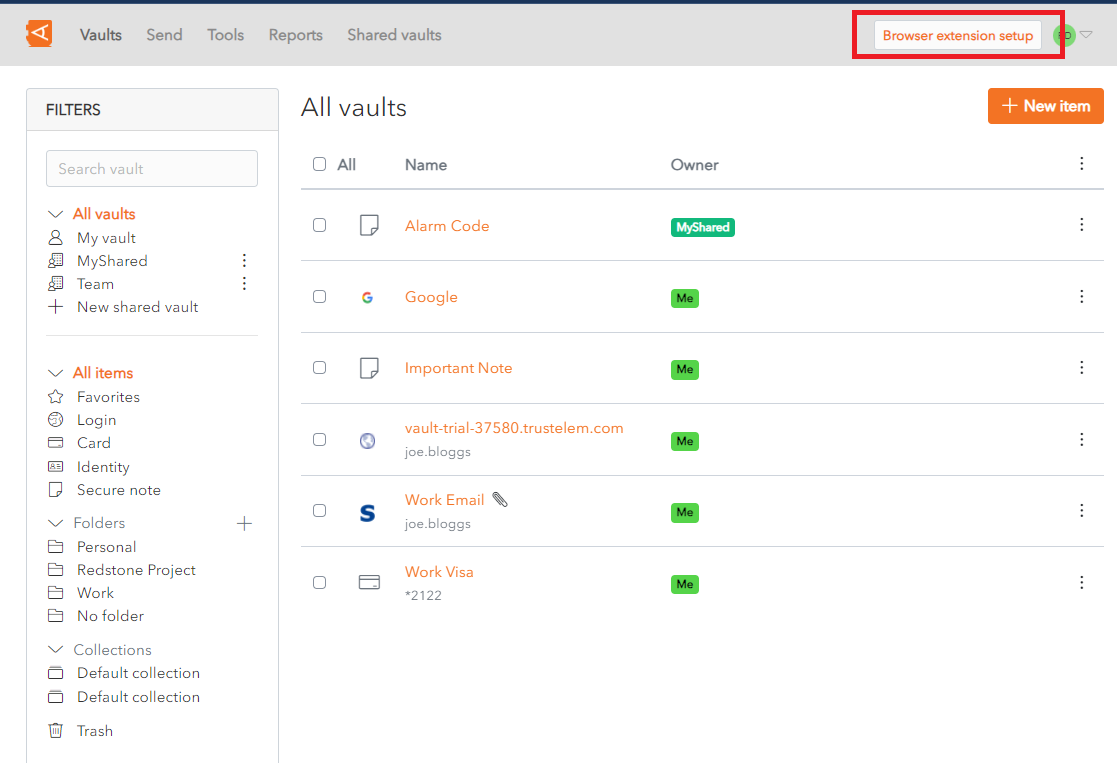](https://vault-doc.wallix.com/uploads/images/gallery/2023-11/browser-extension-setup-1.png)
This will display the Browser Extension Configuration Screen.
Click on the **Install and configure** button to install the WALLIX Enterprise Vault Extension for the browser you use to access your WALLIX-Vault.
[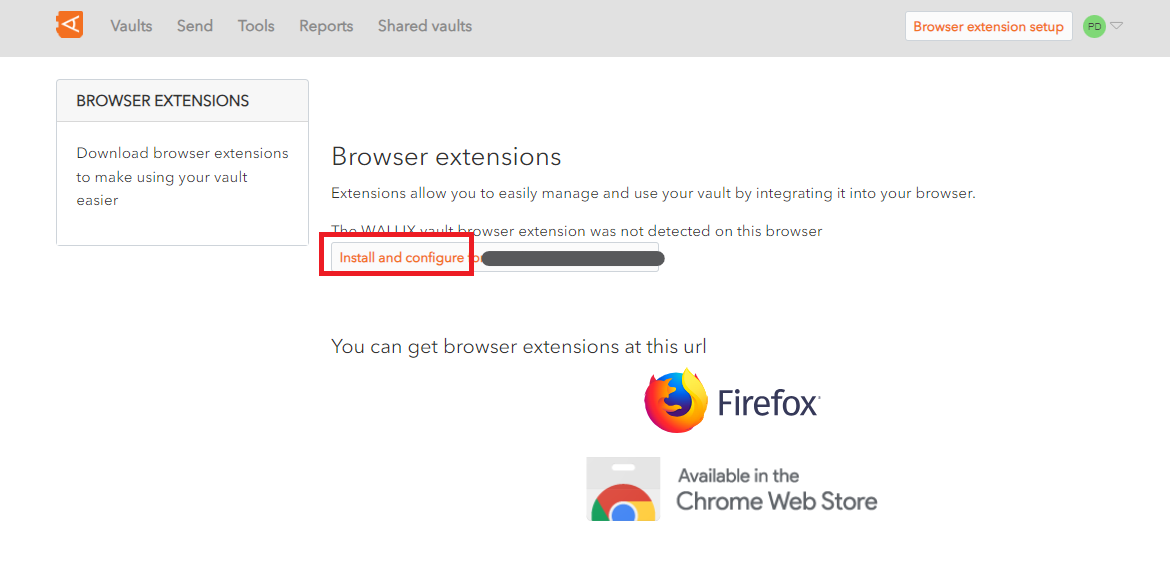](https://vault-doc.wallix.com/uploads/images/gallery/2023-11/browser-extension-setup-2.png)
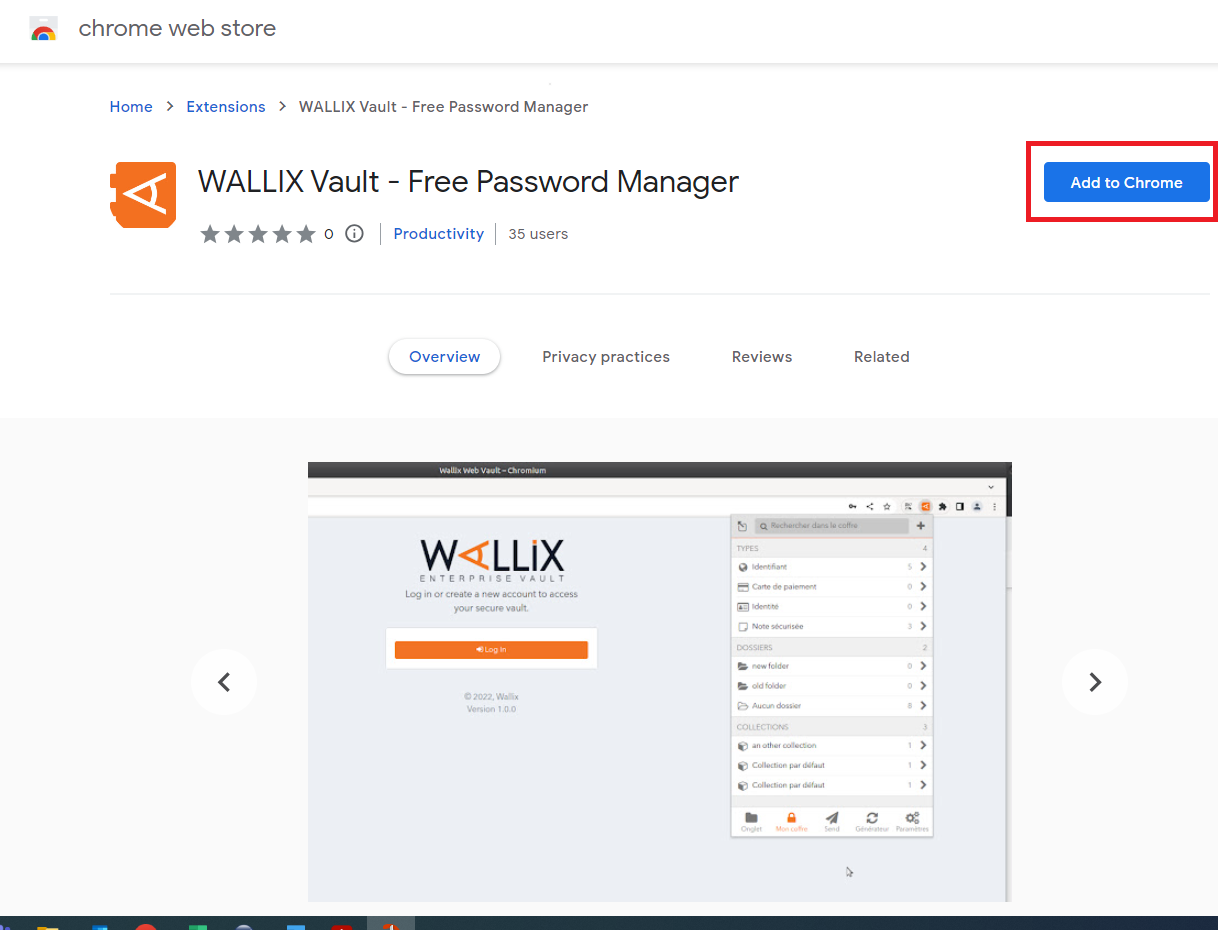
Click the **Add to Chrome** button to install the browser extension (this process is similar for Firefox).
[](https://vault-doc.wallix.com/uploads/images/gallery/2023-11/gOFbrowser-extension-setup-3.png)
You can now use the browser extension.
# Install Mobile Application
The WALLIX-Vault mobile application is available on Google Play for Android devices and App Store for Apple devices.
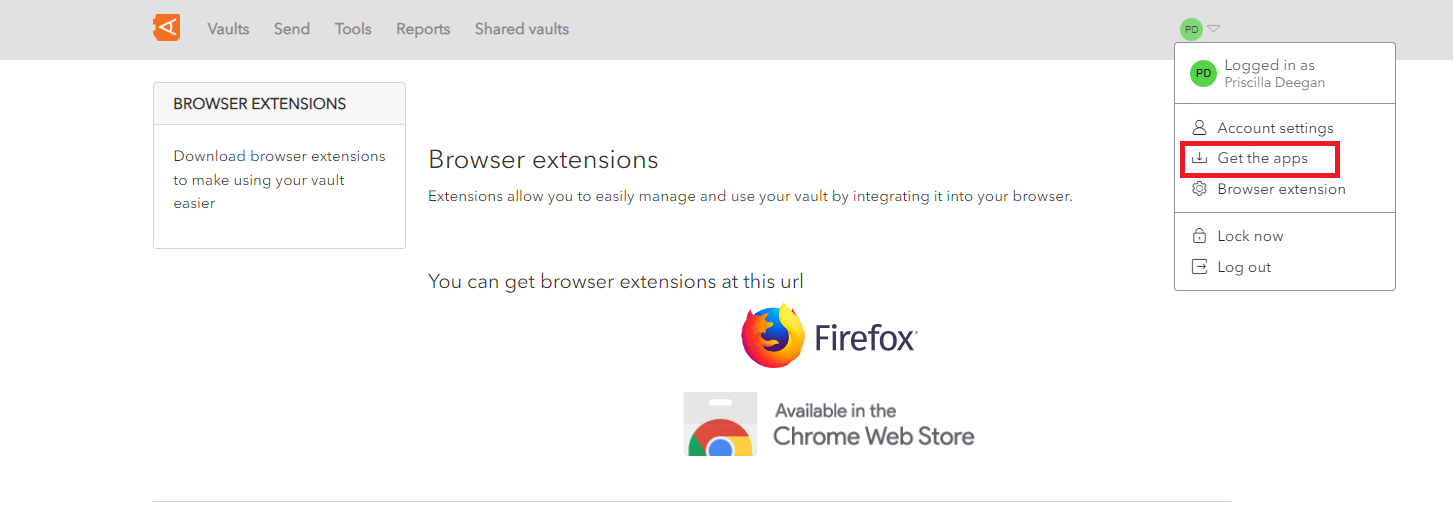
Select **Get the apps** in your Account Menu to display the Mobile Apps page.
[](https://vault-doc.wallix.com/uploads/images/gallery/2023-11/download-apps-0.png)
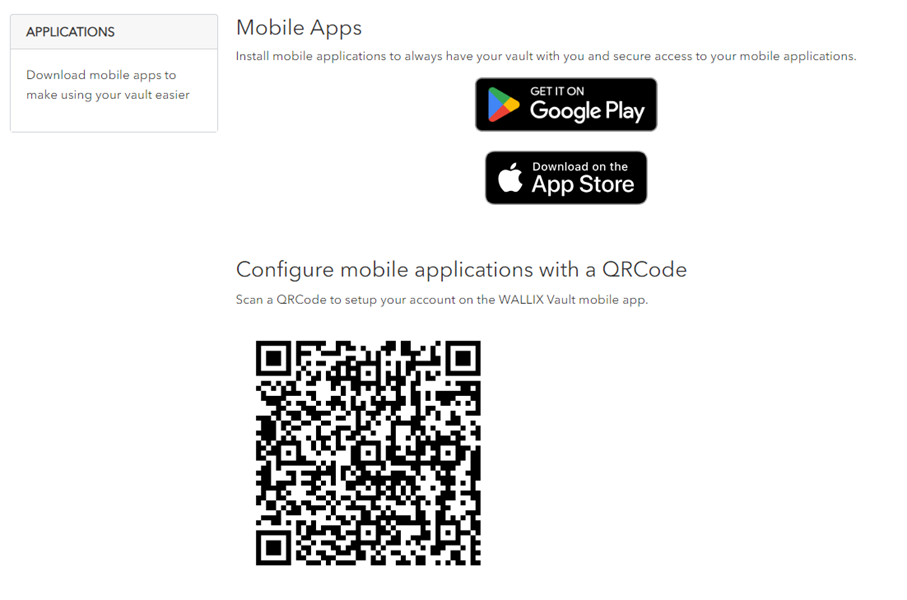
Scan the **QR code** with your device to set up your account on the WALLIX Enterprise Vault mobile app.
[](https://vault-doc.wallix.com/uploads/images/gallery/2023-11/K5Ldownload-apps-1.png)
This downloads and **installs** the app **with your user account details.**