# Manage Data Recovery
This is only available for users who have recovery options. These options have to be granted by a Trustelem Administrator.
# Admin quick start
Prerequisites:
- in the Vault administration application:
- recovery data policy activation
- [set the *recovery\_data* attribute](https://vault-doc.wallix.com/books/former-documentation/page/grant-trustelem-data-recovery-permissions) to the users who want to recover user data
- [share the cipher key](https://vault-doc.wallix.com/books/former-documentation/page/grant-trustelem-data-recovery-permissions)
- set up the [approbators group(s)](https://vault-doc.wallix.com/books/former-documentation/page/approbators-group-management)
As a authenticated user, the standard workflow to access to user data is:
1. Create a data recovery request (described [here](https://vault-doc.wallix.com/books/former-documentation/page/create-data-recovery-request))
2. Notification is sent to the approbators, waiting for their vote
3. If the request is approved, an email is sent to the user who emit the request
4. The user has to re-log in and can now access to the user data (see an example below)
[](https://vault-doc.wallix.com/uploads/images/gallery/2024-03/HLFimage.png)
# Approbators group management
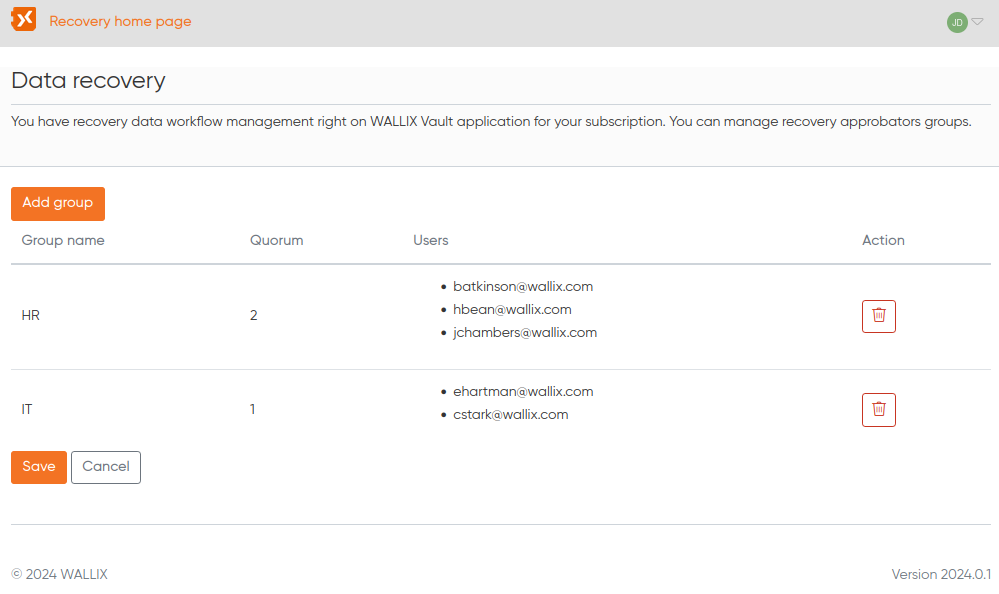
All the data recovery requests enforce a validation process that consists to be approved by all approbators group. In each group, a quorum is defined so, when the quorum is reached, the request is considered validated by the group.
Users authorized to manage approbator groups must have an additional attribute *recovery\_data\_workflow* to acces the administration page. For more information about how the authorizations are granted, see the [grant data recovery permissions page](https://vault-doc.wallix.com/books/former-documentation/page/grant-trustelem-data-recovery-permissions).
A validation group is composed by one or several Trustelem Vault users.
[](https://vault-doc.wallix.com/uploads/images/gallery/2024-03/image.png)
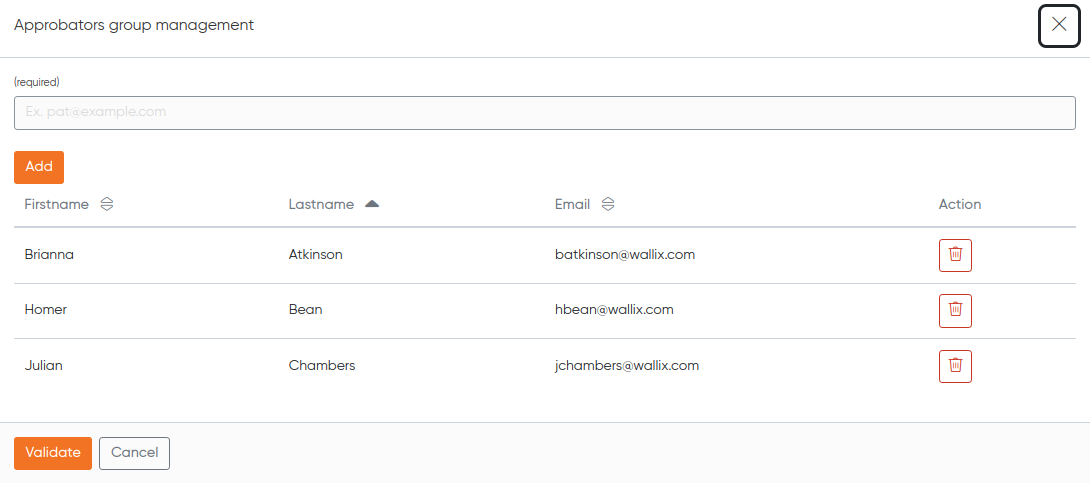
You can edit each group by clicking on the desired property (name, quorum or users list), add a brand-new approbators group. or remove a whole group. Here is what you get when you want to modify the approbators of a specific group:
[](https://vault-doc.wallix.com/uploads/images/gallery/2024-03/0ibimage.png)
Note: only a valid Vault user is allowed to be added to a group.
When a data recovery request is submitted, an email is sent to each approbators.
# Create Data Recovery Request
This section is only authorized to Vault users with specific rights (i.e. the *recovery\_data* attribute and the cipher key shared). For more information about how the authorizations are granted, see the [grant data recovery permissions page](https://vault-doc.wallix.com/books/former-documentation/page/grant-trustelem-data-recovery-permissions).
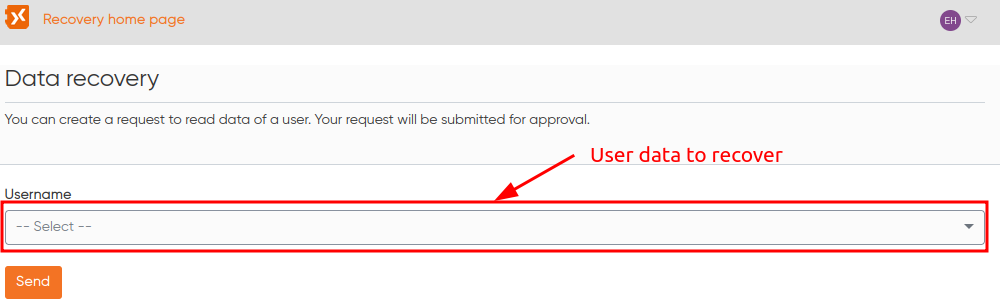
To perform a data recovery request, go to the "*Create a data recovery request*" section to perform the request:
[](https://vault-doc.wallix.com/uploads/images/gallery/2024-03/DfZimage.png)
The user can emit a new data recovery request for a specific Vault user included in the droplist component. The user can cancel the request for any reason if needed until the request is approved or refused.
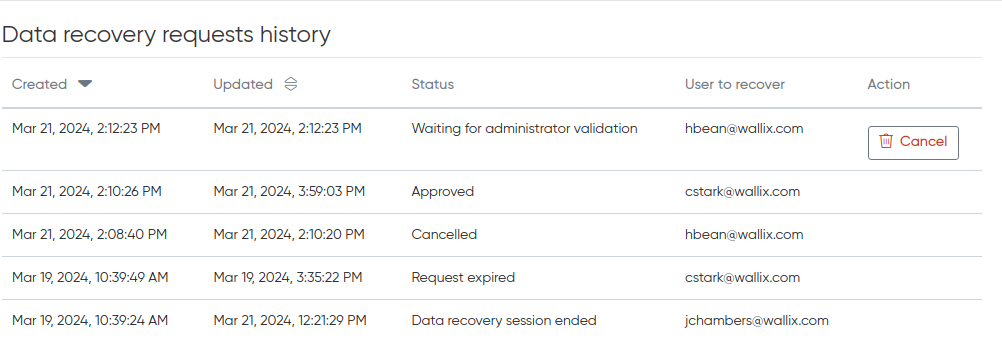
An history of the already emitted requests is available at the bottom of the page.
[](https://vault-doc.wallix.com/uploads/images/gallery/2024-03/OCsimage.png)
Here you will find all the request statuses available:
- *Waiting for administrator validation*: the request has been emitted and no approbator already votes;
- *Approved*: so, rather self-explanatory;
- *Cancelled*: the user who creates the request has manually cancelled the request (cf "Cancel" button);
- *Request expired*: the request reaches the configured timeout. The timeout policy is defined in the vault administration application;
- *Data recovery session ended*: an approbation has manually revoked the data recovery session (see the [manage requests page](https://vault-doc.wallix.com/books/former-documentation/page/manage-data-recovery-requests)).
# Manage Data Recovery Requests
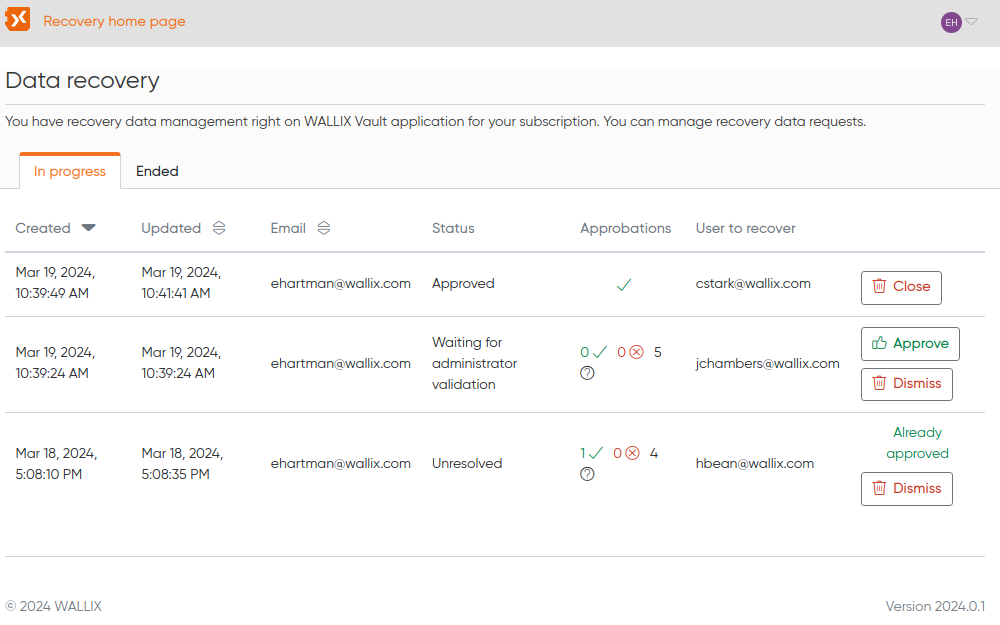
This section is only authorized to approbators (i.e. the user must be included in at least approbation group). On the "In progress" tab, you can monitor the current open and non-resolved data recovery requests.
[](https://vault-doc.wallix.com/uploads/images/gallery/2024-03/tU1image.png)
Until the approbator votes, all the vote options are displayed. After voting, either the "Approve" or the "Dismiss" button is hidden, depending how the approbator votes. Non-resolved status means that at least one approbator has submitted his vote but all the emitted votes are not sufficient to reach each of the group quorum.
The "Close" button will end the approved data recovery session if any approbator wants to.
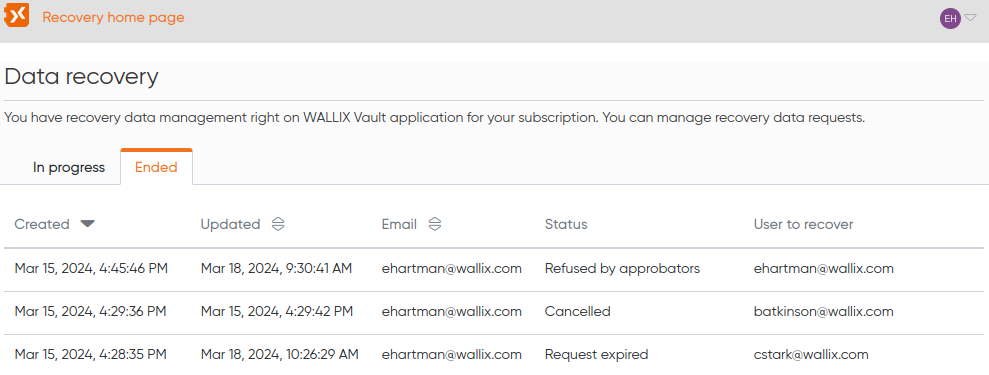
On the "Ended" tab, you have the complete data recovery requests history, regardless of who requested it and regardless of which account was target by the recovery process.
[](https://vault-doc.wallix.com/uploads/images/gallery/2024-03/A3iimage.png)
# Grant Trustelem Data Recovery Permissions
As an Vault Administrator, follow this procedure to **Grant Data Recovery Permissions** in the **Trustelem** application to an User.
**Users** with this **permission** can **create data recovery requests**.
### Grant Recovery Permissions
Connect to **Trustelem**.
Select the **User** **Menu** on the top right-hand side of the screen. The **User List** is displayed.
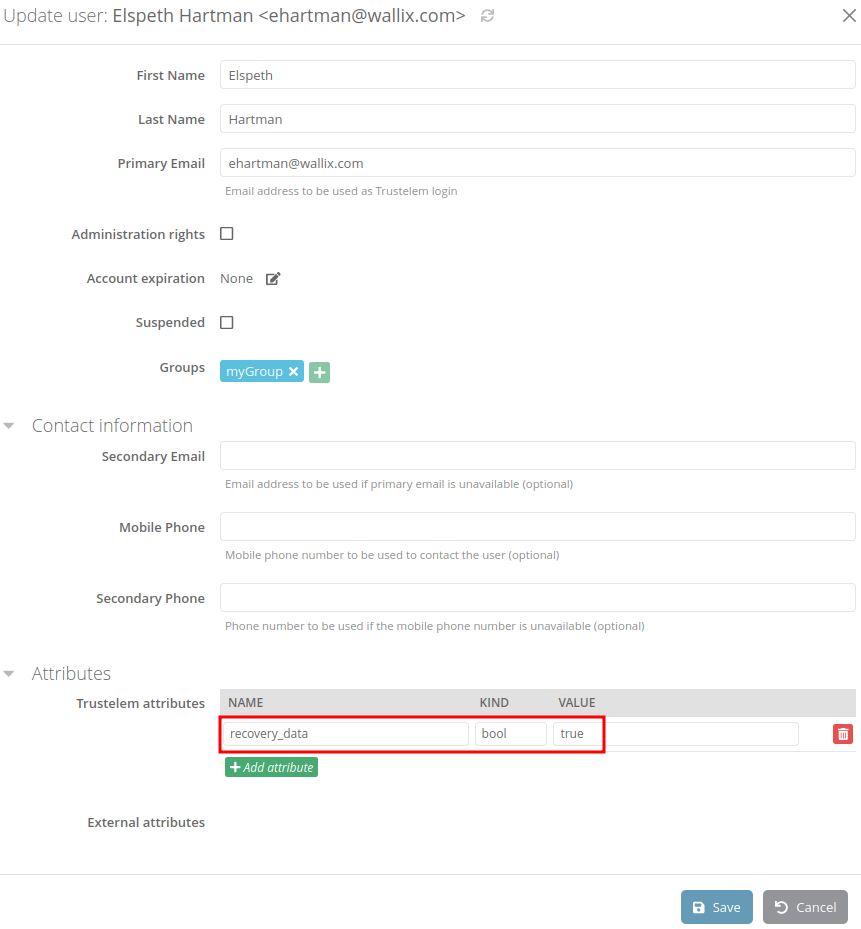
**Select** the **User** to give Password Recovery permissions to and click the **Modify** button. The **User Update screen** is displayed.
[](https://vault-doc.wallix.com/uploads/images/gallery/2024-03/SCEimage.png)
In the Attributes section, click the **Add an Attribute** button. A blank line is added to the **Trustelem Attributes** table.
Complete the fields as follows:
- NAME : **recovery\_data**
- TYPE : **bool**
- VALEUR : **true**
Click the **Save** button to save the new attribute to the User.
The Trustelem attribute **recovery\_data** displays in the **Attribute List**.
This **User** can now **[create data recovery requests](https://vault-doc.wallix.com/books/former-documentation/page/create-data-recovery-request)**.
To manage approbator groups for data recovery, the user must have an attribute **recovery\_data\_workflow**. After that he can **[manage approbators groups](https://vault-doc.wallix.com/books/former-documentation/page/approbators-group-management "Approbators group management")**.
### Share cipher key
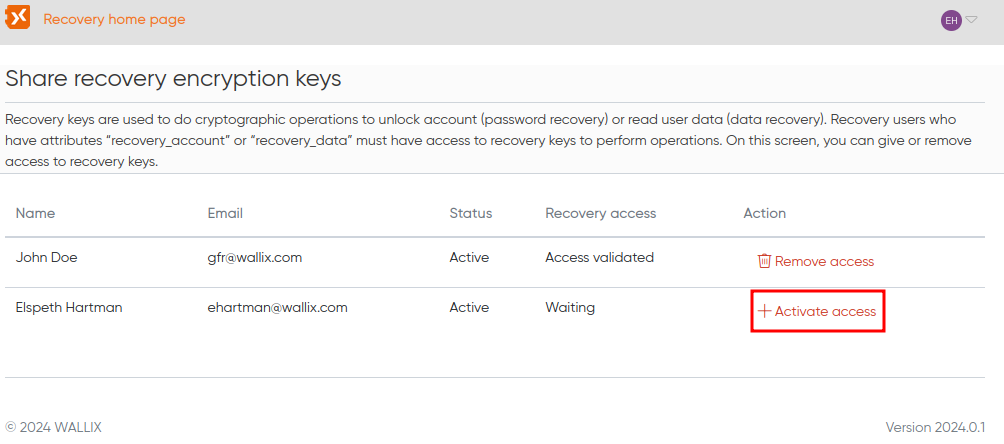
In order to enable completely the data recovery permissions, you have to share the cipher key.
**Important**: This step must be done after granting the *recovery\_data* attribute.
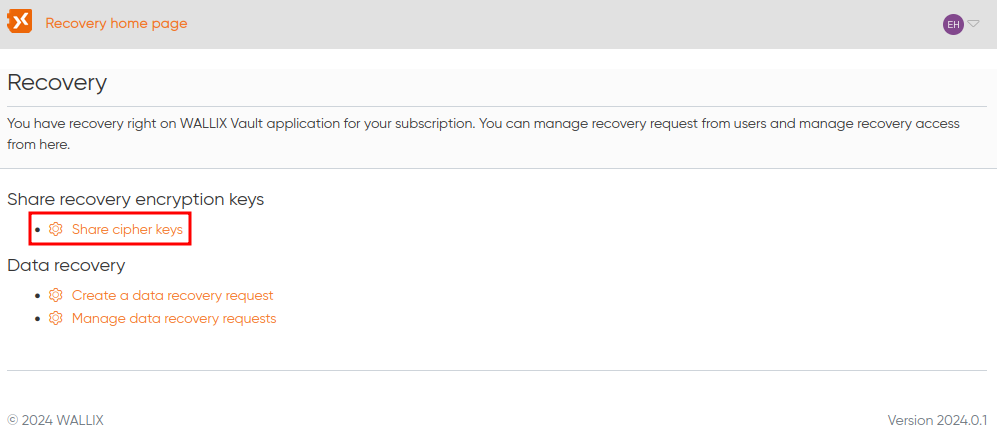
Go to the recovery home page (Tools > Recovery in default navigation bar) and click on the "Share cipher keys" link as below:
[](https://vault-doc.wallix.com/uploads/images/gallery/2024-03/5sSimage.png)
The cipher key management page is displayed. You can now share the cipher key with any user who has the *recovery\_data* attribute:
[](https://vault-doc.wallix.com/uploads/images/gallery/2024-03/U7Yimage.png)
Congratulations! The user can now create a data recovery request for any vault user.