# Manage folders
Create folders to organize your personal items.
# Folders Overview
Folders can be created and used to **organize personal items** in your **Personal Vault** to make them **easier to find**.
**Folders** and **Items** in your **Personal Vault** are **private to you** and are **never accessible** to **another user.** Because they are in a Peronal Vault they **cannot be shared**. Only Items in a Shared Vault can be shared with other users.
Items can be **searched** for in Folders using the Filters menu.
The following functions are available for Folders:
- **[Create Folder](https://vault-doc.wallix.com/link/22)**
- **[Edit Folder](https://vault-doc.wallix.com/link/37)**
- **[Delete Folder](https://vault-doc.wallix.com/link/38)**
- **[Create Nested Folder](https://vault-doc.wallix.com/link/39)**
- **[Move Item to Folder](https://vault-doc.wallix.com/link/40)**
- **[Search for Item in Folder](https://vault-doc.wallix.com/link/21)**
# Create Folder
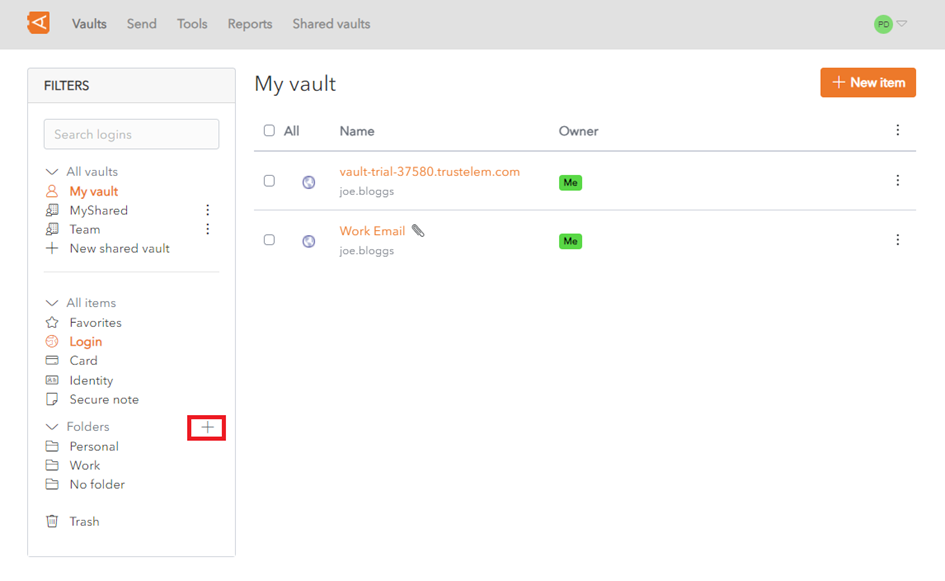
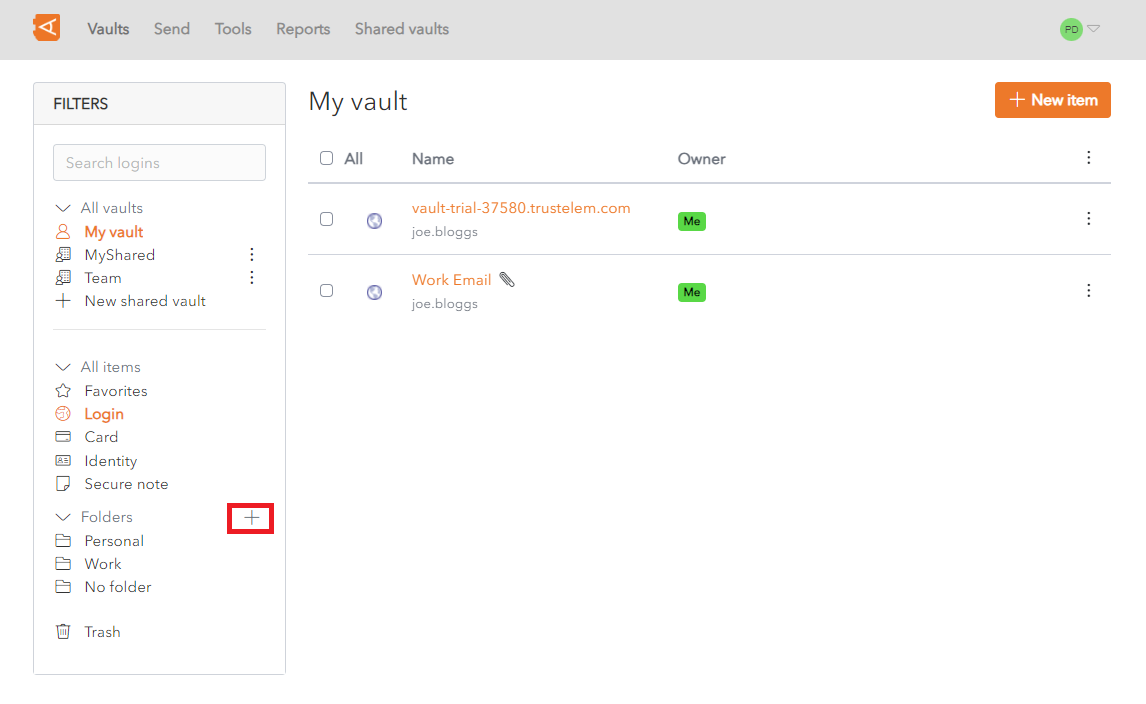
Click on the **+** button beside Folders in the Filters Menu.
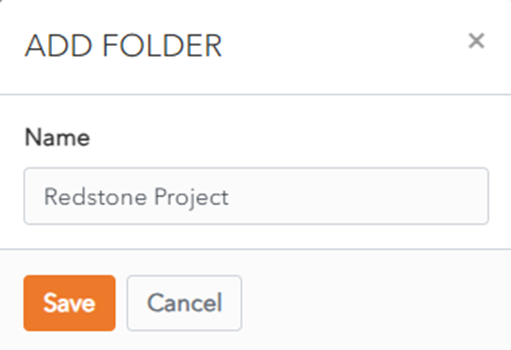
The **Add Folder** pop up window is displayed.
Enter a **folder name** and click the **Save** button.
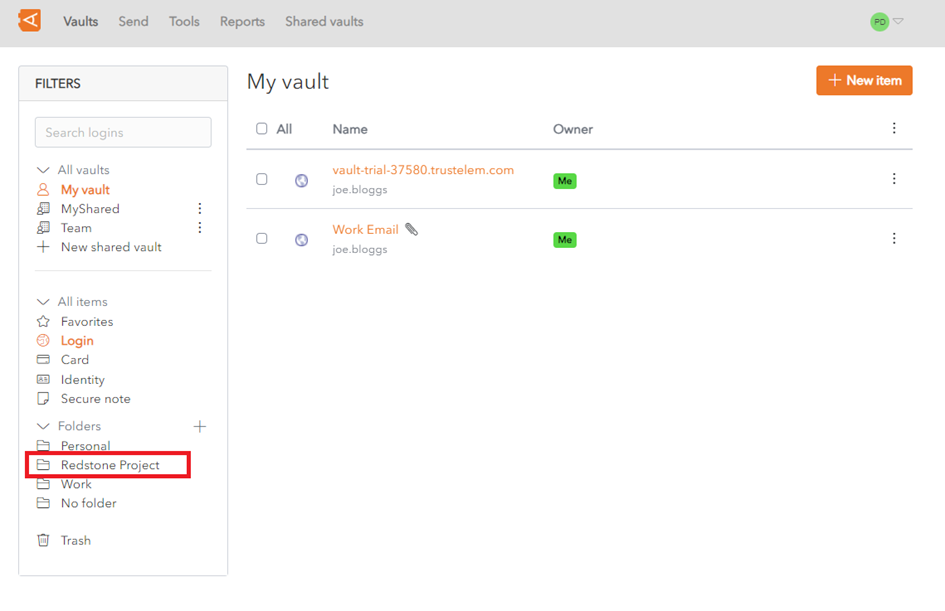
The **New Folder** is displayed in your **Folder List**.
# Edit Folder
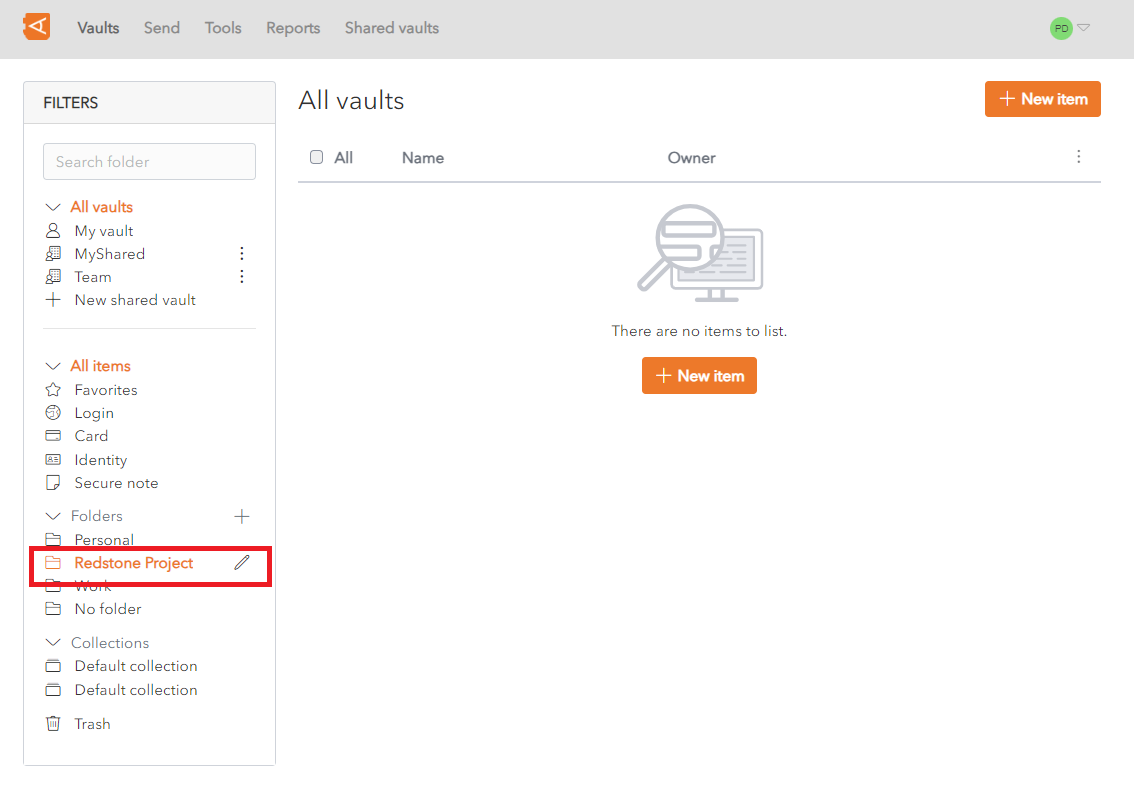
**Click on** a **folder** in your Vault List.
[](https://vault-doc.wallix.com/uploads/images/gallery/2023-12/edit-folder.png)
The  **Edit** button is displayed beside the folder.
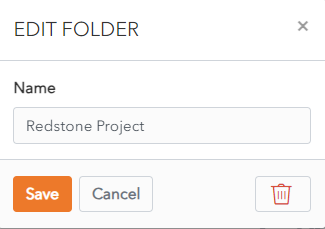
Click on the **Edit** button to open the Folder in the **Edit Screen**.
[](https://vault-doc.wallix.com/uploads/images/gallery/2023-12/vBoedit-folder-screen.png)
Change the folder name and then click the **Save** button to save your changes.
Alternatively, click the **Cancel** button to cancel the operation.
# Delete Folder
From the **[Edit Folder Screen](https://vault-doc.wallix.com/link/37)**, click the **Delete** button to Delete the Folder.
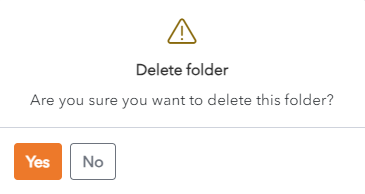
A **Delete Folder Confirmation** Popup is displayed.
[](https://vault-doc.wallix.com/uploads/images/gallery/2023-12/delete-folder-popup.png)
Click the **Yes** button to delete the folder.
Click the **No** button to cancel the operation.
# Create Nested Folder
Folders can be created or nested inside other folders.
Click on the **New Folder** button to create a new Nested Folder.
[](https://vault-doc.wallix.com/uploads/images/gallery/2023-12/en-add-folder-1.png)
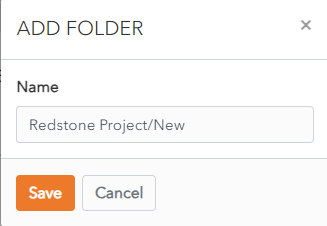
Use the **« / » forward slash** delimiter to define the folder structure of your nested folder.
For example, create a new folder called **Redstone Project/New.**
[](https://vault-doc.wallix.com/uploads/images/gallery/2023-12/create-nested-folder-screen.png)
If the folder called **Redstone Project** already exists, a nested folder called **New** is created inside the **Redstone Project** folder.
[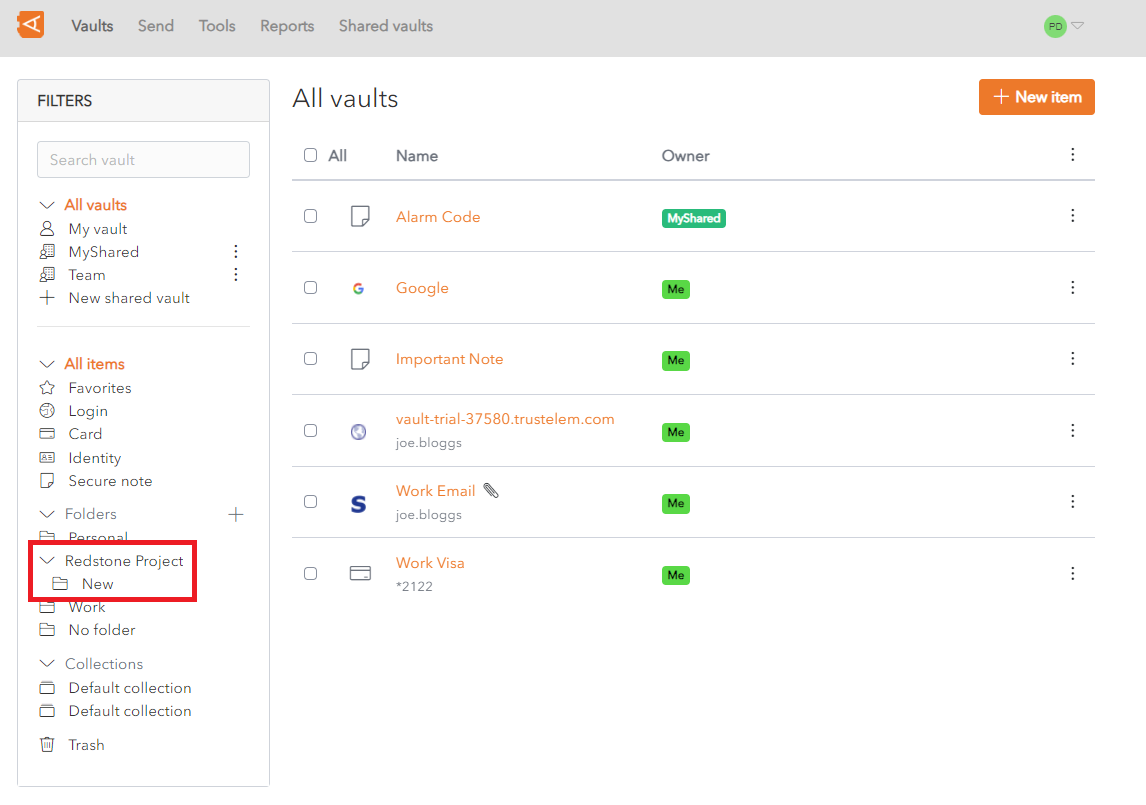](https://vault-doc.wallix.com/uploads/images/gallery/2023-12/nested-folder-screen.png)
If a folder called **Redstone Project** does not already exist, a new folder will be created called **Redstone Project/New.**
[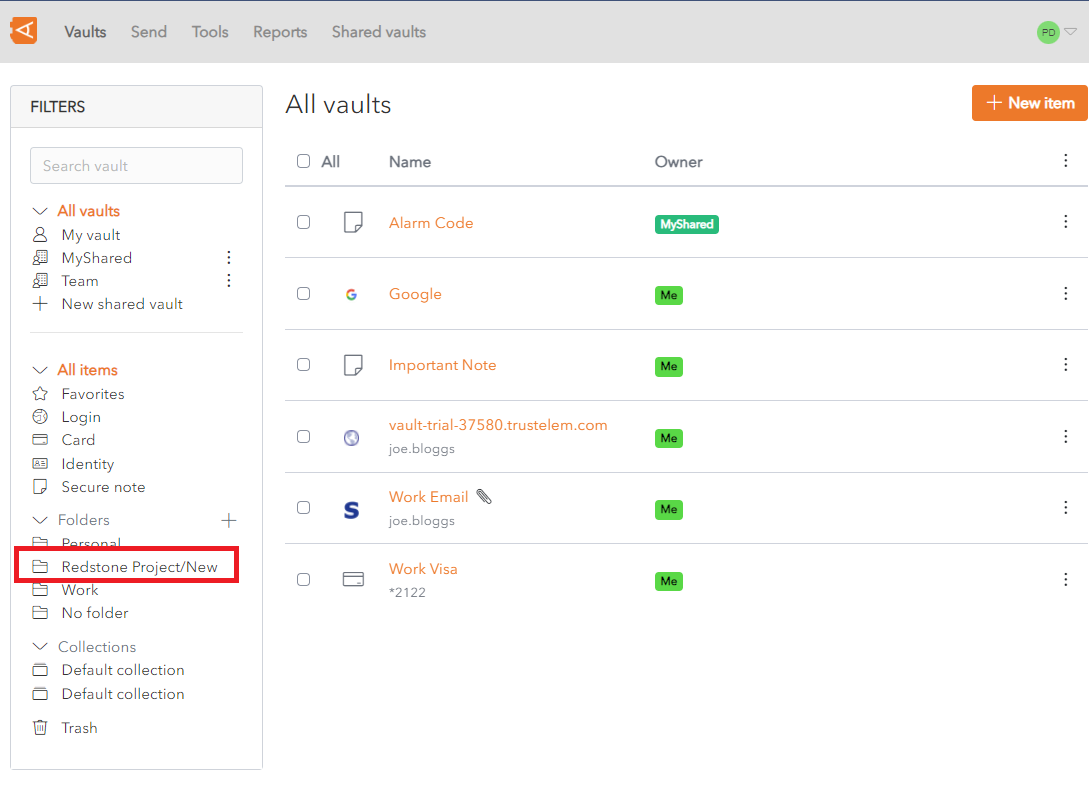](https://vault-doc.wallix.com/uploads/images/gallery/2023-12/nested-folder-screen-no-parent.png)
To create a nested folder called **Trees** inside the **New** Folder, create a new folder called **Redstone Project/New/Trees.**
[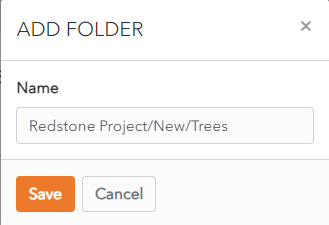](https://vault-doc.wallix.com/uploads/images/gallery/2023-12/sHbcreate-nested-folder-screen-2-levels.png)
A nested folder called **Trees** is created inside the **New** folder.
[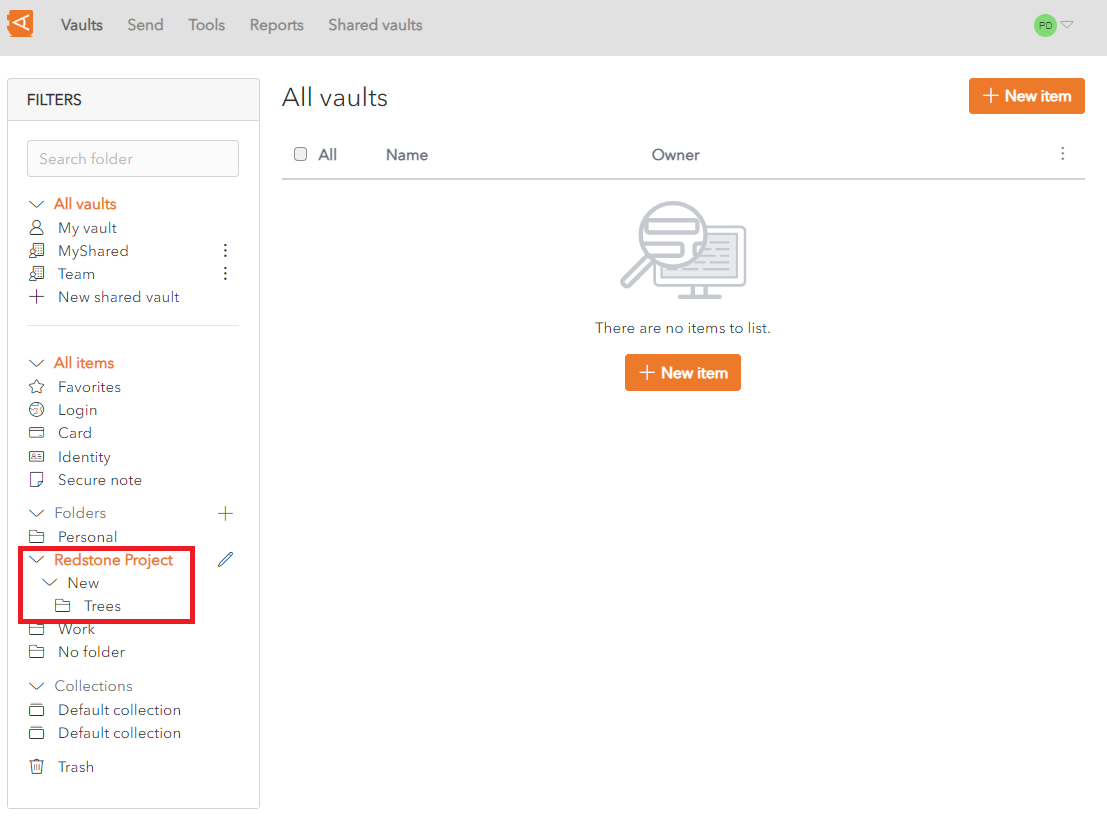](https://vault-doc.wallix.com/uploads/images/gallery/2023-12/nested-folder-screen-2-levels.png)
If you **[Search](https://vault-doc.wallix.com/link/21)** inside the **Redstone Project** Folder, it will return items in the Redstone Project Folder but **not items inside** the **New** and **Trees nested** folders.
There is **no limit** to the **depth** of nested folders, but it can be impractical to create too many.
# Move Item to Folder
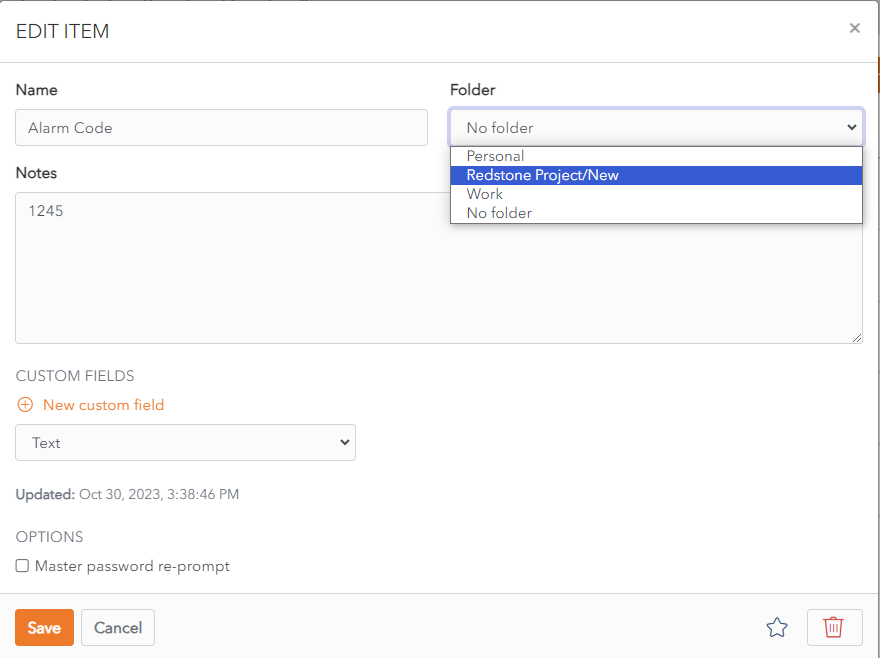
From the **[Edit Item Screen](https://vault-doc.wallix.com/link/9)** Screen, **choose** a **Folder** from the dropdown menu.
[](https://vault-doc.wallix.com/uploads/images/gallery/2023-12/move-item-to-a-folder.png)
Click **Save** button to **Move the Item** to this Folder.
You can **add an Item** from a **Shared Vault** into a **Folder**. This will be **organized** in this Folder in **your Vault**. It will **not provide access** to this item **to another user.**