# Manage items

Create different types of items: login, identity card and note.

# Items Overview

You can **[create](https://vault-doc.wallix.com/link/8) four types of item** in your WALLIX Enterprise Vault :

1. A **[Login](https://vault-doc.wallix.com/link/12)** item can be used to store login information for an account.
2. A **[Identity](https://vault-doc.wallix.com/link/11)** item can be used to store identity information about a person.
3. A **[Card](https://vault-doc.wallix.com/link/12)** item can be used to store a credit or payment card information.
4. A [**Secure Note**](https://vault-doc.wallix.com/link/14) item can use used to store other private information.

Items can be [**Edited** ](https://vault-doc.wallix.com/link/9)or **[Deleted](https://vault-doc.wallix.com/link/42)**.

The **[Item Context Menu](https://vault-doc.wallix.com/link/125)** contains some options related to an Item, depending on the Item Type and if it is in a [**Shared Vault** ](https://vault-doc.wallix.com/link/54)or not.

Items can be [**Password Protected,**](https://vault-doc.wallix.com/link/76) [**Cloned**](https://vault-doc.wallix.com/link/130), [**Moved from an Individual Vault to a Shared Vault**](https://vault-doc.wallix.com/link/126), or **[Added to Favorites](https://vault-doc.wallix.com/link/113)**.

Specific **options** are available for **Login Items**:

- **[Password Fields](https://vault-doc.wallix.com/link/17)** such as Password Generation, Checking Password Integrity, Show / Hide Character Count, Copy Password and Show / Hide Password.
- **[TOTP Generation](https://vault-doc.wallix.com/link/112)**
- [**Copy Username**](https://vault-doc.wallix.com/link/125)
- [**Copy Password**](https://vault-doc.wallix.com/link/125)
- **[Launch URI](https://vault-doc.wallix.com/link/125)**

# Create Item

Click on the **New Item** button to add a new Item.

[![](https://vault-doc.wallix.com/uploads/images/gallery/2023-11/embedded-image-hbjttpoq.png)](https://vault-doc.wallix.com/uploads/images/gallery/2023-11/embedded-image-hbjttpoq.png)

The **New Item** pop up screen is displayed.

Choose the type of item – **[Login](https://vault-doc.wallix.com/link/12), [Card](https://vault-doc.wallix.com/link/13), [Identity ](https://vault-doc.wallix.com/link/11)or [Secure Note](https://vault-doc.wallix.com/link/14)***.* Each item type has it’s own unique set of fields.

Here we will choose **Login**.

[![EN Add Item 2 - Copie.png](https://vault-doc.wallix.com/uploads/images/gallery/2024-01/scaled-1680-/Ma7en-add-item-2-copie.png)](https://vault-doc.wallix.com/uploads/images/gallery/2024-01/Ma7en-add-item-2-copie.png)

[![Capture d’écran 2024-01-02 142739.png](https://vault-doc.wallix.com/uploads/images/gallery/2024-01/scaled-1680-/capture-decran-2024-01-02-142739.png)](https://vault-doc.wallix.com/uploads/images/gallery/2024-01/capture-decran-2024-01-02-142739.png)

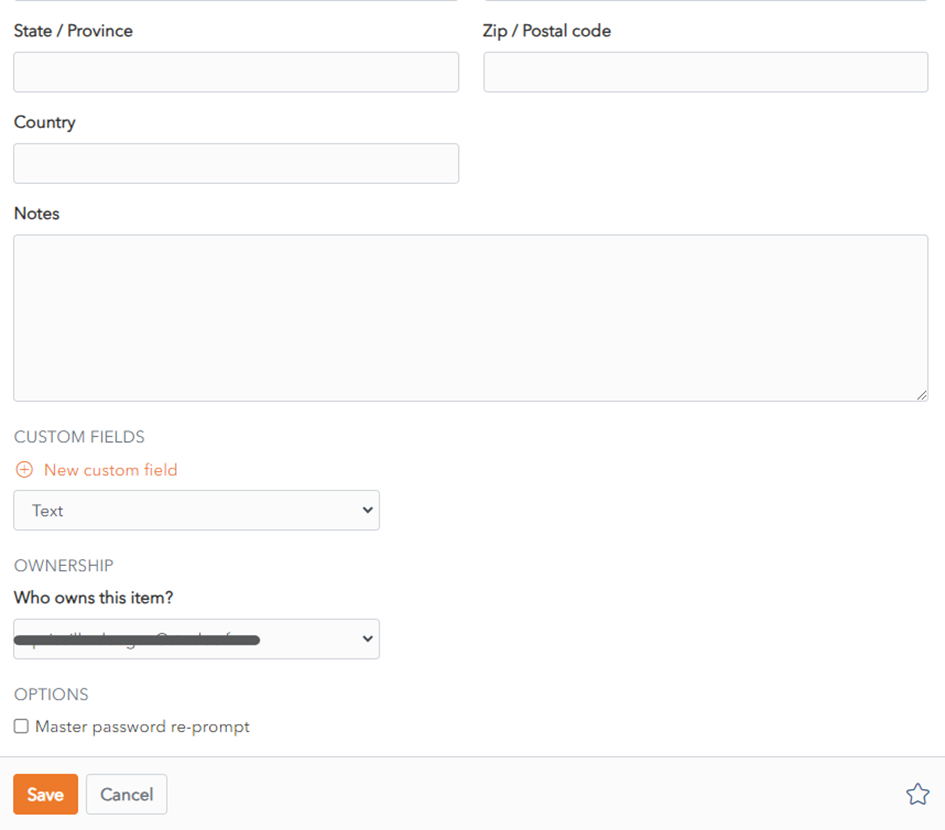
Add the details that you wish to save for new Login Item. The only mandatory field is **Name**.

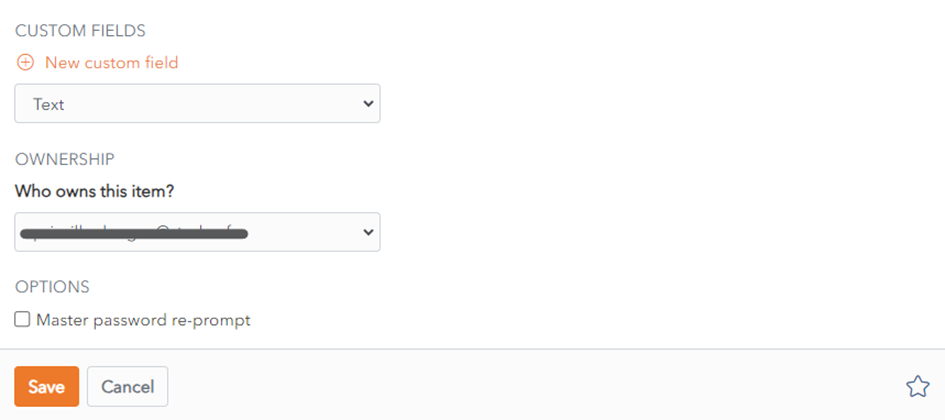
The Item is added to your personal vault by default. To add the Item to a Shared Vault, choose a Shared Vault from the **Who Owns this Item?** dropdown.

Click the **Save** button to save the new Item.

It is then **displayed** in your **Items List**.

Alternatively, click **Cancel** to cancel the operation.

# Edit Item

**Click on an item** in your Vault List.

[![embedded-image-b4AVkifk.png](https://vault-doc.wallix.com/uploads/images/gallery/2023-11/scaled-1680-/embedded-image-b4avkifk.png)](https://vault-doc.wallix.com/uploads/images/gallery/2023-11/embedded-image-b4avkifk.png)

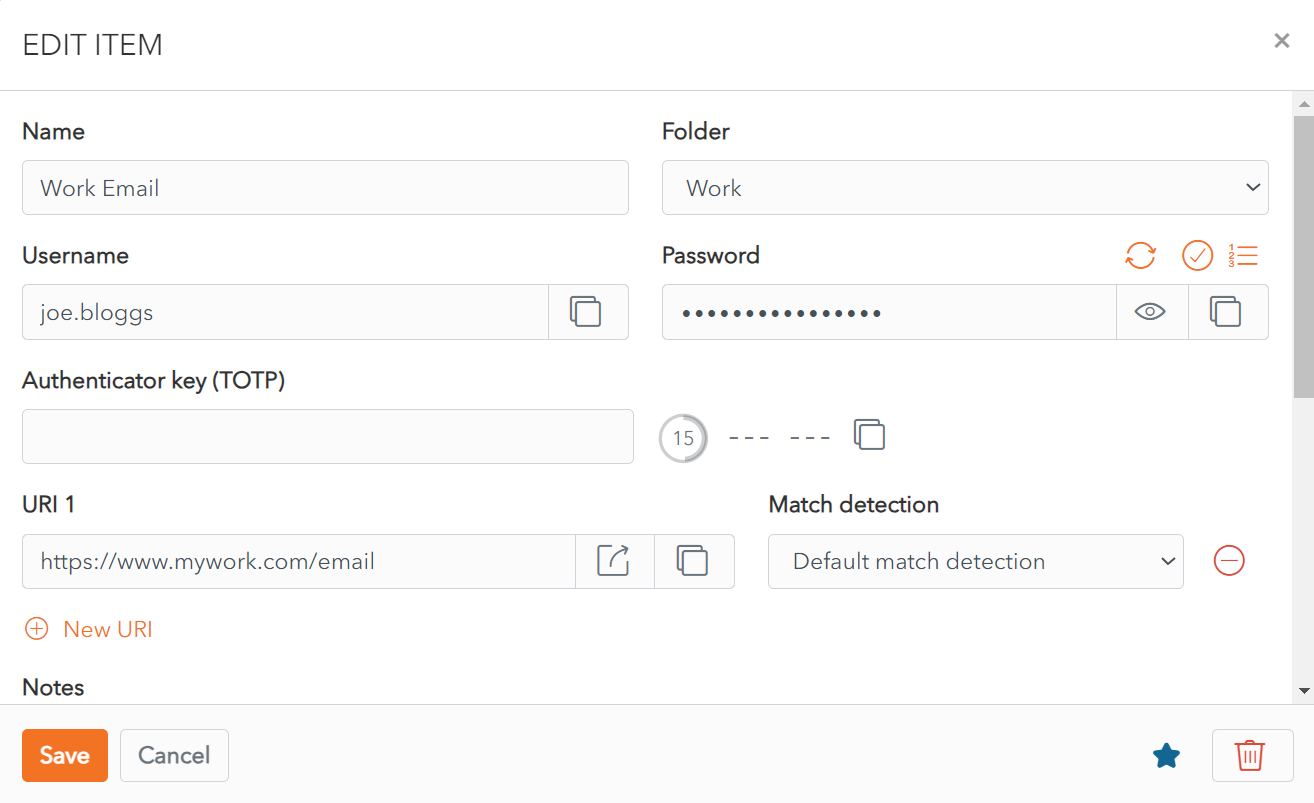
This opens the item in the **Edit Screen.**

![Edit Item Screen.png](https://vault-doc.wallix.com/uploads/images/gallery/2023-11/edit-item-screen.png)

Make changes to your item and click the **Save** button to save your changes.

If you decide not to save your changes, click the **Cancel** button to close the Edit Screen.

# Search an item

The **Filters Menu** is on the left hand side of the screen and can be used to **search** or **filter** for items in vaults.

**Search** and **Filters** can be **combined** to refine the search result.

Only[ ](https://vault-doc.wallix.com/link/10)**[Item Types](https://vault-doc.wallix.com/link/10)** and **Filters cannot** be **combined**.

### Filter Menu

You can also filter by **[Vault](https://vault-doc.wallix.com/link/19),[ Item Type](https://vault-doc.wallix.com/link/10)** or **[Folder](https://vault-doc.wallix.com/link/41)** from Filters Menu.

In the following example, click on the vault My vault and item type **Login** to return items of type **Login** in the folder My vault.

![](https://vault-doc.wallix.com/uploads/images/gallery/2023-11/embedded-image-g0tkqwzj.png)

In the following example, click on the vault My vault and the folder Work to return all items in the folder Work and also in the vault My vault.

[![Filter on Folder and Vault.png](https://vault-doc.wallix.com/uploads/images/gallery/2023-11/scaled-1680-/8rkfilter-on-folder-and-vault.png)](https://vault-doc.wallix.com/uploads/images/gallery/2023-11/8rkfilter-on-folder-and-vault.png)

## Basic Search

This is available in **Mobile Apps**.

You can search on **the following indexed fields** in your items:

- **All Items**: name
- **Logins**: username, URI
- **Cards**: brand, last 4 digits of the card number
- **Identities**: name

**Leading** and **Trailing Wildcards** are included in Searches. For example, searching for googl will return items where the search fields contain google, googling or googlemail.

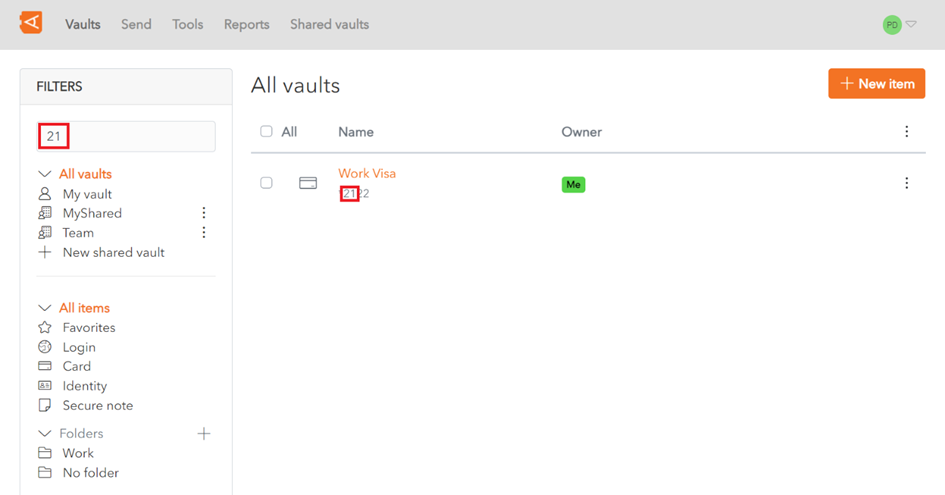
In this example, enter 21 in the **Search Field** to return all items where one of the fields being searched contains 21, in this case a **Card** item with 21 in the **last 4 digits of the card number**.
![](https://vault-doc.wallix.com/uploads/images/gallery/2023-11/embedded-image-xcntwxlq.png)

<p class="callout info">Search results are **sorted** based on a **scoring algorithm**, based on the **number** of **fields** that a **search term** appears in.</p>

## Full-Text Search

This is available in the **Web Vault** and **Browser Extension**.

You can search on **the following indexed fields** in your items:

- **shortid**: This is the **1st 8 characters** of the **Item** **ID**
- **sharedvaultid:** This is the **Shared Vault ID**, for Items in a Shared Vault
- **name**: Item **Name**
- **subtitle**: This depends on the Item Type. It can be **Username**, **Login**, **Last 4 digits of Card Number**, **Card Brand** or **Identity Name**.
- **notes**: **Notes** field of an Item. Matches on **full words only unless wildcards** are used.
- **fields**: This is the **Name or Value** in Custom Fields. It is only available for **Custom Fields** of type **Text**
- **attachments**: This is the **Name** of a File that is **attached** to an Item.
- **login.username**: This is the **Username** of a **Login Item**
- **login.uris**: This is the **URI Hostname** of a **Login Item**

In this example, enter 21 in the **Search Field** to return all items where one of the fields being searched contains 21, in this case a **Card** item with 21 in the **last 4 digits of the card number**.

![](https://vault-doc.wallix.com/uploads/images/gallery/2023-11/embedded-image-xcntwxlq.png)

<p class="callout info">Search results are **sorted** based on a **scoring algorithm**, based on the **number** of **fields** that a **search term** appears in.</p>

<p class="callout info">**If no results** are **found** using a Full-Text Search, WALLIX Vault will use **Basic Search**.</p>

#### Special Search Parameters

Various wildcards and parameters can be used to make the search more specific:

- [Leading and Trailing Wildcards ](https://vault-doc.wallix.com/link/21#bkmrk-leading-and-trailing)
- Other Wildcards: 
    - &gt;fieldname searches only on that field name
    - &gt;-fieldname searches on all fields except that field name
    - \* searches everything
    - &gt;fieldname:search term searches for that search term in that fieldname
- Search parameters available in **[Lunr js](https://lunrjs.com/guides/searching.html)**, like **Term Presence** or **Fuzzy Matching**. 
    - + prefix indicates that what follows **must be contained** in the search results
    - - prefix indicates that what follows **must not be contained** in the search results
    - ~ prefix is used for **Fuzzy Matching**.

#### Some examples include

- &gt;googl returns all items that **start with** googl
- &gt;name:Google will return all Items where **name equals** Google
- &gt;-name:Google will return all Items where **name does not equal** Google
- &gt;-login.username:\*@hotmail.com will return all Items where of type **Login** where the **Username starts with** @hotmail.com

<div id="bkmrk--4" style="mso-element: comment-list;"><div style="mso-element: comment;"><div class="msocomtxt" id="bkmrk--5" language="JavaScript" onmouseout="msoCommentHide('_com_1')" onmouseover="msoCommentShow('_anchor_1','_com_1')"></div></div></div>

# Add Logins to Vault

There are 2 ways to auto-fill a Login to the Vault.

This function is available for Logins, Cards and Identities.

### Add to Vault using Automatic Prompt

Navigate to the **Login Screen** of a **website**.

If this login is not already saved in WALLIX Enterprise Vault, a **prompt** displays **offering to save** the Login details for this Website.

[![save password prompt.png](https://vault-doc.wallix.com/uploads/images/gallery/2023-12/scaled-1680-/qkXsave-password-prompt.png)](https://vault-doc.wallix.com/uploads/images/gallery/2023-12/qkXsave-password-prompt.png)

Choose a **Folder** to add the Login to this Folder in the Vault. This field is **optional**.

[![select folder.png](https://vault-doc.wallix.com/uploads/images/gallery/2023-12/scaled-1680-/select-folder.png)](https://vault-doc.wallix.com/uploads/images/gallery/2023-12/select-folder.png)

<p class="callout info">Items are **added** to the **User's Individual Vault** and not a Shared Vault.</p>

Click the **Save button.**

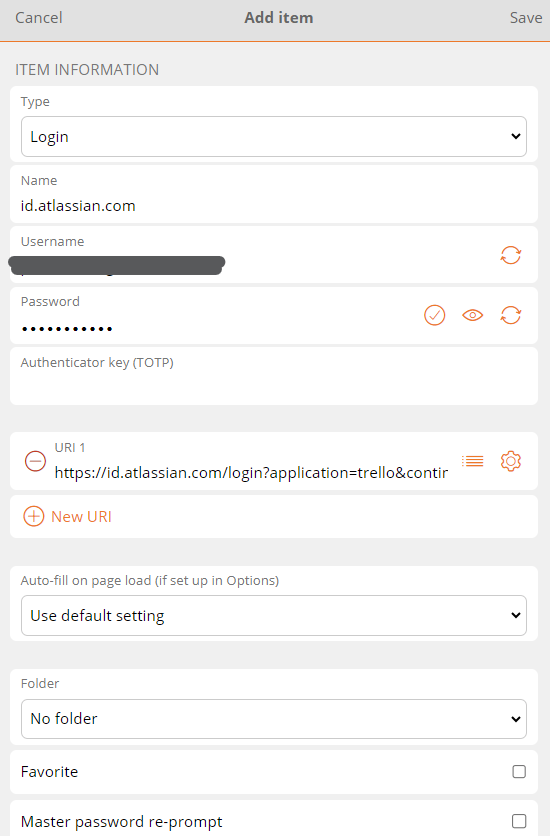
The **Add Item Screen** displays with the **fields prepopulated** with the Login details.

Modify fields, if required.

[![edit 1.png](https://vault-doc.wallix.com/uploads/images/gallery/2023-12/scaled-1680-/edit-1.png)](https://vault-doc.wallix.com/uploads/images/gallery/2023-12/edit-1.png)
[![edit 2.png](https://vault-doc.wallix.com/uploads/images/gallery/2023-12/scaled-1680-/edit-2.png)](https://vault-doc.wallix.com/uploads/images/gallery/2023-12/edit-2.png)
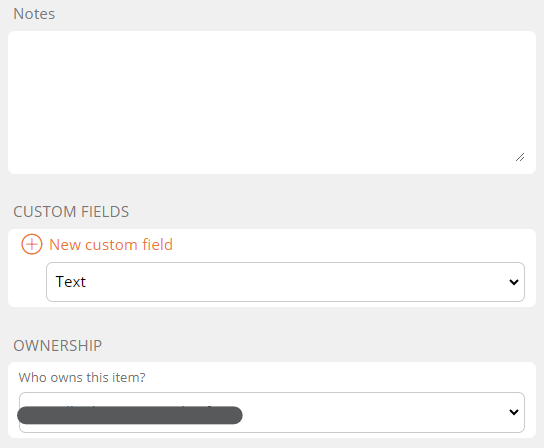
Click **Save** to Save Item to Vault.

Alternatively, click **Cancel** to cancel the operation.

### Add to Vault Manually

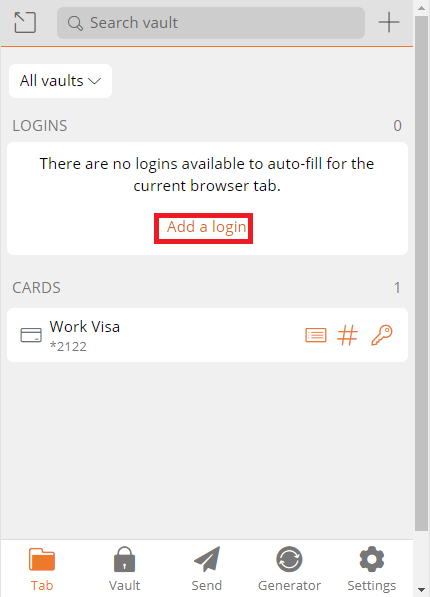
From the **Vault Screen** of the **Browser Extension**, click **Add a login.**

[![create login from browser extension manually.png](https://vault-doc.wallix.com/uploads/images/gallery/2023-12/scaled-1680-/iBscreate-login-from-browser-extension-manually.png)](https://vault-doc.wallix.com/uploads/images/gallery/2023-12/iBscreate-login-from-browser-extension-manually.png)
The **Add Item Screen** opens.

The **elements** that the Browser Extension could **recuperate** from the **browser** are **prepopulated**.

[![add item manually 2.png](https://vault-doc.wallix.com/uploads/images/gallery/2023-12/scaled-1680-/add-item-manually-2.png)](https://vault-doc.wallix.com/uploads/images/gallery/2023-12/add-item-manually-2.png)
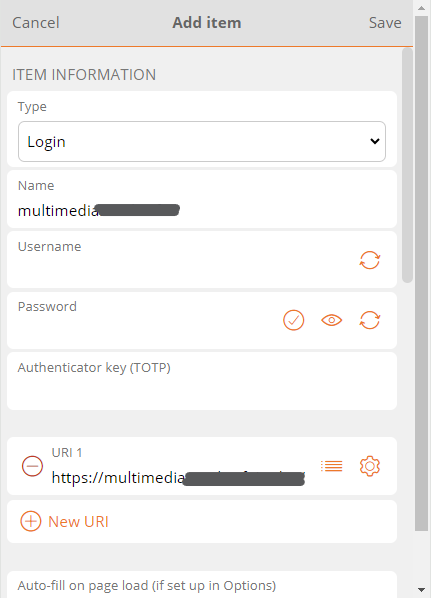
**Enter** the **remaining fields**. Click **Save** to create Login.

Alternatively, click **Cancel** to cancel the operation.

# Delete Item

There are 2 ways to delete an item, from the Item List or from the Edit Item Screen.

### Delete Item from Item List

From the **Item List**, click on the ![context menu link.png](https://vault-doc.wallix.com/uploads/images/gallery/2023-11/scaled-1680-/context-menu-link.png)**Context Menu** link beside an Item. The context menu for that item **opens**.

[![Item context menu - delete.png](https://vault-doc.wallix.com/uploads/images/gallery/2023-11/scaled-1680-/item-context-menu-delete.png)](https://vault-doc.wallix.com/uploads/images/gallery/2023-11/item-context-menu-delete.png)
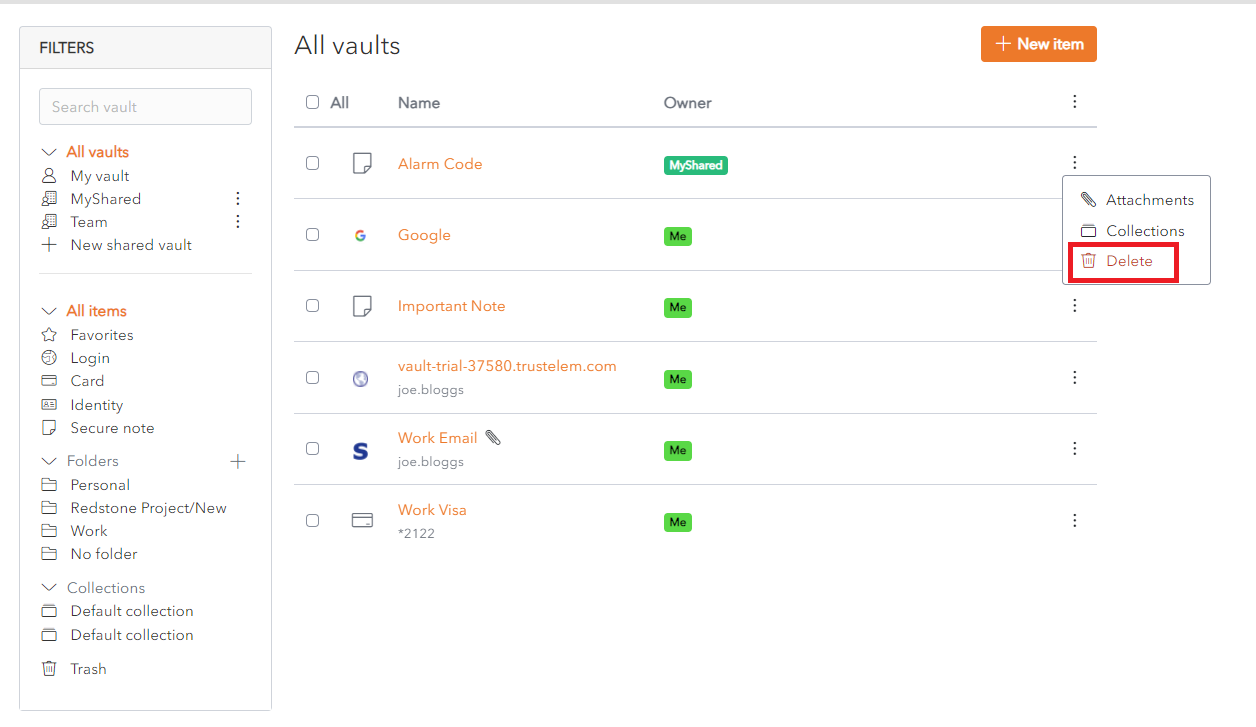
Click the [![embedded-image-sRlzseyt.png](https://vault-doc.wallix.com/uploads/images/gallery/2023-11/scaled-1680-/embedded-image-srlzseyt.png)](https://vault-doc.wallix.com/uploads/images/gallery/2023-11/embedded-image-srlzseyt.png)**Delete** link. A **Delete Item Confirmation** pop up is displayed.

[![delete item confirmation.png](https://vault-doc.wallix.com/uploads/images/gallery/2023-11/scaled-1680-/delete-item-confirmation.png)](https://vault-doc.wallix.com/uploads/images/gallery/2023-11/delete-item-confirmation.png)
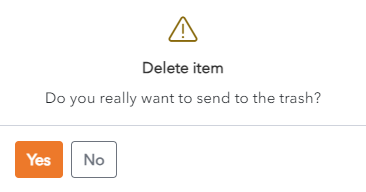
Click **Yes** to delete the Item.

Click **No** to cancel the operation.

### Delete Item from Edit Item Screen

Click on the **Item** to be deleted. The **Edit** **Screen** opens.

[![Delete Item from edit screen.png](https://vault-doc.wallix.com/uploads/images/gallery/2023-11/scaled-1680-/delete-item-from-edit-screen.png)](https://vault-doc.wallix.com/uploads/images/gallery/2023-11/delete-item-from-edit-screen.png)
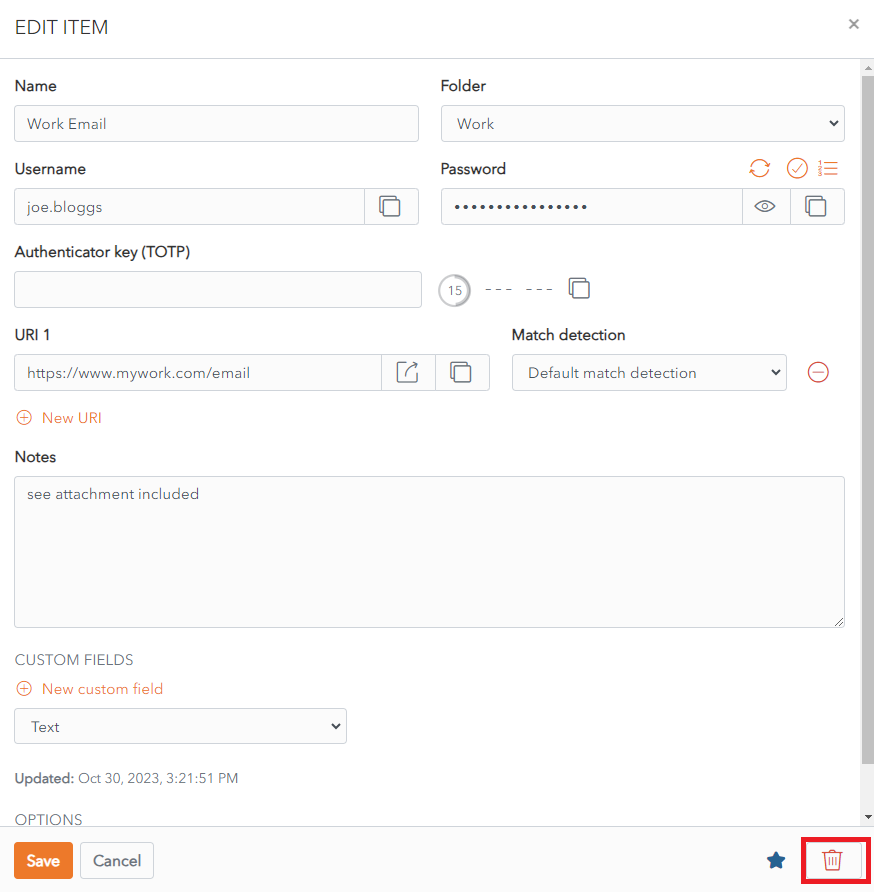
Click the [![embedded-image-sRlzseyt.png](https://vault-doc.wallix.com/uploads/images/gallery/2023-11/scaled-1680-/embedded-image-srlzseyt.png)](https://vault-doc.wallix.com/uploads/images/gallery/2023-11/embedded-image-srlzseyt.png)**Delete** button. A **Delete Item Confirmation** pop up is displayed.

[![delete item confirmation.png](https://vault-doc.wallix.com/uploads/images/gallery/2023-11/scaled-1680-/delete-item-confirmation.png)](https://vault-doc.wallix.com/uploads/images/gallery/2023-11/delete-item-confirmation.png)

Click **Yes** to delete the Item.

Click **No** to cancel the operation.

# Identity Items

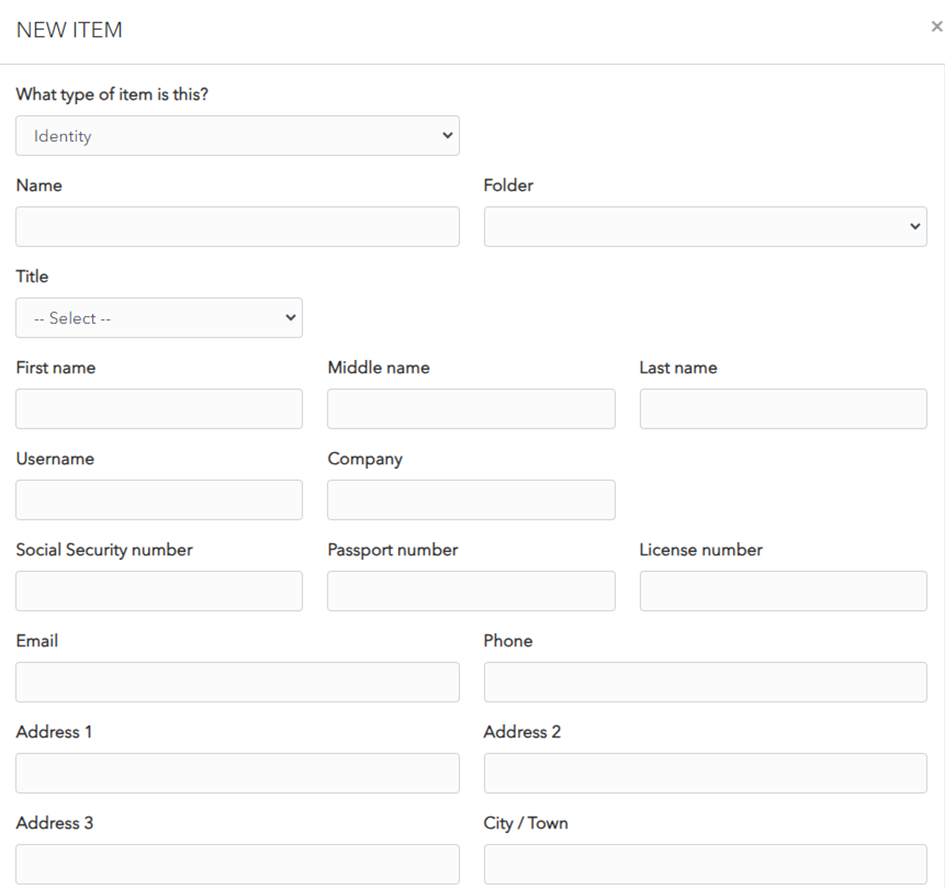
You can use a **Identity Item** to store information about a *person’s identity*.
![](https://vault-doc.wallix.com/uploads/images/gallery/2023-11/embedded-image-qswi3unx.png)

![](https://vault-doc.wallix.com/uploads/images/gallery/2023-11/embedded-image-rafncfku.png)

The following fields are available. Only the **name** field is **mandatory**.

- **Type:** Identity, for Identity Item.
- **Name:** Choose a name that easily identifies the item.
- **Folder:** This dropdown allows you to choose the folder you want to add the login to.
- **Title:** Use dropdown to choose from common titles.
- **First name:** You can add a first name.
- **Middle name:** You can add a middle name.
- **Last name:** You can add a last name.
- **Username:** You can add a username.
- **Company:** You can add a company
- **Social Security Number:** You can add a social security number.
- **Passport number:** You can add a passport number.
- **License number:** You can add a driver’s license number.
- **Email:** You can add an email.
- **Phone:** You can add a telephone number.
- **Address 1:** You can add the first line of the address.
- **Address 2:** You can add the second line of the address.
- **Address 3:** You can add the third line of the address.
- **City / Town:** You can add the city or town.
- **State/Province:** You can add the state or province
- **Zip/Postal Code:** You can add the zip code or postal code.
- **Country:** You can add the country.
- **Notes:** You can add notes about this identity.
- <span style="mso-bookmark: _Hlk149660324;">**Custom Fields:** You can add one or more custom fields. Learn more about [Custom Fields](https://vault-doc.wallix.com/link/15).</span>
- <span style="mso-bookmark: _Hlk149660324;">**Master Password re-prompt:** Check this box to be prompted to enter your Master Password to access this login.</span>
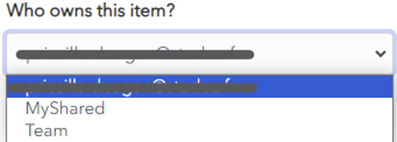
- **Ownership:** Choose which Vault owns this item from the dropdown menu. By default it is owned by your Vault unless you choose otherwise.
![](https://vault-doc.wallix.com/uploads/images/gallery/2023-11/embedded-image-l76bcboj.png)

Click the ![](https://vault-doc.wallix.com/uploads/images/gallery/2023-11/embedded-image-h9cmcpqr.png)<span style="mso-spacerun: yes;"> F</span><span style="text-indent: -18pt;">avourites button to **add** this item **to** your **favourites**.</span>

# Login Items

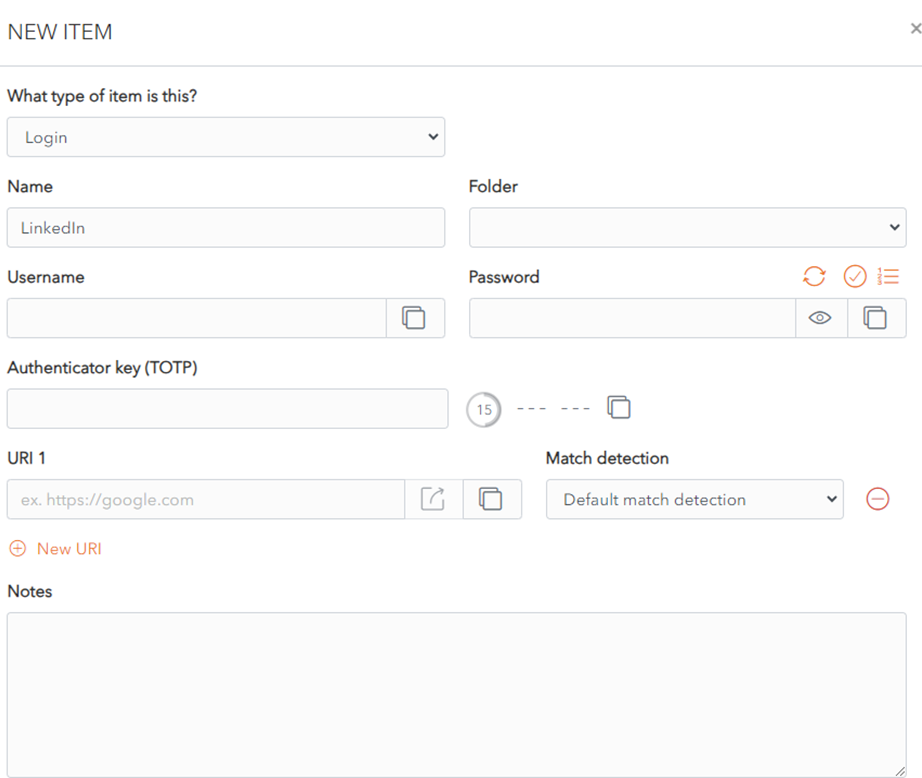
You can use a **Login Item** to store information about an account that requires a login, for example an email account, a CRM account or a social media account.
![](https://vault-doc.wallix.com/uploads/images/gallery/2023-11/embedded-image-yq2uowly.png)

![](https://vault-doc.wallix.com/uploads/images/gallery/2023-11/embedded-image-jrnh0utp.png)

The following fields are available. Only the name field is mandatory.

- **Type**: Login, for Login Item.
- <span style="mso-bookmark: _Hlk149660227;">**Name**: Choose a name that easily identifies the item.</span>
- <span style="mso-bookmark: _Hlk149660227;">**Folder**: This dropdown allows you to choose the folder you want to add the login to.</span>
- **Username**: Your account username.
- **Password**: Your account password. You have different password options to improve the security of your passwords. 
    - **[![password generator button.png](https://vault-doc.wallix.com/uploads/images/gallery/2023-11/scaled-1680-/password-generator-button.png)](https://vault-doc.wallix.com/uploads/images/gallery/2023-11/password-generator-button.png) [Password Generator](https://vault-doc.wallix.com/link/17#bkmrk-generate-strong-pass)** button generates a strong password for your login.
    - **[![check password integrity.png](https://vault-doc.wallix.com/uploads/images/gallery/2023-11/scaled-1680-/check-password-integrity.png)](https://vault-doc.wallix.com/uploads/images/gallery/2023-11/check-password-integrity.png) [Check Password Integrity](https://vault-doc.wallix.com/link/17#bkmrk-check-password-integ)**
    - [![character count.png](https://vault-doc.wallix.com/uploads/images/gallery/2023-11/scaled-1680-/character-count.png)](https://vault-doc.wallix.com/uploads/images/gallery/2023-11/character-count.png)[**Show/Hide Password Character Count**](https://vault-doc.wallix.com/link/17#bkmrk-show-%2F-hide-characte)
    - **[![Copy.png](https://vault-doc.wallix.com/uploads/images/gallery/2023-11/scaled-1680-/PAEcopy.png)](https://vault-doc.wallix.com/uploads/images/gallery/2023-11/PAEcopy.png)[Copy Password to clipboard](https://vault-doc.wallix.com/link/17#bkmrk-copy-password)**
    - **[![Add Item 3 - custom fields 3 - display hide toggle.png](https://vault-doc.wallix.com/uploads/images/gallery/2023-11/scaled-1680-/b64add-item-3-custom-fields-3-display-hide-toggle.png)](https://vault-doc.wallix.com/uploads/images/gallery/2023-11/b64add-item-3-custom-fields-3-display-hide-toggle.png)[Show/Hide Password](https://vault-doc.wallix.com/link/17#bkmrk-show-%2F-hide-password)**
- **Authenticator key (TOTP)**: Your authenticator key use to generate a Time-based One-Time Password (if in place for this account).<span class="MsoCommentReference"><span style="font-size: 8.0pt; line-height: 107%;"></span></span>
- **URI 1**: Uniform Resource Identifier (URI) or Website address for this account. 
    - You can add extra URIs using the ![](https://vault-doc.wallix.com/uploads/images/gallery/2023-11/embedded-image-oggi5xqa.png) button.
    - You can click on the ![](https://vault-doc.wallix.com/uploads/images/gallery/2023-11/embedded-image-j6zmwust.png)button to open the URI in a new browser window to easily confirm the correct URI.
    - You can also choose from different options in the Match Detection dropdown to match the URI to an existing URI.<span class="MsoCommentReference"><span style="font-size: 8.0pt; line-height: 107%;"></span></span>

<div id="bkmrk--2" style="mso-element: comment-list;"></div><span style="mso-comment-author: 'DEEGAN Priscilla'; mso-comment-providerid: AD; mso-comment-userid: S-1-5-21-2661776727-219734981-3769092192-8230;">![](https://vault-doc.wallix.com/uploads/images/gallery/2023-11/embedded-image-hs5zer26.png)</span>

<div id="bkmrk--4" style="mso-element: comment-list;"><div style="mso-element: comment;"><div class="msocomtxt" id="bkmrk--5" language="JavaScript" onmouseout="msoCommentHide('_com_2')" onmouseover="msoCommentShow('_anchor_2','_com_2')"></div></div></div>- **Notes:** You can add notes about this login.
- <span style="mso-bookmark: _Hlk149660324;">**Custom Fields:** You can add one or more custom fields. Learn more about [Custom Fields](https://vault-doc.wallix.com/link/15).</span>
- <span style="mso-bookmark: _Hlk149660324;">**Master Password re-prompt:** Check this box to be prompted to enter your Master Password to access this login.</span>
- **Ownership:** Choose which Vault owns this item from the dropdown menu. By default it is owned by your Vault unless you choose otherwise.

![](https://vault-doc.wallix.com/uploads/images/gallery/2023-11/embedded-image-drkze3or.png)

- Click the [![embedded-image-h9CMCpqr.png](https://vault-doc.wallix.com/uploads/images/gallery/2023-11/scaled-1680-/embedded-image-h9cmcpqr.png)](https://vault-doc.wallix.com/uploads/images/gallery/2023-11/embedded-image-h9cmcpqr.png)<span style="mso-spacerun: yes;"> </span>favourites button to **add** this item **to** your **favourites**.

# Card Items

You can use a **Card Item** to store information about a **credit or other payment card**.

![](https://vault-doc.wallix.com/uploads/images/gallery/2023-11/embedded-image-oowctcdk.png)

![](https://vault-doc.wallix.com/uploads/images/gallery/2023-11/embedded-image-0cy7zckz.png)

The following fields are available. Only the name field is mandatory.

- **Type:** Card, for Card Item.
- **Name:** Choose a name that easily identifies the item.
- **Folder:** Dropdown allows you to choose the folder you want to add the login to.
- **Cardholder Name:** Name, as written on the card.
- **Brand:** Dropdown menu allows you to choose the card brand, as written on the card. If your card brand is not in the list, choose *Other*.
- **Number:** Card number, as written on the card. This field can be hidden or displayed using the ![](https://vault-doc.wallix.com/uploads/images/gallery/2023-11/embedded-image-sf9vgy8h.png)Display/Hide toggle button. The ![](https://vault-doc.wallix.com/uploads/images/gallery/2023-11/embedded-image-pzltytha.png)copy button allows you to copy to the clipboard.
- **Expiration month:** Dropdown allows you to choose expiration month, as written on the card.
- **Expiration year:** Enter expiration year, as written on the card.
- **Security code (CVV):** Enter 3 digit security code, as written on the back of the card.
- **Notes:** You can add notes about this card.
- <span style="mso-bookmark: _Hlk149660324;">**Custom Fields:** You can add one or more custom fields. Learn more about [Custom Fields](https://vault-doc.wallix.com/link/15).</span>
- <span style="mso-bookmark: _Hlk149660324;">**Master Password re-prompt checkbox:** Check this to be prompted to enter your Master Password to access this login.</span>
- **Ownership dropdown:** Choose which Vault owns this item. By default it is owned by your Vault unless you choose otherwise.

[![embedded-image-DRKZe3Or.png](https://vault-doc.wallix.com/uploads/images/gallery/2023-11/scaled-1680-/embedded-image-drkze3or.png)](https://vault-doc.wallix.com/uploads/images/gallery/2023-11/embedded-image-drkze3or.png)

Click the [![embedded-image-h9CMCpqr.png](https://vault-doc.wallix.com/uploads/images/gallery/2023-11/scaled-1680-/embedded-image-h9cmcpqr.png)](https://vault-doc.wallix.com/uploads/images/gallery/2023-11/embedded-image-h9cmcpqr.png)<span style="mso-spacerun: yes;"> </span>favourites button to **add** this **item** to your **favourites**.

# Secure Note Items

You can use a **Secure Note Item** to store private information that doesn’t fit into one of the other categories.

![](https://vault-doc.wallix.com/uploads/images/gallery/2023-11/embedded-image-xekjcmve.png)

The following fields are available. Only the name field is mandatory.

- **Type:** Identity, for Identity Item.
- **Name:** Choose a name that easily identifies the item.
- **Folder:** This dropdown allows you to choose the folder you want to add the login to.
- <span style="mso-bookmark: _Hlk149661050;">**Notes:** You can add secure notes in this field.</span>
- <span style="mso-bookmark: _Hlk149660324;"><span style="mso-bookmark: _Hlk149661050;">**Custom Fields:** You can add one or more custom fields. Learn more about [Custom Fields](https://vault-doc.wallix.com/link/15).</span></span>
- <span style="mso-bookmark: _Hlk149660324;"><span style="mso-bookmark: _Hlk149661050;">**Master Password re-prompt:** Check this box to be prompted to enter your Master Password to access this login.</span></span>
- <span style="mso-bookmark: _Hlk149661050;">**Ownership:** Choose which Vault owns this item from the dropdown menu. By default it is owned by your Vault unless you choose otherwise.</span>

<span style="mso-bookmark: _Hlk149661050;"><span style="mso-no-proof: yes;">[![embedded-image-DRKZe3Or.png](https://vault-doc.wallix.com/uploads/images/gallery/2023-11/scaled-1680-/embedded-image-drkze3or.png)](https://vault-doc.wallix.com/uploads/images/gallery/2023-11/embedded-image-drkze3or.png)  
</span></span>

<span style="mso-bookmark: _Hlk149661050;">Click the [![embedded-image-h9CMCpqr.png](https://vault-doc.wallix.com/uploads/images/gallery/2023-11/scaled-1680-/embedded-image-h9cmcpqr.png)](https://vault-doc.wallix.com/uploads/images/gallery/2023-11/embedded-image-h9cmcpqr.png)<span style="mso-spacerun: yes;"> </span>favourites button to **add** this item **to** your **favourites**.</span>

# Password Fields for Login Items

WALLIX Enterprise Vault provides different options for your Password fields to **improve** the **security** of your **passwords**.

## Generate Strong Password

Click on the **Generate Password** button to generate a secure password for your login.

[![Add Item 3 - show password - Copie.png](https://vault-doc.wallix.com/uploads/images/gallery/2023-12/scaled-1680-/add-item-3-show-password-copie.png)](https://vault-doc.wallix.com/uploads/images/gallery/2023-12/add-item-3-show-password-copie.png)

A pop up screen will require you to **confirm** that you wish to **overwrite** your **current password**.

[![Add Item 3 - overwrite password 2.png](https://vault-doc.wallix.com/uploads/images/gallery/2023-12/scaled-1680-/add-item-3-overwrite-password-2.png)](https://vault-doc.wallix.com/uploads/images/gallery/2023-12/add-item-3-overwrite-password-2.png)

Click the **Yes** button to **overwrite your password** with the newly generated password.

Alternatively, click on the **No** button to **keep** your **current password**.

# Check Password Integrity

Click on the **Check Password** button to check if your password has been exposed.

[![Add Item 3 - show password - Copie (2).png](https://vault-doc.wallix.com/uploads/images/gallery/2023-12/scaled-1680-/Y05add-item-3-show-password-copie-2.png)](https://vault-doc.wallix.com/uploads/images/gallery/2023-12/Y05add-item-3-show-password-copie-2.png)

WALLIX Enterprise Vault will **check** if your **password** has been **found** in any **known data breaches**.

[![Add Item 3 - check password 2.png](https://vault-doc.wallix.com/uploads/images/gallery/2023-12/scaled-1680-/VKVadd-item-3-check-password-2.png)](https://vault-doc.wallix.com/uploads/images/gallery/2023-12/VKVadd-item-3-check-password-2.png)

# Show / Hide Character Count

Click on the **Toggle Character Count** button to **display** the **Password Character Count** of your password.

[![Add Item 3 - show password character count.png](https://vault-doc.wallix.com/uploads/images/gallery/2023-12/scaled-1680-/yhRadd-item-3-show-password-character-count.png)](https://vault-doc.wallix.com/uploads/images/gallery/2023-12/yhRadd-item-3-show-password-character-count.png)

This can help you check if your password is secure enough.

Click the **Toggle Character Count** button to **hide** the Password Character Count display.

You can also click the **Hide** button to hide the Password Character Count display.

# Copy Password

Click on the **Copy Password button** to copy the password entered to the clipboard.

[![Add Item 3 - show password - Copie (3).png](https://vault-doc.wallix.com/uploads/images/gallery/2023-12/scaled-1680-/PaYadd-item-3-show-password-copie-3.png)](https://vault-doc.wallix.com/uploads/images/gallery/2023-12/PaYadd-item-3-show-password-copie-3.png)

# Show / Hide Password

Click on the **Show/Hide Password toggle** button to **display** the password as you enter it.

[![Add Item 3 - show password.png](https://vault-doc.wallix.com/uploads/images/gallery/2023-12/scaled-1680-/add-item-3-show-password.png)](https://vault-doc.wallix.com/uploads/images/gallery/2023-12/add-item-3-show-password.png)

Click again on the **Show/Hide Password toggle** button to **hide** the password.

# Password Protected Items

An **Item** can be **password protected** to add an extra layer of security. The **Master Password must be entered** to open the Item or the [**Item's attachments**](https://vault-doc.wallix.com/link/75).

### Add Password Protection to an Item

When **[creating](https://vault-doc.wallix.com/link/8)** or [**editing an Item**](https://vault-doc.wallix.com/link/9), check the **Master password re-prompt checkbox**.

Click **Save** to save changes.

Alternatively, click **Cancel** to cancel the operation.

[![password protected item.png](https://vault-doc.wallix.com/uploads/images/gallery/2023-11/scaled-1680-/password-protected-item.png)](https://vault-doc.wallix.com/uploads/images/gallery/2023-11/password-protected-item.png)

### Open Password Protected Items

**If the Item is password protected**, a Master Password Confirmation pop up screen displays when you click on the Item to edit it.

Enter the **Master Password** and click **Ok** to **enable Item modification**. This also applies to **Item attachments.**

[![master password protection on item edit.png](https://vault-doc.wallix.com/uploads/images/gallery/2023-11/scaled-1680-/G6vmaster-password-protection-on-item-edit.png)](https://vault-doc.wallix.com/uploads/images/gallery/2023-11/G6vmaster-password-protection-on-item-edit.png)

# TOTP Authentication

A **TOTP** (Time-based one-time password) is a password that is generated by a TOTP Generator, to be used one time only as part of a 2 step login.

Many Accounts propose (or require) 2-factor authentication :

- The first step is Account's username and password.
- The second step is a TOTP that is generated by a TOTP Generator from the Account's Authentication Key.

WALLIX can be used to **store** the **Authentication Key** for a **Login** and **use it** to **generate a TOTP** using **SHA-1** that is **valid** for **30 seconds**.

This is possible in the **WALLIX Web Vault,** the **WALLX Web Extension** and the **WALLIX Authenticator Mobile App**.

### WALLIX Web Vault

From the **Item Screen** of a **Login Item**, **add** the **Authentication key** for that Login.

A **TOTP** is automatically **generated** for the **Login** and can be copied using the ![copy totp.png](https://vault-doc.wallix.com/uploads/images/gallery/2023-12/scaled-1680-/copy-totp.png) **Copy button.**

[![item totp.png](https://vault-doc.wallix.com/uploads/images/gallery/2023-12/scaled-1680-/Qngitem-totp.png)](https://vault-doc.wallix.com/uploads/images/gallery/2023-12/Qngitem-totp.png)

**Enter** the **TOTP** into the **Login Screen** of the requesting **web page**.

### WALLIX Web Extension

From the **Add or Edit Item Screen** of a **Login Item**, **add** the **Authentication key** for that Login.

[![extension.png](https://vault-doc.wallix.com/uploads/images/gallery/2023-12/scaled-1680-/extension.png)](https://vault-doc.wallix.com/uploads/images/gallery/2023-12/extension.png)

From the **Item Screen**, a **TOTP** is automatically **generated** for the **Login** and can be copied using the ![copy totp.png](https://vault-doc.wallix.com/uploads/images/gallery/2023-12/scaled-1680-/copy-totp.png) **Copy button.**

[![web extension.png](https://vault-doc.wallix.com/uploads/images/gallery/2023-12/scaled-1680-/web-extension.png)](https://vault-doc.wallix.com/uploads/images/gallery/2023-12/web-extension.png)

**Enter** the **TOTP** into the **Login Screen** of the requesting **web page**.

### WALLIX Authenticator

From the WALLIX Authenticator Mobile App, click the [![totp - add mobile.png](https://vault-doc.wallix.com/uploads/images/gallery/2023-12/scaled-1680-/totp-add-mobile.png) ](https://vault-doc.wallix.com/uploads/images/gallery/2023-12/totp-add-mobile.png)button to **Create a New Login**.

**2 Options** are possible.

The first option is to tap **Scan the QRCode** to open you Camera App to scan the QR Code to **create** the **Login**.

[![add totp mobile 2.png](https://vault-doc.wallix.com/uploads/images/gallery/2023-12/scaled-1680-/add-totp-mobile-2.png)](https://vault-doc.wallix.com/uploads/images/gallery/2023-12/add-totp-mobile-2.png)

Alternatively, tap **Enter the code manually**.

\- Choose the **Domain** from the Domain dropdown.

\- In the **Username** Field, enter the Username.

\- In the **Key** Field, enter the Authentication Key.

\- Tap **done** to **Save** the Login.

[![add totp 3.jpg](https://vault-doc.wallix.com/uploads/images/gallery/2023-12/scaled-1680-/add-totp-3.jpg)](https://vault-doc.wallix.com/uploads/images/gallery/2023-12/add-totp-3.jpg)

From the Item Screen of a Login Item, add the Authentication key for that Login.

A **TOTP** is automatically **generated** for the **Login** and can be copied using the ![copy totp.png](https://vault-doc.wallix.com/uploads/images/gallery/2023-12/scaled-1680-/copy-totp.png) **Copy button.**

[![totp.png](https://vault-doc.wallix.com/uploads/images/gallery/2023-12/scaled-1680-/lDOtotp.png)](https://vault-doc.wallix.com/uploads/images/gallery/2023-12/lDOtotp.png)

**Enter** the **TOTP** into the **Login Screen** of the requesting **web page**.

<p class="callout warning">The **device** WALLX Authenticator is installed must used the **same time and timezone** as that of the **server** that hosts the web page being accessed. Otherwise the code will not work. It is **recommended** to set the device's time and timezone to **automatic**.</p>

# Item Context Menu

From the **Item List** click the ![more button.png](https://vault-doc.wallix.com/uploads/images/gallery/2023-12/scaled-1680-/more-button.png) **More Button** of a **Shared Vault Item.**

The Shared Vault Item **Context Menu** is displayed.

[![Capture d’écran 2023-12-13 175742.png](https://vault-doc.wallix.com/uploads/images/gallery/2023-12/scaled-1680-/capture-decran-2023-12-13-175742.png)](https://vault-doc.wallix.com/uploads/images/gallery/2023-12/capture-decran-2023-12-13-175742.png)
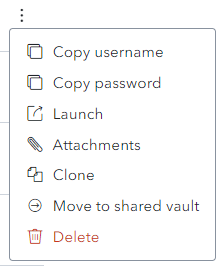
A **number of options** are available (depending on the Item Type):

- **Copy username:** Copies the Username to the clipboard (for Login Items)
- **Copy password:** Copies the Password to the clipboard (for Login Items)
- **Launch :** Launches the URI associated with the Item (for Login Items)
- **[Attachments](https://vault-doc.wallix.com/link/75):** Displays the Attachment Screen
- [**Clone**](https://vault-doc.wallix.com/link/130): Clones the Item
- [**Move to Shared Vault**](https://vault-doc.wallix.com/link/126): Moves the Item to a Shared Vault
- **[Collections](https://vault-doc.wallix.com/link/65):** Displays the Collections Screen
- **[Delete](https://vault-doc.wallix.com/link/42):** Deletes the Item (after Confirmation)

# Move Item to Shared Vault

From the **Item List** click the ![more button.png](https://vault-doc.wallix.com/uploads/images/gallery/2023-12/scaled-1680-/more-button.png) **More Button** of an **Item.**

The Shared Vault Item **Context Menu** is displayed.

[![Capture d’écran 2023-12-13 175742.png](https://vault-doc.wallix.com/uploads/images/gallery/2023-12/scaled-1680-/capture-decran-2023-12-13-175742.png)](https://vault-doc.wallix.com/uploads/images/gallery/2023-12/capture-decran-2023-12-13-175742.png)

Click **Move to Shared Vault**.

The following screen is displayed.

[![Capture d’écran 2023-12-13 180529.png](https://vault-doc.wallix.com/uploads/images/gallery/2023-12/scaled-1680-/capture-decran-2023-12-13-180529.png)](https://vault-doc.wallix.com/uploads/images/gallery/2023-12/capture-decran-2023-12-13-180529.png)
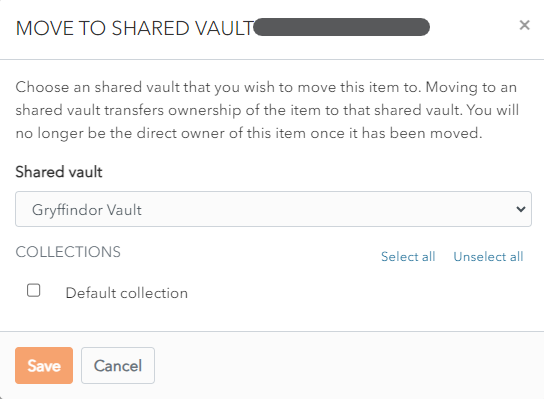
From the **Shared Vault** dropdown, choose the Shared Vault to move the Item to.

In the Collection section, the **list of Collections** in the Shared Vault is displayed.

**Check** the checkbox beside the **Collections** to **add the Item to**.

Click **Save** to move the Item to the chosen Shared Vaults and Collections.

Click **Cancel** to cancel the operation.

# Clone Item

From the **Item List** click the ![more button.png](https://vault-doc.wallix.com/uploads/images/gallery/2023-12/scaled-1680-/more-button.png) **More Button** of an **Item.**

The Item **Context Menu** is displayed.

[![Capture d’écran 2023-12-13 175742.png](https://vault-doc.wallix.com/uploads/images/gallery/2023-12/scaled-1680-/capture-decran-2023-12-13-175742.png)](https://vault-doc.wallix.com/uploads/images/gallery/2023-12/capture-decran-2023-12-13-175742.png)

Click **Clone.**

The following screen is displayed.

[![clone item .png](https://vault-doc.wallix.com/uploads/images/gallery/2023-12/scaled-1680-/clone-item.png)](https://vault-doc.wallix.com/uploads/images/gallery/2023-12/clone-item.png)
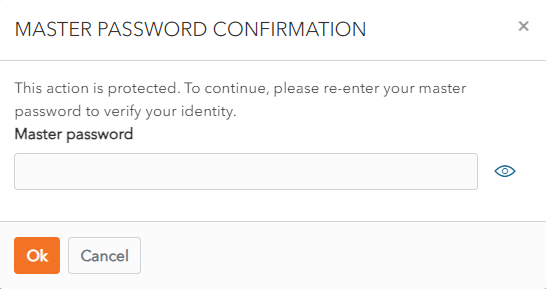
Enter **Master Password** and click **Ok**.

A **Clone** is **created**.

[![new clone.png](https://vault-doc.wallix.com/uploads/images/gallery/2023-12/scaled-1680-/new-clone.png)](https://vault-doc.wallix.com/uploads/images/gallery/2023-12/new-clone.png)
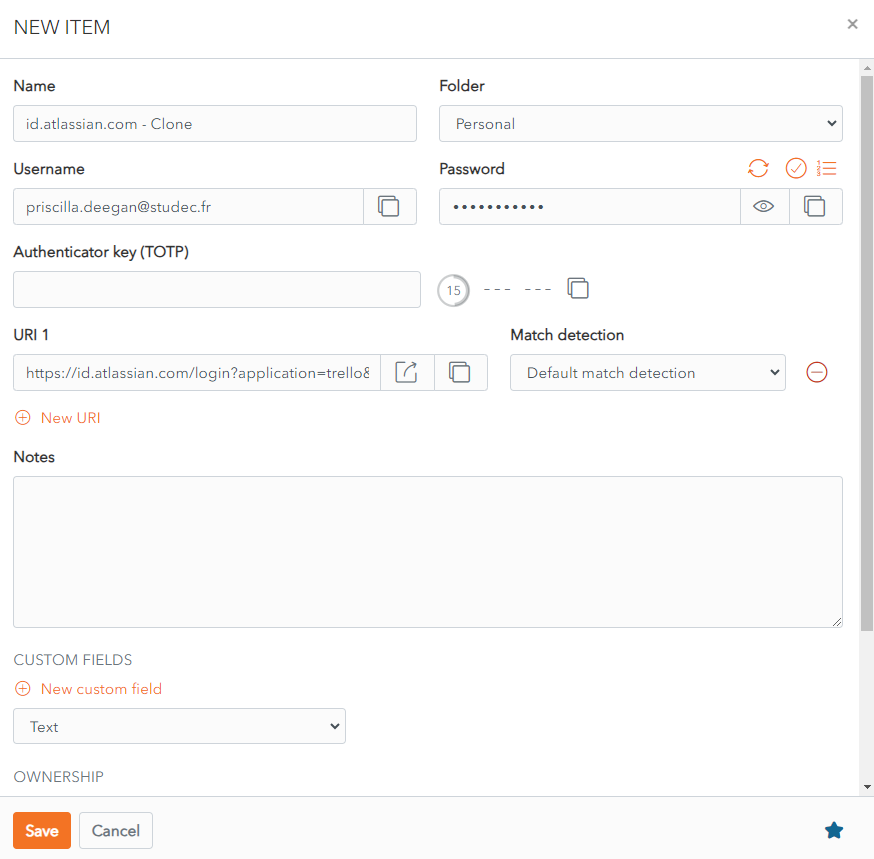
The **Clone** contains the **same information** as the original item **except** that the Name field is **suffixed** with **- Clone**.

Click **Save** to Save the Cloned Item

Alternatively, click **Cancel** to cancel the operation.

# Favorites

An Item can be marked as a favorite to make it **easier to locate**. All favorites are **grouped together**.

 This works for Individual **Vaults** and **Shared Vaults**.

<p class="callout info">Marking an Item in a **Shared Vault** as a favourite puts it in **your favourites only**. It will **not** be marked as a **favourite** for **other users** of the Shared Vault.</p>

### Add to Favorites

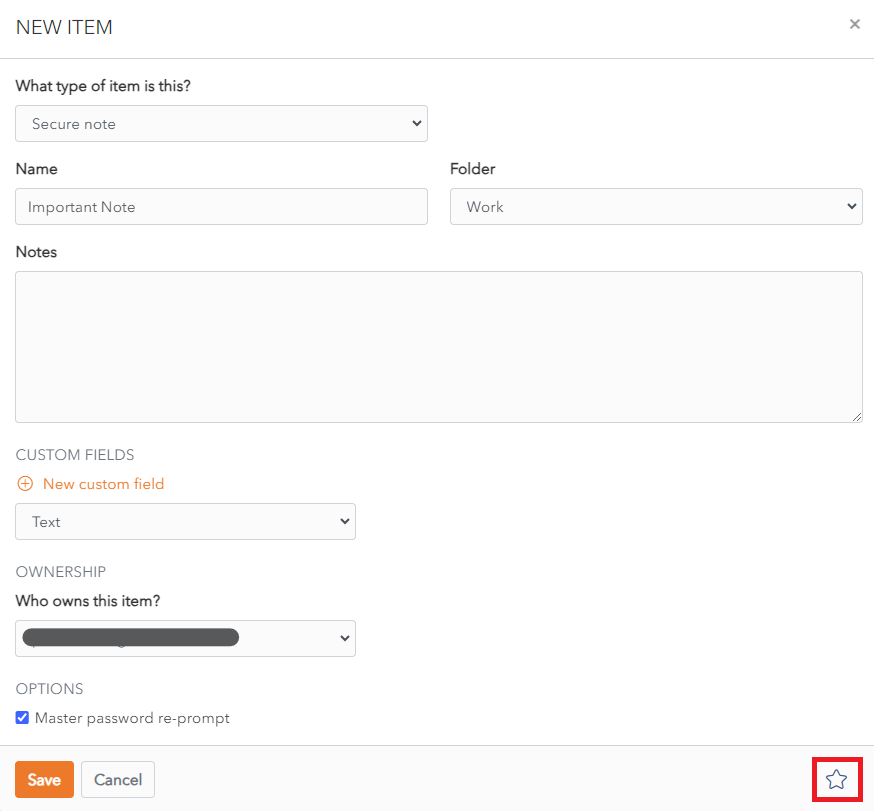
From the **Create Item** or **Edit Item** Screen, an click on the ![favourites button.png](https://vault-doc.wallix.com/uploads/images/gallery/2023-12/scaled-1680-/favourites-button.png) **Favorites button.**

[![EN Edit Item Master Password Prompt.png](https://vault-doc.wallix.com/uploads/images/gallery/2023-12/scaled-1680-/en-edit-item-master-password-prompt.png)](https://vault-doc.wallix.com/uploads/images/gallery/2023-12/en-edit-item-master-password-prompt.png)

The **Favorites button** turns **blue** ![favourites blue.png](https://vault-doc.wallix.com/uploads/images/gallery/2023-12/scaled-1680-/favourites-blue.png).

Click **Save** to save the change. The Item is **displayed** in **Favorites**.

Alternatively, click **Cancel** to cancel the operation.

### Display Favorites

From the **Item List**, click the **Favorites link** in the **Filter Menu**.

[![favourites list.png](https://vault-doc.wallix.com/uploads/images/gallery/2023-12/scaled-1680-/favourites-list.png)](https://vault-doc.wallix.com/uploads/images/gallery/2023-12/favourites-list.png)
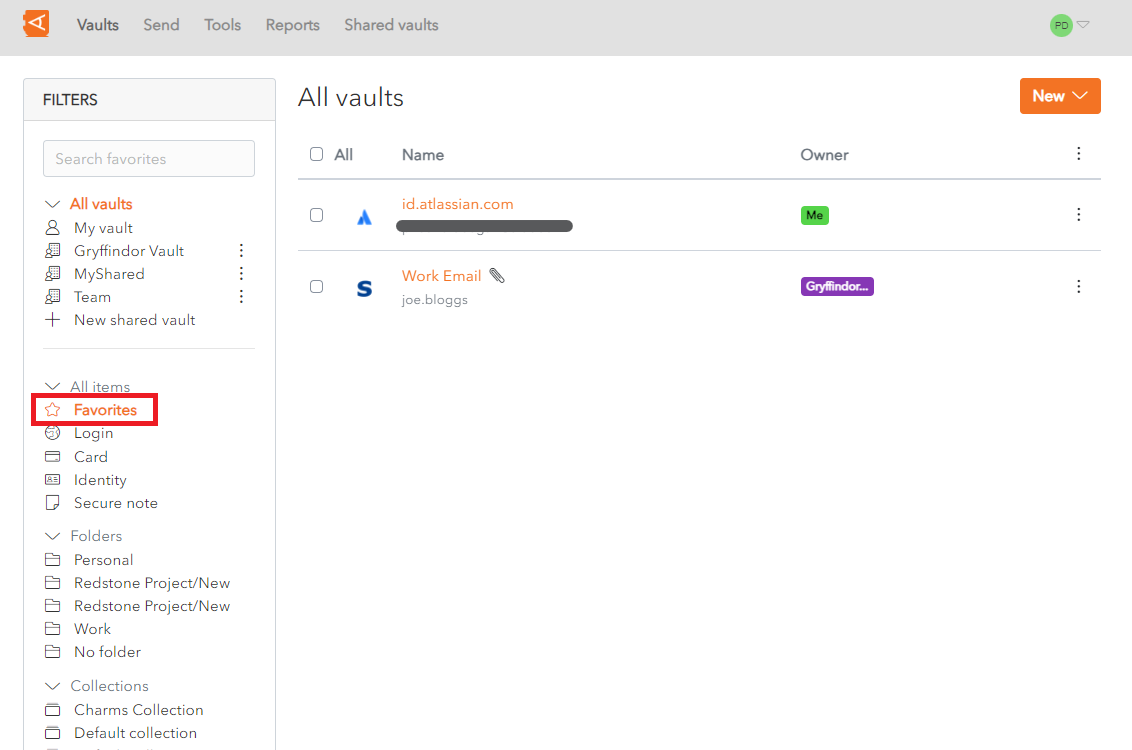
All Items marked as **Favorites** are **displayed**.

### Remove from Favorites

To remove an Item from favorites, click on an Item in the Item List open it.

The Item Screen displays. The favorites button is blue ![favourites blue.png](https://vault-doc.wallix.com/uploads/images/gallery/2023-12/scaled-1680-/favourites-blue.png).

[![remove from favorites.png](https://vault-doc.wallix.com/uploads/images/gallery/2023-12/scaled-1680-/remove-from-favorites.png)](https://vault-doc.wallix.com/uploads/images/gallery/2023-12/remove-from-favorites.png)

Click the favorites button. The **favorites** button **turns white** ![favourites button.png](https://vault-doc.wallix.com/uploads/images/gallery/2023-12/scaled-1680-/7K6favourites-button.png).

Click **Save** to save the change. The Item is now **removed** from **favorites**.

Alternatively, click **Cancel** to cancel the operation.