The **maximum file size** is 1**00MB**.
[.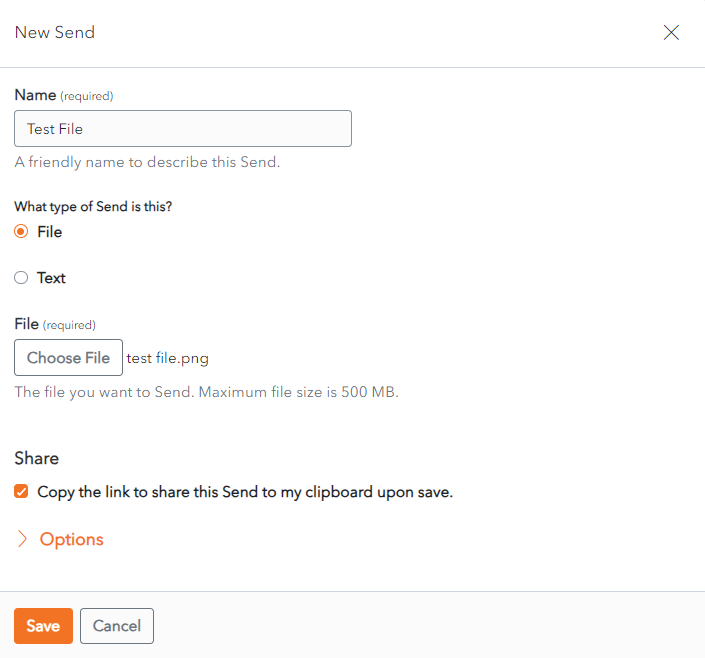](https://vault-doc.wallix.com/uploads/images/gallery/2023-11/create-send-file-without-options.png) Click **Save** to Save the send. The **Send List Screen** displays with the new send in the list. Alternatively, click **Cancel** to cancel the operation. [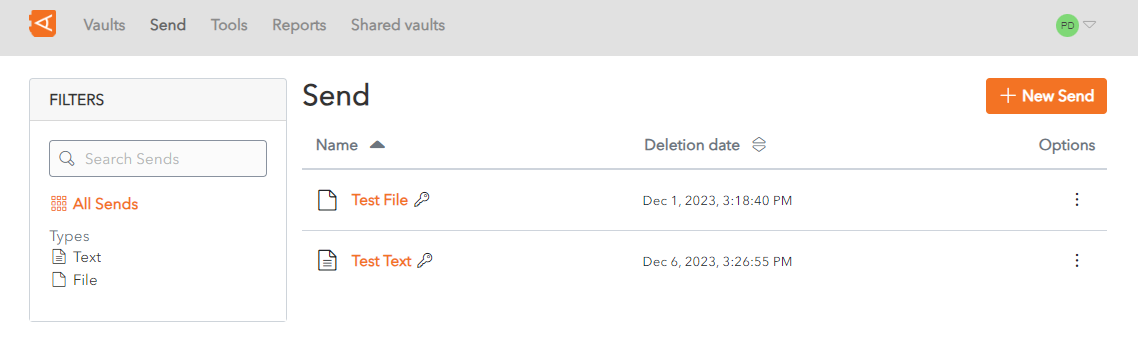](https://vault-doc.wallix.com/uploads/images/gallery/2023-11/send-list-screen.png) ### Create a Text Send In the **Name** field, enter a Name for the Send. This should describe the Send. Choose **Text** from the **What type of send is this?** radio buttons. In the **Text** field, add the text to be sent. **Check** the **When accessing the Send, hide the text by default**. This field is **optional.** If you check this box, the person accessing the send will need to unhide the text in order to view it, in order to protect the **privacy** of the text. [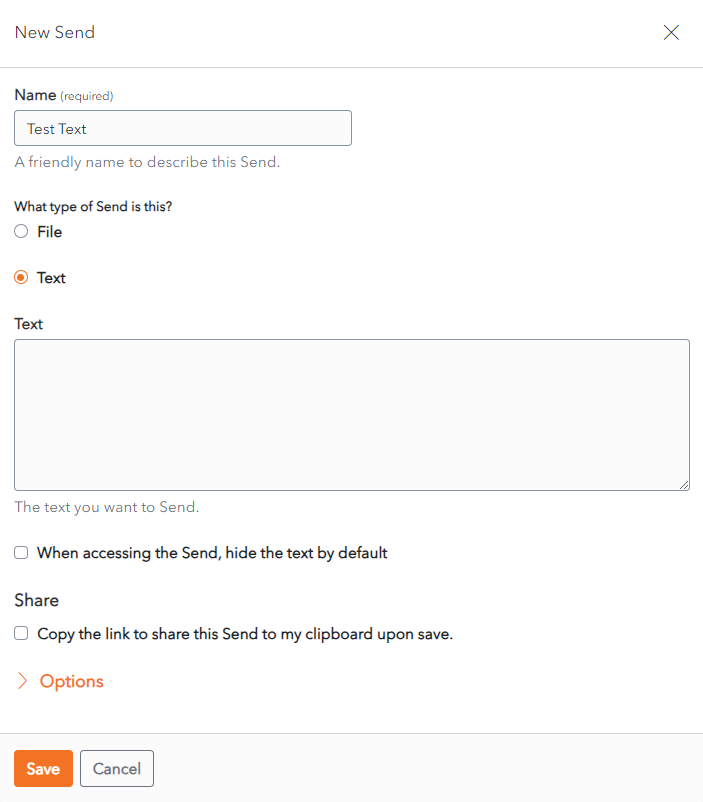](https://vault-doc.wallix.com/uploads/images/gallery/2023-11/pSzcreate-text-send-without-options.png) Click **Save** to Save the send. The **Send List Screen** displays with the new send in the list. Alternatively, click **Cancel** to cancel the operation. [](https://vault-doc.wallix.com/uploads/images/gallery/2023-11/send-list-screen.png) # Access a Send **Copy** the **Send Link** provided by the Send owner into your **Browser** window. [](https://vault-doc.wallix.com/uploads/images/gallery/2023-11/send-link.png)**If** the Send is **[Password Protected](https://vault-doc.wallix.com/link/85#bkmrk-alternatively%2C-click)**, enter the Password provided by the Send owner to access the Send.
The **Send** is displayed. ### Send a File If the Send is a **File**, the a link to Download the File is provided. Click the **Download file link** to download the file to your computer. [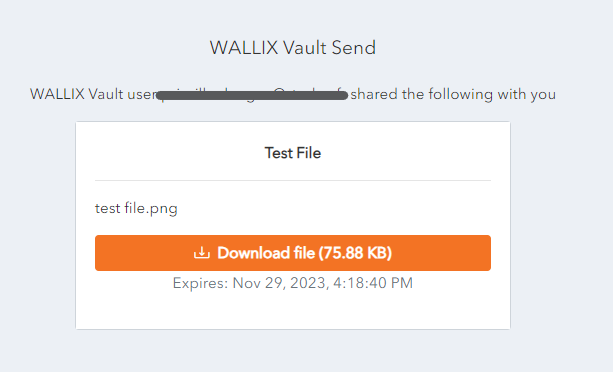](https://vault-doc.wallix.com/uploads/images/gallery/2023-11/2Bodownload-file-shared.png)*If the Send has an **Expiration Date**, the link is no longer available after the Expiration Date. The following message is displayed.*
[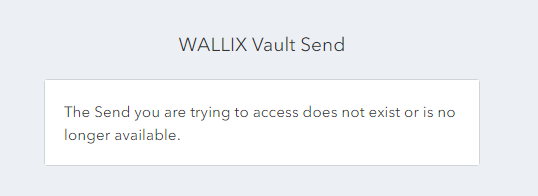](https://vault-doc.wallix.com/uploads/images/gallery/2023-11/send-expired.png) ### Send Text If the Send is a **Text**, the Text is displayed. Click on the **Copy value** **link** to copy the link to the clipboard. [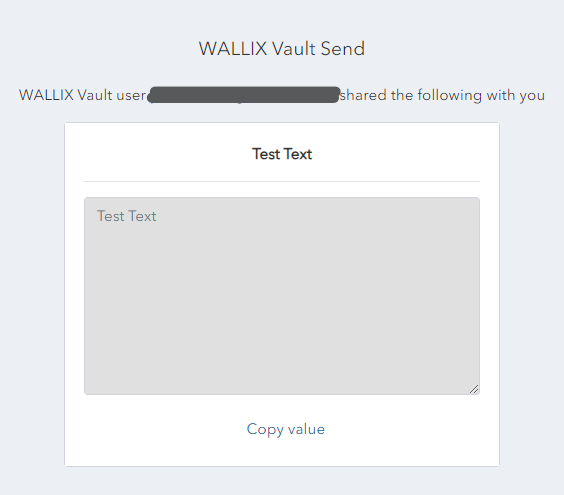](https://vault-doc.wallix.com/uploads/images/gallery/2023-11/view-text-shared.png)If the text is set to **[Hidden](https://vault-doc.wallix.com/link/85#bkmrk-hide-text)** (by the Send owner), toggle the visibility to display the text.
# Send Privacy There are a number of possible Privacy Options for Sends. ### Password Protection A P**assword** can be added to a Send to **prevent unwanted access** to the Send. When a member tries to access the Send, they will need to enter the Password to gain access. #### Password Protect a Send When **creating** or **editing** a Send, click on the Options link. A list of **Send Options** displays. Enter the **Password** to be used by the receiver to access the Send. This can be left **blank** if password protection is not needed.Once set, the **password cannot be viewed**, but it can be **modified** or **deleted**.
[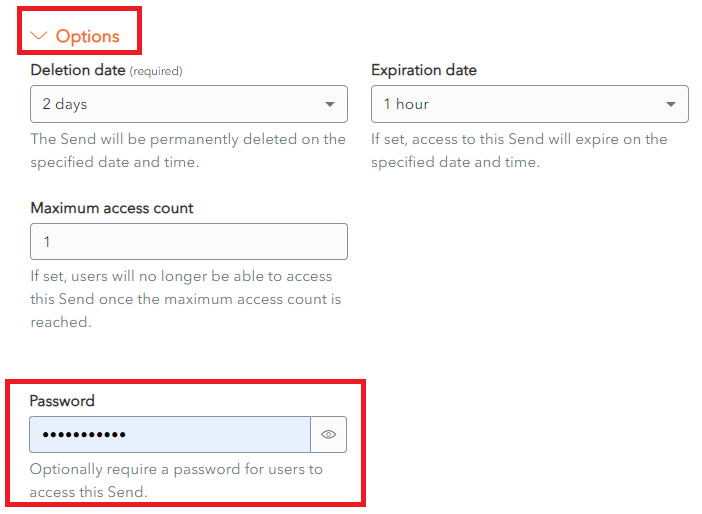](https://vault-doc.wallix.com/uploads/images/gallery/2023-11/privacy-field.png) #### Change or Delete a Send Password Click on a Send to open the **Send Screen**. The Send is displayed. To **Change the Password** used to protect the Send, **overwrite** the Password in the Password Field with a **New Password**. Click **Save**. The Password is changed. To **Remove Password Protection from the Send**, **delete** the password from the Password Field. Click **Save**. The Password Protection is removed. #### Access a Password Protected Send **If** the Send is **password protected**, enter the Password provided by the **Send Owner.** Click **Continue**. [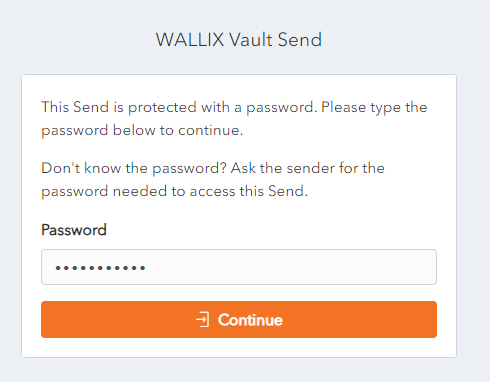](https://vault-doc.wallix.com/uploads/images/gallery/2023-11/confirm-password-screen.png) The Send is **displayed**. ### Hide Text The Text in a Send can be **hidden**, in order to **protect the privacy** of the text. When a member accesses it, they will need to unhide the text in order to view it. #### Hide Text in Send When **creating** or **editing** a Send, click on the **Options** link. A list of **Send Options** displays. **Check** the checkbox **When accessing the Send, hide the text by default.** Click **Save** to save changes. This field is **optional**. [](https://vault-doc.wallix.com/uploads/images/gallery/2023-11/Otccreate-text-send-without-options.png) #### View Hidden Text in Sends If the text is set to **Hidden** (by the Send owner), it is **not displayed** when the Send is opened. Click **Toggle visibility** to display the text. [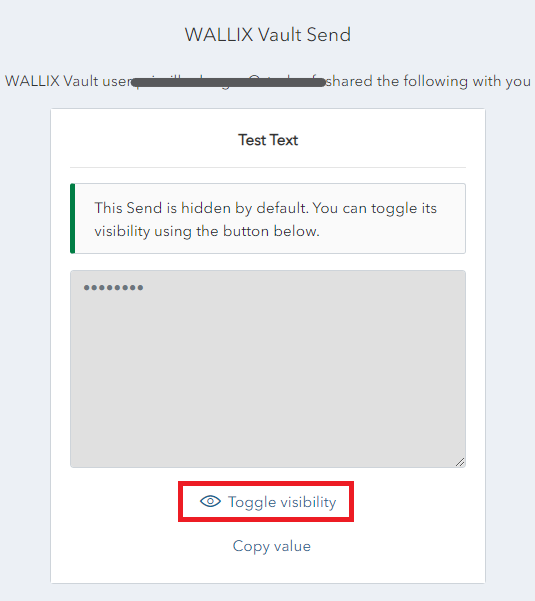](https://vault-doc.wallix.com/uploads/images/gallery/2023-11/send-text-hidden.png) The Text is **displayed**. ### Hide Email By **default** the **Sender Email** address of a Send is **displayed** to recipients. This can be **hidden** if required. #### Hide Email in Send When **creating** or **editing** a Send, click on the **Options** link. A list of **Send Options** displays. **Check** the checkbox beside **Hide my email address from recipients**. [](https://vault-doc.wallix.com/uploads/images/gallery/2023-11/hide-email.png) Click **Save** to save this option. When a [**member accesses this Send**](https://vault-doc.wallix.com/link/82), the sender's **email** address is **hidden**. The following **message** is displayed. [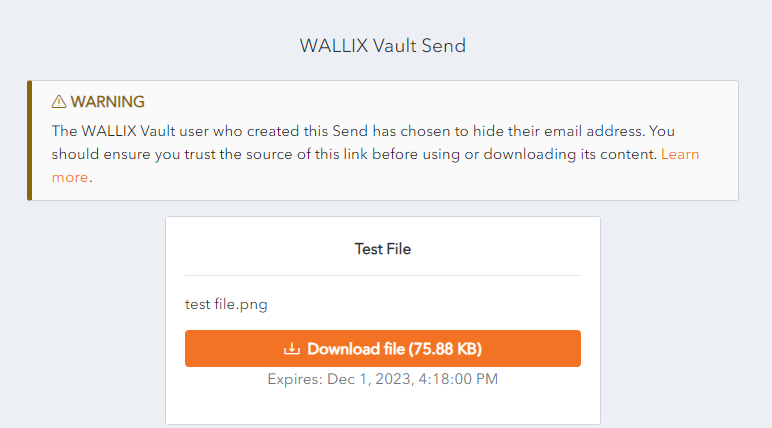](https://vault-doc.wallix.com/uploads/images/gallery/2023-11/hide-email-address-access.png) # Other Send Options When **creating a** **Send**, there are a number of **options** that are **hidden** by **default.** Click the **Options** Link to **unhide** the Send Options: ### Copy Send Link to Clipboard **Check** the checkbox **Copy the link to share this Send to my clipboard upon save**. This field is **optional**. [](https://vault-doc.wallix.com/uploads/images/gallery/2023-11/oHgimage.png)If you check this box, the link will be copied to your clipboard to facilitate providing it to person you wish to **Grant Access** to the Send.
The **Copy Send Link** can also be used to Copy the Send Link **to** the **clipboard**. [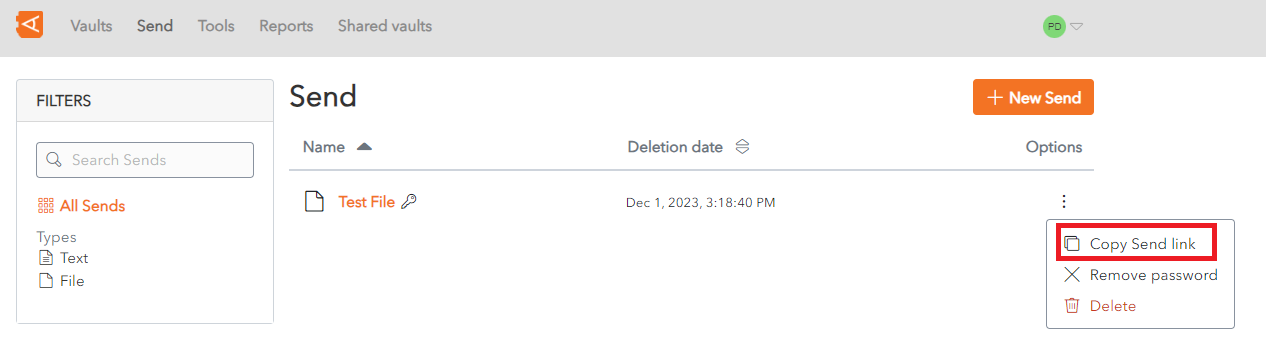](https://vault-doc.wallix.com/uploads/images/gallery/2023-11/context-menu-copie-2.png) ### Add Private Notes From the Send Screen, click on the Options Link. In the **Notes** field, enter any **privates notes** you wish to make about the send. [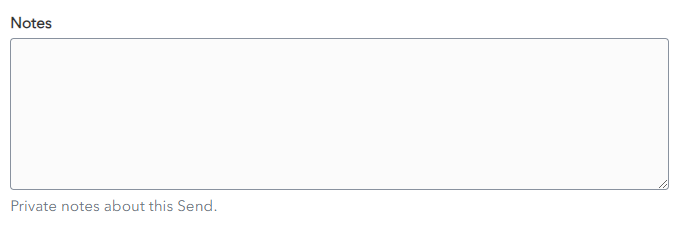](https://vault-doc.wallix.com/uploads/images/gallery/2023-11/private-notes-send.png)These notes are not sent with the Send.
# Send Lifespan **Sends** have a **limited lifespan**. A number of options can be set for each send. The Options for a send can be set when the **[Send is created](https://vault-doc.wallix.com/link/7)**. They can also be [**modified** ](https://vault-doc.wallix.com/link/88)at a later time. Click the **Options** link on the **Send** **Screen.** The Options are **displayed** for that send. [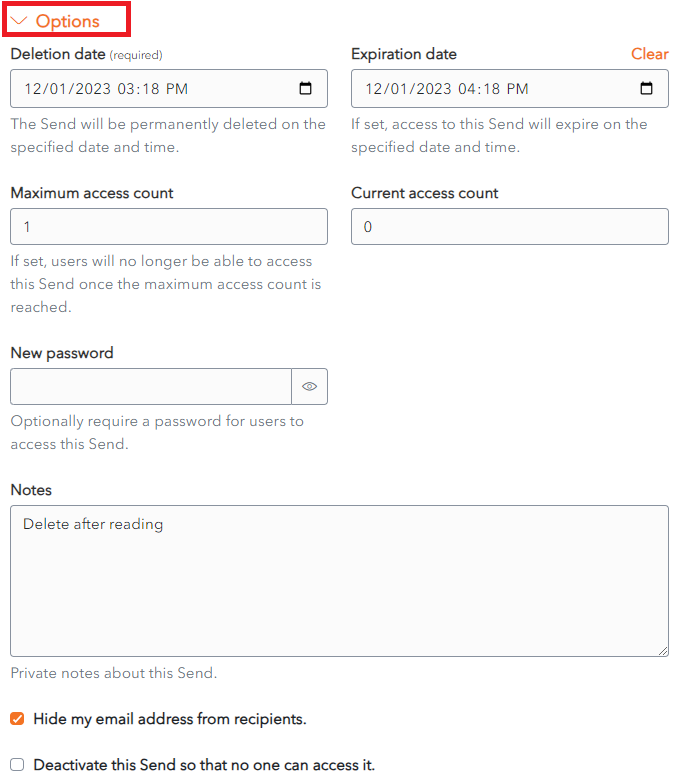](https://vault-doc.wallix.com/uploads/images/gallery/2023-11/send-options-original-copie.png) ### Deletion Date Choose the **period of time** to **keep** the Send from the **Deletion Date** dropdown. The options range from **1 hour to 30 days**. [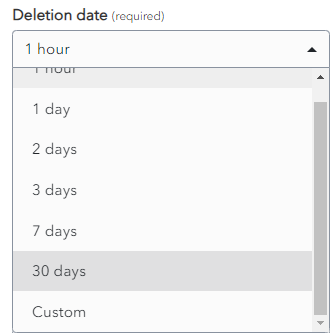](https://vault-doc.wallix.com/uploads/images/gallery/2023-11/jL7deletion-date.png) Alternatively, choose **Custom**, then choose the **Expiration Date and Time**. [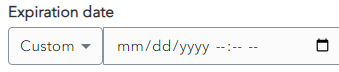](https://vault-doc.wallix.com/uploads/images/gallery/2023-11/3LCexpiration-date-custom.png) #### Set Deletion Date The Send will be **permanently deleted** on the **specified date and time**. After this time it will be no longer accessible.This is a **Required field**. By **default**, a Send Lifespan is set at **7 days**.
#### Automatic Deletion of Sends When the Deletion Date is reached, the Send is **Marked for Deletion**. A **Delete icon** appears beside the Send for a few minutes **before** it is **permanently deleted**. [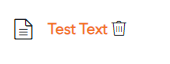](https://vault-doc.wallix.com/uploads/images/gallery/2023-11/mONimage.png)Deleted Items are **not stored** in the **Trash**. They are permanently removed from the Vault.
#### Manual Deletion of Sends From the **New Send Screen** or the **Edit Send Screen**, click the [](https://vault-doc.wallix.com/uploads/images/gallery/2023-11/UEKdelete-button.png)**Delete button**. The **Delete Send Confirmation Screen** appears. [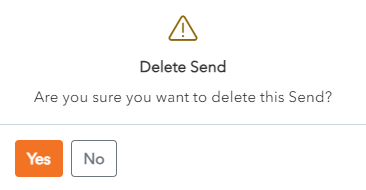](https://vault-doc.wallix.com/uploads/images/gallery/2023-11/delete-send-confirmation.png) Click **Yes** to delete the Send. Click **No** to cancel the operation. #### Access Deleted Send When a Recipient tries to access a **Deleted Send**, the following **Error Message** is displayed. [](https://vault-doc.wallix.com/uploads/images/gallery/2023-11/2XZsend-expired.png) ### Expiration Date A Send can be set to expire **a fixed period of time** after creation **or** on a **specific date**. #### Set Expiration Date Choose the **period of time** to **keep** the Send from the **Expiration Date** dropdown. The options range from 1 hour to 30 days. [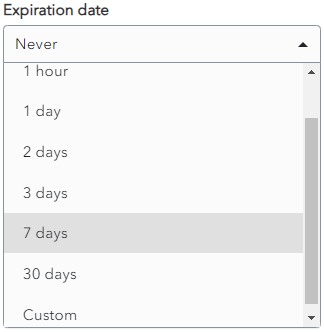](https://vault-doc.wallix.com/uploads/images/gallery/2023-11/dUfsend-expiration.png) Alternatively, choose **Custom**, then choose the **Expiration Date and Time**. [](https://vault-doc.wallix.com/uploads/images/gallery/2023-11/3LCexpiration-date-custom.png)By **default**, a Expiraton Date is set at **Never**. Unless you specify an Expiration Date, your Send will never expire.
**Expired Sends** are **no longer accessible** to **Recipients** but they are still **accessible by** the **Sender until** their **Deletion Date.**
#### Access Expired Send Like for Deleted Sends, when a Recipient tries to access a **Expired Send**, the following **Error Message** is displayed. [](https://vault-doc.wallix.com/uploads/images/gallery/2023-11/2XZsend-expired.png) ### Maximum Access Count A **Send** can be set to have a Maximum Access Count. This means the **number of times** that it can be **accessed** by the Recipient **before** it becomes **unavailable**. #### Set Maximum Access Count Choose the **number of times** that the Recipient can **access the Send**. It can be left **blank**. [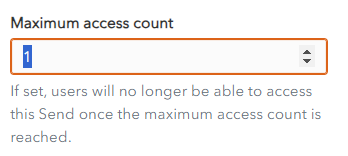](https://vault-doc.wallix.com/uploads/images/gallery/2023-11/maximum-access-count.png)By **default**, it is **blank**, which means the Send can be **accessed** an **unlimited** number of times before it is deleted.
A **Maximum Access Count Reached Icon** is **displayed** beside the **Send** in the Sender's Inbox. [](https://vault-doc.wallix.com/uploads/images/gallery/2023-11/max-access-count-reached.png) #### Access Send whose Maximum Access Count has been reached When a Recipient tries to access a **Send** whose **Maximum Access Count** has been **reached**, the following **Error Message** is displayed. [](https://vault-doc.wallix.com/uploads/images/gallery/2023-11/2XZsend-expired.png) ### Deactivate Send #### Deactivate a Send A send can be deactivated so that Recipients can no longer access it. **Check** the checkbox **Deactivate this Send so that no one can access it**. By **default**, this field is **unchecked.** [](https://vault-doc.wallix.com/uploads/images/gallery/2023-11/deactivate-send.png)**Deactivated** **Sends** are still **available** to the **Sender until** they are **deleted**.
A **Deactivated Icon** is **displayed** beside the **Send** in the Sender's Inbox. [](https://vault-doc.wallix.com/uploads/images/gallery/2023-11/deactivated-send.png) #### Access a Deactivated Send When a Recipient tries to access a **Deactivated Send**, the following **Error Message** is displayed. [](https://vault-doc.wallix.com/uploads/images/gallery/2023-11/2XZsend-expired.png) # Edit Send From the **Send List**, click on a **Send** to open it the **Edit Screen**. **Modify** the Send.**All fields** can be modified **except** the **Send Contents** (File or Text being sent).
[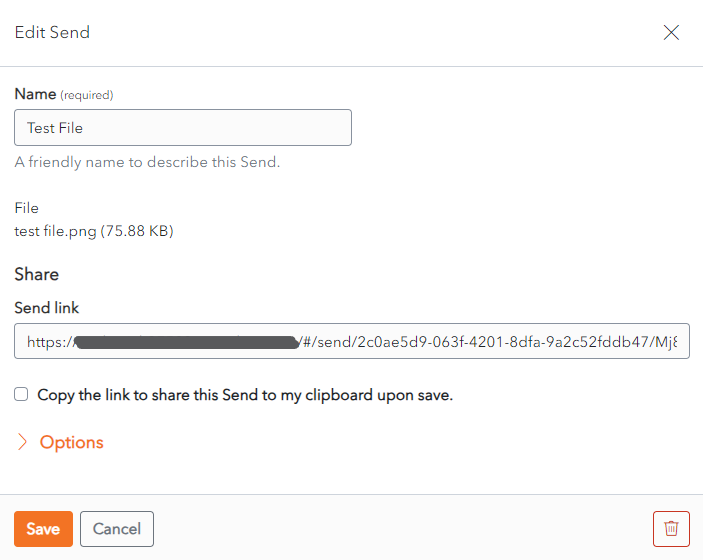](https://vault-doc.wallix.com/uploads/images/gallery/2023-11/edit-send-screen.png) Click **Save** to save changes. Alternatively, click **Cancel** to cancel the operation. # Delete a Send A Send can be [**deleted manually**](https://vault-doc.wallix.com/link/87#bkmrk-manual-deletion-of-s) at any time from the Create Send or Edit Send Screen, by clicking on the  Delete button. It can **also** be deleted from the **Context menu** of the Send. [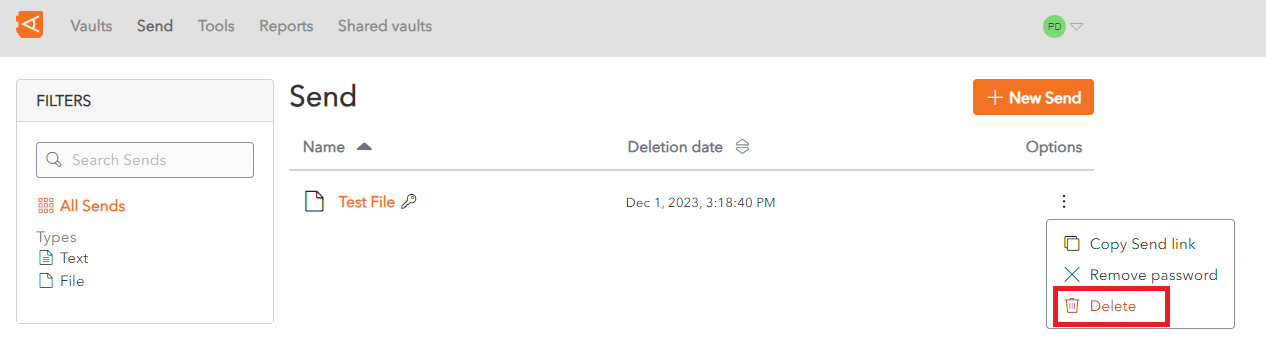](https://vault-doc.wallix.com/uploads/images/gallery/2023-11/context-menu-copie.png) The [**Automatic Deletion**](https://vault-doc.wallix.com/link/87#bkmrk--2) of Sends is set in the Options menu of the Send Screen. This is set at[ **Send Creation**](https://vault-doc.wallix.com/link/7) or can be modified from the [**Edit Screen**](https://vault-doc.wallix.com/link/88). # Send Encryption Process All Sends are **automatically end-to-end encrypted**, which means that WALLIX Enterprise Vault **encrypts** the data in the Send Link and the client-browser uses the encryption key to **decrypt** the data once received. ### Send Link Anatomy The Send Link is comprised of 3 elements:** https://<WALLIX Vault URL>/#/send/<send\_id>/<encryption\_key> 1. **Secure HTTP Protocol:** https//: 2. **Vault URL:** <WALLIX Vault URL> 3. **URL Fragment:** /#/send/<send\_id>/<encryption\_key> which contains the <send\_id> and the <encryption\_key> ### Send Encryption Here is how it works: - When a Send is created a **128-bit secret key** is **generated** for that Send. - A **512-bit encryption key** is **derived** from the 128-bit secret key. - The Send is **AES-256 encrypted** using the derived 512-bit encryption. **Data** (plain text or file) and the **Metadata** (Name, Filenme, Notes, etc.) are **included** in the encryption. - The Encrypted Send is **uploaded** to **WALLIX Servers**. The **Send ID** (used to identify the Send for decryption) is **included** in upload. The **Encryption Key** is **not included** in the upload. ### Send Decryption Here is how it works: - When a Send Link is accessed, the Web Browser requests the **Send Access Page** from WALLIX Servers. - The Send Access Page is **returned** from WALLIX Servers as a **Web Vault Client**. - The **URL Fragment** (containing **Send ID** and **Encryption Key**) is **parsed locally** by the Web Vault Client. - Using the parsed **Send ID**, the **Data** is **requested** from WALLIX Servers by the Web Vault Client. - The **Encryption Key** is **never** included in **Network Requests**. - The **Encrypted Send** is **returned** from WALLIX Servers to the Web Vault Client. - Using the **Encryption Key**, the Encrypted Send is **Decrypted locally** by the Web Vault Client. ### Send Security In order to **improve Send Security**, **two additional steps** can also be taken when transmitting a Send. These steps are **optional**. #### 1. Use Password Authentication - When creating a Send, **set** a **Password**. - Provide the **Password** to the Recipient via a **separate channel**. - When the Recipient clicks the Send Link, they are obliged to successfully enter this password before accessing the Send. - The Encrypted Send is then accessed and decrypted.The Password is not included in Send Encryption or Decryption. It is only used for Authentication before the Encrypted Send can be accessed and decrypted.
#### 2. Provide Encryption Key Separately - Provide the Send Link **without** the Encryption key. - Provide the **Encryption Key** via a **separate channel**. - The URL should be **reassembled** to **include** the **Encryption Key**, as per the [**Send Link Anatomy**](https://vault-doc.wallix.com/link/99#bkmrk-send-anatomy).The fully **Reassembled Send Link** is **Required** to **Access** the **Send**.