If you forget your Password and click on the [**Get Master Password Hint**](https://vault-doc.wallix.com/link/48) link, you will be sent the Password Hint that you created the first time you logged in. This should be a word or phrase that helps you to remember your password but doesn’t help other people to guess your password.
Click on the **Create Account** button to create your account. The account is created and the **Enterprise Single Sign-On Page** is displayed. Alternatively, click **Cancel** to cancel account creation. [](https://vault-doc.wallix.com/uploads/images/gallery/2023-11/account-created-login.png)For users who have this option, the link to **Start a password reset procedure** appears on the WALLIX Vault Login and Unlock pages. The Vault Administrator gives users access to this option.
Please **contact your Vault Administrator** if you do not have this option and require it.
### Create a Password Reset Request From the **Vault Login** **or Unlock page**, click on the **Start a password reset procedure link.** [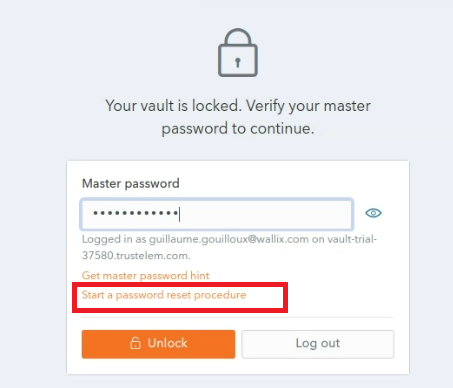](https://vault-doc.wallix.com/uploads/images/gallery/2023-12/start-a-password-reset-procedure-copie.png) The following screen is displayed. [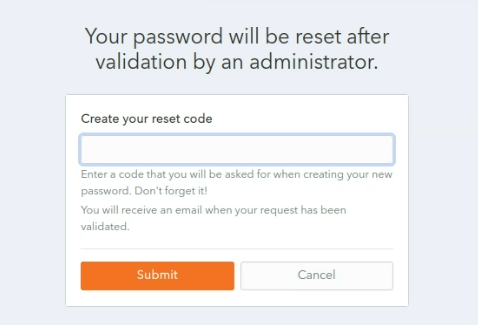](https://vault-doc.wallix.com/uploads/images/gallery/2023-12/step-1-copie.png) **Choose** and enter a **reset code** in the **Create your reset code field.**It is important to remember the reset code you choose, as you need it to complete the password reset procedure.
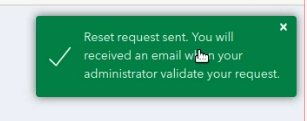
Click **Submit** button. A **confirmation message** is **displayed.** An information email is sent to the user and a notification email is sent to Vault Administrators.Your **Password Reset Request** is **sent** and **needs** to be **validated** by the **Vault Administrator.**
[](https://vault-doc.wallix.com/uploads/images/gallery/2023-12/step-3-copie.png) ### Create a New Password Once the Vault Administrator validates your **Password Reset Request**, you receive an e-mail containing a reset link. **Click** the **Reset Password link.** The **Reset your master password screen** is displayed. [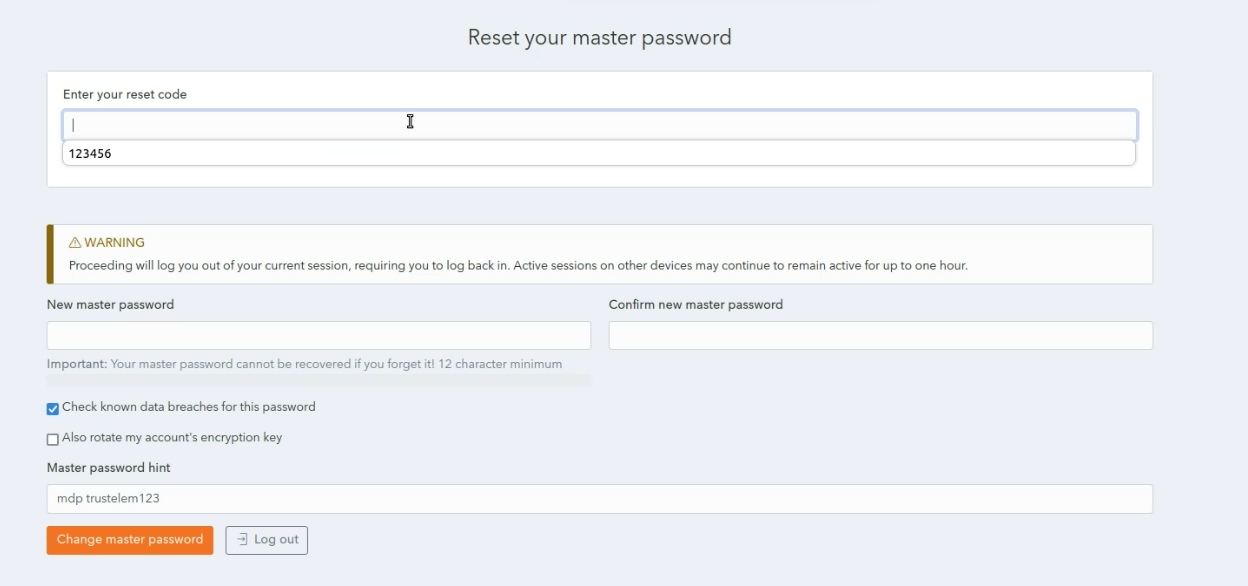](https://vault-doc.wallix.com/uploads/images/gallery/2023-12/step-10-after-clicking-on-reset-password-email-link-copie.png) In the **Enter your reset code** field, enter the reset code created during the Create a Password Reset Request procedure. In the **New master password** field, choose and enter a new master password. In the **Confirm new master password** field, re-enter the new master password chosen. In the [Master password hint](https://vault-doc.wallix.com/link/48) field, enter the Master Password Hint that you created when you [created your Account](https://vault-doc.wallix.com/link/4). The **Check known data breaches for this password** checkbox is checked by default. This can be unchecked if you do not wish to check for known data breaches related to your new chosen password. The **Also rotate my account's encryption key** checkbox is unchecked by default. This can be unchecked if you wish to rotate your account's encryption key. Click **Change master password** to reset your master password. This disconnects you from your current session on all devices, and you must log in again with your new master password. The following screen is displayed showing a **Master Password reset confirmation** message. [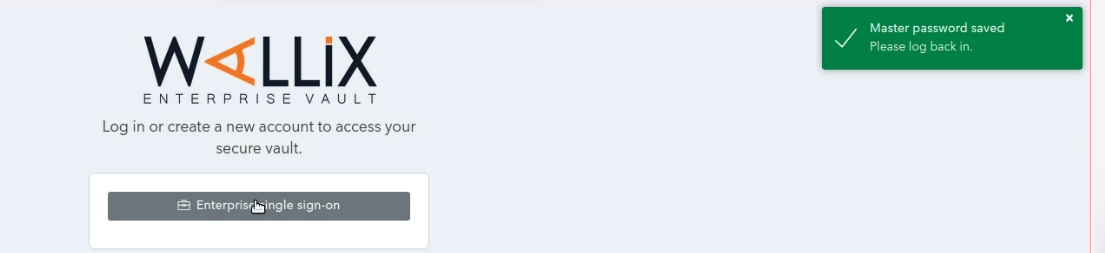](https://vault-doc.wallix.com/uploads/images/gallery/2023-12/step-13-copie.png) Alternatively, click **Log out** to cancel the operation. # Change Master Password Users can change their master password from WALLIX Vault. This requires remembering the current master password. This procedure is similar to the [Reset Master Password Procedure](https://vault-doc.wallix.com/link/106), which is used when the User cannot remember their current Master Password. Click on the **User Icon,** on the top right-hand side of the screen, to display the **User Menu**. [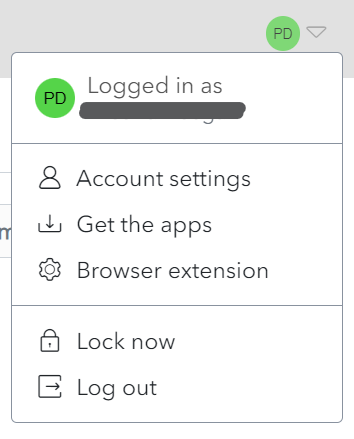](https://vault-doc.wallix.com/uploads/images/gallery/2023-12/profile-menu-copie-2.png) Click on **Account Settings** and then **Security**. The **Security Screen** is displayed on the **Master Password Tab**. [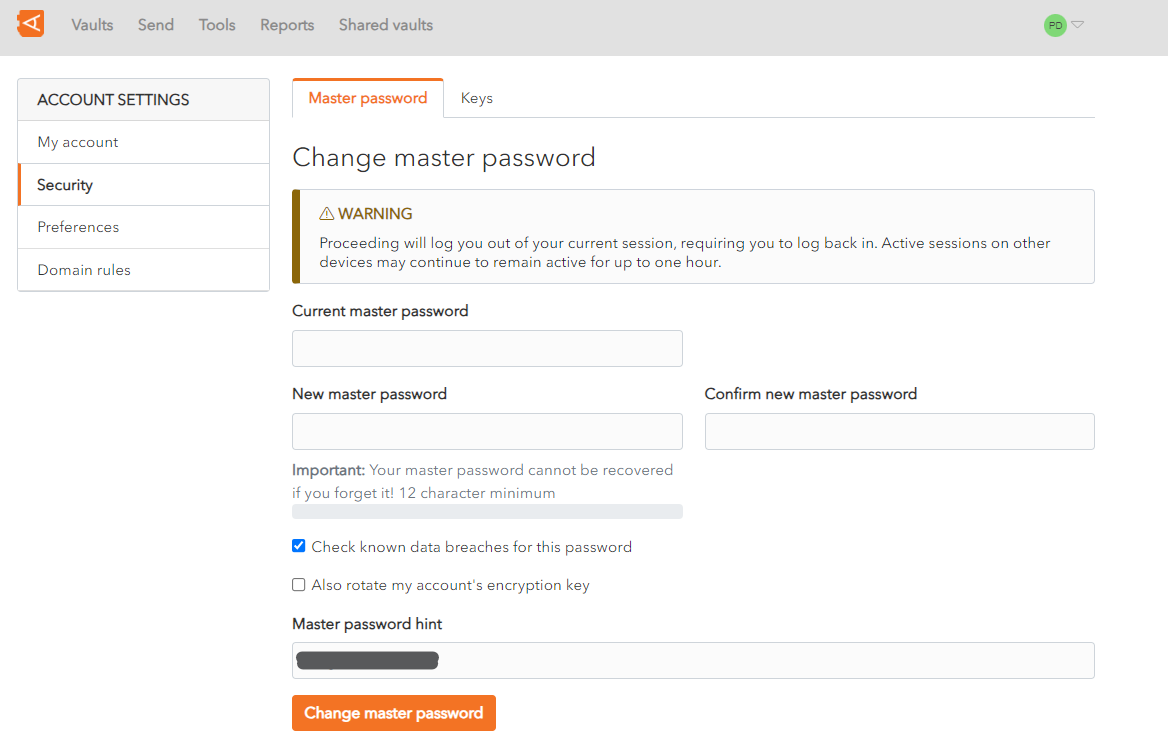](https://vault-doc.wallix.com/uploads/images/gallery/2023-12/master-password-screen.png) In the **Current master password** field, enter your current master password. In the **New master password** field, choose and enter a new master password. In the **Confirm new master password** field, re-enter the new master password chosen. In the [Master password hint](https://vault-doc.wallix.com/link/48) field, enter the Master Password Hint that you created when you [created your Account](https://vault-doc.wallix.com/link/4). The **Check known data breaches for this password** checkbox is checked by default. This can be unchecked if you do not wish to check for known data breaches related to your new chosen password. The **Also rotate my account's encryption key** checkbox is unchecked by default. This can be unchecked if you wish to rotate your account's encryption key. Click **Change master password** button to change your master password. This will **log you out** of your current session on all devices and you will be required to **log back in** with your **new master password**. The following screen is displayed showing a **Master Password reset confirmation** message. [](https://vault-doc.wallix.com/uploads/images/gallery/2023-12/step-13-copie.png) Alternatively, click **Log out** to cancel the operation. # Encryption Key Settings It is possible to change the Encryption Key Settings for your Account. Click on the **User Icon,** on the top right-hand side of the screen, to display the **User Menu**. [](https://vault-doc.wallix.com/uploads/images/gallery/2023-12/profile-menu-copie-2.png) Click **Account Settings** and click **Security**. The Security screen is displayed on the Keys Tab. [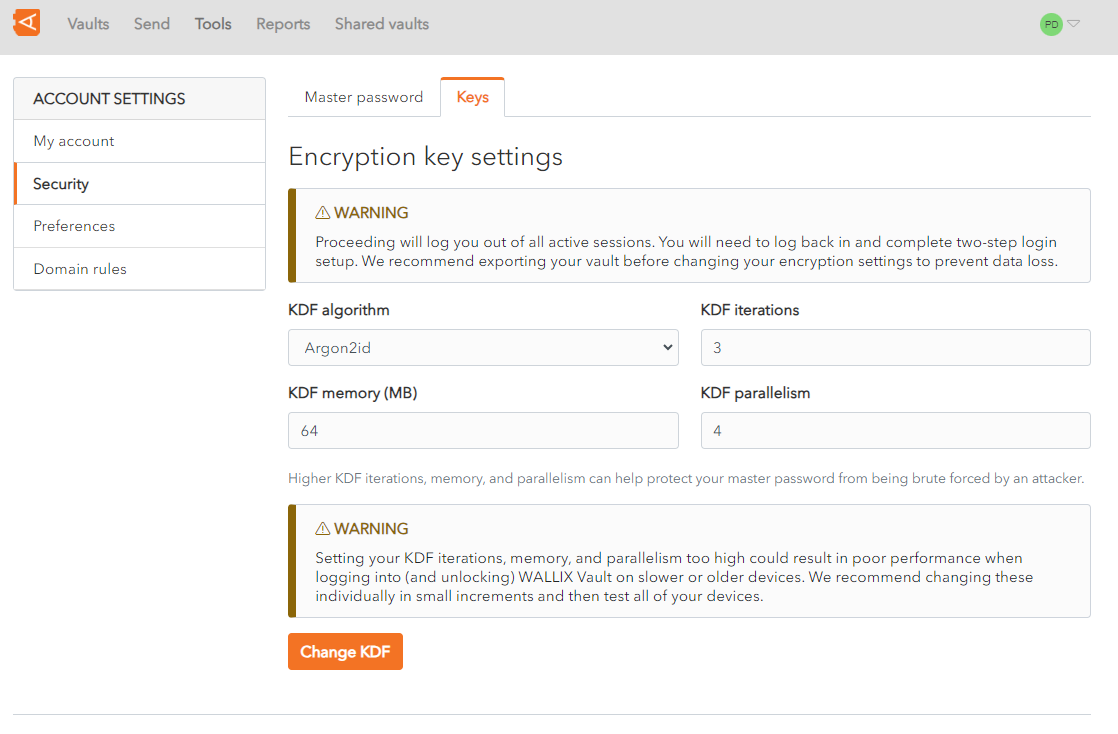](https://vault-doc.wallix.com/uploads/images/gallery/2023-12/encryption-key-settings.png) The following options can be changed: - **KDF algorithm**: There are 2 choices - **Argon2id** or **PBKDF2 SHA-256**. To be more secure and efficient, use Argon2id rather than PBKDF2. [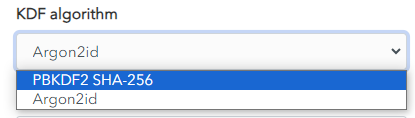](https://vault-doc.wallix.com/uploads/images/gallery/2023-12/capture-decran-2023-12-13-124713.png) - **KDF Iterations**: Choose the number of iterations possible. The **default** is **3**. - **KDF memory (MB)**: Choose the memory required . The **default** is **64**. - **KDF parallelism**: Choose the parallism possible. The **default** is **4**Higher KDF iterations, memory, and parallelism can help protect your master password from being brute forced by an attacker. However, setting your KDF iterations, memory, and parallelism too high could result in poor performance when logging into (and unlocking) WALLIX Vault on slower or older devices. Changing these parameters individually, in small increments, and then testing all your devices is the best way to ensure performance.
Proceeding will log you out of all active sessions. You will need to log back in and complete two-step login setup. Export your vault before modifying your encryption settings to avoid any loss of data.
Click **Change KDF** to change the Encryption Key Settings for your Account. # Login to Vault First Level Authentication Navigate to the WALLIX Trustelem Portal. Enter your **Email** and the **Password** you chose on first login. You can check the **Remember Me** checkbox if you want to save your email and password to avoid re-entering them the next time you login. Then click the **Sign In** button. 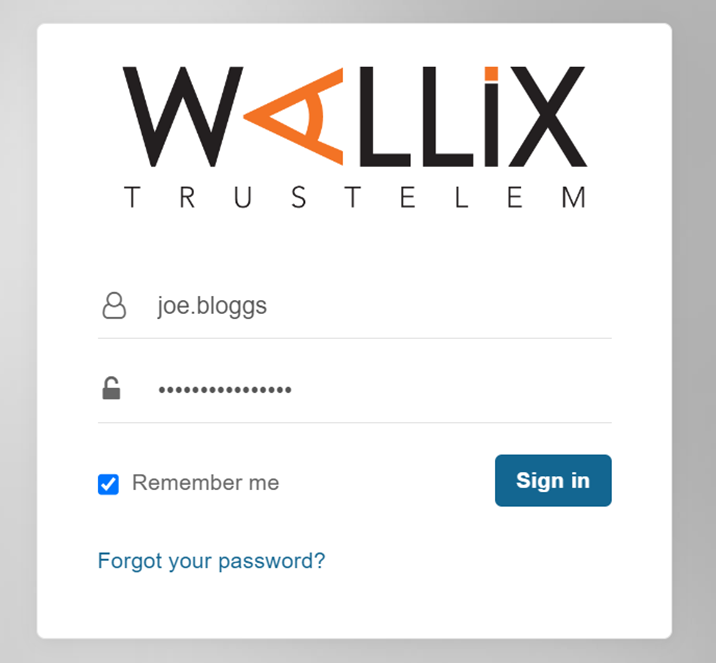**Note** : If you forget your Password click the **Forgot your password ?** link at any time to request a password reset.
This logs you into the **WALLIX Trustelem Portal**. Click on the **WALLIX Enterprise Vault** button to access WALLIX Enterprise Vault. 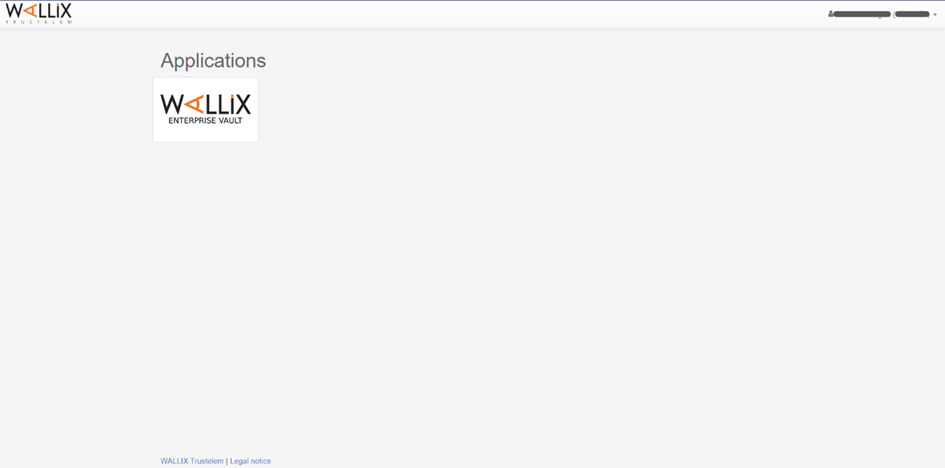 ## Second Level Authentication The WALLIX Enterprise Vault screen displays an **Enterprise Single Sign On** button. Click the **Enterprise Single Sign On** button. 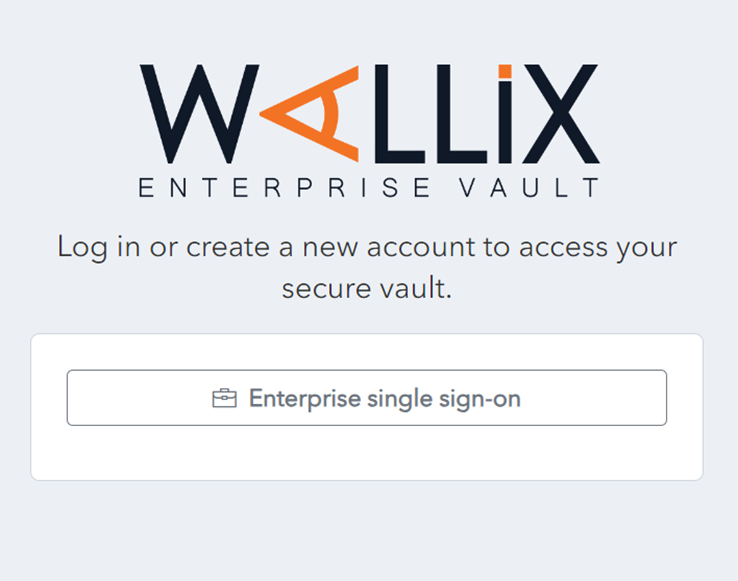 Enter your Master Password and click the **Unlock** button. This will bring you into your [Vault Home](https://vault-doc.wallix.com/link/19) Screen. **Note** : If you are already logged into the WALLIX Portal, you can navigate directly to your WALLIX Enterprise Vault and go straight to the 2nd level authentification. # Logout from Vault You can logout of WALLIX Enterprise Vault from the Vault Screen or the Lock Screen. ## Logout from Vault Home Screen You can log out of WALLIX Enterprise Vault from your WALLIX Enterprise Vault screen. 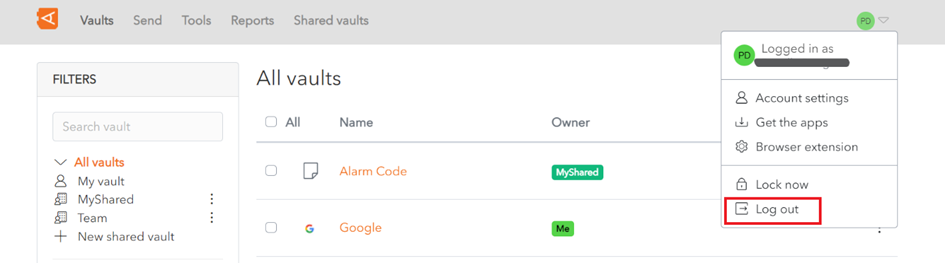 Click on the **Log out** button to log you out of WALLIX Enterprise Vault. **Note** : This will log you out of the **2nd level of authentification only**. You will be returned to the Wallix Enterprise Vault Login Screen. ## Logout from Unlock Screen You can log out of WALLIX Enterprise Vault from the Unlock screen. Click on the **Log out** button to log you out of WALLIX Enterprise Vault. **Note **: This will log you out of the **2nd level of authentification only.** You will be presented with a **confirmation** pop up screen. 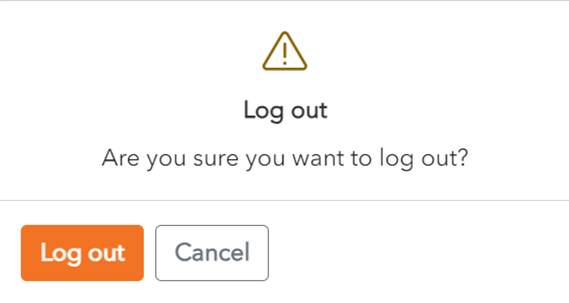 Click **Log out** to confirm log out. You will be returned to the Wallix Enterprise Vault Login screen. 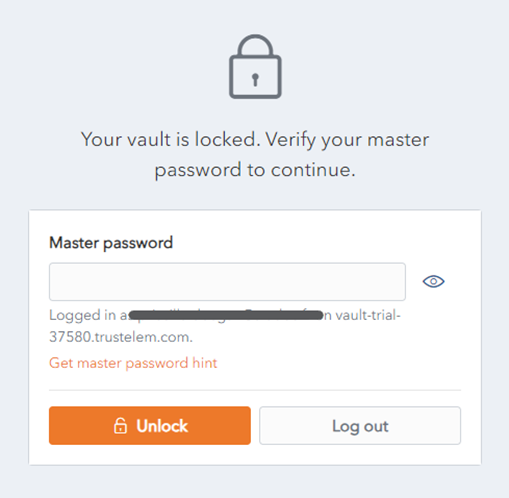 # Unlock Vault Your WALLIX Enterprise Vault is automatically locked after an [**extended period of inactivity,**](https://vault-doc.wallix.com/link/120) which can be changed in WALLIX Vault. Enter your **Master Password** and click the **Unlock** button to access your WALLIX Enterprise Vault. 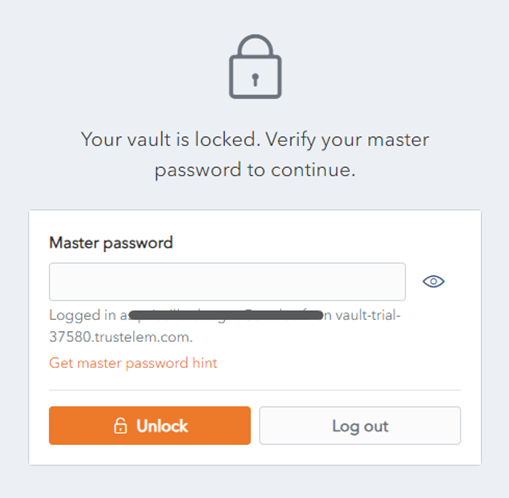 # Lock Vault You can lock your WALLIX Enterprise Vault from your WALLIX Enterprise Vault screen. 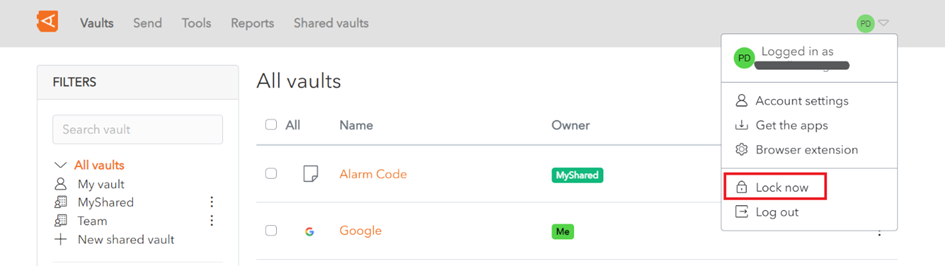 Click on the **Lock now** button to lock your WALLIX Enterprise Vault. **Note** : This will return you to the **WALLIX Enterprise Vault Lock Screen**. 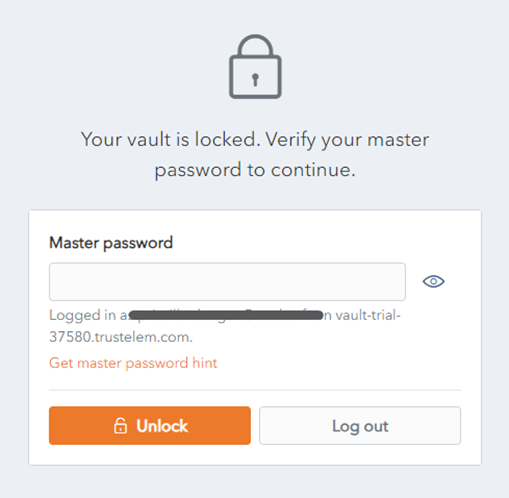 # Unlock with PIN **Unlock with PIN** is a feature that is available for WALLIX Vault for the **Browser Extension** and **Mobile apps**. ### Browser Extension #### Enable Unlock with PIN From the **Browser Extension**, click the **Settings** Menu. **Check** the **Unlock with PIN** Checkbox. [](https://vault-doc.wallix.com/uploads/images/gallery/2023-12/unlock-with-pin-copie.png) A **pop up screen** is **displayed**. [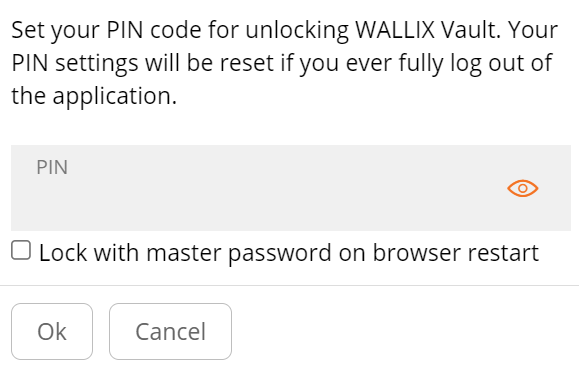](https://vault-doc.wallix.com/uploads/images/gallery/2023-12/confirmation-uncheck.png) **Create** and enter a **PIN** to use for unlocking the Vault. The **Lock with master password on browser restart** checkbox is **checked** by **default**. This **requires** the **Master Password** after Browser Restart. If **unchecked**, the **PIN** will be required on browser restart. Click **Ok** to **save PIN** and **activate Unlock with PIN**.If the **Lock with master password on browser restart** checkbox is **unchecked**, some **sensitive data** in **memory** may **not** be **deleted** when the **browser extension** is **locked.**
Alternatively, click **Cancel** to cancel the operation.If you fully **log out** of the **application**, your **PIN settings** will be **reset**.
#### Change PIN To **change the PIN** **after** it has **been set**, **disable** the **Unlock with PIN checkbox** in settings, then **reenable** it. This will **require** a **new PIN** to be entered. #### Use Unlock with PIN When the Browser Application is **locked**, you will be **prompted** to **enter the PIN** to **unlock**. [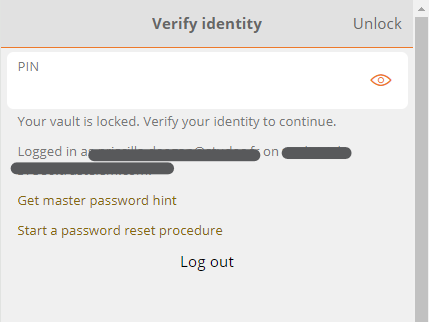](https://vault-doc.wallix.com/uploads/images/gallery/2023-12/XMKunlock-with-pin-after-browser-restart.png)If the **browser is restarted**, you will be prompted to **enter either** a **PIN** or a **Master Password** to unlock. This is based on the **Lock with master password on browser restart** option chosen during PIN creation.
### Mobile App #### Enable Unlock with PIN From the **Settings** tab on **WALLIX Vault Mobile App**, tap the **Unlock with PIN Code** option. **Create** and enter a **PIN** to use for unlocking the Vault. A Pop up screen appears to request if you wish to **Lock with master password on browser restart.** Tap **Yes** to **require Master Password** on **browser restart.**If the **Lock with master password on browser restart** checkbox is **unchecked**, some **sensitive data** in **memory** may **not** be **deleted** when the **browser extension** is **locked.**
Alternatively, tap **No** to **require PIN** on **browser restart.**If you fully **log out** of the **application**, your **PIN settings** will be **reset**.
#### Use Unlock with PIN When the Mobile App is **locked**, you will be **prompted** to **enter the PIN** to **unlock**.If the **browser is restarted**, you will be prompted to **enter either** a **PIN** or a **Master Password** to unlock. This is based on the **Lock with master password on browser restart** option chosen during PIN creation.
# Unlock with Biometrics **Unlock with Biometrics** is a feature that is available for WALLIX Vault for the **Browser Extension** and **Mobile apps**.**Biometrics** are part of you **Operating System** or **Mobile Device**. **WALLIX Vault** does **not** receive **biometric information** about an **Account**.
### Enable Unlock with Biometrics From **Settings** menu on your mobile device, **turn on** and **enable Biometrics.** From **WALLIX Mobile App, open Settings > Account Security.** **Check** the **Biometrics option** you wish to **enable.** For **iOS** the following options are available: [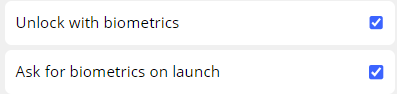](https://vault-doc.wallix.com/uploads/images/gallery/2023-12/unlock-biometrics.png) In **iOS**, a **Pop up screen** appears to request confirmation of this change**.** [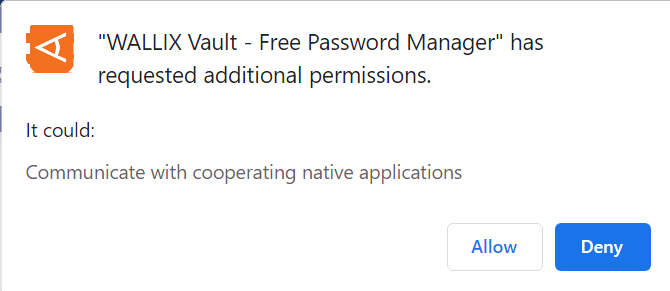](https://vault-doc.wallix.com/uploads/images/gallery/2023-12/unlock-biometrics-confirmation.png) Tap **Allow** to **enable biometrics.** Tap **Deny** to cancel the operation. # Lock Vs Logout **Lock** and **Logout** do **not** perform the **same** function. It is important to understand the differences between them. **WALLIX Vault** only **stores** **Encrypted Data** on its **servers**. ### Login The **Master Password** is needed to Login and gain **access** to the **Account Encryption Key**. An **Internet** Connection (or **Server connection**) is **needed**. **Encrypted Vault Data** is **downloaded**. It is **decrypted** using the **Account Encryption Key**. ### Unlock The Account is **already logged in**. The **Encrypted Vault Data** has **already** been **downloaded**. The **Master Password** is **not needed** to **unlock** (but can be used). Therefore, **Unlock using PIN** or **Biometrics** is possible. An **Internet** Connection (or **Server connection**) is **not needed**. ### Lock and Unlock using Biometrics or PIN After activation of Unlock **using a PIN** or a **Biometric Factor**, a **New PIN** or a **Biometric Encryption Key** is **created**. This is **derived** from the **PIN** or **Biometric Factor** used to encrypt the **Account Encryption Key**, which is **stored locally** when the User is logged in.**Unlock using Master Password on Browser Restart**, the Account Encryption Key is stored in **memory**.
When you **Unlock** the Vault, the PIN or Biometric Encryption Key is used to **decrypt** the **Account Encryption Key** stored locally, which is then used to **decrypt** the **Vault Data** stored locally. When you **Lock** the Vault, the **decrypted Account Encryption Key** and **Vault Data** are **deleted**. # Deauthorize Sessions This is used if you want to **deauthorize all computers and devices** that have been **previously used to login to WALLIX Vault** with **this Account**. Click on the **User Icon,** on the top right-hand side of the screen, to display the **User Menu**. [](https://vault-doc.wallix.com/uploads/images/gallery/2023-12/profile-menu-copie-2.png) Click on **Account Settings** and then **My Account**. The **My Account Screen** is displayed. Click **Deauthorize sessions**. [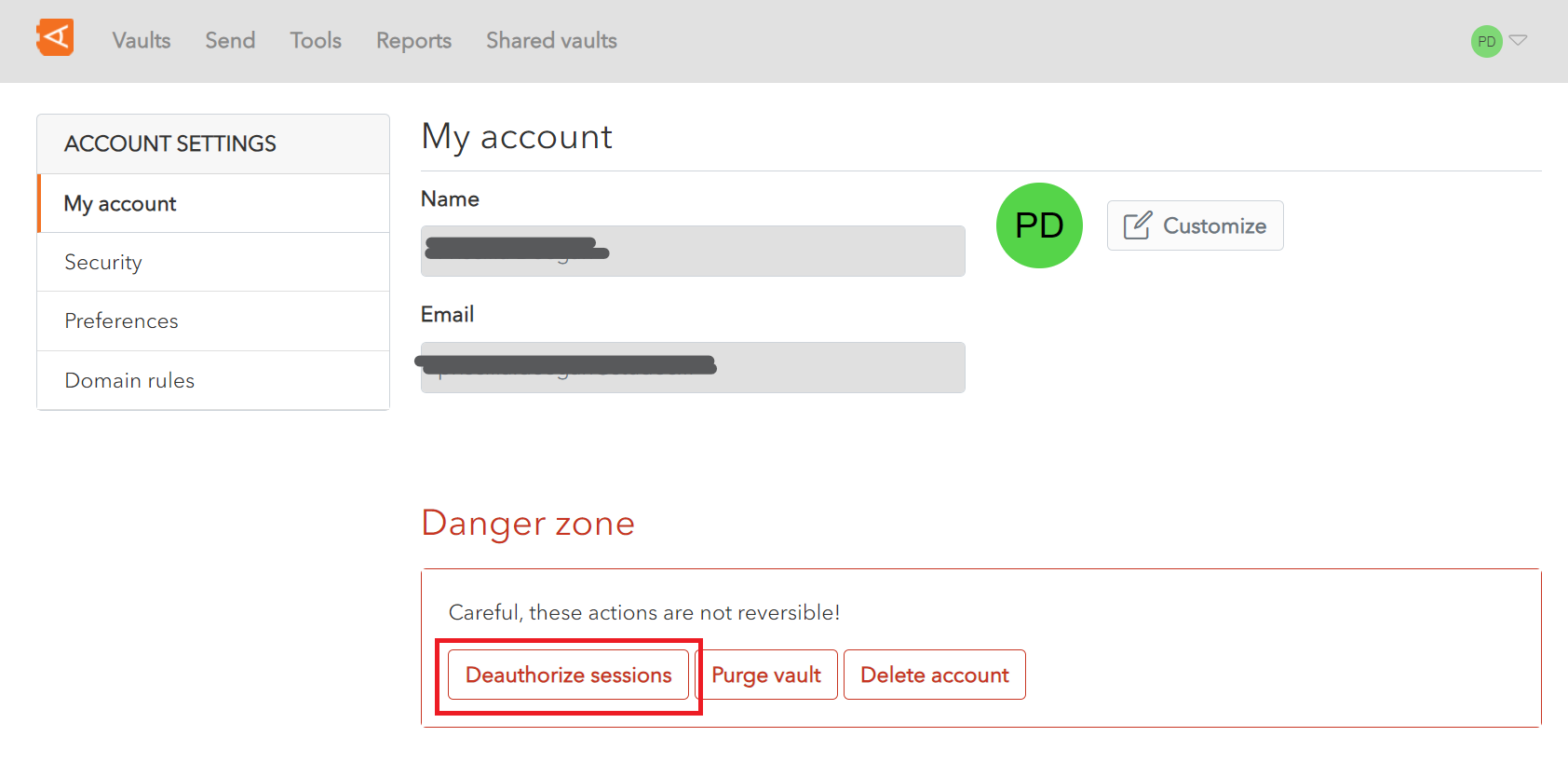](https://vault-doc.wallix.com/uploads/images/gallery/2023-12/my-account-screen-copie-3.png) A **Confirmation Screen** is displayed. Enter your **Master Password** and click **Deauthorize sessions to deauthorize all previously authorized devices and computers and to log them out of the vault. Alternatively, click **Close** to cancel the operation. [](https://vault-doc.wallix.com/uploads/images/gallery/2023-12/deauthorize-sessions-confirmation.png) # Account Switching on Mobile App It is possible to have up to 5 WALLIX Accounts logged in at any one time on mobile devices. ### Login to Multiple Accounts **Login** to the **WALLIX Vault Mobile App.** The **Account Name and Status** is **displayed** in the **Top Menu Bar** of the Mobile App. The **status** indicates whether it's Vault is **locked** or **unlocked.** To **log in** to **another account**, click the **Add Account button** from **Top Menu Bar.** The **Login screen** is displayed. Enter Login details to login. If your **Accounts** are hosted on **Different Servers**, select the **Server** from the Login Screen. The **Account Name and Status** is **added** to the **Top Menu Bar.** To **Switch between Accounts**, **choose** the **Account** from the **Top Menu Bar**. This becomes the **Active Account**. It's **icon is** displayed on the **Top Menu Bar.**If you **Log Out** from an account it will **disappear** from the **Logged In Account List** **unless** Vault **Timeout** is **set** to **Log Out**.
**Most Vault Actions** (Vault Timeout, Unlock with PIN, Unlock with Biometrics, Auto-fill) **only apply** to the **Active Account**
### Auto-fill for Multiple Accounts Auto-fill applies to the Active Account by default. It is possible to **switch accounts** **during Auto-fill** in order to auto-fill from another account. # Reset Trustelem Password ### Request Password Reset Follow the instructions to reset your password for WALLIX Portal (1st level authentication). Click the **Forgot your password ?** link to **Request** a **Password Reset**. [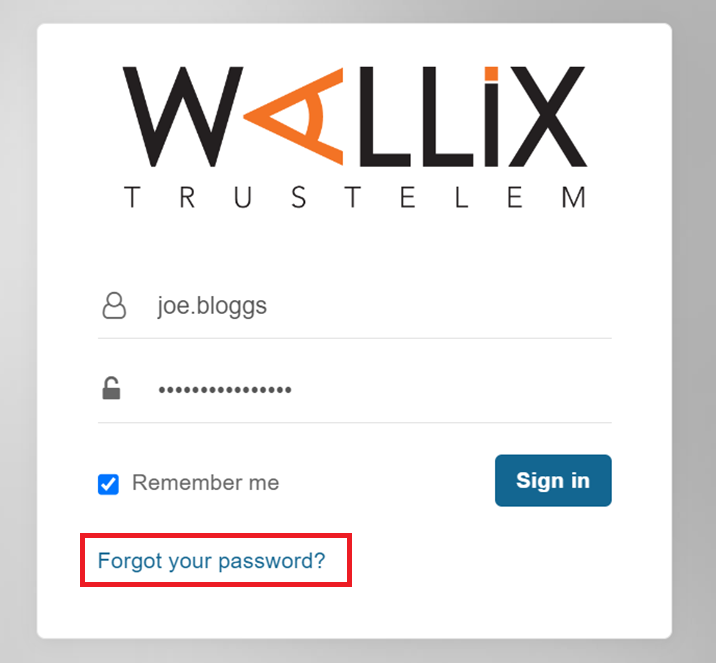](https://vault-doc.wallix.com/uploads/images/gallery/2023-11/login-1st-level.png) This **sends an email** to the WALLIX Enterprise Vault **Administrator** who sends a **Recovery Password email.** ### Reset Password from Email Link Click on the **Reset Password** link in the **Recovery Email** received from **TRUSTELEM**. The following screen is displayed. [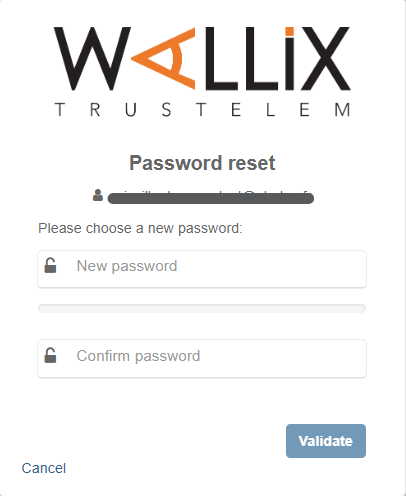](https://vault-doc.wallix.com/uploads/images/gallery/2023-11/PPhcreate-account-choose-password.png) **Choose** a new password for WALLIX Enterprise Vault and enter it in the **New Password** field. Re-enter the new password in the **Confirm Password** field. Click the **Validate** button to save the new password. Alternatively, click the **Cancel** button to cancel the operation. # Delete Account Click on the **User Icon,** on the top right-hand side of the screen, to display the **User Menu**. [](https://vault-doc.wallix.com/uploads/images/gallery/2023-12/profile-menu-copie-2.png) Click on **Account Settings** and then **My Account**. The **My Account Screen** is displayed. Click **Delete account**. [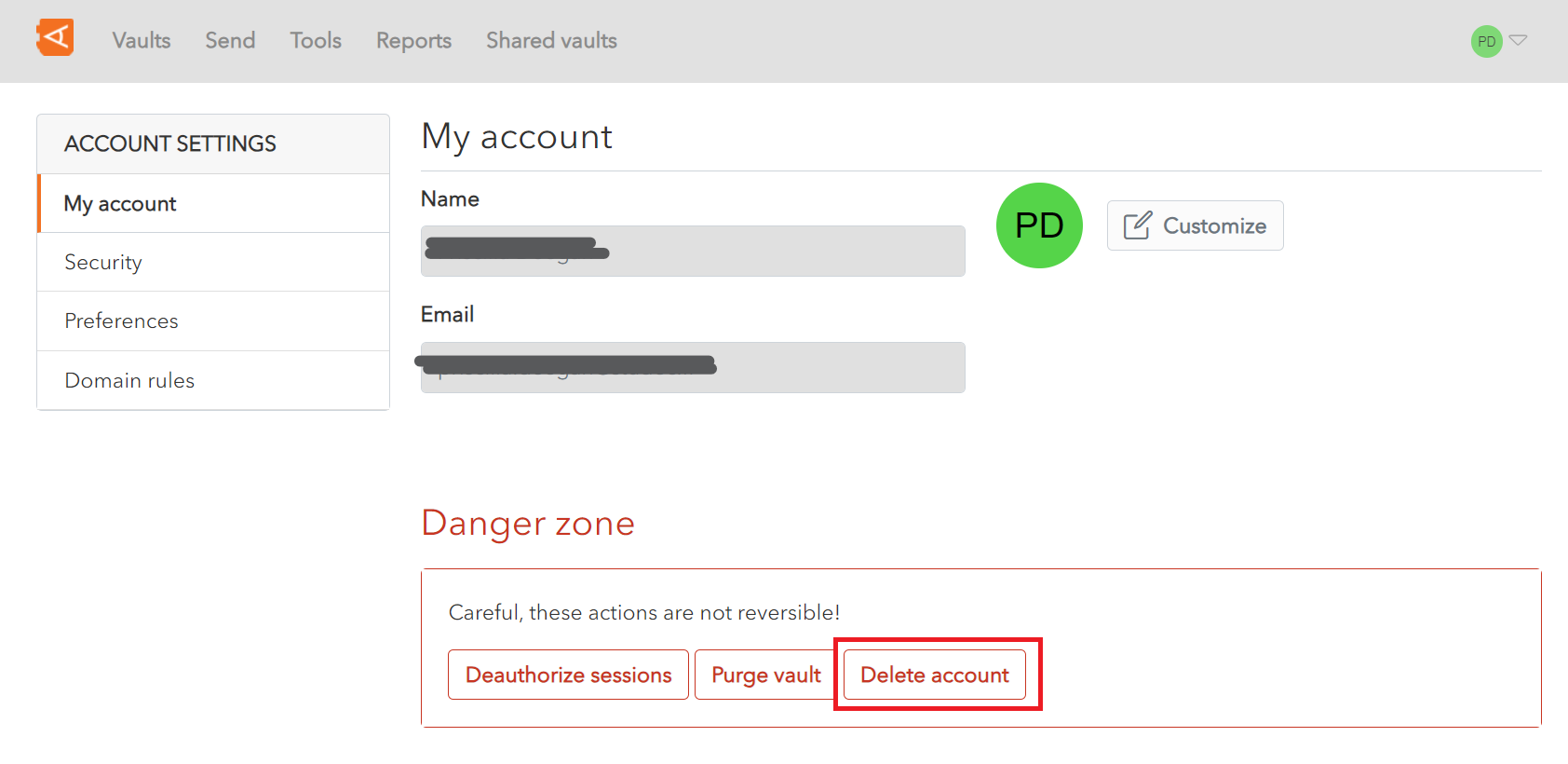](https://vault-doc.wallix.com/uploads/images/gallery/2023-12/my-account-screen-copie-2.png) A **Confirmation Screen** is displayed. Enter your **Master Password** and click **Delete account to delete the account and all data. Alternatively, click **Close** to cancel the operation. [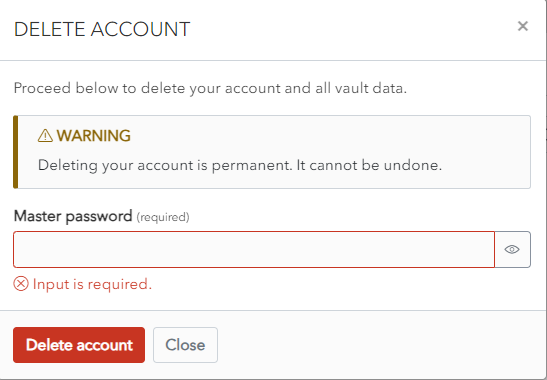](https://vault-doc.wallix.com/uploads/images/gallery/2023-12/delete-ac-confirmation.png) # Administration Overview The Trustelem Administrator is required to perform certain actions: [**Grant Master Password Recovery Permissions**](https://vault-doc.wallix.com/link/34) to certain users so that these users can unblock users who have forgotten their passwords. Some Users are given the rights to **[Manage Account Recovery](https://vault-doc.wallix.com/link/108)** for other Users. If you have Account Recovery rights, you can **[Validate a Master Password Reset Request](https://vault-doc.wallix.com/link/107)** when a user requests to reset their Master Password. After account recovery creation, all users can **[Reset their Master Password](https://vault-doc.wallix.com/link/106)** after they have unlocked their account for the first time. # Manage items Create different types of items: login, identity card and note. # Items Overview You can **[create](https://vault-doc.wallix.com/link/8) four types of item** in your WALLIX Enterprise Vault : 1. A **[Login](https://vault-doc.wallix.com/link/12)** item can be used to store login information for an account. 2. A **[Identity](https://vault-doc.wallix.com/link/11)** item can be used to store identity information about a person. 3. A **[Card](https://vault-doc.wallix.com/link/12)** item can be used to store a credit or payment card information. 4. A [**Secure Note**](https://vault-doc.wallix.com/link/14) item can use used to store other private information. Items can be [**Edited** ](https://vault-doc.wallix.com/link/9)or **[Deleted](https://vault-doc.wallix.com/link/42)**. The **[Item Context Menu](https://vault-doc.wallix.com/link/125)** contains some options related to an Item, depending on the Item Type and if it is in a [**Shared Vault** ](https://vault-doc.wallix.com/link/54)or not. Items can be [**Password Protected,**](https://vault-doc.wallix.com/link/76) [**Cloned**](https://vault-doc.wallix.com/link/130), [**Moved from an Individual Vault to a Shared Vault**](https://vault-doc.wallix.com/link/126), or **[Added to Favorites](https://vault-doc.wallix.com/link/113)**. Specific **options** are available for **Login Items**: - **[Password Fields](https://vault-doc.wallix.com/link/17)** such as Password Generation, Checking Password Integrity, Show / Hide Character Count, Copy Password and Show / Hide Password. - **[TOTP Generation](https://vault-doc.wallix.com/link/112)** - [**Copy Username**](https://vault-doc.wallix.com/link/125) - [**Copy Password**](https://vault-doc.wallix.com/link/125) - **[Launch URI](https://vault-doc.wallix.com/link/125)** # Create Item Click on the **New Item** button to add a new Item. [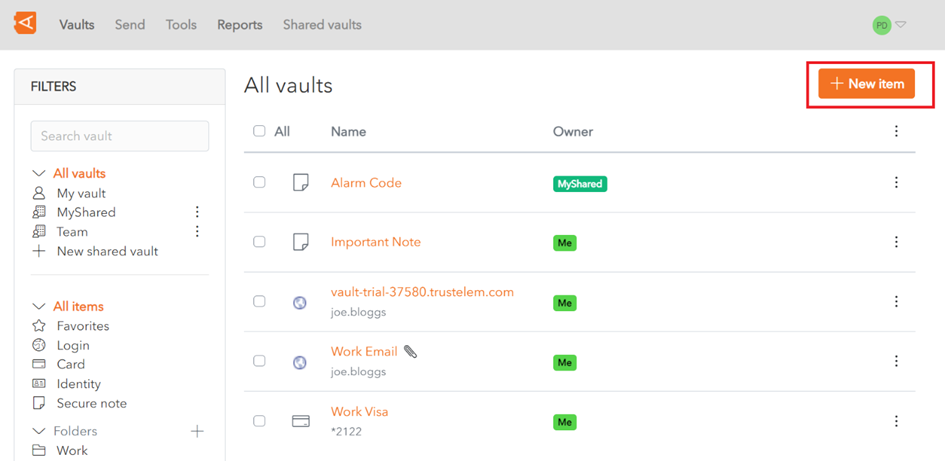](https://vault-doc.wallix.com/uploads/images/gallery/2023-11/embedded-image-hbjttpoq.png) The **New Item** pop up screen is displayed. Choose the type of item – **[Login](https://vault-doc.wallix.com/link/12), [Card](https://vault-doc.wallix.com/link/13), [Identity ](https://vault-doc.wallix.com/link/11)or [Secure Note](https://vault-doc.wallix.com/link/14)***.* Each item type has it’s own unique set of fields. Here we will choose **Login**. [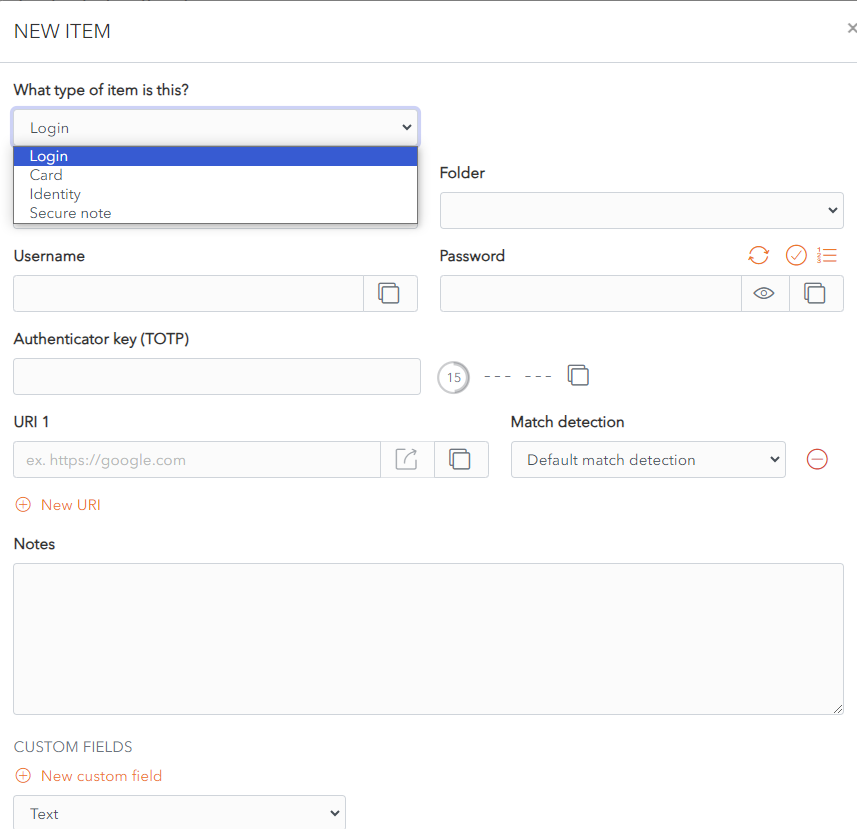](https://vault-doc.wallix.com/uploads/images/gallery/2024-01/Ma7en-add-item-2-copie.png) [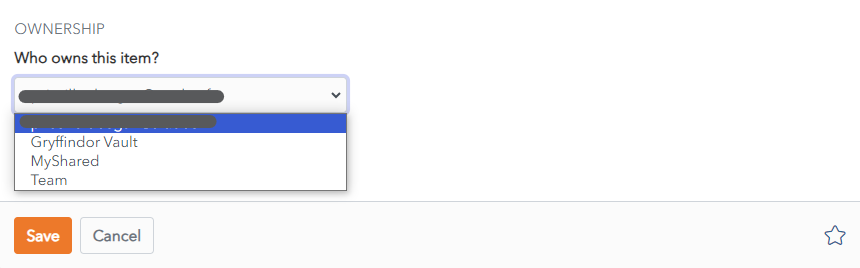](https://vault-doc.wallix.com/uploads/images/gallery/2024-01/capture-decran-2024-01-02-142739.png) Add the details that you wish to save for new Login Item. The only mandatory field is **Name**. The Item is added to your personal vault by default. To add the Item to a Shared Vault, choose a Shared Vault from the **Who Owns this Item?** dropdown. Click the **Save** button to save the new Item. It is then **displayed** in your **Items List**. Alternatively, click **Cancel** to cancel the operation. # Edit Item **Click on an item** in your Vault List. [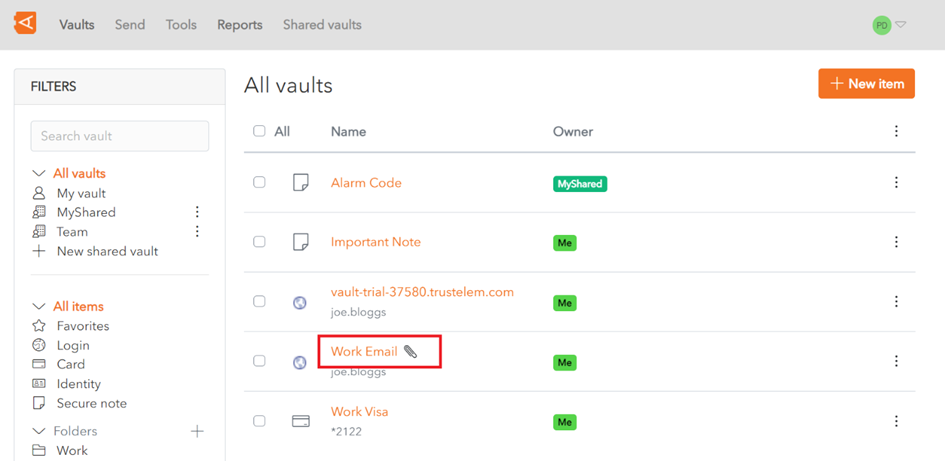](https://vault-doc.wallix.com/uploads/images/gallery/2023-11/embedded-image-b4avkifk.png) This opens the item in the **Edit Screen.** 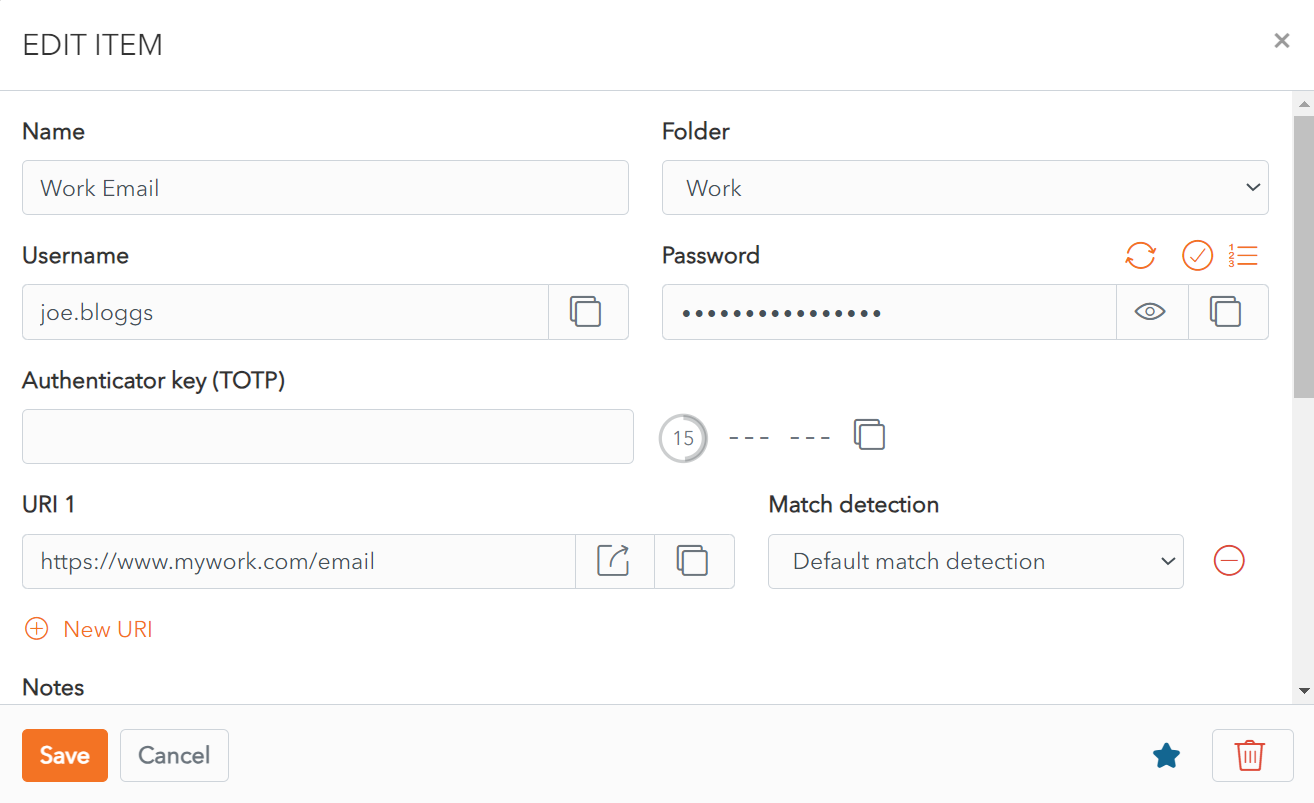 Make changes to your item and click the **Save** button to save your changes. If you decide not to save your changes, click the **Cancel** button to close the Edit Screen. # Search an item The **Filters Menu** is on the left hand side of the screen and can be used to **search** or **filter** for items in vaults. **Search** and **Filters** can be **combined** to refine the search result. Only[ ](https://vault-doc.wallix.com/link/10)**[Item Types](https://vault-doc.wallix.com/link/10)** and **Filters cannot** be **combined**. ### Filter Menu You can also filter by **[Vault](https://vault-doc.wallix.com/link/19),[ Item Type](https://vault-doc.wallix.com/link/10)** or **[Folder](https://vault-doc.wallix.com/link/41)** from Filters Menu. In the following example, click on the vault My vault and item type **Login** to return items of type **Login** in the folder My vault. 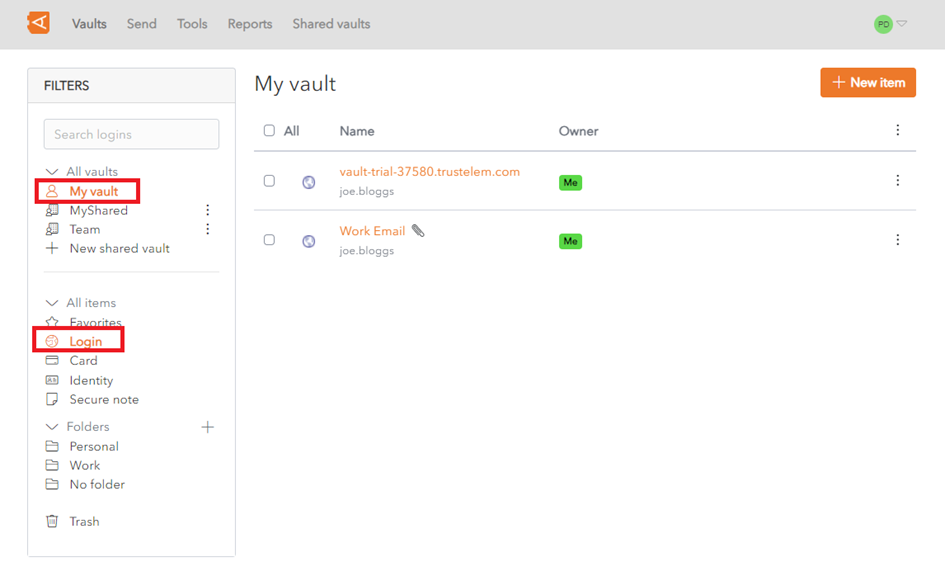 In the following example, click on the vault My vault and the folder Work to return all items in the folder Work and also in the vault My vault. [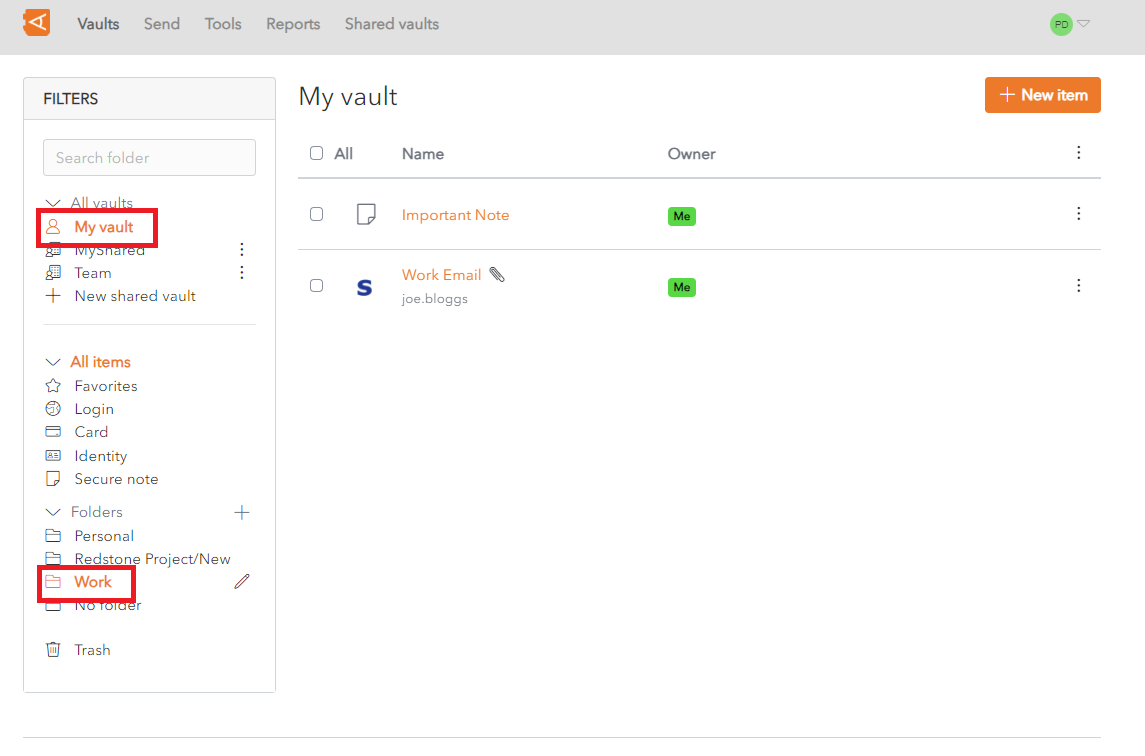](https://vault-doc.wallix.com/uploads/images/gallery/2023-11/8rkfilter-on-folder-and-vault.png) ## Basic Search This is available in **Mobile Apps**. You can search on **the following indexed fields** in your items: - **All Items**: name - **Logins**: username, URI - **Cards**: brand, last 4 digits of the card number - **Identities**: name **Leading** and **Trailing Wildcards** are included in Searches. For example, searching for googl will return items where the search fields contain google, googling or googlemail. In this example, enter 21 in the **Search Field** to return all items where one of the fields being searched contains 21, in this case a **Card** item with 21 in the **last 4 digits of the card number**. 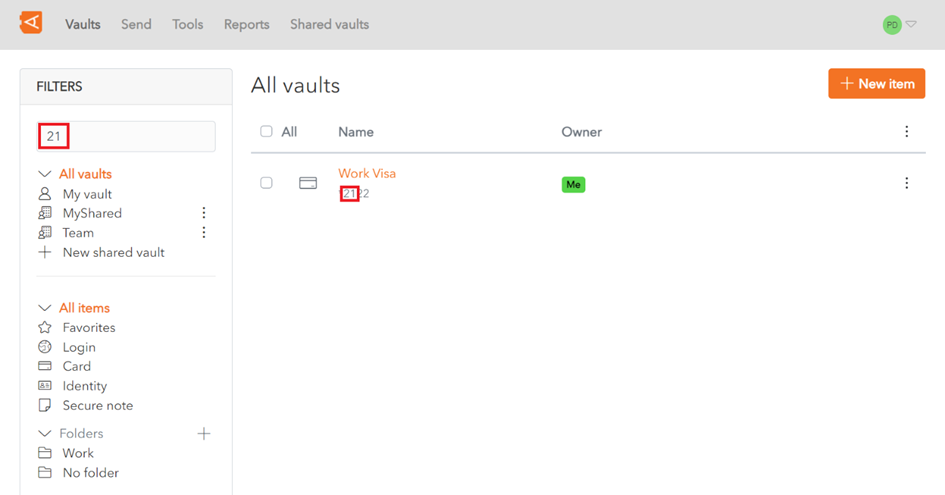Search results are **sorted** based on a **scoring algorithm**, based on the **number** of **fields** that a **search term** appears in.
## Full-Text Search This is available in the **Web Vault** and **Browser Extension**. You can search on **the following indexed fields** in your items: - **shortid**: This is the **1st 8 characters** of the **Item** **ID** - **sharedvaultid:** This is the **Shared Vault ID**, for Items in a Shared Vault - **name**: Item **Name** - **subtitle**: This depends on the Item Type. It can be **Username**, **Login**, **Last 4 digits of Card Number**, **Card Brand** or **Identity Name**. - **notes**: **Notes** field of an Item. Matches on **full words only unless wildcards** are used. - **fields**: This is the **Name or Value** in Custom Fields. It is only available for **Custom Fields** of type **Text** - **attachments**: This is the **Name** of a File that is **attached** to an Item. - **login.username**: This is the **Username** of a **Login Item** - **login.uris**: This is the **URI Hostname** of a **Login Item** In this example, enter 21 in the **Search Field** to return all items where one of the fields being searched contains 21, in this case a **Card** item with 21 in the **last 4 digits of the card number**. Search results are **sorted** based on a **scoring algorithm**, based on the **number** of **fields** that a **search term** appears in.
**If no results** are **found** using a Full-Text Search, WALLIX Vault will use **Basic Search**.
#### Special Search Parameters Various wildcards and parameters can be used to make the search more specific: - [Leading and Trailing Wildcards ](https://vault-doc.wallix.com/link/21#bkmrk-leading-and-trailing) - Other Wildcards: - >fieldname searches only on that field name - >-fieldname searches on all fields except that field name - \* searches everything - >fieldname:search term searches for that search term in that fieldname - Search parameters available in **[Lunr js](https://lunrjs.com/guides/searching.html)**, like **Term Presence** or **Fuzzy Matching**. - + prefix indicates that what follows **must be contained** in the search results - - prefix indicates that what follows **must not be contained** in the search results - ~ prefix is used for **Fuzzy Matching**. #### Some examples include - >googl returns all items that **start with** googl - >name:Google will return all Items where **name equals** Google - >-name:Google will return all Items where **name does not equal** Google - >-login.username:\*@hotmail.com will return all Items where of type **Login** where the **Username starts with** @hotmail.comItems are **added** to the **User's Individual Vault** and not a Shared Vault.
Click the **Save button.** The **Add Item Screen** displays with the **fields prepopulated** with the Login details. Modify fields, if required. [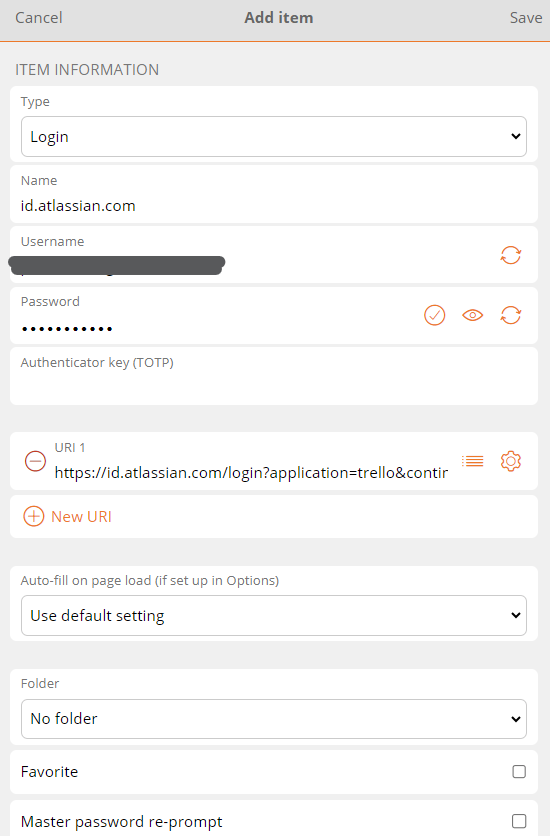](https://vault-doc.wallix.com/uploads/images/gallery/2023-12/edit-1.png) [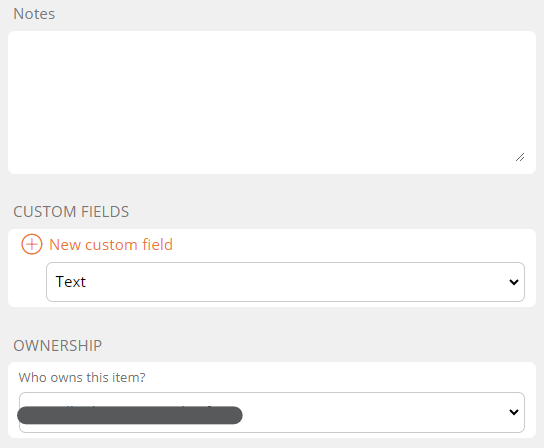](https://vault-doc.wallix.com/uploads/images/gallery/2023-12/edit-2.png) Click **Save** to Save Item to Vault. Alternatively, click **Cancel** to cancel the operation. ### Add to Vault Manually From the **Vault Screen** of the **Browser Extension**, click **Add a login.** [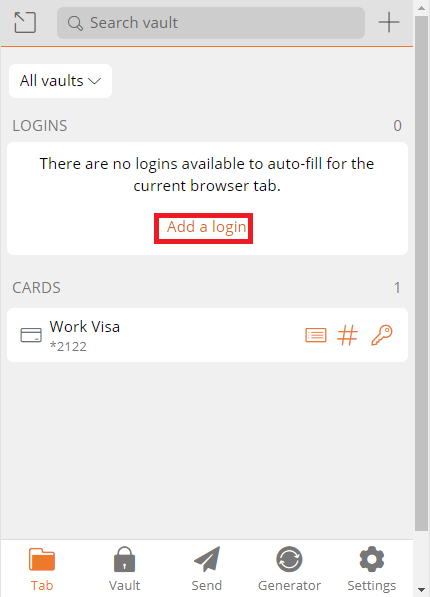](https://vault-doc.wallix.com/uploads/images/gallery/2023-12/iBscreate-login-from-browser-extension-manually.png) The **Add Item Screen** opens. The **elements** that the Browser Extension could **recuperate** from the **browser** are **prepopulated**. [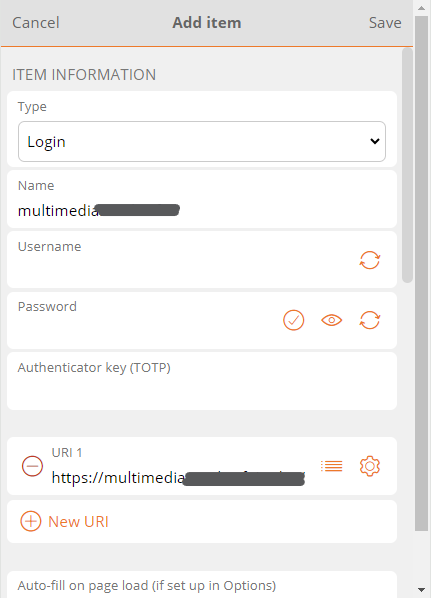](https://vault-doc.wallix.com/uploads/images/gallery/2023-12/add-item-manually-2.png) **Enter** the **remaining fields**. Click **Save** to create Login. Alternatively, click **Cancel** to cancel the operation. # Delete Item There are 2 ways to delete an item, from the Item List or from the Edit Item Screen. ### Delete Item from Item List From the **Item List**, click on the **Context Menu** link beside an Item. The context menu for that item **opens**. [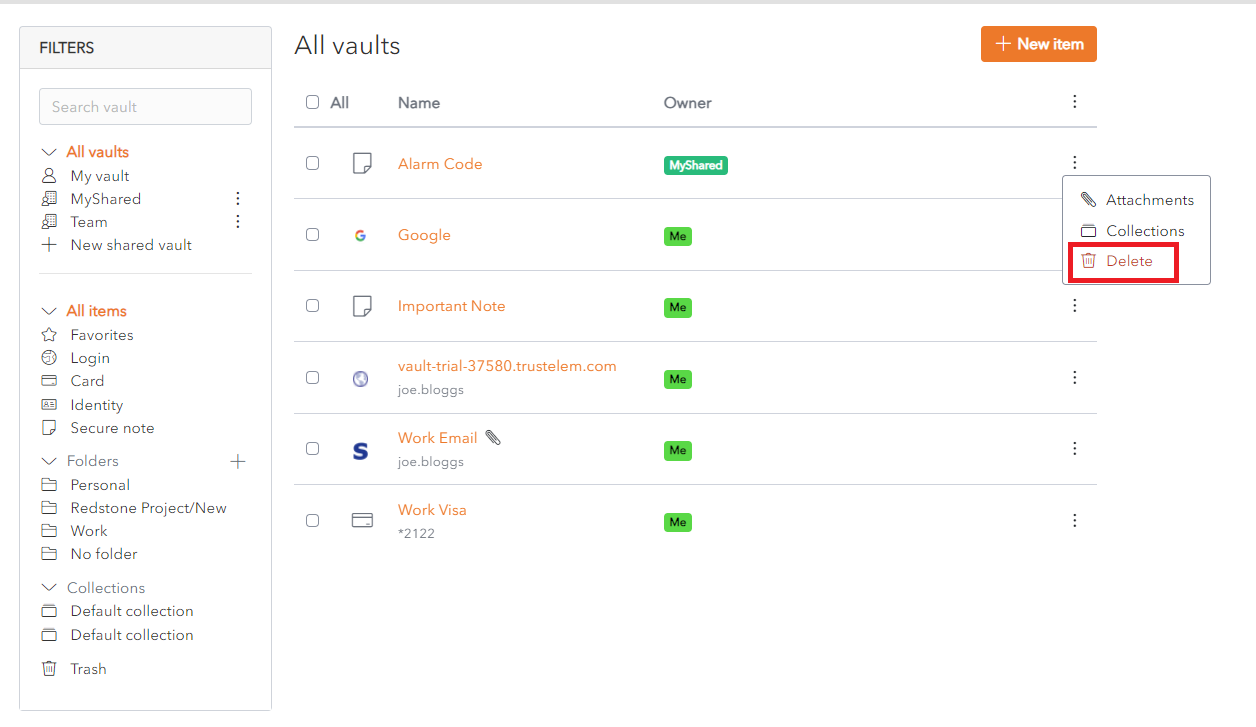](https://vault-doc.wallix.com/uploads/images/gallery/2023-11/item-context-menu-delete.png) Click the [](https://vault-doc.wallix.com/uploads/images/gallery/2023-11/embedded-image-srlzseyt.png)**Delete** link. A **Delete Item Confirmation** pop up is displayed. [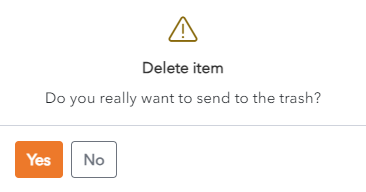](https://vault-doc.wallix.com/uploads/images/gallery/2023-11/delete-item-confirmation.png) Click **Yes** to delete the Item. Click **No** to cancel the operation. ### Delete Item from Edit Item Screen Click on the **Item** to be deleted. The **Edit** **Screen** opens. [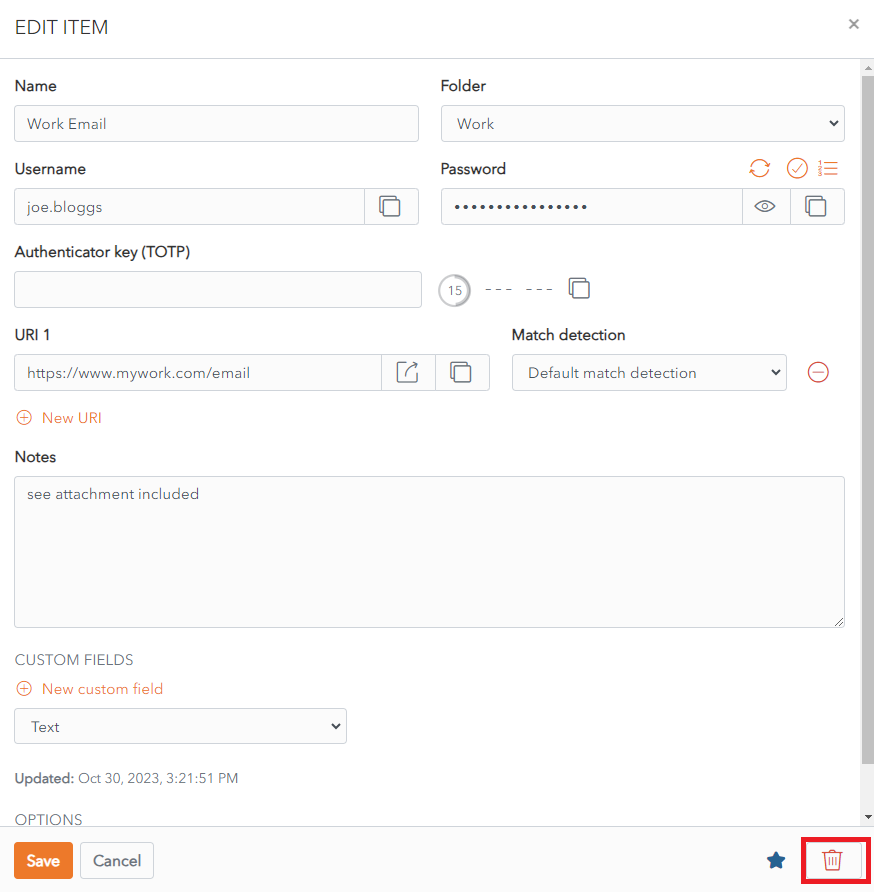](https://vault-doc.wallix.com/uploads/images/gallery/2023-11/delete-item-from-edit-screen.png) Click the [](https://vault-doc.wallix.com/uploads/images/gallery/2023-11/embedded-image-srlzseyt.png)**Delete** button. A **Delete Item Confirmation** pop up is displayed. [](https://vault-doc.wallix.com/uploads/images/gallery/2023-11/delete-item-confirmation.png) Click **Yes** to delete the Item. Click **No** to cancel the operation. # Identity Items You can use a **Identity Item** to store information about a *person’s identity*. 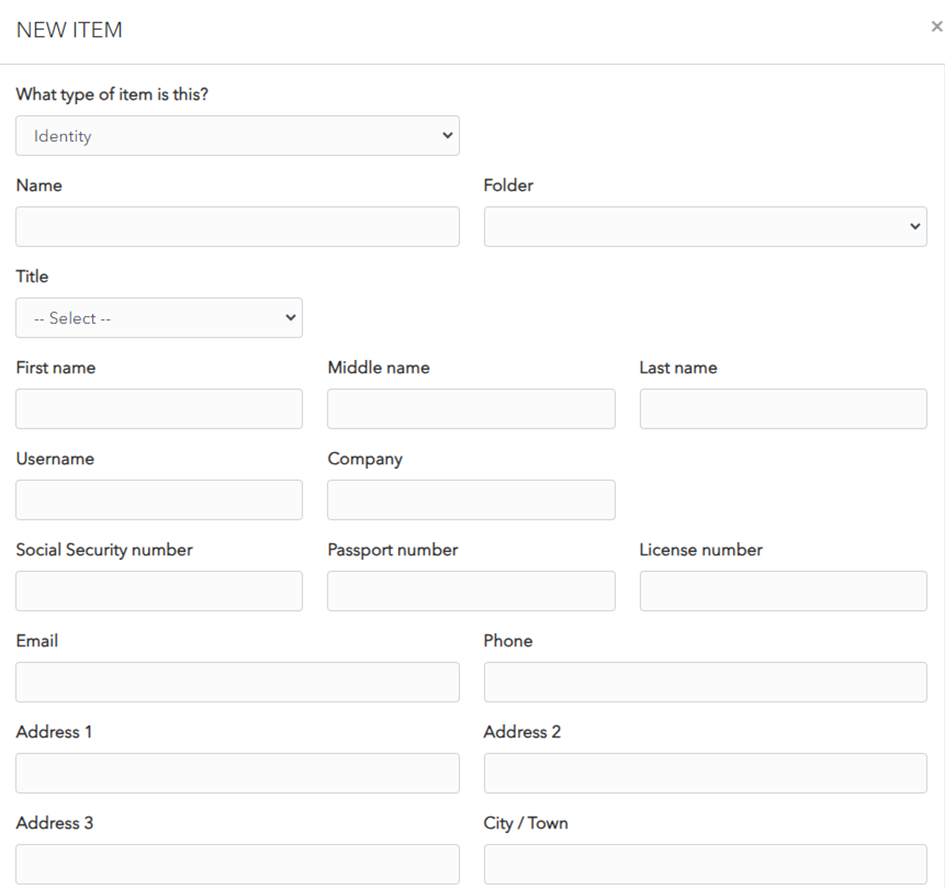 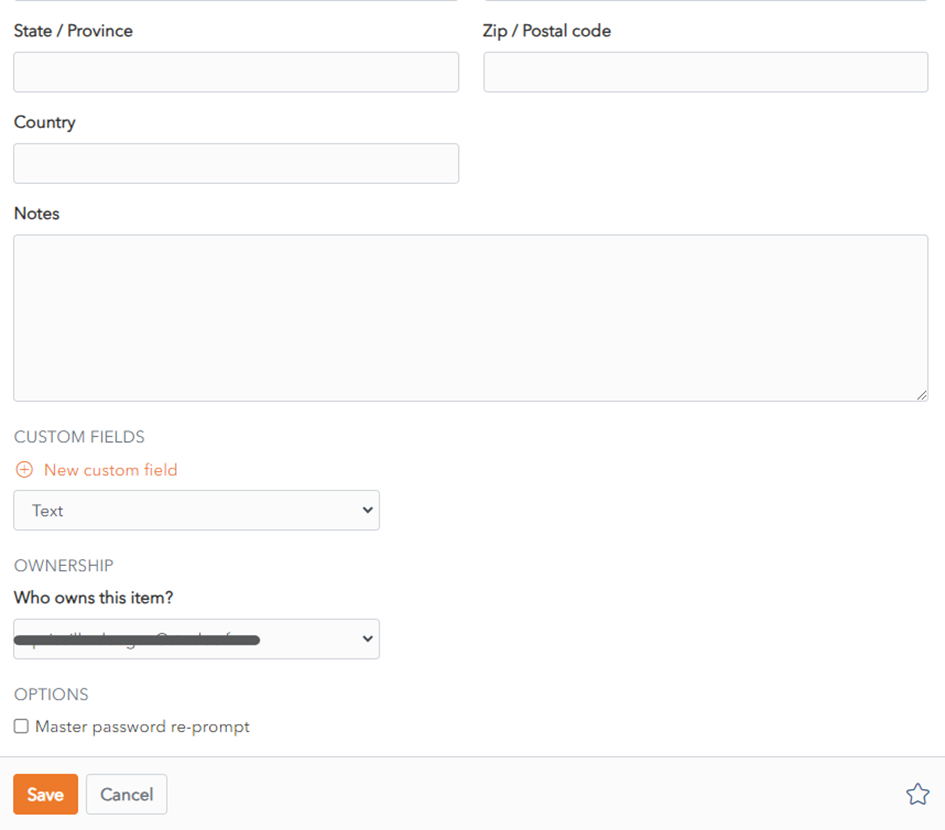 The following fields are available. Only the **name** field is **mandatory**. - **Type:** Identity, for Identity Item. - **Name:** Choose a name that easily identifies the item. - **Folder:** This dropdown allows you to choose the folder you want to add the login to. - **Title:** Use dropdown to choose from common titles. - **First name:** You can add a first name. - **Middle name:** You can add a middle name. - **Last name:** You can add a last name. - **Username:** You can add a username. - **Company:** You can add a company - **Social Security Number:** You can add a social security number. - **Passport number:** You can add a passport number. - **License number:** You can add a driver’s license number. - **Email:** You can add an email. - **Phone:** You can add a telephone number. - **Address 1:** You can add the first line of the address. - **Address 2:** You can add the second line of the address. - **Address 3:** You can add the third line of the address. - **City / Town:** You can add the city or town. - **State/Province:** You can add the state or province - **Zip/Postal Code:** You can add the zip code or postal code. - **Country:** You can add the country. - **Notes:** You can add notes about this identity. - **Custom Fields:** You can add one or more custom fields. Learn more about [Custom Fields](https://vault-doc.wallix.com/link/15). - **Master Password re-prompt:** Check this box to be prompted to enter your Master Password to access this login. - **Ownership:** Choose which Vault owns this item from the dropdown menu. By default it is owned by your Vault unless you choose otherwise. 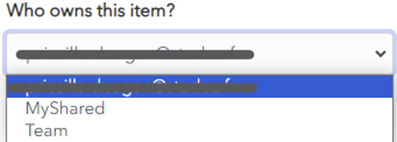 Click the  Favourites button to **add** this item **to** your **favourites**. # Login Items You can use a **Login Item** to store information about an account that requires a login, for example an email account, a CRM account or a social media account. 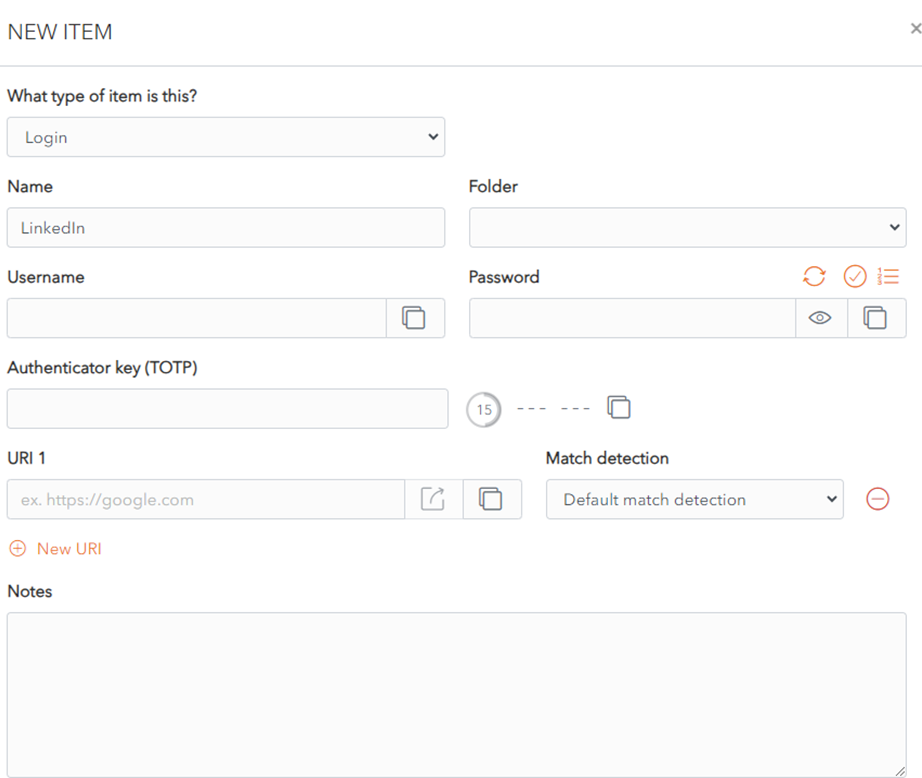 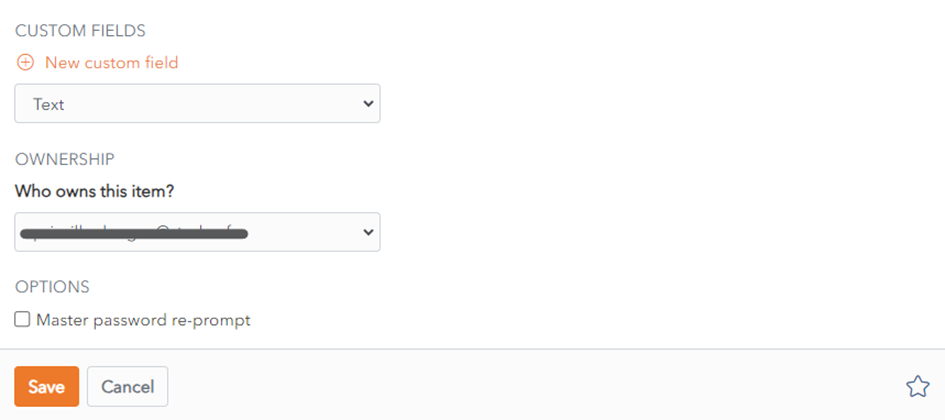 The following fields are available. Only the name field is mandatory. - **Type**: Login, for Login Item. - **Name**: Choose a name that easily identifies the item. - **Folder**: This dropdown allows you to choose the folder you want to add the login to. - **Username**: Your account username. - **Password**: Your account password. You have different password options to improve the security of your passwords. - **[](https://vault-doc.wallix.com/uploads/images/gallery/2023-11/password-generator-button.png) [Password Generator](https://vault-doc.wallix.com/link/17#bkmrk-generate-strong-pass)** button generates a strong password for your login. - **[](https://vault-doc.wallix.com/uploads/images/gallery/2023-11/check-password-integrity.png) [Check Password Integrity](https://vault-doc.wallix.com/link/17#bkmrk-check-password-integ)** - [](https://vault-doc.wallix.com/uploads/images/gallery/2023-11/character-count.png)[**Show/Hide Password Character Count**](https://vault-doc.wallix.com/link/17#bkmrk-show-%2F-hide-characte) - **[](https://vault-doc.wallix.com/uploads/images/gallery/2023-11/PAEcopy.png)[Copy Password to clipboard](https://vault-doc.wallix.com/link/17#bkmrk-copy-password)** - **[](https://vault-doc.wallix.com/uploads/images/gallery/2023-11/b64add-item-3-custom-fields-3-display-hide-toggle.png)[Show/Hide Password](https://vault-doc.wallix.com/link/17#bkmrk-show-%2F-hide-password)** - **Authenticator key (TOTP)**: Your authenticator key use to generate a Time-based One-Time Password (if in place for this account). - **URI 1**: Uniform Resource Identifier (URI) or Website address for this account. - You can add extra URIs using the  button. - You can click on the button to open the URI in a new browser window to easily confirm the correct URI. - You can also choose from different options in the Match Detection dropdown to match the URI to an existing URI. The **device** WALLX Authenticator is installed must used the **same time and timezone** as that of the **server** that hosts the web page being accessed. Otherwise the code will not work. It is **recommended** to set the device's time and timezone to **automatic**.
# Item Context Menu From the **Item List** click the  **More Button** of a **Shared Vault Item.** The Shared Vault Item **Context Menu** is displayed. [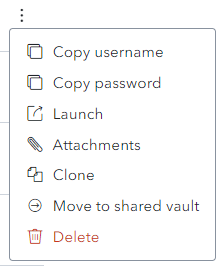](https://vault-doc.wallix.com/uploads/images/gallery/2023-12/capture-decran-2023-12-13-175742.png) A **number of options** are available (depending on the Item Type): - **Copy username:** Copies the Username to the clipboard (for Login Items) - **Copy password:** Copies the Password to the clipboard (for Login Items) - **Launch :** Launches the URI associated with the Item (for Login Items) - **[Attachments](https://vault-doc.wallix.com/link/75):** Displays the Attachment Screen - [**Clone**](https://vault-doc.wallix.com/link/130): Clones the Item - [**Move to Shared Vault**](https://vault-doc.wallix.com/link/126): Moves the Item to a Shared Vault - **[Collections](https://vault-doc.wallix.com/link/65):** Displays the Collections Screen - **[Delete](https://vault-doc.wallix.com/link/42):** Deletes the Item (after Confirmation) # Move Item to Shared Vault From the **Item List** click the  **More Button** of an **Item.** The Shared Vault Item **Context Menu** is displayed. [](https://vault-doc.wallix.com/uploads/images/gallery/2023-12/capture-decran-2023-12-13-175742.png) Click **Move to Shared Vault**. The following screen is displayed. [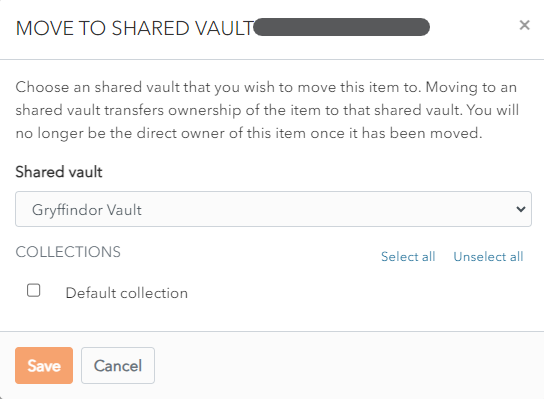](https://vault-doc.wallix.com/uploads/images/gallery/2023-12/capture-decran-2023-12-13-180529.png) From the **Shared Vault** dropdown, choose the Shared Vault to move the Item to. In the Collection section, the **list of Collections** in the Shared Vault is displayed. **Check** the checkbox beside the **Collections** to **add the Item to**. Click **Save** to move the Item to the chosen Shared Vaults and Collections. Click **Cancel** to cancel the operation. # Clone Item From the **Item List** click the  **More Button** of an **Item.** The Item **Context Menu** is displayed. [](https://vault-doc.wallix.com/uploads/images/gallery/2023-12/capture-decran-2023-12-13-175742.png) Click **Clone.** The following screen is displayed. [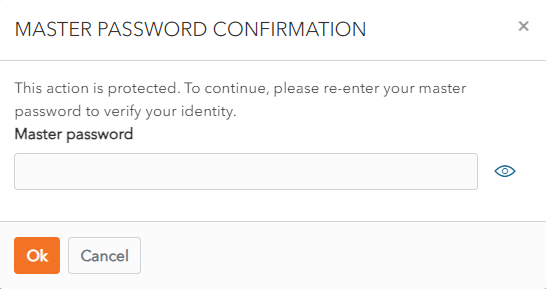](https://vault-doc.wallix.com/uploads/images/gallery/2023-12/clone-item.png) Enter **Master Password** and click **Ok**. A **Clone** is **created**. [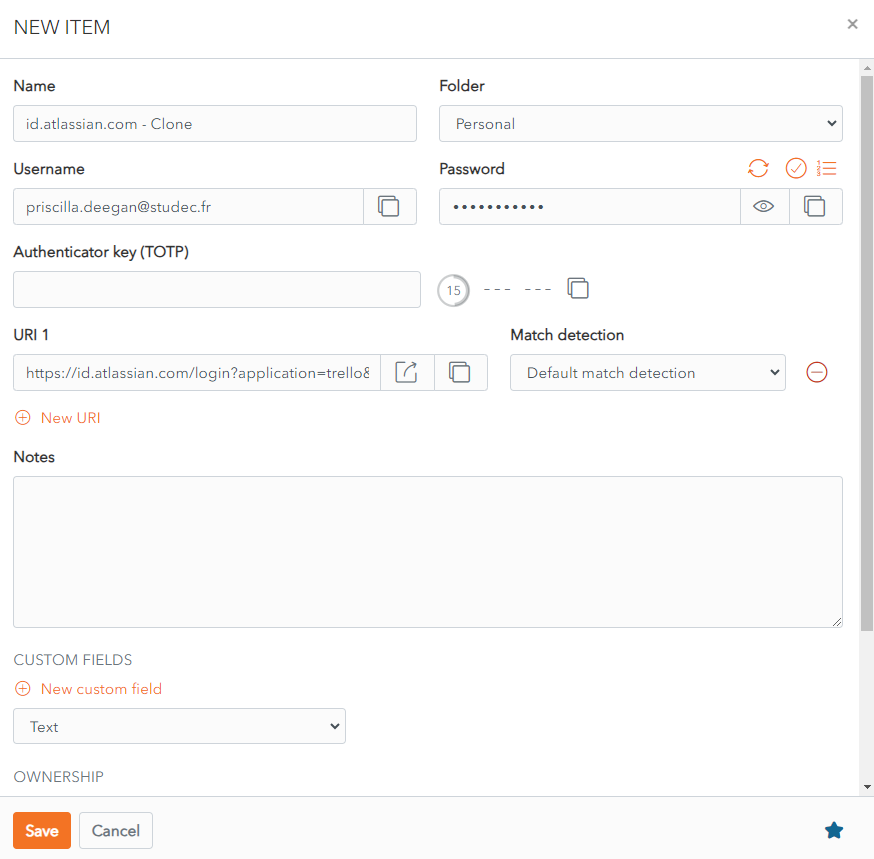](https://vault-doc.wallix.com/uploads/images/gallery/2023-12/new-clone.png) The **Clone** contains the **same information** as the original item **except** that the Name field is **suffixed** with **- Clone**. Click **Save** to Save the Cloned Item Alternatively, click **Cancel** to cancel the operation. # Favorites An Item can be marked as a favorite to make it **easier to locate**. All favorites are **grouped together**. This works for Individual **Vaults** and **Shared Vaults**.Marking an Item in a **Shared Vault** as a favourite puts it in **your favourites only**. It will **not** be marked as a **favourite** for **other users** of the Shared Vault.
### Add to Favorites From the **Create Item** or **Edit Item** Screen, an click on the  **Favorites button.** [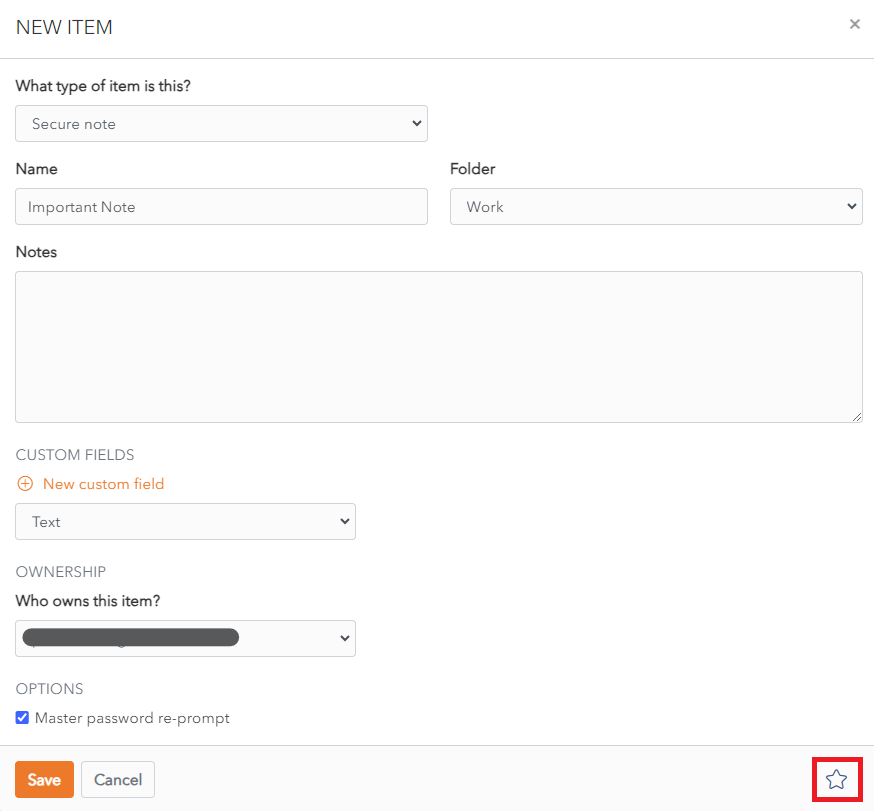](https://vault-doc.wallix.com/uploads/images/gallery/2023-12/en-edit-item-master-password-prompt.png) The **Favorites button** turns **blue** . Click **Save** to save the change. The Item is **displayed** in **Favorites**. Alternatively, click **Cancel** to cancel the operation. ### Display Favorites From the **Item List**, click the **Favorites link** in the **Filter Menu**. [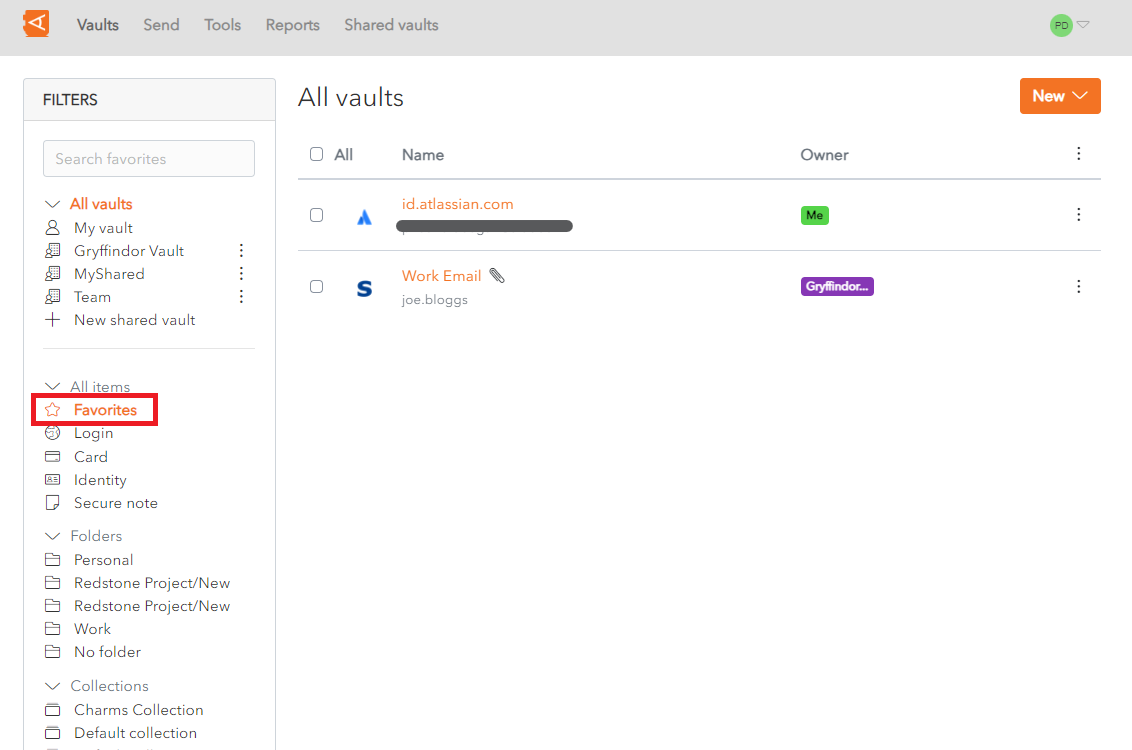](https://vault-doc.wallix.com/uploads/images/gallery/2023-12/favourites-list.png) All Items marked as **Favorites** are **displayed**. ### Remove from Favorites To remove an Item from favorites, click on an Item in the Item List open it. The Item Screen displays. The favorites button is blue . [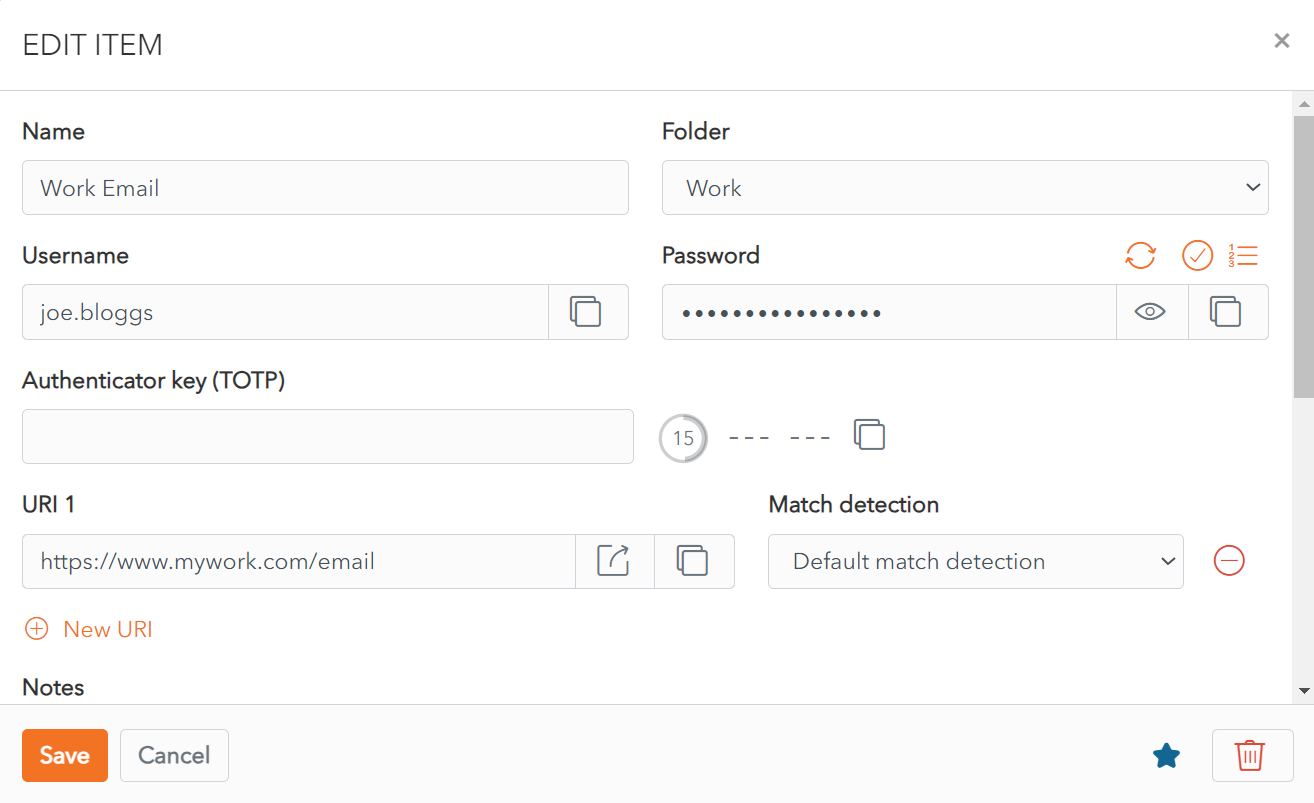](https://vault-doc.wallix.com/uploads/images/gallery/2023-12/remove-from-favorites.png) Click the favorites button. The **favorites** button **turns white** . Click **Save** to save the change. The Item is now **removed** from **favorites**. Alternatively, click **Cancel** to cancel the operation. # Passkeys Passkeys are a secure alternative to traditional passwords that let you log in to apps and websites without entering a password. Built on the standards set by the [FIDO Alliance](https://fidoalliance.org/overview/), passkeys avoid the vulnerabilities of standard passwords, such as phishing. Save passkeys in your WALLIX Enterprise Vault and use the browser extension or mobile apps to autofill them across the apps and websites you use every day. Stored passkeys are protected by the same end-to-end encryption as the rest of your vault. ## Page Navigation - [What are passkeys?](#bkmrk-what-are-passkeys) - [Save and autofill passkeys](#bkmrk-save-and-autofill-passkeys) - [Browser extension](#bkmrk-browser-extension) - [iOS](#bkmrk-ios) - [Android](#bkmrk-android) - [View passkeys in your vault](#bkmrk-view-passkeys) - [Delete a passkey](#bkmrk-delete-a-passkey) - [Export and import passkeys](#bkmrk-export-and-import-passkeys) ## What are passkeys? Passkeys are a replacement for passwords that provide fast, easy, and secure sign-ins to websites and apps. A passkey is a discoverable FIDO credential that can either be synced to allow passwordless sign-in across your devices, or dedicated to a single piece of hardware as a device-bound passkey. Some apps and services may ask that a passkey be verified with a PIN, password, pattern, or biometric factor when you save or use it. Passkeys are stored and used through the WALLIX Enterprise Vault browser extension and mobile apps. Both discoverable passkeys and non-discoverable FIDO2 credentials can be stored and used to sign in to websites that support passkeys. **Note:** the browser extension will not offer to save or use a passkey for any domain on your [excluded domains](https://vault-doc.wallix.com/books/entreprise-vault-user/page/browser-plugin) list. ## Save and autofill passkeys ### Browser extension #### Allow passkeys in the extension 1. Open the WALLIX Enterprise Vault browser extension. 2. Go to **Settings** → **Notifications**. 3. Make sure **Ask to save and use passkeys** is checked. If there are sites you don't want to use WALLIX Enterprise Vault for passkeys with, add them to your [excluded domains](https://vault-doc.wallix.com/books/entreprise-vault-user/page/browser-plugin). #### Create a passkey When you create a new passkey on a website or app, the browser extension will prompt you to store it.  **Note:** select **Use your device or hardware key** if you don't want to store the passkey in WALLIX Enterprise Vault. Only one passkey can be saved per login item. If a passkey already exists for a service, you can either overwrite it or select the **Add** icon to create a new login item and store an additional passkey. [](https://vault-doc.wallix.com/uploads/images/gallery/2026-09/image-1789117632849.png) #### Sign in with a stored passkey 1. Make sure **Ask to save and use passkeys** is turned on (**Settings** → **Notifications**). 2. Start the passkey sign-in on the website. 3. In the window that appears, select your saved passkey.  You can also authenticate with a passkey directly from the inline autofill menu. **Note:** if you previously chose **Use your device or hardware key** for a site, WALLIX Enterprise Vault won't offer to save or fill a passkey for it. To change this, remove the site from your blocked domains — the extension will then ask to save the passkey again next time you sign in. ## View passkeys in your vault Saved passkeys can be viewed from any WALLIX Enterprise Vault client (web app, browser extension, mobile apps, desktop app). Open the login item — the **Passkey** field shows the date and time the passkey was created. **Note:** if [master password re-prompt](https://vault-doc.wallix.com/books/entreprise-vault-user/page/personal-vault) is enabled on the item, you'll be asked to re-enter your master password to access the passkey. ## Delete a passkey To remove a passkey from a vault item: 1. Open the item's **Edit** screen from the web app, browser extension, or desktop app. 2. Select the **Delete** icon next to the **Passkey** field. 3. Confirm by selecting **Delete**. 4. Select **Save**. ## Export and import passkeys Passkeys are included in JSON exports of your vault and can be re-imported into a WALLIX Enterprise Vault account the same way as any other export. # Validate Master Password Reset Request A **Vault Administrator** is required to **validate all Master Password Reset Requests**. At each creation of a Master Password Reset Request by a user, Vault Administrators are notified by email. This **procedure** details the **steps** to be followed **by a Vault Administrator** to Validate a Master Password Reset Request. Click **Tools** and then **Recovery**. The **Master Password Confirmation prompt** is displayed. [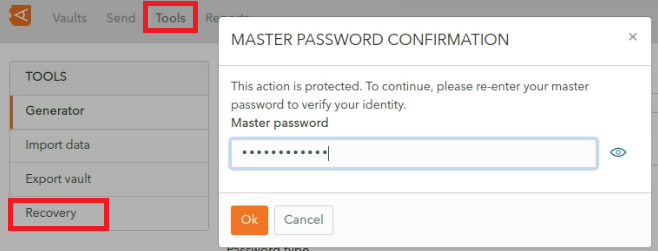](https://vault-doc.wallix.com/uploads/images/gallery/2023-12/2Ngstep-4-tools-recovery-copie.png) Enter your **Master Password** and click **Ok.** The Recovery Screen is displayed. Alternatively, click **Cancel** to cancel the operation. Click the **Rescue users who have created a reset master password request** link. [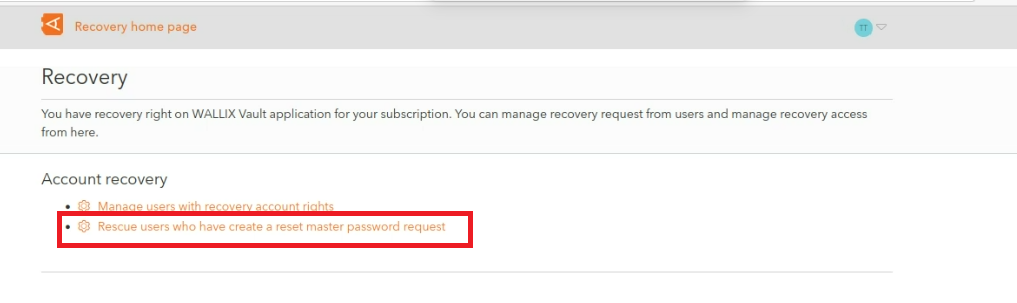](https://vault-doc.wallix.com/uploads/images/gallery/2023-12/step-6-copie.png) The **Account Recovery Screen** is displayed. [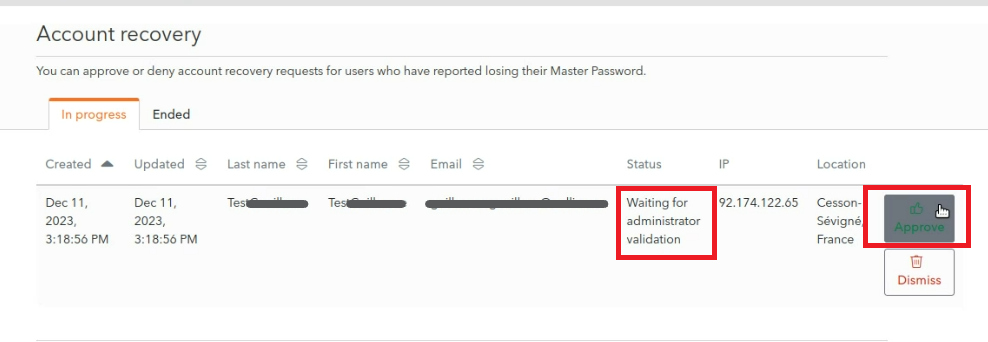](https://vault-doc.wallix.com/uploads/images/gallery/2023-12/step-8-copie.png) In the In progress tab, **Master Password Reset Requests** that are currently **in progress** are displayed. Requests that have **not yet been treated** have **Waiting for administrator validation status**. Click the **Approve** button to **validate** the Master Password Request. This should only be done where it is clear that this is a request from a valid user. Alternatively, click the **Dismiss** button to **deny** the Master Password Request. For validated requests, the following screen is displayed. A **Reset confirmation message** is displayed. [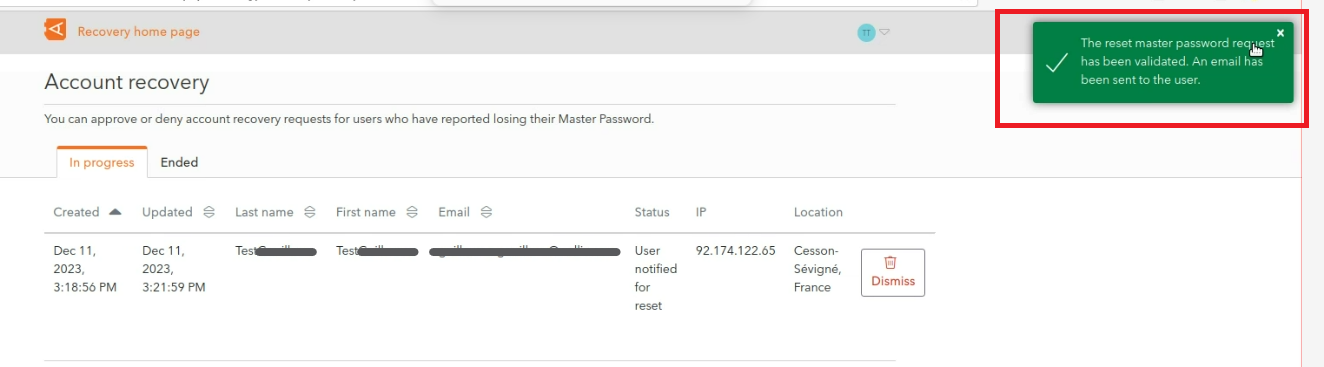](https://vault-doc.wallix.com/uploads/images/gallery/2023-12/step-9-copie.png) An **email** is **sent** to the **user** with a **reset link** which allows them to reset their master password. # Manage attachments Attach files to your items. # Attachments Overview WALLIX Enterprise Vault provides the facility to [**Attach Files**](https://vault-doc.wallix.com/link/72) to your Items. These attachments can also be **[Deleted](https://vault-doc.wallix.com/link/73)** or **[Downloaded](https://vault-doc.wallix.com/link/74)** onto your computer. Attachments on [**Password Protected Items**](https://vault-doc.wallix.com/link/76) are subject to a Master Password Re-prompt to open the Item. # Add Attachments From the **Item List**, click on the [ ](https://vault-doc.wallix.com/uploads/images/gallery/2023-11/Kq1more-button.png)**More button** beside an Item. A **context menu** appears. Click the **Attachments link**. [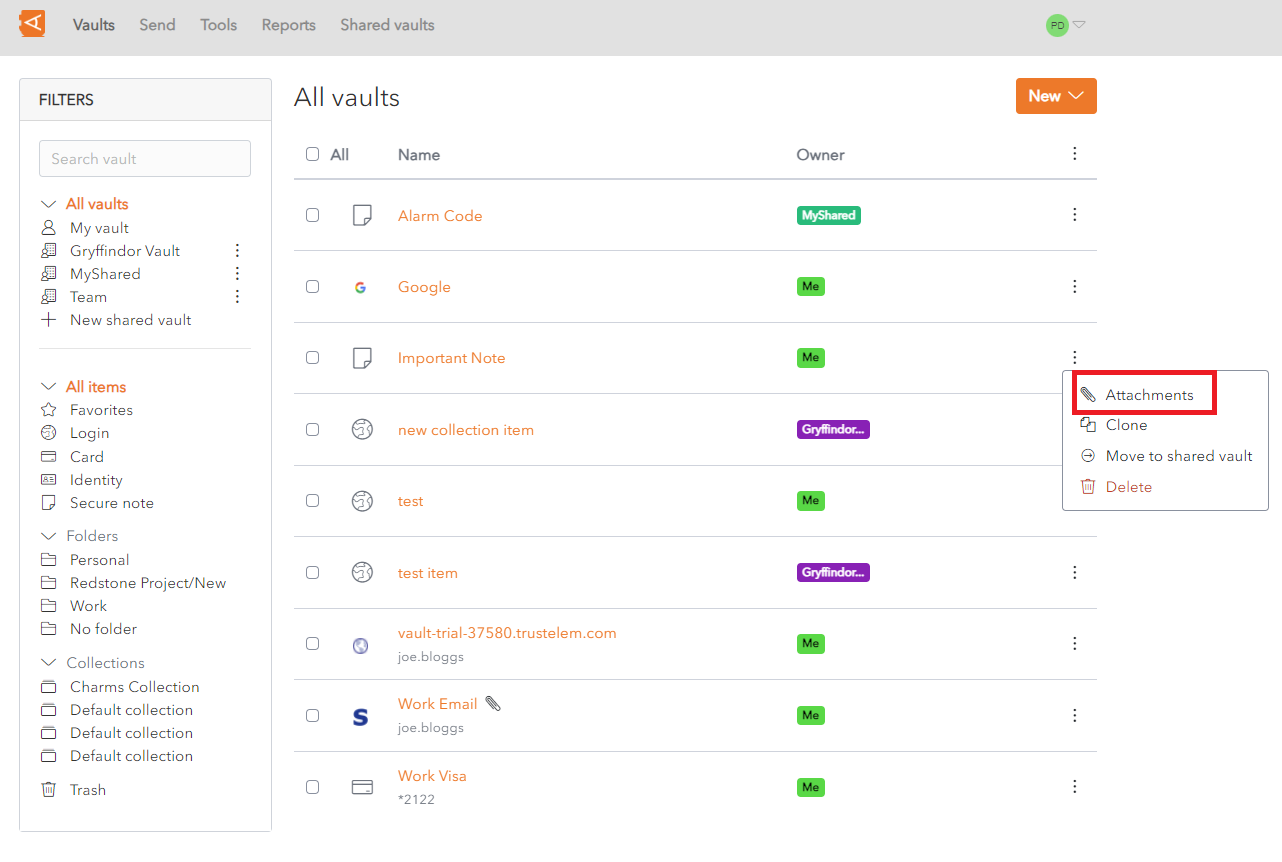](https://vault-doc.wallix.com/uploads/images/gallery/2023-11/attachment-context-menu.png)See [**Password Protected Items**](https://vault-doc.wallix.com/link/76) procedure for Items that require a Master Password to access them.
The **Attachments Screen** displays. **Choose** a **file** to **attach** and click **Save**.The maximum file size of an attachment is 100 MB. This is restricted to 50 MB if uploading from a mobile device.
[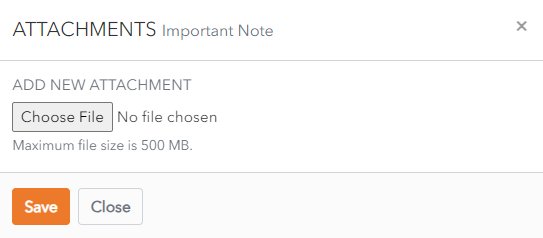](https://vault-doc.wallix.com/uploads/images/gallery/2023-11/choose-attachment.png) The attachment is created. **Multiple attachments** can be created in this way. Once finished creating attachments, click **Close** to close the Attachments Screen. [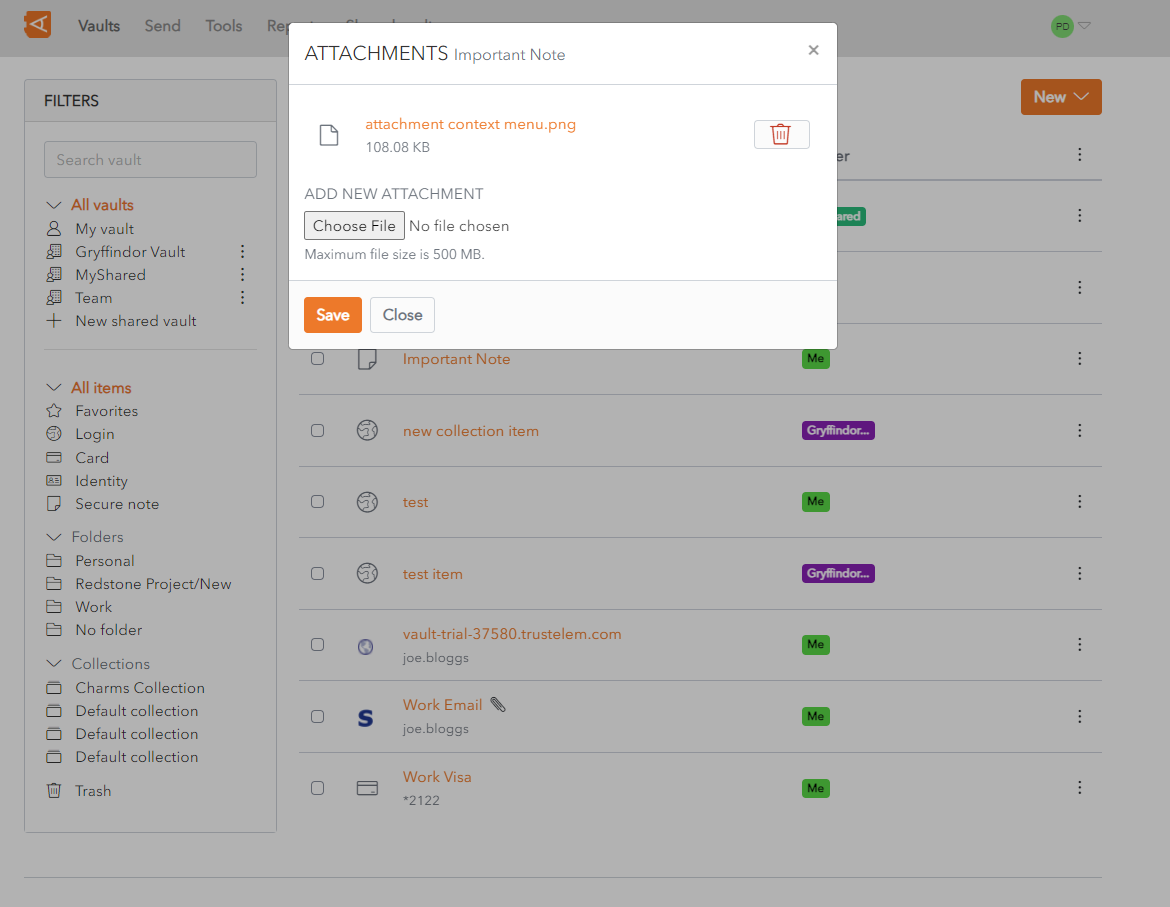](https://vault-doc.wallix.com/uploads/images/gallery/2023-11/attached.png) A [](https://vault-doc.wallix.com/uploads/images/gallery/2023-11/paperclip.png)**Paperclip icon** beside the **Item** in the Item List **indicates** that the Item contains one or more **Attachments**. # Delete Attachments From the **Item List**, click on the [ ](https://vault-doc.wallix.com/uploads/images/gallery/2023-11/Kq1more-button.png)**More button** beside an Item. A **context menu** appears. Click the **Attachments link**. [](https://vault-doc.wallix.com/uploads/images/gallery/2023-11/attachment-context-menu.png)See **[Password Protected Items](https://vault-doc.wallix.com/link/76)** procedure for Items that require a Master Password to access them.
The **Attachments Screen** displays. Click the  **Delete button** beside an Attachment. [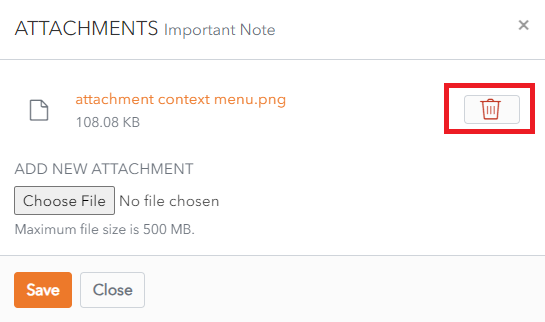](https://vault-doc.wallix.com/uploads/images/gallery/2023-11/delete-attachment.png) The **Delete Attachment Confirmation Screen** displays. [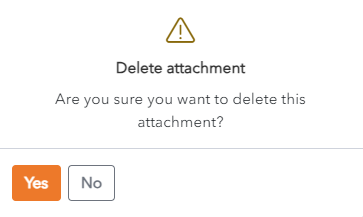](https://vault-doc.wallix.com/uploads/images/gallery/2023-11/delete-attachment-confirmation.png) Click **Yes** to delete the attachment. The Attachments Screen displays. Click **No** to cancel the operation. # Download Attachments From the **Item List**, click on the [ ](https://vault-doc.wallix.com/uploads/images/gallery/2023-11/Kq1more-button.png)**More button** beside an Item. A **context menu** appears. Click the **Attachments link**. [](https://vault-doc.wallix.com/uploads/images/gallery/2023-11/attachment-context-menu.png)See [**Password Protected Items**](https://vault-doc.wallix.com/link/76) procedure for Items that require a Master Password to access them.
The **Attachments Screen** displays. Click on an **Attachment** to download it. [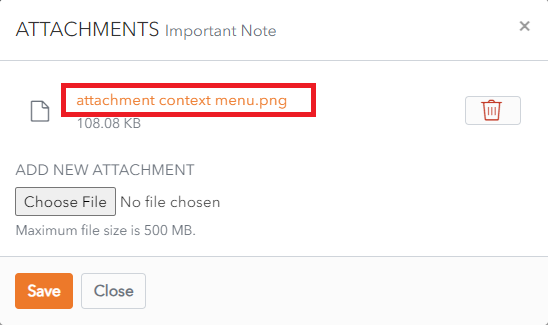](https://vault-doc.wallix.com/uploads/images/gallery/2023-11/download-attachment.png) The attachment is saved in the **Downloads** **folder** on your computer. ***Note**: If the attachment is in a file format that can be readily displayed in the browser, it is opened directly in the browser.* # Grant Trustelem Account Recovery Permissions As an Vault Administrator, follow this procedure to **Grant Password Recovery Permissions** in the **Trustelem** application to an User. **Users** with this **permission** can **unblock users** who have **forgotten** their **passwords**. ### Grant Recovery Permissions Connect to **Trustelem**. Select the **User** **Menu** on the top right-hand side of the screen. The **User List** is displayed. **Select** the **User** to give Password Recovery permissions to and click the **Modify** button. The **User Update screen** is displayed. [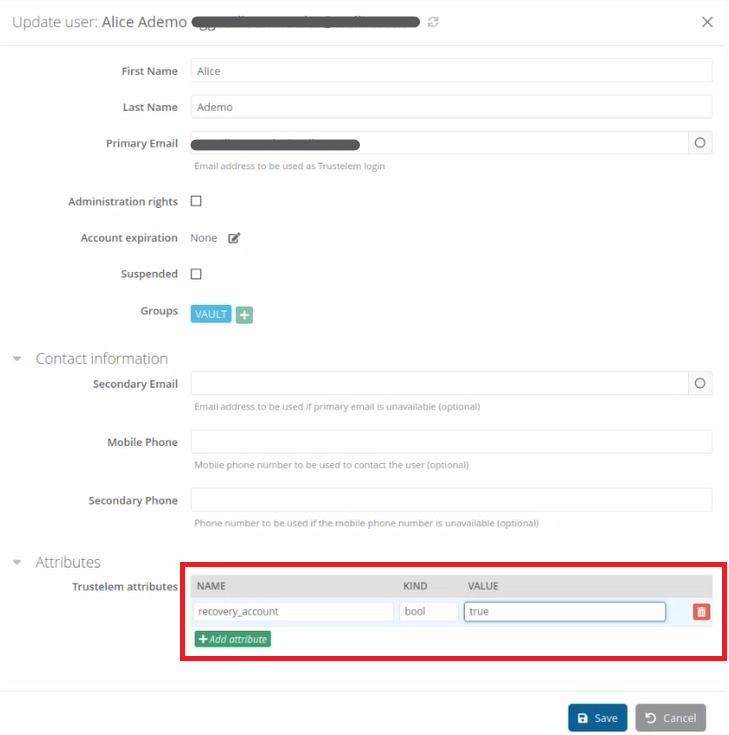](https://vault-doc.wallix.com/uploads/images/gallery/2023-12/1HNaccount-recovery-permissions-1.png) In the Attributes section, click the **Add an Attribute** button. A blank line is added to the **Trustelem Attributes** table. Complete the fields as follows: - NAME : **recovery\_account** - TYPE : **bool** - VALEUR : **true** Click the **Save** button to save the new attribute to the User. The Trustelem attribute **recovery\_account** displays in the **Attribute List**. This **User** can now **[unblock users who have forgotten their passwords](https://vault-doc.wallix.com/link/108)**. # Manage folders Create folders to organize your personal items. # Folders Overview Folders can be created and used to **organize personal items** in your **Personal Vault** to make them **easier to find**. **Folders** and **Items** in your **Personal Vault** are **private to you** and are **never accessible** to **another user.** Because they are in a Peronal Vault they **cannot be shared**. Only Items in a Shared Vault can be shared with other users. Items can be **searched** for in Folders using the Filters menu. The following functions are available for Folders: - **[Create Folder](https://vault-doc.wallix.com/link/22)** - **[Edit Folder](https://vault-doc.wallix.com/link/37)** - **[Delete Folder](https://vault-doc.wallix.com/link/38)** - **[Create Nested Folder](https://vault-doc.wallix.com/link/39)** - **[Move Item to Folder](https://vault-doc.wallix.com/link/40)** - **[Search for Item in Folder](https://vault-doc.wallix.com/link/21)** # Create Folder Click on the **+** button beside Folders in the Filters Menu. 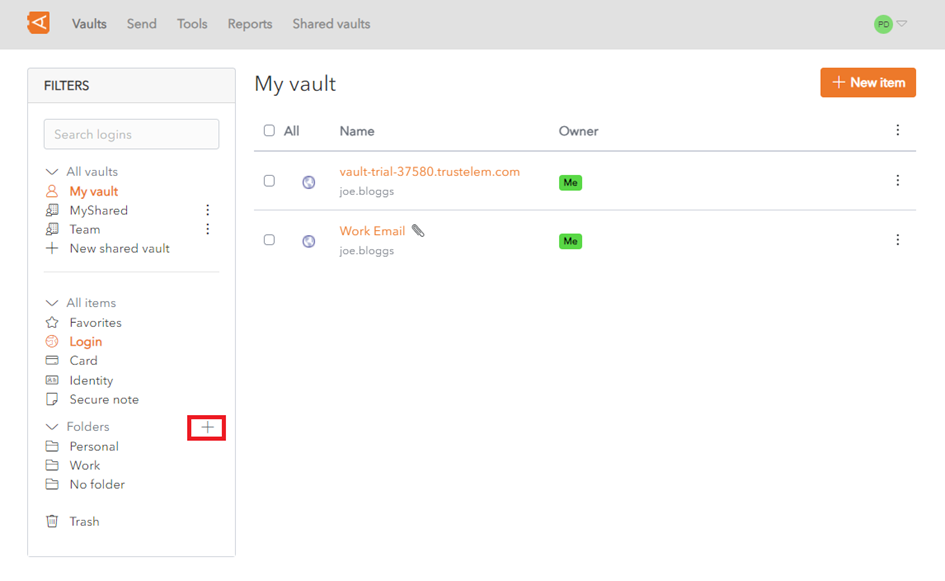 The **Add Folder** pop up window is displayed. Enter a **folder name** and click the **Save** button. 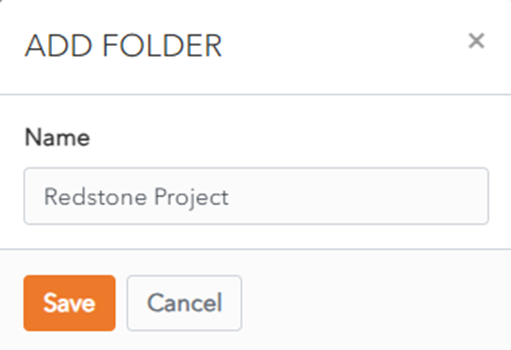 The **New Folder** is displayed in your **Folder List**. 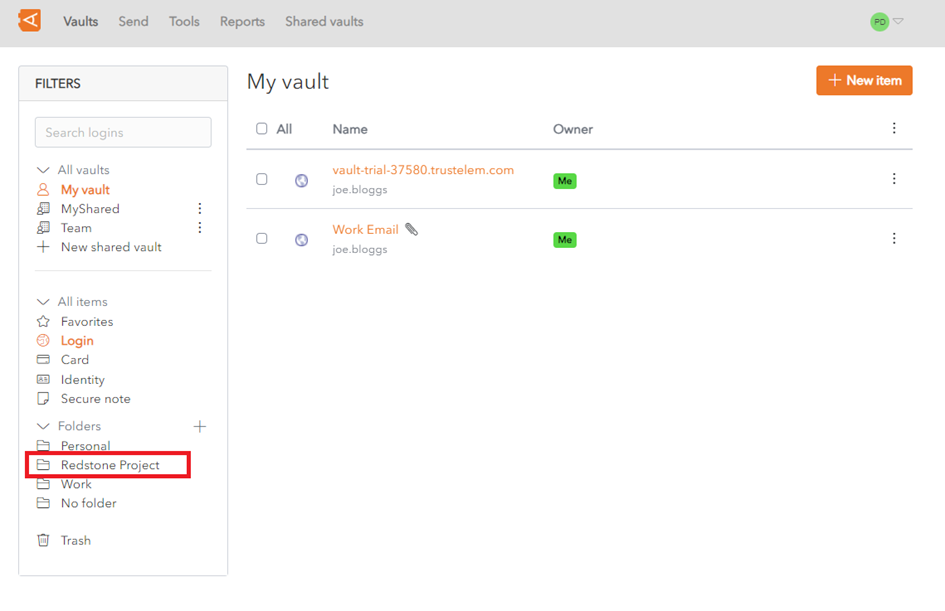 # Edit Folder **Click on** a **folder** in your Vault List. [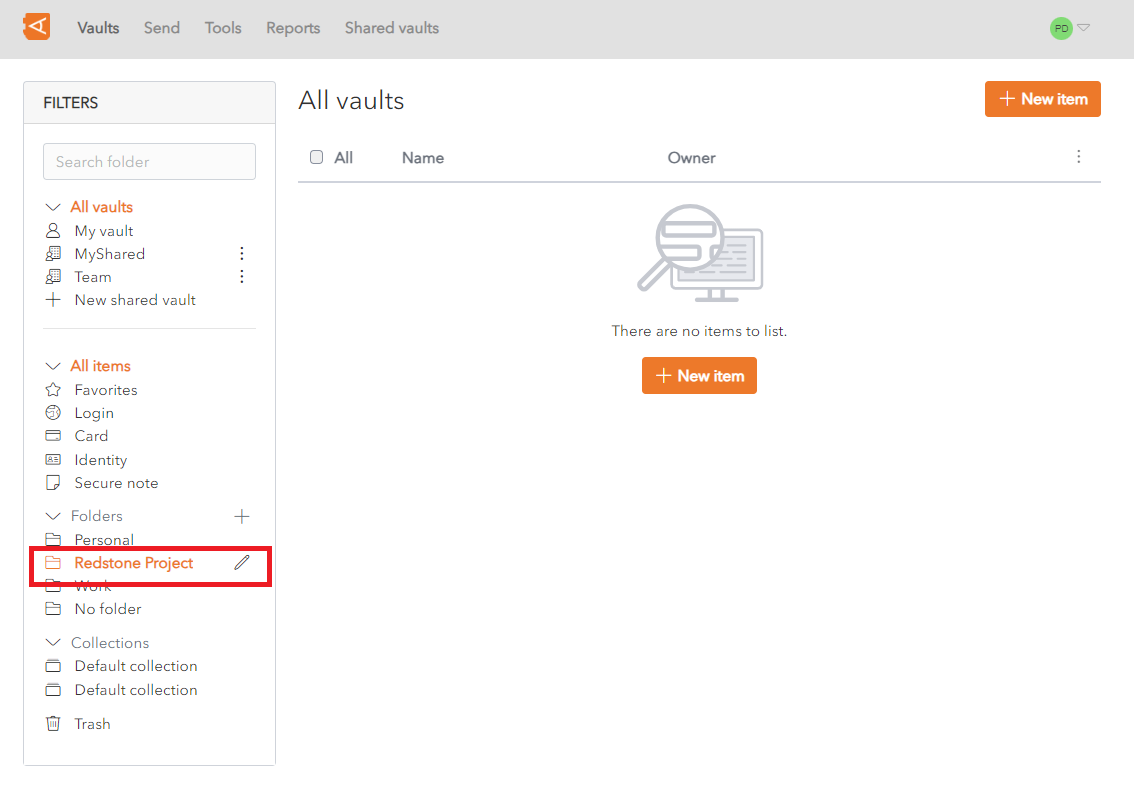](https://vault-doc.wallix.com/uploads/images/gallery/2023-12/edit-folder.png) The  **Edit** button is displayed beside the folder. Click on the **Edit** button to open the Folder in the **Edit Screen**. [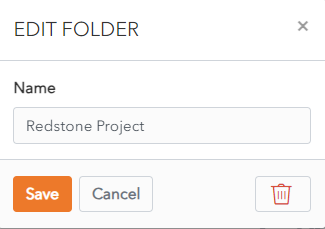](https://vault-doc.wallix.com/uploads/images/gallery/2023-12/vBoedit-folder-screen.png) Change the folder name and then click the **Save** button to save your changes. Alternatively, click the **Cancel** button to cancel the operation. # Delete Folder From the **[Edit Folder Screen](https://vault-doc.wallix.com/link/37)**, click the **Delete** button to Delete the Folder. A **Delete Folder Confirmation** Popup is displayed. [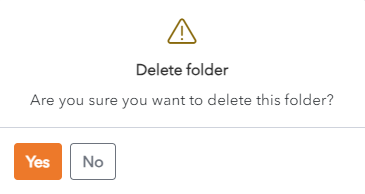](https://vault-doc.wallix.com/uploads/images/gallery/2023-12/delete-folder-popup.png) Click the **Yes** button to delete the folder. Click the **No** button to cancel the operation. # Create Nested Folder Folders can be created or nested inside other folders. Click on the **New Folder** button to create a new Nested Folder. [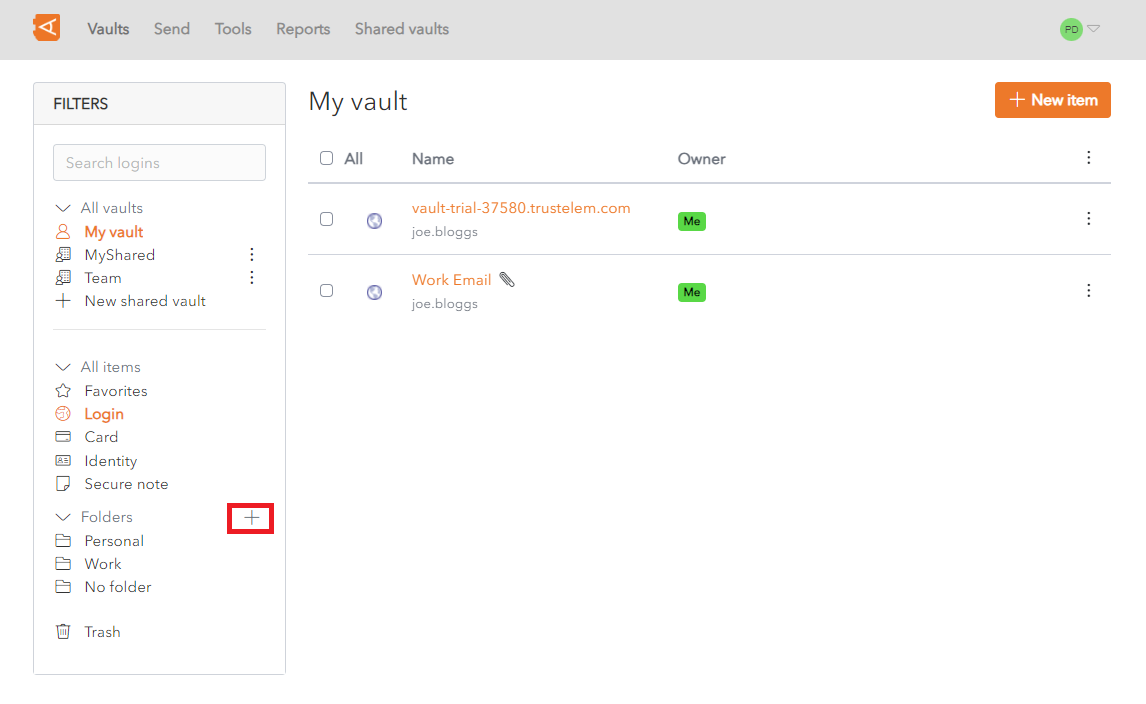](https://vault-doc.wallix.com/uploads/images/gallery/2023-12/en-add-folder-1.png) Use the **« / » forward slash** delimiter to define the folder structure of your nested folder. For example, create a new folder called **Redstone Project/New.** [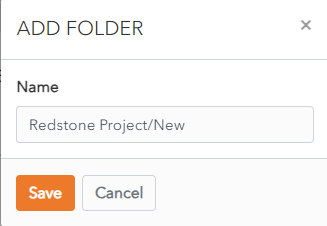](https://vault-doc.wallix.com/uploads/images/gallery/2023-12/create-nested-folder-screen.png) If the folder called **Redstone Project** already exists, a nested folder called **New** is created inside the **Redstone Project** folder. [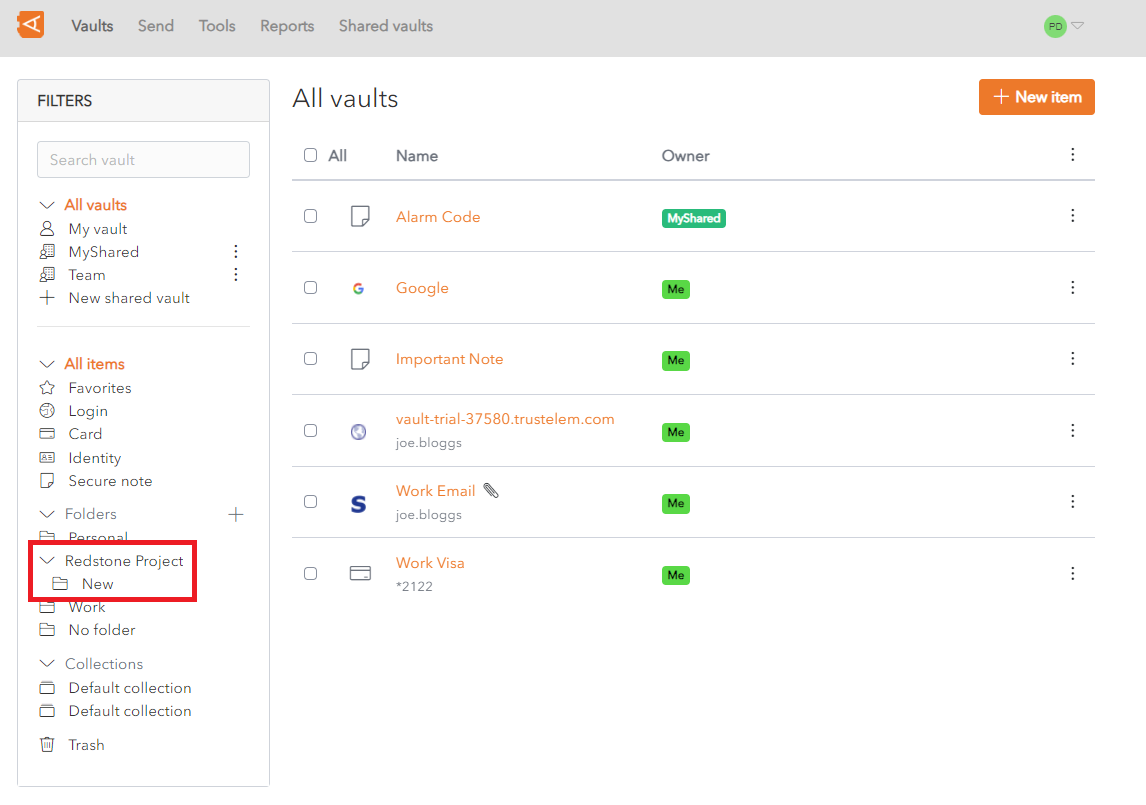](https://vault-doc.wallix.com/uploads/images/gallery/2023-12/nested-folder-screen.png) If a folder called **Redstone Project** does not already exist, a new folder will be created called **Redstone Project/New.** [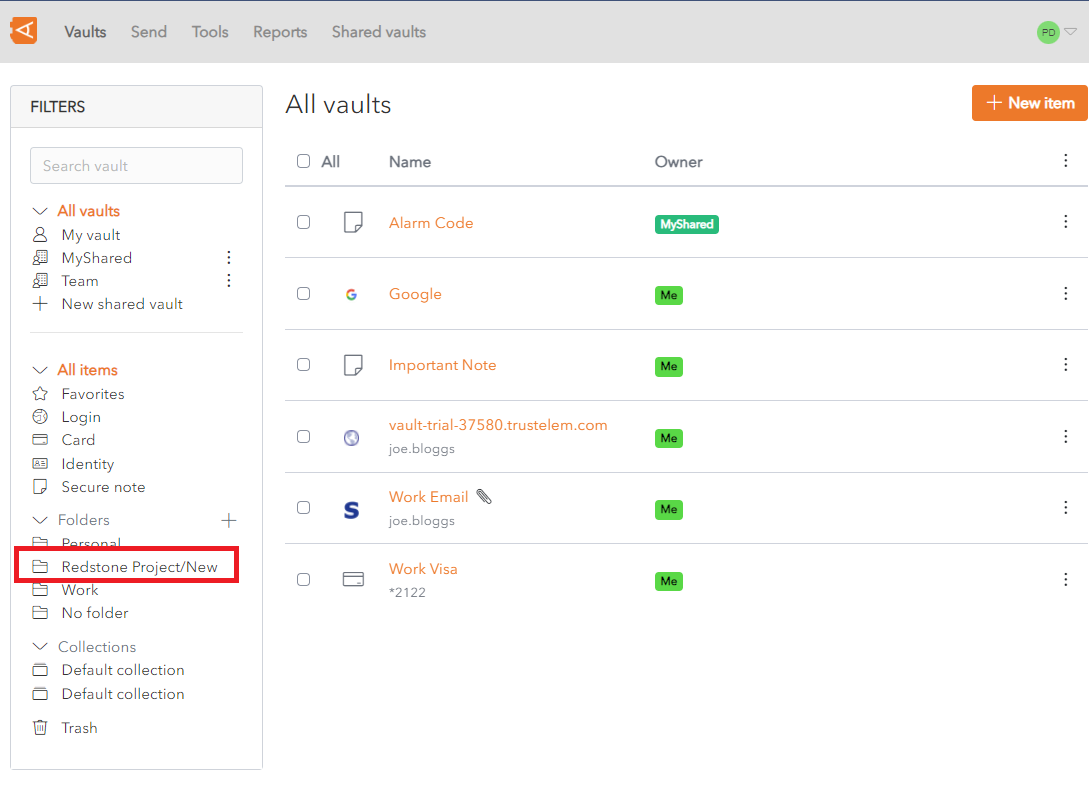](https://vault-doc.wallix.com/uploads/images/gallery/2023-12/nested-folder-screen-no-parent.png) To create a nested folder called **Trees** inside the **New** Folder, create a new folder called **Redstone Project/New/Trees.** [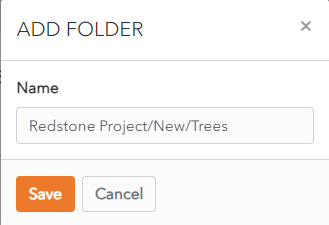](https://vault-doc.wallix.com/uploads/images/gallery/2023-12/sHbcreate-nested-folder-screen-2-levels.png) A nested folder called **Trees** is created inside the **New** folder. [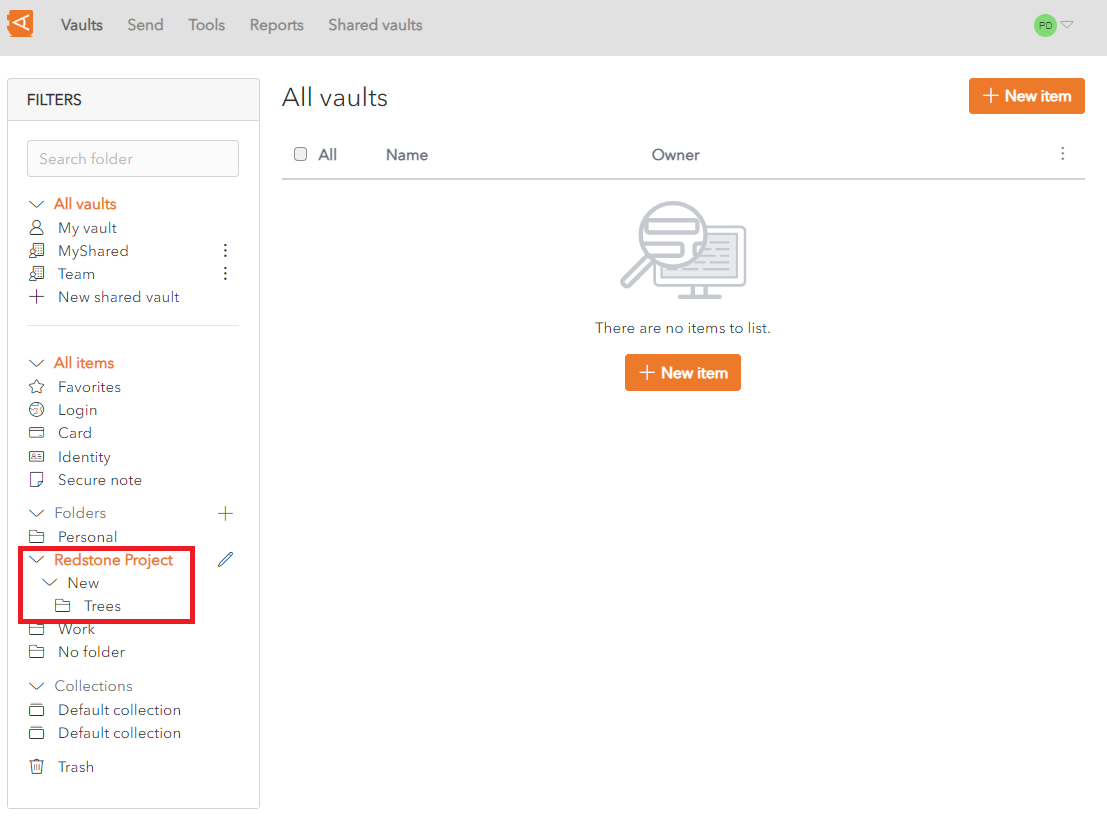](https://vault-doc.wallix.com/uploads/images/gallery/2023-12/nested-folder-screen-2-levels.png)If you **[Search](https://vault-doc.wallix.com/link/21)** inside the **Redstone Project** Folder, it will return items in the Redstone Project Folder but **not items inside** the **New** and **Trees nested** folders.
There is **no limit** to the **depth** of nested folders, but it can be impractical to create too many.
# Move Item to Folder From the **[Edit Item Screen](https://vault-doc.wallix.com/link/9)** Screen, **choose** a **Folder** from the dropdown menu. [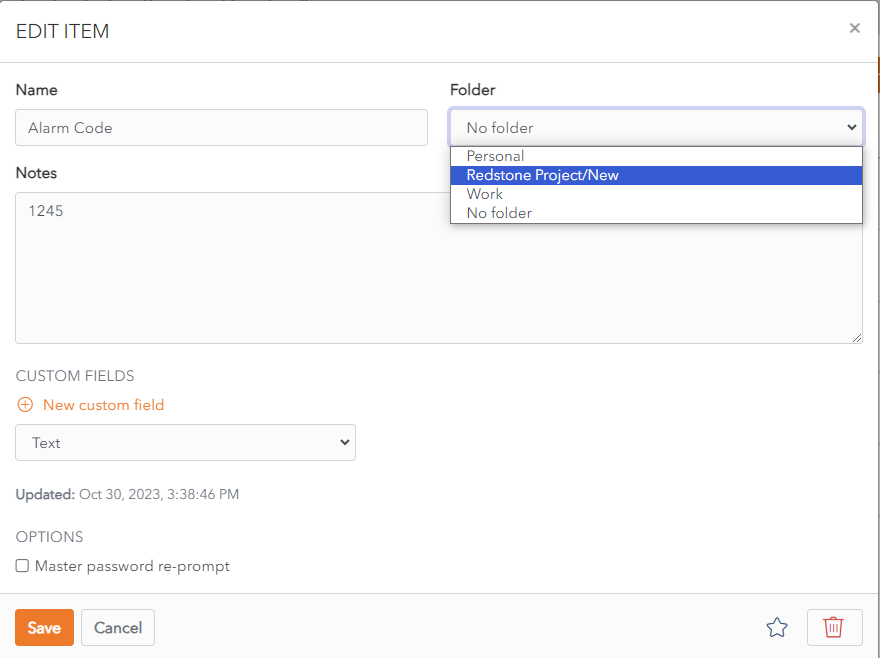](https://vault-doc.wallix.com/uploads/images/gallery/2023-12/move-item-to-a-folder.png) Click **Save** button to **Move the Item** to this Folder. You can **add an Item** from a **Shared Vault** into a **Folder**. This will be **organized** in this Folder in **your Vault**. It will **not provide access** to this item **to another user.** # Manage Data Recovery This is only available for users who have recovery options. These options have to be granted by a Trustelem Administrator. # Admin quick start Prerequisites: - in the Vault administration application: - recovery data policy activation - [set the *recovery\_data* attribute](https://vault-doc.wallix.com/books/former-documentation/page/grant-trustelem-data-recovery-permissions) to the users who want to recover user data - [share the cipher key](https://vault-doc.wallix.com/books/former-documentation/page/grant-trustelem-data-recovery-permissions) - set up the [approbators group(s)](https://vault-doc.wallix.com/books/former-documentation/page/approbators-group-management) As a authenticated user, the standard workflow to access to user data is: 1. Create a data recovery request (described [here](https://vault-doc.wallix.com/books/former-documentation/page/create-data-recovery-request)) 2. Notification is sent to the approbators, waiting for their vote 3. If the request is approved, an email is sent to the user who emit the request 4. The user has to re-log in and can now access to the user data (see an example below) [](https://vault-doc.wallix.com/uploads/images/gallery/2024-03/HLFimage.png) # Approbators group management All the data recovery requests enforce a validation process that consists to be approved by all approbators group. In each group, a quorum is defined so, when the quorum is reached, the request is considered validated by the group. Users authorized to manage approbator groups must have an additional attribute *recovery\_data\_workflow* to acces the administration page. For more information about how the authorizations are granted, see the [grant data recovery permissions page](https://vault-doc.wallix.com/books/former-documentation/page/grant-trustelem-data-recovery-permissions). A validation group is composed by one or several Trustelem Vault users. [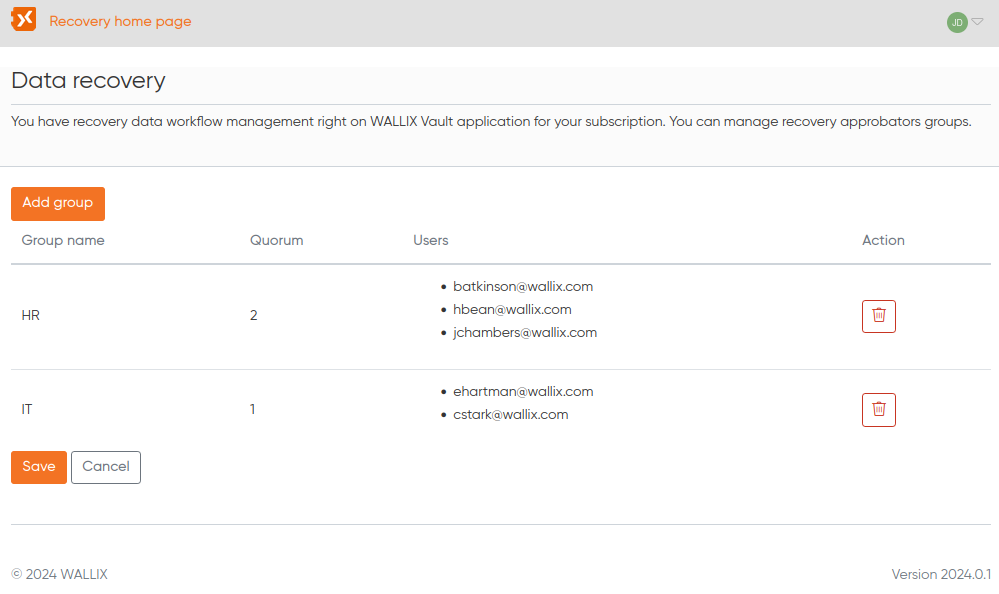](https://vault-doc.wallix.com/uploads/images/gallery/2024-03/image.png) You can edit each group by clicking on the desired property (name, quorum or users list), add a brand-new approbators group. or remove a whole group. Here is what you get when you want to modify the approbators of a specific group: [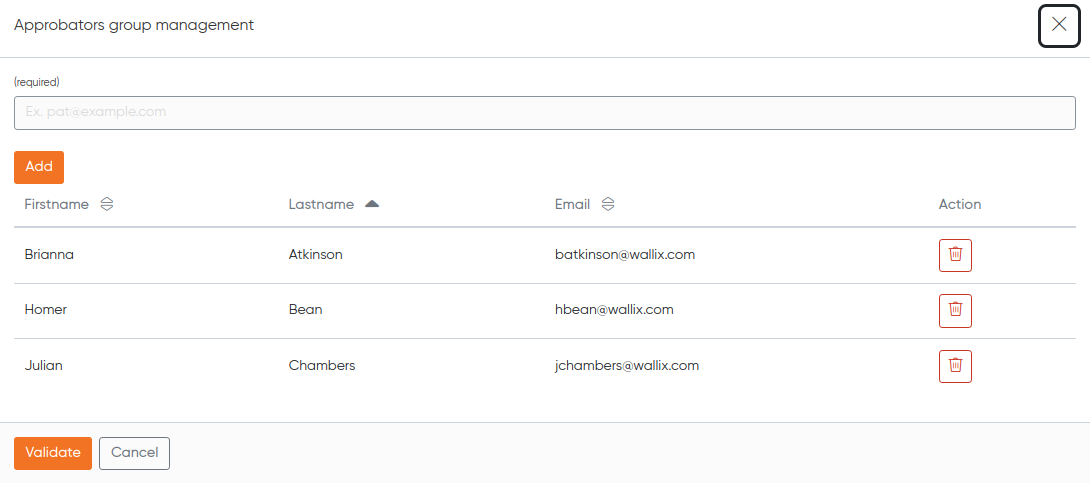](https://vault-doc.wallix.com/uploads/images/gallery/2024-03/0ibimage.png) Note: only a valid Vault user is allowed to be added to a group. When a data recovery request is submitted, an email is sent to each approbators. # Create Data Recovery Request This section is only authorized to Vault users with specific rights (i.e. the *recovery\_data* attribute and the cipher key shared). For more information about how the authorizations are granted, see the [grant data recovery permissions page](https://vault-doc.wallix.com/books/former-documentation/page/grant-trustelem-data-recovery-permissions). To perform a data recovery request, go to the "*Create a data recovery request*" section to perform the request: [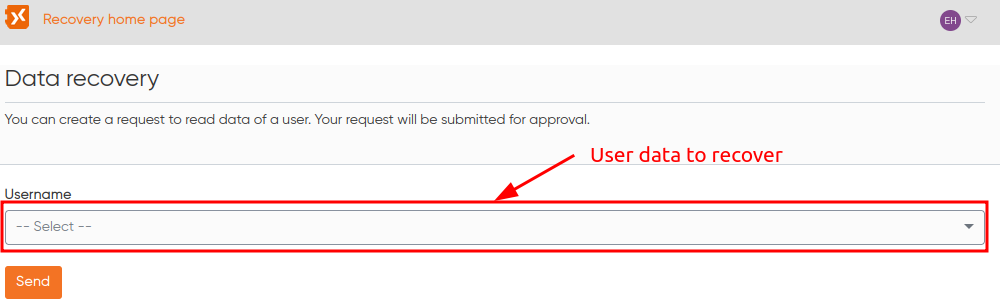](https://vault-doc.wallix.com/uploads/images/gallery/2024-03/DfZimage.png) The user can emit a new data recovery request for a specific Vault user included in the droplist component. The user can cancel the request for any reason if needed until the request is approved or refused. An history of the already emitted requests is available at the bottom of the page. [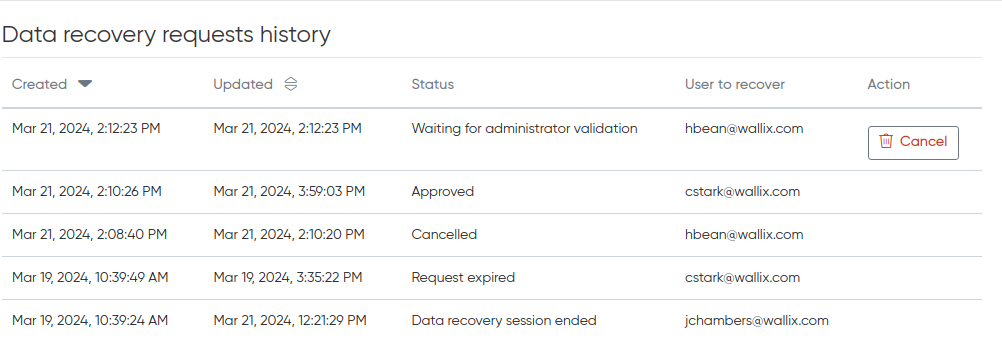](https://vault-doc.wallix.com/uploads/images/gallery/2024-03/OCsimage.png) Here you will find all the request statuses available: - *Waiting for administrator validation*: the request has been emitted and no approbator already votes; - *Approved*: so, rather self-explanatory; - *Cancelled*: the user who creates the request has manually cancelled the request (cf "Cancel" button); - *Request expired*: the request reaches the configured timeout. The timeout policy is defined in the vault administration application; - *Data recovery session ended*: an approbation has manually revoked the data recovery session (see the [manage requests page](https://vault-doc.wallix.com/books/former-documentation/page/manage-data-recovery-requests)). # Manage Data Recovery Requests This section is only authorized to approbators (i.e. the user must be included in at least approbation group). On the "In progress" tab, you can monitor the current open and non-resolved data recovery requests. [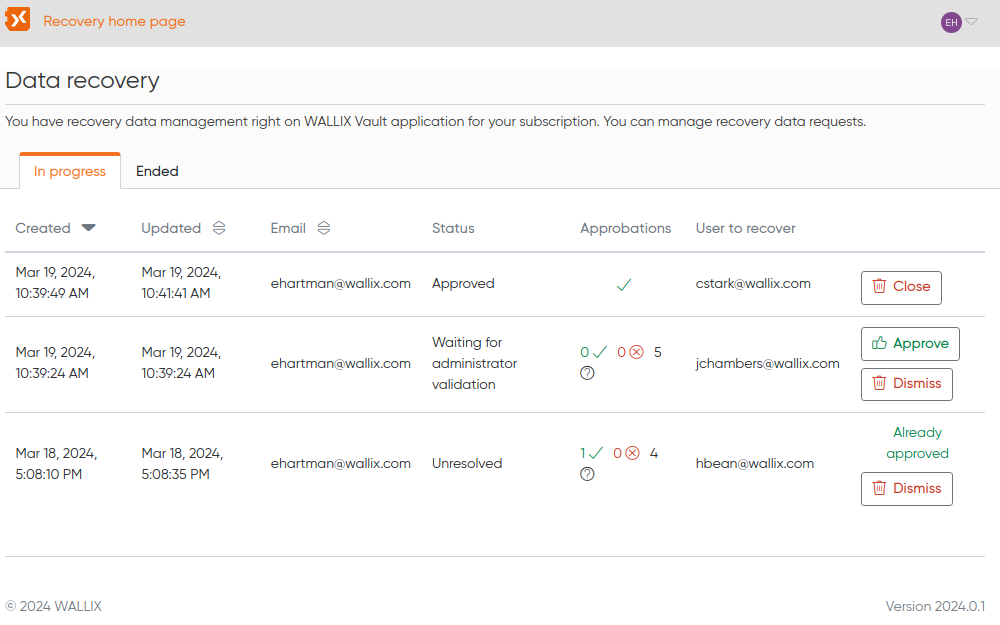](https://vault-doc.wallix.com/uploads/images/gallery/2024-03/tU1image.png) Until the approbator votes, all the vote options are displayed. After voting, either the "Approve" or the "Dismiss" button is hidden, depending how the approbator votes. Non-resolved status means that at least one approbator has submitted his vote but all the emitted votes are not sufficient to reach each of the group quorum. The "Close" button will end the approved data recovery session if any approbator wants to. On the "Ended" tab, you have the complete data recovery requests history, regardless of who requested it and regardless of which account was target by the recovery process. [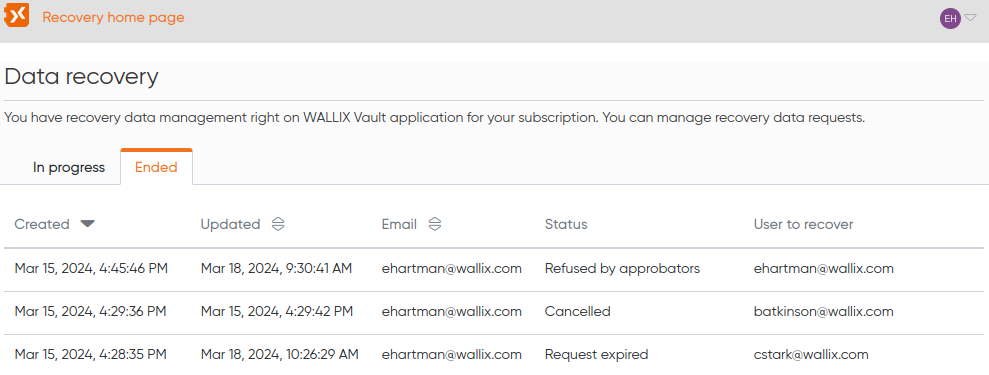](https://vault-doc.wallix.com/uploads/images/gallery/2024-03/A3iimage.png) # Grant Trustelem Data Recovery Permissions As an Vault Administrator, follow this procedure to **Grant Data Recovery Permissions** in the **Trustelem** application to an User. **Users** with this **permission** can **create data recovery requests**. ### Grant Recovery Permissions Connect to **Trustelem**. Select the **User** **Menu** on the top right-hand side of the screen. The **User List** is displayed. **Select** the **User** to give Password Recovery permissions to and click the **Modify** button. The **User Update screen** is displayed. [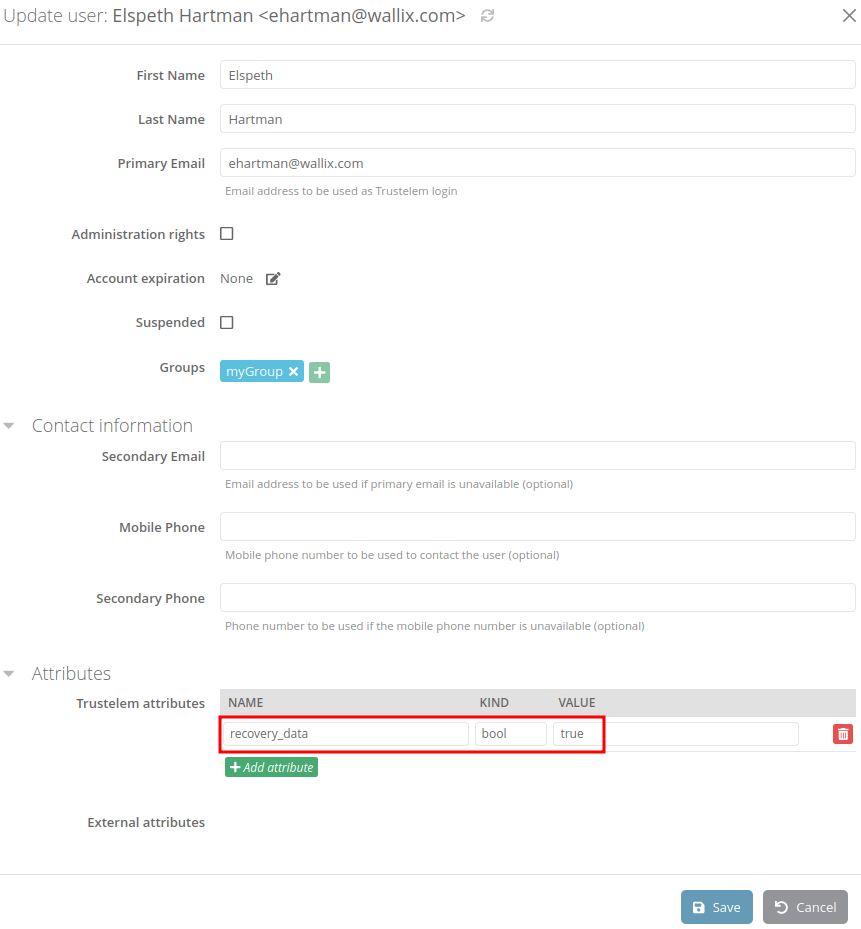](https://vault-doc.wallix.com/uploads/images/gallery/2024-03/SCEimage.png) In the Attributes section, click the **Add an Attribute** button. A blank line is added to the **Trustelem Attributes** table. Complete the fields as follows: - NAME : **recovery\_data** - TYPE : **bool** - VALEUR : **true** Click the **Save** button to save the new attribute to the User. The Trustelem attribute **recovery\_data** displays in the **Attribute List**. This **User** can now **[create data recovery requests](https://vault-doc.wallix.com/books/former-documentation/page/create-data-recovery-request)**. To manage approbator groups for data recovery, the user must have an attribute **recovery\_data\_workflow**. After that he can **[manage approbators groups](https://vault-doc.wallix.com/books/former-documentation/page/approbators-group-management "Approbators group management")**. ### Share cipher key In order to enable completely the data recovery permissions, you have to share the cipher key. **Important**: This step must be done after granting the *recovery\_data* attribute. Go to the recovery home page (Tools > Recovery in default navigation bar) and click on the "Share cipher keys" link as below: [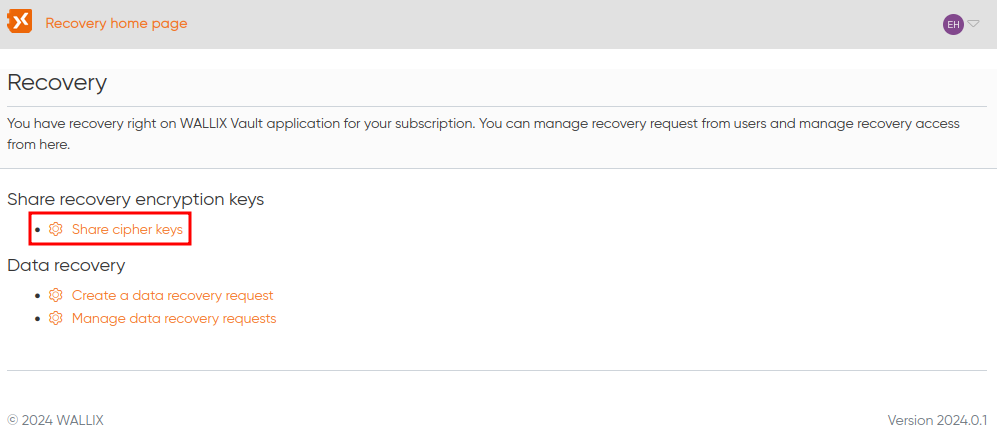](https://vault-doc.wallix.com/uploads/images/gallery/2024-03/5sSimage.png) The cipher key management page is displayed. You can now share the cipher key with any user who has the *recovery\_data* attribute: [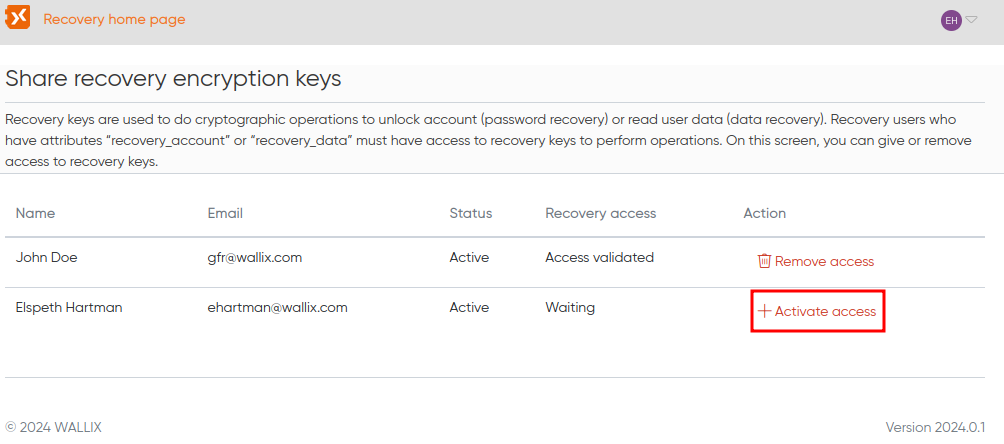](https://vault-doc.wallix.com/uploads/images/gallery/2024-03/U7Yimage.png) Congratulations! The user can now create a data recovery request for any vault user. # Administration application The vault administration application allow administrators to have a global view of the Vault uses in your enterprise. Some settings are available to fit your requirements. To add an access to this application, the Trustelem administrator have to add access permission to this application to desired users. The application has four sections : - Indicators dashboard - Users list - Shared vault list - Parameters #### Indicators dashboard The dashboard indicators allow you to have an overview of the use of WALLIX Enterprise Vault in your company. Each user who creates their account has a personal vault. You also have an overview of the number of created Shared vault. For each of them, you can see the number of items and the number of attachments. You can see which client are used by your users. #### Users list Only users who have created their vault account are list in this screen. To create his vault account, a user have to connect to the vault and create his master password. If a Trustelem administrator delete users or remove authorizations to access the Vault application, corresponding users are highlighted. Administrators can force users to reset their master password or change their encryption key at the next connection. If the administrator delete the vault account by clicking the trash, user data cannot be recovered. In this list you can check the status of the users. In the lifecycle of Trustelem users, users with a Vault account can be unauthorized to access to the vault application or can be deactivated. #### Shared vault list The Shared vault list give you an overview of the Shared vault usage. You have a list of shared and for each the list of administrator and regular users. When in the lifecycle of your users you have shared vault without active administrators or without any active user, a warning is displayed. #### Settings The settings page allows you to personalize of your enterprise vault according to your choices and security policies. You have options to configure : - Security and confidentiality - Logs : choose logs to activate for your enterprise vault. - Recovery : you can activate and configure recovery. # Manage Shared Vaults Create shared vaults to to exchange your items securely. # Shared Vaults Overview A Shared Vault is is a way of sharing items between other members. It is [created ](https://vault-doc.wallix.com/link/50)and [shared](https://vault-doc.wallix.com/link/51) with other Members. It can be [renamed](https://vault-doc.wallix.com/link/59) after creation. A number of options are available from the [Context Menu of a Shared Vault Item](https://vault-doc.wallix.com/link/124), depending on the Item Type, such as: - Copy username: Copies the Username to the clipboard (for Login Items) - Copy password: Copies the Password to the clipboard (for Login Items) - Launch : Launches the URI associated with the Item (for Login Items) - [Attachments](https://vault-doc.wallix.com/link/75): Displays the Attachment Screen - [Collections](https://vault-doc.wallix.com/link/65): Displays the Collections Screen - [Delete](https://vault-doc.wallix.com/link/42): Deletes the Item (after Confirmation) It can contain [one or more Collections](https://vault-doc.wallix.com/link/67). It can contain [one or more Items](https://vault-doc.wallix.com/link/62) that can be shared with Members via Collections. Members can be added with different [Roles within the Shared Vault](https://vault-doc.wallix.com/link/57) and given [access to Collections](https://vault-doc.wallix.com/link/52). Temporary access to a Shared Vault can be [revoked](https://vault-doc.wallix.com/link/53) or [restored](https://vault-doc.wallix.com/link/55). Members can also be [removed permanently](https://vault-doc.wallix.com/link/56) or they can [leave the Shared Vault](https://vault-doc.wallix.com/link/49). A Shared Vault can be [purged of its data](https://vault-doc.wallix.com/link/60) (while keeping the Shared Vault) or [deleted entirely](https://vault-doc.wallix.com/link/61). # Create a Shared Vault From the Home screen, click on the **+ New Shared Vault** link. [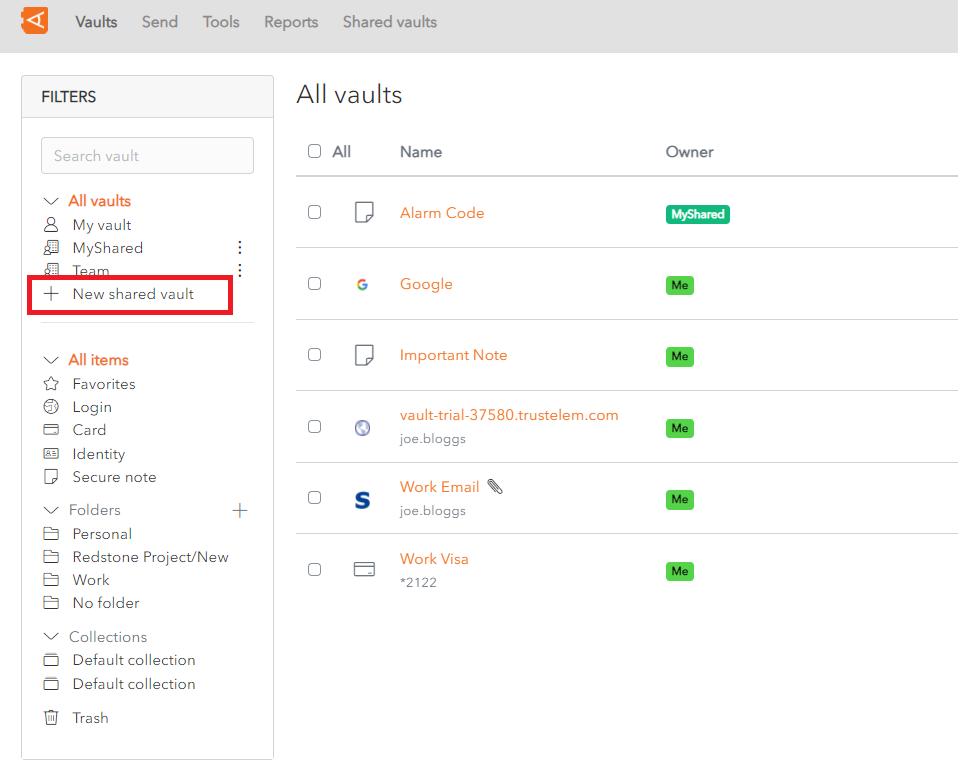](https://vault-doc.wallix.com/uploads/images/gallery/2023-11/create-shared-vault-link.png) The **New Shared Vault** pop up screen is displayed. [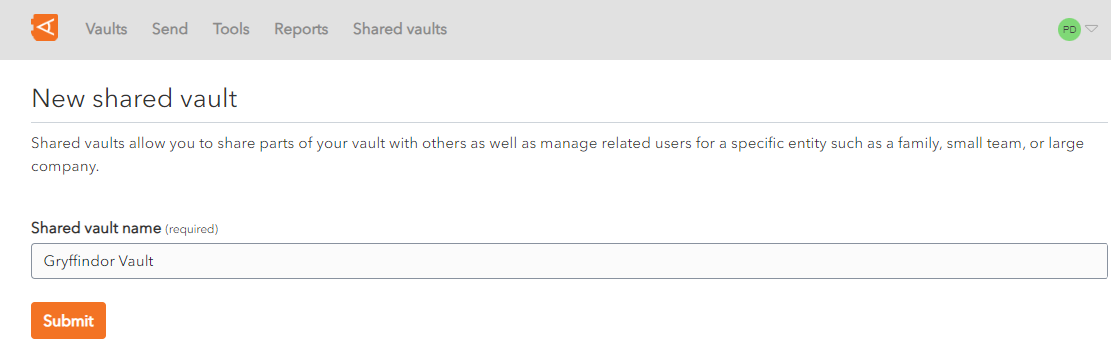](https://vault-doc.wallix.com/uploads/images/gallery/2023-11/create-shared-vault-screen.png) Enter a **Shared vault name** and click **Submit**. A **New** **Shared Vault** with that name is **created**. [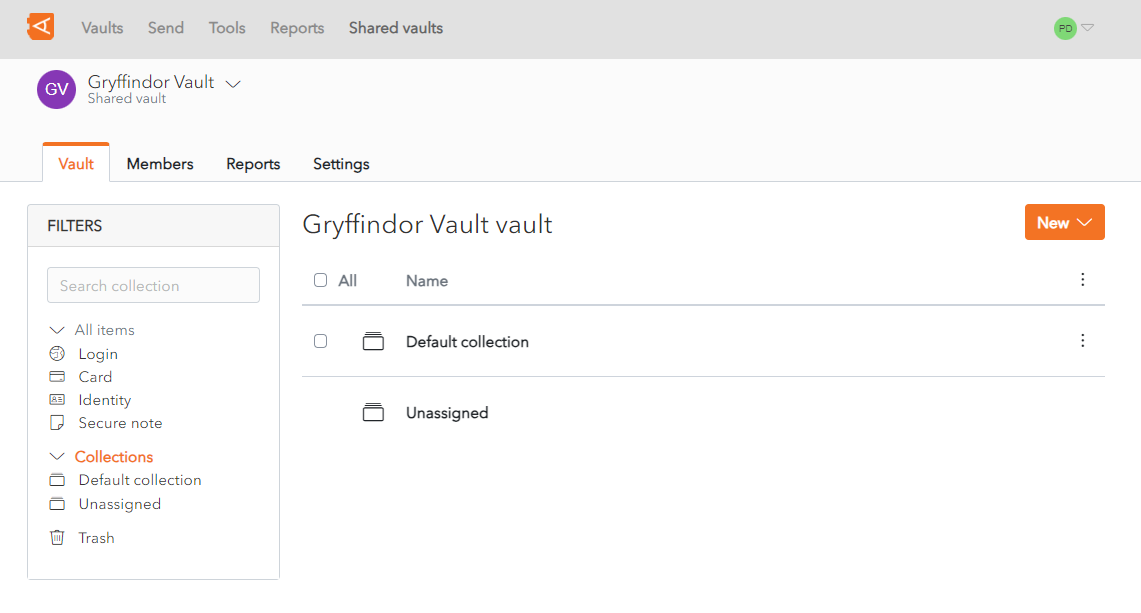](https://vault-doc.wallix.com/uploads/images/gallery/2023-11/new-shared-vault-created.png) # Rename Shared Vault From the **Shared Vault screen** in the **Settings** Tab, rename the Shared Vault in the **Shared Vault Name** field. Click **Save** to save changes. The Shared Vault is renamed. [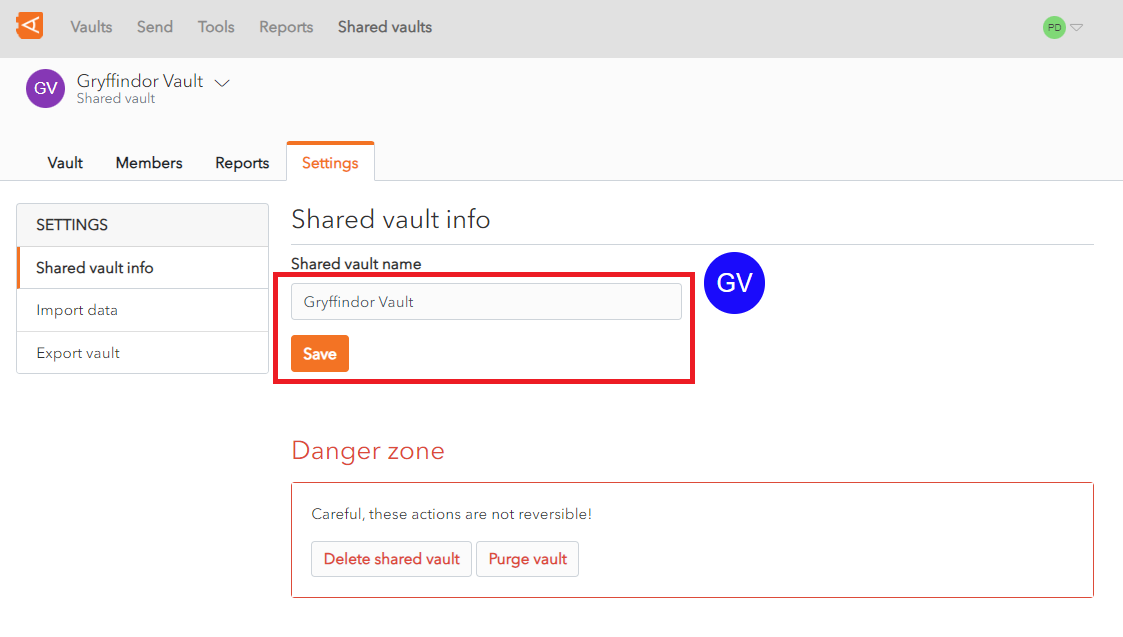](https://vault-doc.wallix.com/uploads/images/gallery/2023-11/rename-shared-vault-settings-screen.png) # Shared Vault Items Context Menu From the **Item List** click the  **More Button** of a **Shared Vault Item.** The Shared Vault Item **Context Menu** is displayed. [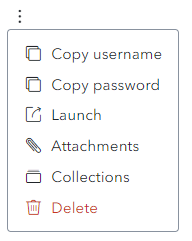](https://vault-doc.wallix.com/uploads/images/gallery/2023-12/capture-decran-2023-12-13-175125.png) A **number of options** are available (depending on the Item Type): - **Copy username:** Copies the Username to the clipboard (for Login Items) - **Copy password:** Copies the Password to the clipboard (for Login Items) - **Launch :** Launches the URI associated with the Item (for Login Items) - **[Attachments](https://vault-doc.wallix.com/link/75):** Displays the Attachment Screen - **[Collections](https://vault-doc.wallix.com/link/65):** Displays the Collections Screen - **[Delete](https://vault-doc.wallix.com/link/42):** Deletes the Item (after Confirmation) # Invite Member to Shared Vault From the **Shared Vaults screen**, click on the **Invite member** button. [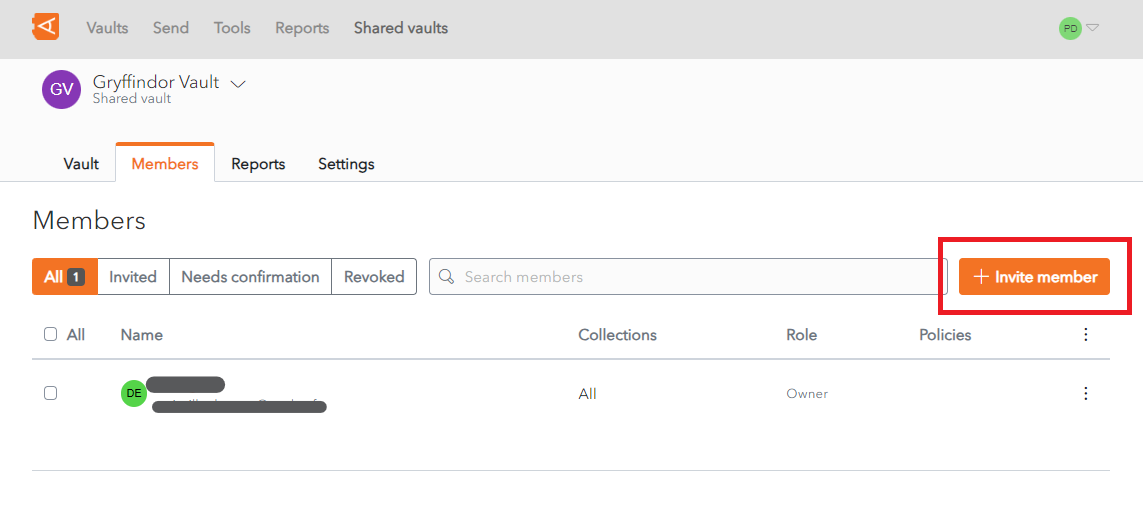](https://vault-doc.wallix.com/uploads/images/gallery/2023-11/vault-members-screen.png) The **Invite Members** screen is displayed. The **Role Tab** is selected by **default**. [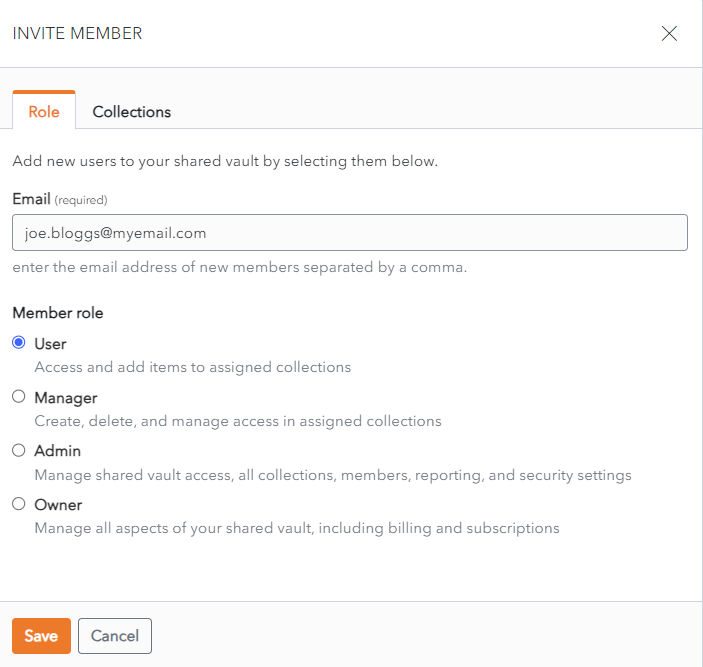](https://vault-doc.wallix.com/uploads/images/gallery/2023-11/en-invite-member-shared-vault.png) ### Grant Permissions to a Collection Before granting a user access to a Shared Vault, you must **grant permissions** to at least one **collection** in the Shared Vault. Click on the **Collections** tab. Choose the Permission from the **Permission** dropdown. Choose the Collection from the **Select Collections** dropdown. [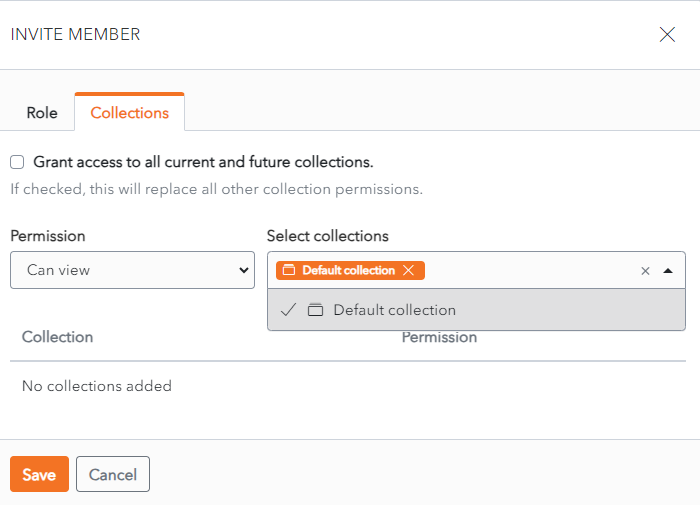](https://vault-doc.wallix.com/uploads/images/gallery/2023-11/member-access-to-collections.png) Click **Enter.** The **Pemissions assigned** to the **Collection** is **displayed**. [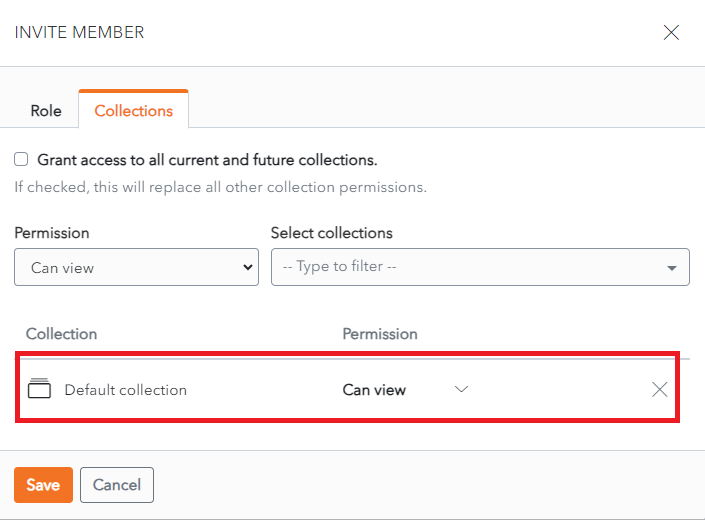](https://vault-doc.wallix.com/uploads/images/gallery/2023-11/member-access-to-collections-saved.png) ### Select Member to Invite Once at least one Collection in the Shared Vault has Permissions assigned, Members can be invited to the Shared Vault. The **Role** Tab is selected by **default**. Select a Member to invite from the **Select New Members** dropdown. Select the **Member Role**. **User** is checked by **default**. [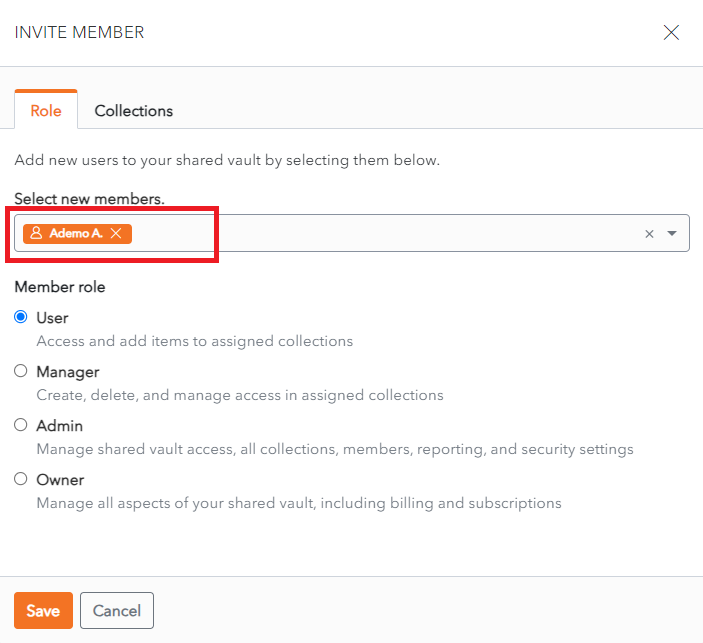](https://vault-doc.wallix.com/uploads/images/gallery/2023-11/invite-member-to-shared-vault.png) Click **Save** to invite the member to the Shared Vault. The Member is displayed in the **Member List** for the Shared Vault. Alternatively, click **Cancel** to cancel the operation. [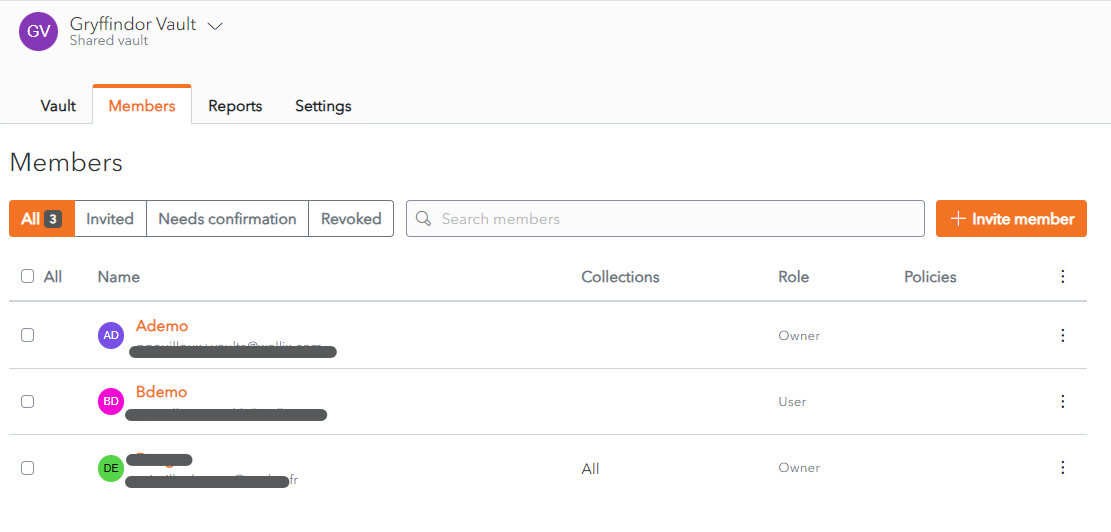](https://vault-doc.wallix.com/uploads/images/gallery/2023-11/member-added-to-shared-vault.png) # Add, Edit or Delete Items ### Create a Shared Vault Item Follow the normal procedure for**[ creating an Item](https://vault-doc.wallix.com/link/8)**, with **one additional step**. Items created in a Shared Vault have one extra field - the **Collections Field**, which is **mandatory**. A Shared Vault Item must be **added to at least one Collection**. In the **Collections Section** of the **New Item Screen**, check the **checkbox** beside a **Collection** that you wish to add the Item to. Then Click **Save** to create the Item. [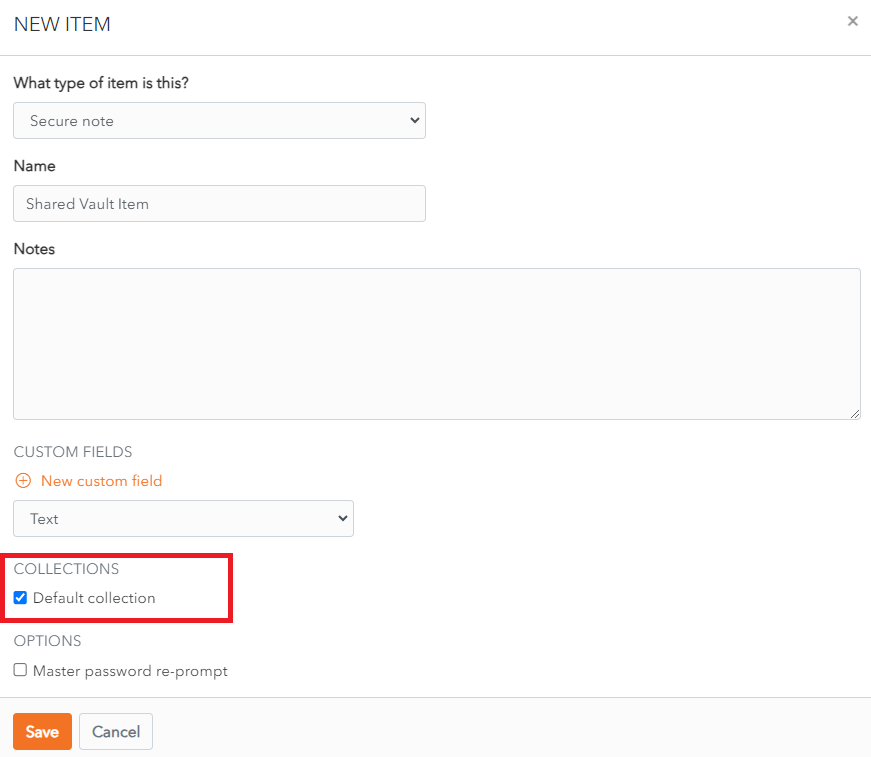](https://vault-doc.wallix.com/uploads/images/gallery/2023-11/eTAcreate-sv-item.png) ### Manage Shared Vault Items The procedure to **[Edit an Item](https://vault-doc.wallix.com/link/9)** and **[Delete an Item](https://vault-doc.wallix.com/link/42)** are the same as for personal Vaults as are the **[Item Types](https://vault-doc.wallix.com/link/10)**. # Edit Member Roles From the **Member List** in the Shared Vault, click the  **More** button beside the Member in question. A Context Menu displays. Click the **Member Role** link. [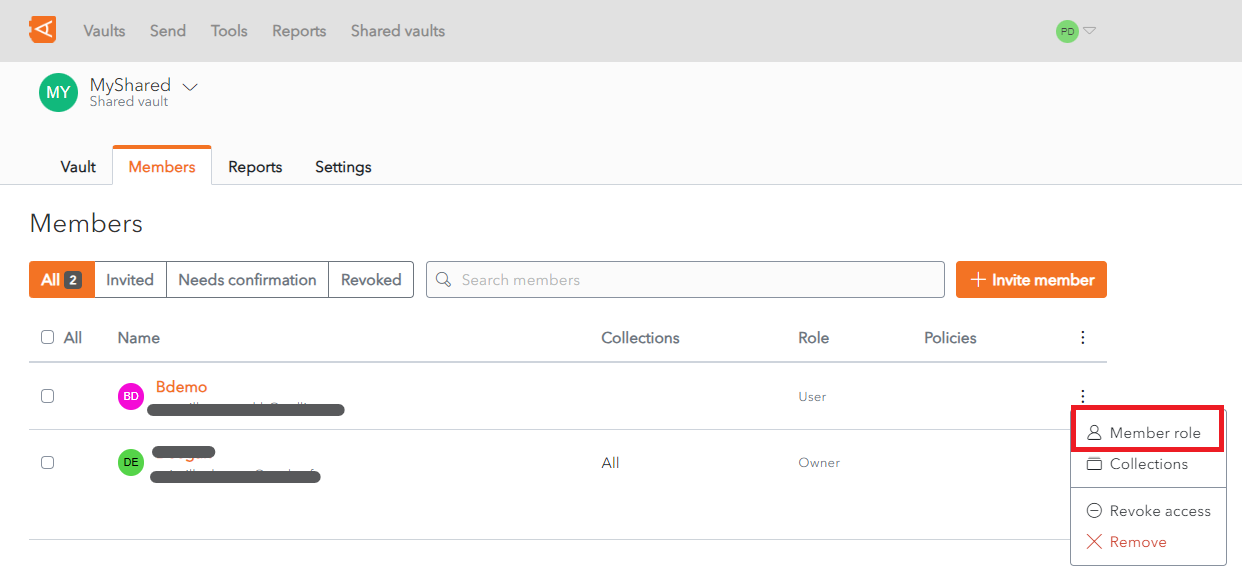](https://vault-doc.wallix.com/uploads/images/gallery/2023-11/change-member-roles-link.png) The **Edit Member** screen displays with the **Role Tab** open. **Change** the member role using the **Member Role** radio buttons. [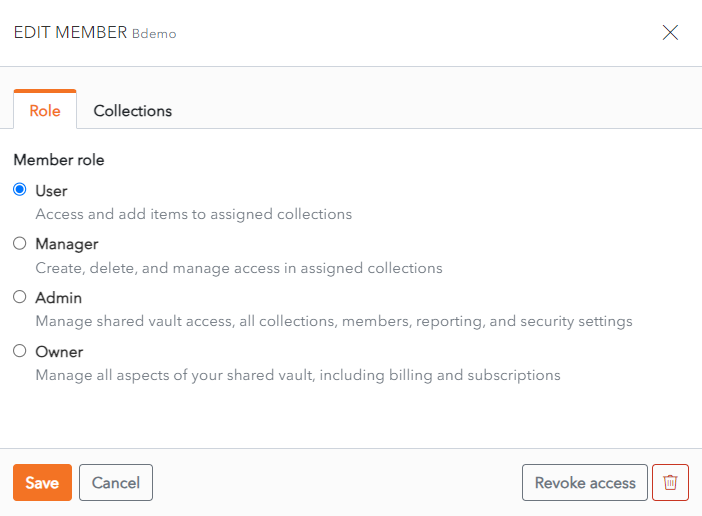](https://vault-doc.wallix.com/uploads/images/gallery/2023-11/CK9edit-member-screen.png) Click **Save** to save changes. Alternatively, click **Cancel** to cancel the operation. # Manage Member Access to Collections From the **Member List** in the Shared Vault, click the  **More** button beside the Member in question. A Context Menu displays. Click the **Collections** link. [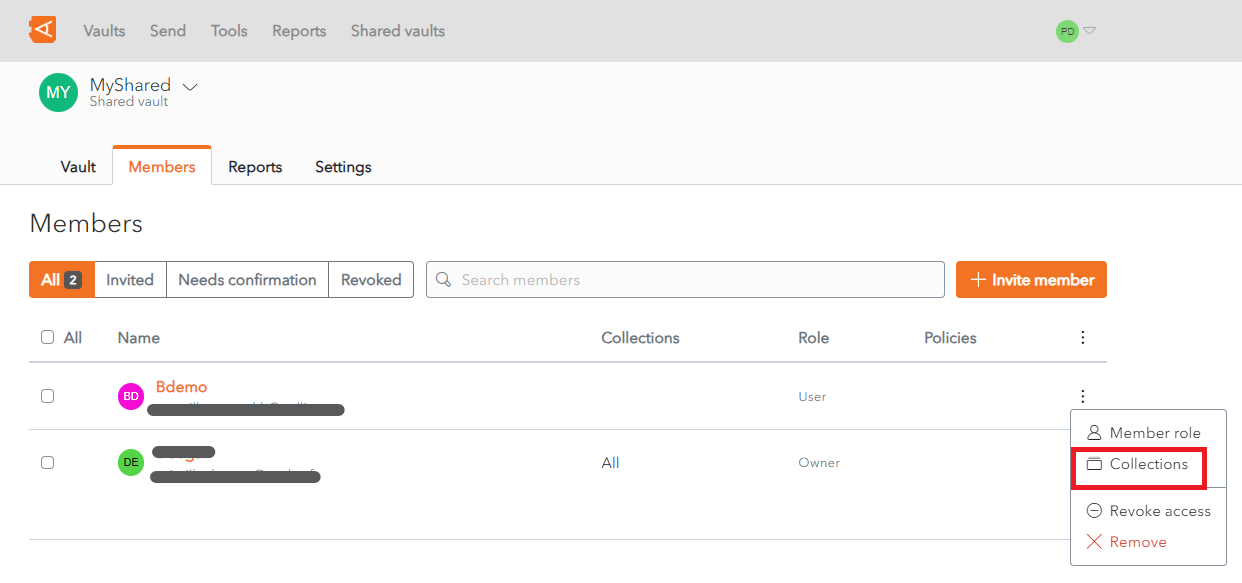](https://vault-doc.wallix.com/uploads/images/gallery/2023-11/change-member-collections-link.png) The **Edit Member** screen displays with the **Collections Tab** open. To **remove** access to a Collection, click the **X button** beside the Collection in the Collection List. To **add a new Permission** to a Collection, select the Permission and Collection and click the Enter button. This is the same procedure as from the [**Add Members**](https://vault-doc.wallix.com/link/51#bkmrk-click-enter.-the-pem) screen. [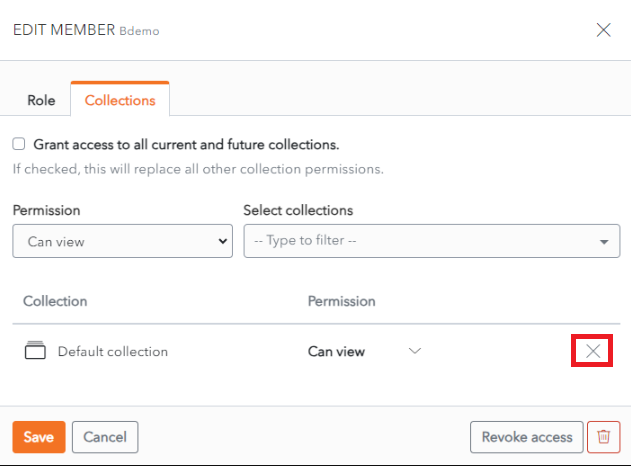](https://vault-doc.wallix.com/uploads/images/gallery/2023-12/edit-member.png) Click **Save** to save changes. The Member is now added to this collection. Alternatively, click **Cancel** to cancel the operation. # Revoke Access to Shared Vault From the **Member List** in the Shared Vault, click the  **More** button beside the Member in question. A Context Menu displays. Click the **Revoke Access** link. [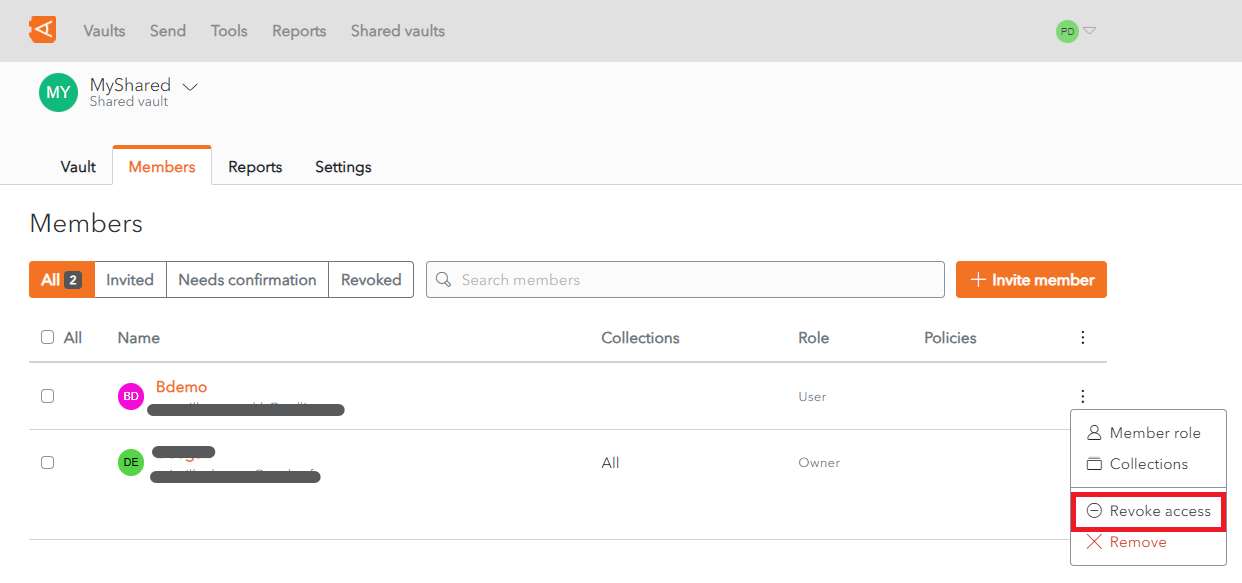](https://vault-doc.wallix.com/uploads/images/gallery/2023-12/restore-access-in-all-tab.png) A Revoke Access **Confirmation** screen displays. [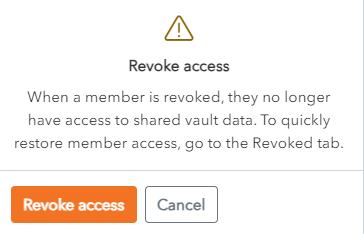](https://vault-doc.wallix.com/uploads/images/gallery/2023-11/kdarevoke-access-confirmation.png) Click **Revoke Access** to Revoke Access. The Member will be displayed in the **Revoked Tab** of the **Member List**. Alternatively, click **Cancel** to cancel the operation. [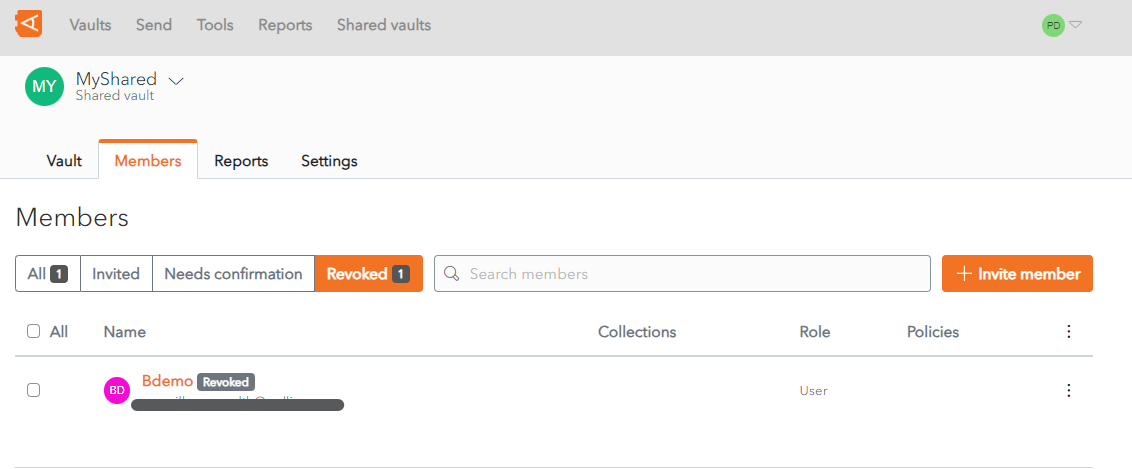](https://vault-doc.wallix.com/uploads/images/gallery/2023-11/p81revoked-member.png) # Restore Access to Shared Vault From the **Member List** in the Shared Vault, click the  **More** button beside the Member in question. A Context Menu displays. Click the **Restore Access** link. [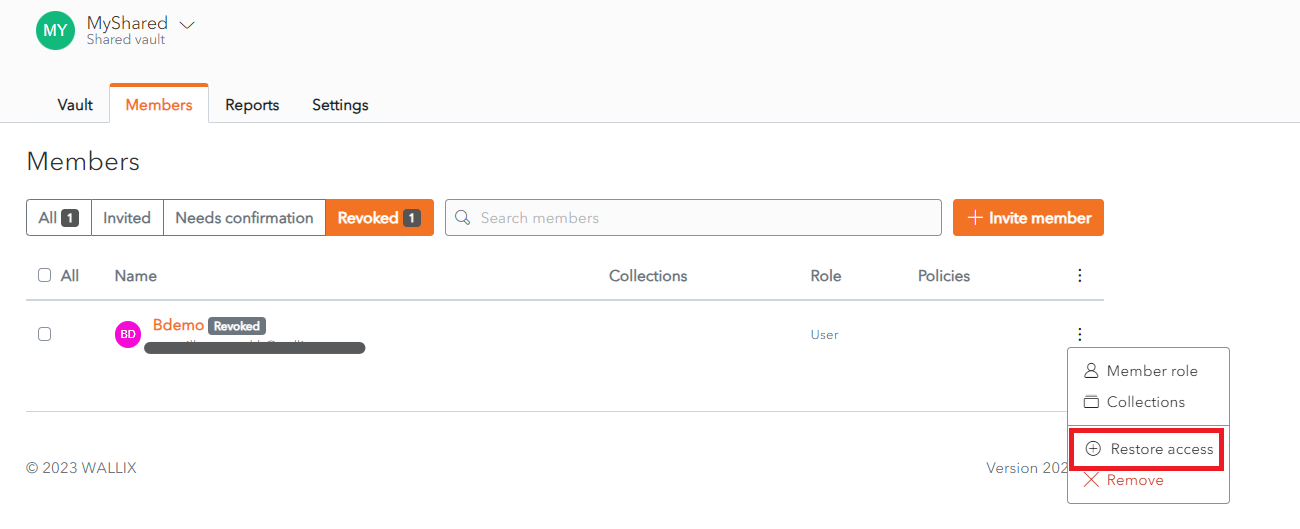](https://vault-doc.wallix.com/uploads/images/gallery/2023-11/51Irestore-access-link.png) The Member's access to the Shared Vault is restored. The Member will be displayed in the **All Tab** of the **Member List**. [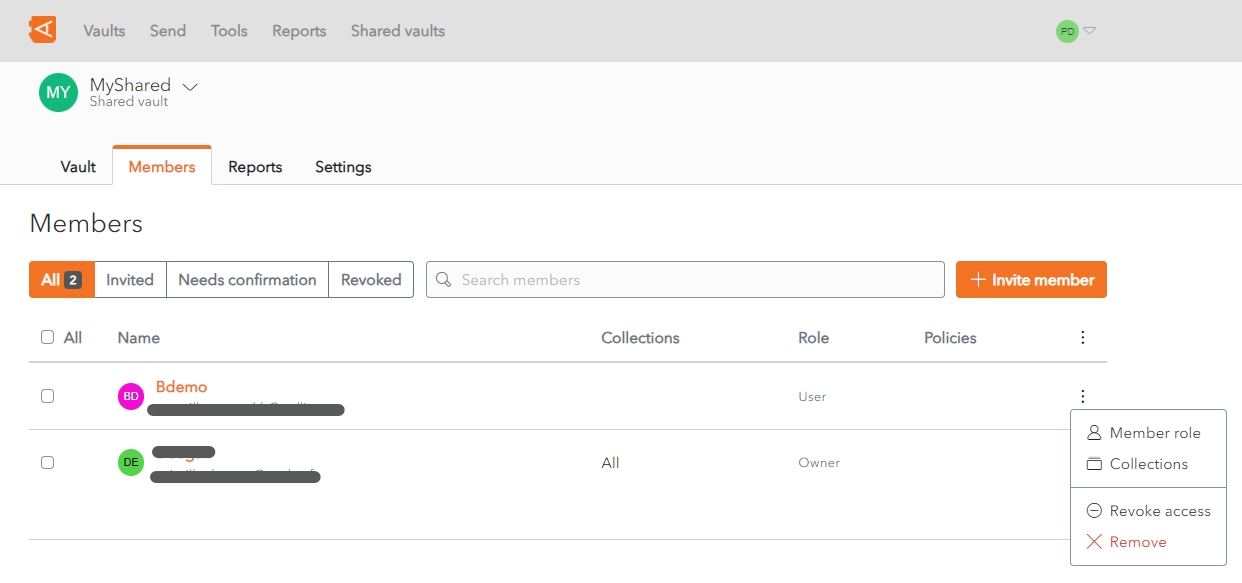](https://vault-doc.wallix.com/uploads/images/gallery/2023-11/a3Arevoke-access-link-png.png) # Remove Member From the **Member List** in the Shared Vault, click the  **More** button beside the Member in question. A Context Menu displays. Click the **Remove** link. [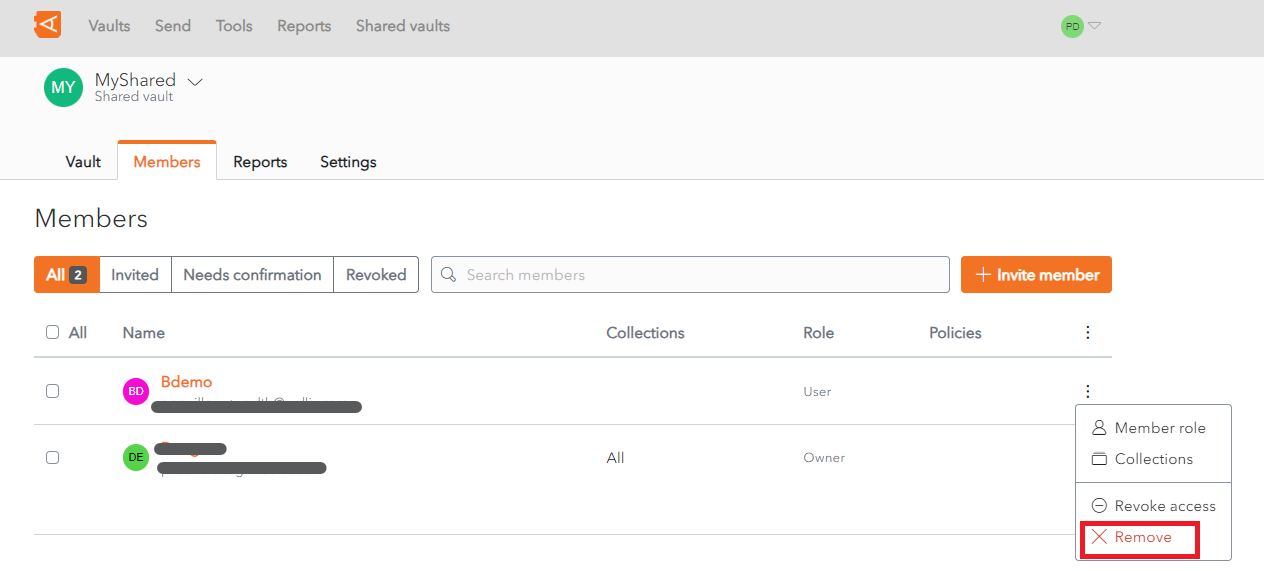](https://vault-doc.wallix.com/uploads/images/gallery/2023-11/remove-member-link.png) A **Remove Member Access screen** is displayed. [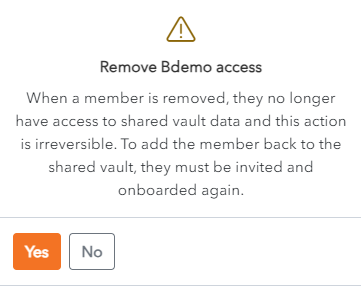](https://vault-doc.wallix.com/uploads/images/gallery/2023-11/remove-member-confirmation.png) Click **Yes** to **Remove the Member from the Shared Vault**. The member is removed from the Shared Vault. Alternatively, click **No** to cancel the operation. **Note**: similarly to the **[Leave Shared Vault](https://vault-doc.wallix.com/link/49#bkmrk--2)** function, this is only possible if the Member is not the last remaining member with Owner access. # Leave a Shared Vault To **leave a Shared Vault**, click on the  **More** button beside the Shared Vault. A context menu is displayed. [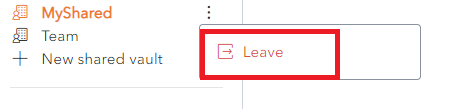](https://vault-doc.wallix.com/uploads/images/gallery/2023-11/leave-shared-vault.png) Click the **Leave** link. A **Confirmation pop up screen** is displayed. [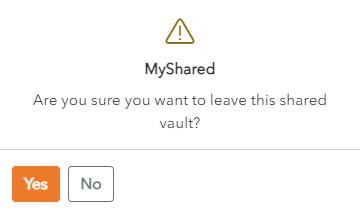](https://vault-doc.wallix.com/uploads/images/gallery/2023-11/leave-shared-vault-confirmation.png) Click **Yes** to leave the Shared Vault. Click **No** to cancel the operation. **Note**: If you are the last remaining Vault Owner, you are not permitted to leave the Shared Vault. In this case the following message is displayed. [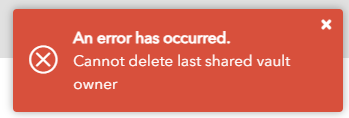](https://vault-doc.wallix.com/uploads/images/gallery/2023-11/cannot-delete-last-shared-vault-owner.png) # Purge Shared Vault From the **Shared Vault Screen**, click on the **Settings Tab**. Click the **Purge Vault** button to purge all data from the Vault. [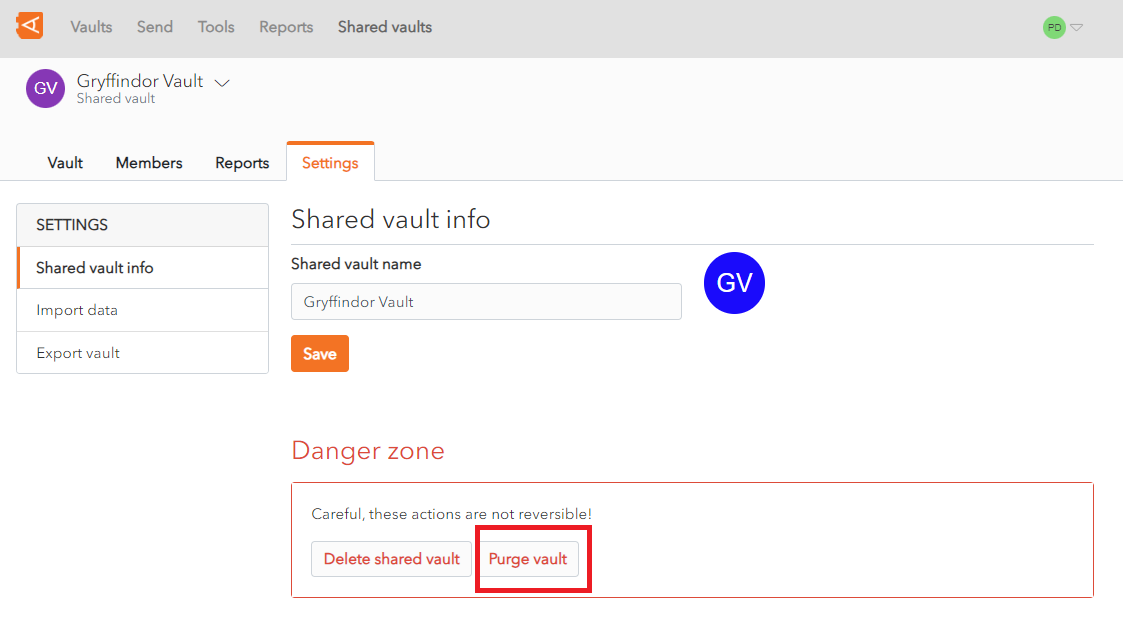](https://vault-doc.wallix.com/uploads/images/gallery/2023-11/purge-shared-vault.png) A **Confirmation Screen** appears. Enter your **Master Password** and click the **Purge Vault** **button** to purge the Vault. Alternatively, click **Close** to cancel the operation. [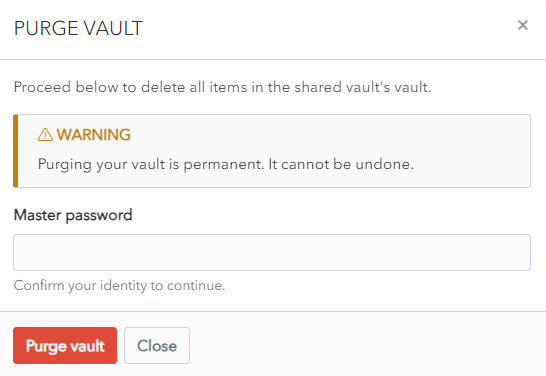](https://vault-doc.wallix.com/uploads/images/gallery/2023-11/purge-shared-vault-confirmation.png) # Delete Shared Vault From the **Shared Vault Screen**, click on the **Settings Tab**. Click the **Delete Shared Vault** button to delete the Shared Vault. [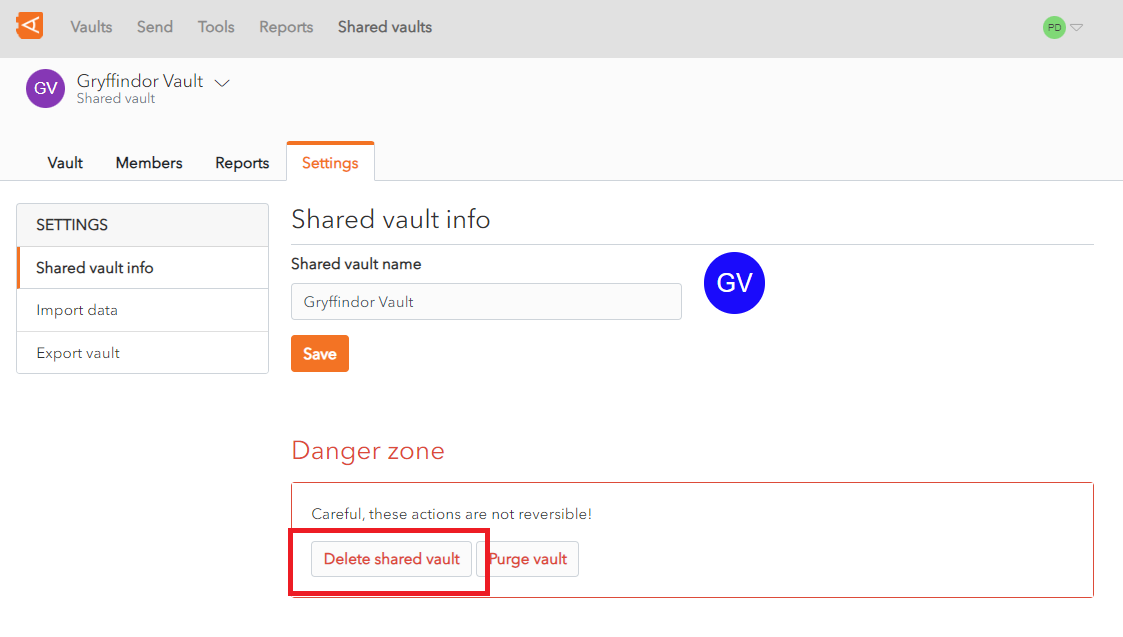](https://vault-doc.wallix.com/uploads/images/gallery/2023-11/delete-shared-vault.png) A **Confirmation Screen** appears. Enter your **Master password** and click the **Delete shared vault** **button** to delete the Vault and all of it's data. Alternatively, click **Close** to cancel the operation. [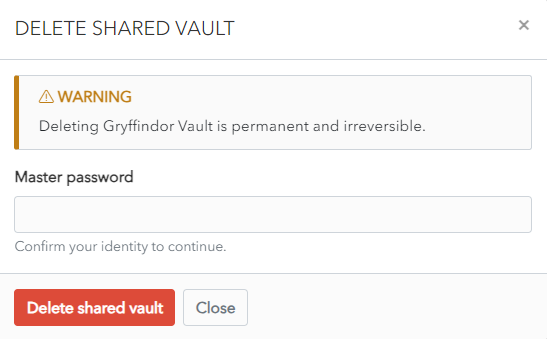](https://vault-doc.wallix.com/uploads/images/gallery/2023-11/delete-shared-vault-confirmation.png) # Manage Account RecoveryThis is **only** **available** for users who have been **granted** the **recovery option** by a Trustelem Administrator.
### Creation of Recovery Keys The first user with **Recovery Permissions** who unlocks his vault creates the **recovery keys.** The **Unlock screen** displays a **message** indicating that the recovery keys have been created. Recovery keys are created only once. The user who create the keys can share them with the procedure **[Activate Account Recovery Rights for a User](https://vault-doc.wallix.com/link/34).** [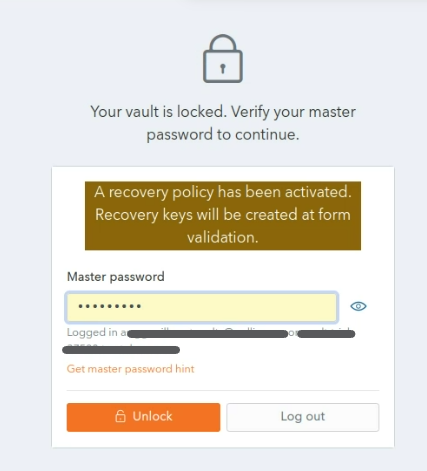](https://vault-doc.wallix.com/uploads/images/gallery/2023-12/recovery-policy-activated-copie.png) Where a new account is created with this option, the **message** will also be displayed on the **Account Creation Screen**. [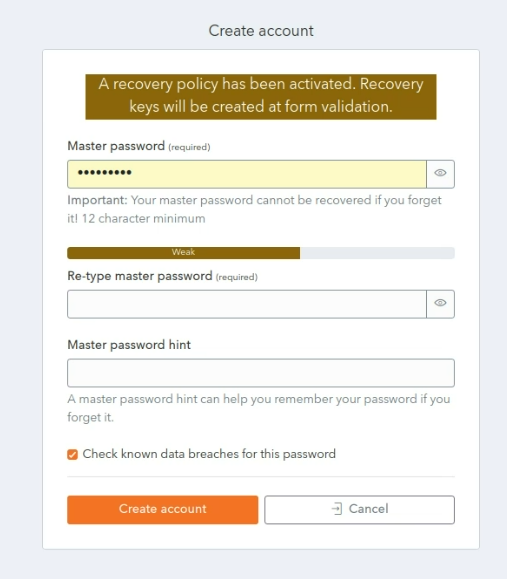](https://vault-doc.wallix.com/uploads/images/gallery/2023-12/new-account-with-recovery-policy-copie.png) ### Activate Account Recovery Rights for a User This **procedure** details the **steps** to be followed **by a User with Recovery Permissions** to **Activate Account Recovery Rights** for another **User**.This is the the **second step** in the process. The **first step** is carried out by the **Vault Administrator,** who **adds** the **recovery\_account** **attribute** to the **user account**.
Click **Tools** and then **Recovery**. The **Master Password Confirmation prompt** is displayed. [](https://vault-doc.wallix.com/uploads/images/gallery/2023-12/2Ngstep-4-tools-recovery-copie.png) Enter your **Master Password** and click **Ok.** The Recovery Screen is displayed. Alternatively, click **Cancel** to **cancel the operation.** [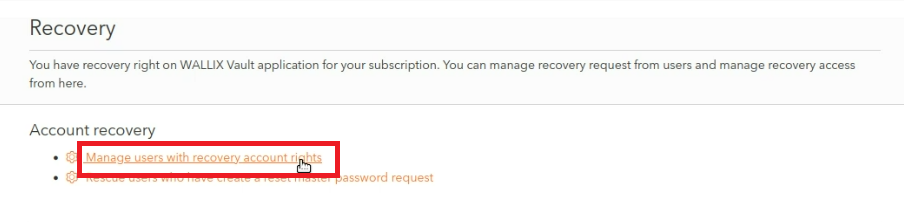](https://vault-doc.wallix.com/uploads/images/gallery/2023-12/step-1-priscilla-copie.png)Click the **Manage users with recovery account rights** link. The **Account Recovery Screen** is displayed. A **list of users** who have been given **Recovery Account Rights** by the **Vault Administrator** is displayed. [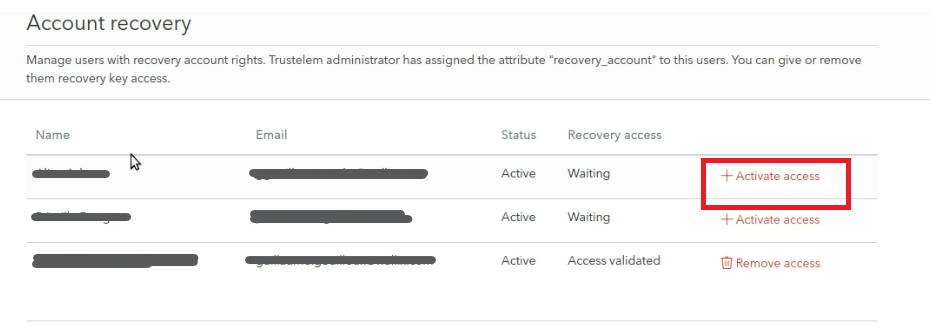](https://vault-doc.wallix.com/uploads/images/gallery/2023-12/Opgstep-2-priscilla.png) Users waiting for their access to be validated have a **Status** of **Waiting**. Click the **Activate access link** beside a User to **activate** their **Account Recovery Rights** within the **Vault**. The user's **Status** is changed to **Access Validated**. They have a **Remove Access link** beside their name. [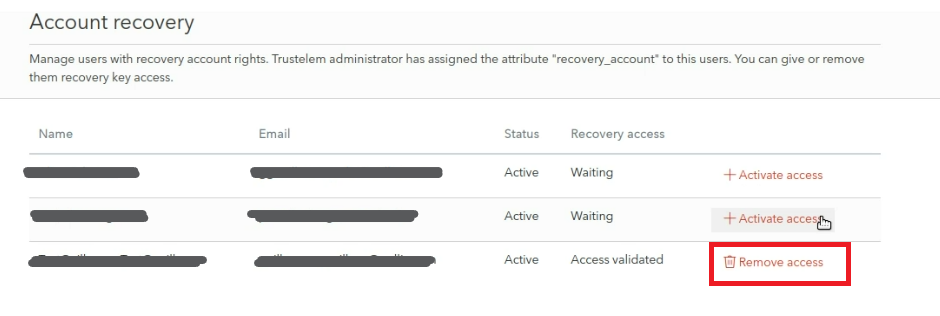](https://vault-doc.wallix.com/uploads/images/gallery/2023-12/step-3-priscilla-copie.png) ### Deactivate Account Recovery Rights for a User To **deactivate** Account Recovery Access for a User, click the **Remove Access link** beside their name. # Manage collections Create collections to organize your shared items. # Collections Overview A Collection is a way of **managing access to items** in a Shared Vault. Collections are only available in **[Shared Vaults](https://vault-doc.wallix.com/link/54)**. **[Create a Collection](https://vault-doc.wallix.com/link/58)** within your Shared Vault to share items with members of the vault. You can **[Edit Collection Information](https://vault-doc.wallix.com/link/3)** after creation. **[Add Member Access](https://vault-doc.wallix.com/link/68#bkmrk-alternatively%2C-click-1)** to the Collection and assign them permissions to limit what they can and cannot do. **[Edit Member Access](https://vault-doc.wallix.com/link/68#bkmrk-alternatively%2C-click-2)** or **[Remove Member Access](https://vault-doc.wallix.com/link/68#bkmrk-alternatively%2C-click)** from a collection. **[Add Items to a Collection](https://vault-doc.wallix.com/link/65#bkmrk-%C2%A0)** that you wish to share with other members of the collection. **[Remove Items from a Collection](https://vault-doc.wallix.com/link/65#bkmrk-click-save.-the-item)** if you no longer wish to share them with other members of the collection. [**Use Nested Collections**](https://vault-doc.wallix.com/link/64) to organize your Collections. **[Delete a Collection](https://vault-doc.wallix.com/link/63)** if it is no longer needed. Items within the Collection will not be deleted. If an item is no longer assigned to any Collections, it is added to the [**Unassigned Collection**](https://vault-doc.wallix.com/link/66). # Create Collection From the **Shared Vaults Screen**, click on the **New** button. This opens a **context menu**. Click on the **Collection** link. [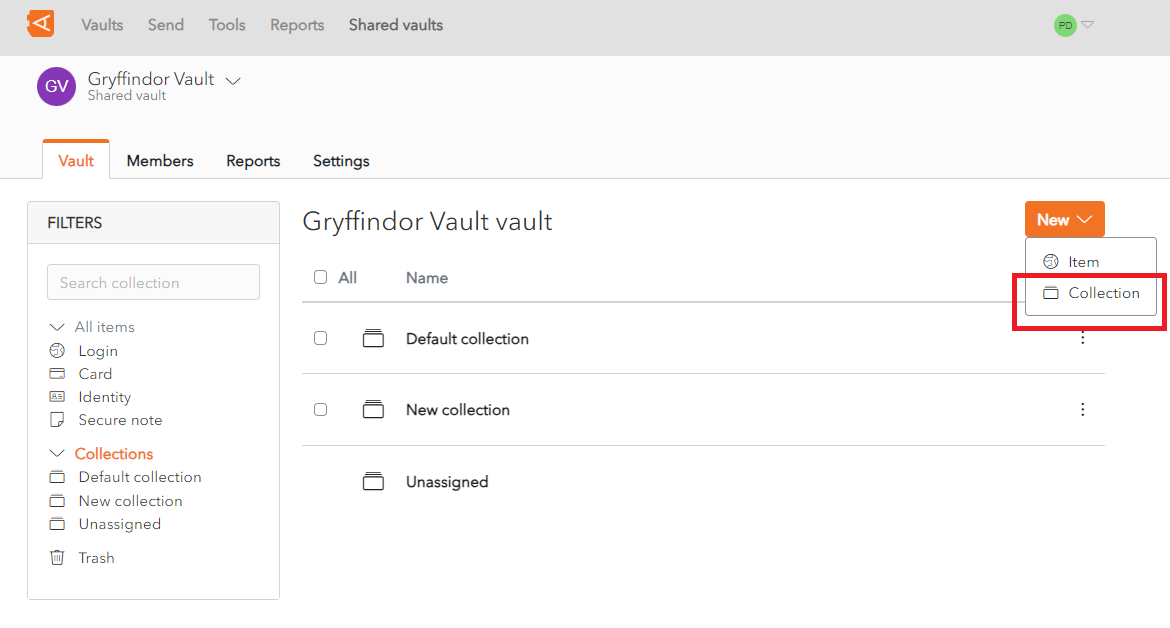](https://vault-doc.wallix.com/uploads/images/gallery/2023-11/create-collection-screen.png) A **New Collection Screen** appears. Enter a Collection Name in the **Name** Field. If you wish to nest this Collection under an existing Collection, choose the Collection from the **Nest collection under** dropdown. Click **Save** to create the Collection. Alternatively, click **Cancel** to cancel the operation. [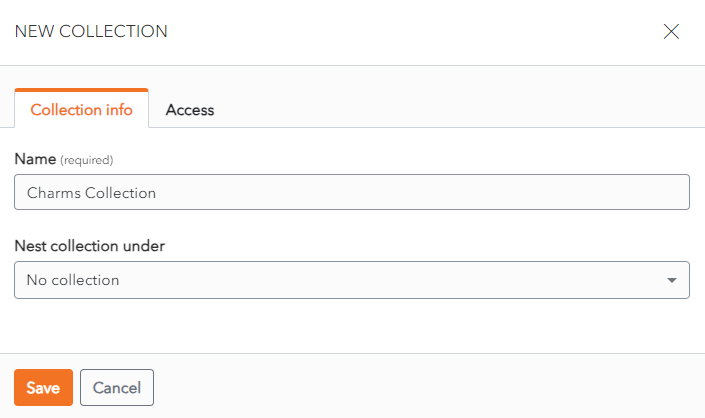](https://vault-doc.wallix.com/uploads/images/gallery/2023-11/create-collection.png) # Edit Collection Information From the Shared Vault Screen, the Collections List is displayed by default. Click the [](https://vault-doc.wallix.com/uploads/images/gallery/2023-11/nCwmore-button.png) **More** **button** beside a Collection. A context menu is displayed. Click the **Edit info** link. [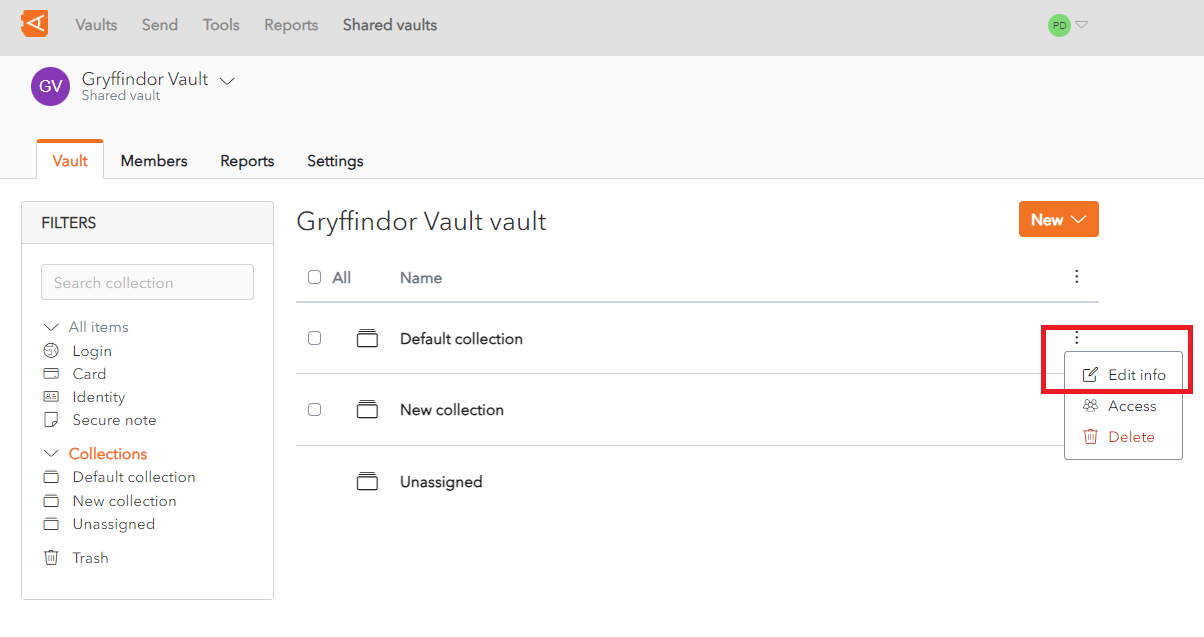](https://vault-doc.wallix.com/uploads/images/gallery/2023-11/edit-collection-link-2.png) **Alternatively**, the Edit Collection Screen can also be accessed from the Collection Screen. Click on a **Collection** in Collection List. Click on the [](https://vault-doc.wallix.com/uploads/images/gallery/2023-11/nCwmore-button.png) **More button** beside the **Collection Name.** A context menu displays. Click **Edit info**. [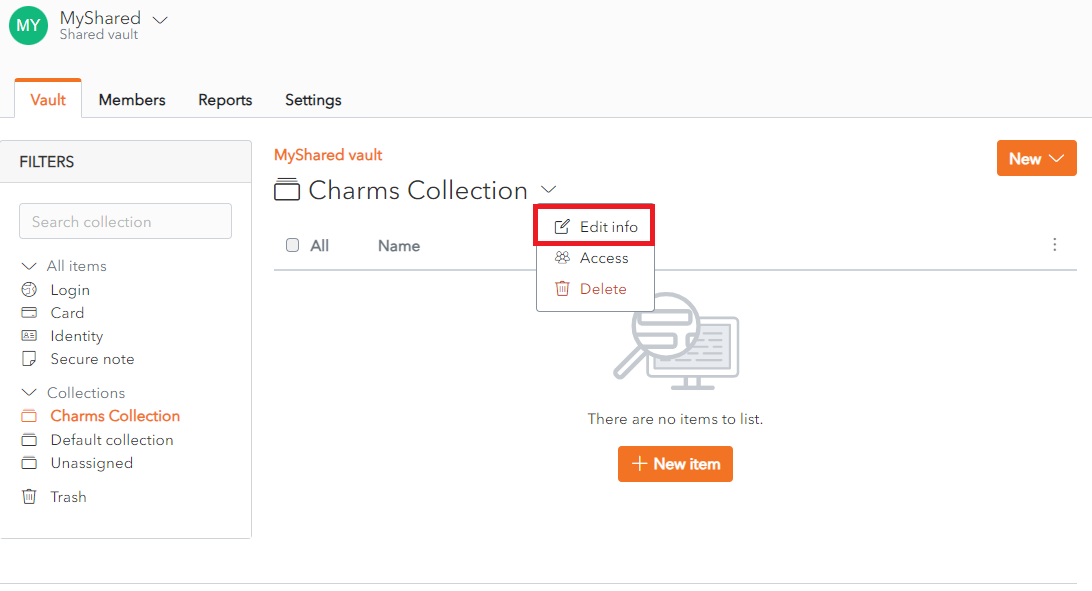](https://vault-doc.wallix.com/uploads/images/gallery/2023-12/edit-collection-link.png) The **Edit Collection Screen** displays. From the **Collection Info Tab**, change the **Name** and the **Nest collection under** fields. [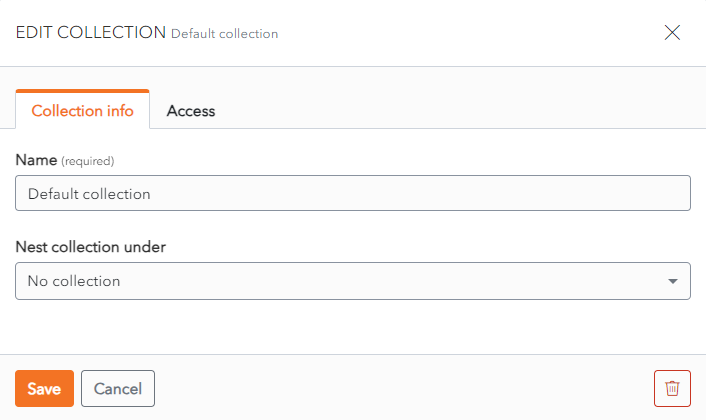](https://vault-doc.wallix.com/uploads/images/gallery/2023-11/edit-collection-screen.png) Click **Save** to save changes. Alternatively, click **Cancel** to cancel the operation. # Manage Member Access to Collection From the Shared Vault Screen, the Collections List is displayed by default. Click the [](https://vault-doc.wallix.com/uploads/images/gallery/2023-11/nCwmore-button.png) **More** **button** beside a Collection. A context menu is displayed. Click the **Access** link. [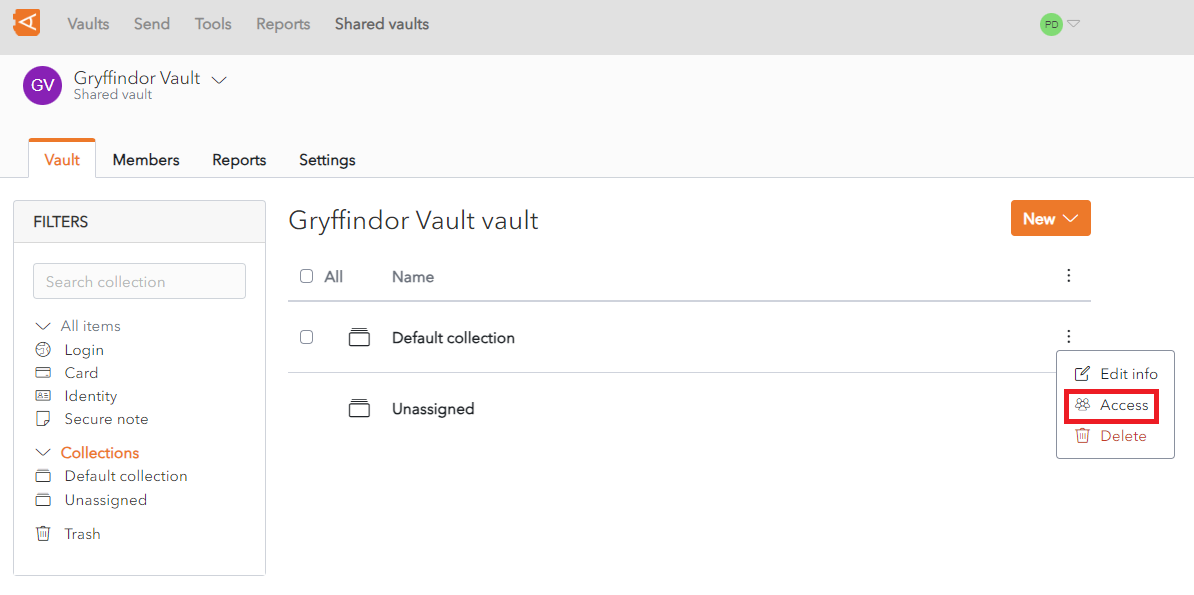](https://vault-doc.wallix.com/uploads/images/gallery/2023-11/edit-access-2.png) **Alternatively**, the Edit Collection Screen can also be accessed from the Collection Screen by clicking the [](https://vault-doc.wallix.com/uploads/images/gallery/2023-11/WsCv-button.png)**More button** beside the **Collection Name**, then clicking the **Access link** in the context menu. [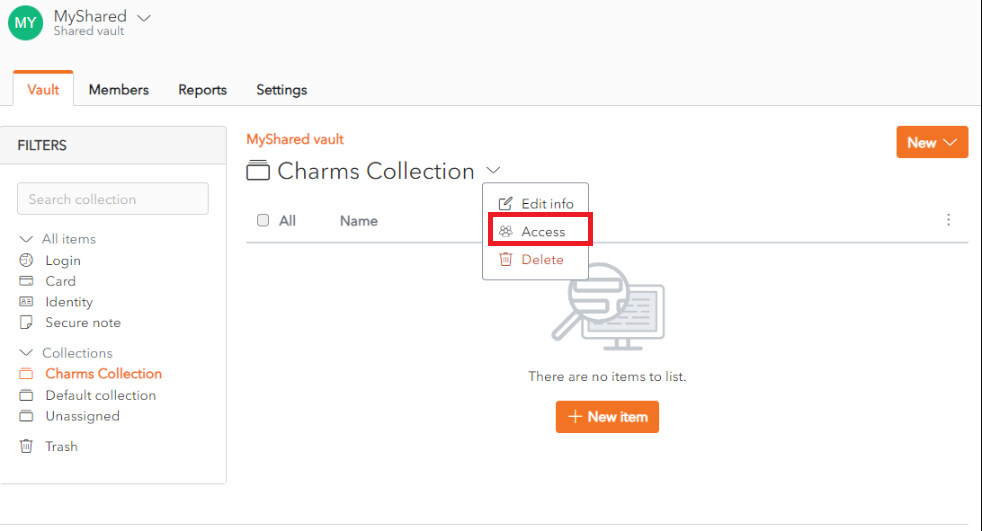](https://vault-doc.wallix.com/uploads/images/gallery/2023-12/edit-access.png) The **Edit Collection Screen** displays with the **Access tab** open. ### Grant Member Access To **Grant a Shared Vault Member Access** to a Collection, select the **Permission** and **Select members.** [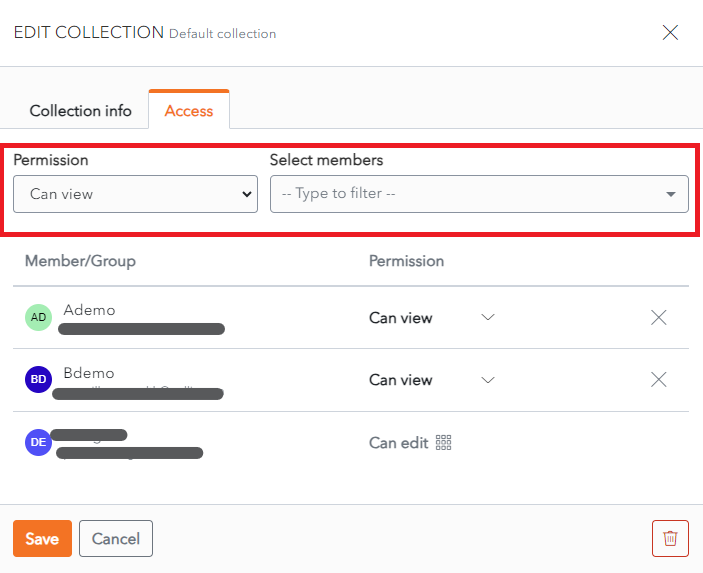](https://vault-doc.wallix.com/uploads/images/gallery/2023-11/edit-collection-access-screen-add.png) Click the **Enter** button. The Member is **added** with the **permission selected**. Click **Save** to save changes. Alternatively, click **Cancel** to cancel the operation. ### Remove Member Access To **remove access** to a Collection, click the **X button** beside the Member in the Member List. [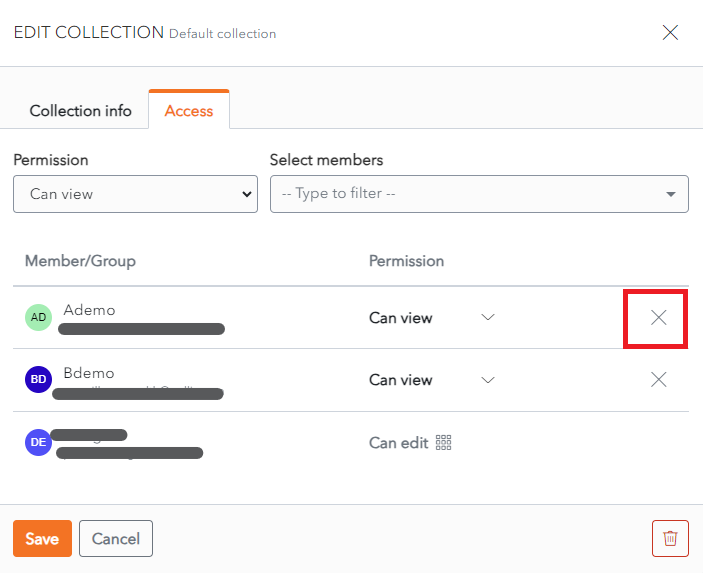](https://vault-doc.wallix.com/uploads/images/gallery/2023-11/edit-collection-access-screen-remove.png) The **Member** is **removed** from the **Collection**. Click **Save** to save changes. Alternatively, click **Cancel** to cancel the operation. ### Edit Member Access To **Edit a Member Access** to a Collection, change the Permission in the **Permission dropdown**. [](https://vault-doc.wallix.com/uploads/images/gallery/2023-11/edit-collection-access-screen-edit.png) Click **Save** to save changes. Alternatively, click **Cancel** to cancel the operation. # Delete Collection A Collection can be deleted from the Collection List Screen or from the Collection Screen. Items within the Collection will not be deleted. If an item is no longer assigned to any Collections, it is marked as an [**Unassigned Item.**](https://vault-doc.wallix.com/books/former-documentation/page/unassigned-items "Unassigned Items") From the **Collection List Screen**, click the [ ](https://vault-doc.wallix.com/uploads/images/gallery/2023-11/Qtwmore-button.png)**More button**. A **context menu** is displayed. Click the **Delete** link. [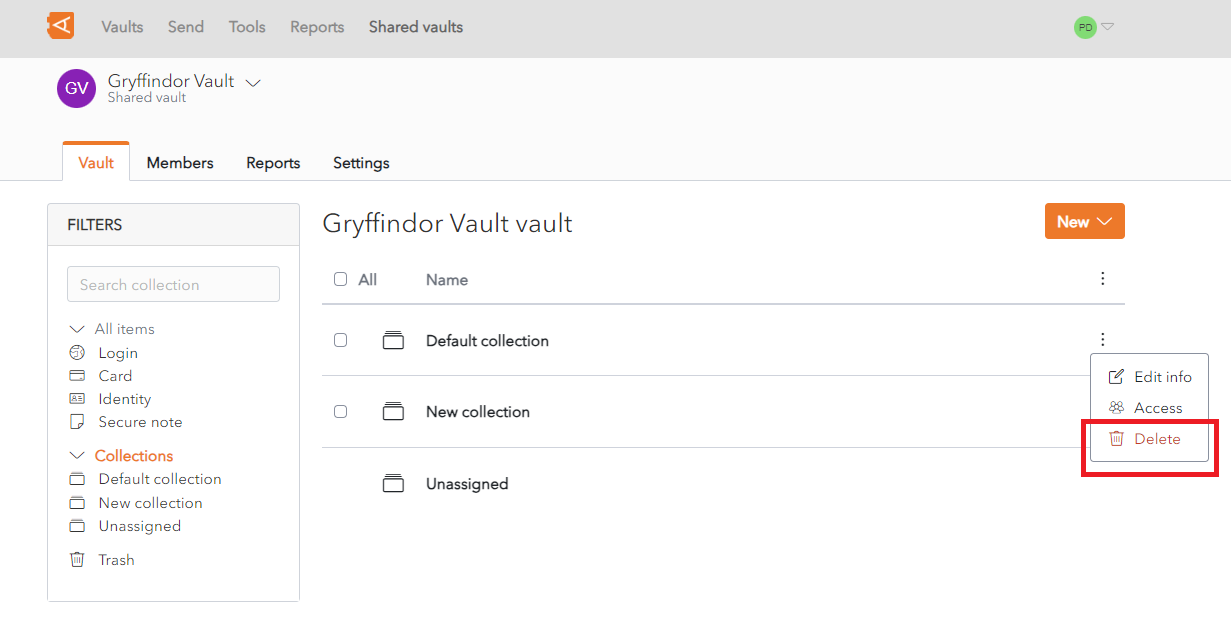](https://vault-doc.wallix.com/uploads/images/gallery/2023-11/8KWdelete-collection-from-collection-list-screen.png) **Alternatively**, the **Delete** link can be accessed from the **Collection Screen**, click the [](https://vault-doc.wallix.com/uploads/images/gallery/2023-11/v-button.png)**More button**. A **context menu** is displayed. Click the **Delete** link. [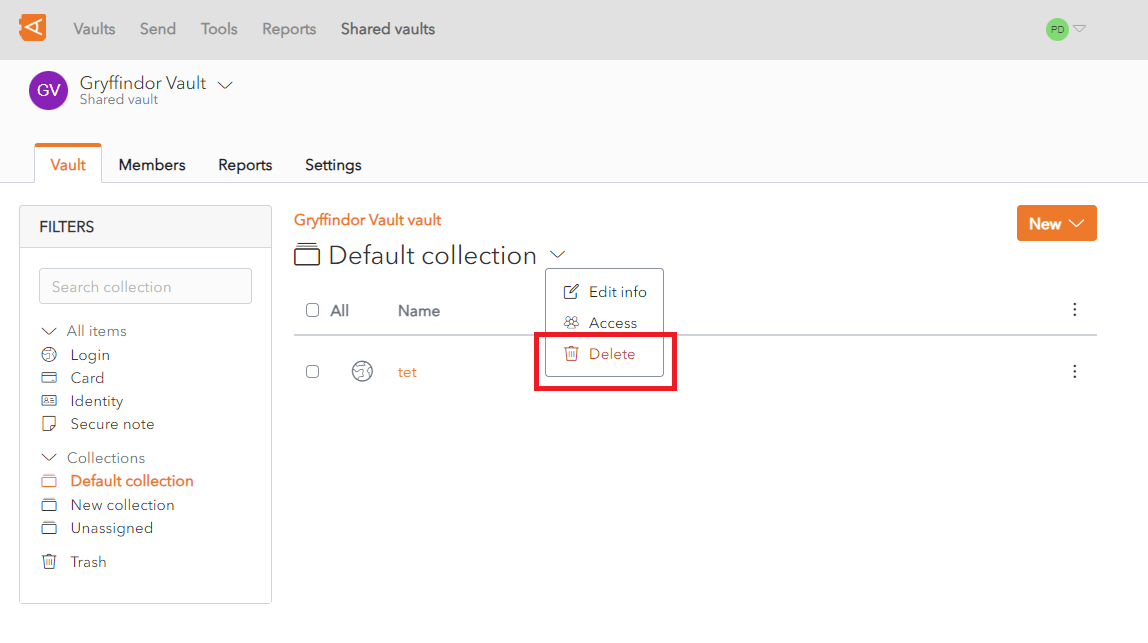](https://vault-doc.wallix.com/uploads/images/gallery/2023-11/AErdelete-collection-from-collection-screen.png) A **Delete Collection Confirmation** Popup is displayed. [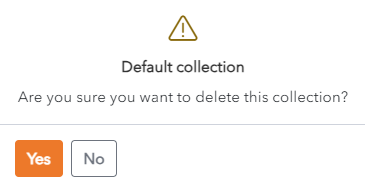](https://vault-doc.wallix.com/uploads/images/gallery/2023-11/kRiconfirm-delete-screen.png) Click the **Yes** button to delete the collection. Click the **No** button to cancel the operation. # Nested Collections Collections can be **nested inside one another**. This can be done when you [**Create a Collection**](https://vault-doc.wallix.com/link/58) or when you [**Edit a Collection**](https://vault-doc.wallix.com/link/3). For example, there are currently **two Collections**, Default Collection and New Collection which are at the **same level**. [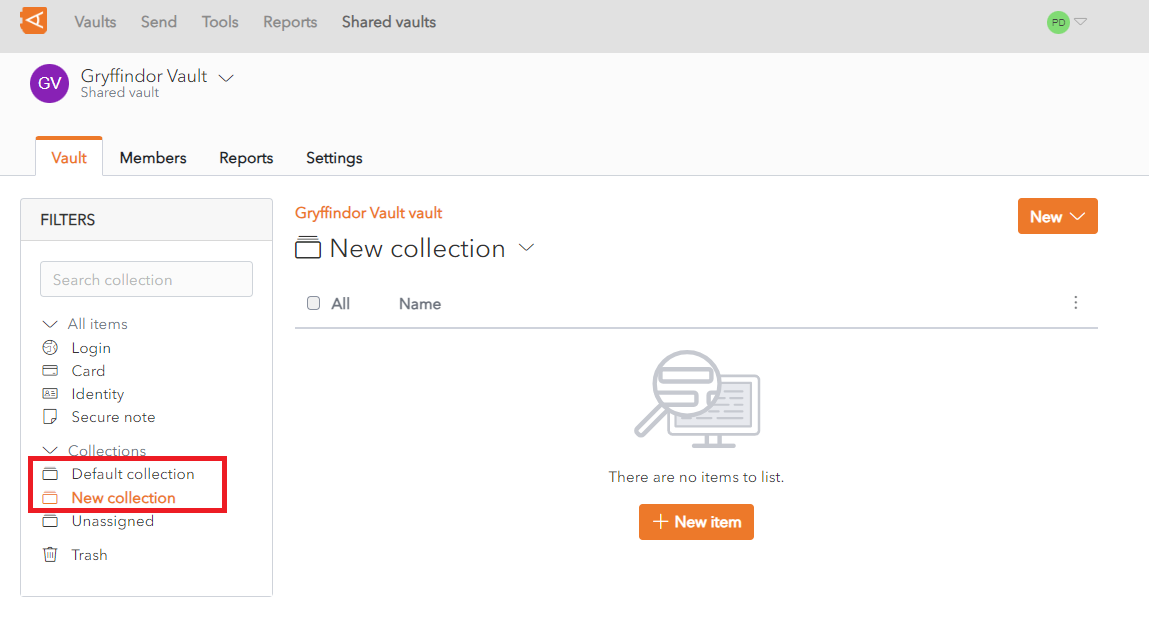](https://vault-doc.wallix.com/uploads/images/gallery/2023-11/nested-collections-before-nesting.png) From the **Edit Collection Screen** for the **New Collection**, select Default Collection from the **Nest collection under** field. [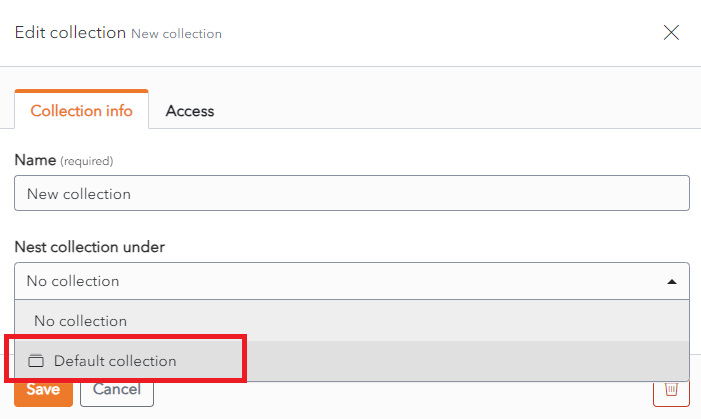](https://vault-doc.wallix.com/uploads/images/gallery/2023-11/edit-screen-nest-collection.png) Click **Save** to save the changes. **New Collection** is now at a **level below** Default Collection**.** [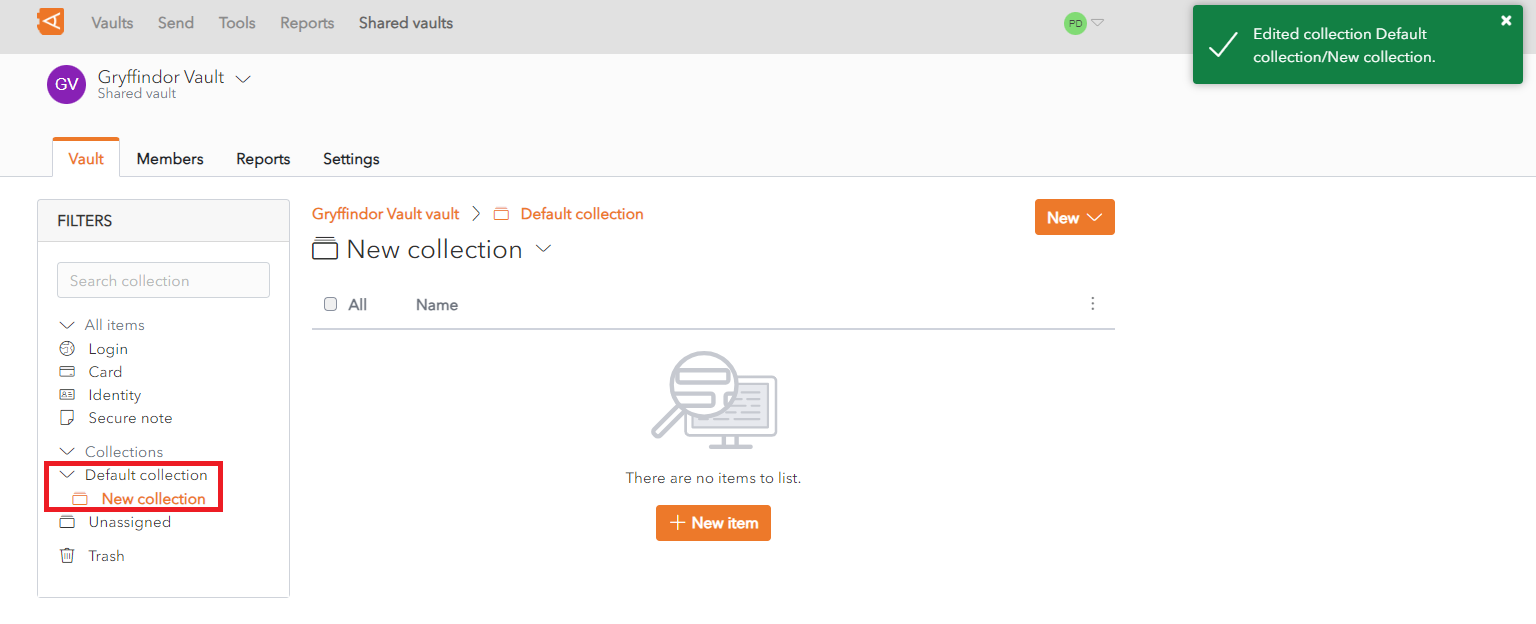](https://vault-doc.wallix.com/uploads/images/gallery/2023-11/nested-collections-after-nesting.png) # Add, Edit or Delete Items The Procedure as the **same** as that for **creating items in Shared Vaults**. This is because all Shared Vault items are created in a Collection. ### {{@62}} # Assign or Remove Items An **Item** in a **Shared Vault** can be **assigned to one or more Collections** from the Collections Screen. This can be done when you [**Create a Collection**](https://vault-doc.wallix.com/link/58) or when you [**Edit a Collection**](https://vault-doc.wallix.com/link/3). Click the **Shared Vault Screen** and select a Shared Vault. The **Item List** for the Shared Vault is **displayed**. ### Assign Item to Collections Click the [](https://vault-doc.wallix.com/uploads/images/gallery/2023-11/nCwmore-button.png) **More** **button** beside an Item. A **context menu** is displayed. Click the **Collections** link to **modify** the **List of Collections** to which the **Item** is **assigned**. [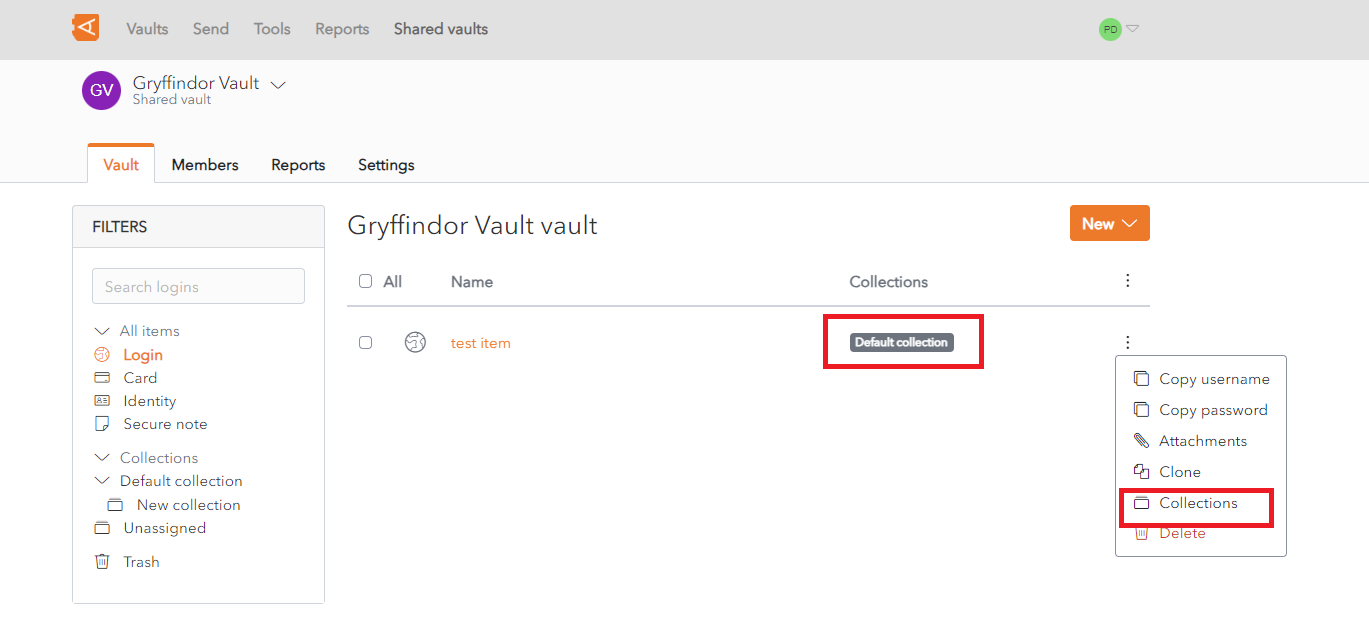](https://vault-doc.wallix.com/uploads/images/gallery/2023-11/F0Oitem-list-in-shared-vault-collections-option.png) The **Collections Screen** for the **Item** is displayed. **Check** one or more Collections. [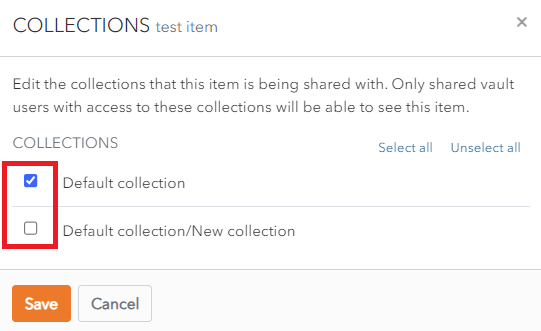](https://vault-doc.wallix.com/uploads/images/gallery/2023-11/collections-screen-for-item.png) Click **Save** to save changes. The **Item List** for the Shared Vault is **displayed**. The **Item** is assigned the Collections chosen. [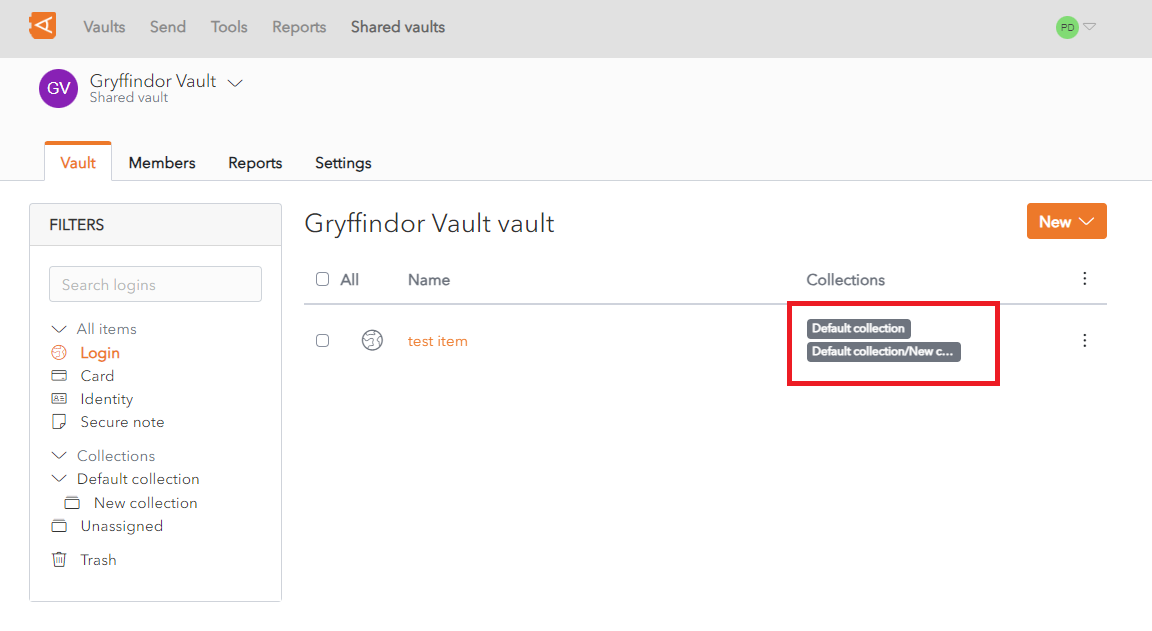](https://vault-doc.wallix.com/uploads/images/gallery/2023-11/collections-changed-for-item.png) ### Remove Item from Collections From the **Collections Screen** for an **Item**, click **Unselect all**. [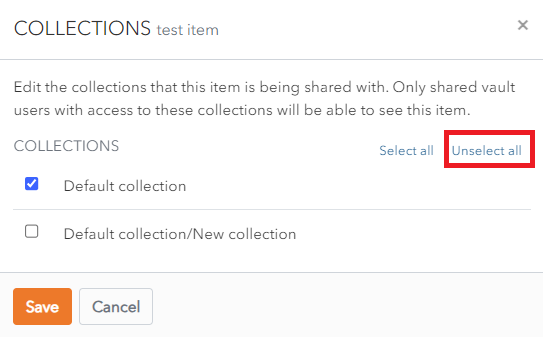](https://vault-doc.wallix.com/uploads/images/gallery/2023-11/X0Scollections-screen-unselect-all.png) Click **Save**. The Item is now **unassigned to collections**. # Unassigned Items The **Collection** field is **mandatory** to **create** an Item in a Shared Vault. However, an Item can be **removed** from a **Collection after** it is **created**. If an item is **no longer assigned to any Collections**, it is marked as an **Unassigned Item**. This will happen if all collections, that an item is assigned to, are unselected or deleted. This will happen if an Item is [**Removed from all Collections**](https://vault-doc.wallix.com/link/65#bkmrk-click-save.-the-item) or if the **[Collections to which it is assigned are deleted](https://vault-doc.wallix.com/link/63)**. Only members with **owner** or **admin roles** can **see** Unassigned Items, and can decide how to treat them. # Send data Share sensitive data with someone who does not have Entreprise Vault access. # Send Overview Using Send is a way to **share sensitive Vault data with someone who does not have Vault Access** using **[End-to-End Encryption](https://vault-doc.wallix.com/link/99).** The [**Send Encryption Process**](https://vault-doc.wallix.com/link/99) describes how a **Send Link is constructed**, the **Encryption and Decryption process** and **Send Security Options**. A **[Send can be Created](https://vault-doc.wallix.com/link/7)** to send either **Plain Text or a File** to another person. A Send can also be [**modified** ](https://vault-doc.wallix.com/link/88)or **[deleted manually](https://vault-doc.wallix.com/link/89)** after creation. A **[Link can be Copied to the Clipboard](https://vault-doc.wallix.com/link/86#bkmrk-copy-send-link-to-cl)** and provided to the person to**[ Access the Send](https://vault-doc.wallix.com/link/82)**. The link can be Sends are by definition ephemeral and have **[Limited Lifespan.](https://vault-doc.wallix.com/link/87)** - They are **Automatically Deleted** after a certain time. - An **Expiration Date** and **Maximum Access Count** can also be set for Sends. A number of [**Privacy Options**](https://vault-doc.wallix.com/link/85) are available for a Send. - A Send can also be **Password Protected**. In this case the Recipient is required to enter the Password to access the Send. - The text in **Text** Sends can be **hidden** by default to prevent unintended access to a Send. - The **Email Address** of the sender can be **hidden**. In this case it is advisable that the Sender **inform** the **Recipient** that a Send link will be sent, and that the recipient contacts the Sender to **verify** the **link** before accessing it. - A [**Private Note**](https://vault-doc.wallix.com/link/86#bkmrk-add-private-notes) can be added to a Send. This is **not sent** with the Send. # Create Send Click on the **Send Menu link** to access the Send Screen. A **List of Sends** are displayed. [](https://vault-doc.wallix.com/uploads/images/gallery/2023-11/send-screen.png) Click the **New Send button** to create a New Send. The **New Send Screen** is displayed. There are **2 types of Sends** that can be created - a **File Send** and **Text Send**. ### Create a File Send In the **Name** field, enter a Name for the Send. This should describe the Send. Choose **File** from the **What type of send is this?** radio buttons. **Upload the File** to send.The **maximum file size** is 1**00MB**.
[.](https://vault-doc.wallix.com/uploads/images/gallery/2023-11/create-send-file-without-options.png) Click **Save** to Save the send. The **Send List Screen** displays with the new send in the list. Alternatively, click **Cancel** to cancel the operation. [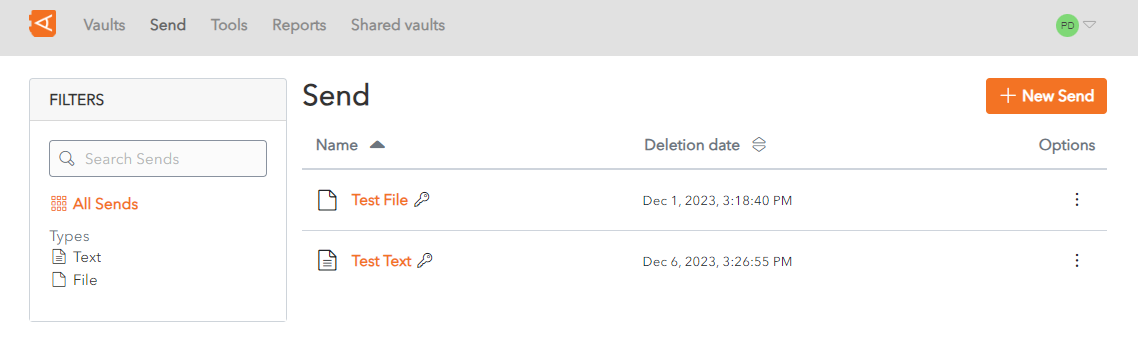](https://vault-doc.wallix.com/uploads/images/gallery/2023-11/send-list-screen.png) ### Create a Text Send In the **Name** field, enter a Name for the Send. This should describe the Send. Choose **Text** from the **What type of send is this?** radio buttons. In the **Text** field, add the text to be sent. **Check** the **When accessing the Send, hide the text by default**. This field is **optional.** If you check this box, the person accessing the send will need to unhide the text in order to view it, in order to protect the **privacy** of the text. [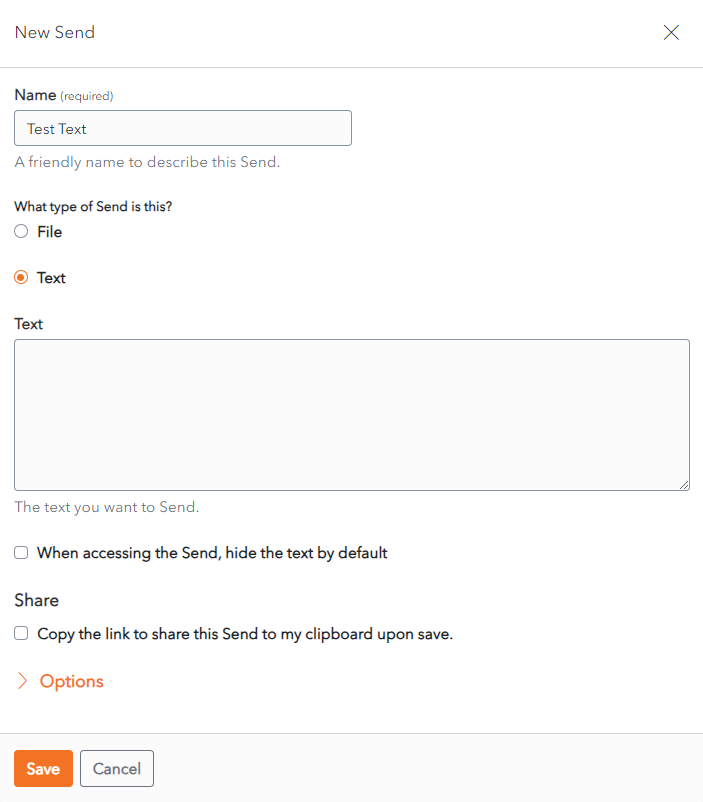](https://vault-doc.wallix.com/uploads/images/gallery/2023-11/pSzcreate-text-send-without-options.png) Click **Save** to Save the send. The **Send List Screen** displays with the new send in the list. Alternatively, click **Cancel** to cancel the operation. [](https://vault-doc.wallix.com/uploads/images/gallery/2023-11/send-list-screen.png) # Access a Send **Copy** the **Send Link** provided by the Send owner into your **Browser** window. [](https://vault-doc.wallix.com/uploads/images/gallery/2023-11/send-link.png)**If** the Send is **[Password Protected](https://vault-doc.wallix.com/link/85#bkmrk-alternatively%2C-click)**, enter the Password provided by the Send owner to access the Send.
The **Send** is displayed. ### Send a File If the Send is a **File**, the a link to Download the File is provided. Click the **Download file link** to download the file to your computer. [](https://vault-doc.wallix.com/uploads/images/gallery/2023-11/2Bodownload-file-shared.png)*If the Send has an **Expiration Date**, the link is no longer available after the Expiration Date. The following message is displayed.*
[](https://vault-doc.wallix.com/uploads/images/gallery/2023-11/send-expired.png) ### Send Text If the Send is a **Text**, the Text is displayed. Click on the **Copy value** **link** to copy the link to the clipboard. [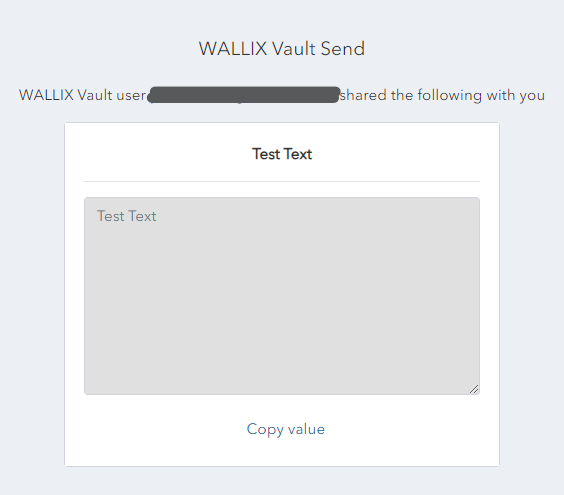](https://vault-doc.wallix.com/uploads/images/gallery/2023-11/view-text-shared.png)If the text is set to **[Hidden](https://vault-doc.wallix.com/link/85#bkmrk-hide-text)** (by the Send owner), toggle the visibility to display the text.
# Send Privacy There are a number of possible Privacy Options for Sends. ### Password Protection A P**assword** can be added to a Send to **prevent unwanted access** to the Send. When a member tries to access the Send, they will need to enter the Password to gain access. #### Password Protect a Send When **creating** or **editing** a Send, click on the Options link. A list of **Send Options** displays. Enter the **Password** to be used by the receiver to access the Send. This can be left **blank** if password protection is not needed.Once set, the **password cannot be viewed**, but it can be **modified** or **deleted**.
[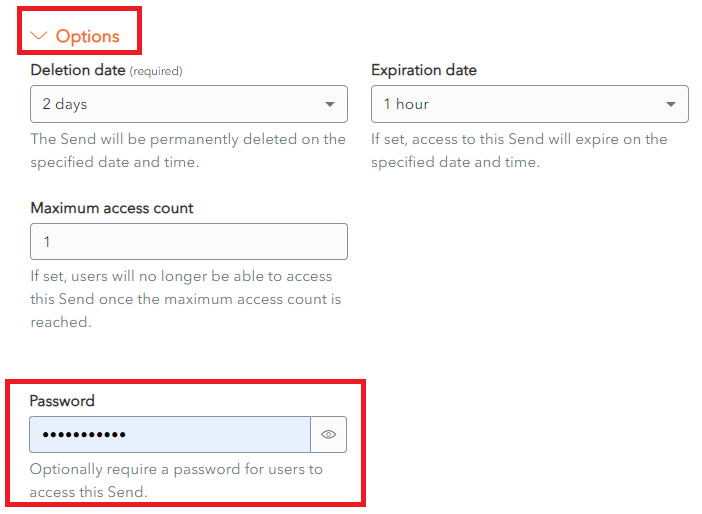](https://vault-doc.wallix.com/uploads/images/gallery/2023-11/privacy-field.png) #### Change or Delete a Send Password Click on a Send to open the **Send Screen**. The Send is displayed. To **Change the Password** used to protect the Send, **overwrite** the Password in the Password Field with a **New Password**. Click **Save**. The Password is changed. To **Remove Password Protection from the Send**, **delete** the password from the Password Field. Click **Save**. The Password Protection is removed. #### Access a Password Protected Send **If** the Send is **password protected**, enter the Password provided by the **Send Owner.** Click **Continue**. [](https://vault-doc.wallix.com/uploads/images/gallery/2023-11/confirm-password-screen.png) The Send is **displayed**. ### Hide Text The Text in a Send can be **hidden**, in order to **protect the privacy** of the text. When a member accesses it, they will need to unhide the text in order to view it. #### Hide Text in Send When **creating** or **editing** a Send, click on the **Options** link. A list of **Send Options** displays. **Check** the checkbox **When accessing the Send, hide the text by default.** Click **Save** to save changes. This field is **optional**. [](https://vault-doc.wallix.com/uploads/images/gallery/2023-11/Otccreate-text-send-without-options.png) #### View Hidden Text in Sends If the text is set to **Hidden** (by the Send owner), it is **not displayed** when the Send is opened. Click **Toggle visibility** to display the text. [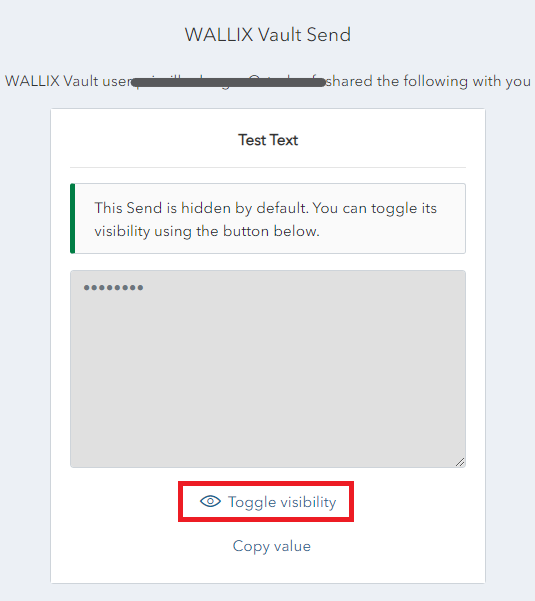](https://vault-doc.wallix.com/uploads/images/gallery/2023-11/send-text-hidden.png) The Text is **displayed**. ### Hide Email By **default** the **Sender Email** address of a Send is **displayed** to recipients. This can be **hidden** if required. #### Hide Email in Send When **creating** or **editing** a Send, click on the **Options** link. A list of **Send Options** displays. **Check** the checkbox beside **Hide my email address from recipients**. [](https://vault-doc.wallix.com/uploads/images/gallery/2023-11/hide-email.png) Click **Save** to save this option. When a [**member accesses this Send**](https://vault-doc.wallix.com/link/82), the sender's **email** address is **hidden**. The following **message** is displayed. [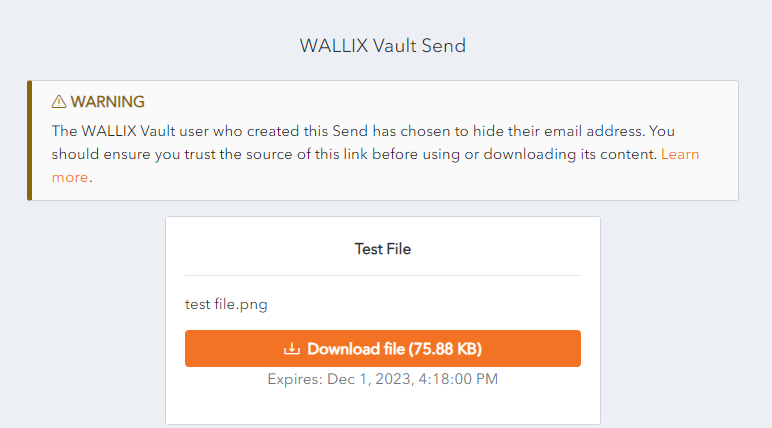](https://vault-doc.wallix.com/uploads/images/gallery/2023-11/hide-email-address-access.png) # Other Send Options When **creating a** **Send**, there are a number of **options** that are **hidden** by **default.** Click the **Options** Link to **unhide** the Send Options: ### Copy Send Link to Clipboard **Check** the checkbox **Copy the link to share this Send to my clipboard upon save**. This field is **optional**. [](https://vault-doc.wallix.com/uploads/images/gallery/2023-11/oHgimage.png)If you check this box, the link will be copied to your clipboard to facilitate providing it to person you wish to **Grant Access** to the Send.
The **Copy Send Link** can also be used to Copy the Send Link **to** the **clipboard**. [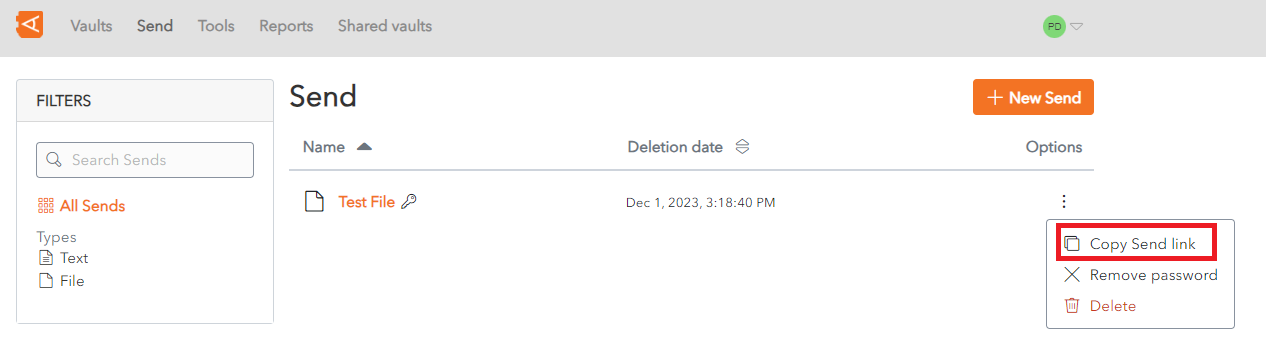](https://vault-doc.wallix.com/uploads/images/gallery/2023-11/context-menu-copie-2.png) ### Add Private Notes From the Send Screen, click on the Options Link. In the **Notes** field, enter any **privates notes** you wish to make about the send. [](https://vault-doc.wallix.com/uploads/images/gallery/2023-11/private-notes-send.png)These notes are not sent with the Send.
# Send Lifespan **Sends** have a **limited lifespan**. A number of options can be set for each send. The Options for a send can be set when the **[Send is created](https://vault-doc.wallix.com/link/7)**. They can also be [**modified** ](https://vault-doc.wallix.com/link/88)at a later time. Click the **Options** link on the **Send** **Screen.** The Options are **displayed** for that send. [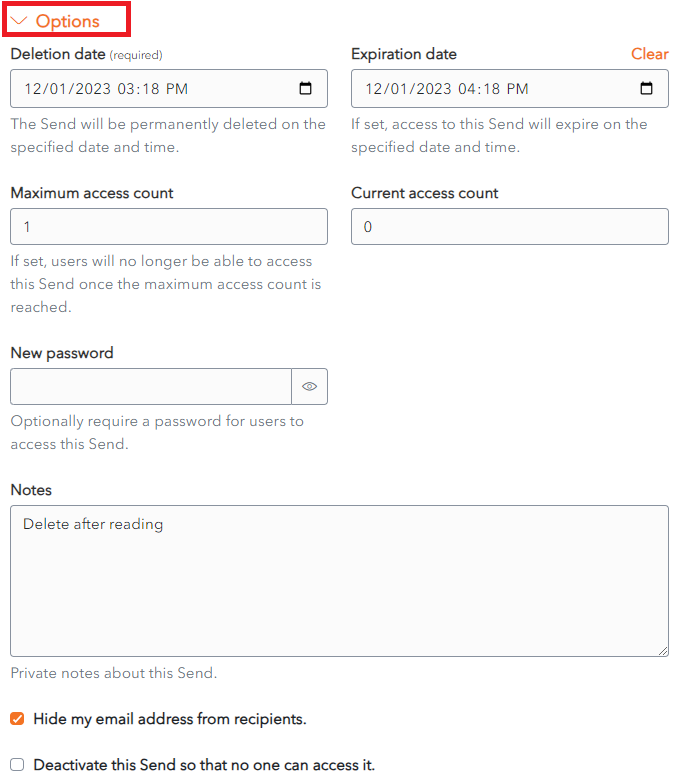](https://vault-doc.wallix.com/uploads/images/gallery/2023-11/send-options-original-copie.png) ### Deletion Date Choose the **period of time** to **keep** the Send from the **Deletion Date** dropdown. The options range from **1 hour to 30 days**. [](https://vault-doc.wallix.com/uploads/images/gallery/2023-11/jL7deletion-date.png) Alternatively, choose **Custom**, then choose the **Expiration Date and Time**. [](https://vault-doc.wallix.com/uploads/images/gallery/2023-11/3LCexpiration-date-custom.png) #### Set Deletion Date The Send will be **permanently deleted** on the **specified date and time**. After this time it will be no longer accessible.This is a **Required field**. By **default**, a Send Lifespan is set at **7 days**.
#### Automatic Deletion of Sends When the Deletion Date is reached, the Send is **Marked for Deletion**. A **Delete icon** appears beside the Send for a few minutes **before** it is **permanently deleted**. [](https://vault-doc.wallix.com/uploads/images/gallery/2023-11/mONimage.png)Deleted Items are **not stored** in the **Trash**. They are permanently removed from the Vault.
#### Manual Deletion of Sends From the **New Send Screen** or the **Edit Send Screen**, click the [](https://vault-doc.wallix.com/uploads/images/gallery/2023-11/UEKdelete-button.png)**Delete button**. The **Delete Send Confirmation Screen** appears. [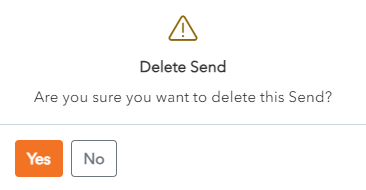](https://vault-doc.wallix.com/uploads/images/gallery/2023-11/delete-send-confirmation.png) Click **Yes** to delete the Send. Click **No** to cancel the operation. #### Access Deleted Send When a Recipient tries to access a **Deleted Send**, the following **Error Message** is displayed. [](https://vault-doc.wallix.com/uploads/images/gallery/2023-11/2XZsend-expired.png) ### Expiration Date A Send can be set to expire **a fixed period of time** after creation **or** on a **specific date**. #### Set Expiration Date Choose the **period of time** to **keep** the Send from the **Expiration Date** dropdown. The options range from 1 hour to 30 days. [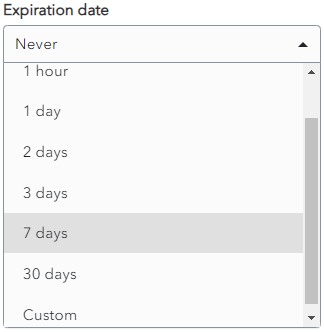](https://vault-doc.wallix.com/uploads/images/gallery/2023-11/dUfsend-expiration.png) Alternatively, choose **Custom**, then choose the **Expiration Date and Time**. [](https://vault-doc.wallix.com/uploads/images/gallery/2023-11/3LCexpiration-date-custom.png)By **default**, a Expiraton Date is set at **Never**. Unless you specify an Expiration Date, your Send will never expire.
**Expired Sends** are **no longer accessible** to **Recipients** but they are still **accessible by** the **Sender until** their **Deletion Date.**
#### Access Expired Send Like for Deleted Sends, when a Recipient tries to access a **Expired Send**, the following **Error Message** is displayed. [](https://vault-doc.wallix.com/uploads/images/gallery/2023-11/2XZsend-expired.png) ### Maximum Access Count A **Send** can be set to have a Maximum Access Count. This means the **number of times** that it can be **accessed** by the Recipient **before** it becomes **unavailable**. #### Set Maximum Access Count Choose the **number of times** that the Recipient can **access the Send**. It can be left **blank**. [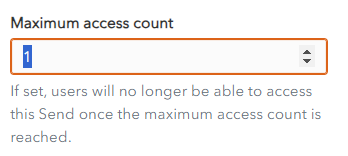](https://vault-doc.wallix.com/uploads/images/gallery/2023-11/maximum-access-count.png)By **default**, it is **blank**, which means the Send can be **accessed** an **unlimited** number of times before it is deleted.
A **Maximum Access Count Reached Icon** is **displayed** beside the **Send** in the Sender's Inbox. [](https://vault-doc.wallix.com/uploads/images/gallery/2023-11/max-access-count-reached.png) #### Access Send whose Maximum Access Count has been reached When a Recipient tries to access a **Send** whose **Maximum Access Count** has been **reached**, the following **Error Message** is displayed. [](https://vault-doc.wallix.com/uploads/images/gallery/2023-11/2XZsend-expired.png) ### Deactivate Send #### Deactivate a Send A send can be deactivated so that Recipients can no longer access it. **Check** the checkbox **Deactivate this Send so that no one can access it**. By **default**, this field is **unchecked.** [](https://vault-doc.wallix.com/uploads/images/gallery/2023-11/deactivate-send.png)**Deactivated** **Sends** are still **available** to the **Sender until** they are **deleted**.
A **Deactivated Icon** is **displayed** beside the **Send** in the Sender's Inbox. [](https://vault-doc.wallix.com/uploads/images/gallery/2023-11/deactivated-send.png) #### Access a Deactivated Send When a Recipient tries to access a **Deactivated Send**, the following **Error Message** is displayed. [](https://vault-doc.wallix.com/uploads/images/gallery/2023-11/2XZsend-expired.png) # Edit Send From the **Send List**, click on a **Send** to open it the **Edit Screen**. **Modify** the Send.**All fields** can be modified **except** the **Send Contents** (File or Text being sent).
[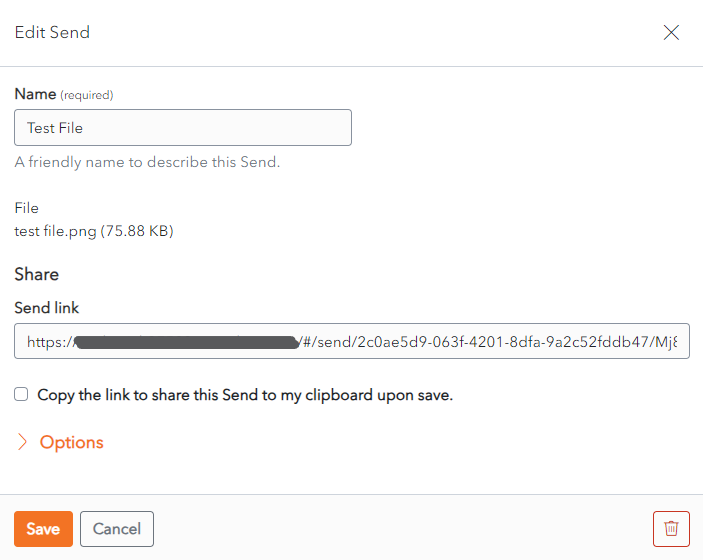](https://vault-doc.wallix.com/uploads/images/gallery/2023-11/edit-send-screen.png) Click **Save** to save changes. Alternatively, click **Cancel** to cancel the operation. # Delete a Send A Send can be [**deleted manually**](https://vault-doc.wallix.com/link/87#bkmrk-manual-deletion-of-s) at any time from the Create Send or Edit Send Screen, by clicking on the  Delete button. It can **also** be deleted from the **Context menu** of the Send. [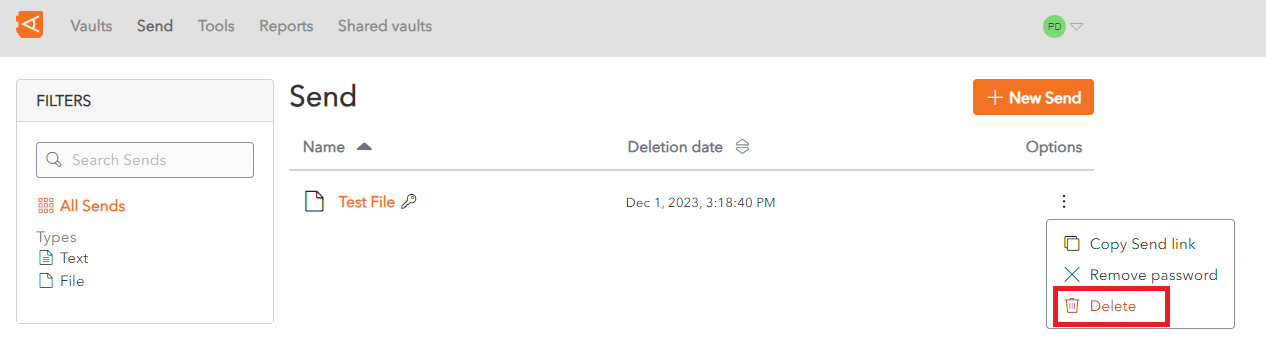](https://vault-doc.wallix.com/uploads/images/gallery/2023-11/context-menu-copie.png) The [**Automatic Deletion**](https://vault-doc.wallix.com/link/87#bkmrk--2) of Sends is set in the Options menu of the Send Screen. This is set at[ **Send Creation**](https://vault-doc.wallix.com/link/7) or can be modified from the [**Edit Screen**](https://vault-doc.wallix.com/link/88). # Send Encryption Process All Sends are **automatically end-to-end encrypted**, which means that WALLIX Enterprise Vault **encrypts** the data in the Send Link and the client-browser uses the encryption key to **decrypt** the data once received. ### Send Link Anatomy The Send Link is comprised of 3 elements:** https://<WALLIX Vault URL>/#/send/<send\_id>/<encryption\_key> 1. **Secure HTTP Protocol:** https//: 2. **Vault URL:** <WALLIX Vault URL> 3. **URL Fragment:** /#/send/<send\_id>/<encryption\_key> which contains the <send\_id> and the <encryption\_key> ### Send Encryption Here is how it works: - When a Send is created a **128-bit secret key** is **generated** for that Send. - A **512-bit encryption key** is **derived** from the 128-bit secret key. - The Send is **AES-256 encrypted** using the derived 512-bit encryption. **Data** (plain text or file) and the **Metadata** (Name, Filenme, Notes, etc.) are **included** in the encryption. - The Encrypted Send is **uploaded** to **WALLIX Servers**. The **Send ID** (used to identify the Send for decryption) is **included** in upload. The **Encryption Key** is **not included** in the upload. ### Send Decryption Here is how it works: - When a Send Link is accessed, the Web Browser requests the **Send Access Page** from WALLIX Servers. - The Send Access Page is **returned** from WALLIX Servers as a **Web Vault Client**. - The **URL Fragment** (containing **Send ID** and **Encryption Key**) is **parsed locally** by the Web Vault Client. - Using the parsed **Send ID**, the **Data** is **requested** from WALLIX Servers by the Web Vault Client. - The **Encryption Key** is **never** included in **Network Requests**. - The **Encrypted Send** is **returned** from WALLIX Servers to the Web Vault Client. - Using the **Encryption Key**, the Encrypted Send is **Decrypted locally** by the Web Vault Client. ### Send Security In order to **improve Send Security**, **two additional steps** can also be taken when transmitting a Send. These steps are **optional**. #### 1. Use Password Authentication - When creating a Send, **set** a **Password**. - Provide the **Password** to the Recipient via a **separate channel**. - When the Recipient clicks the Send Link, they are obliged to successfully enter this password before accessing the Send. - The Encrypted Send is then accessed and decrypted.The Password is not included in Send Encryption or Decryption. It is only used for Authentication before the Encrypted Send can be accessed and decrypted.
#### 2. Provide Encryption Key Separately - Provide the Send Link **without** the Encryption key. - Provide the **Encryption Key** via a **separate channel**. - The URL should be **reassembled** to **include** the **Encryption Key**, as per the [**Send Link Anatomy**](https://vault-doc.wallix.com/link/99#bkmrk-send-anatomy).The fully **Reassembled Send Link** is **Required** to **Access** the **Send**.
# Manage browser plugins and mobile apps Use new ways to access your Entreprise Vault data. # Browser Extension Overview Various options are available within the Browser Extension software. ### Open Browser Extension Click the **Browser Extension Icon** on the top right hand side of the browser. The following screenshot shows the icon for Chrome. Click the Browser Extension icon. [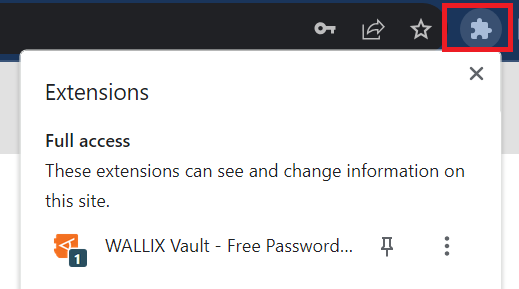](https://vault-doc.wallix.com/uploads/images/gallery/2023-12/access-browser-extension.png) The WALLIX Vault **Browser Extension opens** in the **Tab Screen.** #### Tab Screen This screen shows the **items saved** in the Vault for the currently displayed webpage. [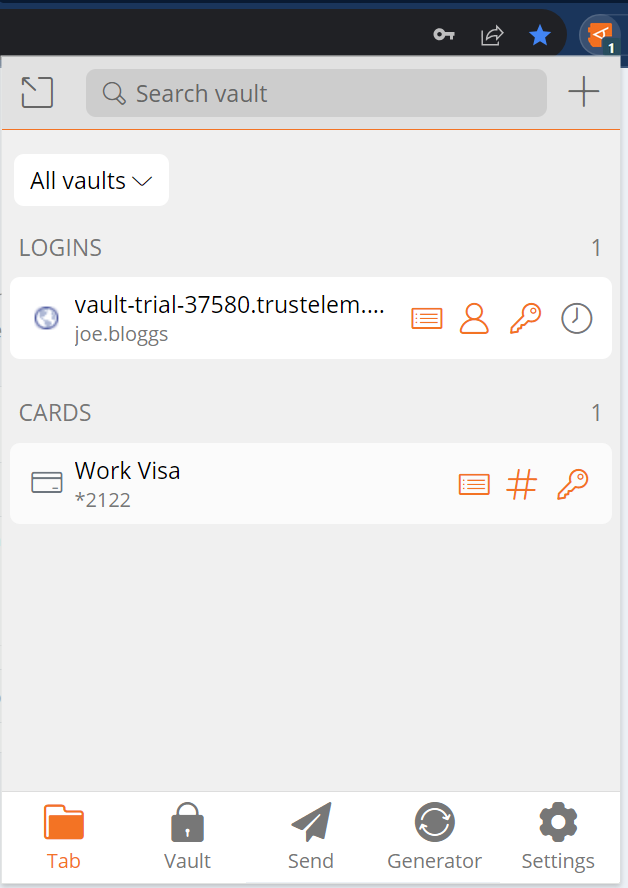](https://vault-doc.wallix.com/uploads/images/gallery/2023-12/j2vbrowser-extension-home.png) #### Vault Screen This screen displays the list of Vaults and their Items. [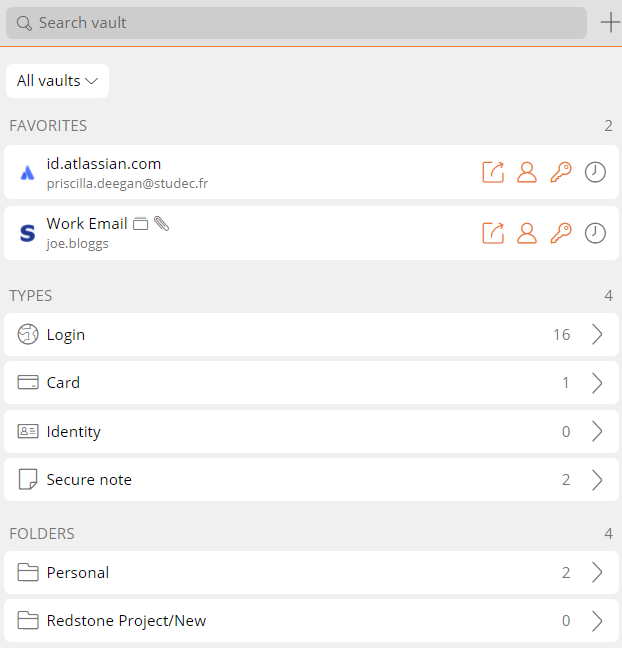](https://vault-doc.wallix.com/uploads/images/gallery/2023-12/vault-screen-1.png) [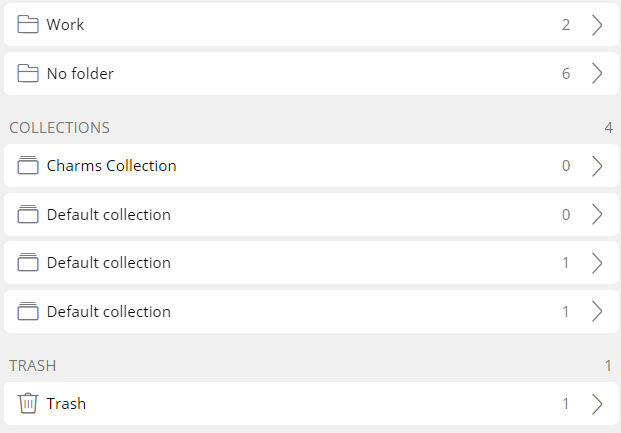](https://vault-doc.wallix.com/uploads/images/gallery/2023-12/fIWvault-screen-2.png) #### Send Screen This screen **displays Sends** and allows users to **add**, **edit** or **delete** a send. [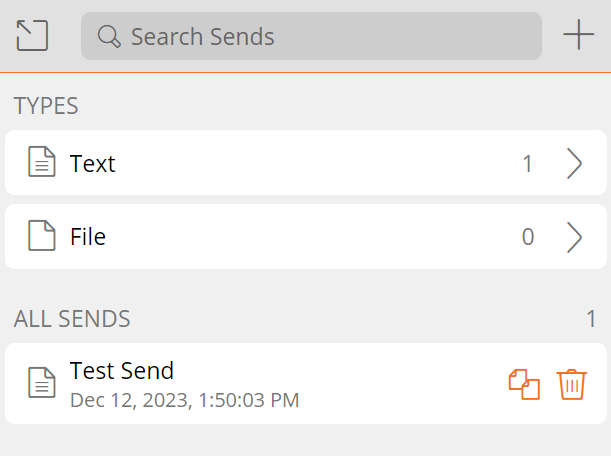](https://vault-doc.wallix.com/uploads/images/gallery/2023-12/nl4send-screen.png) #### Generator Screen This screen allows users to **generate** a **password** for an **Item**. [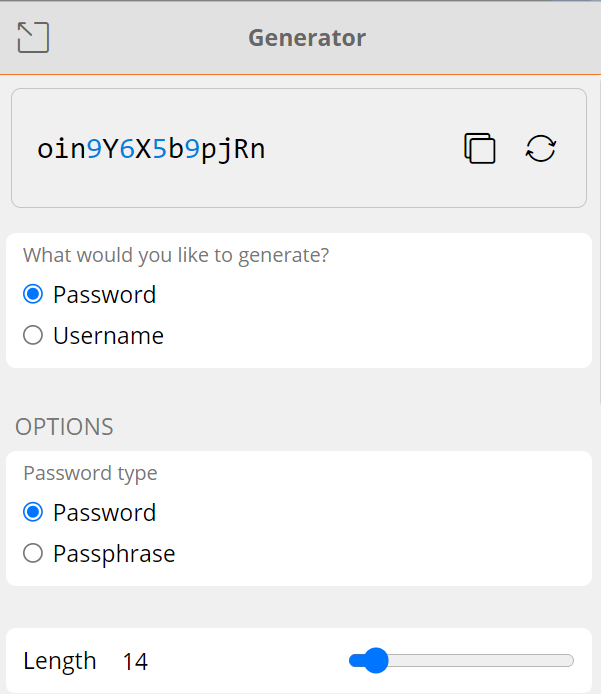](https://vault-doc.wallix.com/uploads/images/gallery/2023-12/generator-screen-1.png) [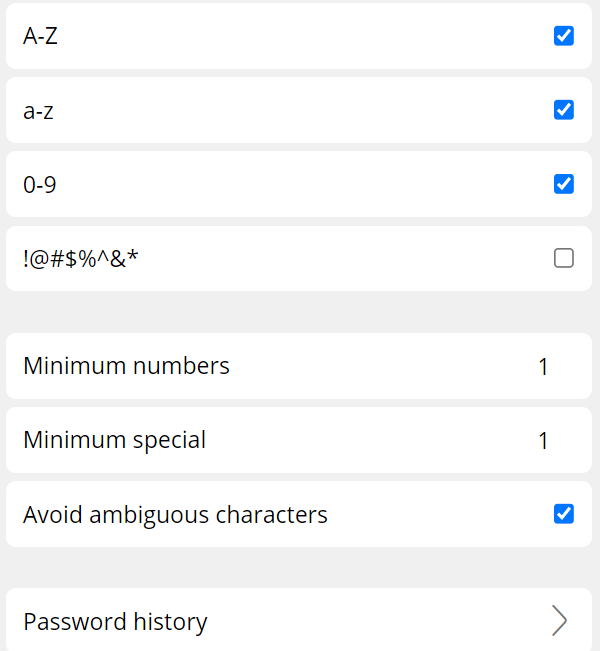](https://vault-doc.wallix.com/uploads/images/gallery/2023-12/hcMgenerator-screen-2.png) #### Settings Screen This screen displays the various **settings** and **options** available for the Browser Extension. [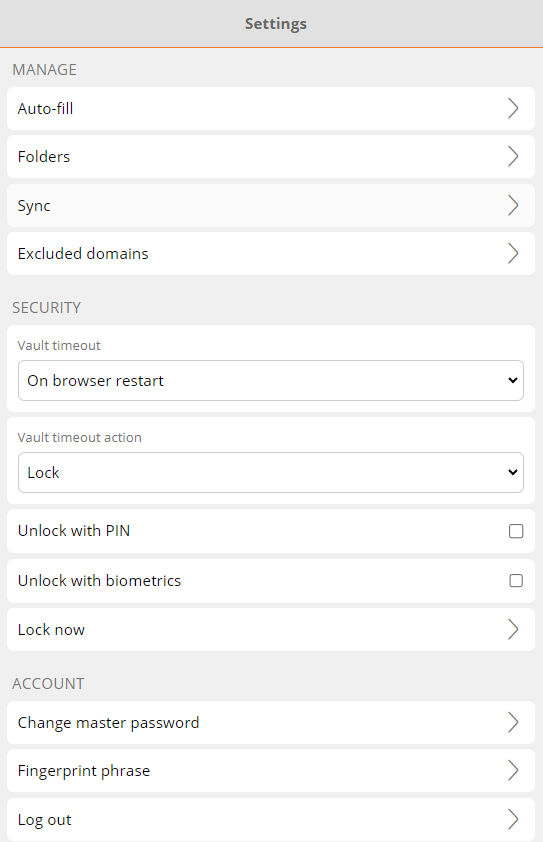](https://vault-doc.wallix.com/uploads/images/gallery/2023-12/autofill-settings-1.png) [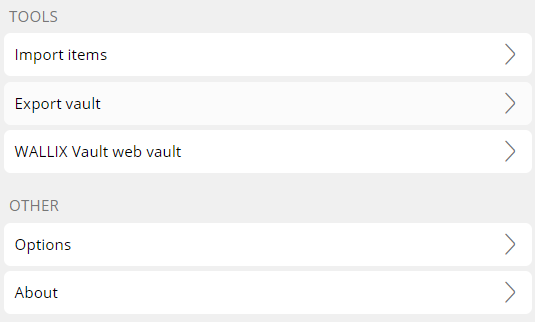](https://vault-doc.wallix.com/uploads/images/gallery/2023-12/CUaautofill-settings-2.png) # Install Browser Extension WALLIX Enterprise Vault uses browser extensions for **Chrome** and **Firefox**. These must be installed before using WALLIX Enterprise Vault. Click on the **Browser Extension** link from the **User Menu**. [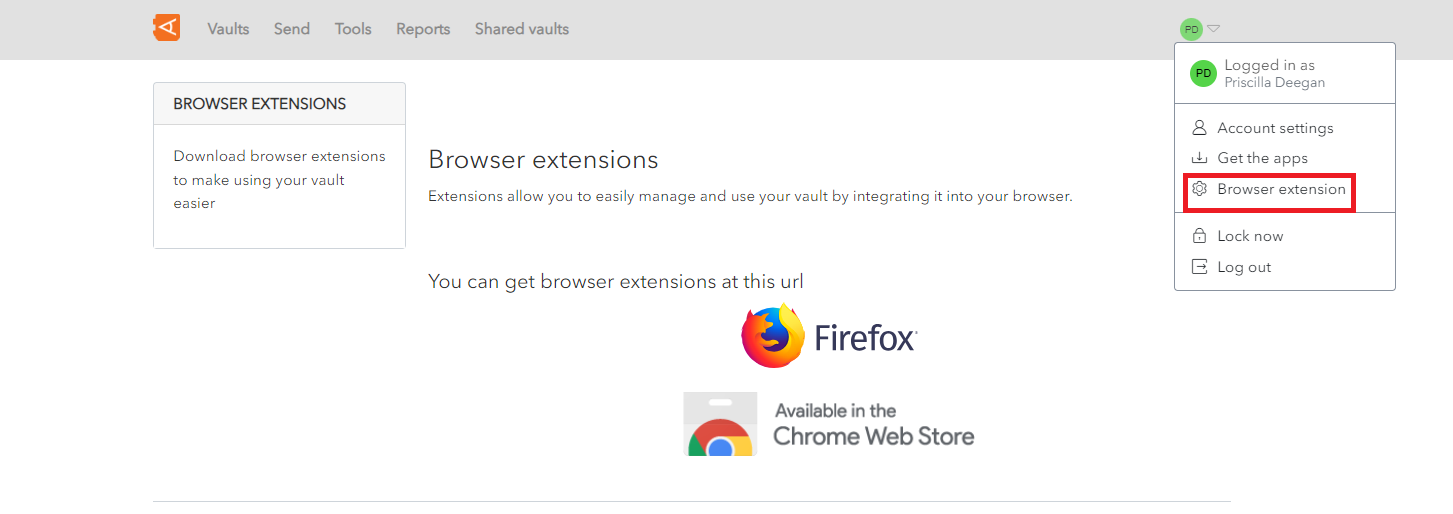](https://vault-doc.wallix.com/uploads/images/gallery/2023-11/browser-extension-setup-0.png) Alternatively, click on the **Browser extension setup** link on the top right-hand side of your web browser. [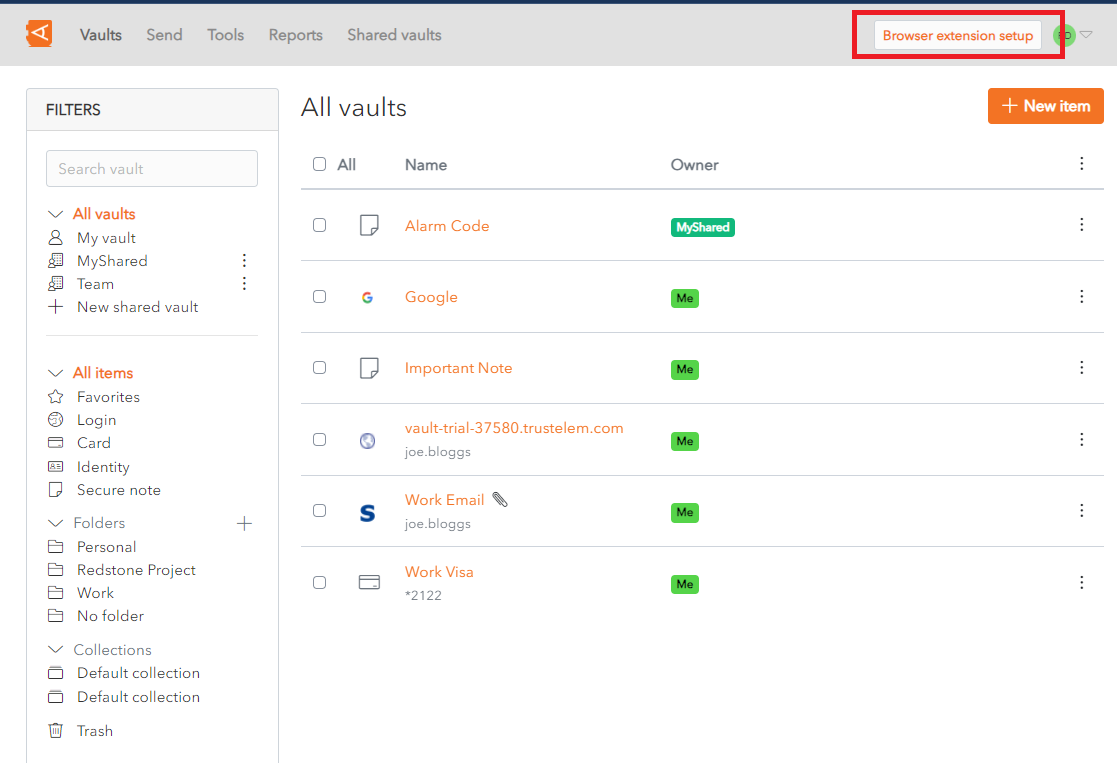](https://vault-doc.wallix.com/uploads/images/gallery/2023-11/browser-extension-setup-1.png) This will display the Browser Extension Configuration Screen. Click on the **Install and configure** button to install the WALLIX Enterprise Vault Extension for the browser you use to access your WALLIX-Vault. [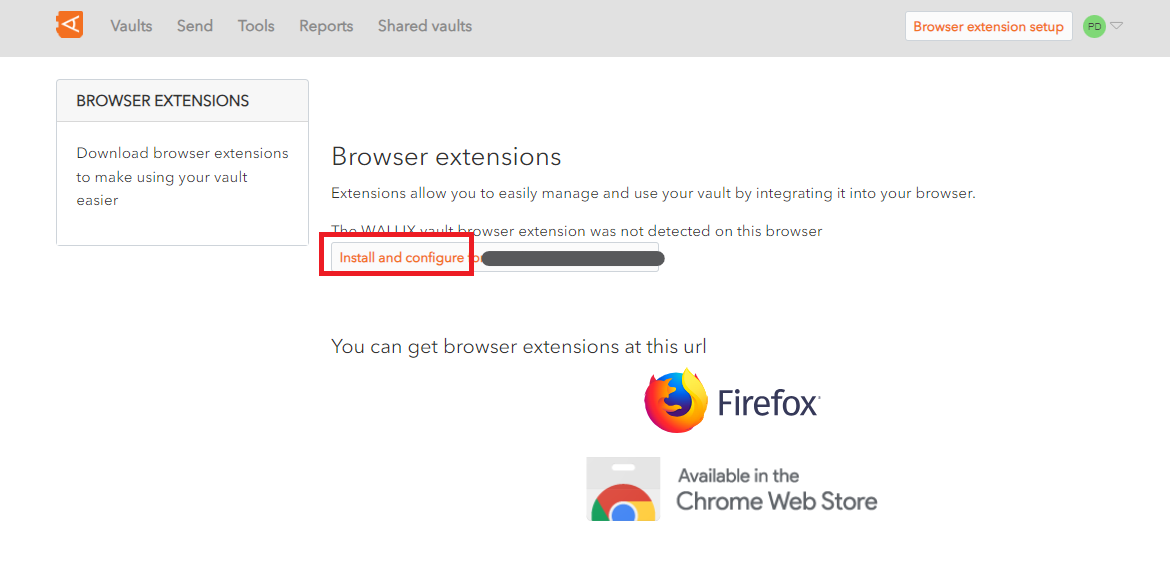](https://vault-doc.wallix.com/uploads/images/gallery/2023-11/browser-extension-setup-2.png) Click the **Add to Chrome** button to install the browser extension (this process is similar for Firefox). [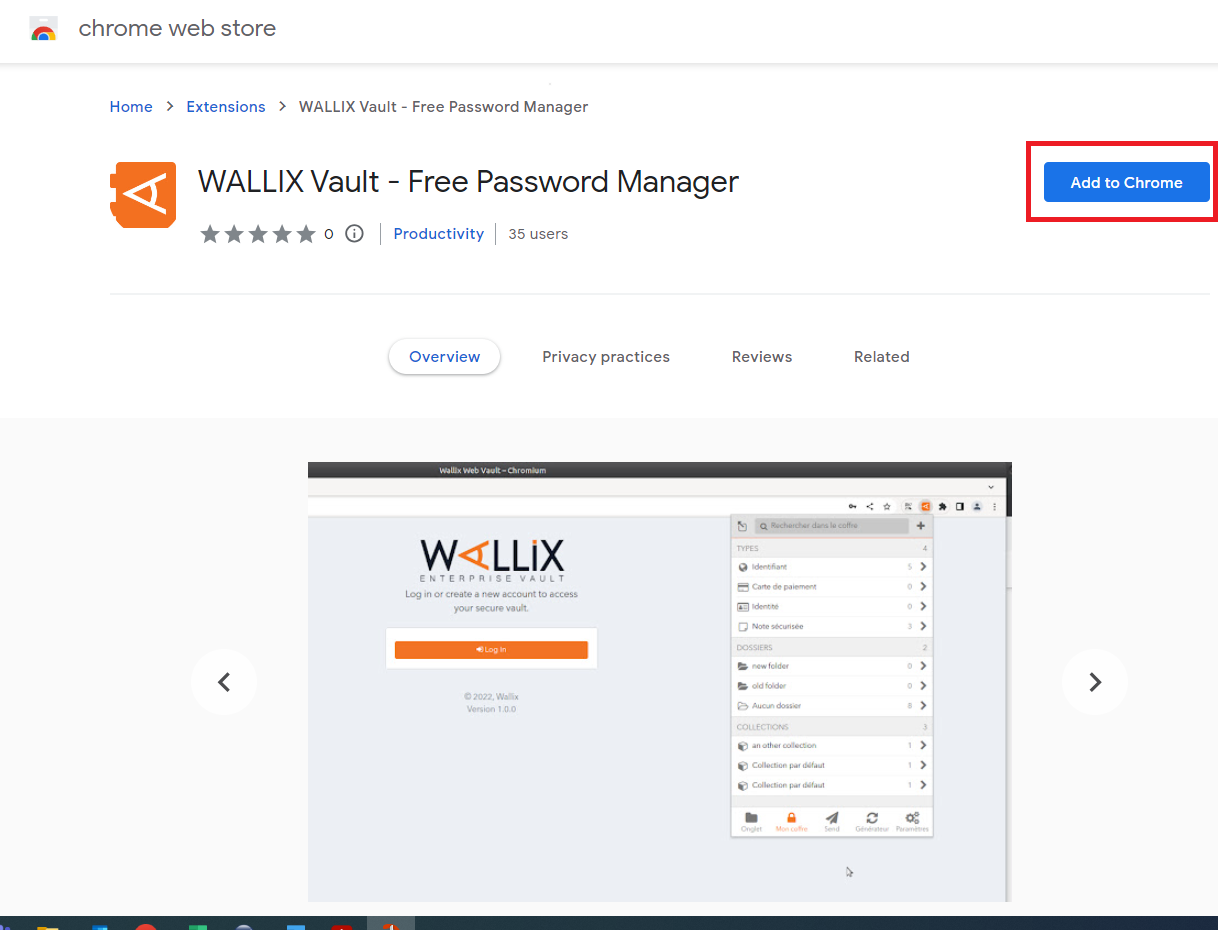](https://vault-doc.wallix.com/uploads/images/gallery/2023-11/gOFbrowser-extension-setup-3.png) You can now use the browser extension. # Install Mobile Application The WALLIX-Vault mobile application is available on Google Play for Android devices and App Store for Apple devices. Select **Get the apps** in your Account Menu to display the Mobile Apps page. [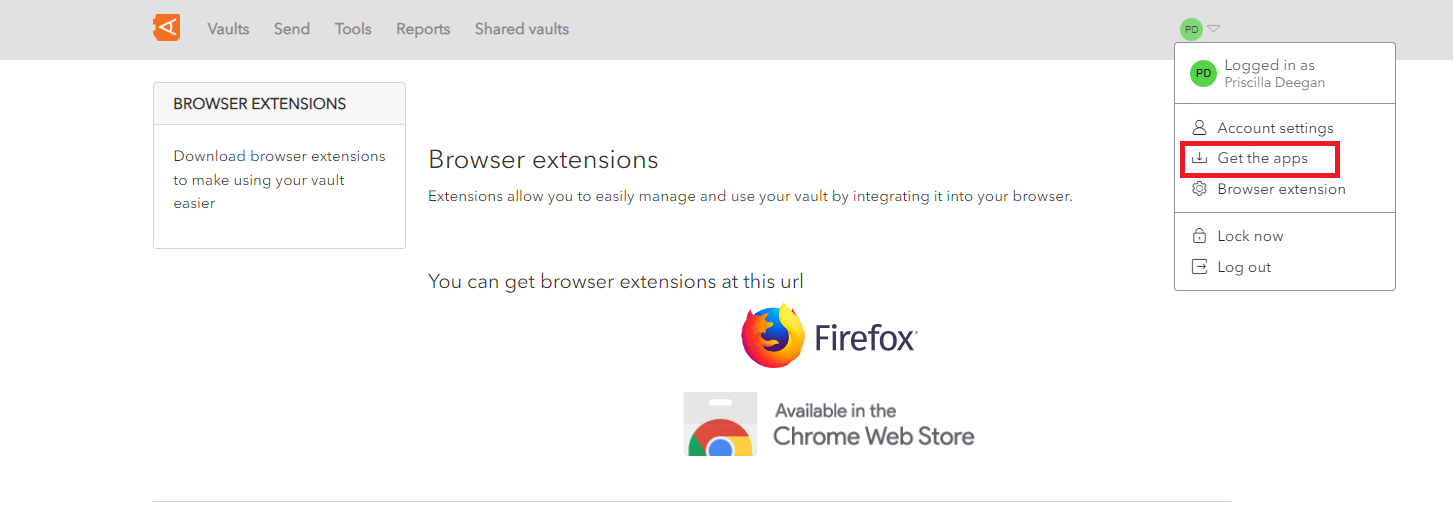](https://vault-doc.wallix.com/uploads/images/gallery/2023-11/download-apps-0.png) Scan the **QR code** with your device to set up your account on the WALLIX Enterprise Vault mobile app. [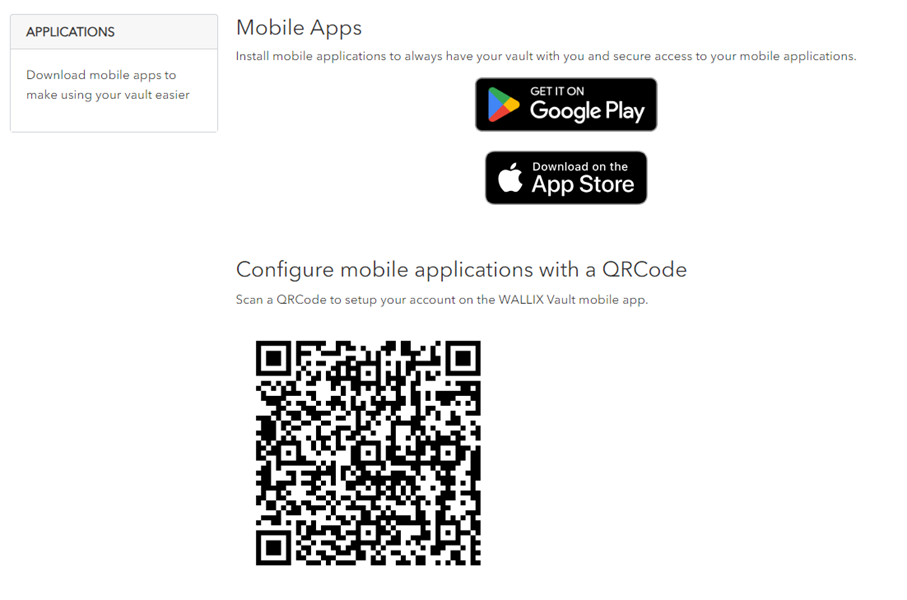](https://vault-doc.wallix.com/uploads/images/gallery/2023-11/K5Ldownload-apps-1.png) This downloads and **installs** the app **with your user account details.** # Auto-fill data Auto-fill your Entreprise Vault data into web pages and mobile apps. # Auto-fill Overview Once **[Installed](https://vault-doc.wallix.com/link/5)**, the WALLIX **[Browser extension](https://vault-doc.wallix.com/link/93)** facilitates Auto-fill to webpage pages and mobile apps. The Browser Extension is currently **available** for **Chrome** and **Firefox**. Browser Password Managers are generally considered less secure than dedicated solutions like WALLIX Enterprise Vault. **Before using** the **Browser Extension** it is advisable to **[Disable Browser Password Manager & Export Saved Passwords.](https://vault-doc.wallix.com/link/90)** **[Items can be added to the Vault](https://vault-doc.wallix.com/link/94)** from a webpage using the Browser Extension on Desktop or mobile devices. **[Logins](https://vault-doc.wallix.com/link/92),** [**Card and Identities,**](https://vault-doc.wallix.com/link/98) and [**Custom Fields**](https://vault-doc.wallix.com/link/100) can be auto-filled to a Webpage using the Browser Extension from a Desktop computer. There are various options for **[Using URIs in Auto-fills](https://vault-doc.wallix.com/link/101).** A number of options are available for **auto-filling webpages and mobile apps** on **[Android Devices](https://vault-doc.wallix.com/link/104)** and **[iOS Devices.](https://vault-doc.wallix.com/link/102)** **[Other options](https://vault-doc.wallix.com/link/97)** are available in the Browser Extension such as **Badge Counter**, **TOTP Copy after Auto-fill** or **Auto-fill for iframes**. # Disable Browser Password Manager & Export Saved Passwords ### Chrome Browser Type chrome://password-manager/passwords into the address bar. [](https://vault-doc.wallix.com/uploads/images/gallery/2023-12/enter-passwords-address-chrome.png) Click **Enter**. The **Passwords Screen** opens. Click the Settings Link in the Password Manager menu. The Settings Screen opens. [](https://vault-doc.wallix.com/uploads/images/gallery/2023-12/chrome-password-settings.png) #### Disable Password Manager **Toggle off** the following **options**: - Offer to save passwords - Sign in automatically The Browser **no longer** offers to **save** **password** or **sign in automatically** to websites. #### Export Saved Passwords Click **Download file** beside the **Export passwords** **option**. [](https://vault-doc.wallix.com/uploads/images/gallery/2023-12/hpKexport-passwords.png) The Passwords are exported in **CSV format**. ### Firefox Browser Type about:preferences#privacy into the address bar. [](https://vault-doc.wallix.com/uploads/images/gallery/2023-12/ff-passwords.png) Click **Enter**. The **Passwords Screen** opens. [](https://vault-doc.wallix.com/uploads/images/gallery/2023-12/autofill-ff.png) #### Disable Password Manager **Toggle off** the following **options**: - Ask to save logins and passwords for websites - Autofill logins and passwords The Browser **no longer** offers to **save** **password** or **sign in automatically** to websites. #### Export Saved Passwords Click the **Saved Logins button** beside the Logins and Passwords options. [](https://vault-doc.wallix.com/uploads/images/gallery/2023-12/saved-logins-ff.png) The Saved Passwords List is displayed. Click the **three dots** link beside the Account name. The Context Menu is displayed. Click the **Export Logins** Link. [](https://vault-doc.wallix.com/uploads/images/gallery/2023-12/BMnexport-logins-ff.png) The Passwords are exported in **CSV format**. # Browser Extension Options ### Badge Counter The **Tab Screen** of the Browser Extension **automatically detects** the **URI** of the **currently displayed page**. It finds any **Vault Items** that have the **same URI**. It displays the **number of items found** for that page on the **Badge Counter** **icon**. [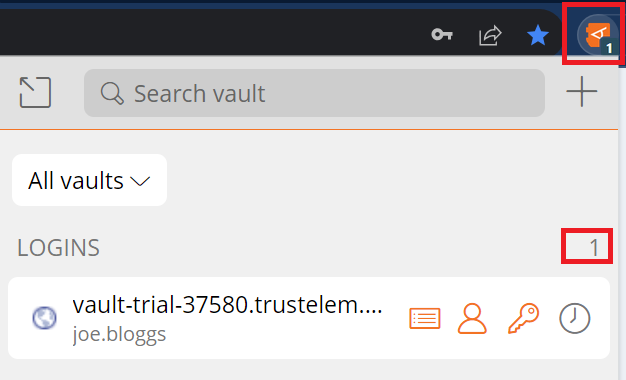](https://vault-doc.wallix.com/uploads/images/gallery/2023-12/browser-extension-home-copie.png) It is **turned on** by **default**. It can be turned off by unchecking the **Show Badge Counter checkbox** in **Settings** > **Options**. ### TOTP Copy after Auto-fill If the Login uses **WALLIX Authenticator** for TOTPs, the shortcut also **copies** the **TOTP** to the clipboard after auto-filling the web page with any of the above methods. ### Auto-fill for iframes **Auto-fill** does **not work** for untrusted iframes. An untrusted iframe is **defined** as one where the **src** value is **not** the **same** as the **URI** for the **Login** item, as required in the rules set for **Match Detection Behavior**. When the browser extension detects an iframe it responds based on the type of auto-fill being used: - **Auto-fill on Page Load:** the browser extension disables the auto-fill on page load and does not warn the user - **Auto-fill using Context menu, Keyboard Shortcut or from Browser Extension:** the browser extension warns the user about the iframe. # Auto-fill Logins**Prerequisite:** The Browser Extension needs to be [**installed** ](https://vault-doc.wallix.com/link/5)before the Auto-fill feature becomes available.
### Auto-fill from Context Menu **Right click** on the Login Screen of a website. The Context Menu is displayed. Choose **WALLIX Vault > Auto-fill.** If the Login is stored in the Vault, an Auto-fill option is proposed. Click **Auto-fill** to **retrieve** the **Login** for this website to WALLIX Enterprise Vault.If you are not signed in to WALLIX Enterprise Vault, you will be prompted to **sign in** before retrieving the Login.
[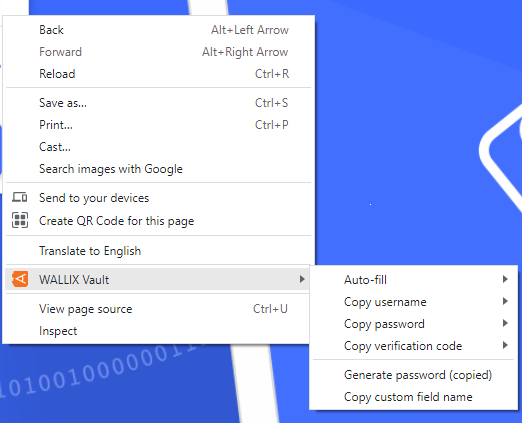](https://vault-doc.wallix.com/uploads/images/gallery/2023-12/autofill-from-context-menu.png) The context menu also contains other options for this Login: - **Copy username**: copies the username of the login to the clipboard. - **Copy password**: copies the password of the login to the clipboard. - **Copy verification code**: copies the verification code of the login to the clipboard. - **Generate password**: generates a new more secure password from the copied password. - **Copy custom field name**: copies the name of the custom field of the login. ### Auto-fill on Page Load Auto-fill on Page load is a function that **automatically populates a Login** on a Page when the URI of the page being displayed corresponds to an Item in the Vault. This is pertinent for **Logins, Cards or Identities**.**Untrusted iframes**: Auto-fill on page load does **not work** for untrusted iframes.
**HTTPS/HTTP:** If the Vault Item **expects** an **HTTPS** site and a **HTTP** version of the site is **displayed**, the user is **warned before** auto-filling on page load.
#### Enable Auto-fill on page loadFor **security reasons**, it is **automatically disabled** and needs to be enabled to work.
To **enable** Auto-fill on Page Load, from the Browser extension, navigate to **Settings**> **Autofill**. The Auto-fill screen opens. Click the **Auto-fill on page load checkbox**. This **enables** the option to auto-fill logins on page load. [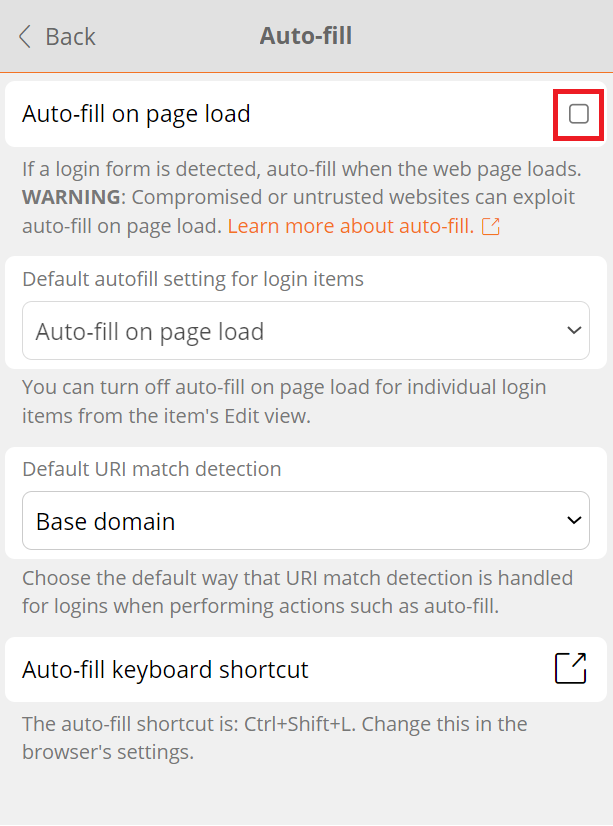](https://vault-doc.wallix.com/uploads/images/gallery/2023-12/K8pautofill-on-page-load.png) From the **Default autofill setting for Login items dropdown**, choose the default option: [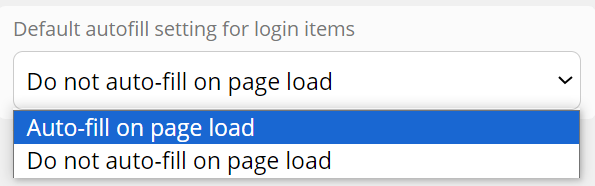](https://vault-doc.wallix.com/uploads/images/gallery/2023-12/default-autofill.png)This can be **overwritten** for each item from the **Items Screen.** This allows **specific auto-fill** options to be set for **specific items.**
From the **Default URI match detection dropdown**, choose how to match the URL of the webpage with the Login already in the Vault. [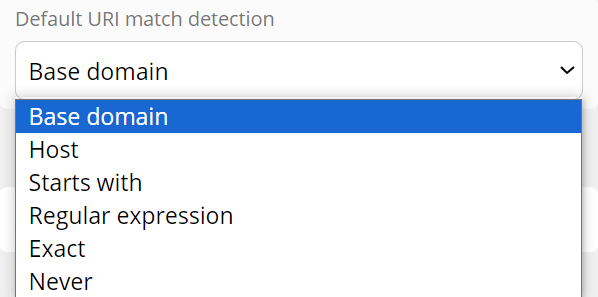](https://vault-doc.wallix.com/uploads/images/gallery/2023-12/default-uri.png) #### Auto-fill Item to Vault on Page Load If this **login** is **not** already **saved** in WALLIX Enterprise Vault, a **prompt** displays which **offers to save** the Login details for this Website. [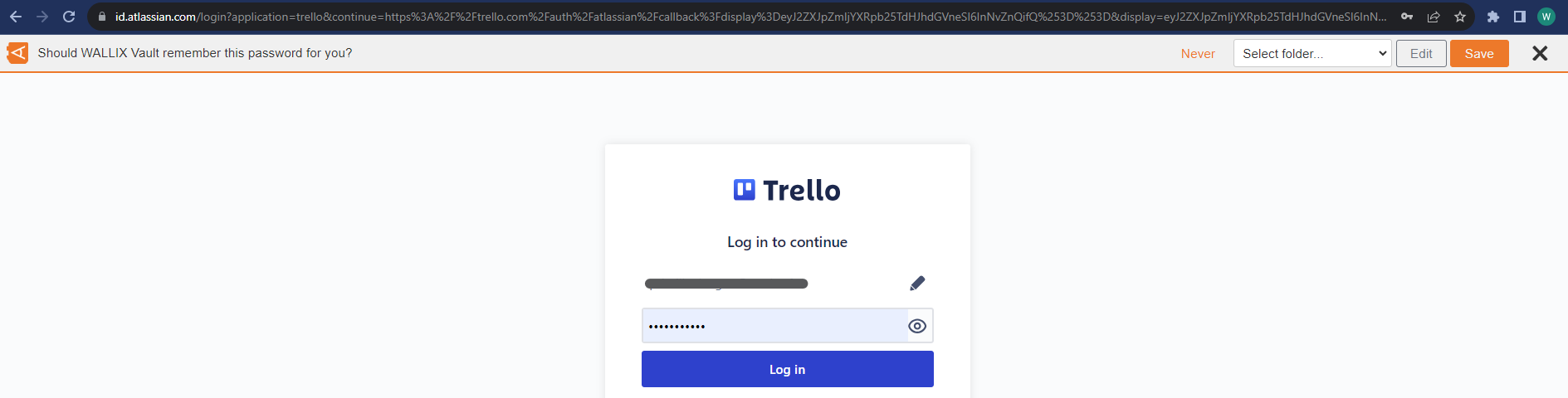](https://vault-doc.wallix.com/uploads/images/gallery/2023-12/qkXsave-password-prompt.png) Choose a **Folder** to add the Login to this Folder in the Vault. This field is **optional**. [](https://vault-doc.wallix.com/uploads/images/gallery/2023-12/select-folder.png)Items are **added** to the **User's Individual Vault** and not a Shared Vault.
Click the **Save button.** The **Add Item Screen** displays with the **fields pre populated** with the Login details. Modify fields, if required. [](https://vault-doc.wallix.com/uploads/images/gallery/2023-12/edit-1.png) [](https://vault-doc.wallix.com/uploads/images/gallery/2023-12/edit-2.png) Click **Save** to Save Item to Vault. Alternatively, click **Cancel** to cancel the operation. ### Auto-fill Manually You can **manually add** a **Login** that is **not** already in the **Vault**. From the **Vault Screen** of the **Browser Extension**, click **Add a login.** [](https://vault-doc.wallix.com/uploads/images/gallery/2023-12/iBscreate-login-from-browser-extension-manually.png) The **Add Item Screen** opens. The **elements** that the Browser Extension could **recuperate** from the **browser** are **prepopulated**. [](https://vault-doc.wallix.com/uploads/images/gallery/2023-12/add-item-manually-2.png) **Enter** the **remaining fields**. Click **Save** to create Login. Alternatively, click **Cancel** to cancel the operation. ### Auto-fill using Keyboard Shortcuts Use the following **default keyboard shortcuts** (also known as **hot keys**) to auto-fill a login. - Use Ctrl + Shift + L if running Windows of Linux - Use Cmd + Shift + L if running for macOSIf **multiple logins** are found for the URI, the **last-used login** is used for auto-fill.
Keyboard shortcuts can be useful to **populating multiple logins** in **rapid succession**.
**[Configure shortcuts](https://vault-doc.wallix.com/link/95):** If the keyboard shortcut doesn't work, it may be because **another app** is already **using it**. Either remove the shortcut from the other app or configure WALLIX to use a different shortcut.
### TOTP Copy If the Login uses **WALLIX Authenticator** for TOTPs, the shortcut also **copies** the **TOTP** to the clipboard after auto-filling the web page with any of the above methods. ### Auto-fill for iframes **Auto-fill** does **not work** for untrusted iframes. An untrusted iframe is **defined** as one where the **src** value is **not** the **same** as the **URI** for the **Login** item, as required in the rules set for **Match Detection Behavior**. When the browser extension detects an iframe it responds based on the type of auto-fill being used: - **Auto-fill on Page Load:** the browser extension disables the auto-fill on page load and does not warn the user - **Auto-fill using Context menu, Keyboard Shortcut or from Browser Extension:** the browser extension warns the user about the iframe. # Auto-fill for Cards and Identities ### Add to Vault As for **[Manually Adding Logins to the Vault](https://vault-doc.wallix.com/link/94#bkmrk-manually-add-a-login)**, **Cards** and **Identities** can be **auto-filled directly to the Vault** from the browser extension. Click the **Add Item button** in the **Tab** Screen of the Browser extension. [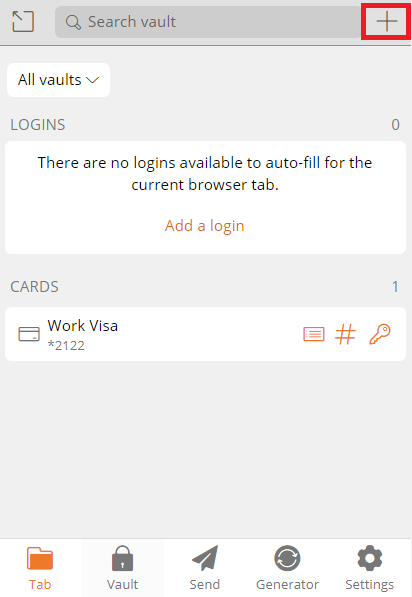](https://vault-doc.wallix.com/uploads/images/gallery/2023-12/autofill-card-to-vault-1.png) The Add Item Screen is displayed. Choose **Type** (**Card or Identity**). Add rest of item details. click **Save** to add item to Vault. [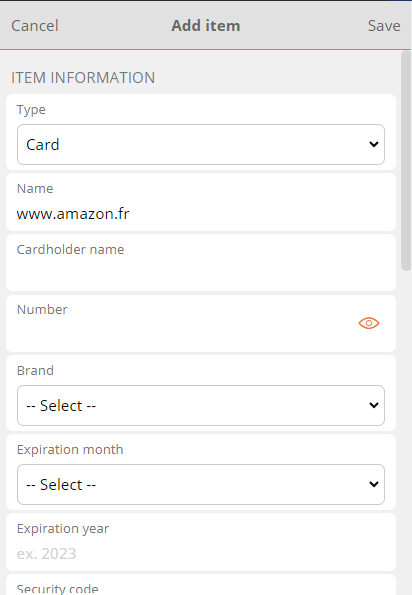](https://vault-doc.wallix.com/uploads/images/gallery/2023-12/add-card-to-browser-extension.png) Alternatively, click **Cancel** to cancel the operation. ### Auto-fill Manually From an ecommerce website, navigate to the **add new card page.** Open the **Browser Extension**. The **Cards** saved in the Vault are **displayed**. [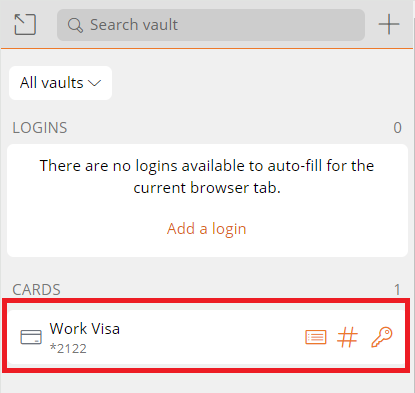](https://vault-doc.wallix.com/uploads/images/gallery/2023-12/autofill-card-to-amazon.png) **Click** a **Card**. It will **automatically populate the webpage**. The **procedure** is the **same** for populating an **identity** on a webpage. ### Auto-fill using Context Menu Cards and identities can be auto-filled to the Vault from the Context menu on the webpage. This works the same as for **[Logins](https://vault-doc.wallix.com/link/92#bkmrk-auto-fill-from-conte)**. ### Hide Cards and Identities Option Cards and Identities are displayed by default in the Tab Screen of the Browser Extension. **Uncheck** the following options in **Settings > Options > Display** in the Browser Extension to **hide** these from **view**: - **Show cards on Tab Page** checkbox - **Show identities on Tab page** checkbox [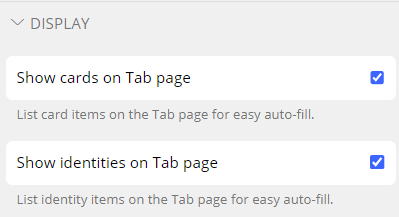](https://vault-doc.wallix.com/uploads/images/gallery/2023-12/hide-cards-and-identities.png) # Auto-fill for Custom Fields The **Browser Extension** can be used to **auto-fill a web page** with custom fields that have been added to Items. A typical application of this is for **PINs** and **Security Questions** that are often required in addition to a **Username** and **Password** to login to a website. Auto-field Custom fields can be created for the **<form>** or **<input>** **elements**. A special scenario is possible for **<span>** elements**.** ### Auto-Fill Custom Fields Open the **Browser Extension** on the **Webpage** that you wish to auto-fill. The **Tab** Screen displays. It **automatically detects** the **URI** of the webpage and **displays** any **logins stored** in the **Vault** that correspond with this URI. Select the **Vault Item** that contains the **custom field** to be auto-filled to the webpage. [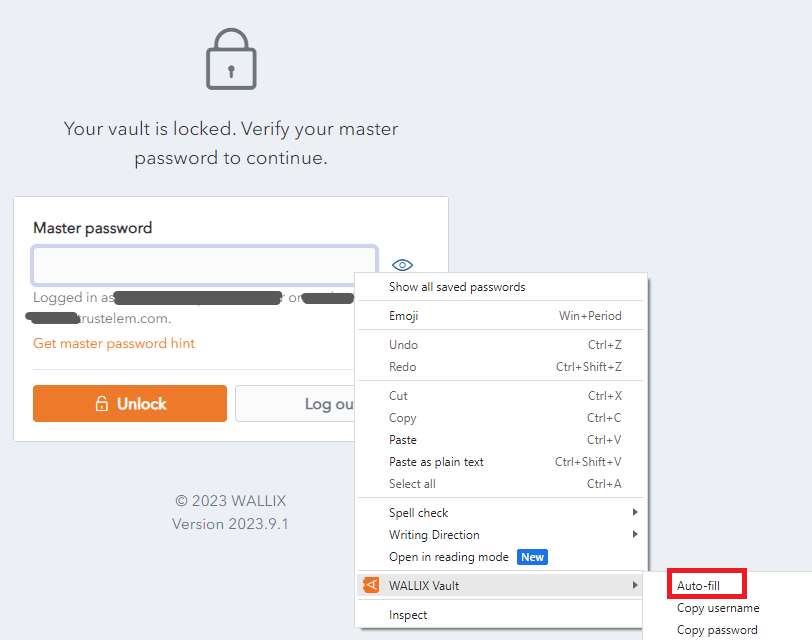](https://vault-doc.wallix.com/uploads/images/gallery/2023-12/copy-custom-field-name-copie.png) The Browser Extension finds any fields that **match** the **Custom field Name** and **auto-fill** that field's **value**.For this reason it is **important** to **correctly name custom fields**.
### Linked Custom Fields Sometimes the Browser Extension is **unable to auto-fill usernames and passwords** for a webpage. In these cases, **Custom fields** can be created for the username and password and these can be used **instead** for auto-fill. From the [**Edit Item Screen**](https://vault-doc.wallix.com/link/9), add a New **[Custom Field](https://vault-doc.wallix.com/link/15)** of type **Linked.** [](https://vault-doc.wallix.com/uploads/images/gallery/2023-12/new-linked-custom-field.png) In the **Name** field, give it the same name as the **HTML form element** (id, name, aria-label, or placeholder) for the field in question. This can be found by clicking the **Copy custom field name link** in the Context Menu of the field in question. For **example**, to find the HTML form element for the Master Password in WALLIX Enterprise Vault, click the Copy custom field name link. The HTML form element for the Master Password is **saved** to the **clipboard**. [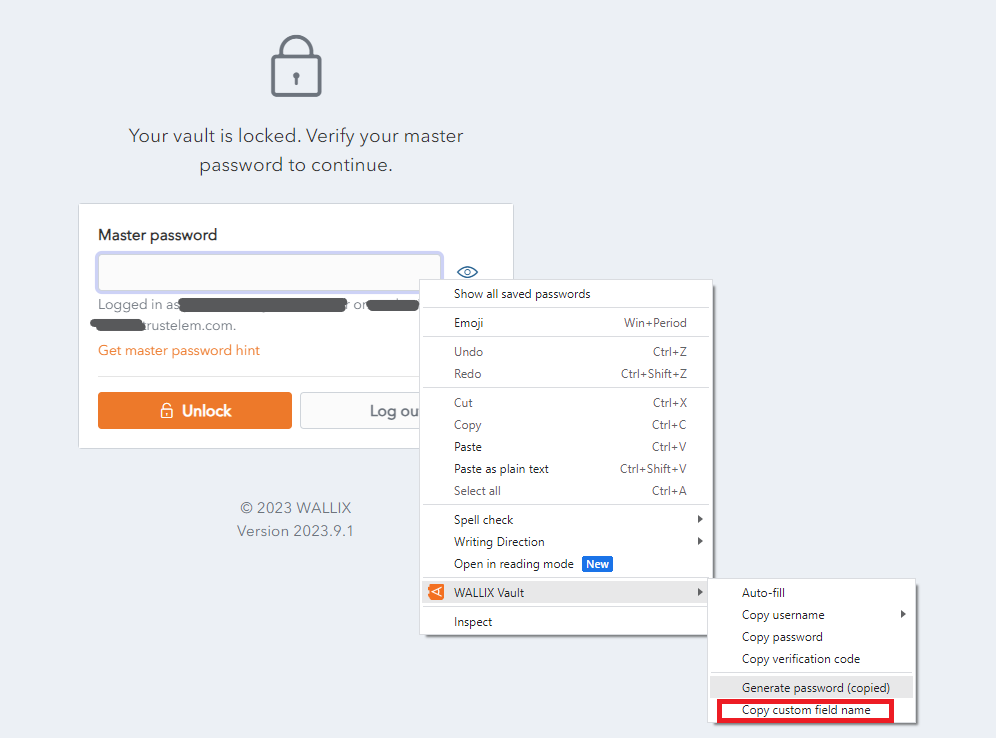](https://vault-doc.wallix.com/uploads/images/gallery/2023-12/copy-custom-field-name.png) **Paste** the HTML Form element into the **name** field of the **custom field** that you are creating for Master Password. [](https://vault-doc.wallix.com/uploads/images/gallery/2023-12/1QEcustom-fields.png) From the **Value** dropdown, select **Password** in the case of a **Custom field for password** (as in the example above) or **Username** in the case of a **Custom field for username**. This procedure is valid for Auto-field Custom fields can be created for the **<form>** and **<input>** elements. ### Auto-Fill for Span Tags A **custom field** can be created for the **id** attribute of <**span>** elements if the **data-bwautofill** attribute is **present** in the opening tag. In the following **example**, you could create a Custom Field with the **name** of **title**. An **auto-fill** would **replace** the **contents** of **title** (currently "WALLIX Enterprise Vault" with the **contents** of the **custom field**. <span **data-bwautofill** id="**title**">WALLIX Enterprise Vault</span> # Using URIs in Auto-fills A **Login Item** can have **one or more URIs**. These are added from the [**Create Item**](https://vault-doc.wallix.com/link/8) or **[Edit Item](https://vault-doc.wallix.com/link/9)** Screen. [](https://vault-doc.wallix.com/uploads/images/gallery/2023-12/add-uri.png) A **URI** is **defined** as a : - Website address (URL) - Server IP address - Mobile App Package ID - etc.A **URI** is **mandatory** for a Login Item in order to **auto-fill** it into a web page.
### URI Components A **URI** is made up for a number of **components**. https://www.google.com:8080/calendar/item?id=123&type=task - **Scheme** https:// - **Hostname** www.google.com - **Subdomain** www - **SLD (second level domain)** google - **TLD (top level domain)** com - **Port** 8080 - **Path** calendar/item - **Query** **String** ?id=123&type=task #### URI Scheme A URI Scheme **should be specified** as part of the **URI**. If it is not specified **http://** is used by **default**. However, if a Scheme is **not specified** by the user, the [ ](https://vault-doc.wallix.com/uploads/images/gallery/2023-12/launch.png)**Launch button,** to launch the website or app directly from the Vault, will **not work**. [](https://vault-doc.wallix.com/uploads/images/gallery/2023-12/add-uri-copie.png) **Examples** of schemes are - https:// or http:// are schemes that reference web pages, e.g. https://www.google.com - androidapp::// is a scheme that references an Android app pacakge ID or name, e.g. androidapp://com.google.android ### Mobile App URIs **Every mobile app** has it's **own URI**. In order to save the login of an app into the Vault, it is necessary to **save the URI** of the app. #### Locate App URI for iOS From the App Login Screen on your iOS device, **open the Browser Extension.** Click the **+ button** to create a new Item in the Browser Extension. The **New Item Screen** displays and it is **prepopulated** with the **URI** of the **App**.This **only works if** the **App permits** recuperating the URI.
The Item can be **saved** as a **Login Item** for this Mobile App. Alternatively, the **URI** can be **copied** and **pasted** into another Login Item. #### Locate App URI for Android From the **App page** in the **Google Play Store**, locate the **Share** button. Copy the **Share Button link** to the clipboard. **Paste** the link to an email or another file where it can be displayed. The **link** will look something like this: https://play.google.com/store/apps/details?id=com.twitter.android The **URI** is the **id value**, in this example, com.twitter.android ### URI Match Detection **Each URI** associated with an Item in WALLIX Enterprise Vault has a number Match detection options in the that **Match detection dropdown** can be chosen. The Match detection option chosen tells WALLIX **how to match the URI** of the **Vault Item** with the **URI** of the **web page or mobile app** for **auto-filling**. [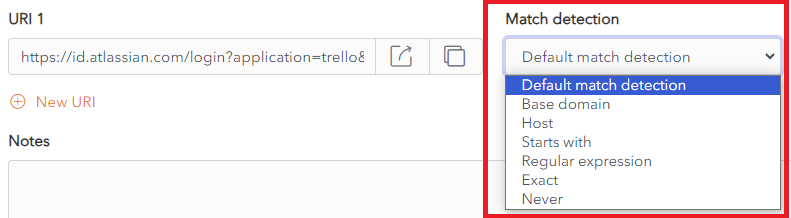](https://vault-doc.wallix.com/uploads/images/gallery/2023-12/wxVmatch-detection.png) #### Defaut match detection **Base domain** is the **default** option for **URI match detection.** However, this can be **changed** in **Settings > Auto-fill** for **all Items.** The Default match detection can be **specified** on a per item basis, in the Item Screen for **each item**. If not specified, the default option is used. #### Base domain If **Base domain** is chosen as the Default match detection for a URI, WALLIX will try to auto-fill all pages or apps where the **top-level domain (TLD) or second-level domain (SLD)** of the Page URI matches a the top-level domain or second-level domain of a Vault Item.This works with **country code top level domains** only. Local TLDs, e.g. **www.google.local** do not work. **Local TLDs** work with **Host matching**.
For example, https://google.com Auto-fill works: - www.google.com - calendar.google.fr Auto-fill does not work: - www.google.net #### Host If **Host** is chosen as the Default match detection for a URI, WALLIX will try to auto-fill all pages or apps where the **hostname** (**and port**, if specified) of the Page URI matches a the hostname (and port, if specified) of a Vault Item. For example, https://calendar.google.com:8080 Auto-fill works: - calendar.google.com:8080 - calendar.google.com:8080/home.html Auto-fill does not work: - www.google.com (different subdomain and missing port) - www.google.com:8080 (different subdomain) - calendar.google.com:8081 (different port) #### Starts with If **Starts with** is chosen as the Default match detection for a URI, WALLIX will try to auto-fill all pages or apps where the Page URI **starts with** the URI of a Vault Item. For example, https://www.google.com/home/ Auto-fill works: - https://www.google.com/home/index.html - https://www.google.com/home/ Auto-fill does not work: - https://www.google.com - https://www.google.com:8080/home/ (port number added) - https://www.google.com/home (missing trailing slash) #### Regular expression If **Starts with** is chosen as the Default match detection for a URI, WALLIX will try to auto-fill all pages or apps where the Page URI matches a **specified regular expression** associated with the URI of a Vault Item.Regular expressions are **case insensitive**.
For example, ^https://\[a-z\]+\\.google\\.com/index\\.php Auto-fill works: - https://www.google.com/index.php - https://fr.google.com/index.php Auto-fill does not work: - https://www.google.com/index/ (missing .php) - https://malicious-site.com?q=google.com For example, ^https://.\*google\\.com$ Auto-fill works: - https://www.google.com - https://fr.google.com/index.html - **https://malicious-site.com?q=google.com**URI matching with Regular Expressions is an **advanced** option and should **only** be used **by those familiar** with using **[Regular Expressions](https://en.wikipedia.org/wiki/Regular_expression#Standards).**
**Periods (.)** must be **escaped (\\)** otherwise they will match on any character.
Auto-fill does not work: - https://google.com/index/ (missing period (.)) #### Exact If **Exact** is chosen as the Default match detection for a URI, WALLIX will try to auto-fill all pages or apps where the Page **URI** is an **exact match** for the URI of a Vault Item. For example, https://calendar.google.com/index.html Auto-fill works: - https://calendar.google.com/index.html Auto-fill does not work: - https://calendar.google.com/index.htm (index.htm instead of index.html) - http://calendar.google.com/index.html (http instead of https) - https://www.google.com/index.html (different subdomain)For **HTTPS**, even if Exact matching is not used, the Browser Extension will **warn before** auto-filling a **HTTP** site **if HTTPS** is **expected**.
#### Never If **Never** is chosen as the Default match detection for a URI, WALLIX will **never** try to **auto-fill** all pages or apps using **that Vault Item.** ### Equivalent Domains It is possible to link equivalent domains, or domains that use the same login. For example, calendar.google.com can be linked with www.google.com. This can be done in **Settings > Domain Rules**.If **Exact match detection** is used an **equivalent domain** will **not** be **allowed**.
# Auto-fill for iOS **Auto-fill** is possible on an **iOS device** from your **Browser Extension** on **Chrome** or **Firefox** browsers. **[Account Switching](https://vault-doc.wallix.com/link/103)** facilitates multiple logins at one time.[**Auto-fill using Custom Fields**](https://vault-doc.wallix.com/link/100) is **not supported** on **mobile** devices.
**Vault Timeout** must be set to **Lock** (and not Log Out) **if NFC** is **required** for **Two-factor Authentication.**
### Auto-fill using Keyboard This is the **recommended** option. #### Enable Auto-fill on Keyboard From your **iOS device**, tap **Settings > Passwords > Password Options.** The Autofill Passwords and Passkeys option is displayed. Click **AutoFill Passwords and Passkeys** to **toggle** it **on**. Click **WALLIX Vault** from the **Use Passwords and Passkeys From List** **[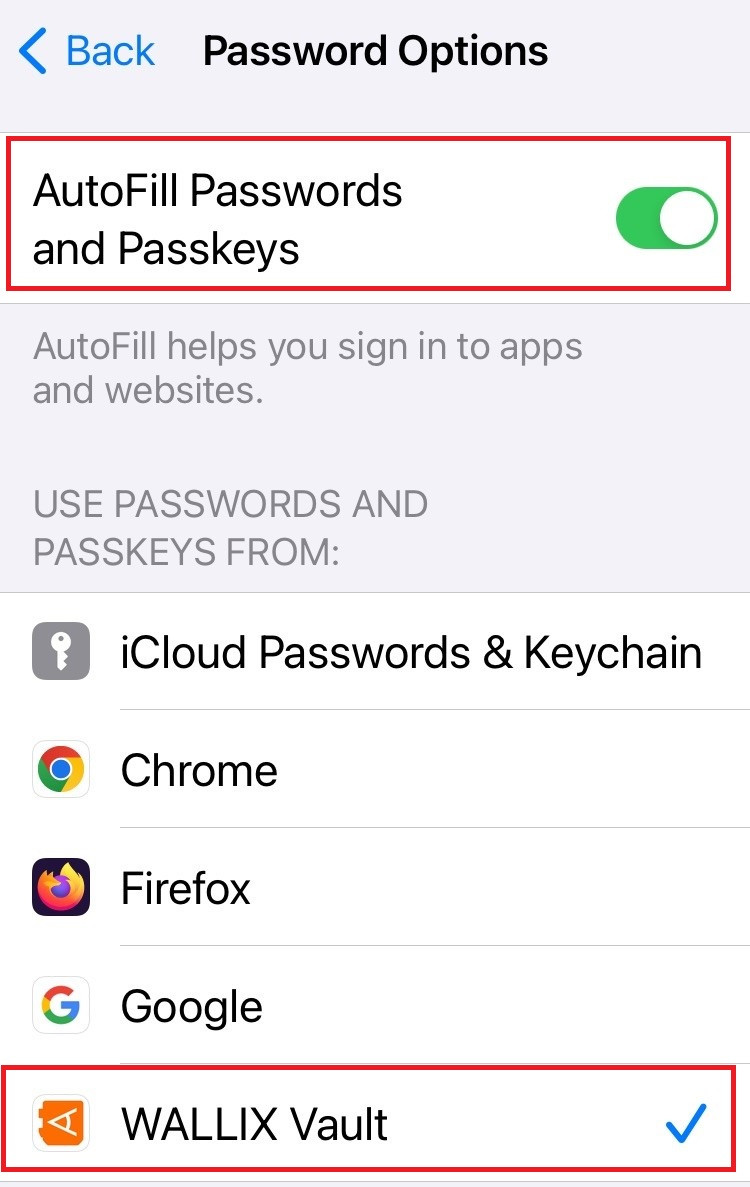](https://vault-doc.wallix.com/uploads/images/gallery/2023-12/autofill-setup.jpg)**It is **recommended** that **other Auto-fill services** are **disabled**, like Chrome Password Manager or iCloud Passwords & Keychain.
#### Using Auto-fill on Keyboard **Open** an **app or website** where you are **not logged into**. **Tap** either the **Username** or **Password** Fields. A Username or the Passwords button is displayed. - If a **Username** is displayed, **tap** it. The Login is **auto-filled**. - If the **Passwords** button is displayed, **tap** it. A **list of Logins** is displayed. **Choose** the **Saved Login** for this website. The Login is **auto-filled**. [](https://vault-doc.wallix.com/uploads/images/gallery/2023-12/Tt6image.png)Where a **Passwords button** is displayed, it is likely because the website **URI isn't an exact match** on a URI associated with a Vault Item.
### Auto-fill using Browser Extension #### Enable Auto-fill in Browser Extension From the **WALLIX Browser Extension App**, tap **Settings > Autofill > App Extension** Tap **Enable App Extension button**. A **Share** **Menu** slides up. Tap **WALLIX**. #### Using Auto-fill in Browser Extension **Open** an **app or website** where you are **not logged into.** Tap the [](https://vault-doc.wallix.com/uploads/images/gallery/2023-12/share-icon.png) **Share icon** in the Address Bar. A Share menu is displayed. Click the WALLIX Vault icon. A list of matching Logins is displayed. [](https://vault-doc.wallix.com/uploads/images/gallery/2023-12/autofill-browser-extension.jpg) Choose the correct Login to auto-fill. # Auto-fill for Android **Auto-fill** is possible on an **Android device** from your **Browser Extension** on **Chrome** or **Firefox** browsers. **[Account Switching](https://vault-doc.wallix.com/link/103)** facilitates multiple logins at one time. A number of **auto-fill options** are available, **depending** on the **version** of **Android** that your device is running. - Auto-fill Service - Inline Auto-fill - Accessibility - Draw-Over[**Auto-fill using Custom Fields**](https://vault-doc.wallix.com/link/100) is **not supported** on **mobile** devices.
**Vault Timeout** must be set to **Lock** (and not Log Out) **if NFC** is **required** for **Two-factor Authentication.**
### Auto-fill Service This facilitates **Auto-Fill** from the **Login Screen**.Auto-fill Service is **available** on **Android 8+**. It requires **enabling** of **Auto-fill Services.**
#### Enable Auto-fill Service From WALLIX Android App, tap **Settings > Auto-fill > Auto-fill Services** Tap **WALLIX** from the **Auto-fill Services List**. Tap **Confirm**. #### Using Auto-fill Service Tap on **Username** or **Password** fields on a webpage or an app. A **pop up** **screen** will display **2 options**: - The **Matching Login Item** from WALLX Vault. Tapping on this option **auto-populate**s the Login. - **Auto-fill from WALLIX Vault**. Tapping on this option **opens** the **Vault** if the Vault is unlocked to **browse** the available **Login Items**. **If** WALLIX Vault is **locked**, you will be **prompted** to **login** to your Vault. ### Inline Auto-fill This facilitates **Auto-Fill** from the **Keyboard Section**.**Inline Auto-fill**: Available on Android 11+. It requires **enabling** of **Autofill Service** and Input Method Editor (**IME**).
If it **doesn't work**, it is **possible** that your **IME** does **not support inline**.
#### Enable Inline Auto-fill From WALLIX Android App, tap **Settings > Auto-fill > Auto-fill Services** Tap the **Use Inline Autofill** option to **toggle** it **on.** #### Using Inline Auto-fill Tap on **Username** or **Password** fields on a webpage or an app. **Logins matching** the **URI** are displayed in the **keyboard section**. **Choose** the **option** required. It is **auto-filled** into your webpage or app. ### Accessibility This facilitates **Auto-Fill** from the **Login Screen**.Draw-Over is **available** in **Android 6+**. It requires **Enabling** of **Accessibility** and **Drawover**
#### Enable Accessibility From WALLIX Android App, tap **Settings > Auto-fill > Auto-fill Services** Tap the **Use Accessibility** option to **toggle** it **on.** #### Using Accessibility Tap on **Username** or **Password** fields on a webpage or an app. A **pop up** **screen** displays an option to **Auto-fill from WALLIX Vault**. Tap on this **option**. If the Vault is **unlocked**, the Vault is **opened**. **If** WALLIX Vault is **locked**, you will be **prompted** to **login** to your Vault. ### Drawover This facilitates **Auto-Fill** from the **Login Screen**.Accessibility is **available** on **all Android Versions**. It requires **Enabling** of **Accessibility**.
#### Enable Drawover From WALLIX Android App, tap **Settings > Auto-fill > Auto-fill Services** Tap the **Permit drawing over other apps** option to **toggle** it **on.** #### Using Drawover Tap on **Username** or **Password** fields on a webpage or an app. A **pop up** **screen** displays an option to **Auto-fill from WALLIX Vault**. Tap on this **option**. If the Vault is **unlocked**, the Vault is **opened**. **If** WALLIX Vault is **locked**, you will be **prompted** to **login** to your Vault. # Import / Export data Exchange data with another Vault product. # Import / Export Data Overview Data can be imported into or exported from either an **Individual Vault** or a **Shared Vault**. In this way, data can be exported from one vault and the data reimported into another Vault. - **[Import Data:](https://vault-doc.wallix.com/link/78)** Data can be imported into a Vault using a **variety** of **file formats**. Data is **encrypted locally** before being sent to the server for storage. - [**Data Import Errors**](https://vault-doc.wallix.com/link/80) : If the data does not conform with the WALLIX Enterprise Vault data requirements, a **data import error** **message** is displayed. The data can be **corrected** before being imported. - [**Export Unencrypted Vault**](https://vault-doc.wallix.com/link/79): A Vault can be exported and downloaded to your computer without first being encrypted. This is possible for Individual and Shared Vaults. - [**Export Encrypted Vault**](https://vault-doc.wallix.com/link/81): A Vault can be encrypted using one of two methods (**Account restricted** or **Password protected**) before being exported. - [**Reimport Encrypted Export**](https://vault-doc.wallix.com/link/84): When data is exported using the **Account Restricted m**ethod, it can be **reimported** into the **same** **vault**. # Import Data This procedure applies to **Individual Vaults** and **Shared Vaults**. From the **Tools Menu,** click **Import data link.** The **Import data screen** is displayed. [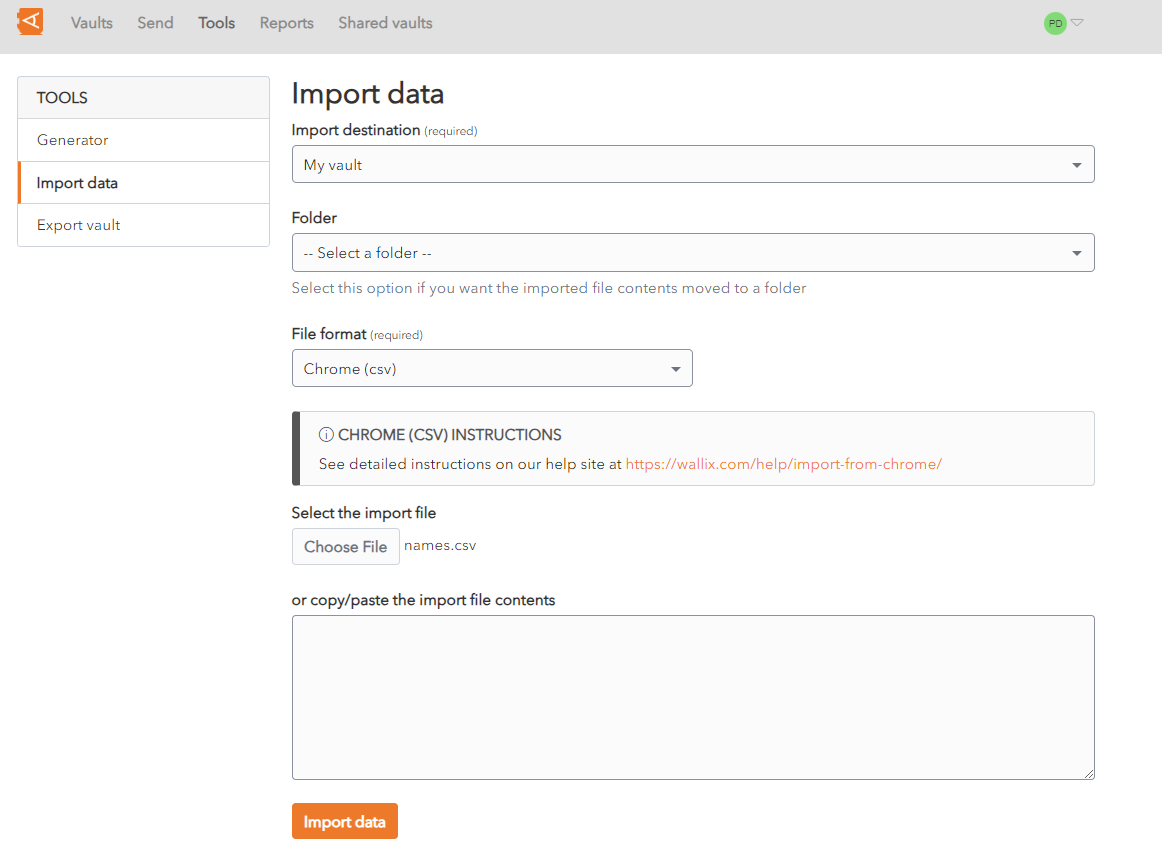](https://vault-doc.wallix.com/uploads/images/gallery/2023-11/import-data-filled.png) From the **Import Destination dropdown**, choose a Vault into which to import the data. This field is **mandatory**. From the **Folder dropdown**, choose the folder into which to import the data. This field is **optional**.*For **Shared Vaults**, the **Collection dropdown** is displayed **instead** of the Folder dropdown.*
From the **File format dropdown**, choose the file format of the file to import. **Instructions** are displayed relative to the file format chosen. This field is **mandatory**. From the **Select the import file field**, locate and choose the file to import. Alternatively, **copy/paste the import file contents** to the large text field provided. Click **Import data** to start the import. The data is imported. If the **import file** is **password protected**, you will be prompted to **enter the Password** before the import can start. A **Confirmation Screen** is displayed, **summarizing** the **data imported**. Click **Ok** to return to the **Item List Screen**. [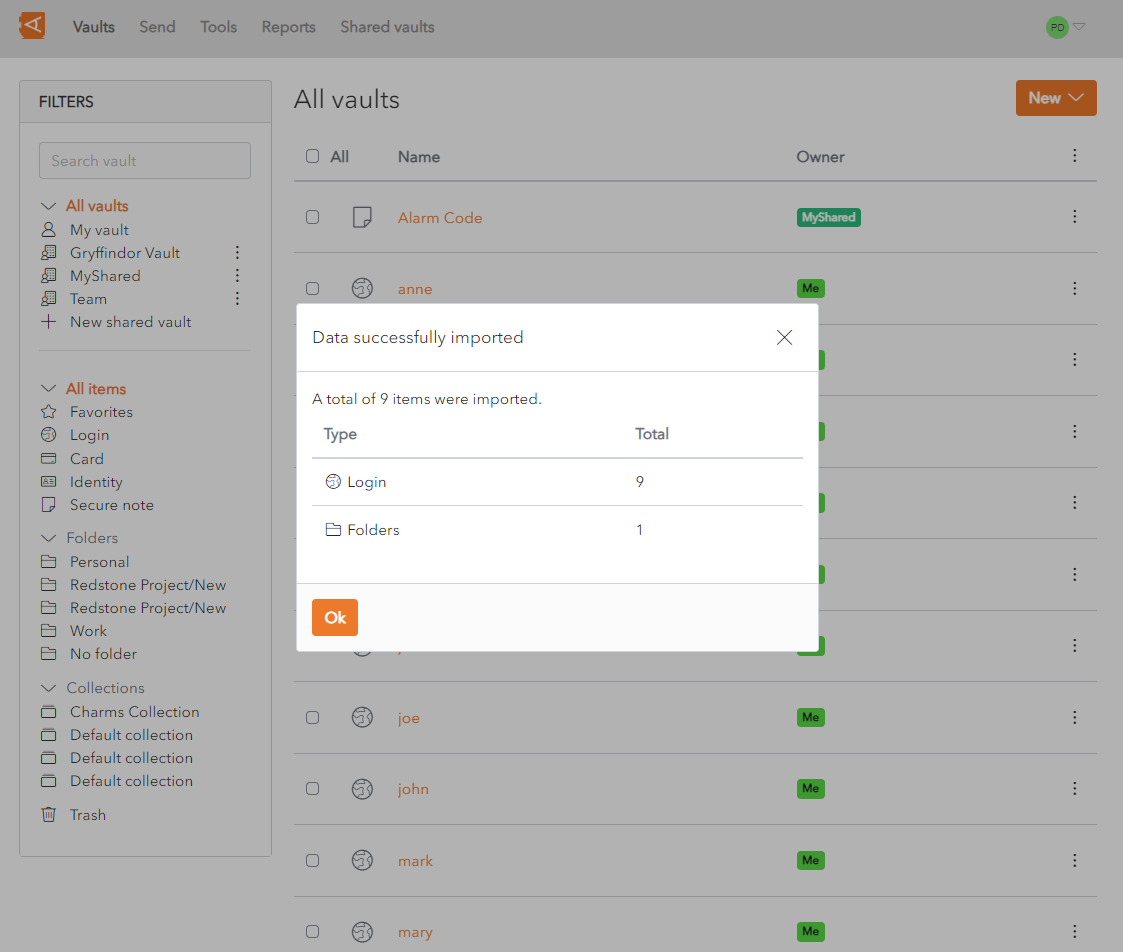](https://vault-doc.wallix.com/uploads/images/gallery/2023-11/data-imported.png)Attachments, Password History, Sends and Trash **cannot be imported** using this feature. They need to be entered manually.
*The Data Import feature **does not verify** if **items** imported are **already in your vault**. If an Item is imported and already exists in the Vault, a **duplicate** item is created.*
*When the import has finished, it is recommended that you **delete the import file** from your **computer**, for security reasons.*
# Data Import Errors WALLIX Enterprise Vault **imposes character counts** on different fields types. If an import file contains data that **exceeds** the **encrypted character limit** for the field type, the **file** will **not** be **imported**. When the **data** is **encrypted** those character counts grow between **30-50%**. Therefore, a field that was within the required character limit before the encryption **may exceed** the **character limit after encryption**. The following is an example **Import Error message** that could be **displayed** when an **import fails**:*\[1\]\[Login\] "BestBank": The fields Notes exceeds the maximum encrypted value length of 10000 characters.*
- \[1\] denotes the **index number** of the item in question. This would typically be the row number in a CSV file, for example. - \[Login\] indicates that the **item type** is Login. - "BestBank" denotes the **name** of the **item** in question. - Notes denotes the **name** of the **field** where the character limit is exceeded. - 10000 denotes the **allowed character limit** for that **field.** # Export Unencrypted Vault ### Export from Individual Vault From the **Tools Menu,** click **Export vault link.** The **Export vault screen** is displayed. From the **file format dropdown**, choose the export file format. Click **Confirm format.** [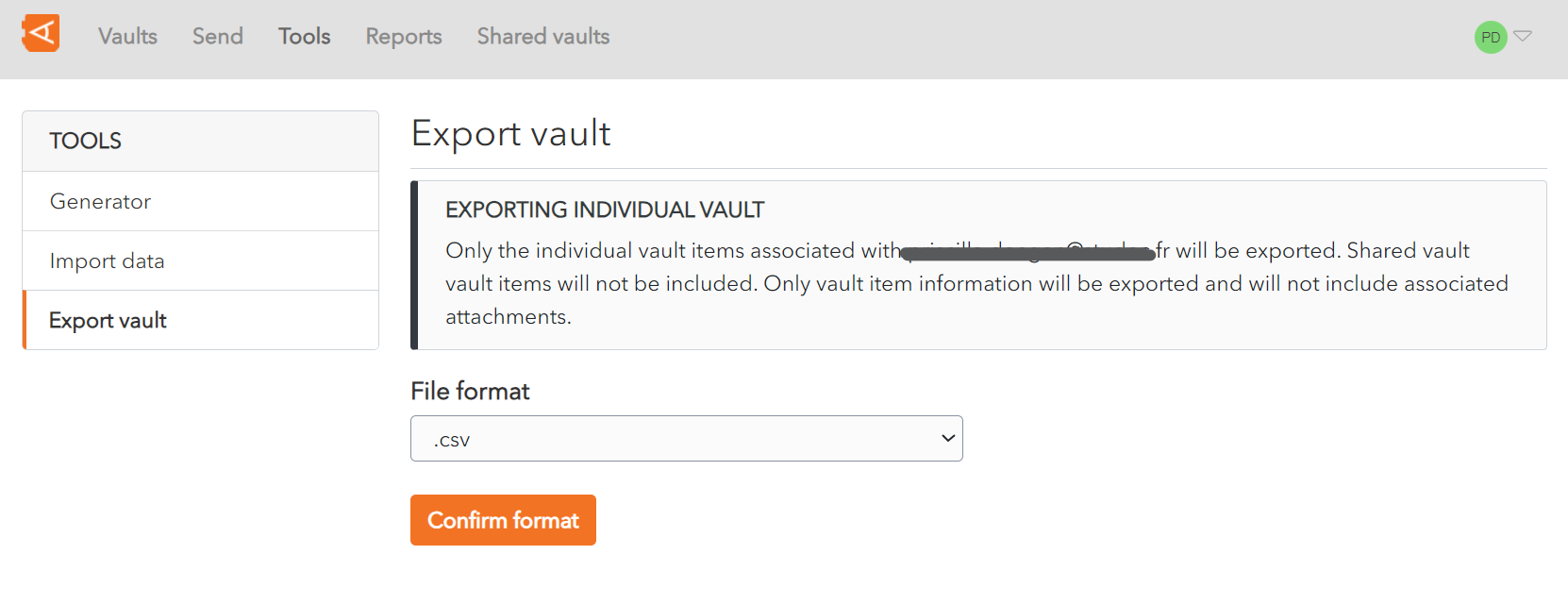](https://vault-doc.wallix.com/uploads/images/gallery/2023-11/capture-decran-2023-11-28-145753.png) A **Confirm vault export screen** is displayed. Enter your **Master Password** in the Master Password field. [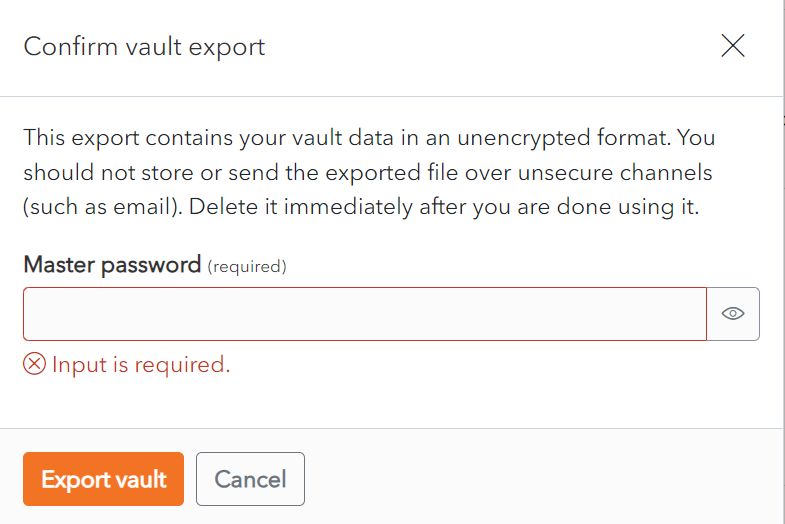](https://vault-doc.wallix.com/uploads/images/gallery/2023-11/confirm-vault-export.png) Click **Export Vault** to export the vault.The data is **exported** to the **Downloads Folder** on your computer. Alternatively, click **Cancel** to cancel the operation.***Note on data included in export:***
*Only the individual vault **items associated with your account** are exported.*
***Shared vault** **items** will **not** be **included**.*
*Only vault item information will be exported and will **not include associated** **attachments**.*
### Export from Shared Vault From the **Settings Screen** of the **Shared Vault chosen**, click on the **Export vault** link. The **Export Vault Screen** is displayed. [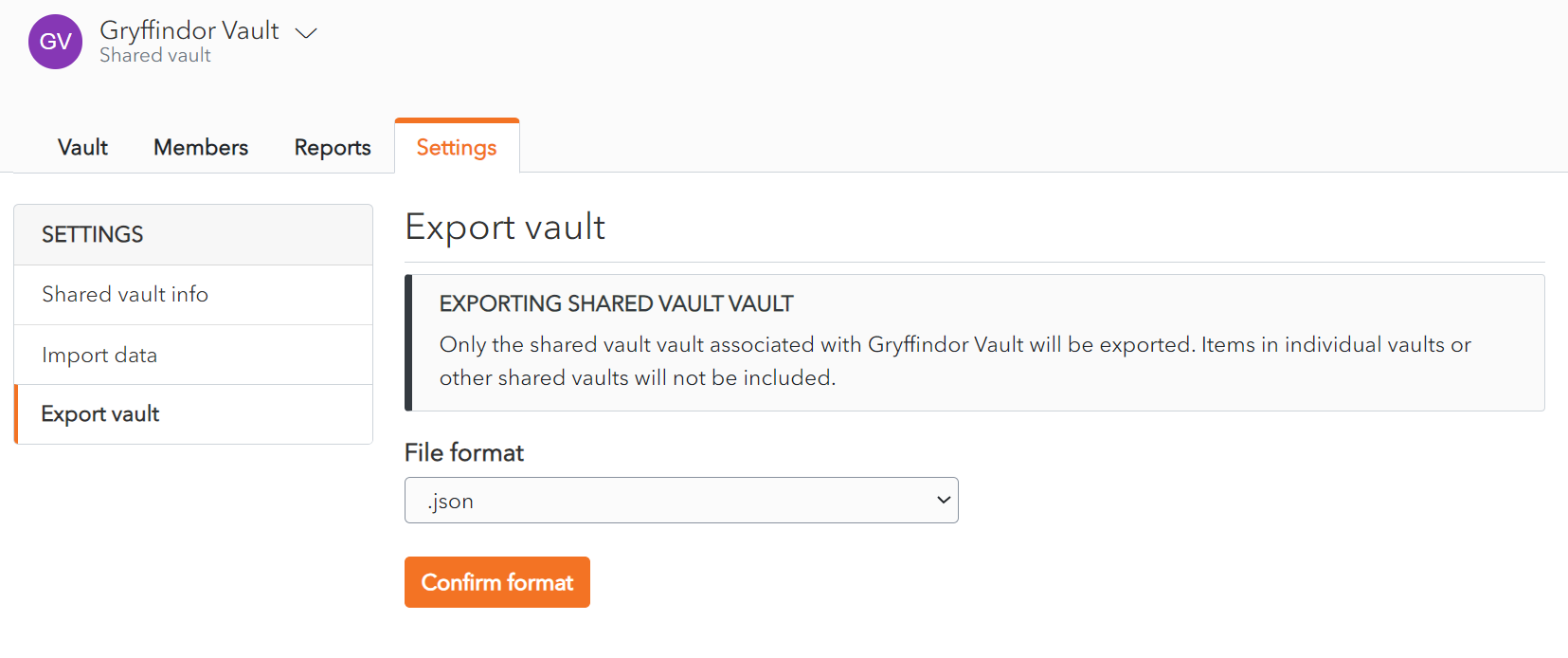](https://vault-doc.wallix.com/uploads/images/gallery/2023-11/shared-vault-export-screen.png) From the **file format dropdown**, choose the export file format. Click **Confirm format.** [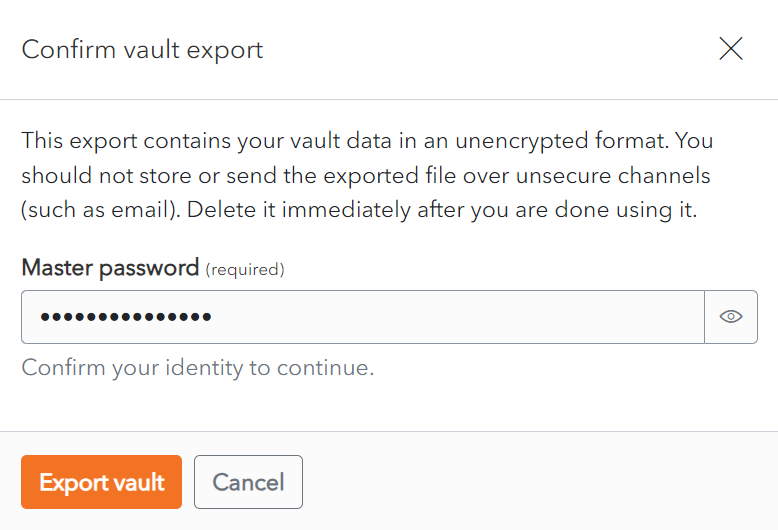](https://vault-doc.wallix.com/uploads/images/gallery/2023-11/confirm-shared-vault-export.png) Click **Export Vault** to export the vault. The data is **exported** to the **Downloads Folder** on your computer. Alternatively, click **Cancel** to cancel the operation.***Note on data included in export:***
***Only** the **items** associated with the **Shared Vault selected** are **exported**.*
***Items** in individual vaults or **other** shared **vaults** will **not** be **included**.*
# Export Encrypted Vault ### Export from Individual Vault From the **Tools Menu,** click **Export vault link.** The **Export vault screen** is displayed. From the **file format dropdown**, choose the **.json (Encrypted)**.[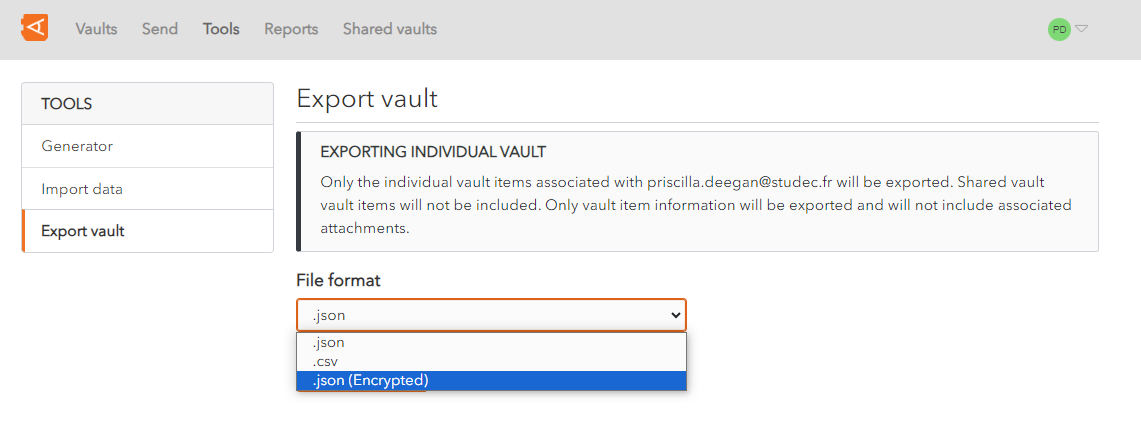](https://vault-doc.wallix.com/uploads/images/gallery/2023-11/create-encrypted-export.png) An **Export type option** appears, with **2 options** to choose from: [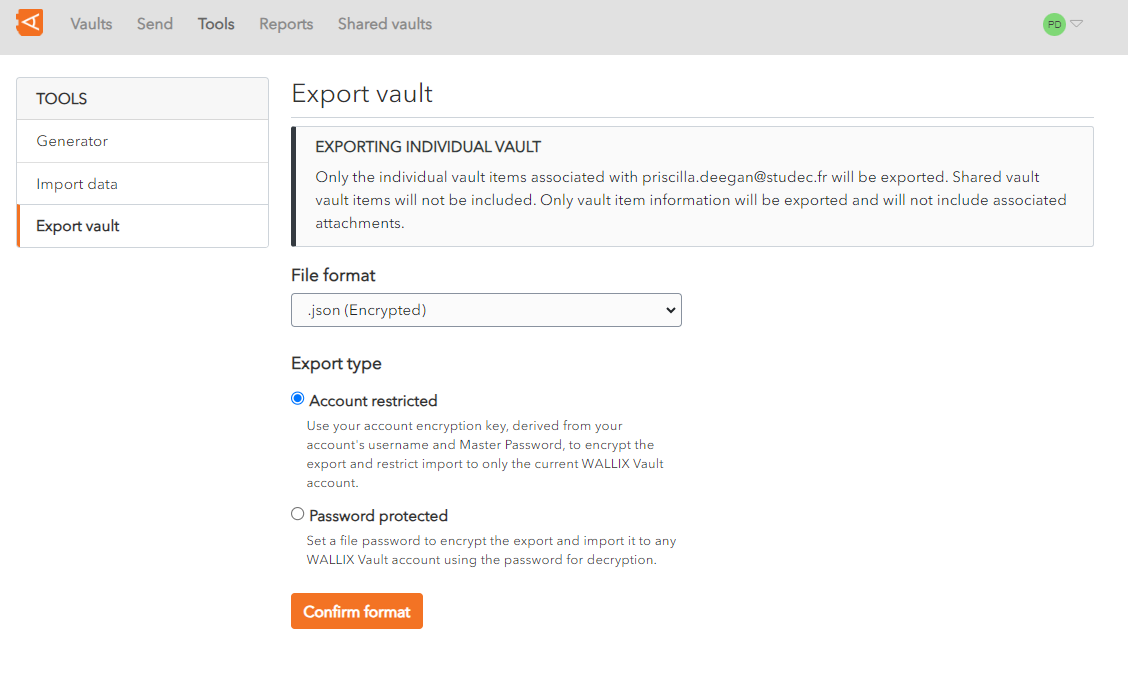](https://vault-doc.wallix.com/uploads/images/gallery/2023-11/create-encrypted-export-choose-export-type.png) ##### 1. Export as Account restricted Vault Use your **account encryption key**, derived from your account's username and Master Password, to encrypt the export. The data can only be **reimported** into the **same vault.** Choose the **Account restricted** option. Click **Confirm format.** A **Confirm vault export screen** is displayed. Enter your **Master Password** in the Master Password field. [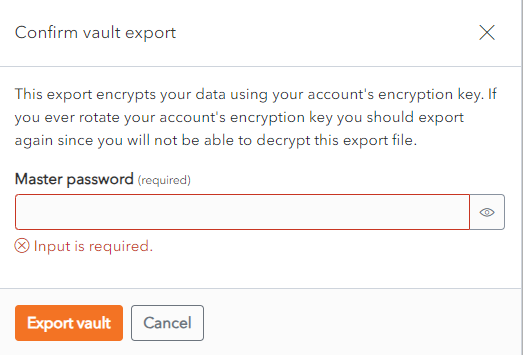](https://vault-doc.wallix.com/uploads/images/gallery/2023-11/confirm-vault-export-encrypted-vault.png) Click **Export Vault** to export the encrypted vault.The data is **exported** to the **Downloads Folder** on your computer in **Wallix JSON format**.This data can **only** be **reimported** into the **same** **vault**.
Alternatively, click **Cancel** to cancel the operation. ##### 2. Export as Password protected Vault **Password Protected:** Use a **password** of your choosing to encrypt the export. The data can be **imported** into **any** WALLIX Enterprise **Vault**. Choose the **Password protected** option. 2 new fields appear - **File Password** and **Confirm file password**. **Choose** a **password** to encrypt your export with. Enter your chosen password into these fields. [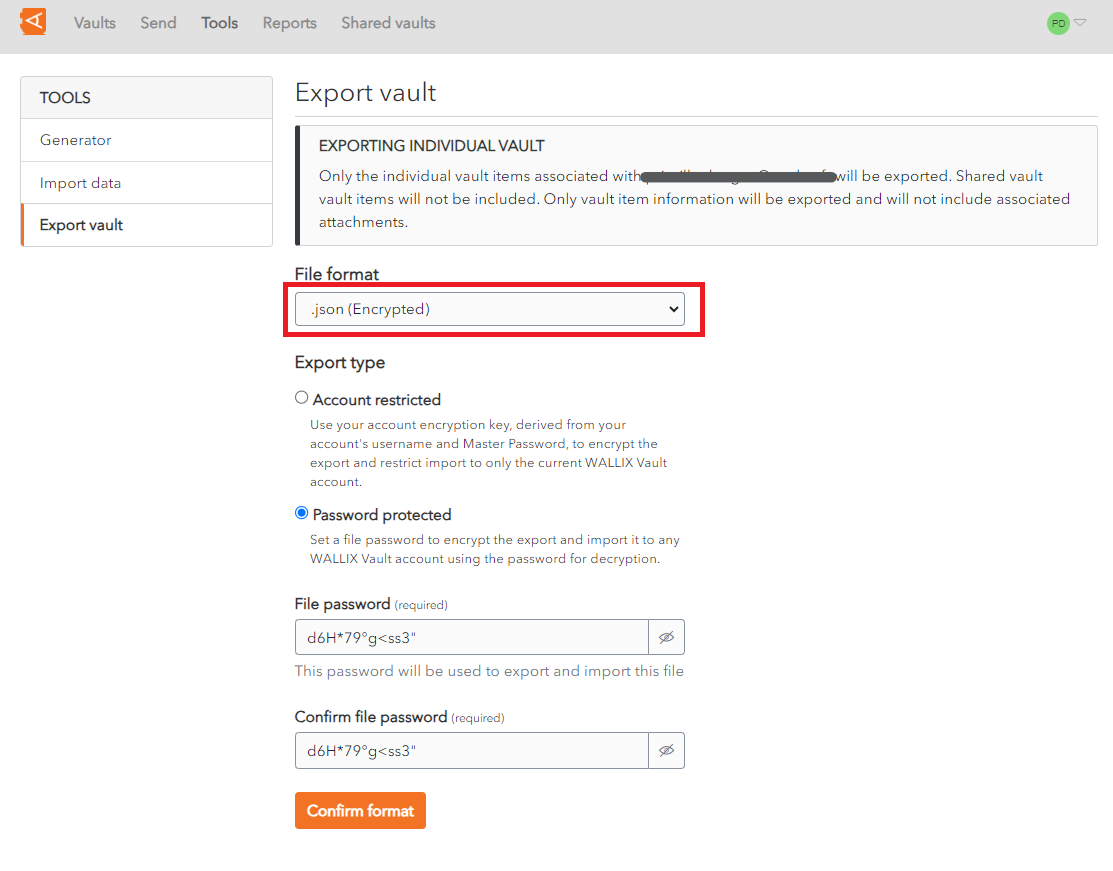](https://vault-doc.wallix.com/uploads/images/gallery/2023-11/export-password-protected-vault-2.png) Click **Confirm format.** A **Confirm vault export screen** is displayed. Enter your **Master Password** in the Master Password field. [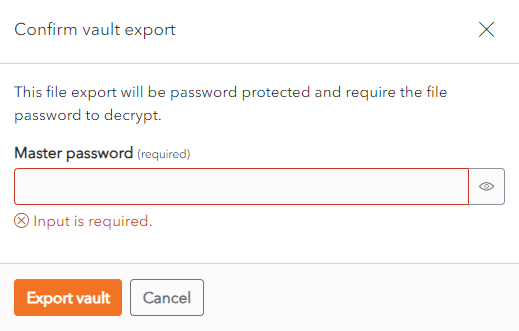](https://vault-doc.wallix.com/uploads/images/gallery/2023-11/confirm-vault-export-encrypted-vault-password-protected.png) Click **Export Vault** to export the encrypted vault.The data is **exported** to the **Downloads Folder** on your computer. Alternatively, click **Cancel** to cancel the operation.***Note on data included in export:***
*Only the individual vault **items associated with your account** are exported.*
***Shared vault** **items** will **not** be **included**.*
*Only vault item information will be exported and will **not include associated** **attachments**.*
### Export from Shared Vault From the **Settings Screen** of the **Shared Vault chosen**, click on the **Export vault** link. The **Export Vault Screen** is displayed. [](https://vault-doc.wallix.com/uploads/images/gallery/2023-11/shared-vault-export-screen.png) The **rest** of the procedure is the **same** as for [exporting encrypted individual vault data](https://vault-doc.wallix.com/link/81#bkmrk-%C2%A0).***Note on data included in export:***
***Only** the **items** associated with the **Shared Vault selected** are **exported**.*
***Items** in individual vaults or **other** shared **vaults** will **not** be **included**.*
Encrypted vaults can **only** be **reimported into** the **Vault** they were **exported from**.
From the **Folder dropdown**, choose the Folder to save the Vault data to. From the **File Format dropdown**, choose **Wallix Vault (json) format**. This is the file format that the Encrypted Exported Vault. From **Select the import file**, choose the encrypted vault to reimport. Click the **Import Data button** to reimport the Encypted Exported Vault. The Vault data is **reimported** to the **specified vault and folder**. [](https://vault-doc.wallix.com/uploads/images/gallery/2023-12/capture-decran-2023-12-07-114015.png) Alternatively, click **Cancel** to cancel the operation. # Avanced options Learn how to go further with Entreprise Vault. # Options Overview When you login to WALLIX Vault, the [**Vault Home Screen** ](https://vault-doc.wallix.com/link/19)is displayed. A number of **options** are possible within your Vault: - You can**[ Search and Filter](https://vault-doc.wallix.com/link/21)** to find Items in the Vault. - In the Preferences Screen, you can set your [**Timeout Preferences**](https://vault-doc.wallix.com/link/120), **[Change Language](https://vault-doc.wallix.com/link/32)**, **[Change Theme](https://vault-doc.wallix.com/link/120)**, etc. - You can set [**Domain Equivalencies**](https://vault-doc.wallix.com/link/121) for Domains that use the same Login. - **[Sync Vault](https://vault-doc.wallix.com/link/123)** to synchronise the Vault Items in the Web Browser Extension. - User and Configure [**Shortcuts**](https://vault-doc.wallix.com/link/95). - Make the most of [**Custom** **Fields**](https://vault-doc.wallix.com/link/15) to add additional fields to Items and to enable Auto-filling on some fields. - [**TOTP Authentication** ](https://vault-doc.wallix.com/link/112)is available in the Web Vault, the Browser Extension and the WALLIX Authenticator App, to generate a TOTP code based on an Account Authentication Key. - The[ **Username and Password Generator**](https://vault-doc.wallix.com/link/105) can generate usernames, passwords or passphrases for Login Items. - WALLIX Vault provides a number of [**Reports**](https://vault-doc.wallix.com/link/122) to ensure the security of passwords, logins and websites that are stored in the Vault. - It is possible to [**Deauthorize Sessions**](https://vault-doc.wallix.com/link/116) on all logged-in devices. This is especially useful if you accessed WALLIX Vault from a public computer. - The Vault can be [**purged of its data** ](https://vault-doc.wallix.com/link/114)or [**deleted entirely**](https://vault-doc.wallix.com/link/115). # Preferences Click on the **User Icon,** on the top right-hand side of the screen, to display the **User Menu**. [](https://vault-doc.wallix.com/uploads/images/gallery/2023-12/profile-menu-copie-2.png) Click on **Account Settings** and then **Preferences.** The **Preferences** **Screen** is displayed. [](https://vault-doc.wallix.com/uploads/images/gallery/2023-12/references.png) The following options are possible: - **Vault timeout:** Set the Vault timeout from the dropdown. The **default** is **15 minutes**. - **Vault Timeout action:** Choose Lock or Log-out as the action to take on timeout. The **default** is **Lock**. - **[Language](https://vault-doc.wallix.com/link/32):** Choose the language of the user interface. - **Show website icons:** Check to show a recognizable image beside each Login. **This is checked** by **default.** - **Display full width layout:** Check to allow the Web Vault to take up the full width of the browser window. This is **unchecked** by **default.** - **Theme:** Choose from the dropdown. **Options** include Light, Dark and System Theme. Click **Save** to save changes. # Change Language By default, WALLIX Enterprise Vault uses the language of the Web Browser. To change the language of the screens in WALLIX Enterprise Vault, click on the **Account Settings** button in the User Menu. [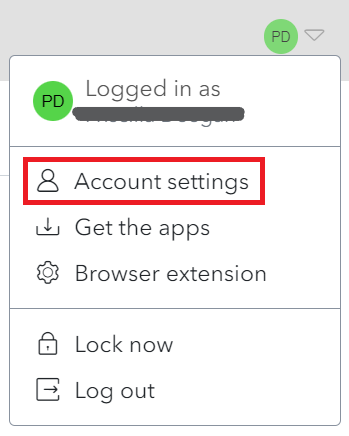](https://vault-doc.wallix.com/uploads/images/gallery/2023-11/change-language-1.png) This opens the **Preferences** Screen. Choose the language from the **Language** dropdown menu. Click the **Save** button to save the user interface language. [](https://vault-doc.wallix.com/uploads/images/gallery/2023-11/change-language-2.png)[](https://vault-doc.wallix.com/uploads/images/gallery/2023-11/vuWchange-language-4.png) ### Supported Languages The following list of languages are currently supported. **Note**: Not all languages are supported on all client applications.| **Symbol** | **Language** |
|---|---|
| af | Afrikaans |
| az | Azərbaycanca |
| be | Беларуская |
| bg | български |
| ca | català |
| cs | čeština |
| da | dansk |
| de | Deutsch |
| el | Ελληνικά |
| en | English |
| en-GB | English (British) |
| eo | Esperanto |
| es | español |
| et | eesti |
| fa | فارسی |
| fi | suomi |
| fr | français |
| he | עברית |
| hi | हिन्दी |
| hr | hrvatski |
| hu | magyar |
| id | Bahasa Indonesia |
| it | italiano |
| ja | 日本語 |
| ko | 한국어 |
| lv | Latvietis |
| ml | മലയാളം |
| nb | norsk (bokmål) |
| nl | Nederlands |
| pl | polski |
| pt-BR | português do Brasil |
| pt-PT | português |
| ro | română |
| ru | русский |
| sk | slovenčina |
| sr | Српски |
| sv | svenska |
| th | ไทย |
| tr | Türkçe |
| uk | українська |
| vi | Tiếng Việt |
| zh-CN | 中文(中国大陆) |
| zh-TW | 中文(台灣) |