# Add Attachments

From the **Item List**, click on the [![more button.png](https://vault-doc.wallix.com/uploads/images/gallery/2023-11/scaled-1680-/Kq1more-button.png) ](https://vault-doc.wallix.com/uploads/images/gallery/2023-11/Kq1more-button.png)**More button** beside an Item.

A **context menu** appears. Click the **Attachments link**.

[![attachment context menu.png](https://vault-doc.wallix.com/uploads/images/gallery/2023-11/scaled-1680-/attachment-context-menu.png)](https://vault-doc.wallix.com/uploads/images/gallery/2023-11/attachment-context-menu.png)

<p class="callout info">See [**Password Protected Items**](https://vault-doc.wallix.com/link/76) procedure for Items that require a Master Password to access them.</p>

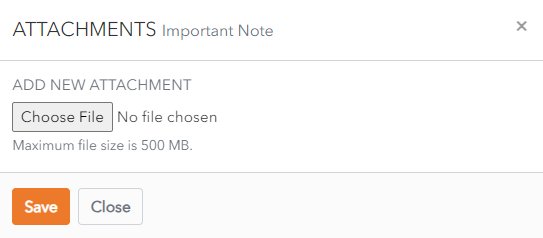
The **Attachments Screen** displays.

**Choose** a **file** to **attach** and click **Save**.

<p class="callout info">The maximum file size of an attachment is 100 MB. This is restricted to 50 MB if uploading from a mobile device.</p>

[![choose attachment.png](https://vault-doc.wallix.com/uploads/images/gallery/2023-11/scaled-1680-/choose-attachment.png)](https://vault-doc.wallix.com/uploads/images/gallery/2023-11/choose-attachment.png)

The attachment is created.

**Multiple attachments** can be created in this way.

Once finished creating attachments, click **Close** to close the Attachments Screen.

[![attached.png](https://vault-doc.wallix.com/uploads/images/gallery/2023-11/scaled-1680-/attached.png)](https://vault-doc.wallix.com/uploads/images/gallery/2023-11/attached.png)
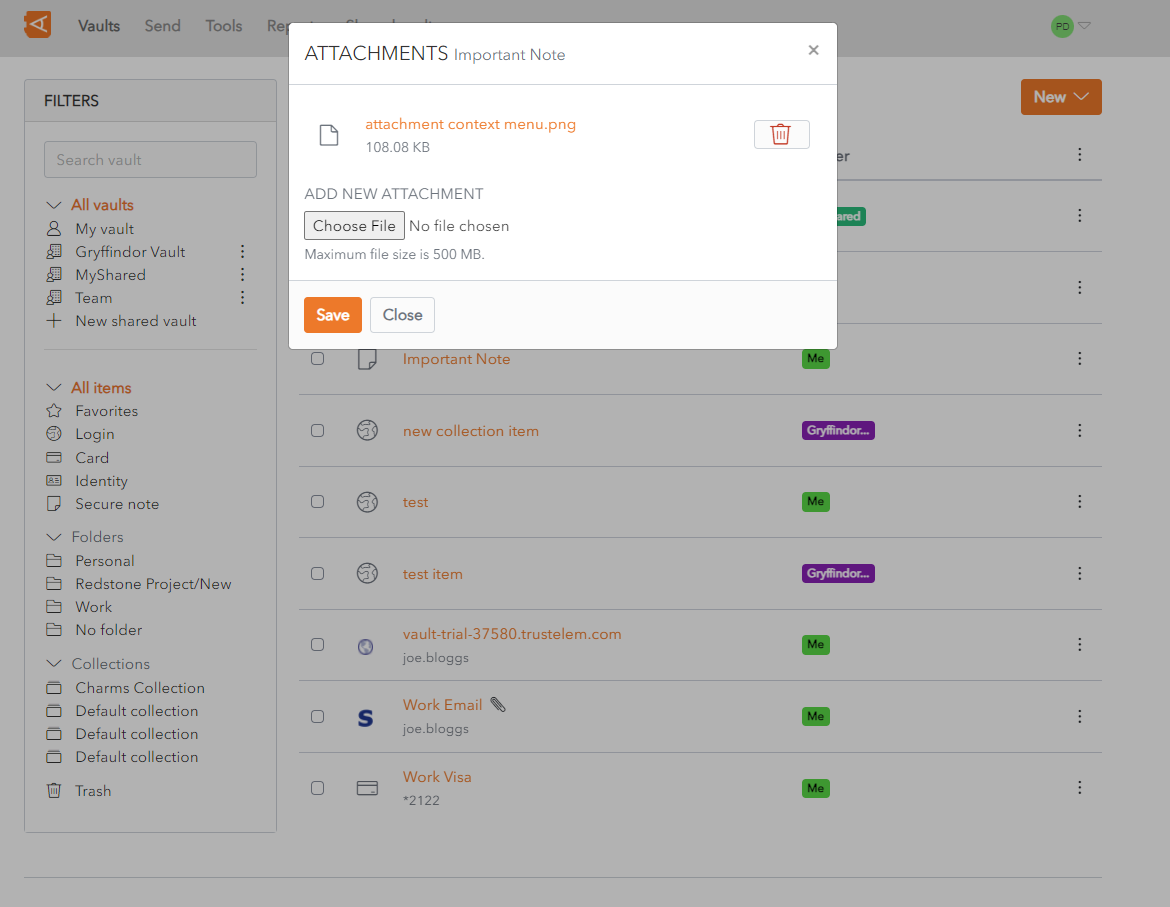
A [![paperclip.png](https://vault-doc.wallix.com/uploads/images/gallery/2023-11/scaled-1680-/paperclip.png)](https://vault-doc.wallix.com/uploads/images/gallery/2023-11/paperclip.png)**Paperclip icon** beside the **Item** in the Item List **indicates** that the Item contains one or more **Attachments**.