For this reason it is **important** to **correctly name custom fields**.
### Linked Custom Fields Sometimes the Browser Extension is **unable to auto-fill usernames and passwords** for a webpage. In these cases, **Custom fields** can be created for the username and password and these can be used **instead** for auto-fill. From the [**Edit Item Screen**](https://vault-doc.wallix.com/link/9), add a New **[Custom Field](https://vault-doc.wallix.com/link/15)** of type **Linked.** [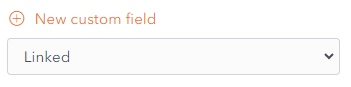](https://vault-doc.wallix.com/uploads/images/gallery/2023-12/new-linked-custom-field.png) In the **Name** field, give it the same name as the **HTML form element** (id, name, aria-label, or placeholder) for the field in question. This can be found by clicking the **Copy custom field name link** in the Context Menu of the field in question. For **example**, to find the HTML form element for the Master Password in WALLIX Enterprise Vault, click the Copy custom field name link. The HTML form element for the Master Password is **saved** to the **clipboard**. [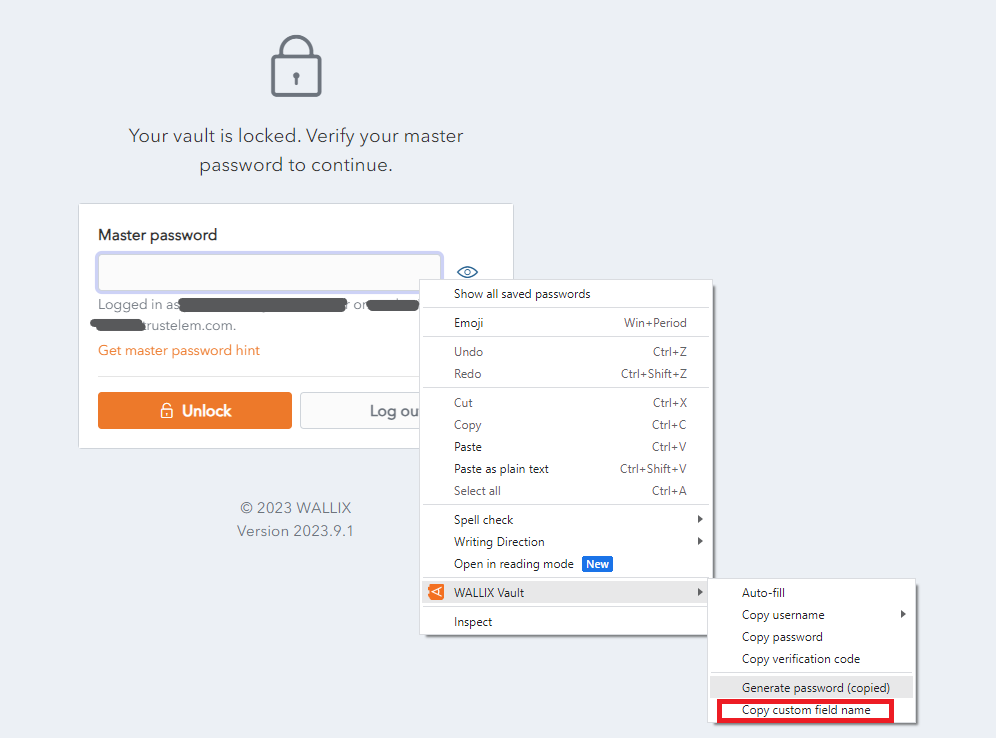](https://vault-doc.wallix.com/uploads/images/gallery/2023-12/copy-custom-field-name.png) **Paste** the HTML Form element into the **name** field of the **custom field** that you are creating for Master Password. [](https://vault-doc.wallix.com/uploads/images/gallery/2023-12/1QEcustom-fields.png) From the **Value** dropdown, select **Password** in the case of a **Custom field for password** (as in the example above) or **Username** in the case of a **Custom field for username**. This procedure is valid for Auto-field Custom fields can be created for the **<form>** and **<input>** elements. ### Auto-Fill for Span Tags A **custom field** can be created for the **id** attribute of <**span>** elements if the **data-bwautofill** attribute is **present** in the opening tag. In the following **example**, you could create a Custom Field with the **name** of **title**. An **auto-fill** would **replace** the **contents** of **title** (currently "WALLIX Enterprise Vault" with the **contents** of the **custom field**. <span **data-bwautofill** id="**title**">WALLIX Enterprise Vault</span>