[**Auto-fill using Custom Fields**](https://vault-doc.wallix.com/link/100) is **not supported** on **mobile** devices.
**Vault Timeout** must be set to **Lock** (and not Log Out) **if NFC** is **required** for **Two-factor Authentication.**
### Auto-fill using Keyboard This is the **recommended** option. #### Enable Auto-fill on Keyboard From your **iOS device**, tap **Settings > Passwords > Password Options.** The Autofill Passwords and Passkeys option is displayed. Click **AutoFill Passwords and Passkeys** to **toggle** it **on**. Click **WALLIX Vault** from the **Use Passwords and Passkeys From List** **[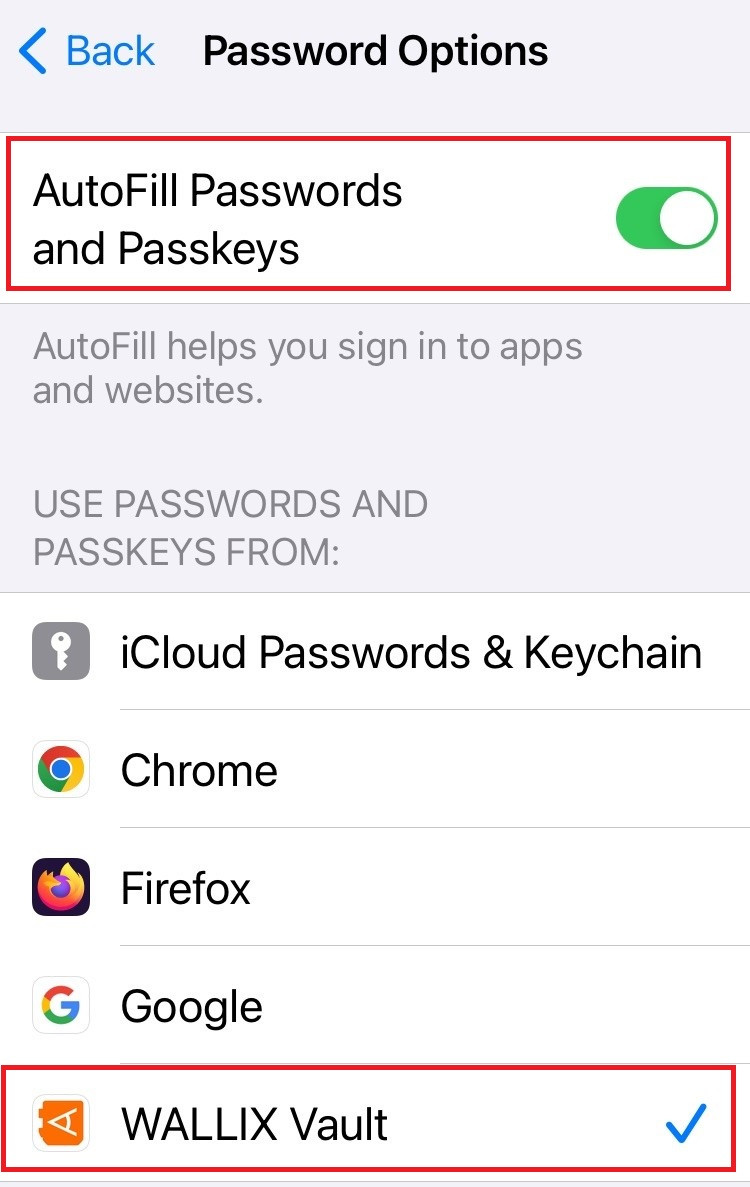](https://vault-doc.wallix.com/uploads/images/gallery/2023-12/autofill-setup.jpg)**It is **recommended** that **other Auto-fill services** are **disabled**, like Chrome Password Manager or iCloud Passwords & Keychain.
#### Using Auto-fill on Keyboard **Open** an **app or website** where you are **not logged into**. **Tap** either the **Username** or **Password** Fields. A Username or the Passwords button is displayed. - If a **Username** is displayed, **tap** it. The Login is **auto-filled**. - If the **Passwords** button is displayed, **tap** it. A **list of Logins** is displayed. **Choose** the **Saved Login** for this website. The Login is **auto-filled**. [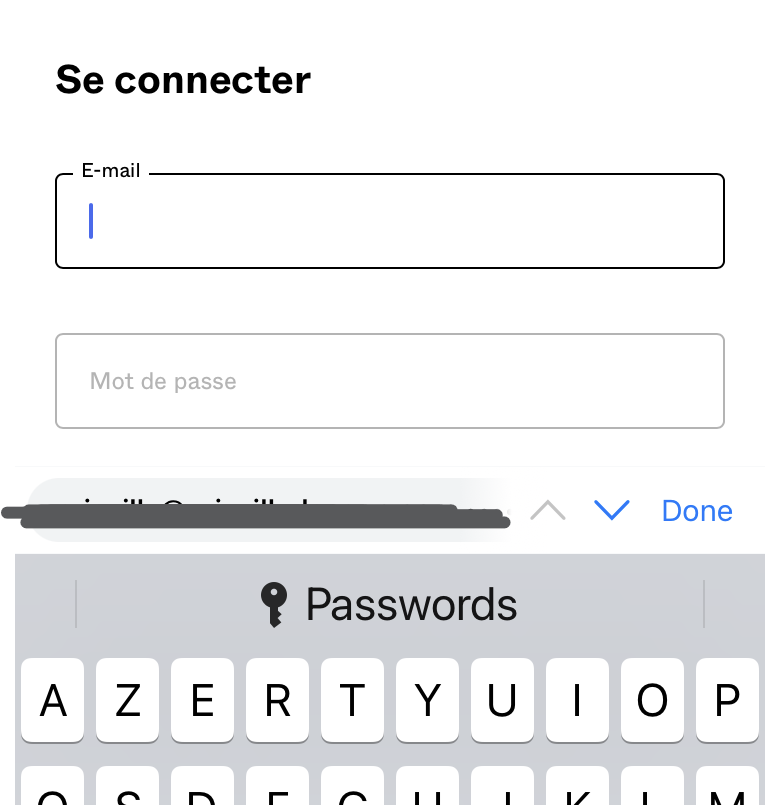](https://vault-doc.wallix.com/uploads/images/gallery/2023-12/Tt6image.png)Where a **Passwords button** is displayed, it is likely because the website **URI isn't an exact match** on a URI associated with a Vault Item.
### Auto-fill using Browser Extension #### Enable Auto-fill in Browser Extension From the **WALLIX Browser Extension App**, tap **Settings > Autofill > App Extension** Tap **Enable App Extension button**. A **Share** **Menu** slides up. Tap **WALLIX**. #### Using Auto-fill in Browser Extension **Open** an **app or website** where you are **not logged into.** Tap the [](https://vault-doc.wallix.com/uploads/images/gallery/2023-12/share-icon.png) **Share icon** in the Address Bar. A Share menu is displayed. Click the WALLIX Vault icon. A list of matching Logins is displayed. [](https://vault-doc.wallix.com/uploads/images/gallery/2023-12/autofill-browser-extension.jpg) Choose the correct Login to auto-fill.