**Prerequisite:** The Browser Extension needs to be [**installed** ](https://vault-doc.wallix.com/link/5)before the Auto-fill feature becomes available.
### Auto-fill from Context Menu **Right click** on the Login Screen of a website. The Context Menu is displayed. Choose **WALLIX Vault > Auto-fill.** If the Login is stored in the Vault, an Auto-fill option is proposed. Click **Auto-fill** to **retrieve** the **Login** for this website to WALLIX Enterprise Vault.If you are not signed in to WALLIX Enterprise Vault, you will be prompted to **sign in** before retrieving the Login.
[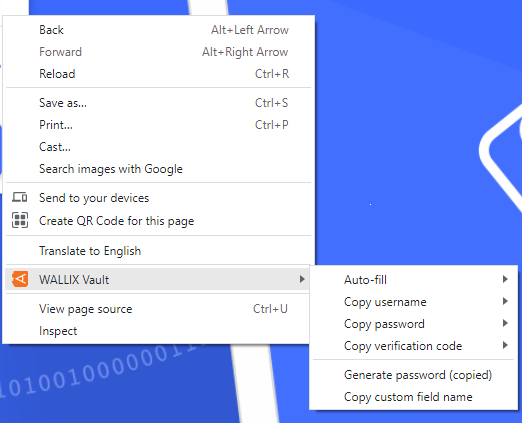](https://vault-doc.wallix.com/uploads/images/gallery/2023-12/autofill-from-context-menu.png) The context menu also contains other options for this Login: - **Copy username**: copies the username of the login to the clipboard. - **Copy password**: copies the password of the login to the clipboard. - **Copy verification code**: copies the verification code of the login to the clipboard. - **Generate password**: generates a new more secure password from the copied password. - **Copy custom field name**: copies the name of the custom field of the login. ### Auto-fill on Page Load Auto-fill on Page load is a function that **automatically populates a Login** on a Page when the URI of the page being displayed corresponds to an Item in the Vault. This is pertinent for **Logins, Cards or Identities**.**Untrusted iframes**: Auto-fill on page load does **not work** for untrusted iframes.
**HTTPS/HTTP:** If the Vault Item **expects** an **HTTPS** site and a **HTTP** version of the site is **displayed**, the user is **warned before** auto-filling on page load.
#### Enable Auto-fill on page loadFor **security reasons**, it is **automatically disabled** and needs to be enabled to work.
To **enable** Auto-fill on Page Load, from the Browser extension, navigate to **Settings**> **Autofill**. The Auto-fill screen opens. Click the **Auto-fill on page load checkbox**. This **enables** the option to auto-fill logins on page load. [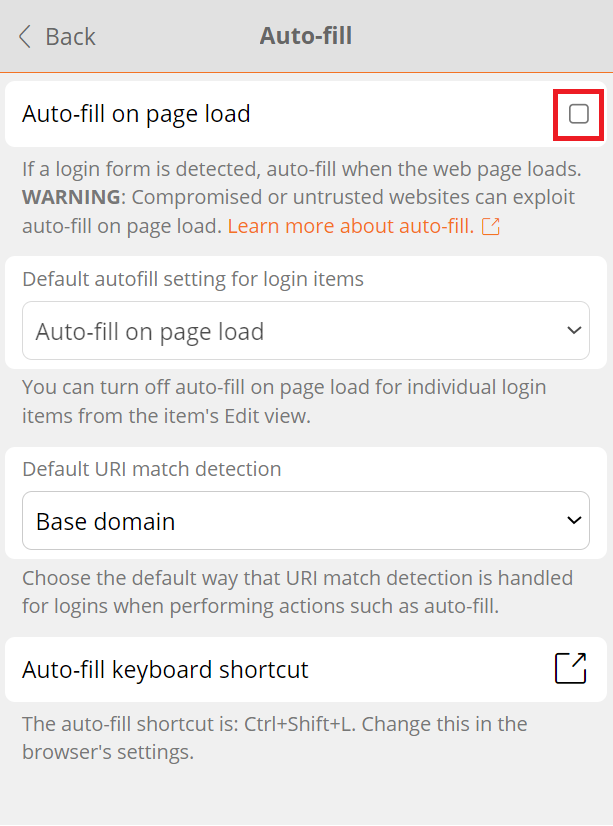](https://vault-doc.wallix.com/uploads/images/gallery/2023-12/K8pautofill-on-page-load.png) From the **Default autofill setting for Login items dropdown**, choose the default option: [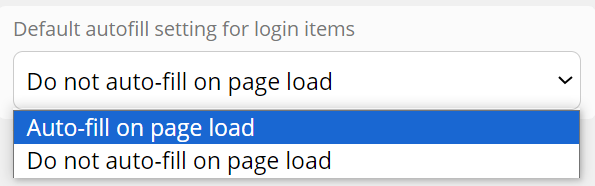](https://vault-doc.wallix.com/uploads/images/gallery/2023-12/default-autofill.png)This can be **overwritten** for each item from the **Items Screen.** This allows **specific auto-fill** options to be set for **specific items.**
From the **Default URI match detection dropdown**, choose how to match the URL of the webpage with the Login already in the Vault. [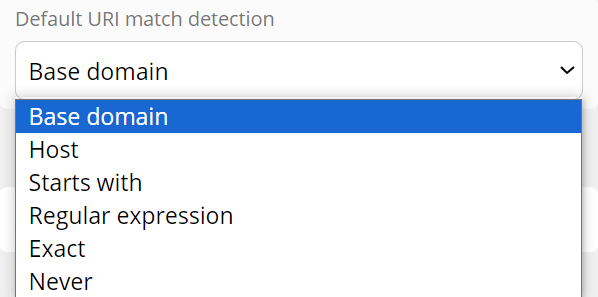](https://vault-doc.wallix.com/uploads/images/gallery/2023-12/default-uri.png) #### Auto-fill Item to Vault on Page Load If this **login** is **not** already **saved** in WALLIX Enterprise Vault, a **prompt** displays which **offers to save** the Login details for this Website. [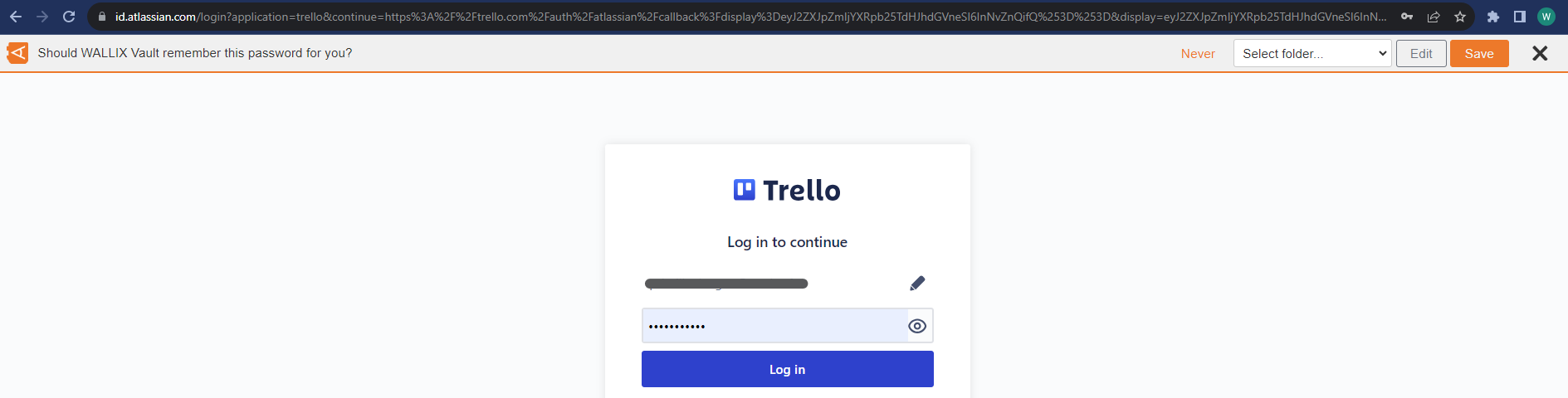](https://vault-doc.wallix.com/uploads/images/gallery/2023-12/qkXsave-password-prompt.png) Choose a **Folder** to add the Login to this Folder in the Vault. This field is **optional**. [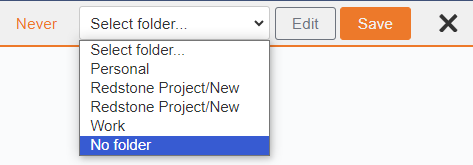](https://vault-doc.wallix.com/uploads/images/gallery/2023-12/select-folder.png)Items are **added** to the **User's Individual Vault** and not a Shared Vault.
Click the **Save button.** The **Add Item Screen** displays with the **fields pre populated** with the Login details. Modify fields, if required. [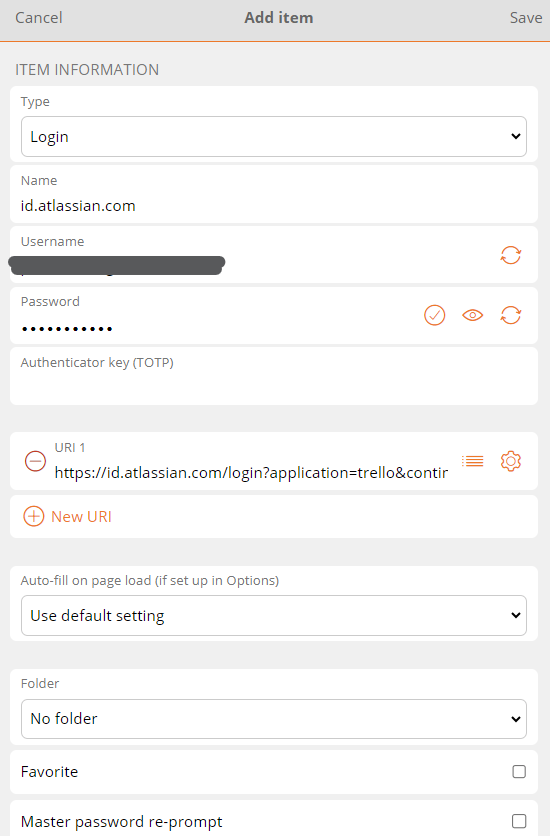](https://vault-doc.wallix.com/uploads/images/gallery/2023-12/edit-1.png) [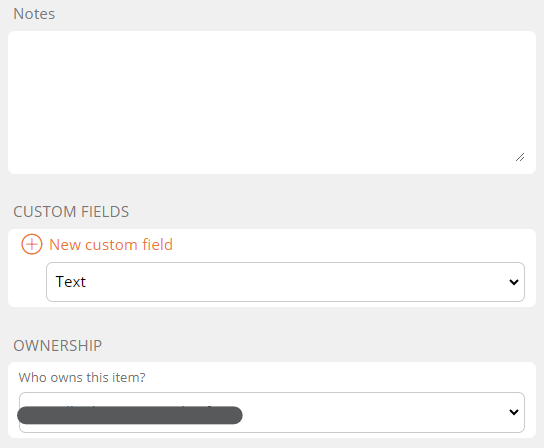](https://vault-doc.wallix.com/uploads/images/gallery/2023-12/edit-2.png) Click **Save** to Save Item to Vault. Alternatively, click **Cancel** to cancel the operation. ### Auto-fill Manually You can **manually add** a **Login** that is **not** already in the **Vault**. From the **Vault Screen** of the **Browser Extension**, click **Add a login.** [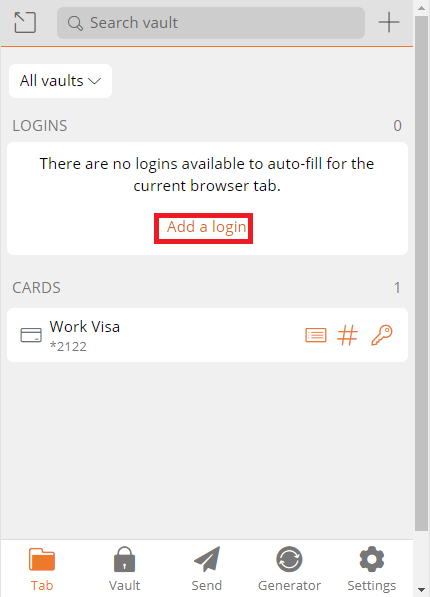](https://vault-doc.wallix.com/uploads/images/gallery/2023-12/iBscreate-login-from-browser-extension-manually.png) The **Add Item Screen** opens. The **elements** that the Browser Extension could **recuperate** from the **browser** are **prepopulated**. [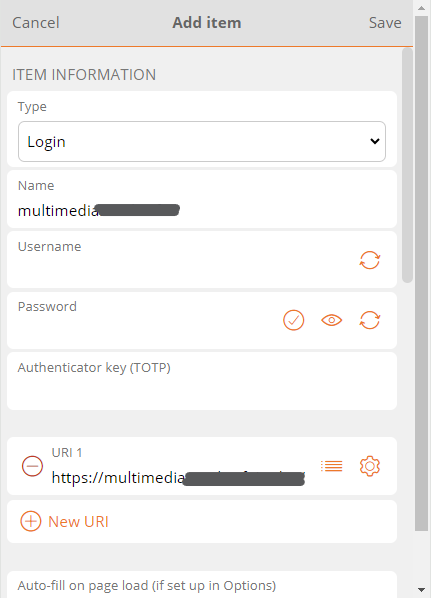](https://vault-doc.wallix.com/uploads/images/gallery/2023-12/add-item-manually-2.png) **Enter** the **remaining fields**. Click **Save** to create Login. Alternatively, click **Cancel** to cancel the operation. ### Auto-fill using Keyboard Shortcuts Use the following **default keyboard shortcuts** (also known as **hot keys**) to auto-fill a login. - Use Ctrl + Shift + L if running Windows of Linux - Use Cmd + Shift + L if running for macOSIf **multiple logins** are found for the URI, the **last-used login** is used for auto-fill.
Keyboard shortcuts can be useful to **populating multiple logins** in **rapid succession**.
**[Configure shortcuts](https://vault-doc.wallix.com/link/95):** If the keyboard shortcut doesn't work, it may be because **another app** is already **using it**. Either remove the shortcut from the other app or configure WALLIX to use a different shortcut.
### TOTP Copy If the Login uses **WALLIX Authenticator** for TOTPs, the shortcut also **copies** the **TOTP** to the clipboard after auto-filling the web page with any of the above methods. ### Auto-fill for iframes **Auto-fill** does **not work** for untrusted iframes. An untrusted iframe is **defined** as one where the **src** value is **not** the **same** as the **URI** for the **Login** item, as required in the rules set for **Match Detection Behavior**. When the browser extension detects an iframe it responds based on the type of auto-fill being used: - **Auto-fill on Page Load:** the browser extension disables the auto-fill on page load and does not warn the user - **Auto-fill using Context menu, Keyboard Shortcut or from Browser Extension:** the browser extension warns the user about the iframe.