# Change Master Password
Users can change their master password from WALLIX Vault. This requires remembering the current master password.
This procedure is similar to the [Reset Master Password Procedure](https://vault-doc.wallix.com/link/106), which is used when the User cannot remember their current Master Password.
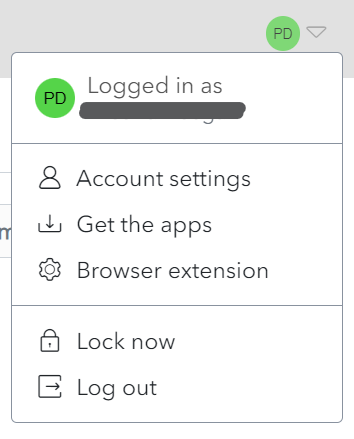
Click on the **User Icon,** on the top right-hand side of the screen, to display the **User Menu**.
[](https://vault-doc.wallix.com/uploads/images/gallery/2023-12/profile-menu-copie-2.png)
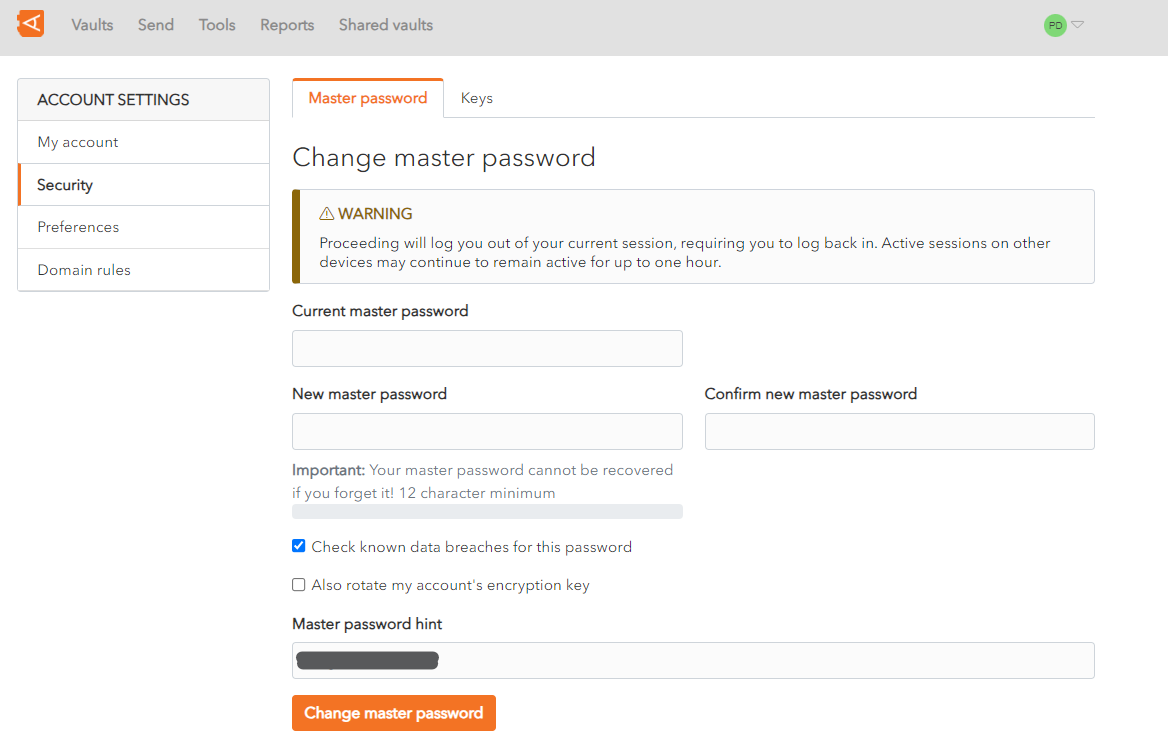
Click on **Account Settings** and then **Security**. The **Security Screen** is displayed on the **Master Password Tab**.
[](https://vault-doc.wallix.com/uploads/images/gallery/2023-12/master-password-screen.png)
In the **Current master password** field, enter your current master password.
In the **New master password** field, choose and enter a new master password.
In the **Confirm new master password** field, re-enter the new master password chosen.
In the [Master password hint](https://vault-doc.wallix.com/link/48) field, enter the Master Password Hint that you created when you [created your Account](https://vault-doc.wallix.com/link/4).
The **Check known data breaches for this password** checkbox is checked by default. This can be unchecked if you do not wish to check for known data breaches related to your new chosen password.
The **Also rotate my account's encryption key** checkbox is unchecked by default. This can be unchecked if you wish to rotate your account's encryption key.
Click **Change master password** button to change your master password. This will **log you out** of your current session on all devices and you will be required to **log back in** with your **new master password**.
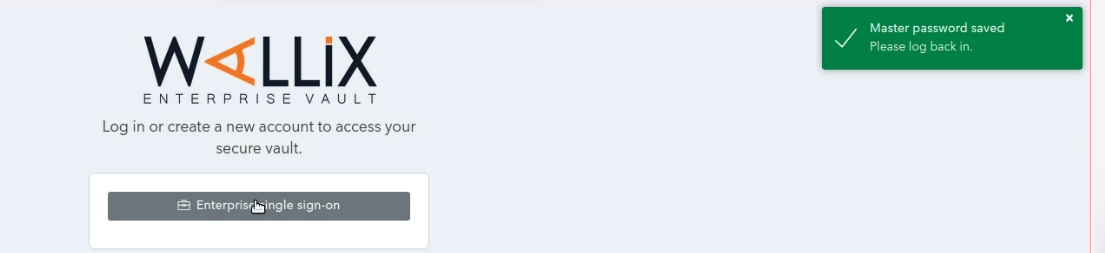
The following screen is displayed showing a **Master Password reset confirmation** message.
[](https://vault-doc.wallix.com/uploads/images/gallery/2023-12/step-13-copie.png)
Alternatively, click **Log out** to cancel the operation.