# Disable Browser Password Manager & Export Saved Passwords
### Chrome Browser
Type chrome://password-manager/passwords into the address bar.
[](https://vault-doc.wallix.com/uploads/images/gallery/2023-12/enter-passwords-address-chrome.png)
Click **Enter**. The **Passwords Screen** opens.
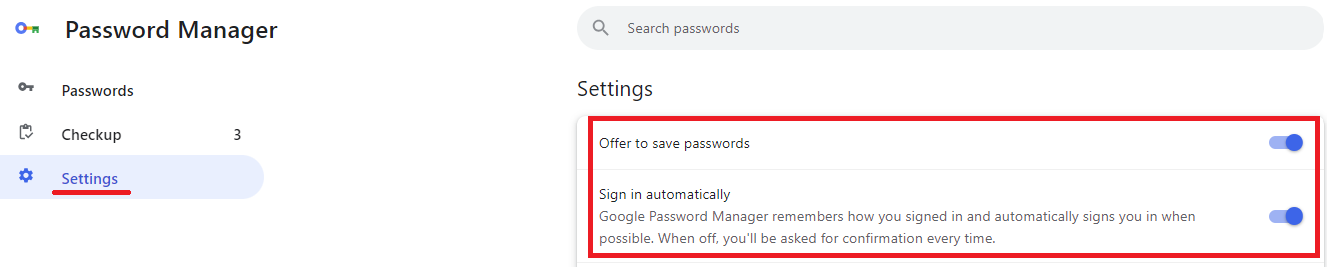
Click the Settings Link in the Password Manager menu. The Settings Screen opens.
[](https://vault-doc.wallix.com/uploads/images/gallery/2023-12/chrome-password-settings.png)
#### Disable Password Manager
**Toggle off** the following **options**:
- Offer to save passwords
- Sign in automatically
The Browser **no longer** offers to **save** **password** or **sign in automatically** to websites.
#### Export Saved Passwords
Click **Download file** beside the **Export passwords** **option**.
[](https://vault-doc.wallix.com/uploads/images/gallery/2023-12/hpKexport-passwords.png)
The Passwords are exported in **CSV format**.
### Firefox Browser
Type about:preferences#privacy into the address bar.
[](https://vault-doc.wallix.com/uploads/images/gallery/2023-12/ff-passwords.png)
Click **Enter**. The **Passwords Screen** opens.
[](https://vault-doc.wallix.com/uploads/images/gallery/2023-12/autofill-ff.png)
#### Disable Password Manager
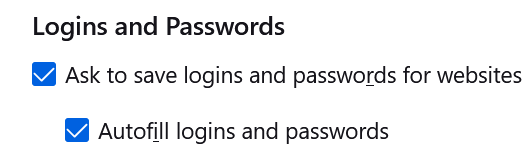
**Toggle off** the following **options**:
- Ask to save logins and passwords for websites
- Autofill logins and passwords
The Browser **no longer** offers to **save** **password** or **sign in automatically** to websites.
#### Export Saved Passwords
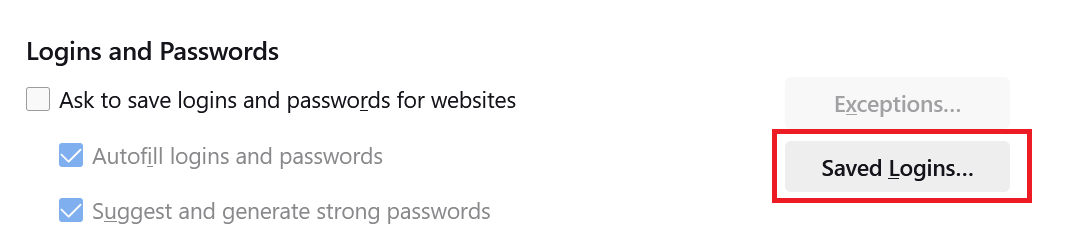
Click the **Saved Logins button** beside the Logins and Passwords options.
[](https://vault-doc.wallix.com/uploads/images/gallery/2023-12/saved-logins-ff.png)
The Saved Passwords List is displayed.
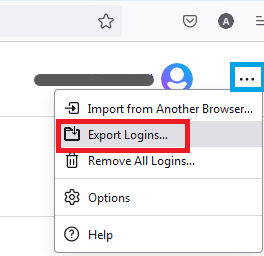
Click the **three dots** link beside the Account name. The Context Menu is displayed.
Click the **Export Logins** Link.
[](https://vault-doc.wallix.com/uploads/images/gallery/2023-12/BMnexport-logins-ff.png)
The Passwords are exported in **CSV format**.