# Export Encrypted Vault

### Export from Individual Vault

From the **Tools Menu,** click **Export vault link.** The **Export vault screen** is displayed.

From the **file format dropdown**, choose the **.json (Encrypted)**.[![Create encrypted export.png](https://vault-doc.wallix.com/uploads/images/gallery/2023-11/scaled-1680-/create-encrypted-export.png)](https://vault-doc.wallix.com/uploads/images/gallery/2023-11/create-encrypted-export.png)

An **Export type option** appears, with **2 options** to choose from:

[![Create encrypted export - choose export type.png](https://vault-doc.wallix.com/uploads/images/gallery/2023-11/scaled-1680-/create-encrypted-export-choose-export-type.png)](https://vault-doc.wallix.com/uploads/images/gallery/2023-11/create-encrypted-export-choose-export-type.png)

##### 1. Export as Account restricted Vault

Use your **account encryption key**, derived from your account's username and Master Password, to encrypt the export.

The data can only be **reimported** into the **same vault.**

Choose the **Account restricted** option.

Click **Confirm format.**

A **Confirm vault export screen** is displayed.

Enter your **Master Password** in the Master Password field.

[![confirm vault export encrypted vault.png](https://vault-doc.wallix.com/uploads/images/gallery/2023-11/scaled-1680-/confirm-vault-export-encrypted-vault.png)](https://vault-doc.wallix.com/uploads/images/gallery/2023-11/confirm-vault-export-encrypted-vault.png)

Click **Export Vault** to export the encrypted vault.The data is **exported** to the **Downloads Folder** on your computer in **Wallix JSON format**.

<p class="callout warning">This data can **only** be **reimported** into the **same** **vault**.</p>

Alternatively, click **Cancel** to cancel the operation.

##### 2. Export as Password protected Vault

**Password Protected:** Use a **password** of your choosing to encrypt the export. The data can be **imported** into **any** WALLIX Enterprise **Vault**.

Choose the **Password protected** option.

2 new fields appear - **File Password** and **Confirm file password**.

**Choose** a **password** to encrypt your export with.

Enter your chosen password into these fields.

[![export password protected vault 2.png](https://vault-doc.wallix.com/uploads/images/gallery/2023-11/scaled-1680-/export-password-protected-vault-2.png)](https://vault-doc.wallix.com/uploads/images/gallery/2023-11/export-password-protected-vault-2.png)
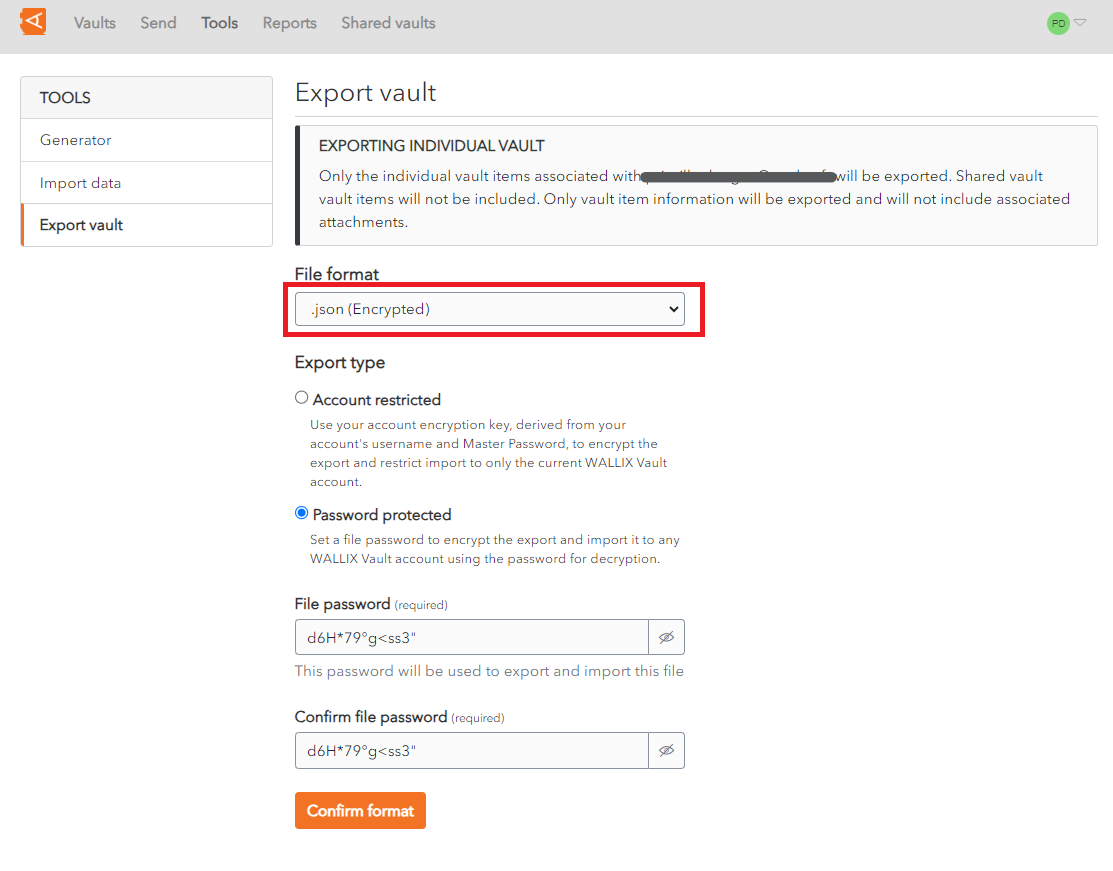
Click **Confirm format.**

A **Confirm vault export screen** is displayed.

Enter your **Master Password** in the Master Password field.

[![confirm vault export encrypted vault - password protected.png](https://vault-doc.wallix.com/uploads/images/gallery/2023-11/scaled-1680-/confirm-vault-export-encrypted-vault-password-protected.png)](https://vault-doc.wallix.com/uploads/images/gallery/2023-11/confirm-vault-export-encrypted-vault-password-protected.png)
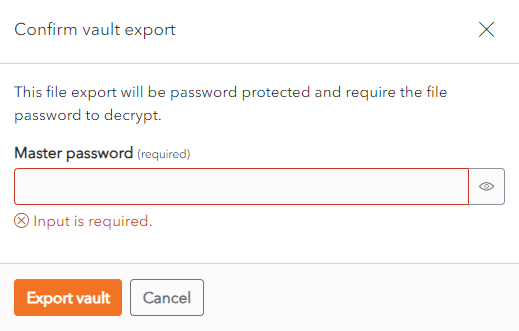
Click **Export Vault** to export the encrypted vault.The data is **exported** to the **Downloads Folder** on your computer.

Alternatively, click **Cancel** to cancel the operation.

<p class="callout info">***Note on data included in export:***</p>

<p class="callout info">*Only the individual vault **items associated with your account** are exported.*</p>

<p class="callout info">***Shared vault** **items** will **not** be **included**.*</p>

<p class="callout info">*Only vault item information will be exported and will **not include associated** **attachments**.*</p>


### Export from Shared Vault 

From the **Settings Screen** of the **Shared Vault chosen**, click on the **Export vault** link. The **Export Vault Screen** is displayed.

[![shared vault export screen.png](https://vault-doc.wallix.com/uploads/images/gallery/2023-11/scaled-1680-/shared-vault-export-screen.png)](https://vault-doc.wallix.com/uploads/images/gallery/2023-11/shared-vault-export-screen.png)
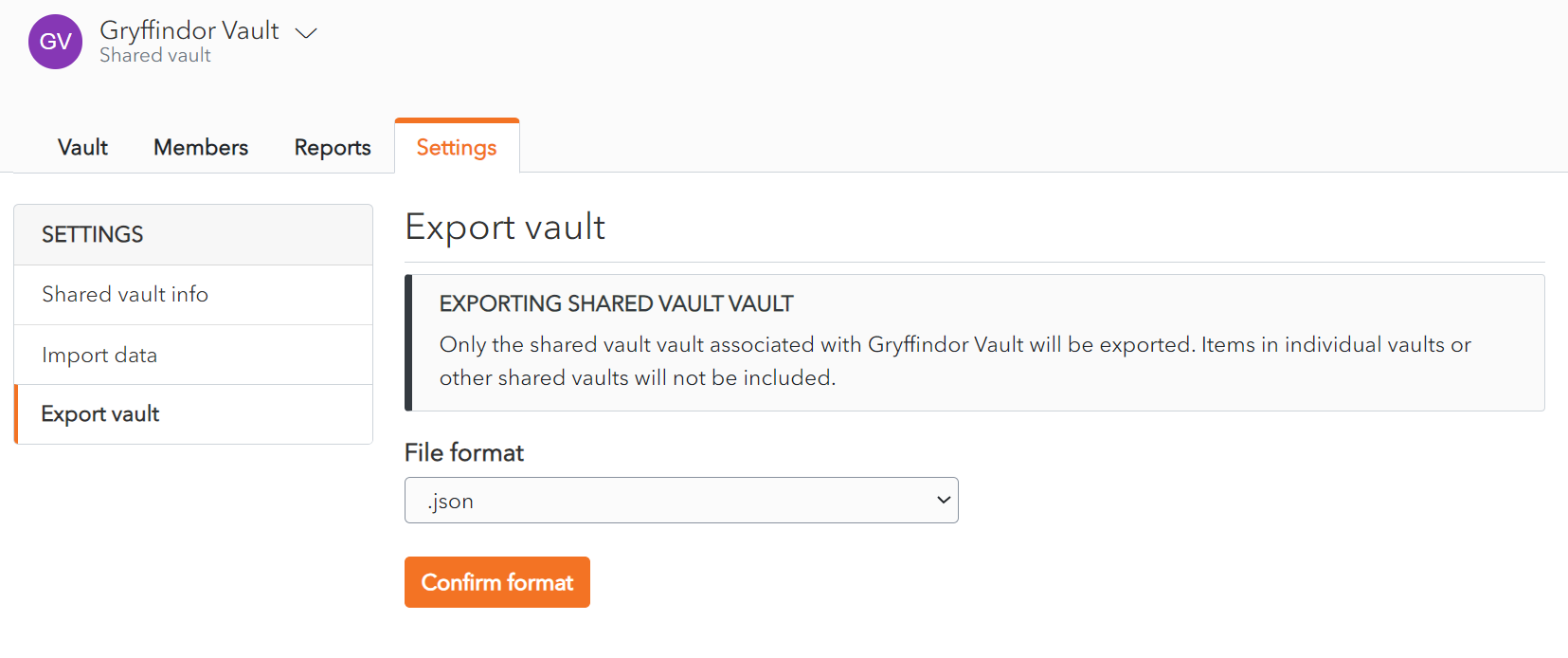
The **rest** of the procedure is the **same** as for [exporting encrypted individual vault data](https://vault-doc.wallix.com/link/81#bkmrk-%C2%A0).

<p class="callout info">***Note on data included in export:***</p>

<p class="callout info">***Only** the **items** associated with the **Shared Vault selected** are **exported**.* </p>

<p class="callout info">***Items** in individual vaults or **other** shared **vaults** will **not** be **included**.*</p>

<div aria-labelledby="exportTypeHeading" class="ng-star-inserted" id="bkmrk-account-restricted-u" role="radiogroup"><div appboxrow="" class="tw-flex tw-items-center" name="FileTypeOptions"></div></div>