# Export Unencrypted Vault

### Export from Individual Vault

From the **Tools Menu,** click **Export vault link.** The **Export vault screen** is displayed.

From the **file format dropdown**, choose the export file format.

Click **Confirm format.**

[![Capture d’écran 2023-11-28 145753.png](https://vault-doc.wallix.com/uploads/images/gallery/2023-11/scaled-1680-/capture-decran-2023-11-28-145753.png)](https://vault-doc.wallix.com/uploads/images/gallery/2023-11/capture-decran-2023-11-28-145753.png)

A **Confirm vault export screen** is displayed.

Enter your **Master Password** in the Master Password field.

[![confirm vault export.png](https://vault-doc.wallix.com/uploads/images/gallery/2023-11/scaled-1680-/confirm-vault-export.png)](https://vault-doc.wallix.com/uploads/images/gallery/2023-11/confirm-vault-export.png)

Click **Export Vault** to export the vault.The data is **exported** to the **Downloads Folder** on your computer.

Alternatively, click **Cancel** to cancel the operation.

<p class="callout info">**<span style="text-decoration: underline;">*Note on data included in export:*</span>**</p>

<p class="callout info">*Only the individual vault **items associated with your account** are exported.*</p>

<p class="callout info">***Shared vault** **items** will **not** be **included**.*</p>

<p class="callout info">*Only vault item information will be exported and will **not include associated** **attachments**.*</p>

### Export from Shared Vault 

From the **Settings Screen** of the **Shared Vault chosen**, click on the **Export vault** link. The **Export Vault Screen** is displayed.

[![shared vault export screen.png](https://vault-doc.wallix.com/uploads/images/gallery/2023-11/scaled-1680-/shared-vault-export-screen.png)](https://vault-doc.wallix.com/uploads/images/gallery/2023-11/shared-vault-export-screen.png)
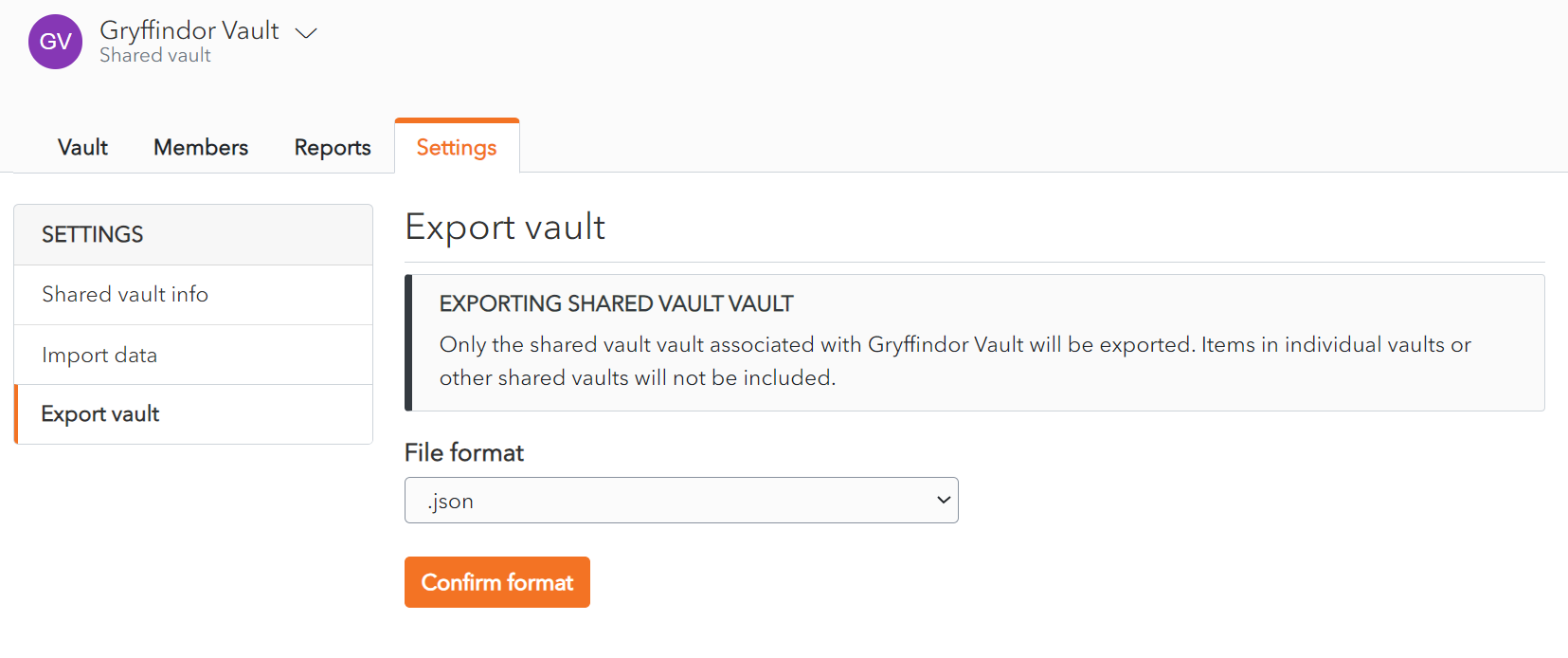
From the **file format dropdown**, choose the export file format.

Click **Confirm format.**

[![confirm shared vault export.png](https://vault-doc.wallix.com/uploads/images/gallery/2023-11/scaled-1680-/confirm-shared-vault-export.png)](https://vault-doc.wallix.com/uploads/images/gallery/2023-11/confirm-shared-vault-export.png)
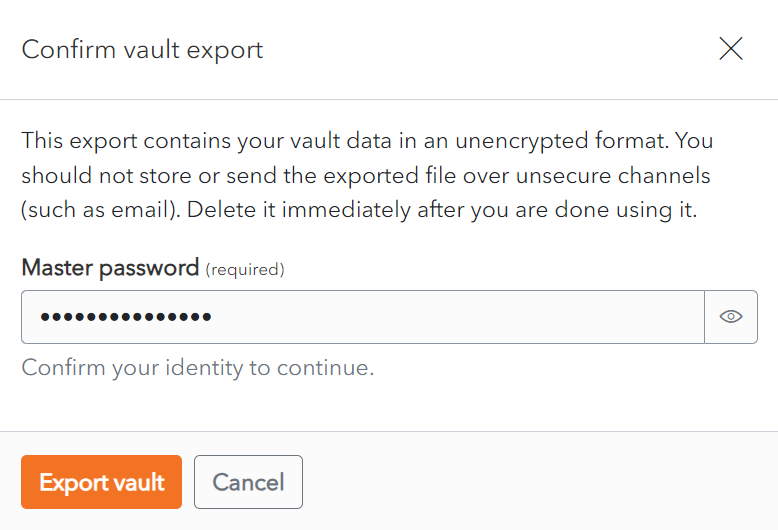
Click **Export Vault** to export the vault. The data is **exported** to the **Downloads Folder** on your computer.

Alternatively, click **Cancel** to cancel the operation.

<p class="callout info">**<span style="text-decoration: underline;">*Note on data included in export:*</span>**</p>

<p class="callout info">***Only** the **items** associated with the **Shared Vault selected** are **exported**.* </p>

<p class="callout info">***Items** in individual vaults or **other** shared **vaults** will **not** be **included**.*</p>