# Grant Trustelem Data Recovery Permissions
As an Vault Administrator, follow this procedure to **Grant Data Recovery Permissions** in the **Trustelem** application to an User.
**Users** with this **permission** can **create data recovery requests**.
### Grant Recovery Permissions
Connect to **Trustelem**.
Select the **User** **Menu** on the top right-hand side of the screen. The **User List** is displayed.
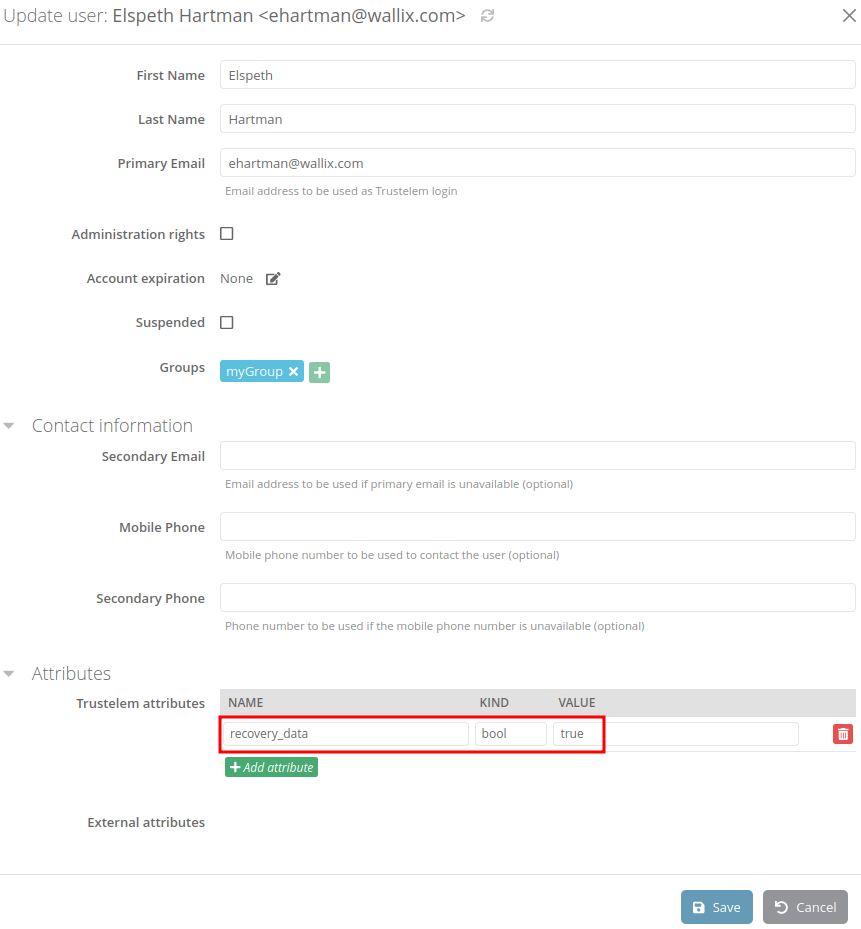
**Select** the **User** to give Password Recovery permissions to and click the **Modify** button. The **User Update screen** is displayed.
[](https://vault-doc.wallix.com/uploads/images/gallery/2024-03/SCEimage.png)
In the Attributes section, click the **Add an Attribute** button. A blank line is added to the **Trustelem Attributes** table.
Complete the fields as follows:
- NAME : **recovery\_data**
- TYPE : **bool**
- VALEUR : **true**
Click the **Save** button to save the new attribute to the User.
The Trustelem attribute **recovery\_data** displays in the **Attribute List**.
This **User** can now **[create data recovery requests](https://vault-doc.wallix.com/books/former-documentation/page/create-data-recovery-request)**.
To manage approbator groups for data recovery, the user must have an attribute **recovery\_data\_workflow**. After that he can **[manage approbators groups](https://vault-doc.wallix.com/books/former-documentation/page/approbators-group-management "Approbators group management")**.
### Share cipher key
In order to enable completely the data recovery permissions, you have to share the cipher key.
**Important**: This step must be done after granting the *recovery\_data* attribute.
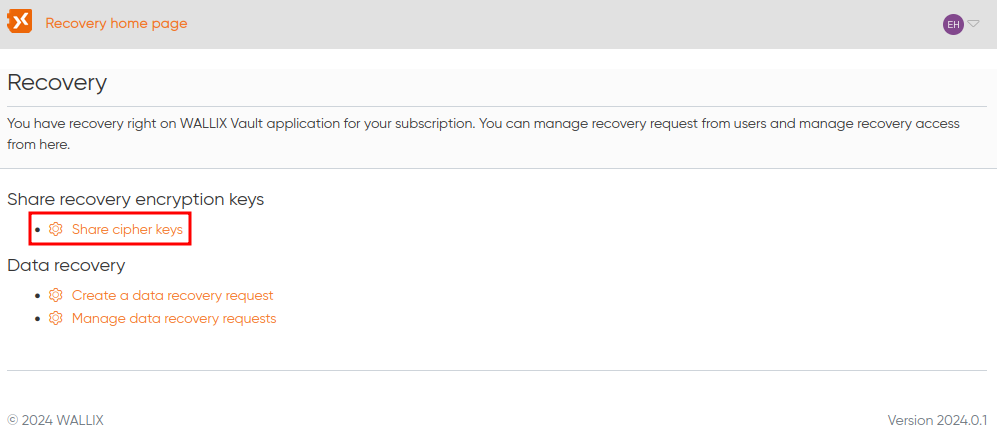
Go to the recovery home page (Tools > Recovery in default navigation bar) and click on the "Share cipher keys" link as below:
[](https://vault-doc.wallix.com/uploads/images/gallery/2024-03/5sSimage.png)
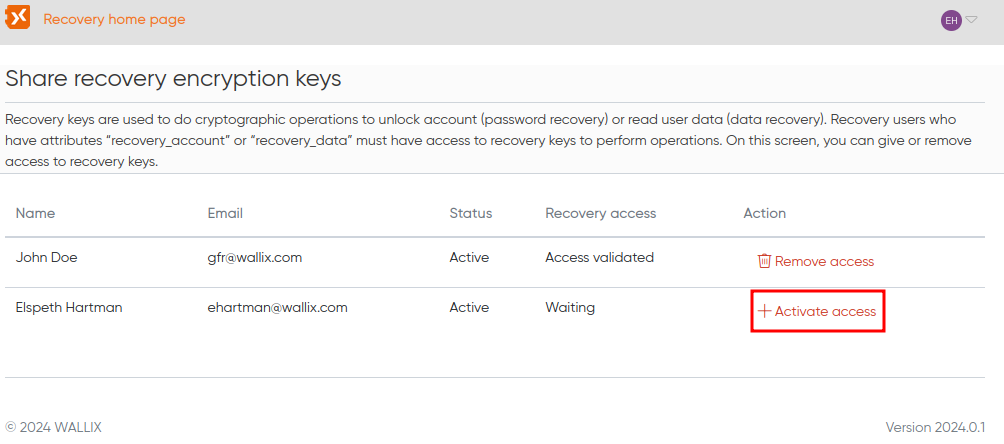
The cipher key management page is displayed. You can now share the cipher key with any user who has the *recovery\_data* attribute:
[](https://vault-doc.wallix.com/uploads/images/gallery/2024-03/U7Yimage.png)
Congratulations! The user can now create a data recovery request for any vault user.