# Login to Vault

<span style="color: rgb(34, 34, 34); font-family: var(--font-heading, var(--font-body)); font-size: 2.8275em; font-weight: 400;">First Level Authentication</span>

Navigate to the WALLIX Trustelem Portal.

Enter your **Email** and the  **Password** you chose on first login.

You can check the **Remember Me** checkbox if you want to save your email and password to avoid re-entering them the next time you login.

Then click the **Sign In** button.

![](https://vault-doc.wallix.com/uploads/images/gallery/2023-11/embedded-image-tta68tpy.png)

<p class="callout info"><span style="text-decoration: underline;">**Note** </span>: If you forget your Password click the **Forgot your password ?** link at any time to request a password reset.</p>

This logs you into the **WALLIX Trustelem Portal**.

Click on the **WALLIX Enterprise Vault** button to access WALLIX Enterprise Vault.
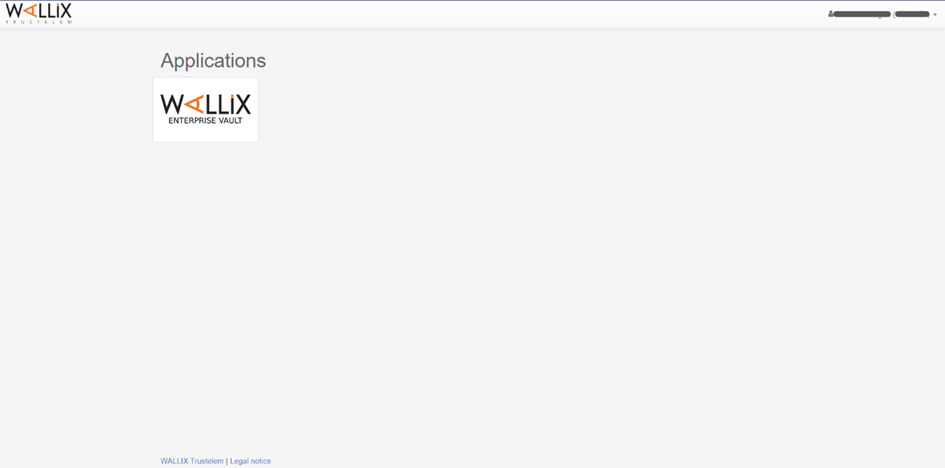
![](https://vault-doc.wallix.com/uploads/images/gallery/2023-11/embedded-image-o92pmpjg.png)

## Second Level Authentication

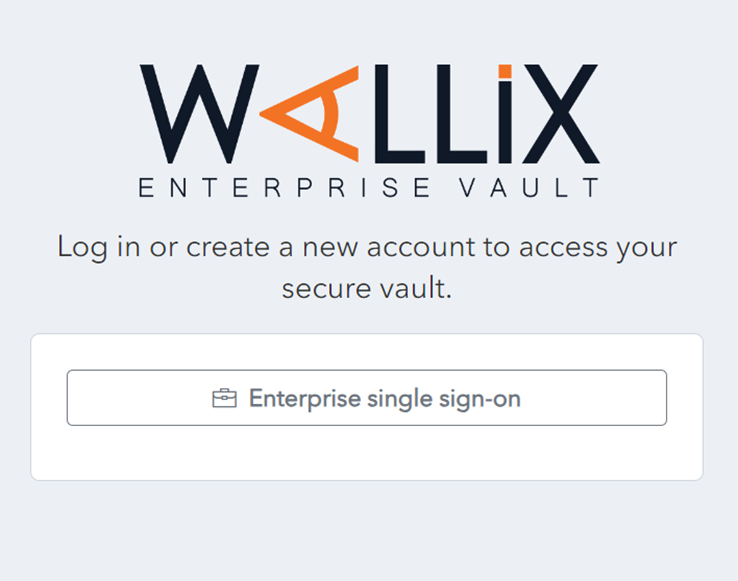
The WALLIX Enterprise Vault screen displays an **Enterprise Single Sign On** button.

Click the **Enterprise Single Sign On** button.
![](https://vault-doc.wallix.com/uploads/images/gallery/2023-11/embedded-image-4cb5ffvo.png)

Enter your Master Password and click the **Unlock** button. This will bring you into your [Vault Home](https://vault-doc.wallix.com/link/19) Screen.

<span style="text-decoration: underline;">**Note** </span>: If you are already logged into the WALLIX Portal, you can navigate directly to your WALLIX Enterprise Vault and go straight to the 2<sup>nd</sup> level authentification.