This is **only** **available** for users who have been **granted** the **recovery option** by a Trustelem Administrator.
### Creation of Recovery Keys The first user with **Recovery Permissions** who unlocks his vault creates the **recovery keys.** The **Unlock screen** displays a **message** indicating that the recovery keys have been created. Recovery keys are created only once. The user who create the keys can share them with the procedure **[Activate Account Recovery Rights for a User](https://vault-doc.wallix.com/link/34).** [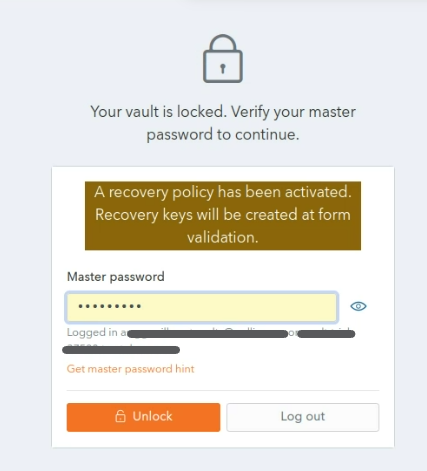](https://vault-doc.wallix.com/uploads/images/gallery/2023-12/recovery-policy-activated-copie.png) Where a new account is created with this option, the **message** will also be displayed on the **Account Creation Screen**. [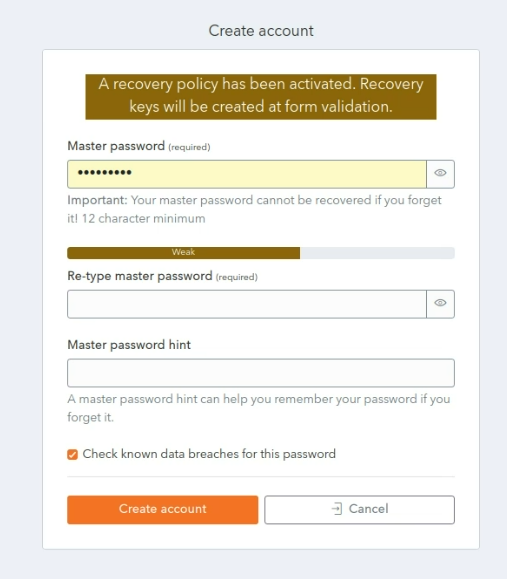](https://vault-doc.wallix.com/uploads/images/gallery/2023-12/new-account-with-recovery-policy-copie.png) ### Activate Account Recovery Rights for a User This **procedure** details the **steps** to be followed **by a User with Recovery Permissions** to **Activate Account Recovery Rights** for another **User**.This is the the **second step** in the process. The **first step** is carried out by the **Vault Administrator,** who **adds** the **recovery\_account** **attribute** to the **user account**.
Click **Tools** and then **Recovery**. The **Master Password Confirmation prompt** is displayed. [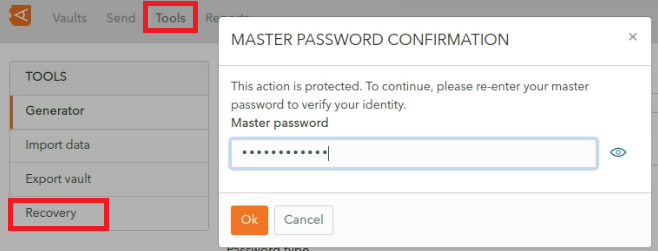](https://vault-doc.wallix.com/uploads/images/gallery/2023-12/2Ngstep-4-tools-recovery-copie.png) Enter your **Master Password** and click **Ok.** The Recovery Screen is displayed. Alternatively, click **Cancel** to **cancel the operation.** [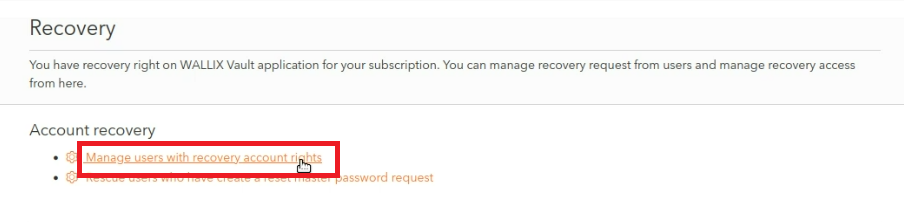](https://vault-doc.wallix.com/uploads/images/gallery/2023-12/step-1-priscilla-copie.png)Click the **Manage users with recovery account rights** link. The **Account Recovery Screen** is displayed. A **list of users** who have been given **Recovery Account Rights** by the **Vault Administrator** is displayed. [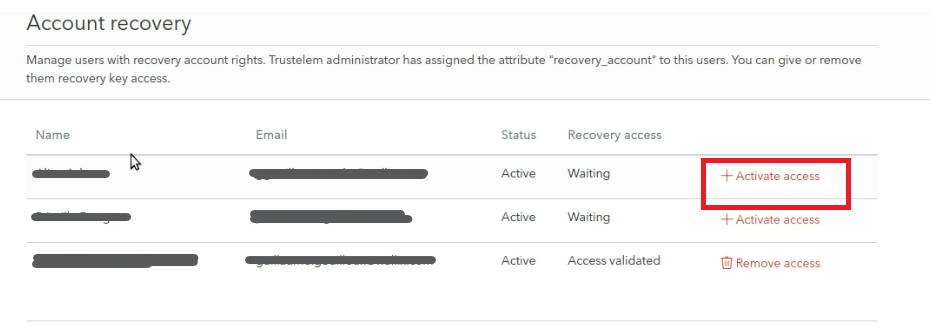](https://vault-doc.wallix.com/uploads/images/gallery/2023-12/Opgstep-2-priscilla.png) Users waiting for their access to be validated have a **Status** of **Waiting**. Click the **Activate access link** beside a User to **activate** their **Account Recovery Rights** within the **Vault**. The user's **Status** is changed to **Access Validated**. They have a **Remove Access link** beside their name. [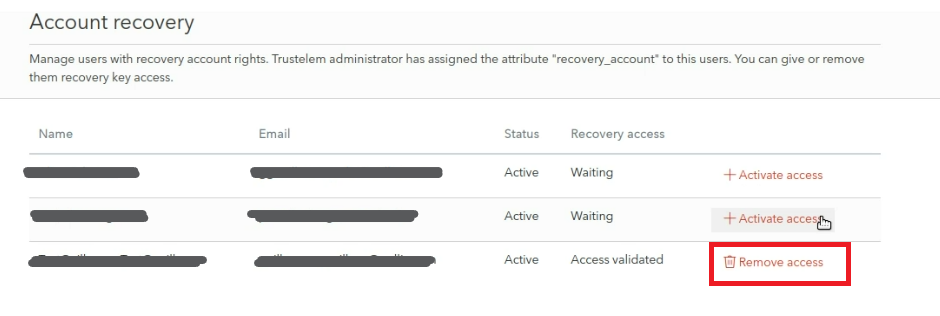](https://vault-doc.wallix.com/uploads/images/gallery/2023-12/step-3-priscilla-copie.png) ### Deactivate Account Recovery Rights for a User To **deactivate** Account Recovery Access for a User, click the **Remove Access link** beside their name.