# Quickstart guide for users
### [The new documentation is available here](https://vault-doc.wallix.com/books/entreprise-vault-user/page/quick-start-guide)
A user can carry out a large number of Enterprise Vault-related actions. Only the most important are listed in this page.
The full list can be found here: [https://vault-doc.wallix.com/books/entreprise-vault-usage](https://vault-doc.wallix.com/books/entreprise-vault-usage)
### Account creation
The user journey begins when their account is created on Trustelem.
- If they are created localy, they will receive an enrolment link to define their password
- If they are synchronized from a directory, the administrators will communicate about the account creation
Then users can access to the Entreprise Vault application using the url: https://vault-**your\_domain**.trustelem.com
First they need to authenticate using Trustelem credentials (Trustelem password or directory password).
Then they can define or provide their master-password, depending on whether it already exists or not. This password will be used for the data encryption.
More information about the account creation and the account management are presented here: [https://vault-doc.wallix.com/books/entreprise-vault-usage/chapter/account-management](https://vault-doc.wallix.com/books/entreprise-vault-usage/chapter/account-management)
### Entreprise Vault home screen
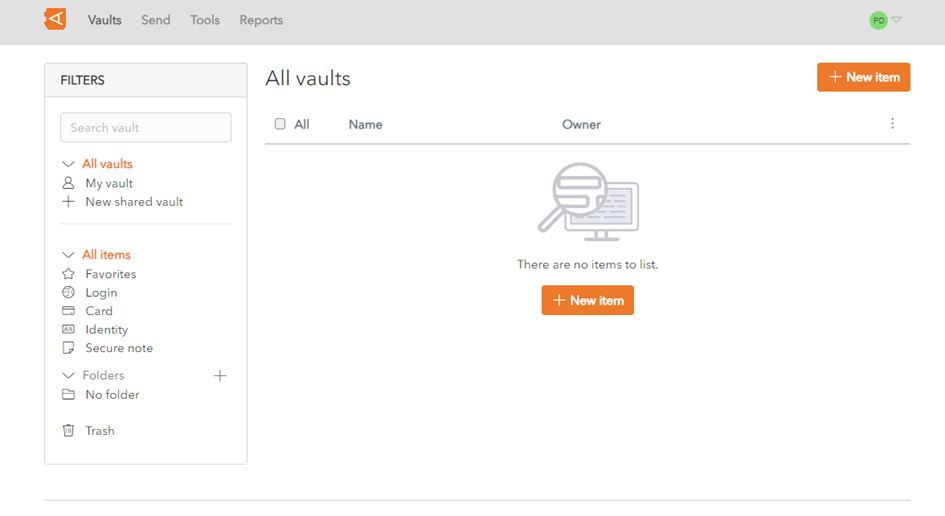
When users log in to WALLIX Enterprise Vault using https://vault-**your\_domain**.trustelem.com, their home screen will display all items in their vaults.
[](https://vault-doc.wallix.com/uploads/images/gallery/2023-11/embedded-image-in6yqfet.png)
Each user has a Personal Vault which is private.
But users can also create or be invited to access items in one or more Shared Vaults.
The different vaults include items which can be:
- [Identities (firstname, lastname, phone number, address...)](https://vault-doc.wallix.com/link/11)
- [Logins (identifier, password and TOTP for single or multi factor authentication)](https://vault-doc.wallix.com/link/12)
- [Credit cards](https://vault-doc.wallix.com/link/13)
- [Secure Notes](https://vault-doc.wallix.com/link/14)
This items can be organized using folders in personal vault, and collections in shared vaults.
This home screen also contains a [Filters ](https://vault-doc.wallix.com/link/21)menu by which users can find specific items using:
- A dedicated Search field
- Customer Filters: [Folder](https://vault-doc.wallix.com/link/41), [Item Type](https://vault-doc.wallix.com/link/10) or [Favorites](https://vault-doc.wallix.com/link/113).
More information are available here: [https://vault-doc.wallix.com/books/entreprise-vault-usage/page/search-an-item#bkmrk-search](https://vault-doc.wallix.com/books/entreprise-vault-usage/page/search-an-item#bkmrk-search)
After the first authentication on the web page, user are able to choose to use a browser plugin or a mobile app, in addition to the website.
### Create Item
An Item can be an Identity (firstname, lastname...), a login (identifier, password, TOTP), a credit card or a note.
It can be created on a personal vault, or in a shared vault.
More information are available here: [https://vault-doc.wallix.com/books/entreprise-vault-usage/page/create-item](https://vault-doc.wallix.com/books/entreprise-vault-usage/page/create-item)
### Create Folder
A folder is used to organize personal vault items.
More information are available here: [https://vault-doc.wallix.com/books/entreprise-vault-usage/page/create-folder](https://vault-doc.wallix.com/books/entreprise-vault-usage/page/create-folder)
### Use a Shared Vault
A Shared vault is used to share items with other Entreprise Vault users.
It is possible to access items in a vault shared with you, or create a new shared vault to share items with other.
More information are available here: [https://vault-doc.wallix.com/books/entreprise-vault-usage/chapter/manage-shared-vaults](https://vault-doc.wallix.com/books/entreprise-vault-usage/chapter/manage-shared-vaults)
### Send data to non-vault user
The "Send" option is used to share data with users who are not in the vault. It generates a link sent by email.
You can share a text message, or a file and add some custom policies (is a password required to access the data, how many people can open the link, how long the link will stay available...)
More information are available here: [https://vault-doc.wallix.com/books/entreprise-vault-usage/page/create-send](https://vault-doc.wallix.com/books/entreprise-vault-usage/page/create-send)
### Password generator
If you want to generate a new and secured password, then Entreprise Vault can do that for you.
More information are available here: [https://vault-doc.wallix.com/books/entreprise-vault-usage/page/username-or-password-generator](https://vault-doc.wallix.com/books/entreprise-vault-usage/page/username-or-password-generator)
### Reset Master Password
If you lost your master password, you can ask for a reset.
More information are available here: [https://vault-doc.wallix.com/books/entreprise-vault-usage/page/reset-master-password](https://vault-doc.wallix.com/books/entreprise-vault-usage/page/reset-master-password)
### Change the settings
Additional settings can be found in the product (customize the tools, change the language, get security reports...).
More information are available here: [https://vault-doc.wallix.com/books/entreprise-vault-usage/chapter/avanced-options](https://vault-doc.wallix.com/books/entreprise-vault-usage/chapter/avanced-options)
### Install Browser Extension and mobile application
In addition to the website, you can choose to use a browser plugin, or a mobile application.
More information are available here: [https://vault-doc.wallix.com/books/entreprise-vault-usage/chapter/manage-browser-plugins-and-mobile-apps](https://vault-doc.wallix.com/books/entreprise-vault-usage/chapter/manage-browser-plugins-and-mobile-apps)