For users who have this option, the link to **Start a password reset procedure** appears on the WALLIX Vault Login and Unlock pages. The Vault Administrator gives users access to this option.
Please **contact your Vault Administrator** if you do not have this option and require it.
### Create a Password Reset Request From the **Vault Login** **or Unlock page**, click on the **Start a password reset procedure link.** [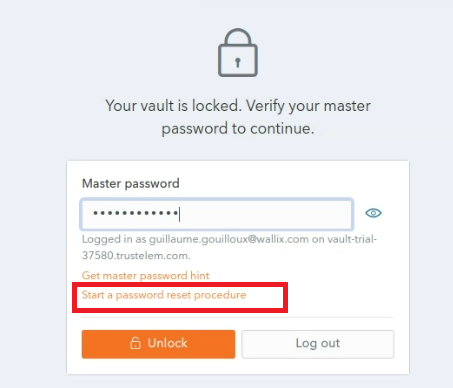](https://vault-doc.wallix.com/uploads/images/gallery/2023-12/start-a-password-reset-procedure-copie.png) The following screen is displayed. [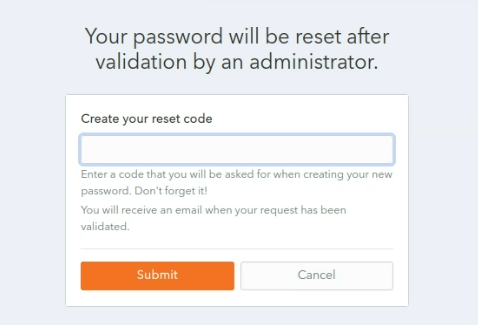](https://vault-doc.wallix.com/uploads/images/gallery/2023-12/step-1-copie.png) **Choose** and enter a **reset code** in the **Create your reset code field.**It is important to remember the reset code you choose, as you need it to complete the password reset procedure.
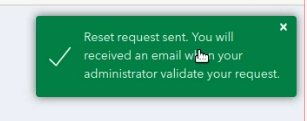
Click **Submit** button. A **confirmation message** is **displayed.** An information email is sent to the user and a notification email is sent to Vault Administrators.Your **Password Reset Request** is **sent** and **needs** to be **validated** by the **Vault Administrator.**
[](https://vault-doc.wallix.com/uploads/images/gallery/2023-12/step-3-copie.png) ### Create a New Password Once the Vault Administrator validates your **Password Reset Request**, you receive an e-mail containing a reset link. **Click** the **Reset Password link.** The **Reset your master password screen** is displayed. [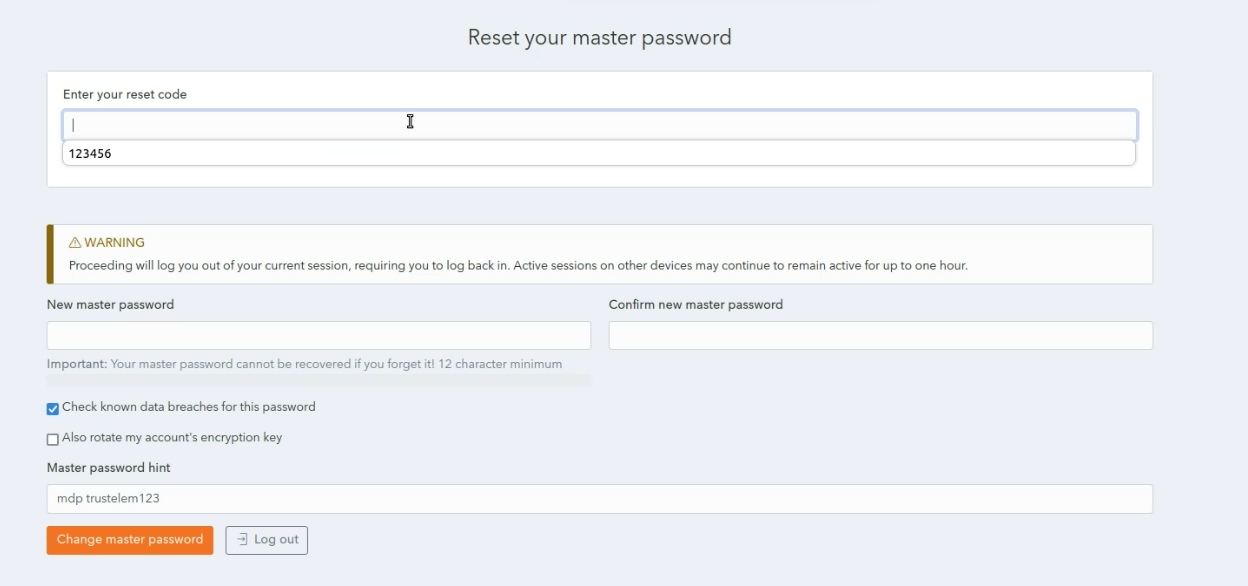](https://vault-doc.wallix.com/uploads/images/gallery/2023-12/step-10-after-clicking-on-reset-password-email-link-copie.png) In the **Enter your reset code** field, enter the reset code created during the Create a Password Reset Request procedure. In the **New master password** field, choose and enter a new master password. In the **Confirm new master password** field, re-enter the new master password chosen. In the [Master password hint](https://vault-doc.wallix.com/link/48) field, enter the Master Password Hint that you created when you [created your Account](https://vault-doc.wallix.com/link/4). The **Check known data breaches for this password** checkbox is checked by default. This can be unchecked if you do not wish to check for known data breaches related to your new chosen password. The **Also rotate my account's encryption key** checkbox is unchecked by default. This can be unchecked if you wish to rotate your account's encryption key. Click **Change master password** to reset your master password. This disconnects you from your current session on all devices, and you must log in again with your new master password. The following screen is displayed showing a **Master Password reset confirmation** message. [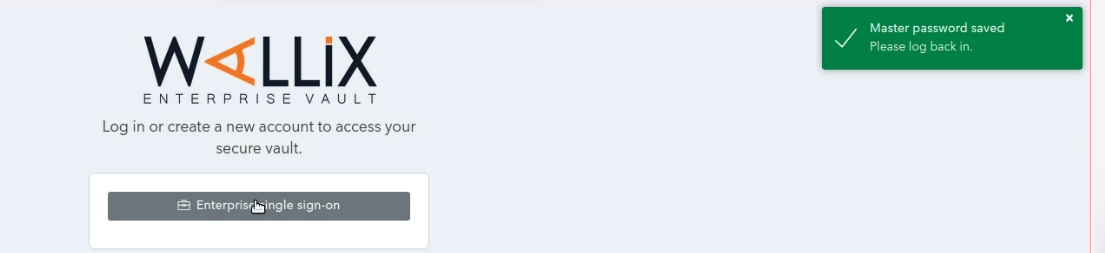](https://vault-doc.wallix.com/uploads/images/gallery/2023-12/step-13-copie.png) Alternatively, click **Log out** to cancel the operation.