If the **Lock with master password on browser restart** checkbox is **unchecked**, some **sensitive data** in **memory** may **not** be **deleted** when the **browser extension** is **locked.**
Alternatively, click **Cancel** to cancel the operation.If you fully **log out** of the **application**, your **PIN settings** will be **reset**.
#### Change PIN To **change the PIN** **after** it has **been set**, **disable** the **Unlock with PIN checkbox** in settings, then **reenable** it. This will **require** a **new PIN** to be entered. #### Use Unlock with PIN When the Browser Application is **locked**, you will be **prompted** to **enter the PIN** to **unlock**. [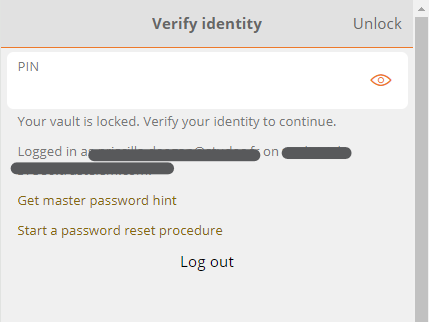](https://vault-doc.wallix.com/uploads/images/gallery/2023-12/XMKunlock-with-pin-after-browser-restart.png)If the **browser is restarted**, you will be prompted to **enter either** a **PIN** or a **Master Password** to unlock. This is based on the **Lock with master password on browser restart** option chosen during PIN creation.
### Mobile App #### Enable Unlock with PIN From the **Settings** tab on **WALLIX Vault Mobile App**, tap the **Unlock with PIN Code** option. **Create** and enter a **PIN** to use for unlocking the Vault. A Pop up screen appears to request if you wish to **Lock with master password on browser restart.** Tap **Yes** to **require Master Password** on **browser restart.**If the **Lock with master password on browser restart** checkbox is **unchecked**, some **sensitive data** in **memory** may **not** be **deleted** when the **browser extension** is **locked.**
Alternatively, tap **No** to **require PIN** on **browser restart.**If you fully **log out** of the **application**, your **PIN settings** will be **reset**.
#### Use Unlock with PIN When the Mobile App is **locked**, you will be **prompted** to **enter the PIN** to **unlock**.If the **browser is restarted**, you will be prompted to **enter either** a **PIN** or a **Master Password** to unlock. This is based on the **Lock with master password on browser restart** option chosen during PIN creation.