# Username or Password Generator
WALLIX Vault provides a Generator Feature to **automatically generate a Username or Password** based on certain **criteria**.
### Username Generator
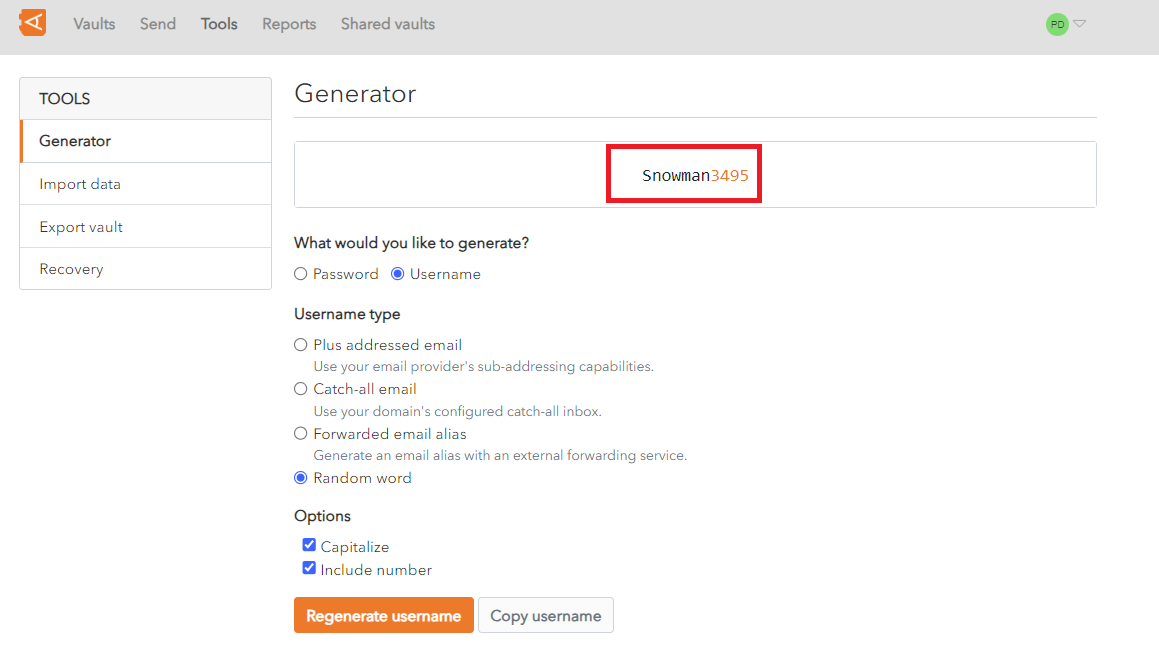
From the **Tools** Menu click on **Generator**. The following screen displays.
[](https://vault-doc.wallix.com/uploads/images/gallery/2023-12/mUGgenerate-username.png)
In the **What could you like to generate?** Field, click **Username**.
In the **Username type** field, **choose** from the following **options**:
- **Plus addressed email**: uses your email provider's sub-addressing capabilities for the generated username
- **Catch-all email**: uses your domain's configured catch-all inbox for the generated username
- **Forwarded email alias**: generates an email alias with an external forwarding service for the generated username
- **Random word**: choose a random word for the generated username
In the **Options** section:
- Check **Capitalize** to capitalize the letters in the generated username
- Check **Include number** to include a number in the generated username
Click **Regenerate username** button to regenerate a username. The generated username **displays** at the **top** of the **screen**. In this example it is Snowman3495.
Click **Copy Username** to copy the generated username to the clipboard.
### Password Generator
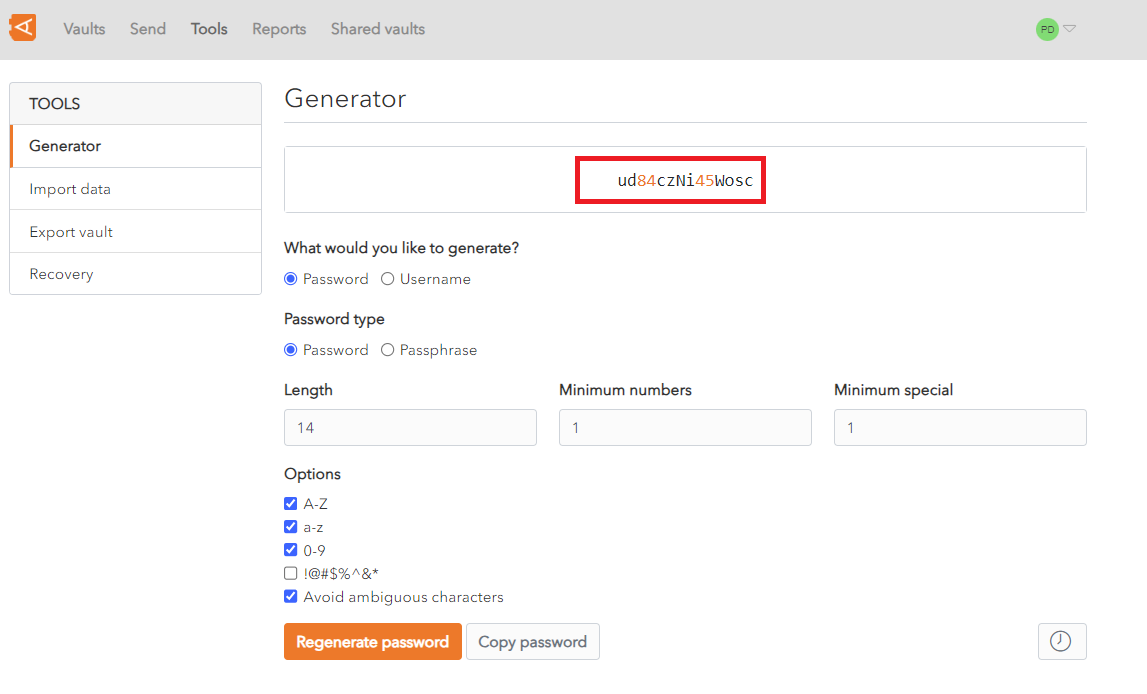
From the **Tools** Menu click on **Generator**. The following screen displays.
[](https://vault-doc.wallix.com/uploads/images/gallery/2023-12/generate-password.png)
In the **What could you like to generate?** Field, click **Password**
In the **Password type** field, **choose** either a **Password or** a **Passphrase.** A **passphrase** is a **group of randomly generated concatenated words**, e.g. hopeful-best-crazy-uses-glasses
If **Password** is chosen as the Password Type, the following options are available:
\- In the **Length** field enter the **required** **password length**
\- In the **Minimum numbers** field enter the **minimim** number of **numbers** required in the password
\- In the **Minimum** **special** field enter the **minimim** number of **special characters** required in the password
\- In the **Options** section:
- Check **A-Z** if the generated password should contain **upper case** letters. This is **checked** by **default**
- Check **a-z** if the generated password should contain **lower case** letters. This is **checked** by **default**
- Check **0-9** if the generated password should contain **numbers**. This is **checked** by **default**
- Check **!@#$%^&\*** if the generated password should contain **special characters**. This is **unchecked** by **default**
- Check **Avoid ambiguous characters** to exclude ambiguous characters from the generated username, i.e. 1 and I or 0 and o. This is **checked** by **default**
If **Passphrase** is chosen as the Password Type, the following options are available:
\- In the **Number of words** field enter the number of words required in the passphrase. The **Default** is **3** words
\- In the **Word separator** field enter the separator to use to **concatenate** the words in the passphrase. The **Default** is **-**
\- In the **Options** section:
- Check **Capitalize** to capitalize the letters in the generated passphrase
- Check **Include number** to include a number in the generated passphrase
Click **Regenerate username** button to regenerate a username. The generated username **displays** at the **top** of the **screen**. In this example it is Snowman3495
Click **Copy Username** to copy the generated username to the clipboard
### Mobile App
This feature is also **available** on the **WALLIX Mobile App**, either from the **Generator option** or the **Add/Edit Screen**. The exact location depends on the Mobile Device used.