
Auto-fill Logins using Browser Extension
Prerequisite: The Browser Extension needs to be installed before the Auto-fill feature becomes available.
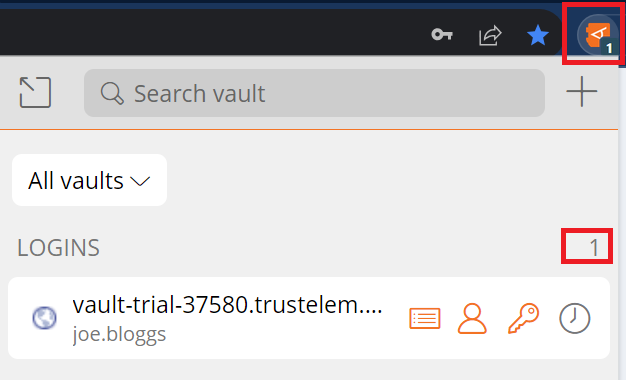
Badge Counter
The Tab Screen of the Browser Extension automatically detects the URI of the currently displayed page.
It finds any Vault Items that have the same URI.
It displays the number of items found for that page on the Badge Counter icon.
Auto-fill
It is turned on Page Load
This is anOpt In feature (not automatically available) in WALLIX Enterprise Vault, and needs to be enabled to work.
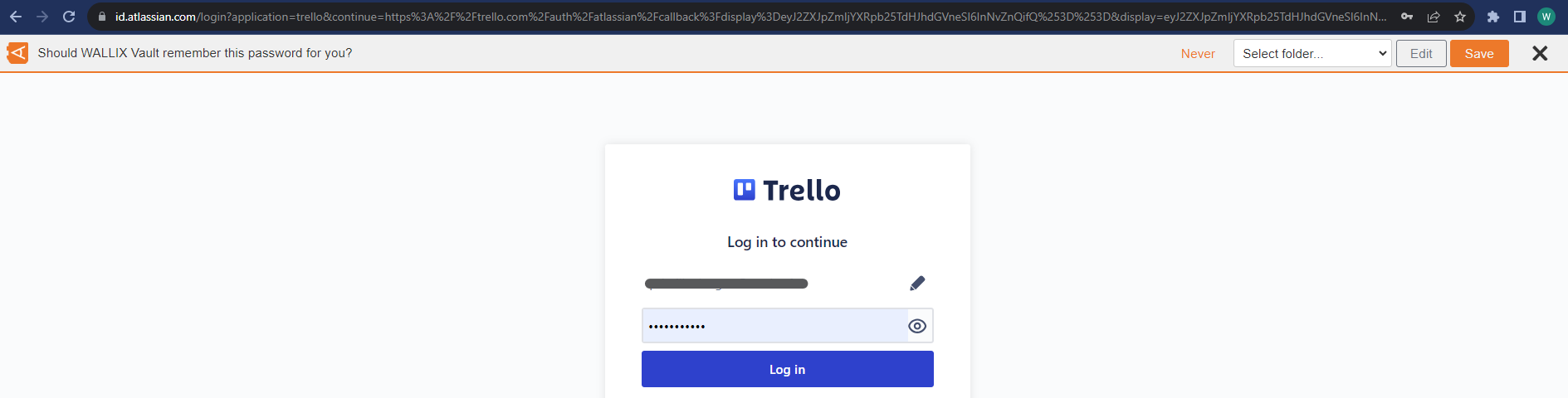
Auto-fill on Page load is a function that proposes to automatically save Logins, Cards or Identities when you navigate to a page that contains them.
IfIt thiscan loginbe isturned notoff alreadyby saved in WALLIX Enterprise Vault, a prompt displays offering to save the Login details for this Website.
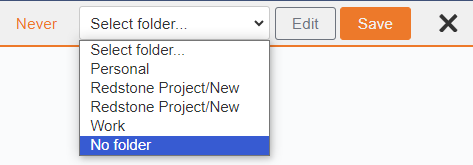
Choose a Folder to add the Login to this Folder in the Vault. This field is optional.
Auto-fills are added tounchecking the User'sShow IndividualBadge VaultCounter checkbox and not a Shared Vault.
Click thein SaveSettings button.
The> Add Item ScreenOptions displays with the fields prepopulated with the Login details.
Modify fields, if required.
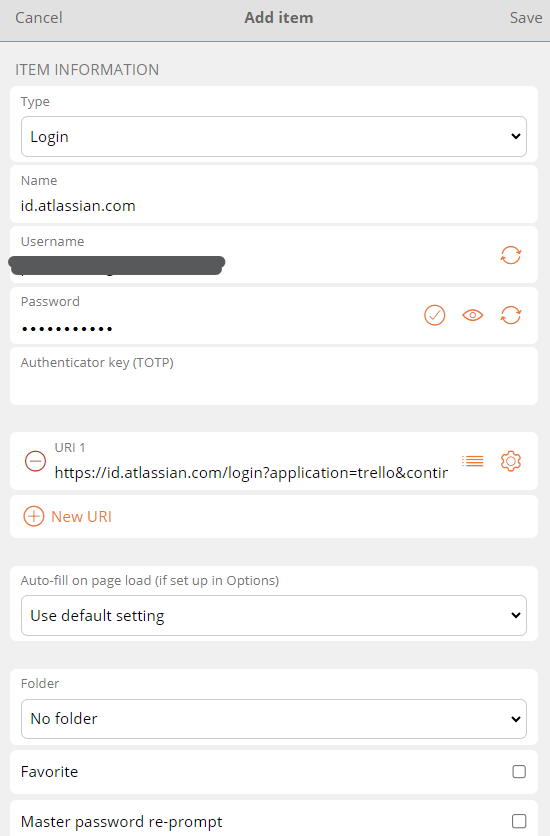
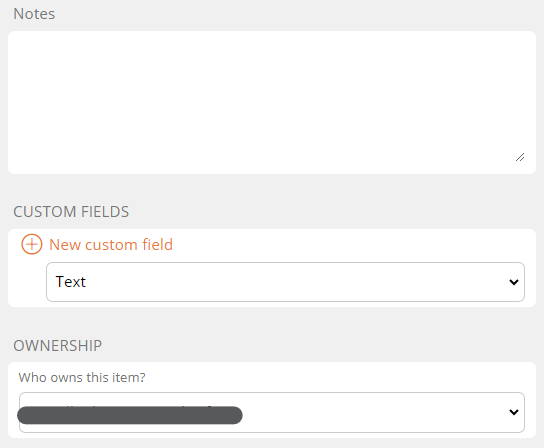
Click Save to Save Item to Vault.
Alternatively, click Cancel to cancel the operation..
Auto-fill Login from Context Menu
Right click on the Login Screen of a website. The Context Menu is displayed.
Choose WALLIX Vault > Auto-fill..
If the Login is stored in the Vault, the there
Click Auto-fill to Addretrieve the Login for this website to WALLIX Enterprise Vault.
If you are not signed in to WALLIX Enterprise Vault, you will be prompted to sign in before savingretrieving the Login.
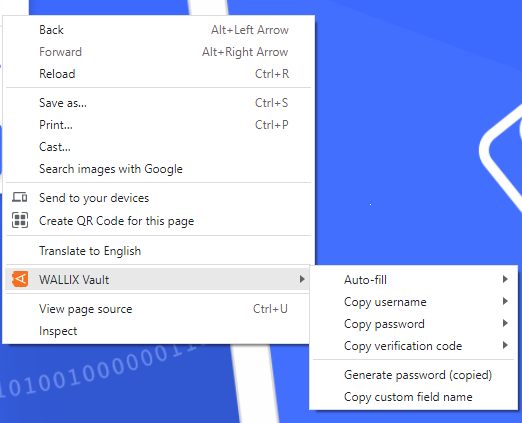
- Copy username: copies the username of the login to the clipboard.
- Copy password: copies the password of the login to the clipboard.
- Copy verification code: copies the verification code of the login to the clipboard.
- Generate password: generates a new more secure password from the copied password.
- Copy custom field name: copies the name of the custom field of the login.
Auto-fill Login on Page Load
Auto-fill on Page load is a function that proposes to automatically populate Logins, Cards or Identities when you navigate to a page that contains them.
For security reasons, it is automatically disabled and needs to be enabled to work.
To enable Auto-fill on Page Load, from the Broowser extension, navigate to Settings> Autofill.
The Auto-fill screen opens.
Click the Auto-fill on page load checkbox. This enables the option to auto-fill logins on page load.

From the Default autofill setting for Login items dropdown, choose the default option:
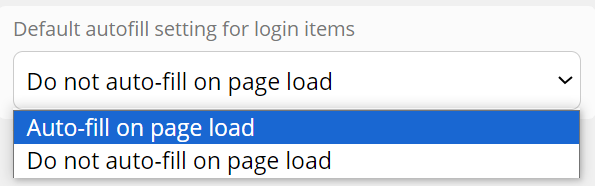
This can be overwritten for each item from the Items Screen. This allows specific auto-fill options to be set for specific items.
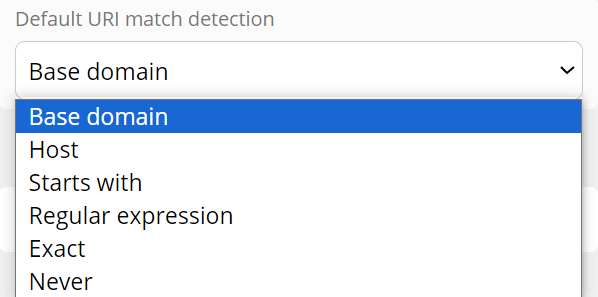
From the Default URI match detection dropdown, choose how to match the URL of the webpage with the Login already in the Vault.
Auto-fill Manually
You can manually add a Login that is not already in the Vault.
From the Vault Screen of the Browser Extension, click Add a login.
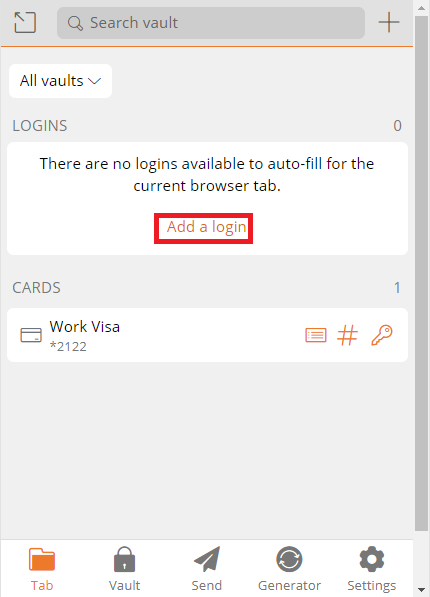
The Add Item Screen opens.
The elements that the Browser Extension could recuperate from the browser are prepopulated.
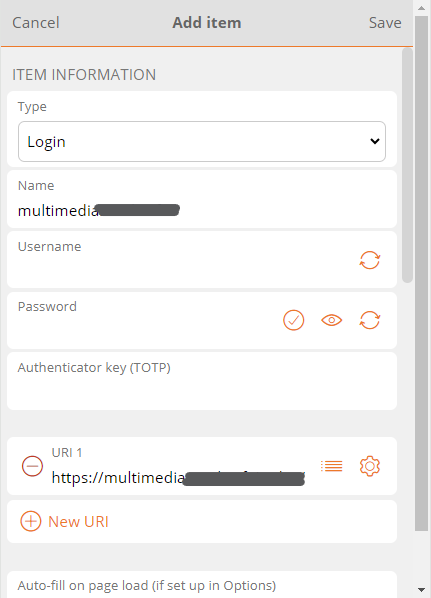
Enter the remaining fields. Click Save to create Login.
Alternatively, click Cancel to cancel the operation.